Make a highlight video in Google Photos
On a phone, open the Google Photos app, tap Create at the bottom, then Highlight video. You can start from a template, pick the photos and videos yourself, or choose a person, a place or a time from the suggestions. Google makes a short video with music, and you can change the clips, the music and the text. On a computer, click Create, then Highlight video.
This is the quickest way to share one day or one moment, like a birthday party or an afternoon at the beach. It's free, and it takes a couple of minutes.
When a highlight video is too short
A highlight video runs about a minute. That suits one moment, but a whole trip, a baby's first year or a family's year has far more in it. Keep it short and most of the story is left out. Make it longer and you end up choosing and arranging every photo and clip yourself, which for a few hundred photos takes an evening or more.
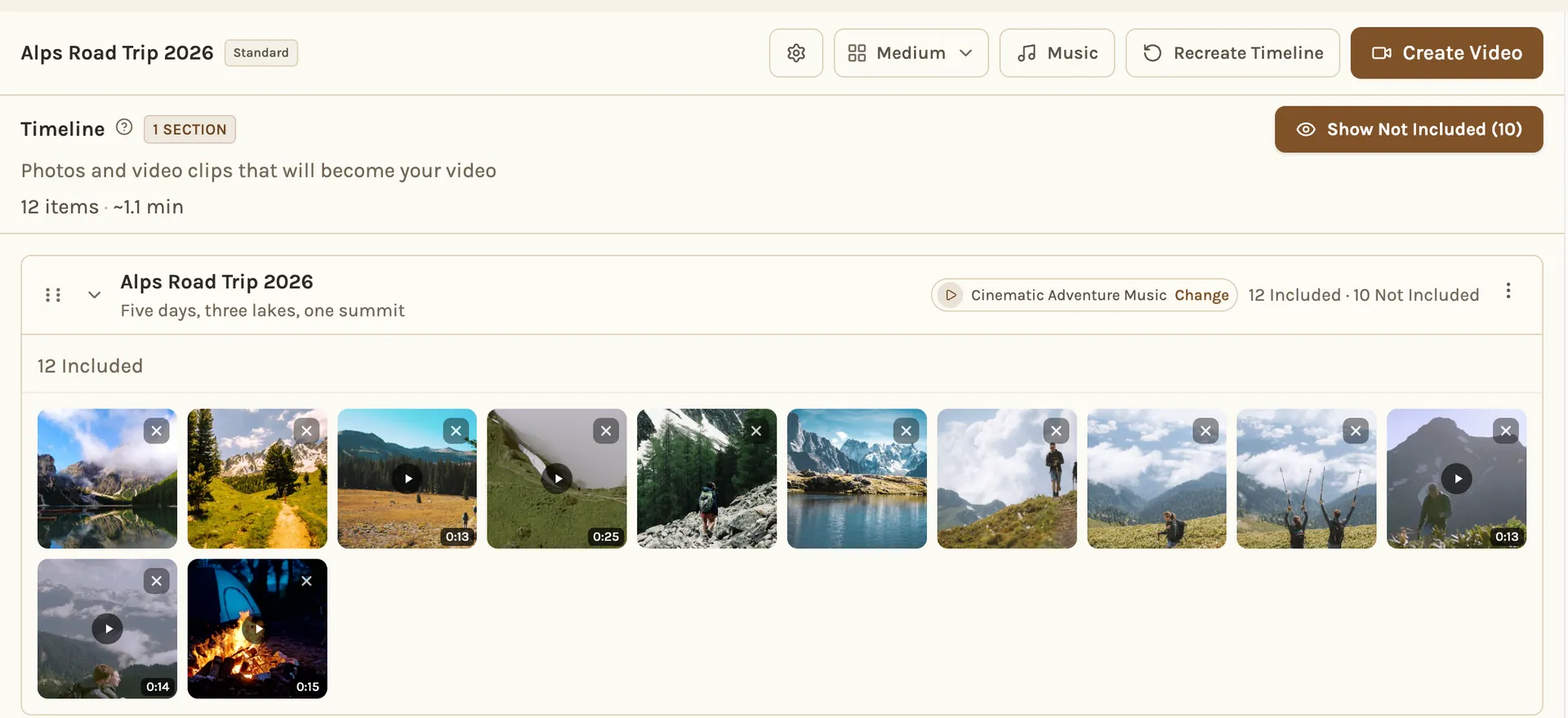
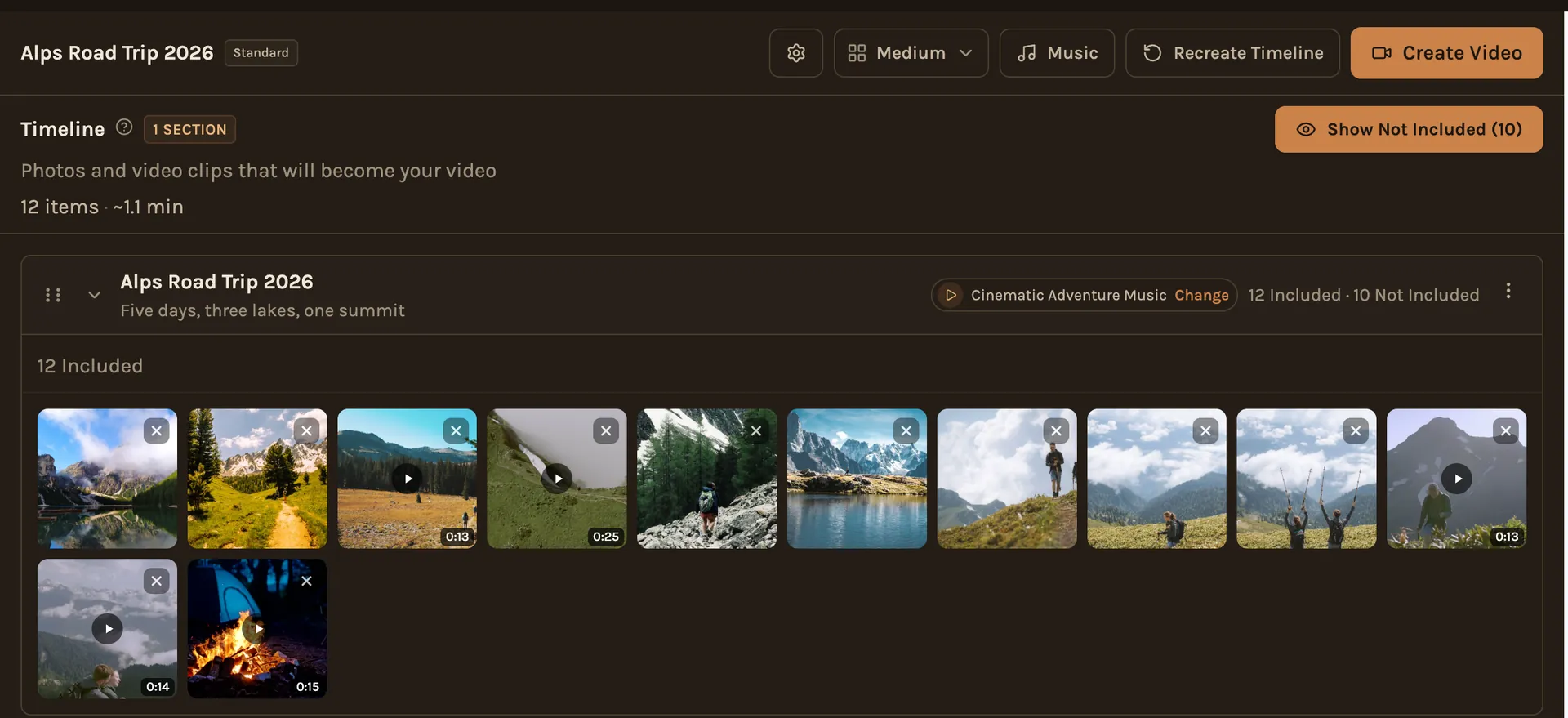
Bring the photos into Kindred Scenes
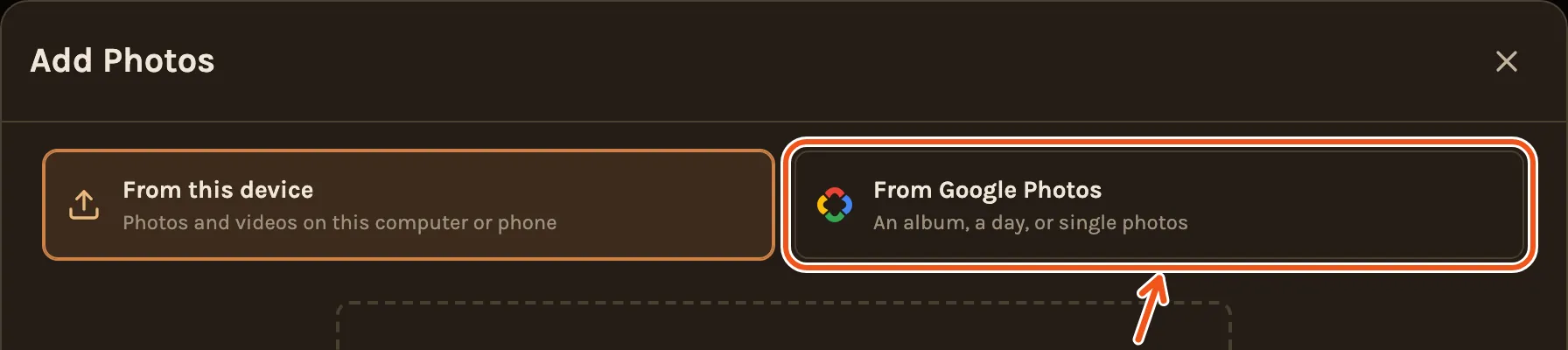
Start a project in Kindred Scenes and choose Google Photos. Google's own picker opens, so you choose in the same place you always look at your photos. You can:
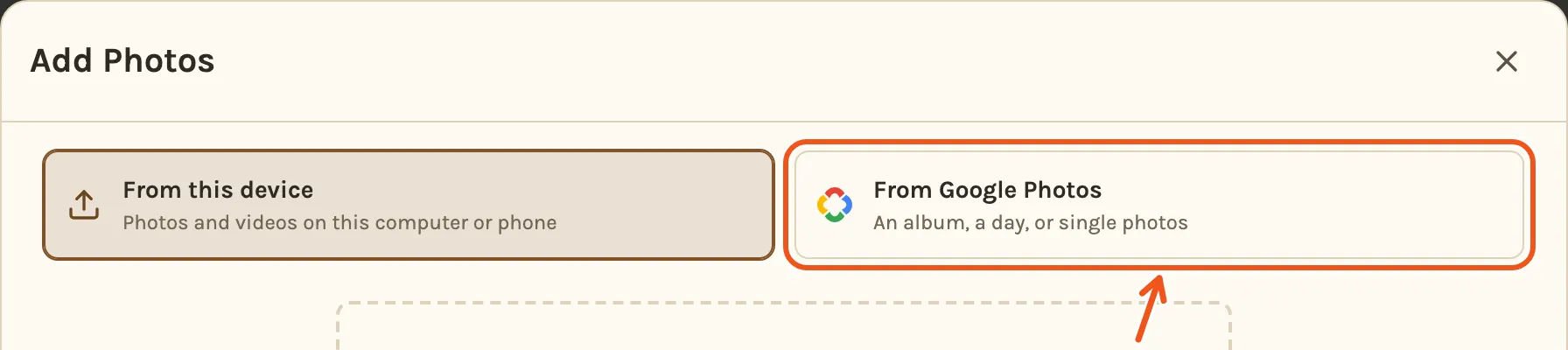
- Search for an album by its name and click Select all to bring the whole thing in.
- Pick photos and videos one by one from your library.
Google lets you pick up to 2,000 at a time. Every Kindred Scenes project has room for about 1,000 photos, 60 minutes of video, or a mix of both. Videos longer than 3 minutes can't be used. The photos are copied into your project, and nothing changes in your Google Photos.
What Kindred Scenes does with them
You don't need to pick the best shots first. Kindred Scenes keeps the best of each group of near-identical photos, leaves out blurry ones and screenshots, and puts everything in the order it was taken. It keeps the best few seconds of each video, with its sound. It splits a longer film into chapters, gives each its own song and changes the photos on the beat.
You choose the length: Highlights, about 2 to 3 minutes; Feature, about 6 to 10 minutes; or Extended Cut, about 10 to 20 minutes. Then look over the timeline, move or swap anything you like, and make the film.