Kindred Reels is now Kindred Scenes. Same app, same films, and your old links still work.
How it's built
What happens to your photos and videos between adding them and watching the film.
- You add photos and videosFrom your phone, Google Photos, or family you invite
- Each one gets a close lookGoogle's Gemini
- The timeline is built25 steps, most of them plain code
- You make it yoursOrder, music, theme, pace
- The film is madeFFmpeg on Google Cloud Run
- You watch and share720p to 4K
Every photo gets a close look
Each new photo goes straight from your browser to private storage on Google Cloud. A worker on Cloud Run makes smaller copies and shows it once to Google's Gemini, which notes the faces, where the eye should go, a caption, what kind of photo it is and how strong a shot it is.
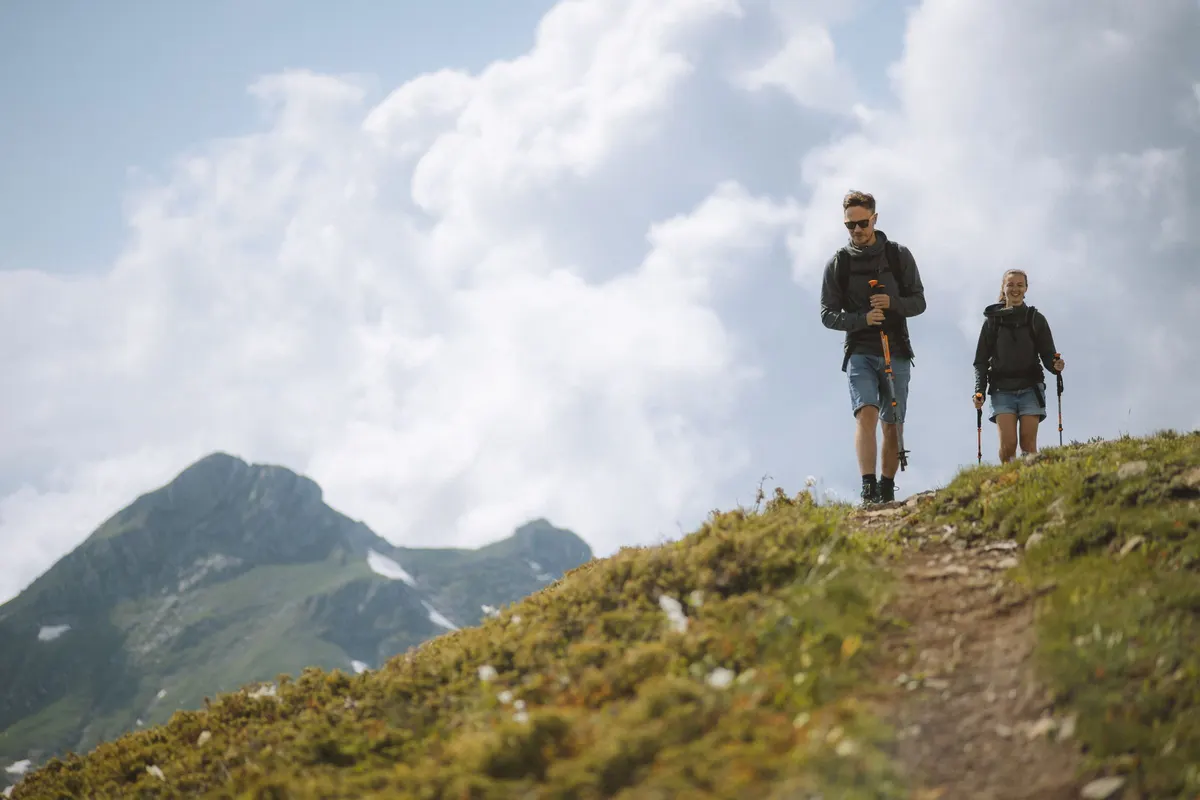
A photo is turned only when exactly one way up looks right, because a wrong rotation is worse than none. Each photo also gets an embedding: 1,408 numbers that sum up how it looks. Photos that look alike get similar numbers, which is how near-duplicates are found later.
Finding the moment in a video
A video goes to its own service on Cloud Run. It pulls a frame every two seconds (every four after the first minute), and Whisper, an open-source speech model, writes a transcript. A model then picks the most memorable moment and never cuts mid-sentence.
Usually that is one clip of five to ten seconds, sometimes two or three, sometimes none. The video is kept whole and trimmed only when the film is made.
Working out when each photo and video was taken
Getting the order right matters most. Each photo's or video's date comes from the best source it has:
- 1A date you typed inAlways wins
- 2The camera's own dateUnless it clearly belongs to a scan
- 3A date in the file nameLike 20260720_203724.jpg, but never a chat app save
- 4The model's best guessFrom clothes, color, film grain, faces
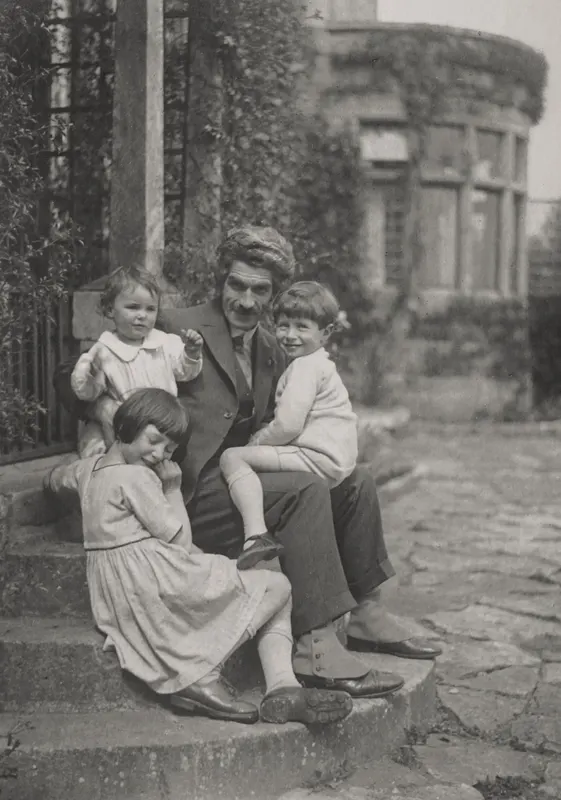
A print scanned last spring carries last spring's date. When the camera date and the picture disagree by decades, the picture wins.
When a whole batch of file names claims the same minute, as a bulk save or a chat export does, the batch counts as undated. When a phone and a camera disagree about the time zone, the camera's clock is shifted to match.
Setting aside the doubles and the blurry ones
The same file uploaded twice is kept once. Near-duplicates are found from the embeddings, with a cut-off worked out from each project's own photos, and a model keeps one of each group.
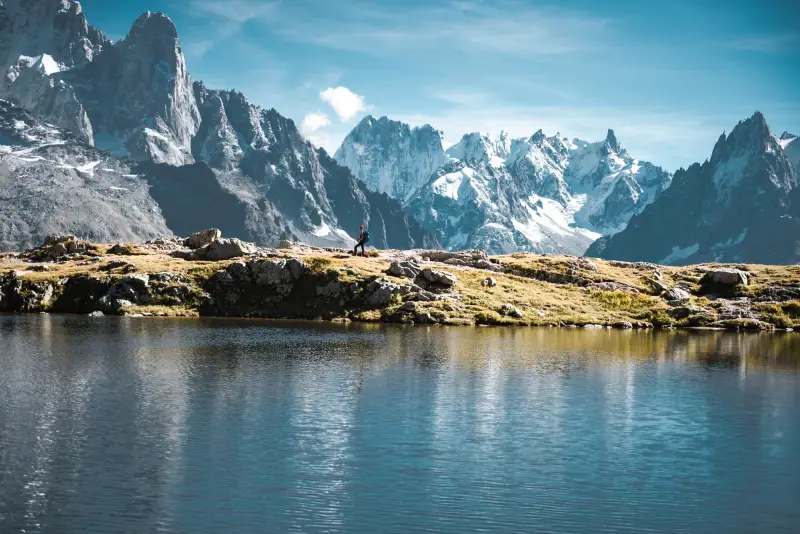
Three shots a second apart, 0.97 and 0.95 alike.
Nothing is deleted. Everything left out waits in a Not Included panel with its reason, one drag away from coming back.
Building the timeline
Building a timeline takes 25 steps. Only 8 of them can ask a model anything. The rest are plain code, because code gives the same answer every time.
- Plain code (14)
- Can ask a Gemini model (8)
- Image embeddings (2)
- Face matching (tributes only) (1)
Chapters come from the gaps in time, not from a model. The pause that counts as a break is set per project, never under 45 minutes, and chapters are balanced by how long they play on screen. A larger Gemini model plans chapters only when you ask for chapters by theme or write your own.
Inside each chapter a model looks at the photos and clips, at most 100 at a time, and picks the strongest, sometimes fewer than asked. One more call titles all the chapters together. Every chapter plays in date order, give or take ten minutes. If a model call fails, plain code takes over and the timeline still gets built.
Finding the person a tribute is for
A tribute is about one person, sometimes two. It is the only place faces are matched to a person, and only after the project's owner agrees.
The owner adds up to ten clear photos of the person. Amazon Rekognition turns the largest face in each into a template and, when the timeline is built, checks each candidate photo against them.
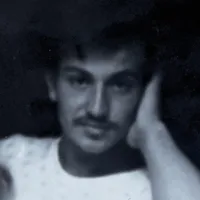

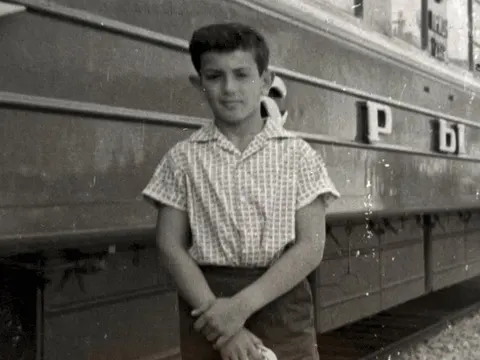 1960s99.7%
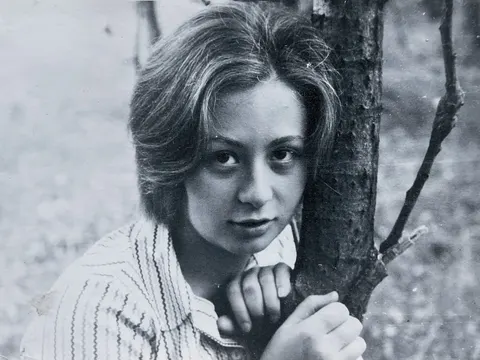 1970snot him
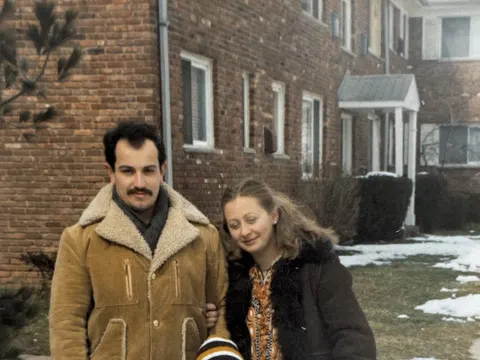 1970s99.7%
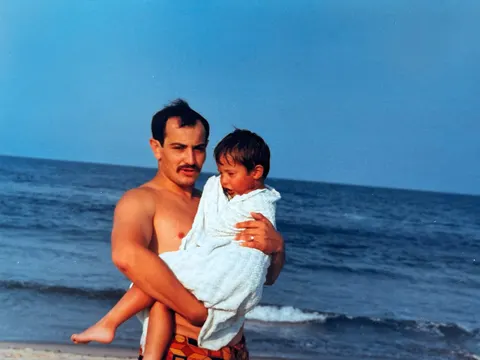 1980s99.7%
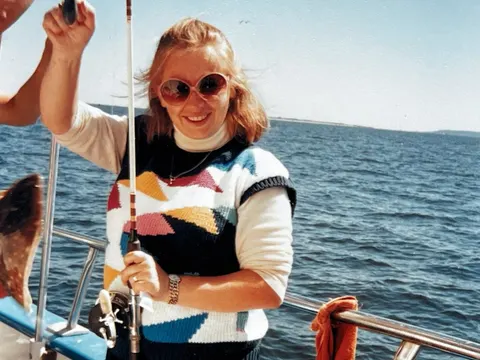 1980snot him
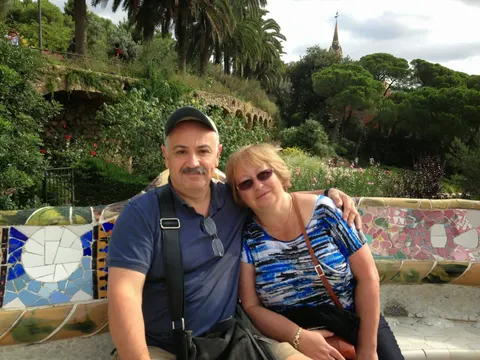 2010s100%
Photos without the person go to Not Included. Photos with no date you can trust are dated by how old the person looks, or by their era. The step that picks photos knows who is in each one. The templates are deleted with the person, the project or the account.
Your turn: changing anything you like
The timeline is a first draft. Drag a photo or clip in from Not Included, drag one out, or drag to reorder photos and whole chapters.
 Blurry
 Near-duplicate
 Not picked
You can rename chapters, add one, pick the cover, turn on title cards, add a section after the credits for outtakes, and set the pace: relaxed, normal or fast. On every plan, family and friends can add their own photos and videos. On the Tribute plan they can also record a voice memory about any photo.
Music that fits each chapter
Every song and every chapter is tagged with one mood (happy, upbeat, gentle or easygoing). Plain code gives each chapter a random song of its mood that is long enough, so two films rarely open on the same song. No song repeats until the library runs out.
- Happy
- Upbeat
- Gentle
- Easygoing
You can swap any song, set its volume per chapter, or upload music you have the rights to. Photos are never squeezed to fit the music.
Themes
The title card, chapter cards and credits follow a theme. There are 12, in 4 groups (Any Occasion, Vacation, Celebration and Quiet & Reflective), and the picker previews each one with your own title and photo.
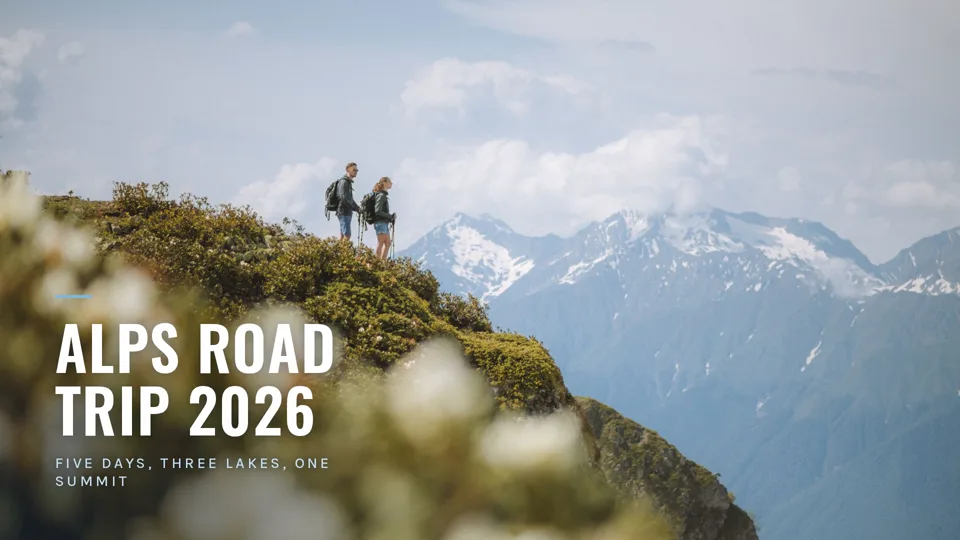
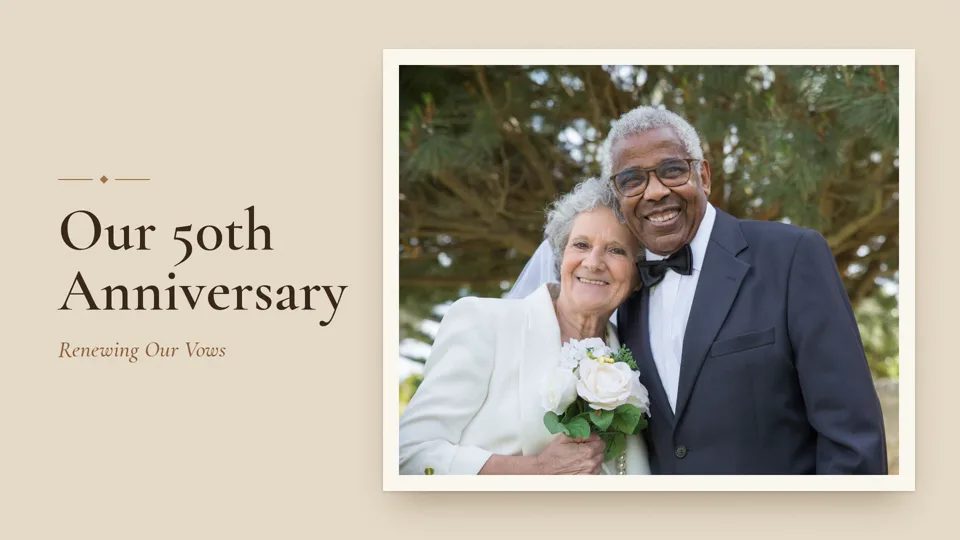
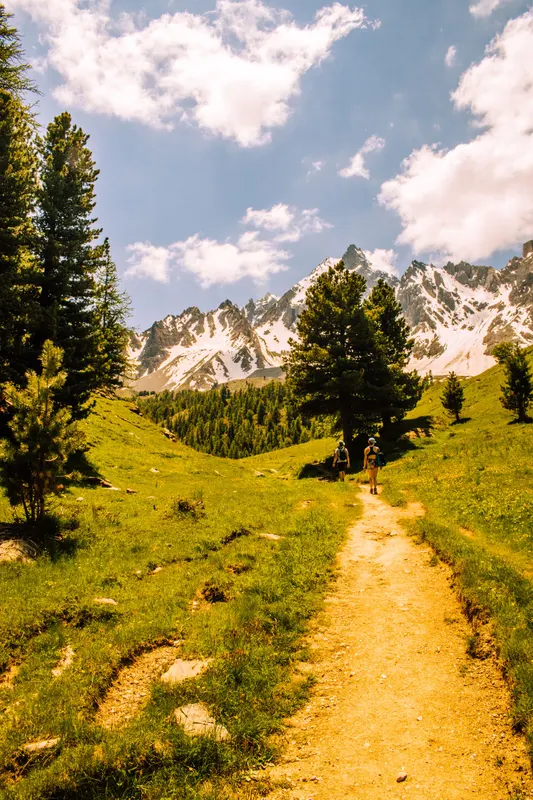
Alps Road Trip 2026 and Our 50th Anniversary are made from stock photos and clips.
Making the film
The film is made on Google Cloud Run Jobs, one run per film, so no film waits for another. Each photo, clip and card is rendered as its own piece, many at once, then joined with FFmpeg.
Every photo moves. The camera reads where the faces are and picks one of four moves, with a zoom of about 10 percent, like a slow breath.
starts hereends on the whole photo- One or two people, faces largeZoom in toward them
- A group, or faces smallStart close, pull back
- No people, a detailZoom in on the subject
- No people, a placePan toward the subject
Cuts land on the beat. beat_this, a beat tracker from Johannes Kepler University in Linz, marks every beat and bar. Chapters with a voice recording keep an even pace instead.
Mixing voices, clips and music
A clip's sound is judged twice: by Whisper, which hears speech, and by the model that watched it, which knows a toast from a gust of wind. Together they set how loud the clip plays.
Family members record voice memories from a link, with no account. While someone speaks the music dips to 15 percent, and every voice is leveled a little above it.
What happens to your data
Stored privately in the United States
Your photos, videos and films sit in private Google Cloud storage in Virginia, behind links that expire within a day and a half. Account records are with Amazon Web Services, also in Virginia. The Gemini analysis may run outside the US.
Nothing is generated
Models return words and numbers, never pictures. The film uses only frames you uploaded.
Your photos stay as they are
Only two changes: iPhone HEIC files become JPEG, and a sideways photo is saved upright.
Faces are named only in tributes
Elsewhere, faces are only located so the camera can frame them. Matching needs the owner to agree first.
A safety check on every photo
Google's screening runs on every photo and video. Anything it blocks stays out of the film.
Delete it all yourself
One button on your account page deletes your projects, photos, videos, recordings, films and any face data.
The full details are in the privacy policy.
Where each part runs
The website, the API and your account live on Amazon Web Services. The heavy media work runs on Google Cloud, next to Gemini. The numbers follow one film from upload to playback.
Your browser loads the website from Amazon CloudFront and talks to the API on AWS Lambda, which keeps projects in Amazon DynamoDB, signs people in with Amazon Cognito and, for tributes, matches faces with Amazon Rekognition. Photos and videos go straight from the browser to private storage on Google Cloud. Photo processing and clip analysis run on Cloud Run and ask Gemini on Vertex AI what is in each picture. The renderer runs on Cloud Run Jobs and saves the finished film to private storage, which the browser plays through a signed link.
- Steps 1, 5Your browserThe app, on a phone or a computer
- The websiteAmazon CloudFront
- Steps 2, 3, 4The API and background jobsAWS Lambda
- Sign-inAmazon Cognito
- Projects and timelinesAmazon DynamoDB
- Steps 3Face matching, tributes onlyAmazon Rekognition
- Steps 1, 2, 4Private media storageCloud Storage, signed links
- Steps 2Photo processingCloud Run
- Steps 2Clip analysisCloud Run
- Steps 2, 3GeminiVertex AI
- Steps 4The rendererCloud Run Jobs
- Steps 4, 5Finished filmsCloud Storage, signed links
- 1Upload. Your browser sends each photo and video straight to private storage on Google Cloud, through a signed link for that one file.
- 2A close look. Photo processing and clip analysis, both on Cloud Run, ask Gemini what is in each picture.
- 3The timeline. Create Timeline runs as a background job on Lambda, asking Gemini where judgment is needed and, for a tribute, Rekognition.
- 4The film. Create Video starts one renderer run on Cloud Run Jobs, which saves the finished film to private storage.
- 5Watch. Your browser plays the film through a signed link that expires.
What it runs on
Kindred Scenes is built by a small team. You can read more about us on the About page, or see the simple version of all this on How It Works.