Find your photos fast: search, then select them all
You don't have to tick photos one at a time. In Google's picker, use the search box at the top. You can search for:
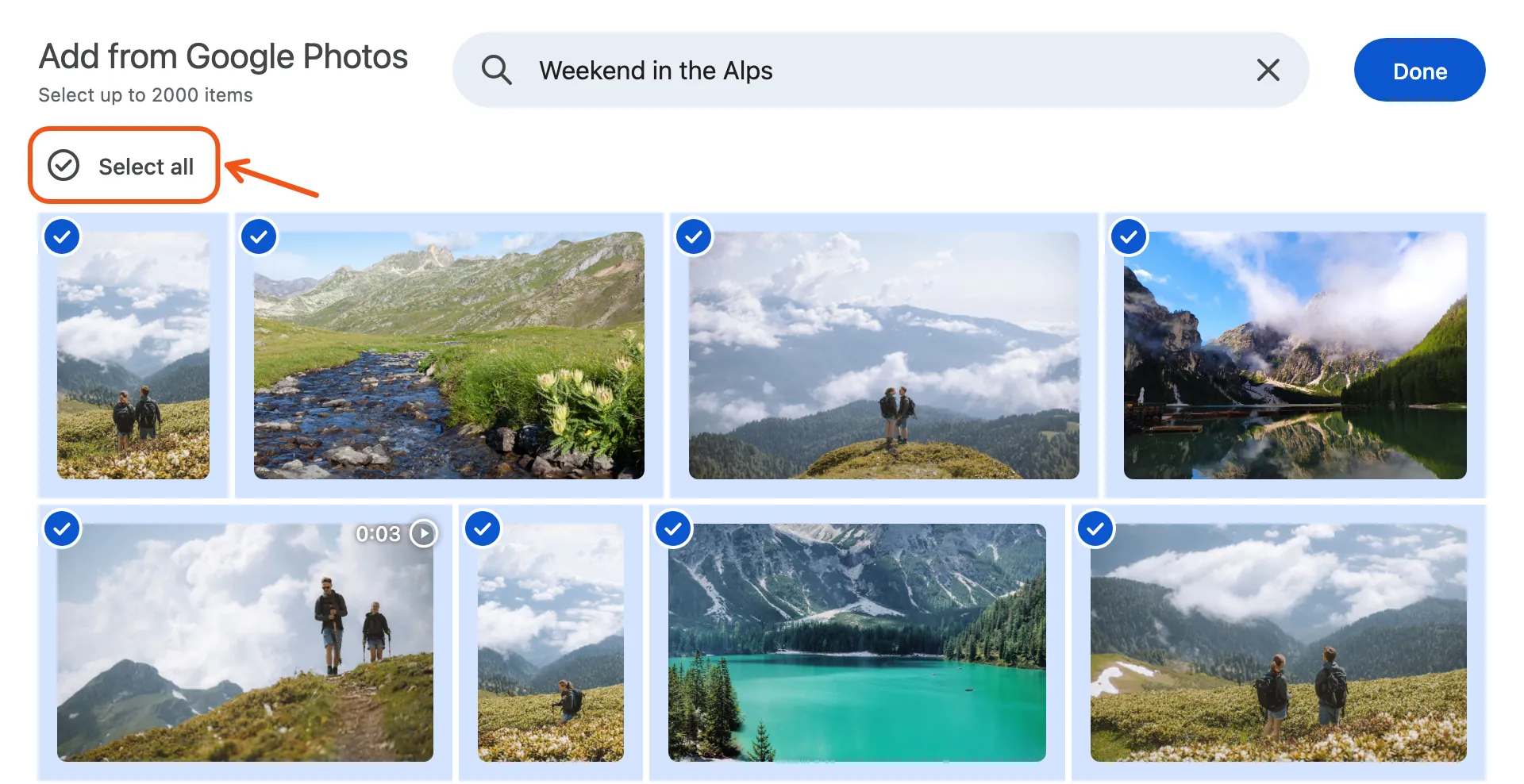
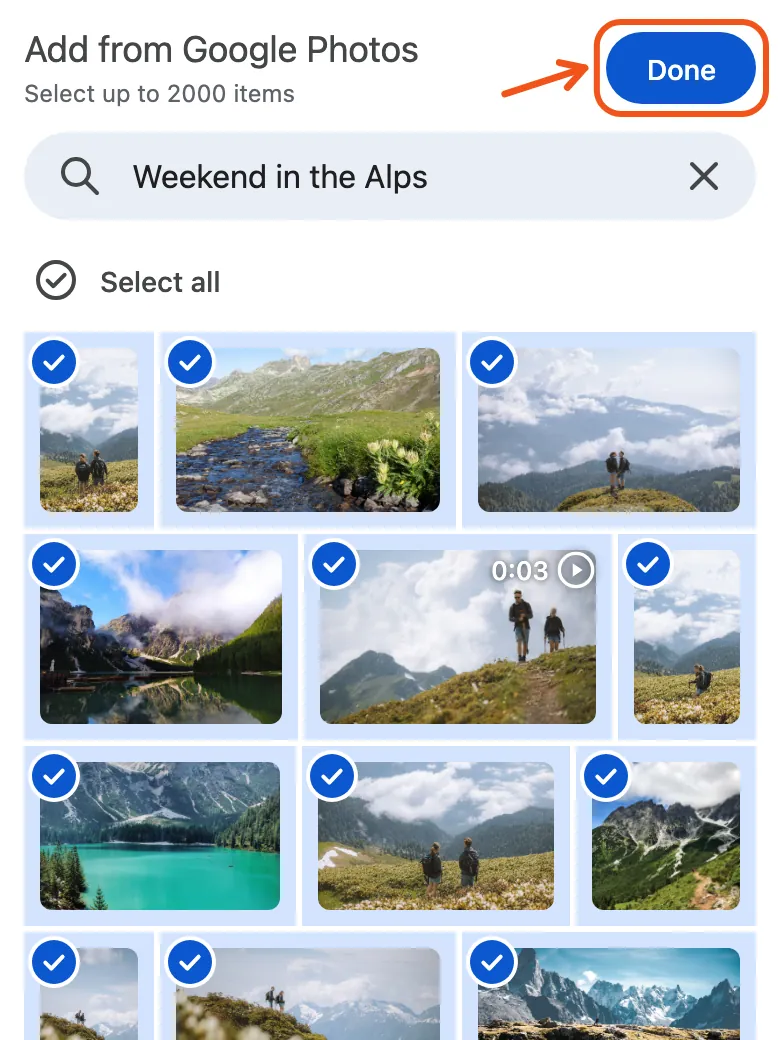
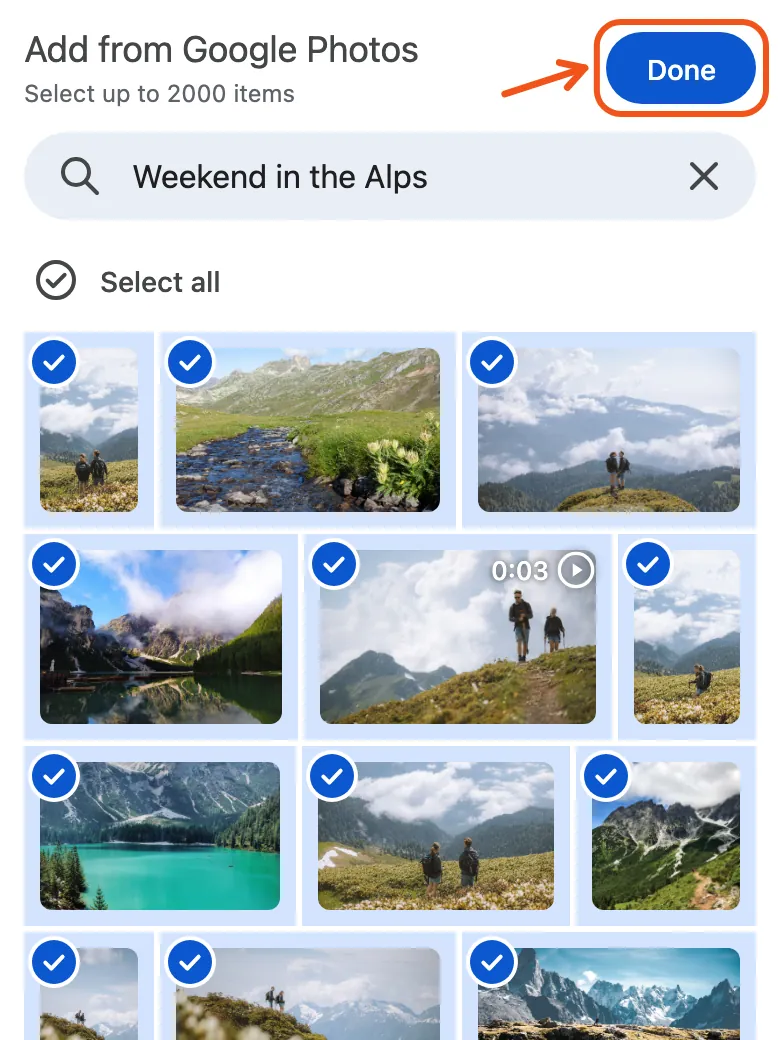
An album: type the album's name, then click Select all just above the photos. Everything in the album is picked at once. This is the quickest way to bring in a trip someone already shared.
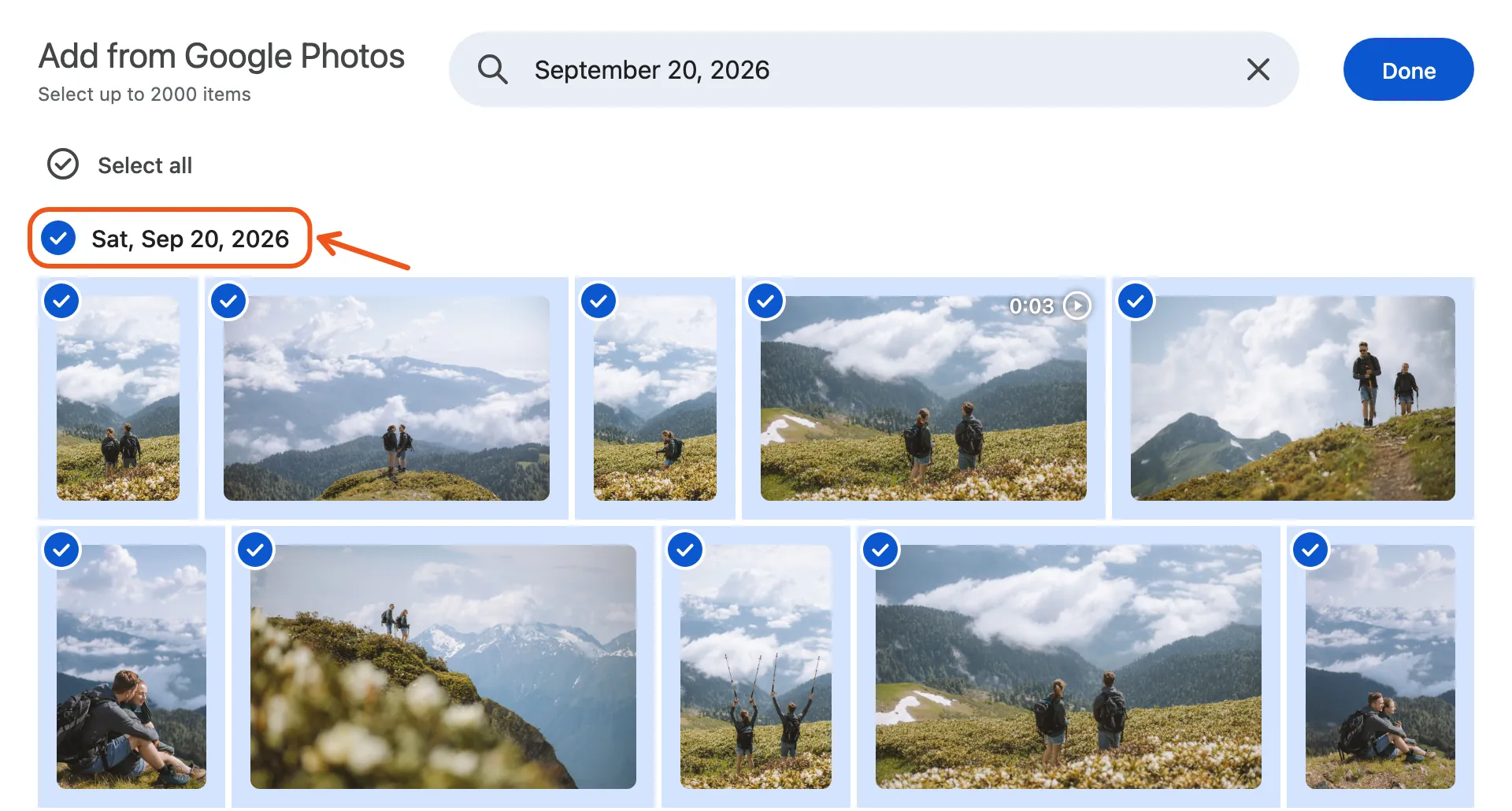
A date: type a day, such as September 20, 2026. To pick every photo from that day, tick the date at the top of its photos. For a vacation, tick each day of the trip.
A place: type a city, a park or a landmark, such as Yosemite.
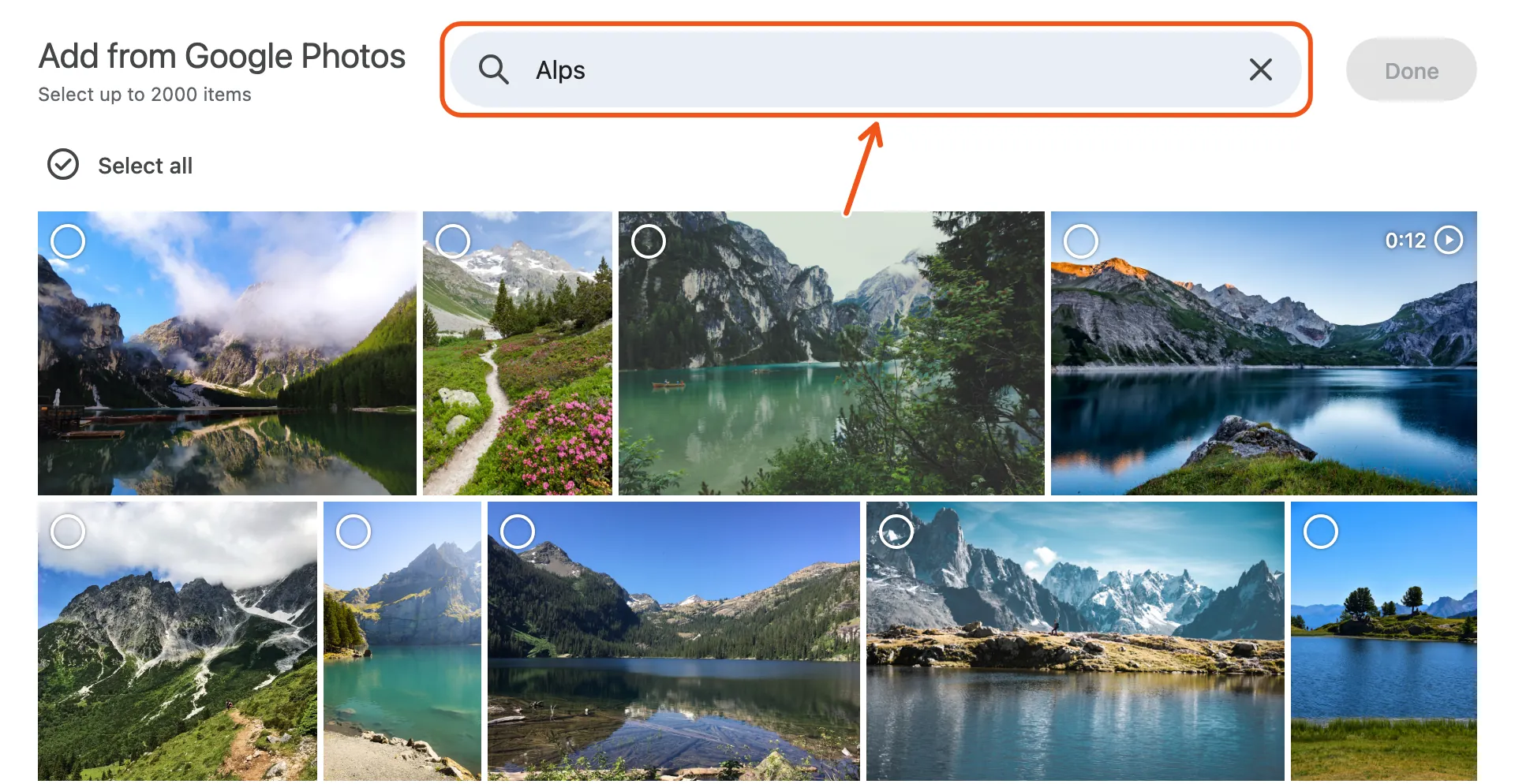
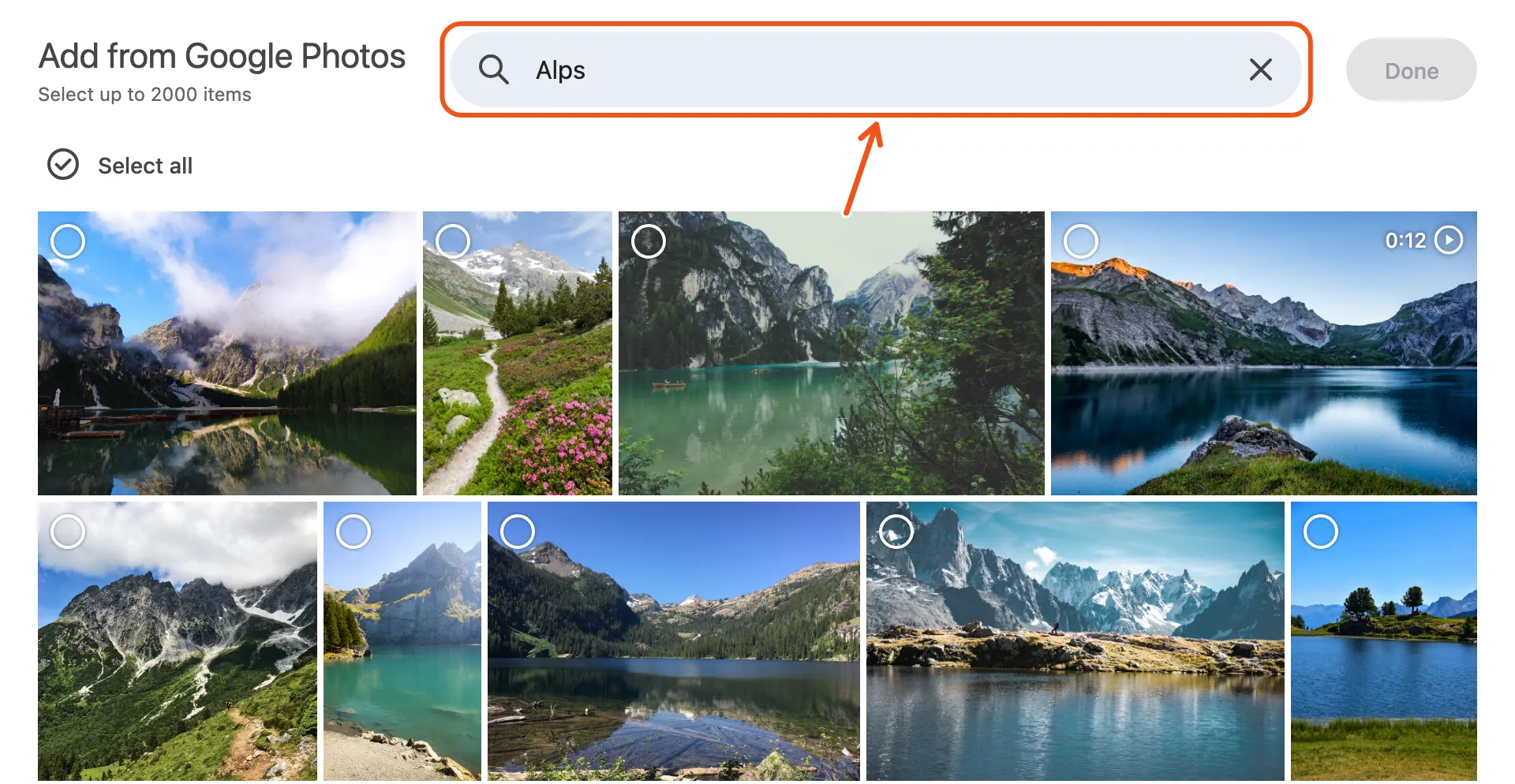
A person: type the name of someone you've named in Google Photos, to find the photos they're in.
You can mix them: search an album, select all, then search a date and tick another day. Google lets you pick up to 2,000 photos and videos at a time.
Connect Google Photos (the first time)
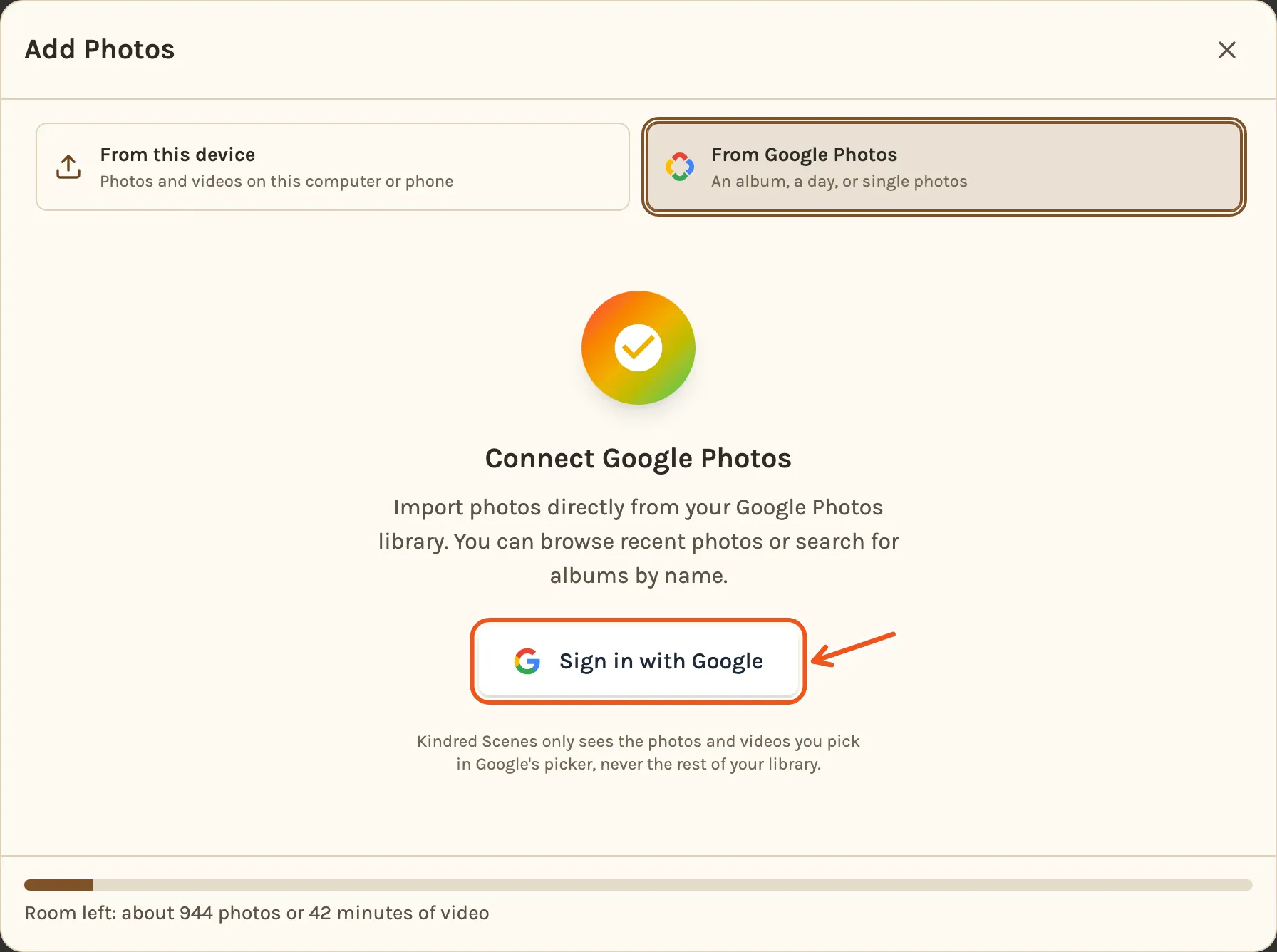
- In your project's Library, click Add Photos.
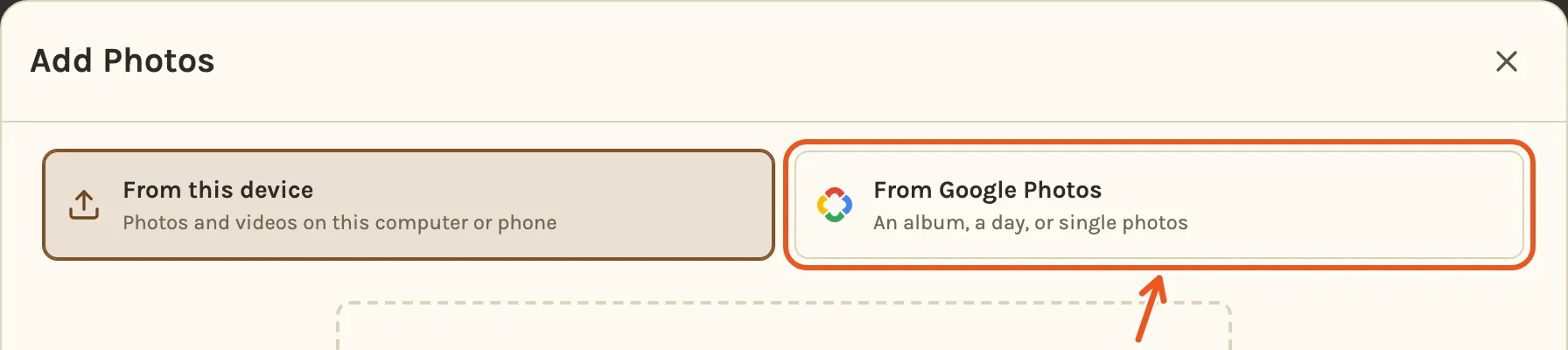
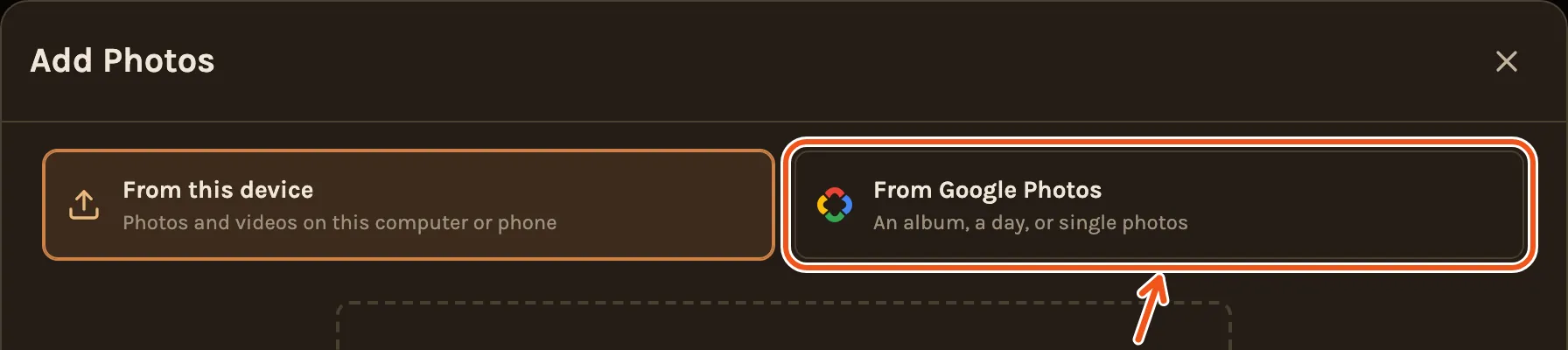
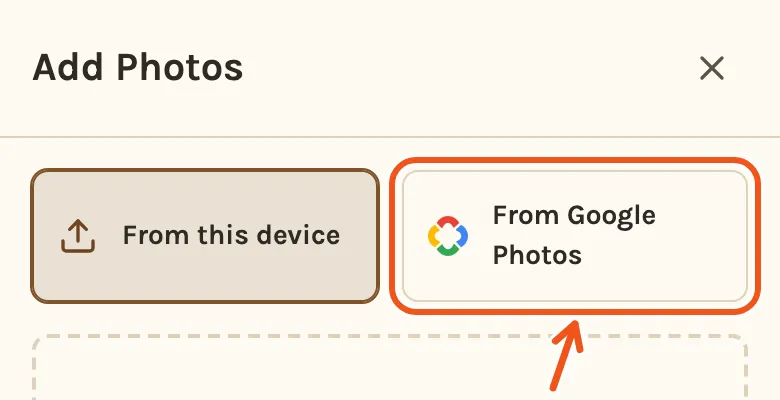
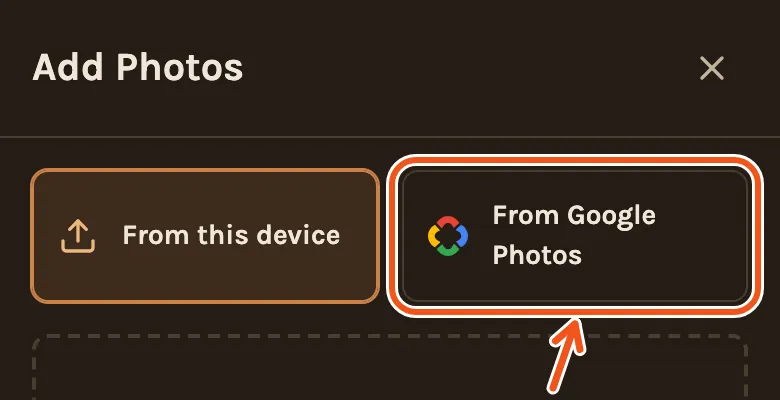
- Click From Google Photos.
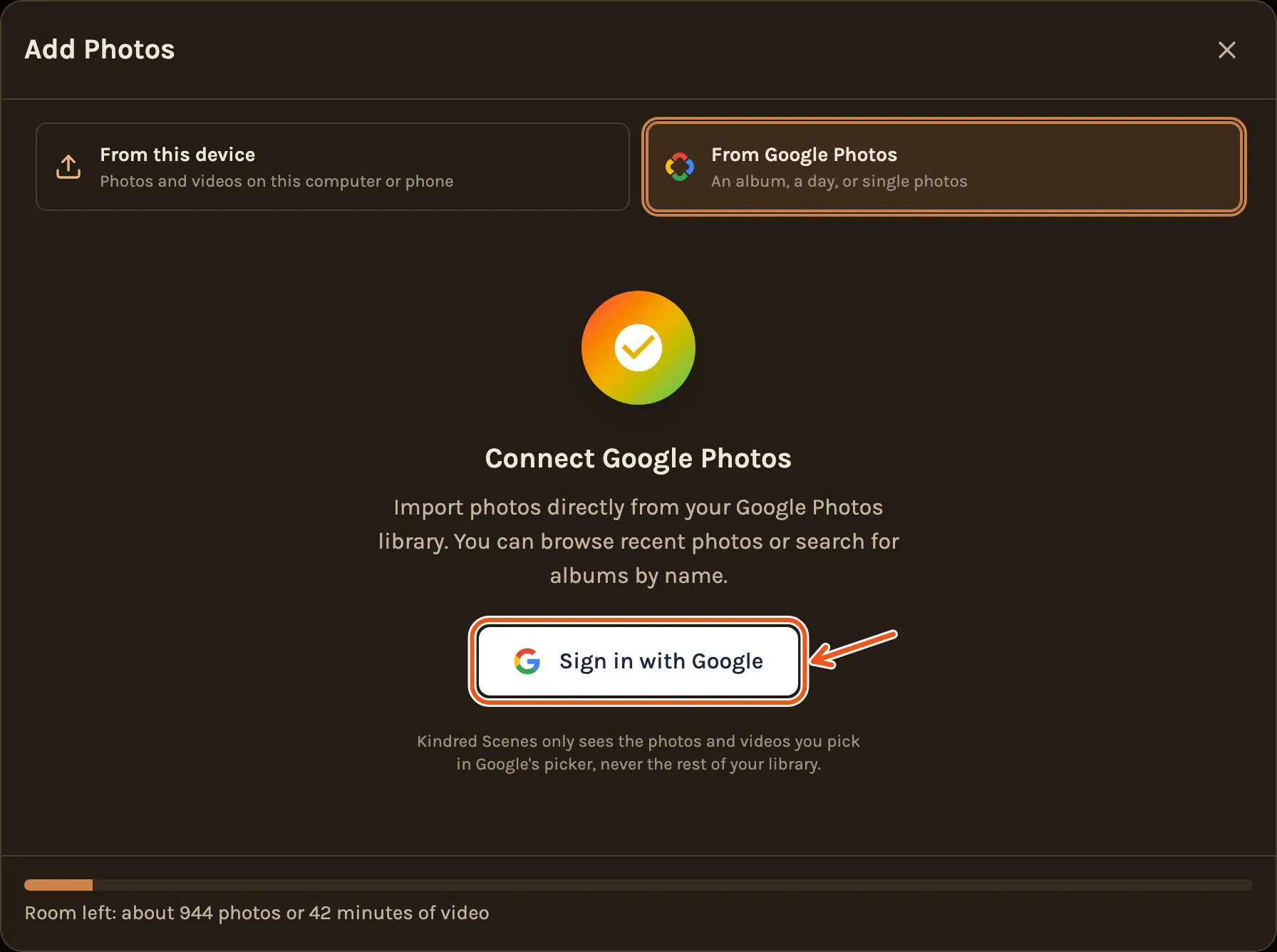
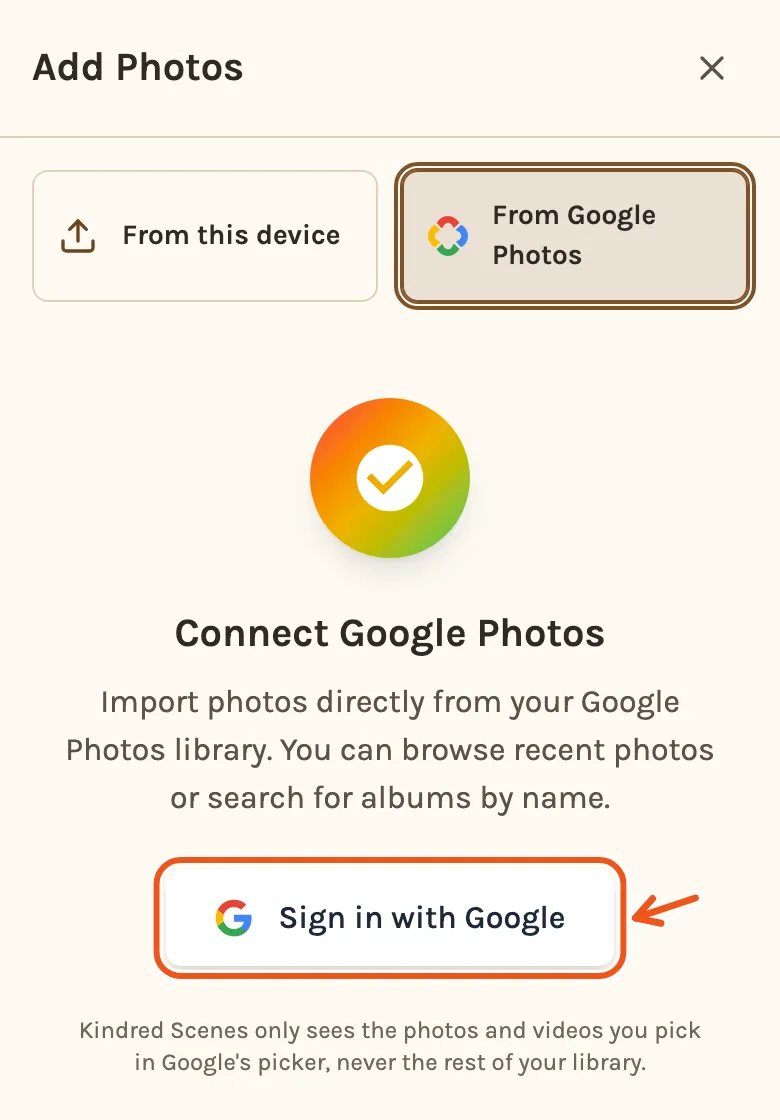
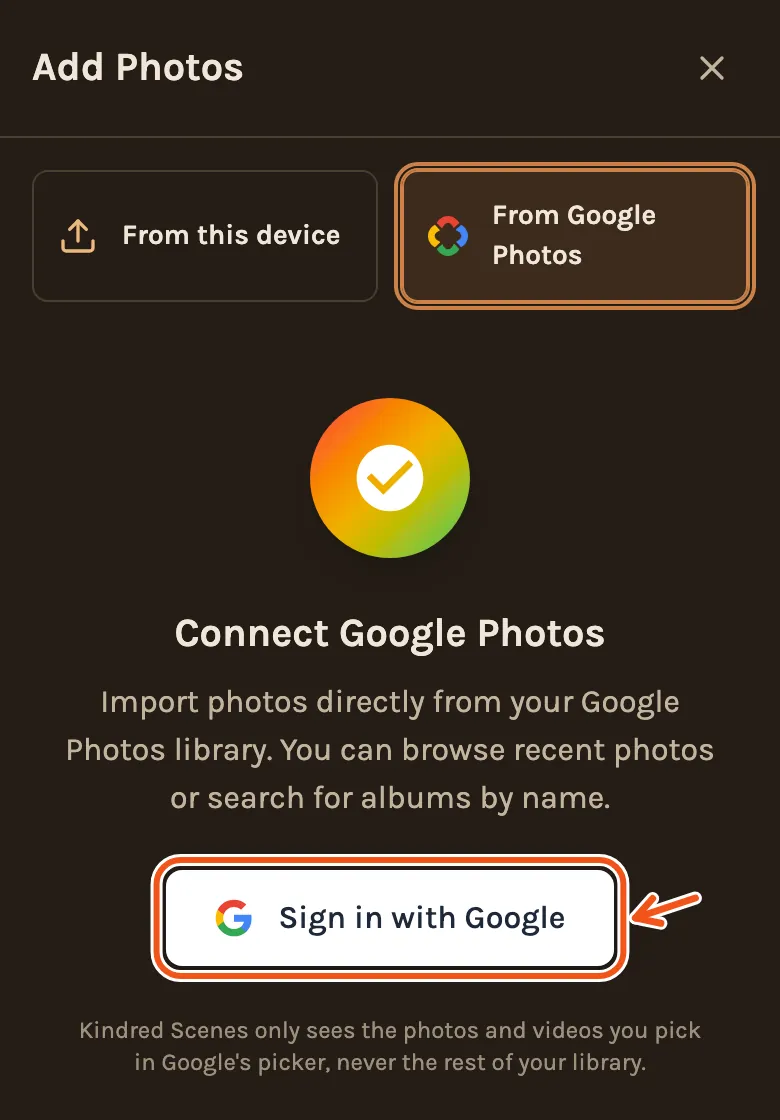
- Click Sign in with Google. A small Google window opens.
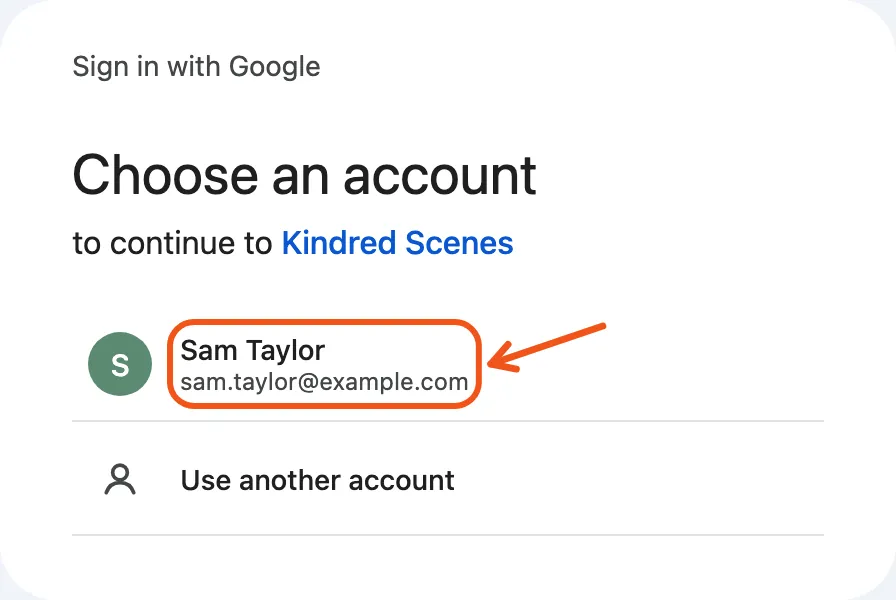
- Choose your Google account.
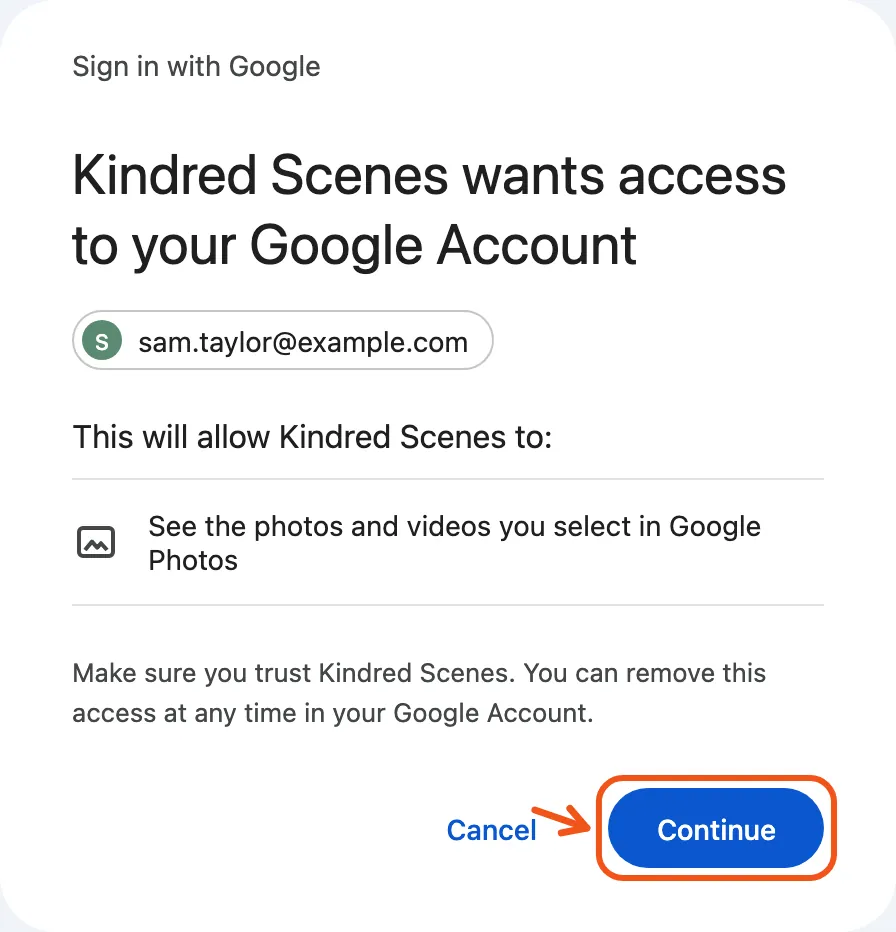
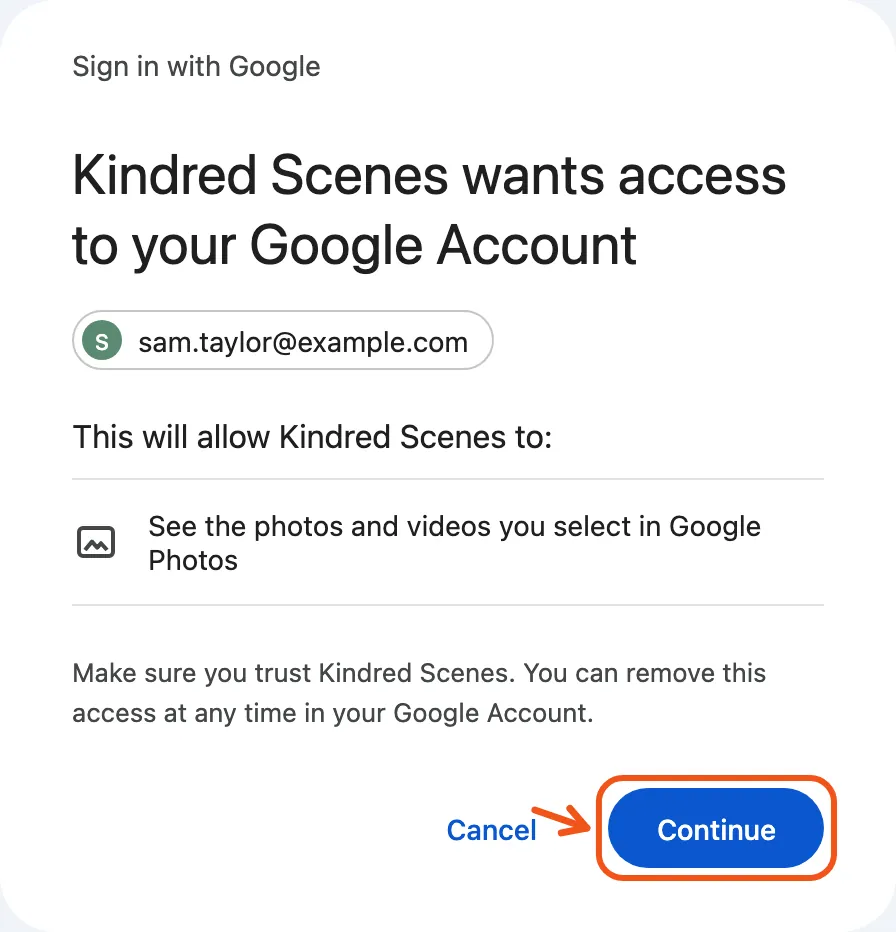
- Google asks you to let Kindred Scenes see the photos and videos you select. Allow it. Kindred Scenes never sees the rest of your library.
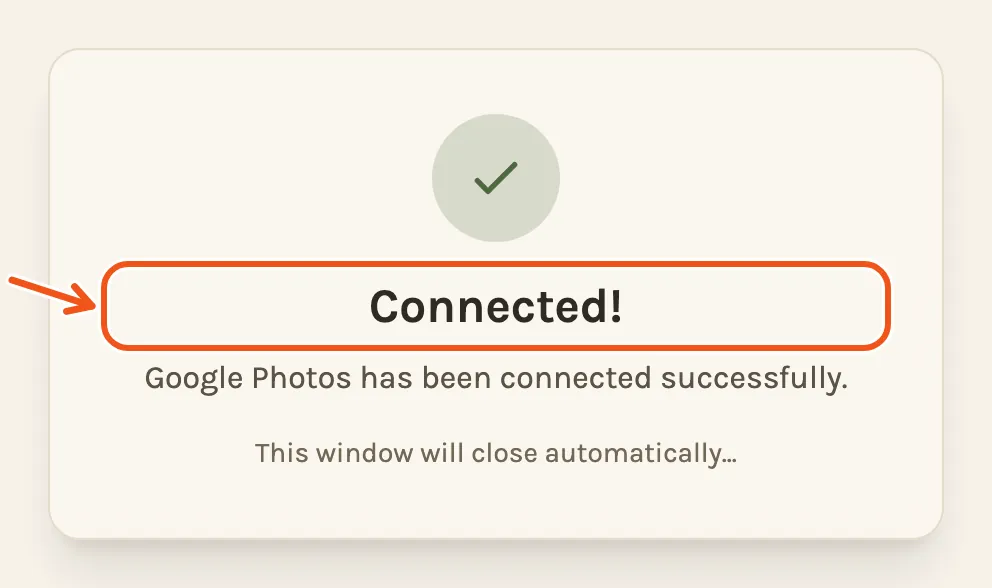
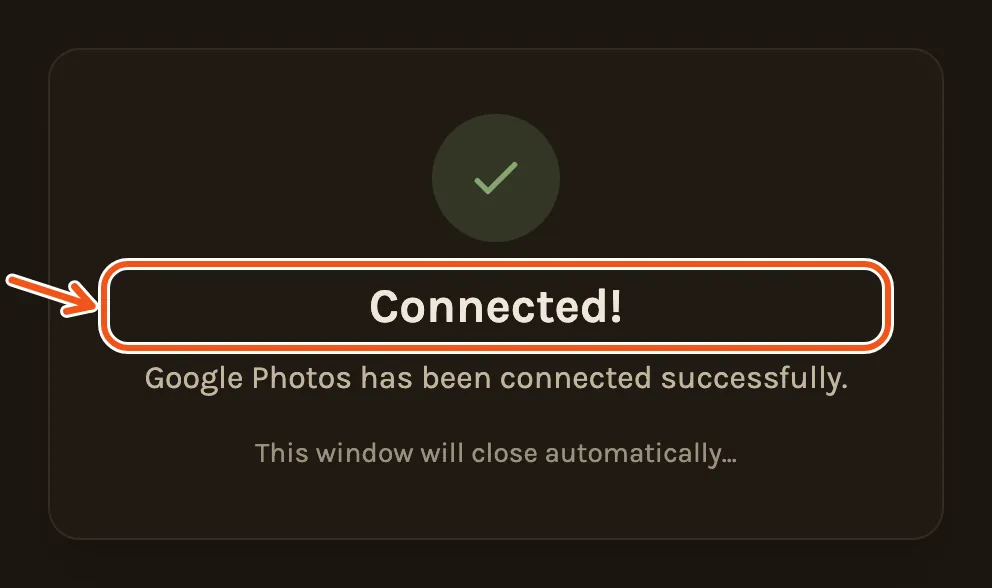
- The window says Connected! and closes by itself.
- In your project's Library, tap Photos.
- Tap From Google Photos.
- Tap Sign in with Google. A Google tab opens.
- Choose your account and allow access to the photos and videos you select. Then come back to the Kindred Scenes tab.
You only do this once. Next time, you go straight to picking.
Pick your photos
Keep the Kindred Scenes window or tab open until you click Done in Google's picker. Kindred Scenes starts bringing your photos in when it sees you click Done. If the Kindred Scenes window or tab was closed or reloaded while you were picking, the selection is lost and nothing comes in. Go back and pick again.
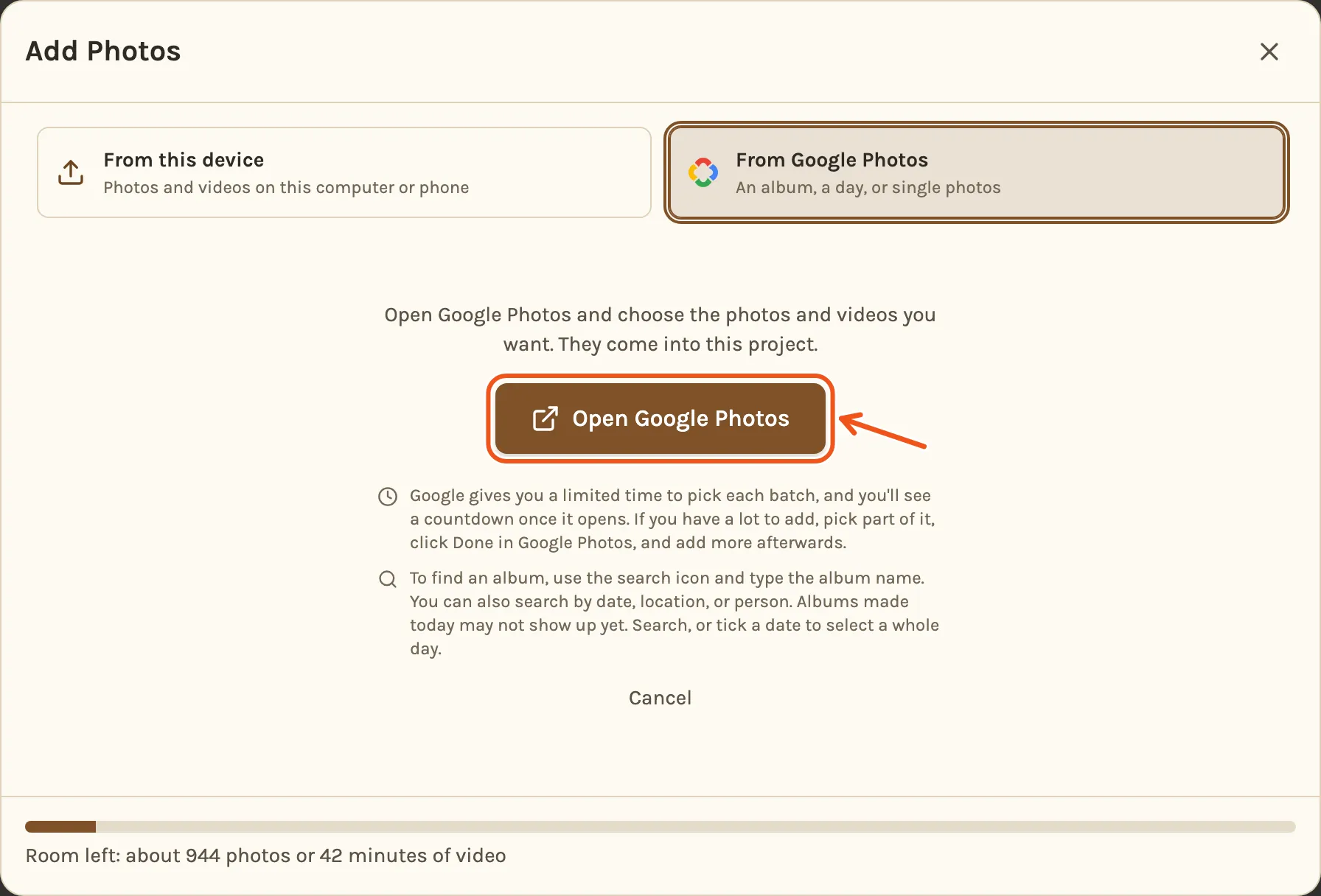
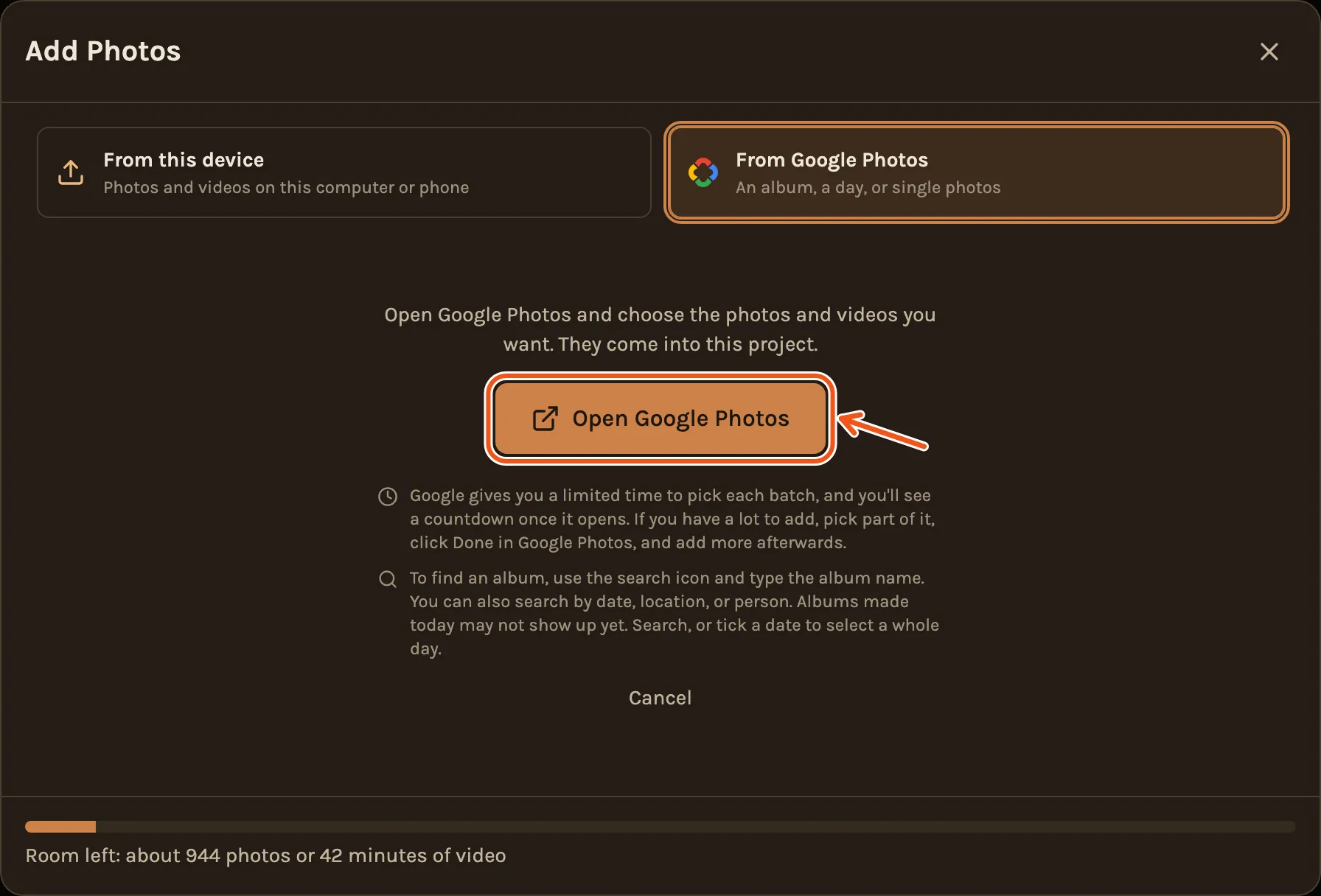
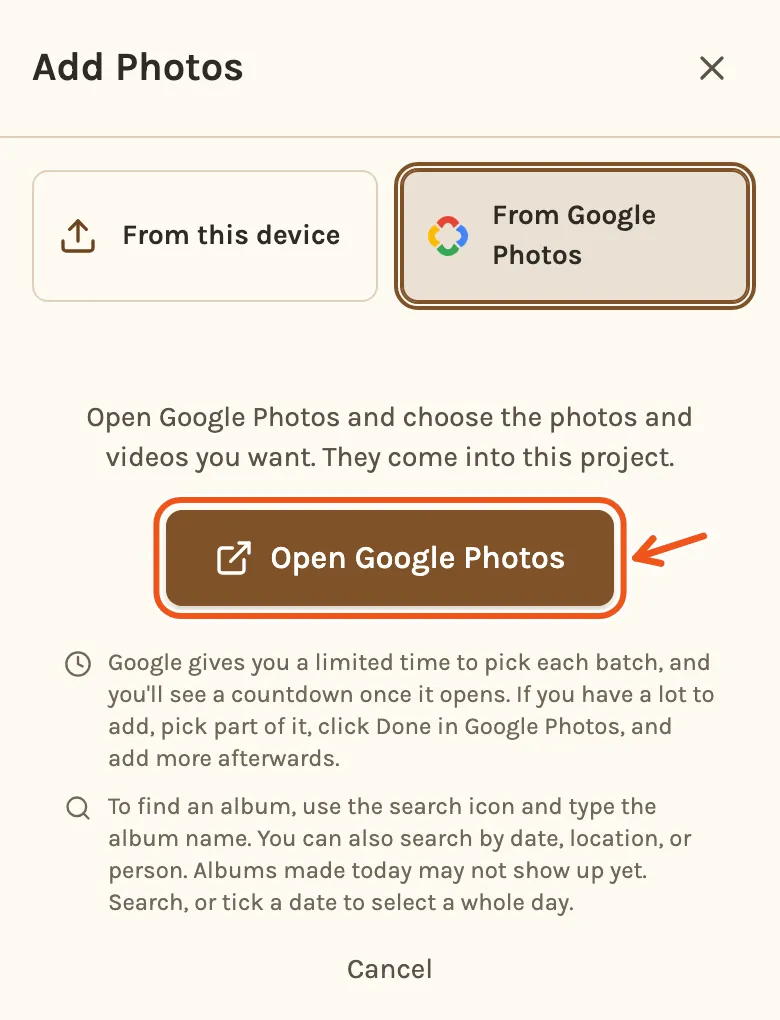
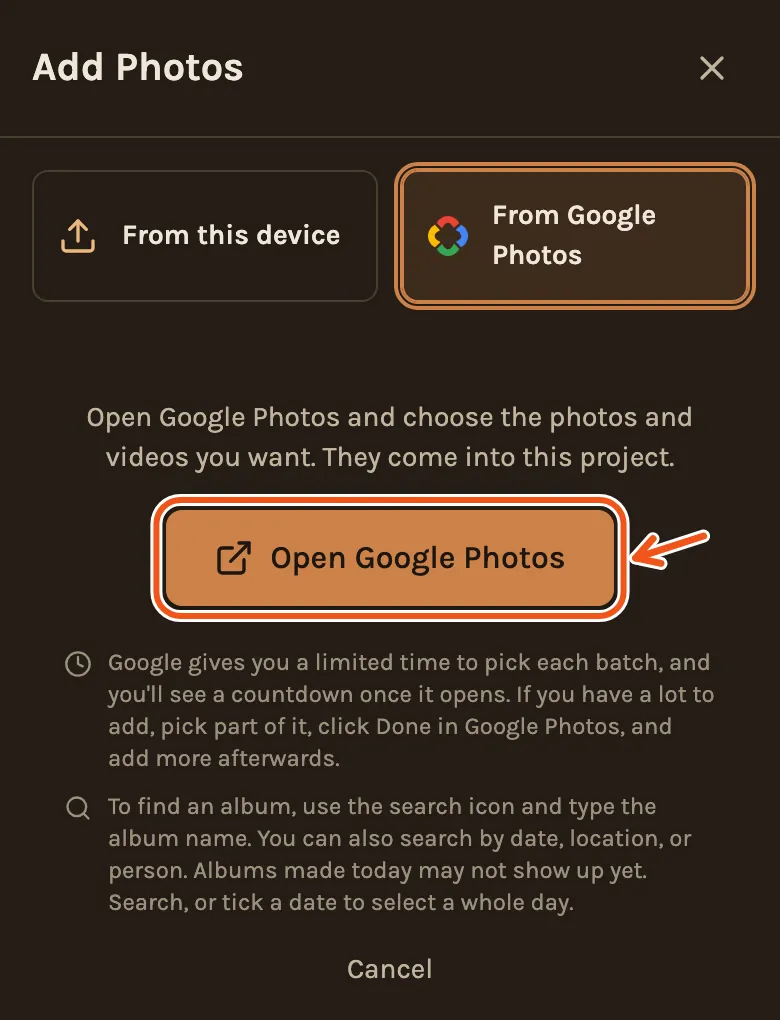
- Click Open Google Photos. Google's picker opens in a new window.
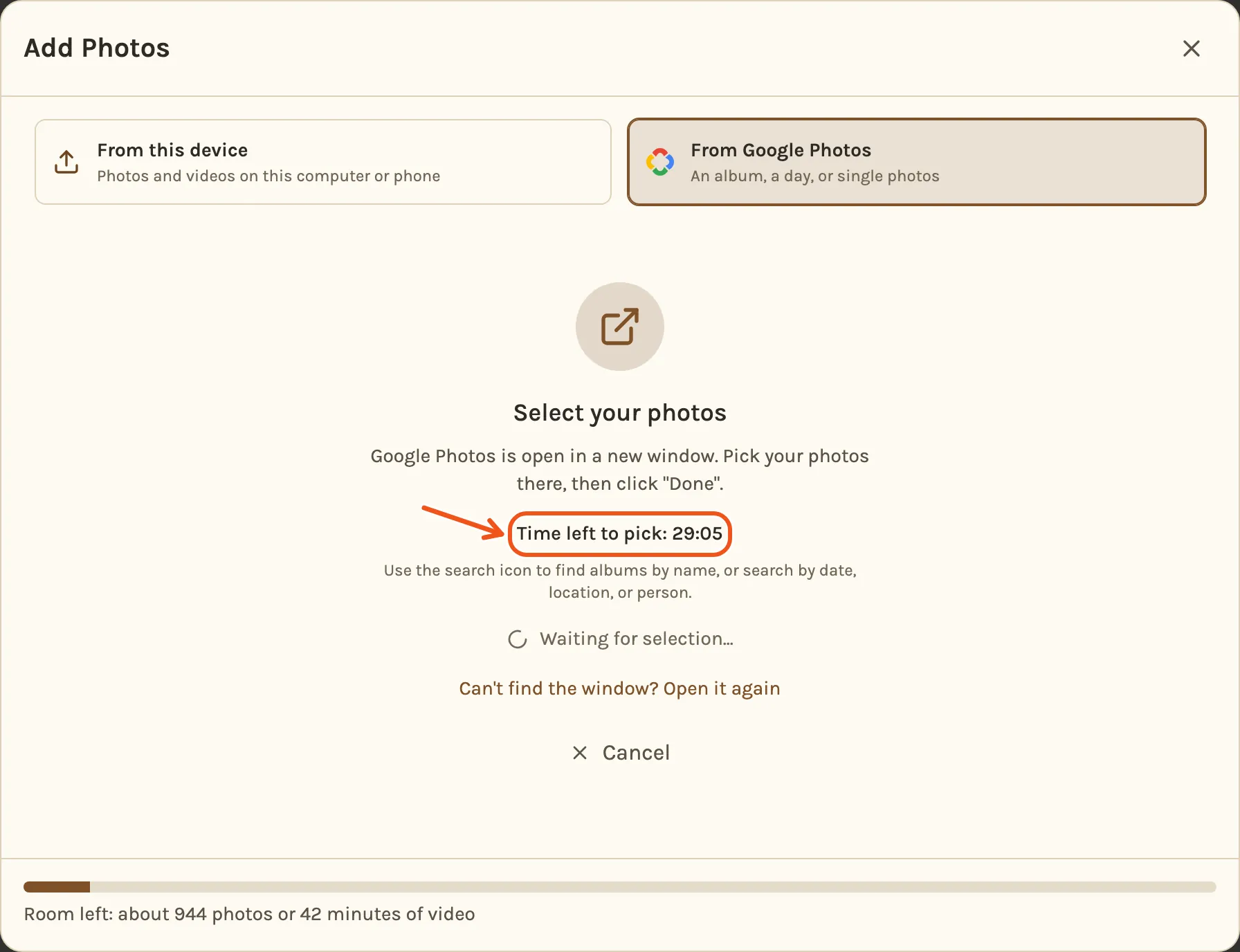
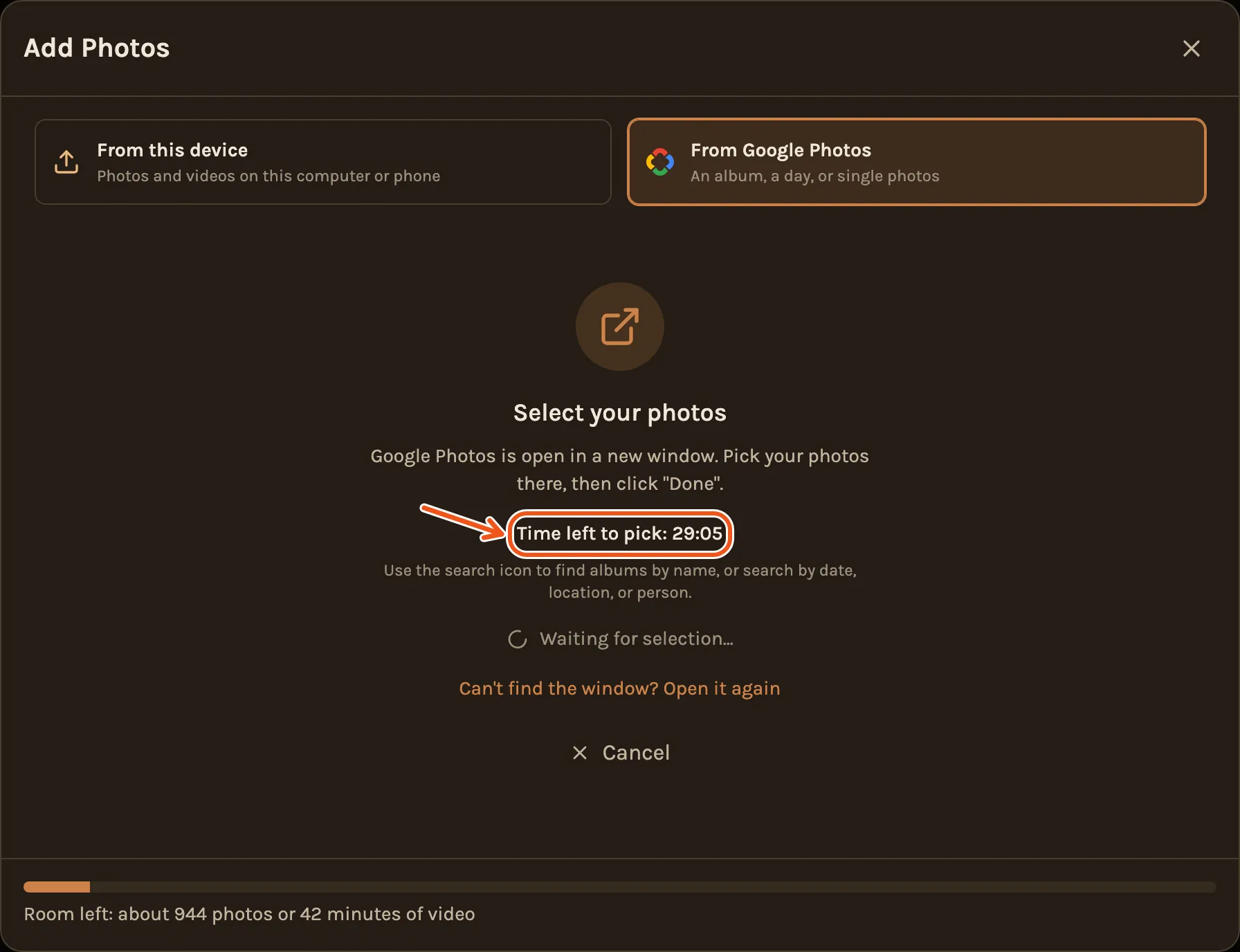
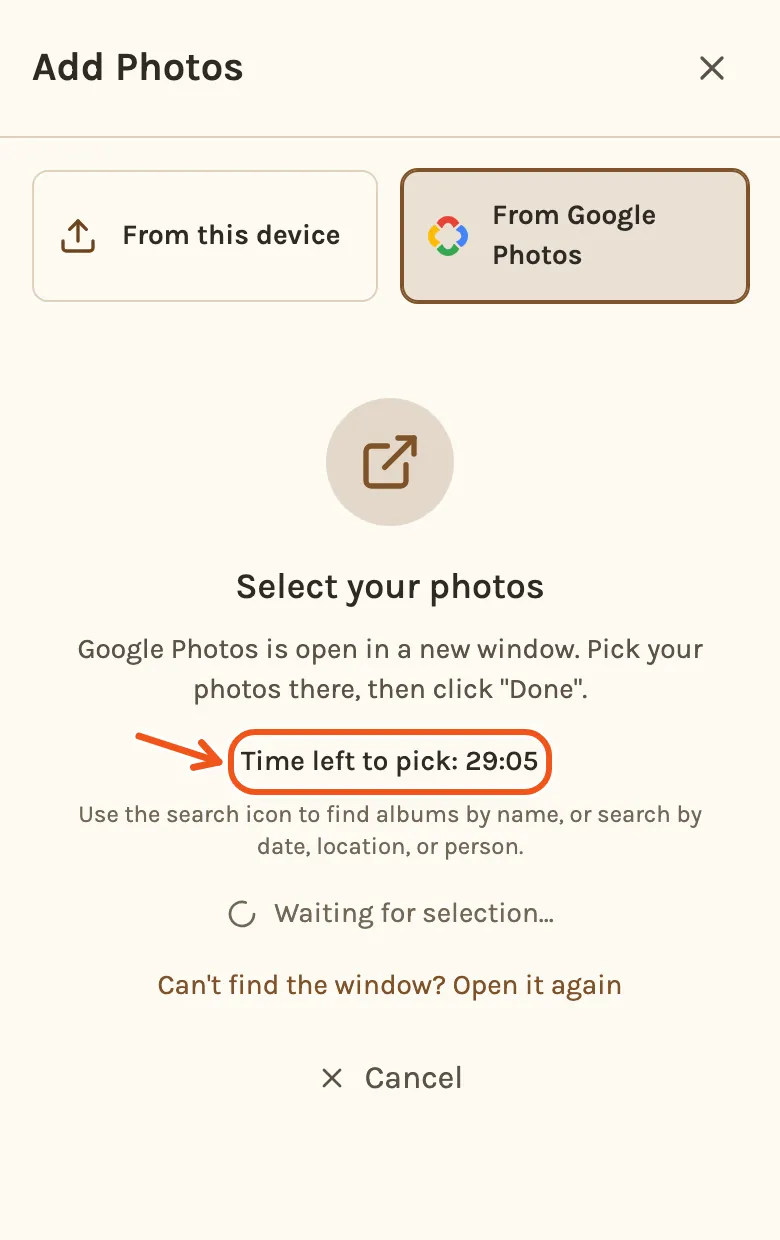
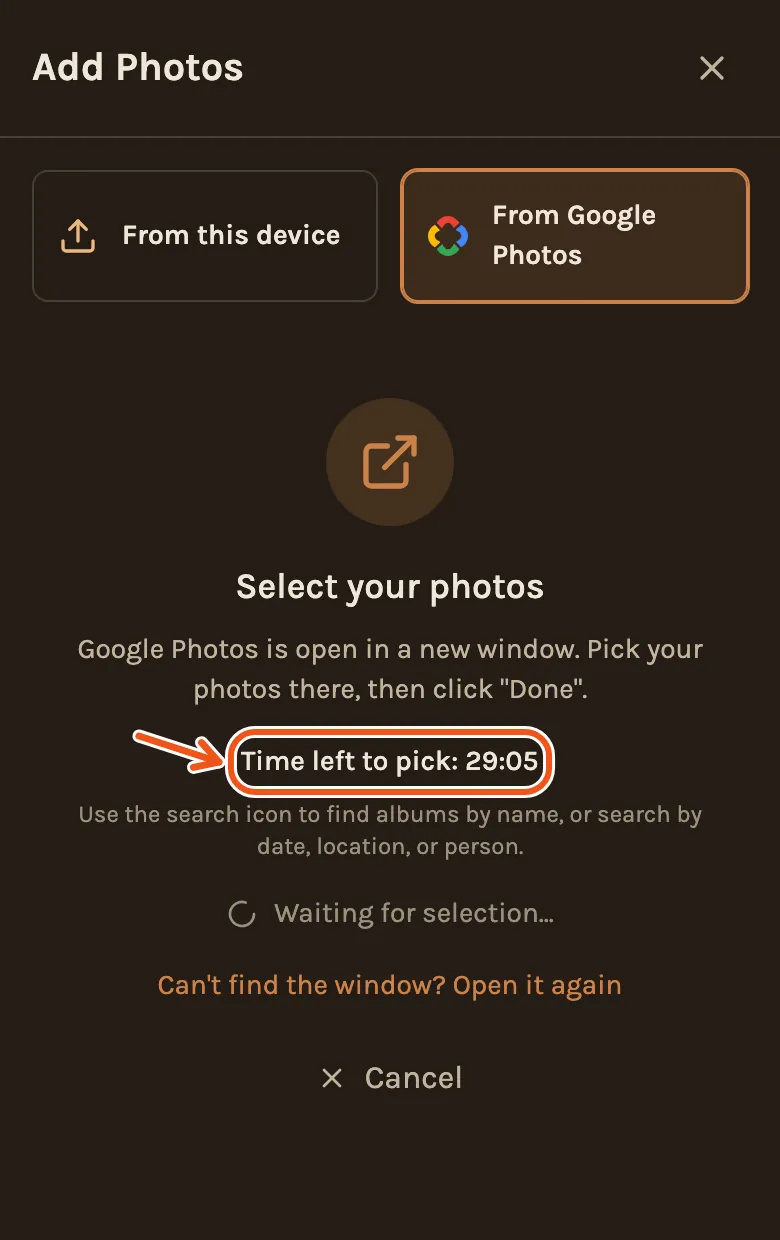
- While you pick, Kindred Scenes waits and shows how much time Google gives you, about 30 minutes.
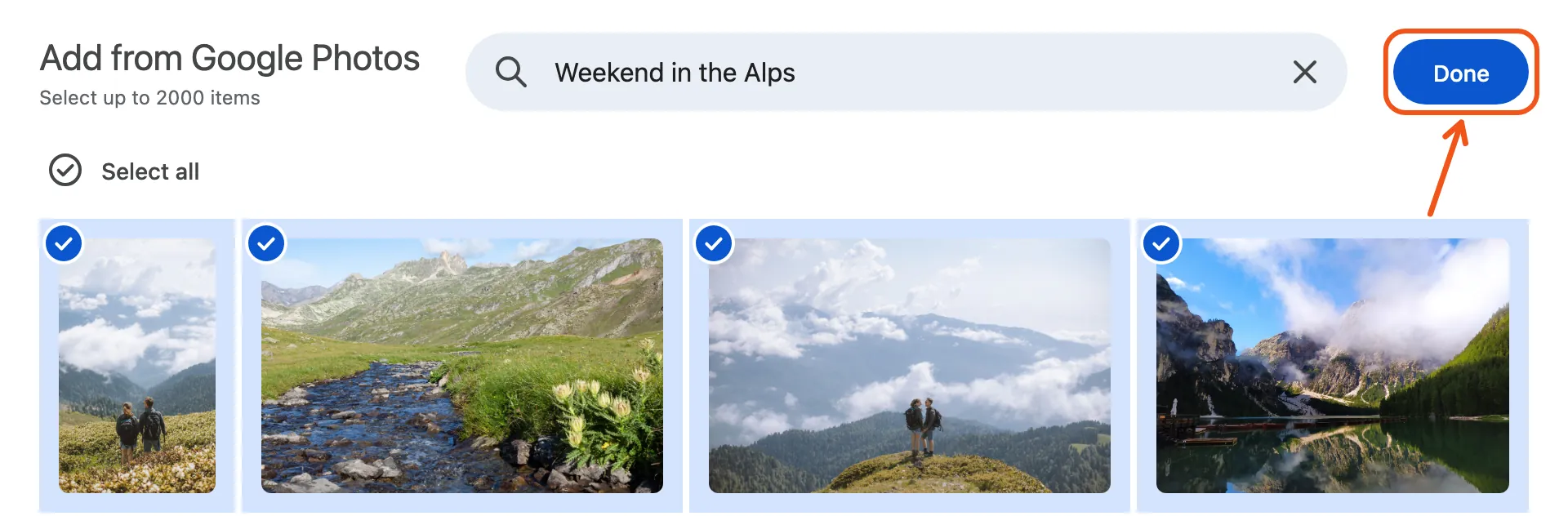
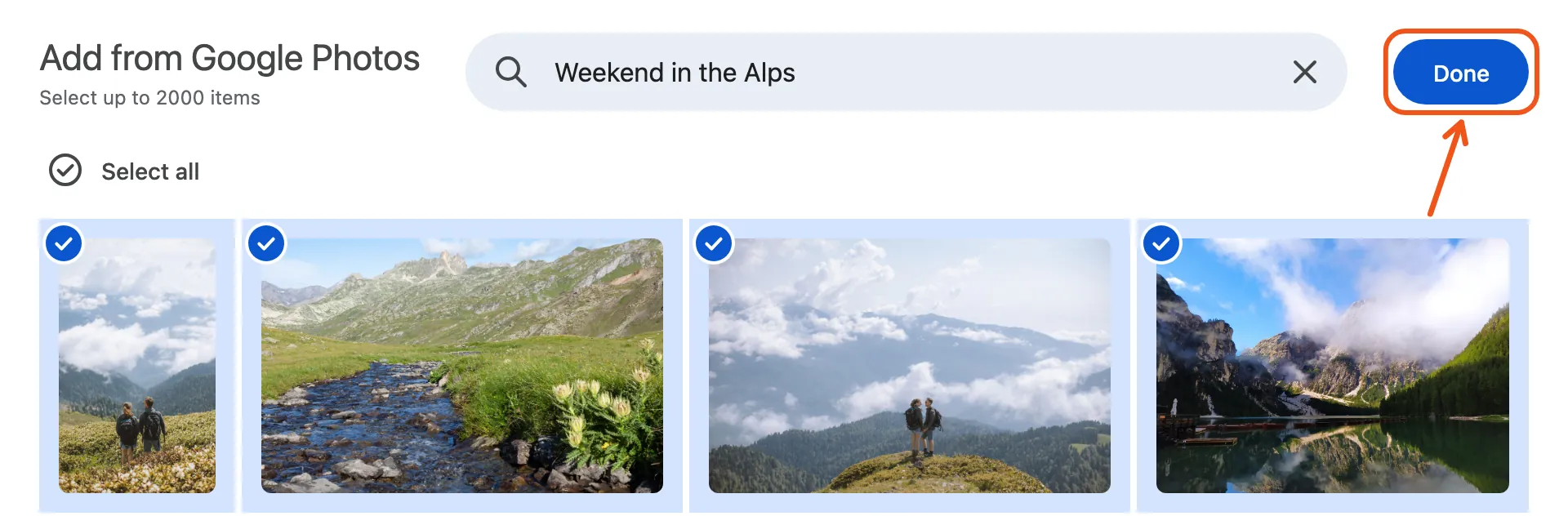
- In Google's picker, search for an album, a date, a place or a person, and select the photos. For an album, click Select all. For a whole day, tick the date.
- Click Done in Google's picker. It closes, and your Kindred Scenes window starts bringing the photos in.
- Tap Open Google Photos. Google's picker opens in a new tab.
- Search for an album, a date, a place or a person, and select the photos. For an album, tap Select all. For a whole day, tap the date.
- Tap Done in Google's picker.
- Go back to the Kindred Scenes tab if it doesn't take you there. Use your browser's tabs button to switch. Kindred Scenes shows how much time you have left while you pick.
If time runs short
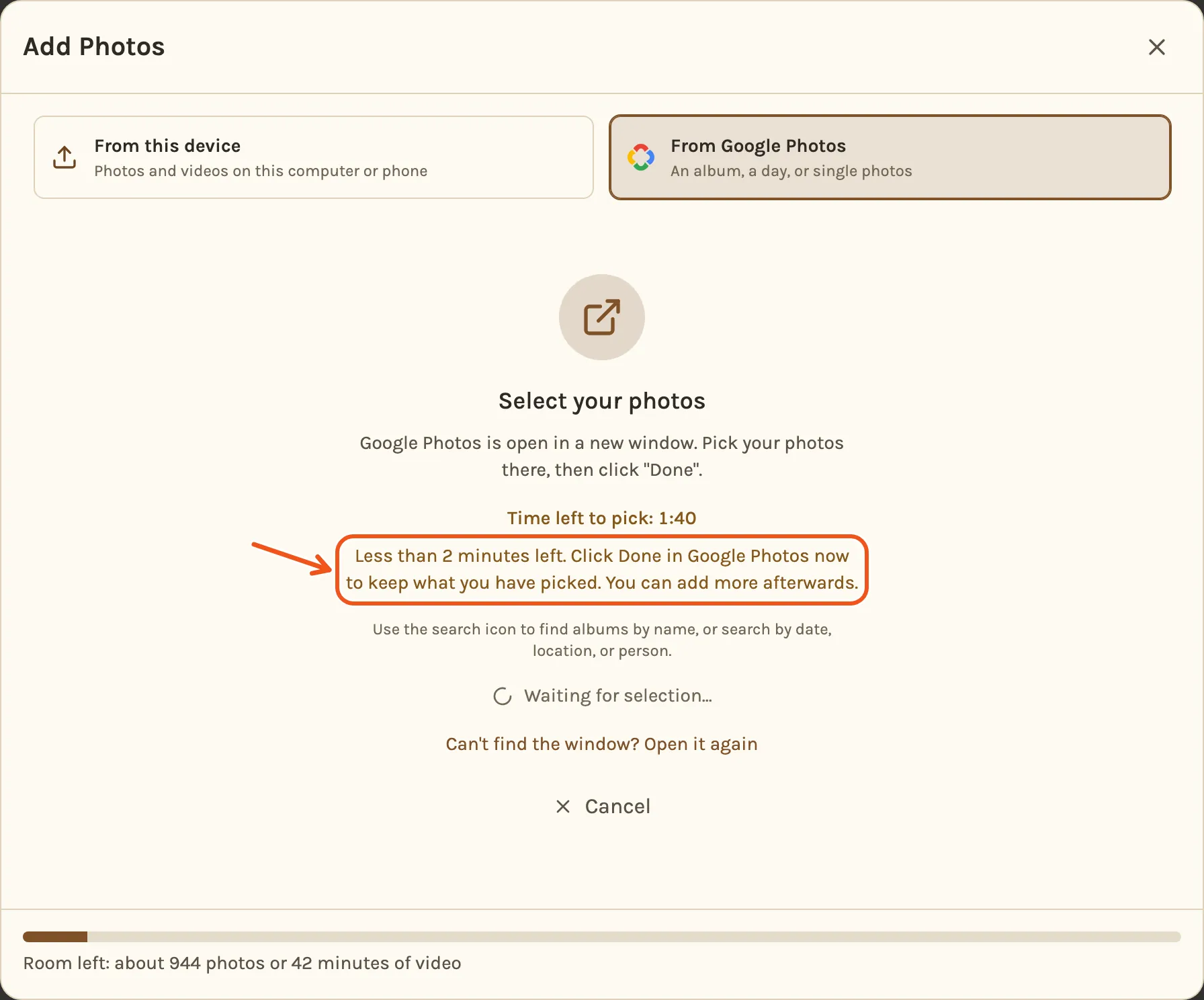
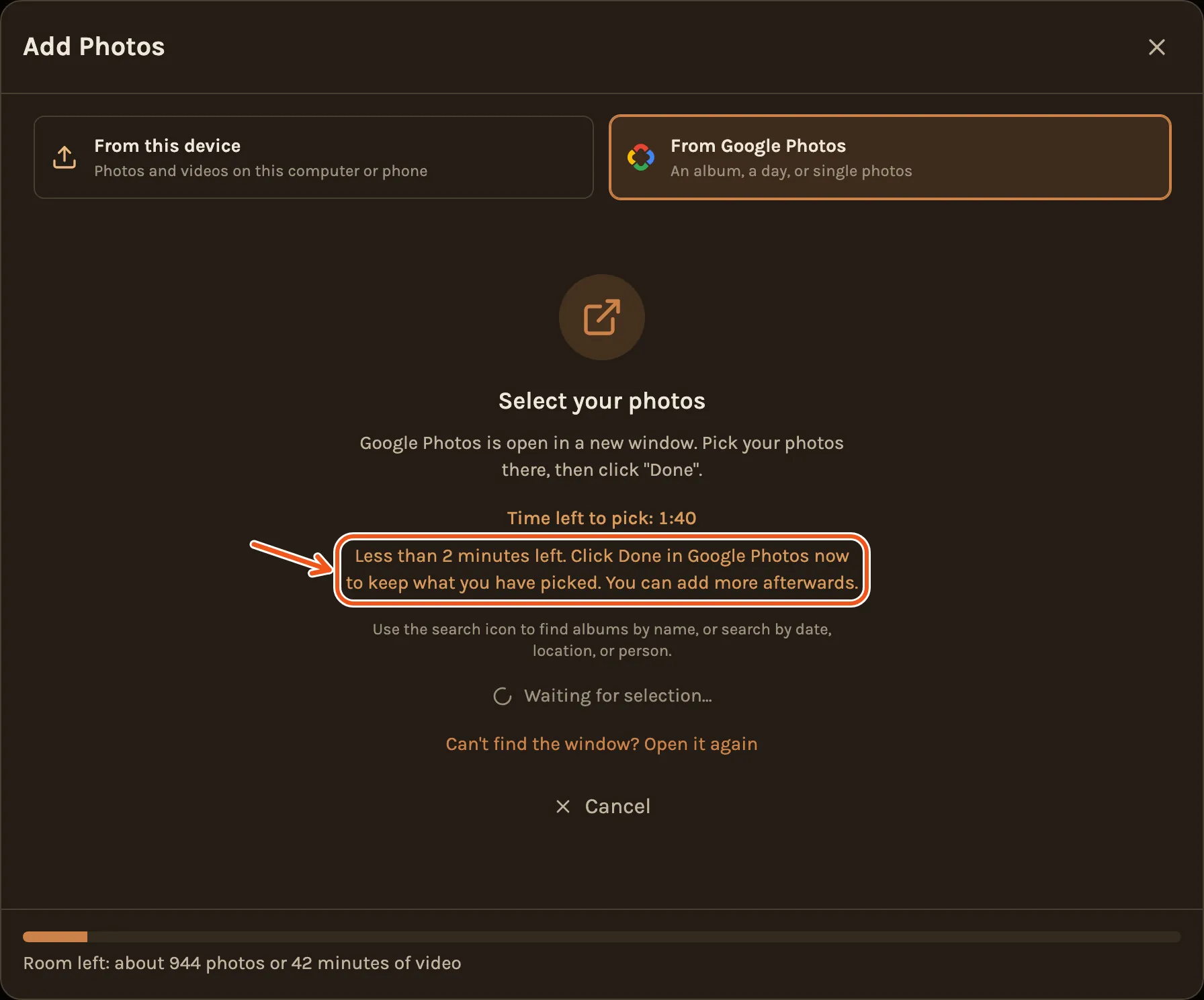
Under 2 minutes left, Kindred Scenes warns you. Click Done in Google's picker to keep what you have, then add more afterwards.
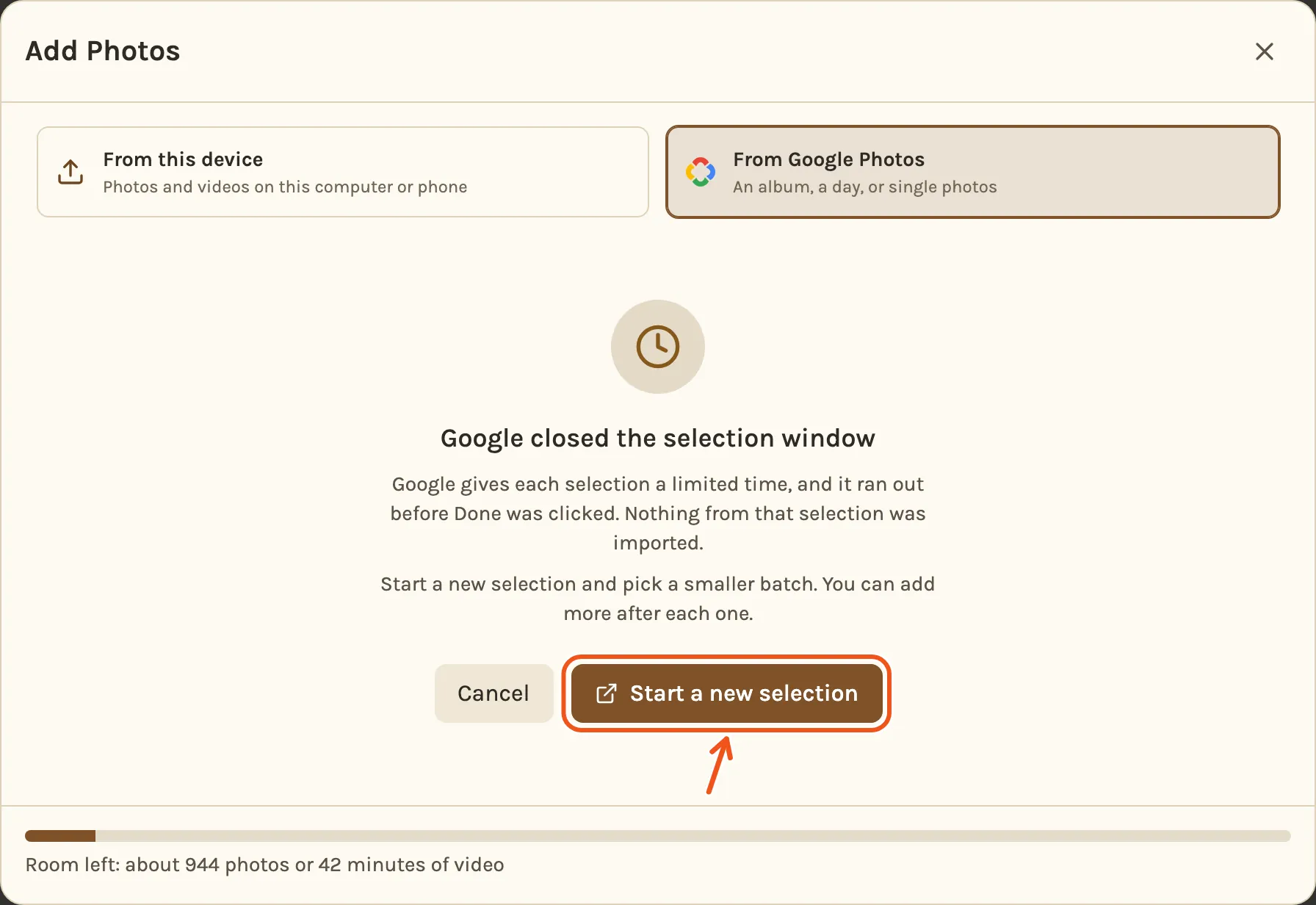
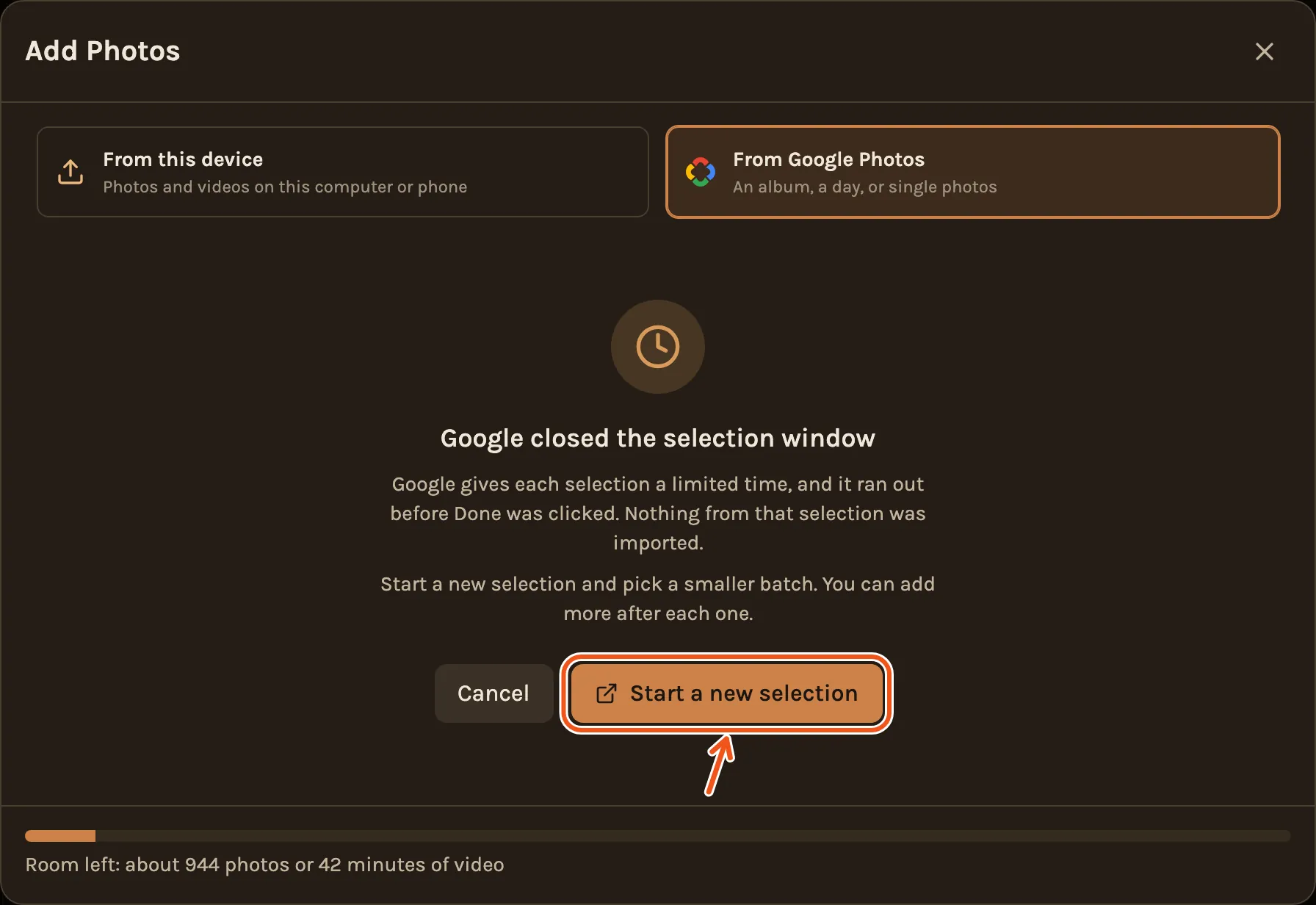
If the time runs out, Kindred Scenes says Google closed the selection window and nothing from that selection comes in. Click Start a new selection and pick a smaller batch.
While it brings them in
After Done, Kindred Scenes says Preparing import... for a moment, then shows a bar while it brings your photos and videos in.
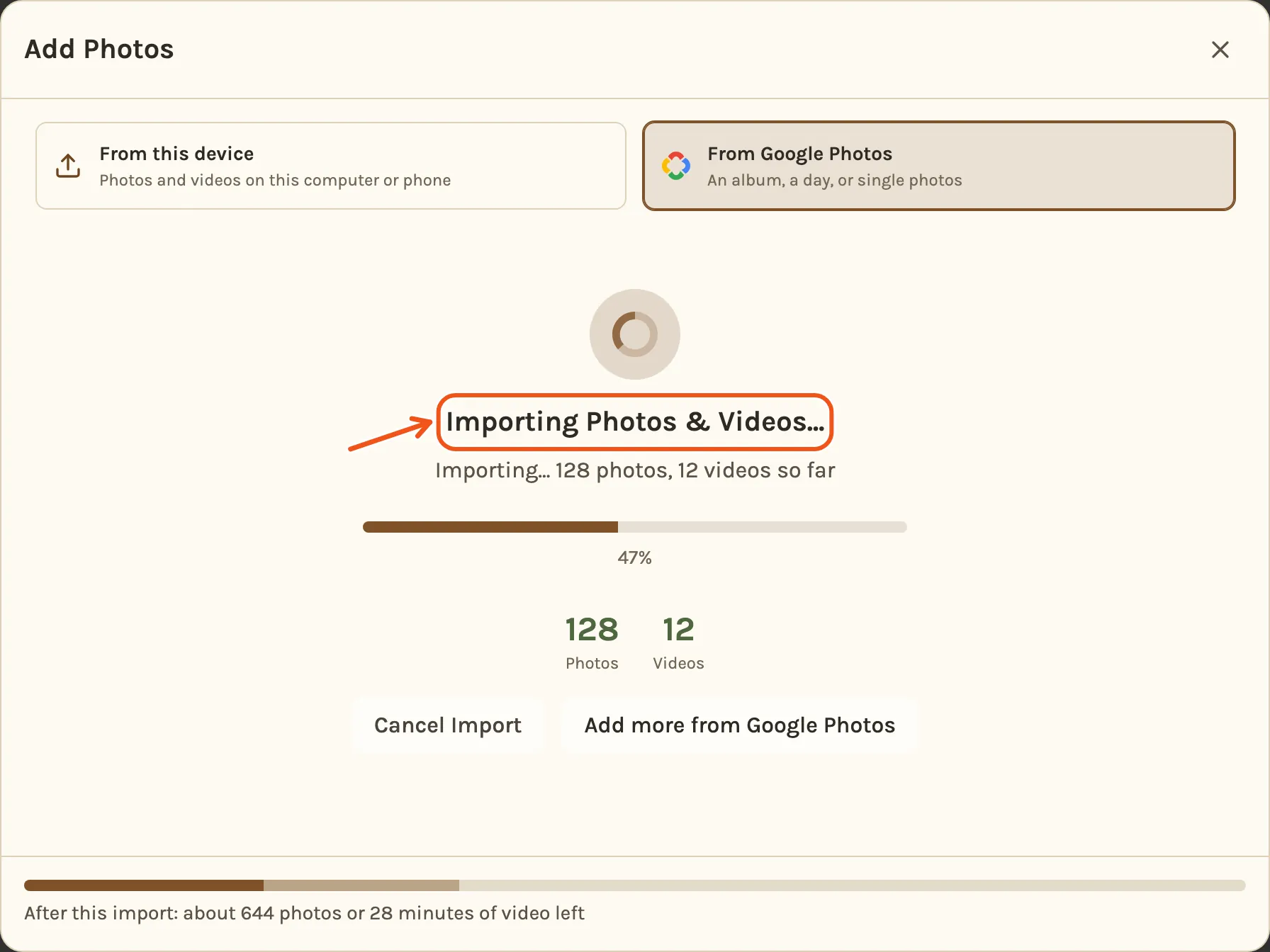
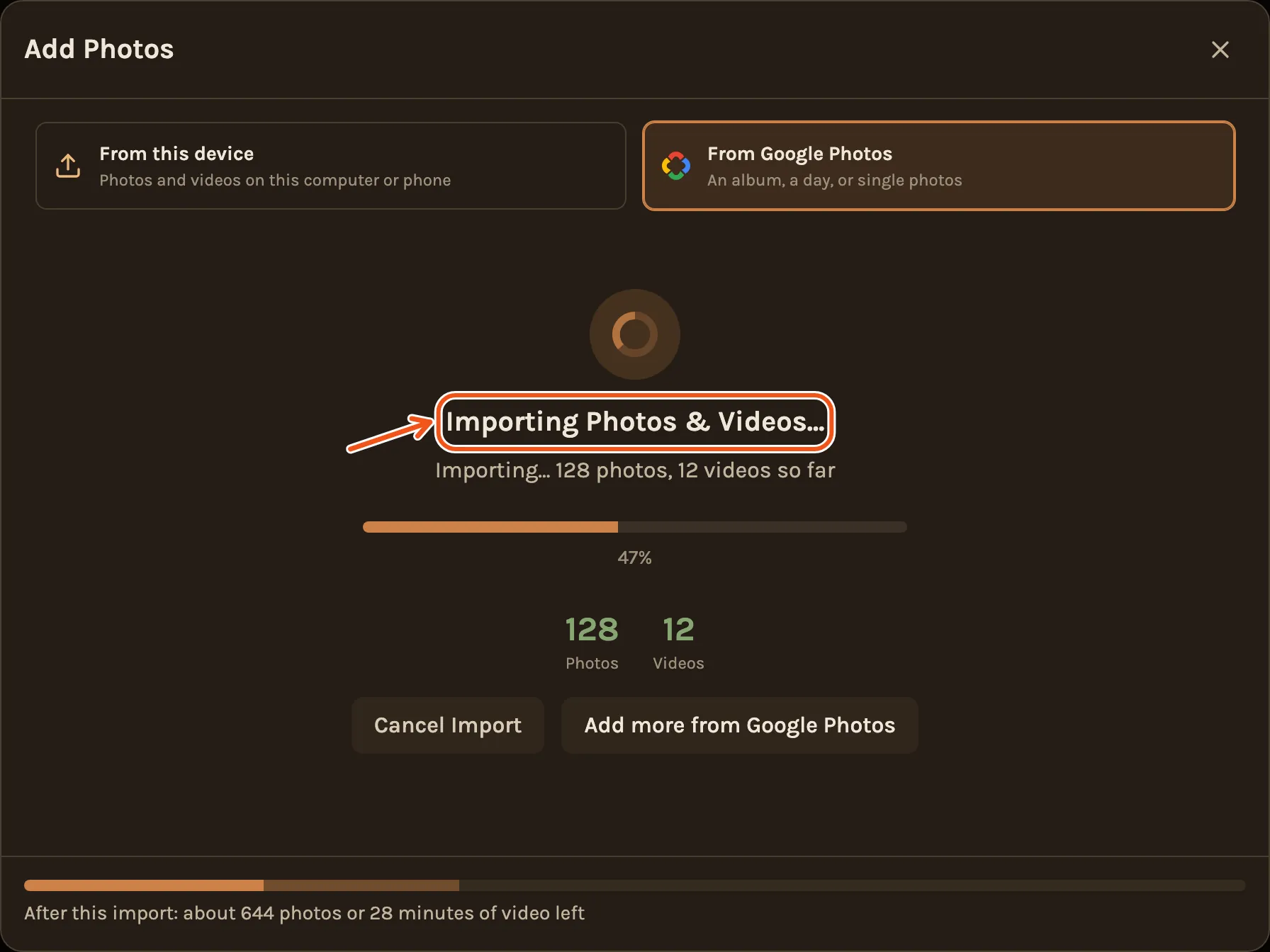
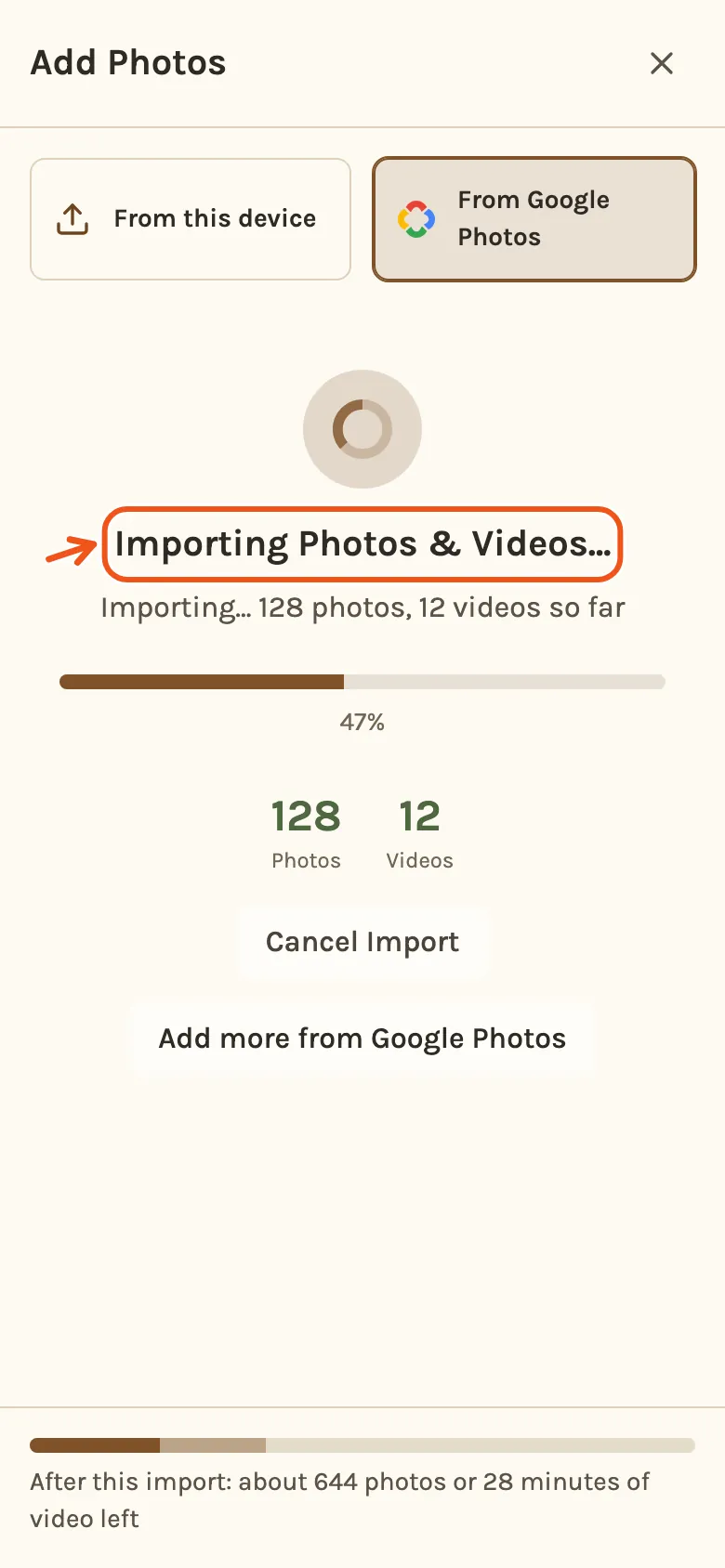
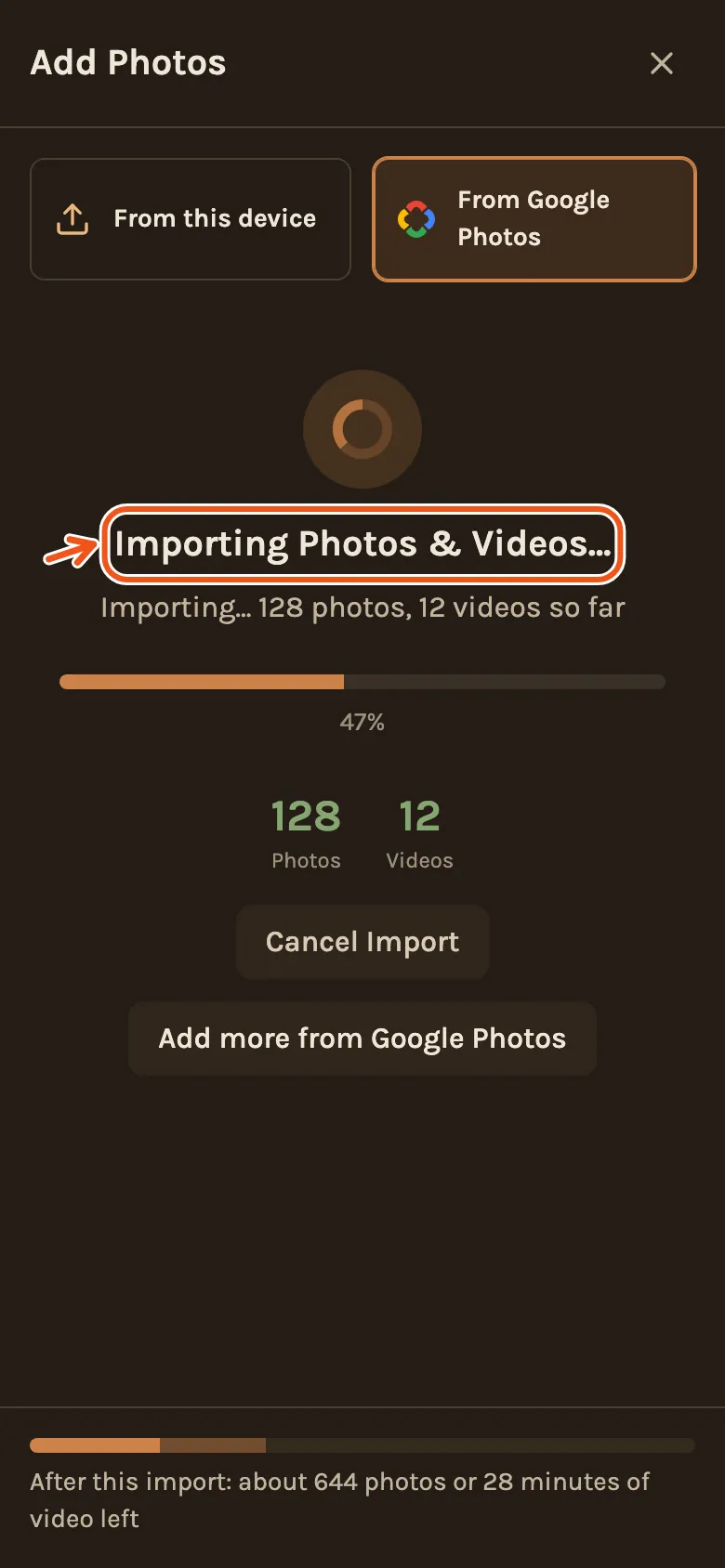
Once the bar shows, you can close the window. The import keeps going on its own, and your photos appear in the Library as they arrive. If you close it, Kindred Scenes asks first. Choose Close and keep importing.
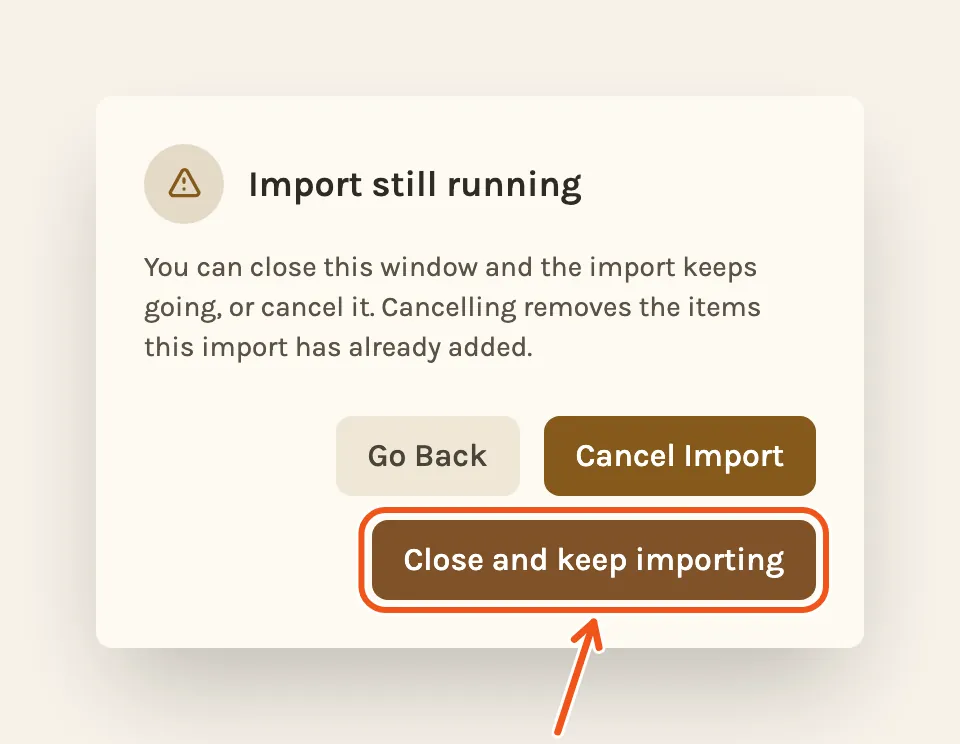
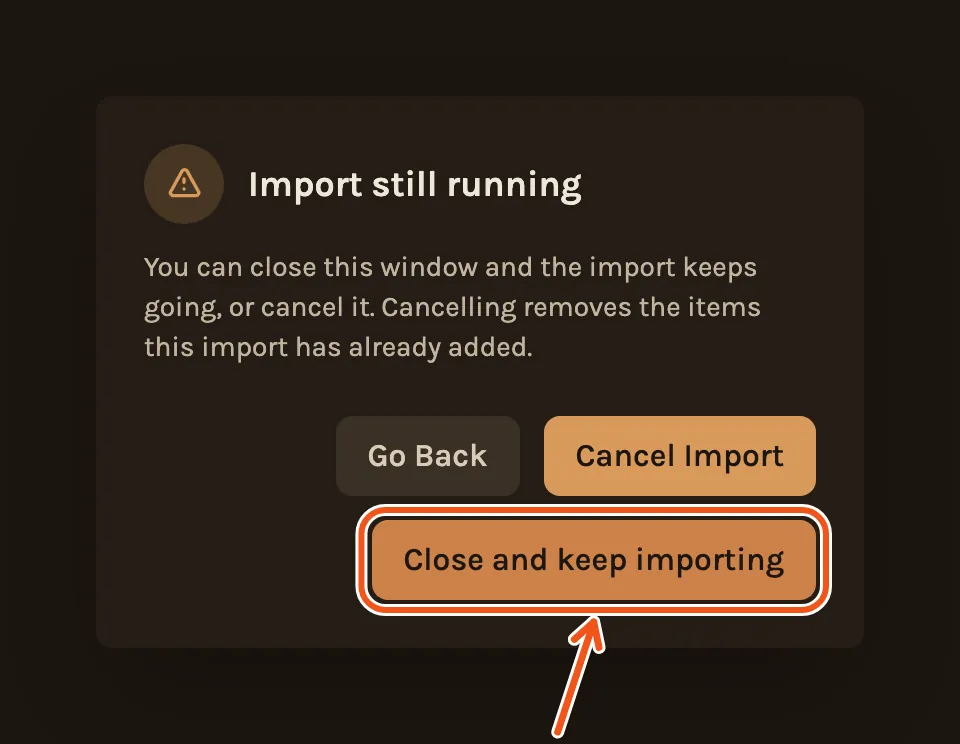
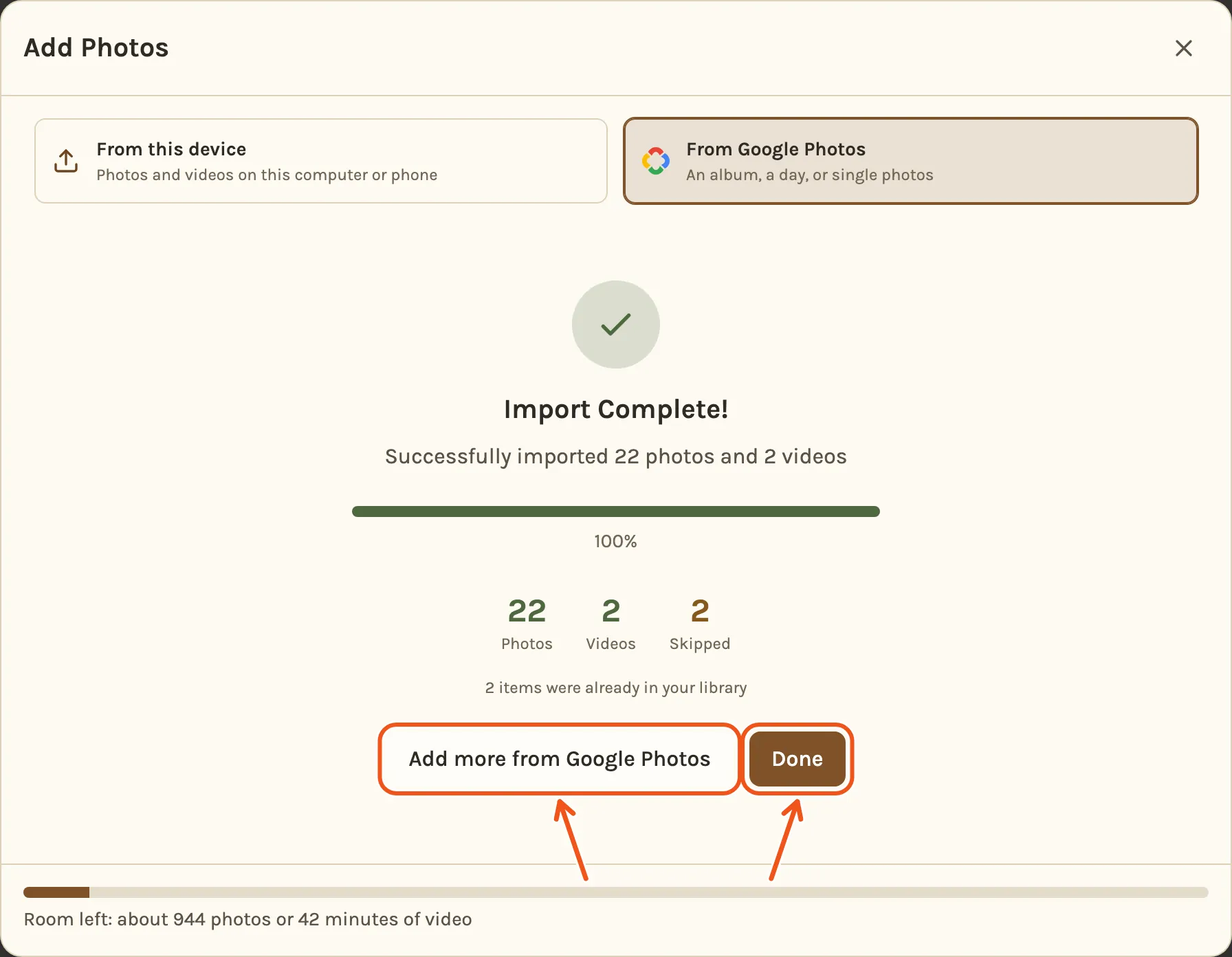
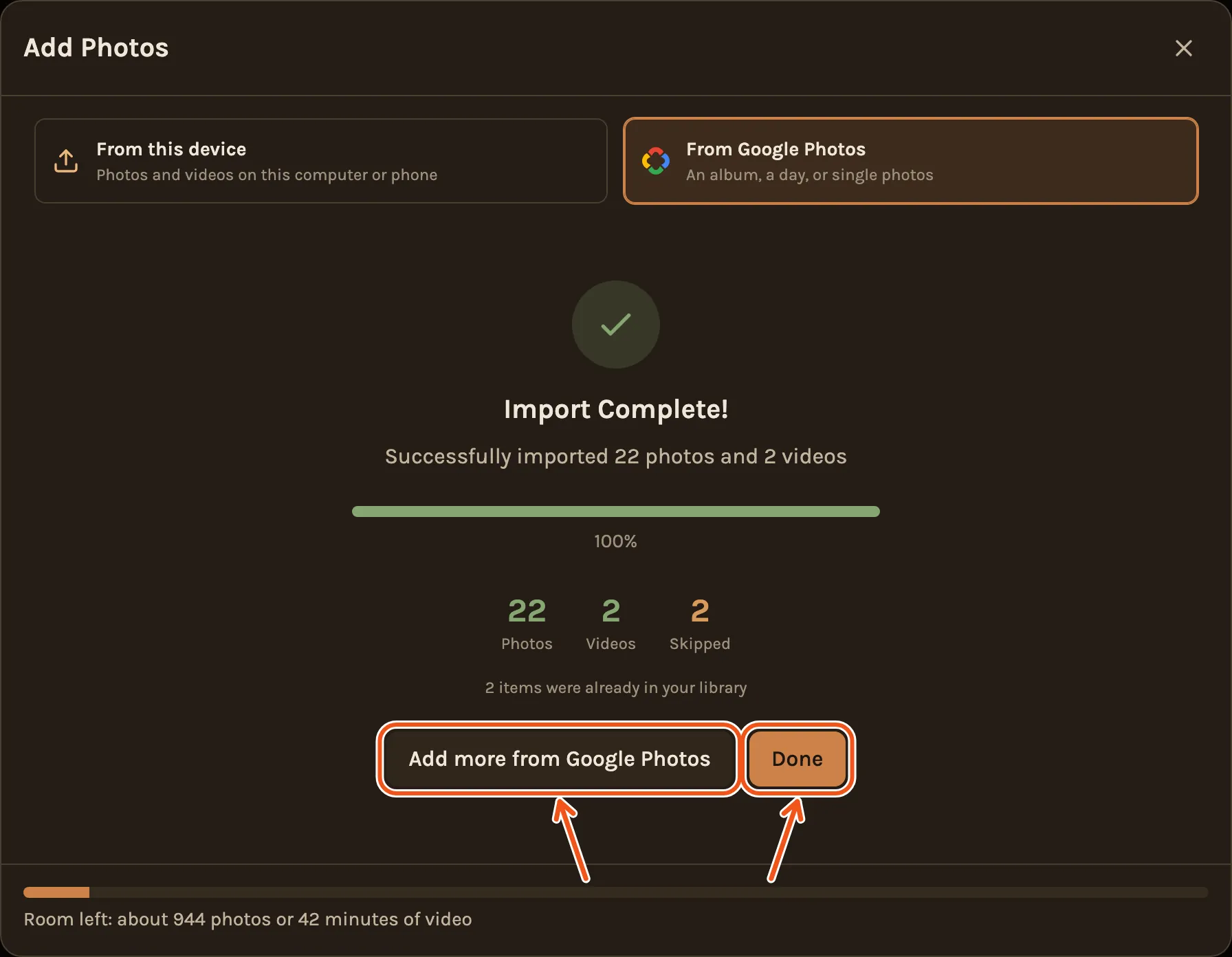
One import runs at a time in each project, so the next batch waits until this one is in. Add more from Google Photos shows when it finishes.
When it's done
You see Import Complete! with how many photos and videos came in, and how many were skipped. Click Done, or Add more from Google Photos to pick another batch.
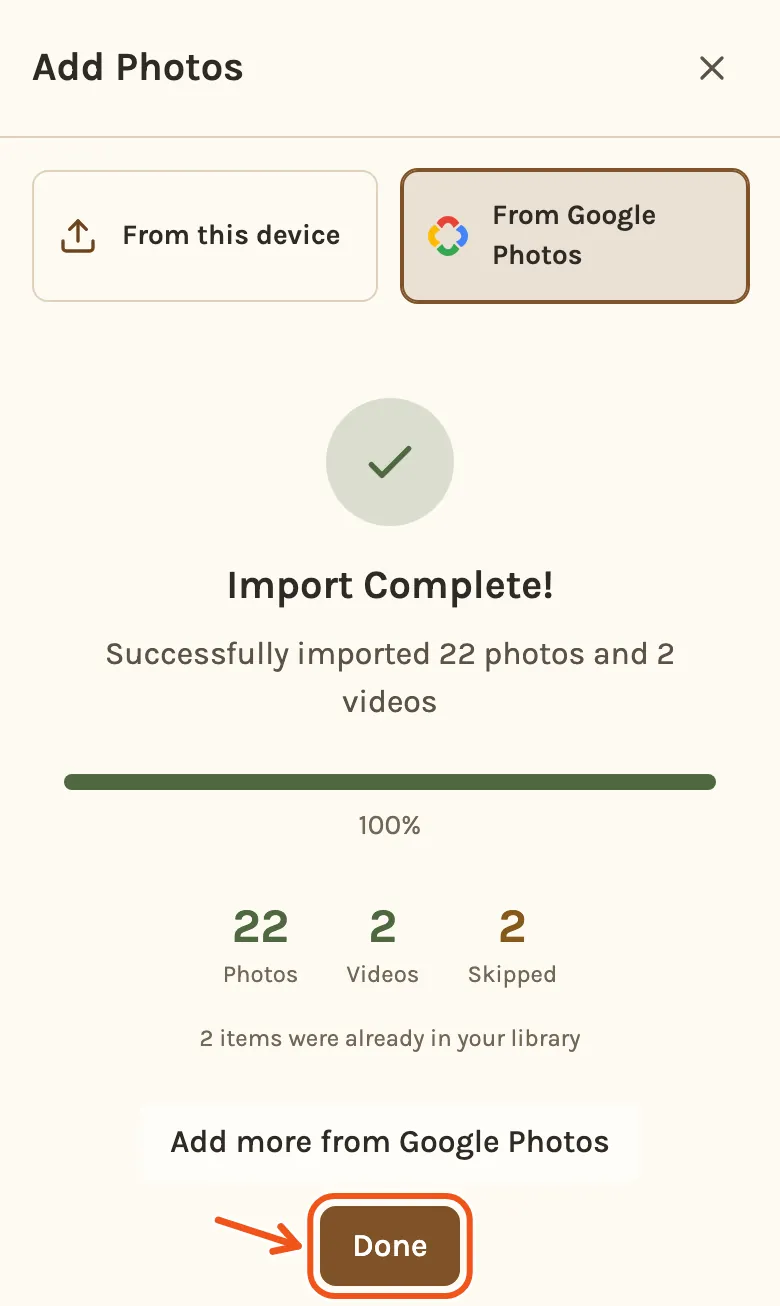
What comes in and what doesn't:
- Photos and videos both come in. Videos can be up to 3 minutes long.
- Photos already in your project from Google Photos are skipped, so picking the same album twice adds nothing twice.
- GIFs are skipped.
Every project has room for about 1,000 photos, or 60 minutes of video, or a mix. The bar at the bottom of the window shows the room left, and what this import will take. A video counts its full length, measured as it comes in. If your selection looks like more than fits, you're told before the import starts. If it is more, Kindred Scenes brings in your photos first, then videos while there is room, and shows you which items did not fit.
If you can't find a shared album
If someone shared an album with you and it doesn't show up when you search, open it in Google Photos and click Save at the top. That adds it to your own library, where the picker can find it. An album made today can also take a while to appear in search.