Get your invite link
- Open your project's Library.
- Click Invite at the top right, next to Add Photos.
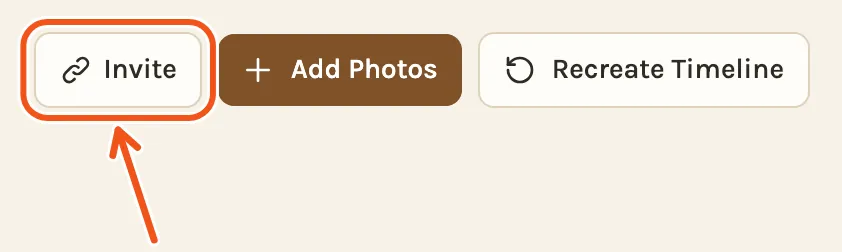
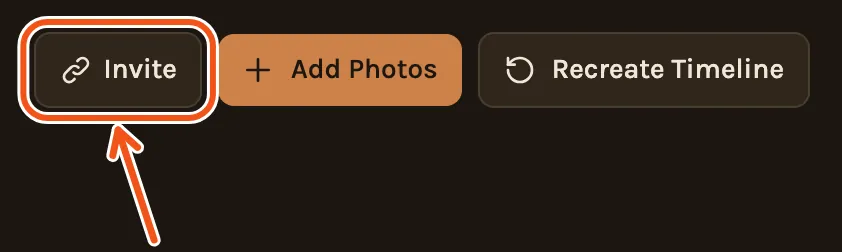
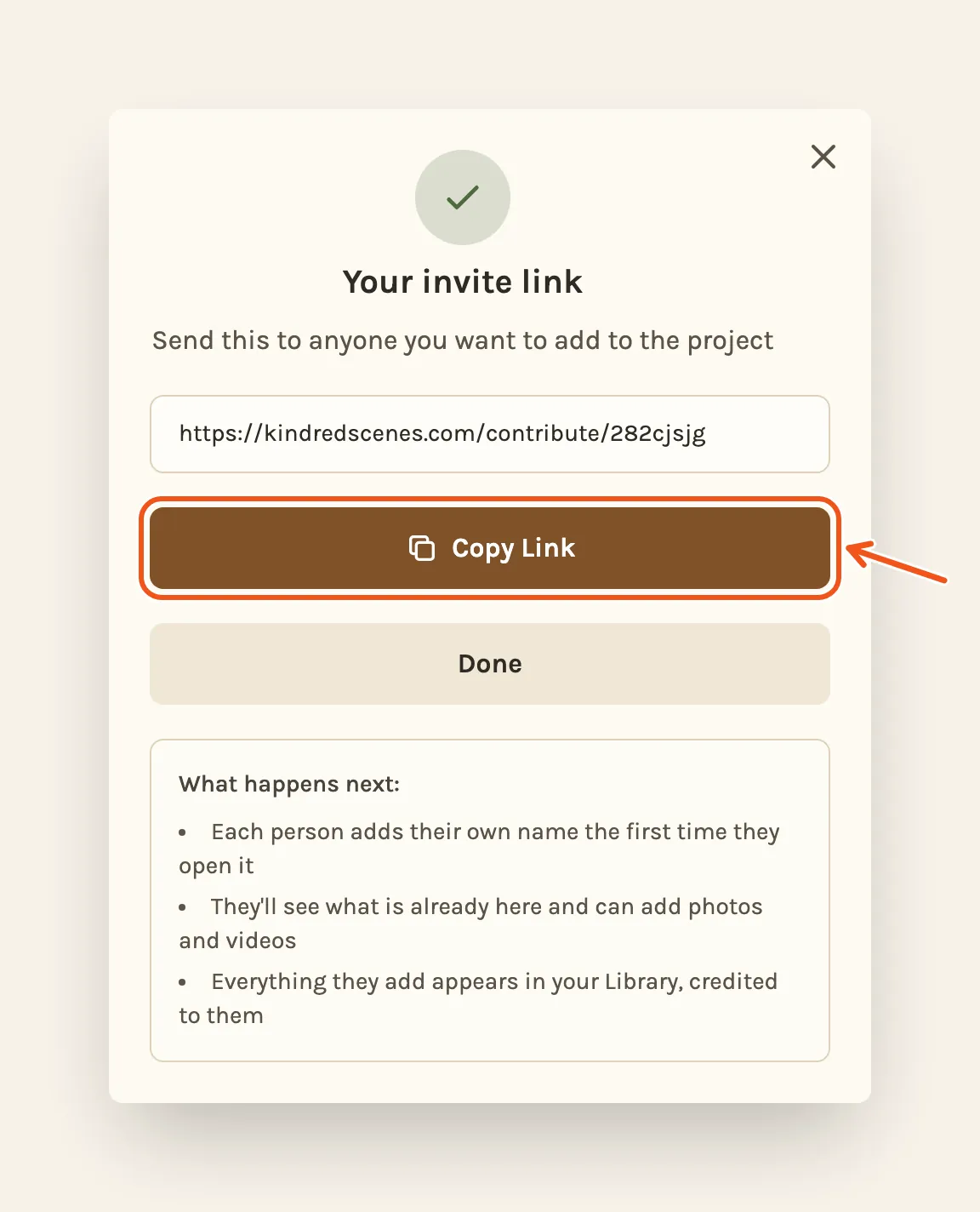
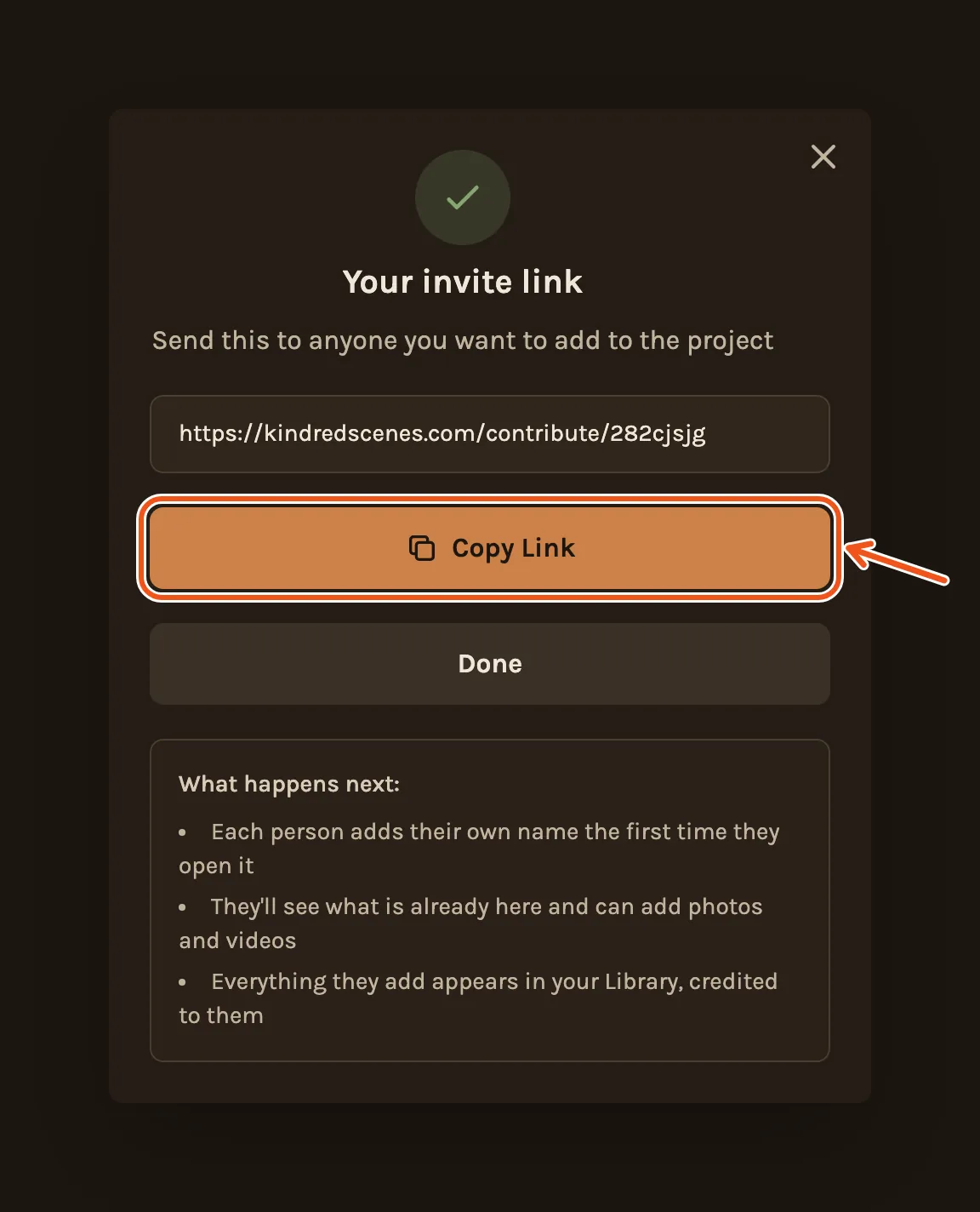
- Click Create Invite Link. The link is copied for you.
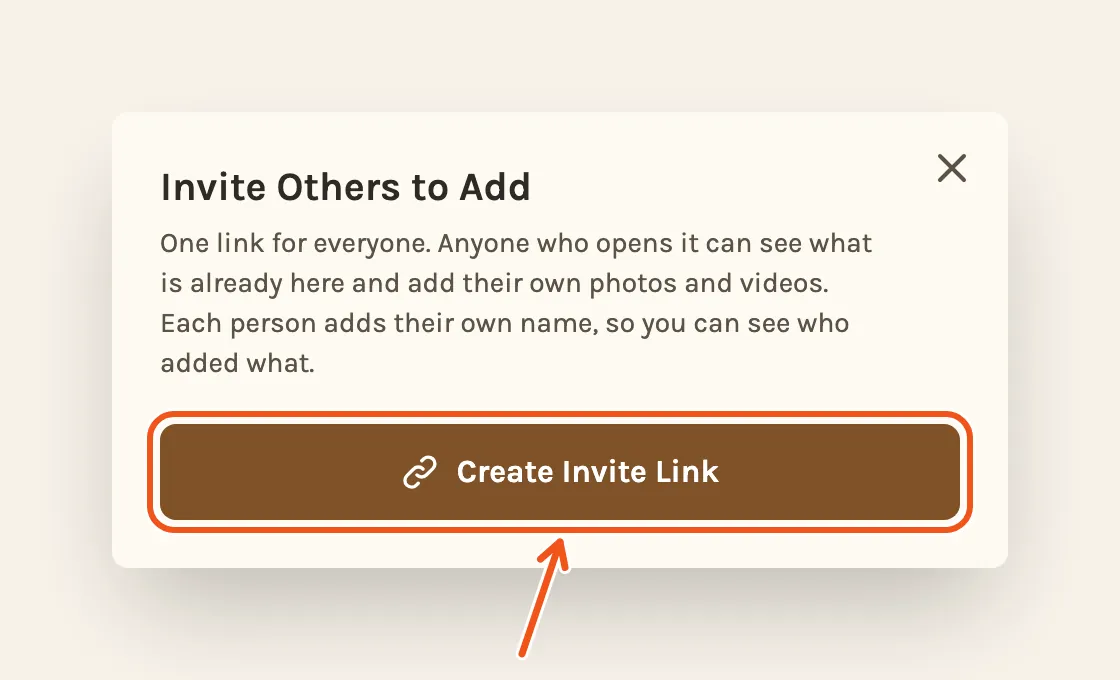
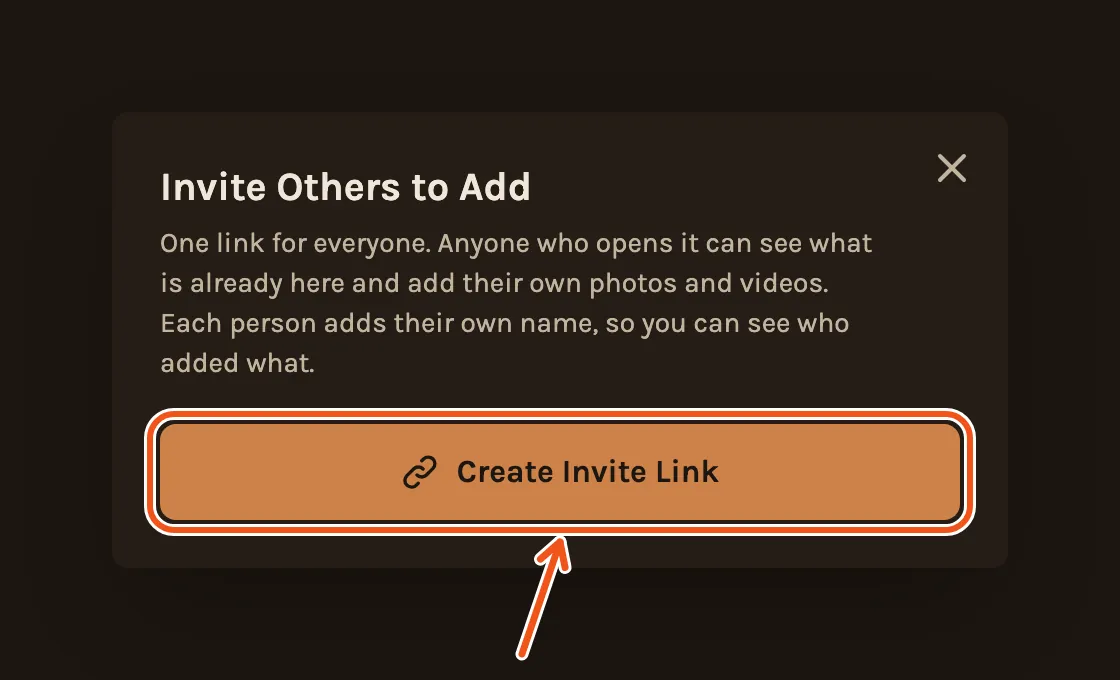
- Paste it into a message, an email or the family group chat. If you need it again, click Copy Link.
- Open your project's Library tab.
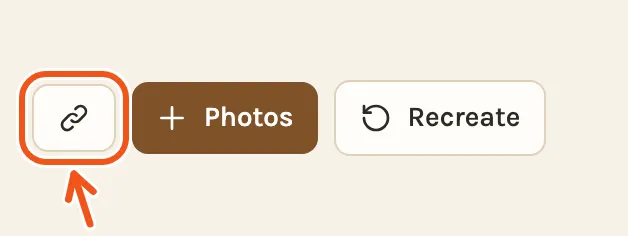
- Tap at the top right, next to Photos.
- Tap Create Invite Link. The link is copied for you.
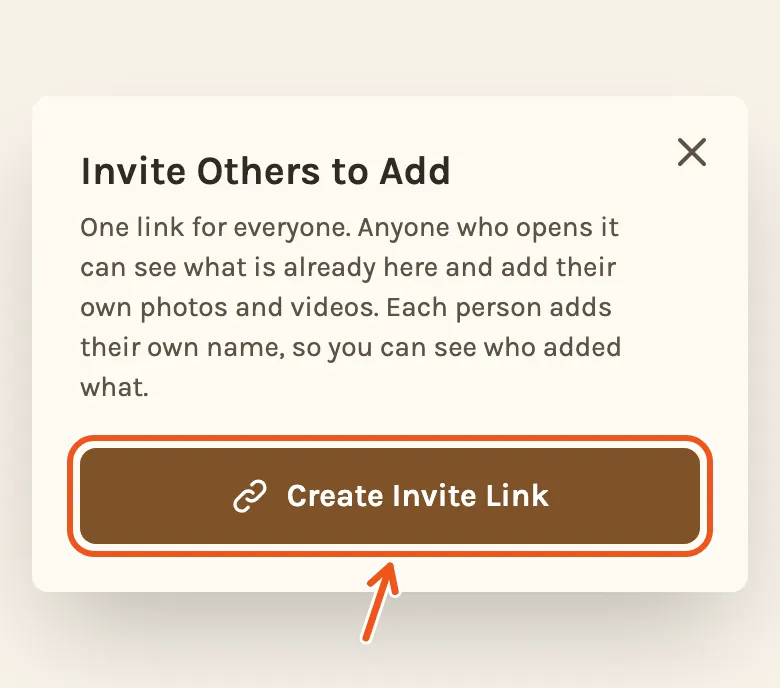
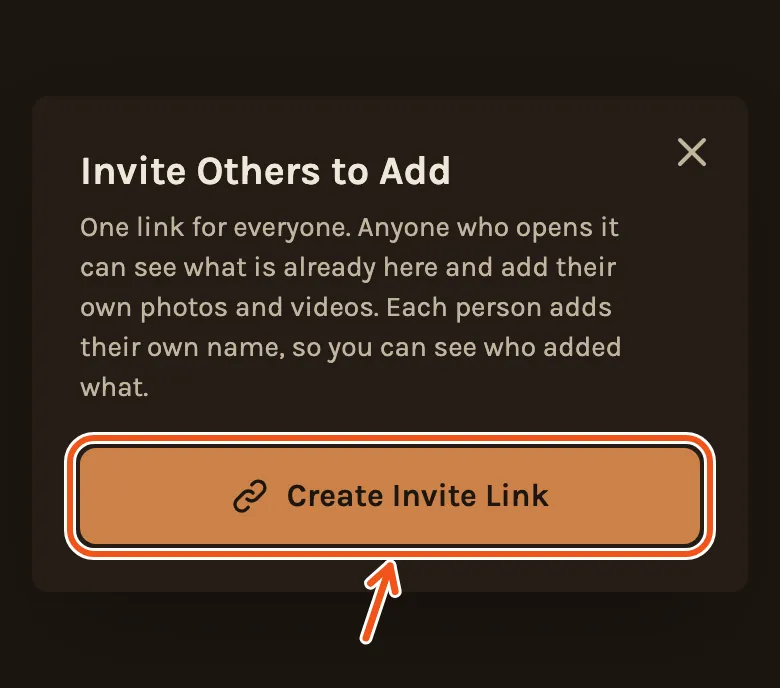
- Paste it into a message, an email or the family group chat. If you need it again, tap Copy Link.
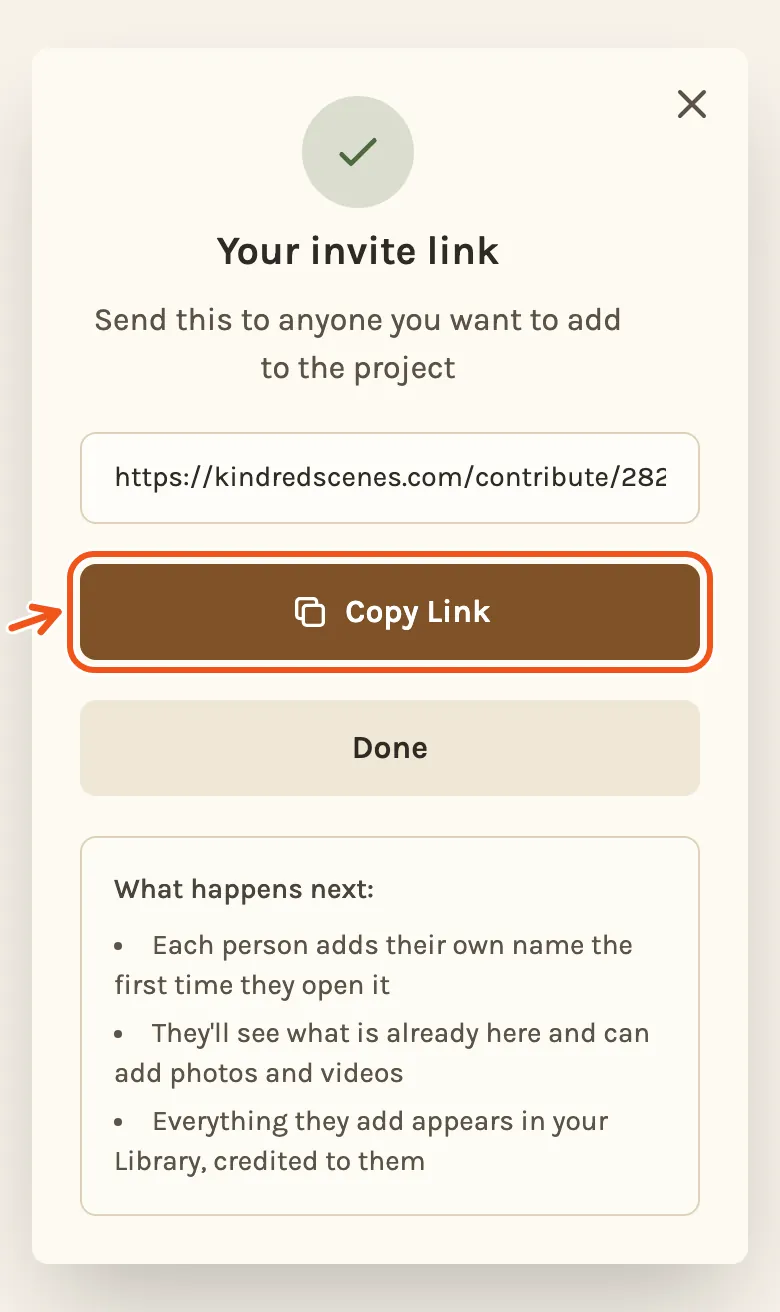
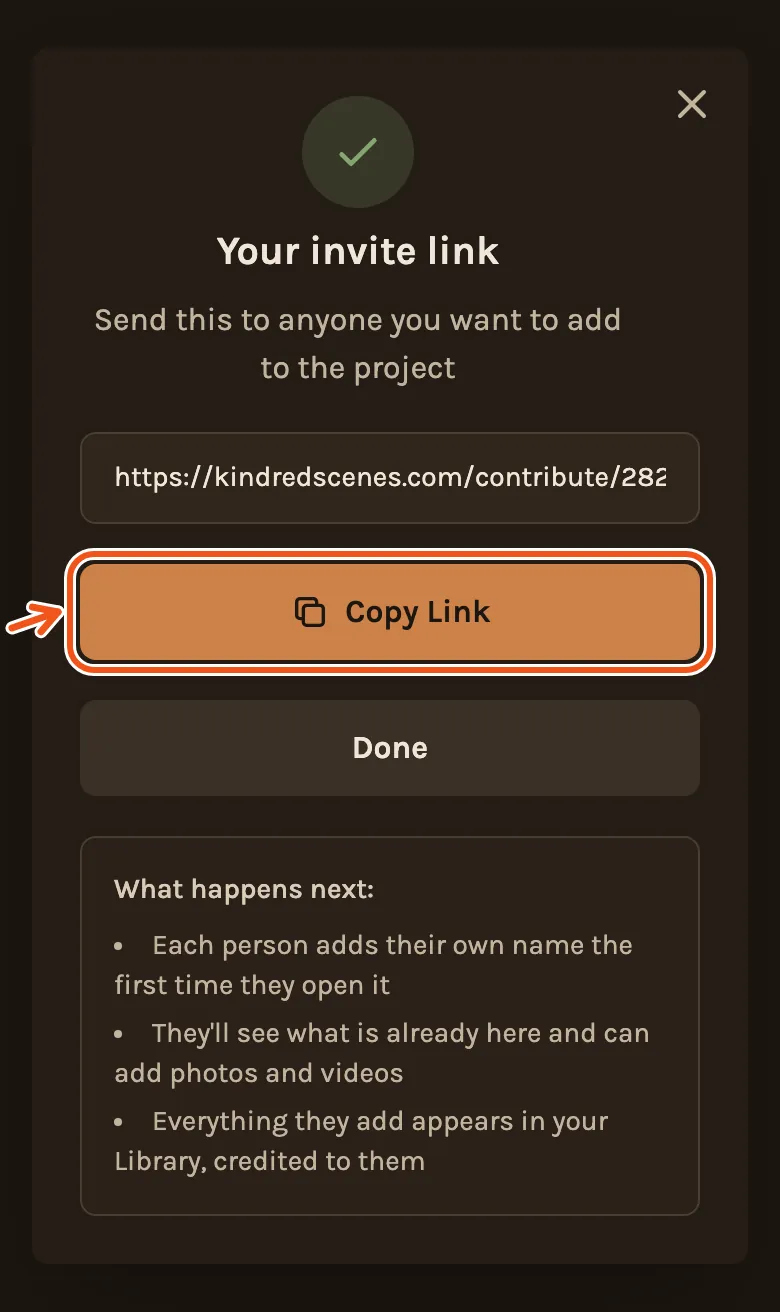
It's the same link for everyone, so you only send it once. Opening Invite again later shows the same link.
What to write
People add more when you ask for something specific and give them a date:
I'm making a film of the trip! Please add your photos and videos here by Sunday: [link]
Everything is welcome, even the blurry ones. Videos too.
For a family film, ask for the photos you are missing: the early years, a wedding, someone's old albums.
What they see
This is what someone sees when they open your link. You can forward this part to them.
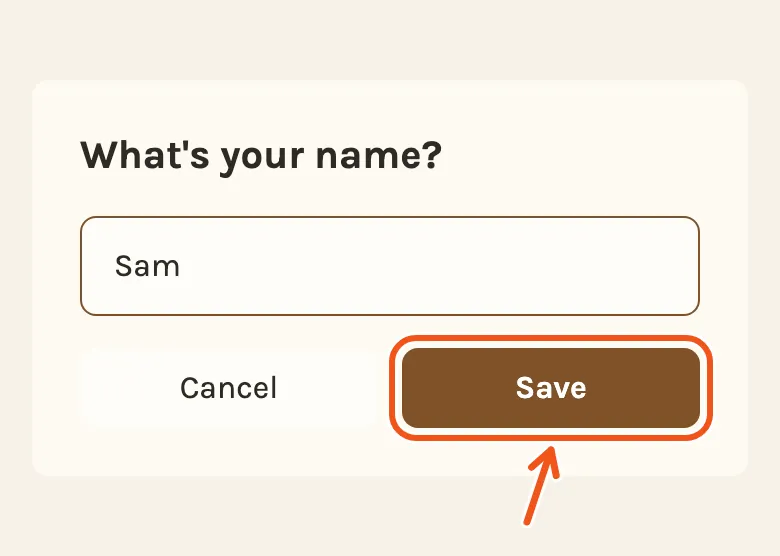
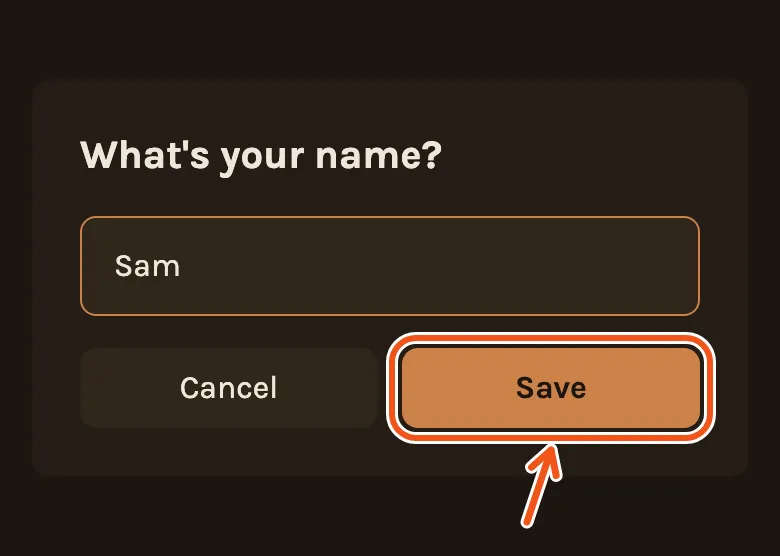
- They type their name and tap Save. It is only so you can see who added what. They are not signing up for anything.
- They see your project and what's already in it. Photos other people added carry their name.
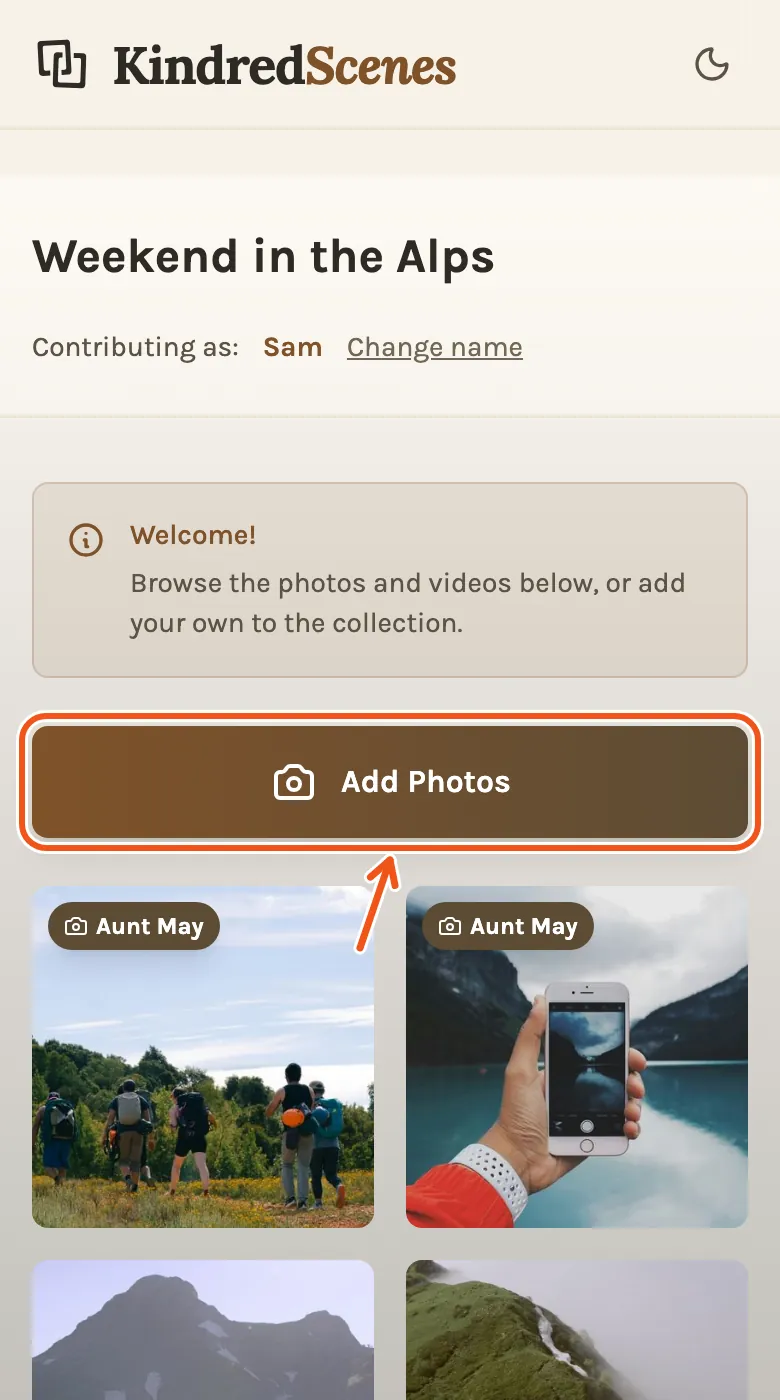
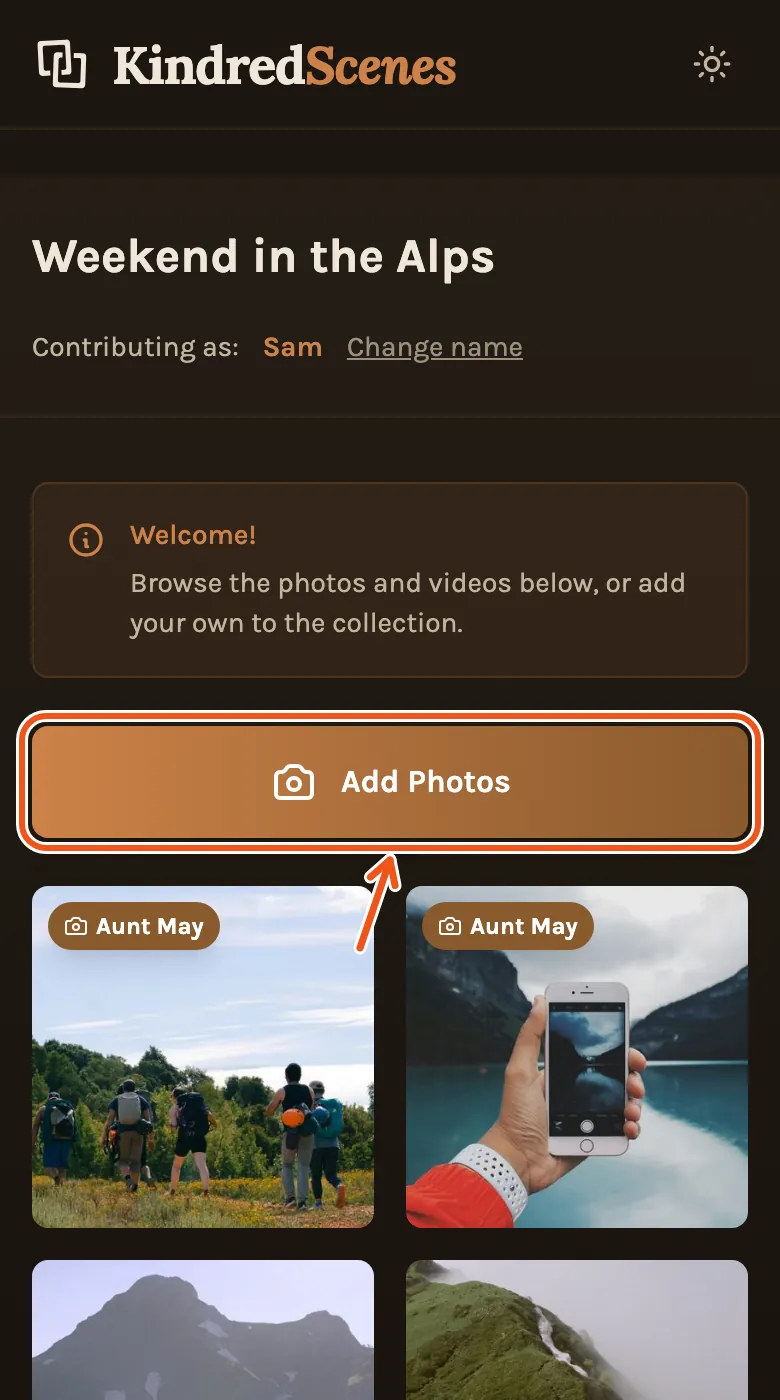
- They tap Add Photos, then Select Files to pick from their phone or computer. From Google Photos lets them pick from their own Google Photos.
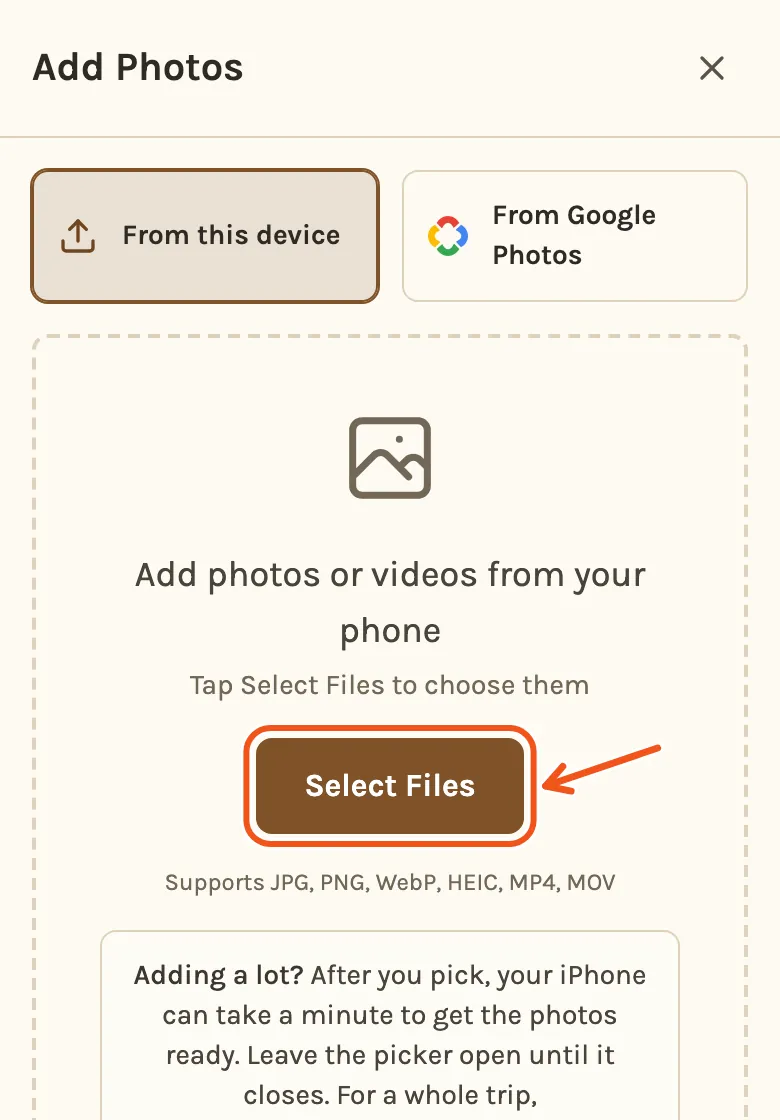
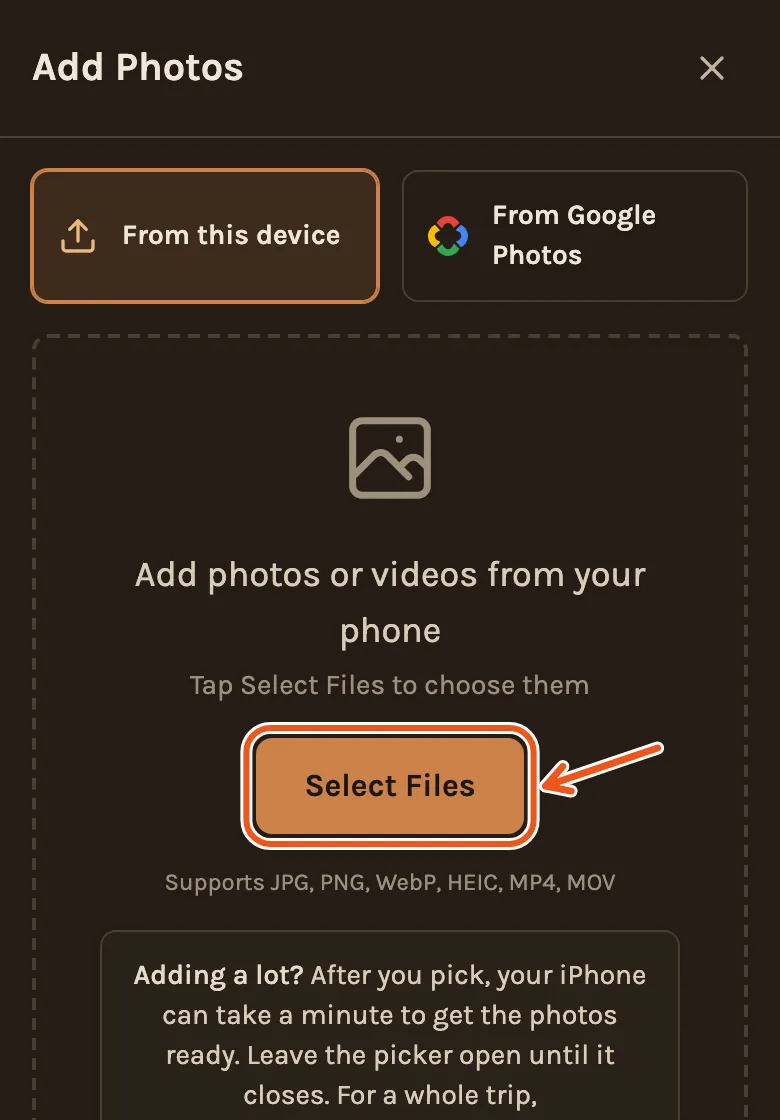
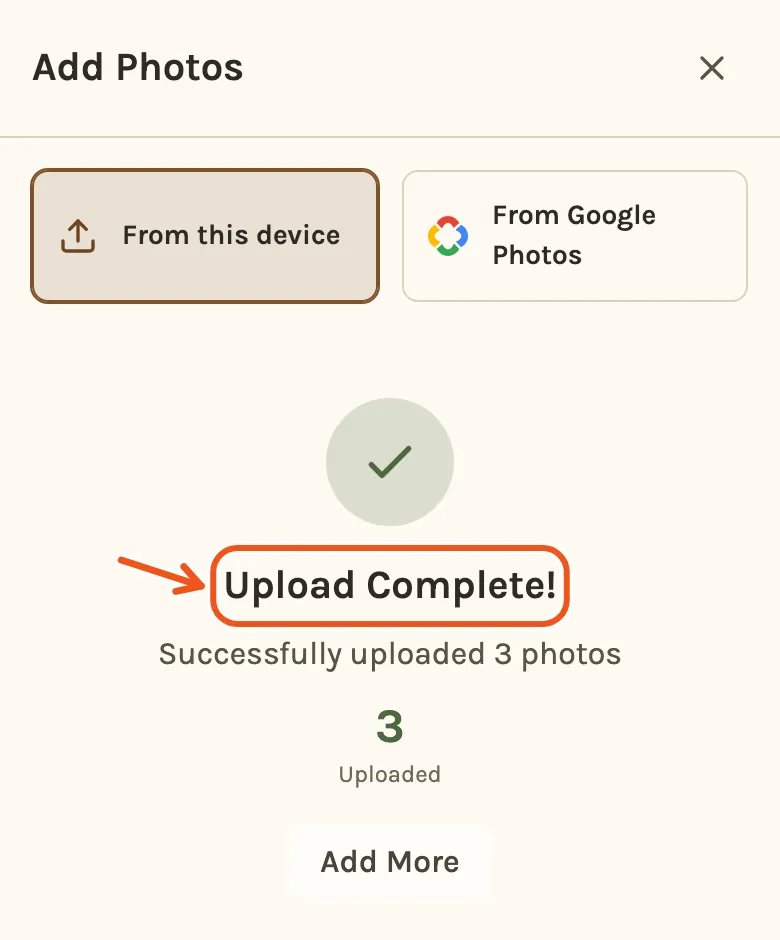
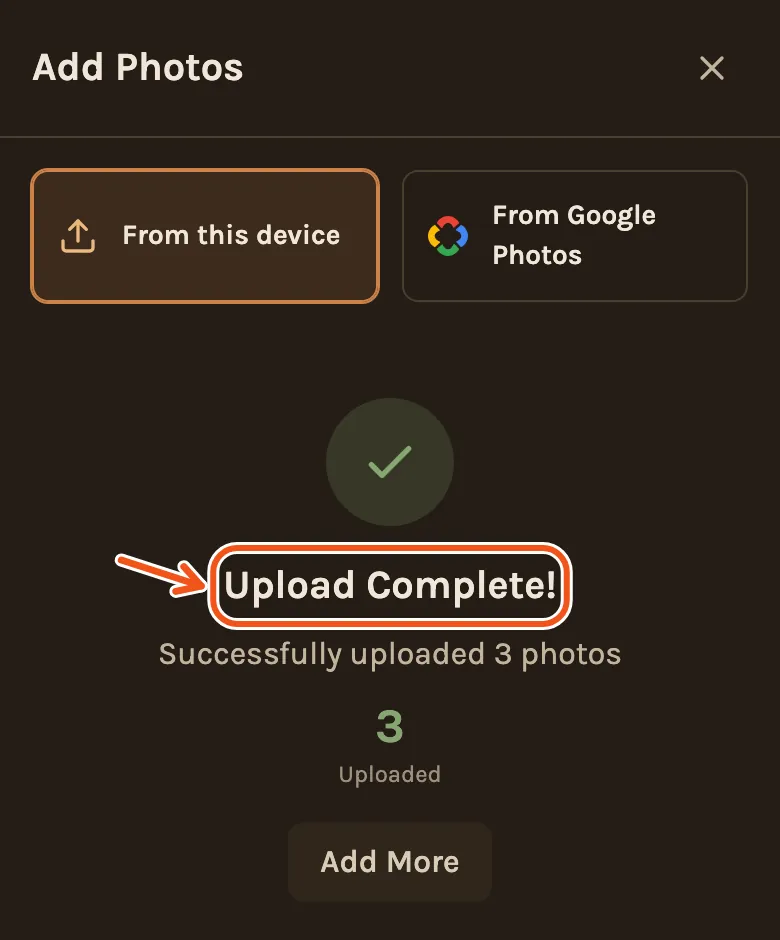
- They tap Upload, keep the page open, and wait for Upload Complete!
- Back on the page, the photos they added are marked You.
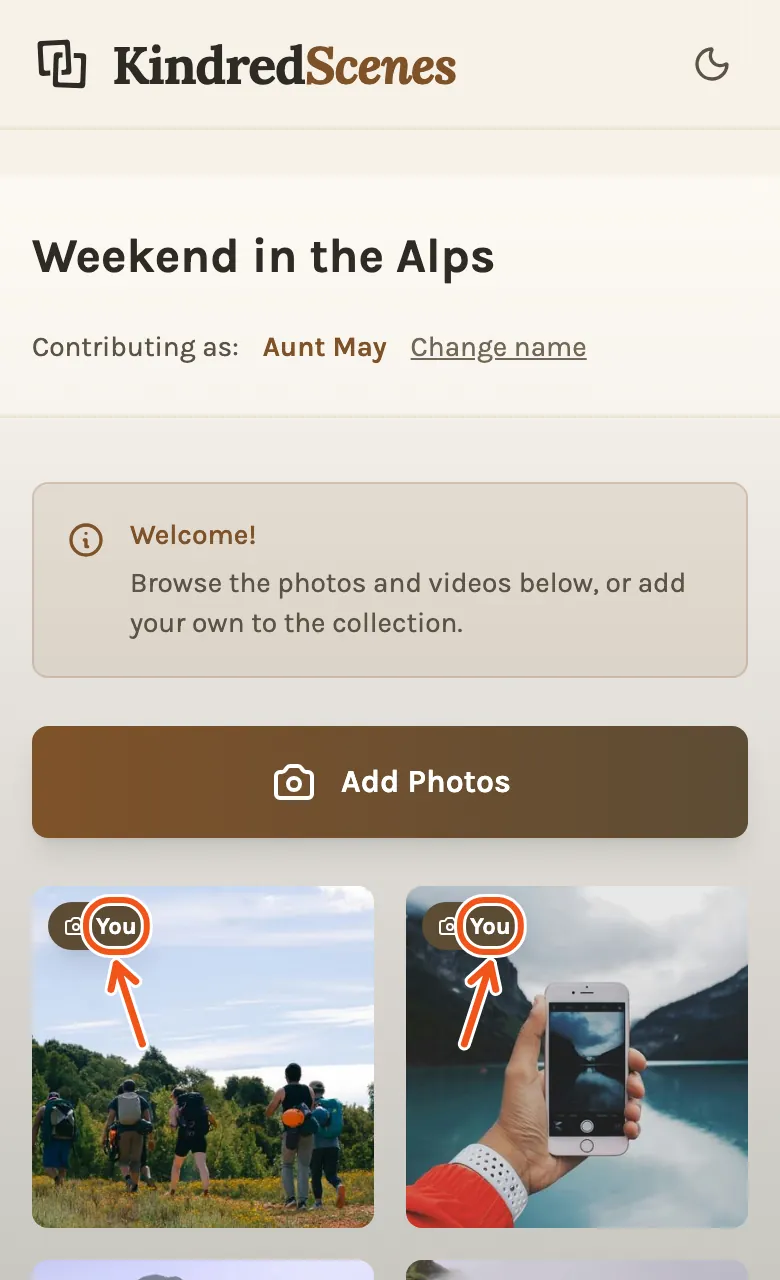
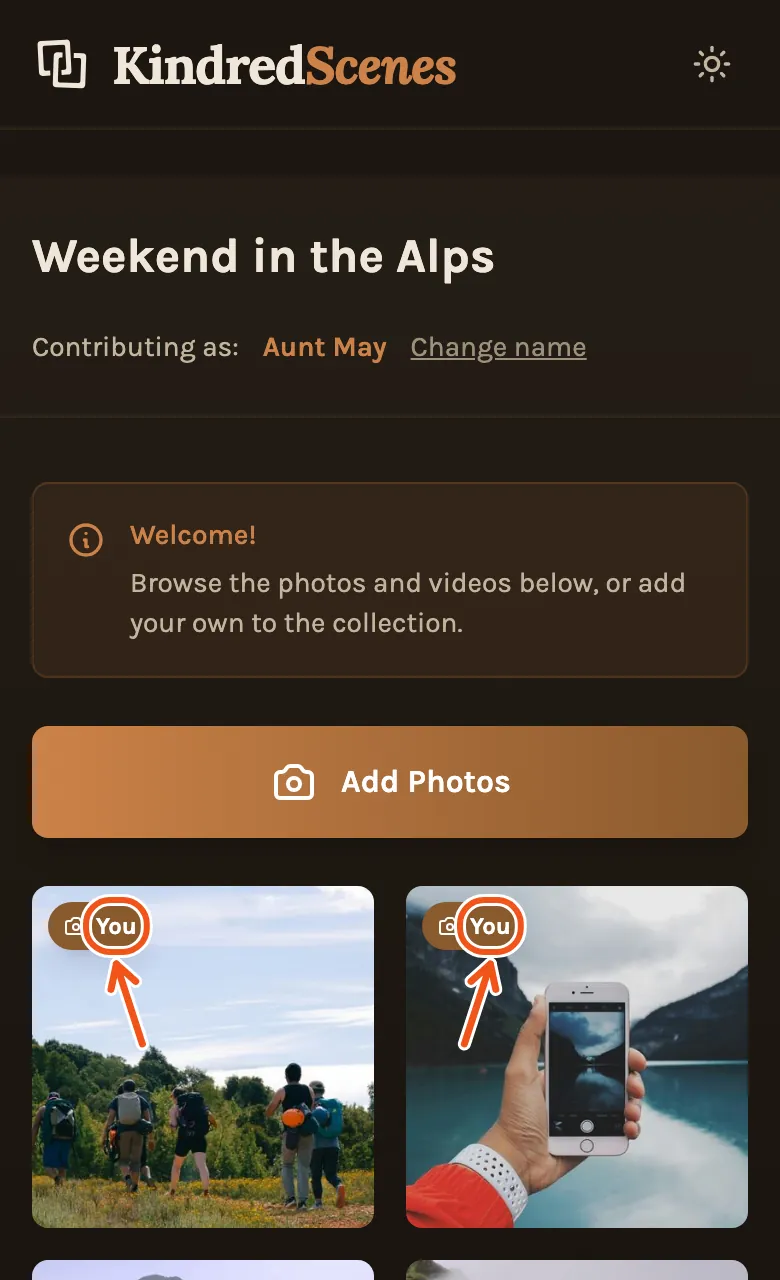
On a computer it's the same page, with more photos in each row.
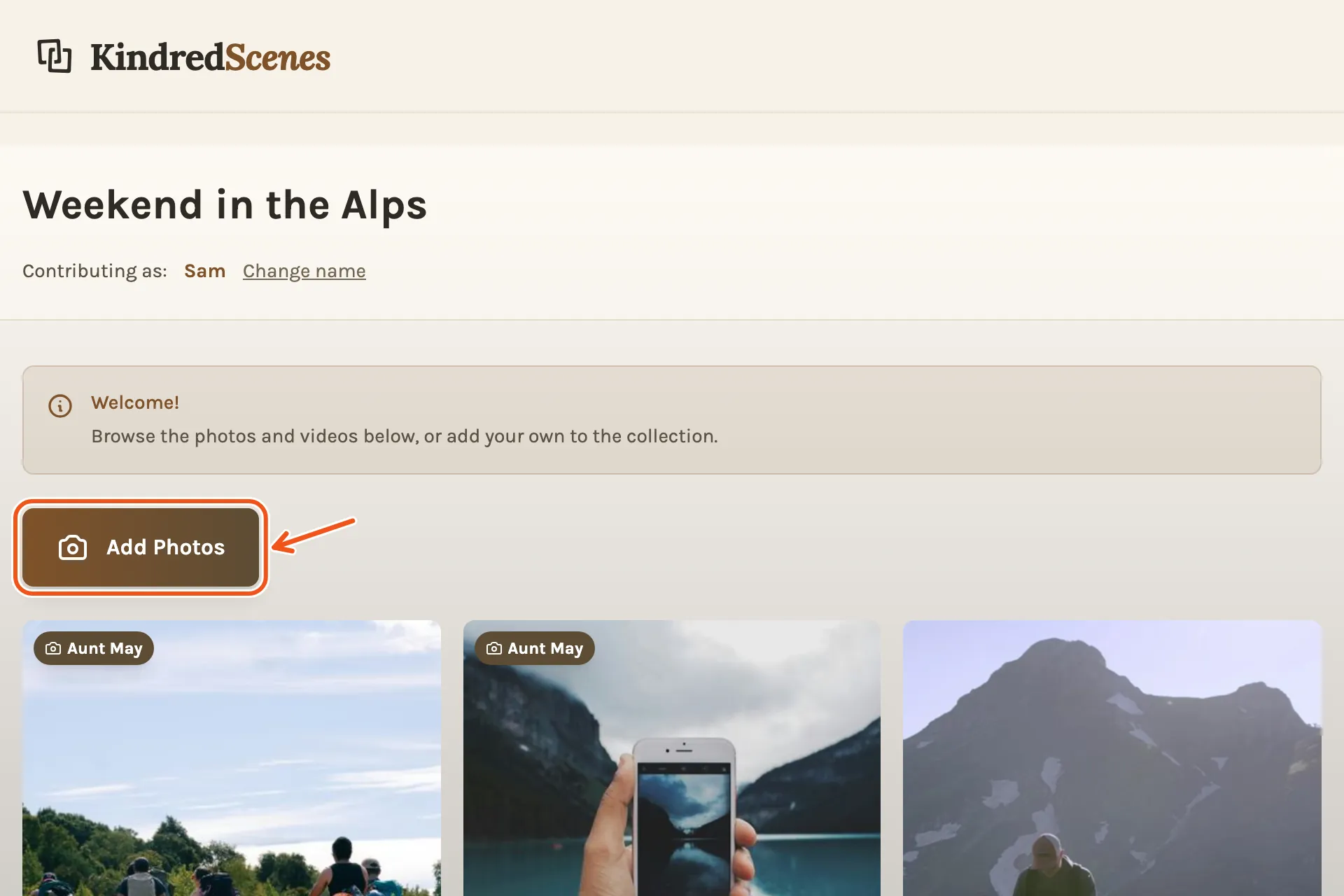
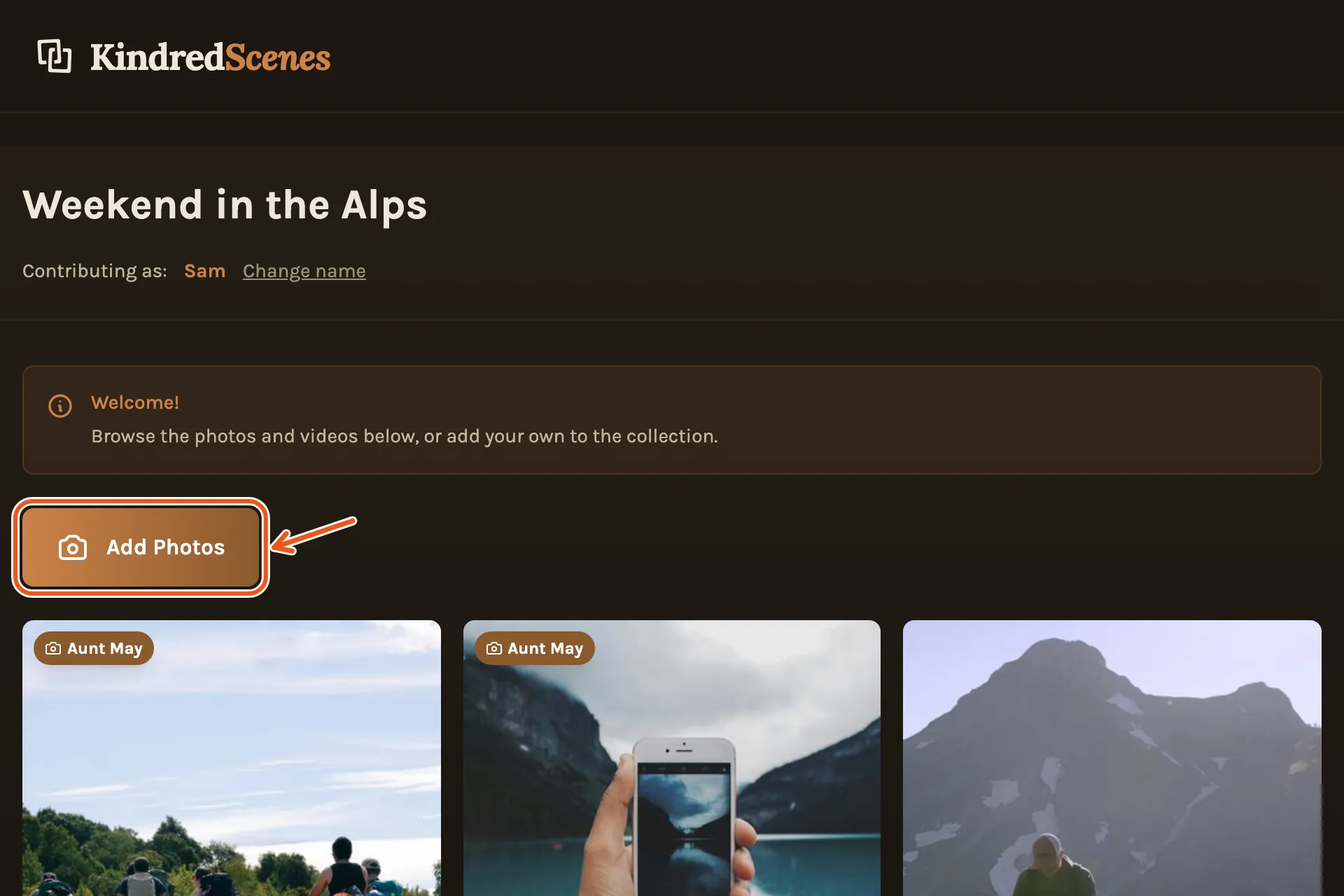
They never have to sign up or install anything. They can look and add, but not change or delete anything.
Where their photos go
Everything they add lands in your Library, with their first name on each photo.
To see only what one person added, choose their name in the filter at the top of the Library.
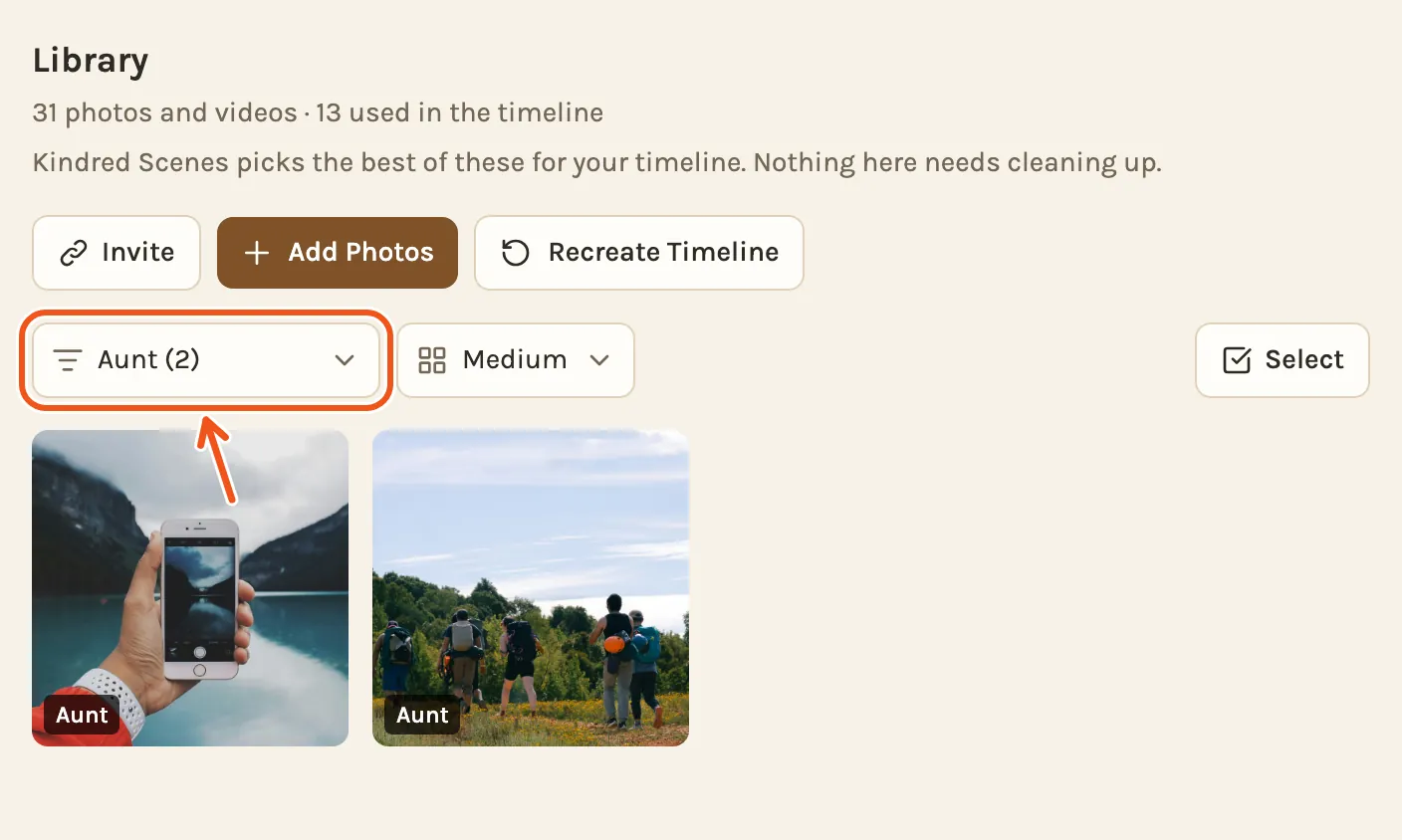
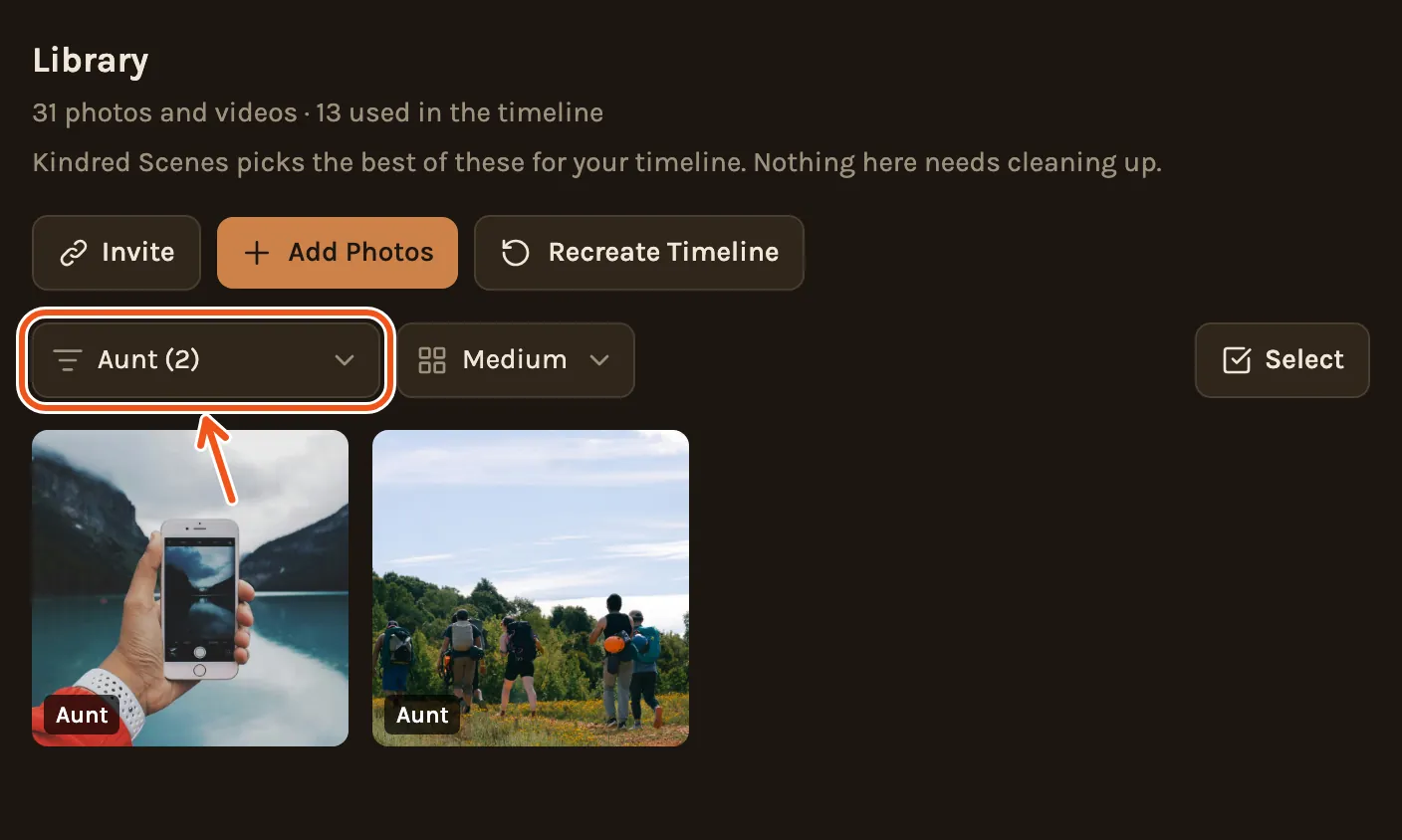
To see who has added something, open People in the menu on the left. Each person who added photos is listed under Contributed.
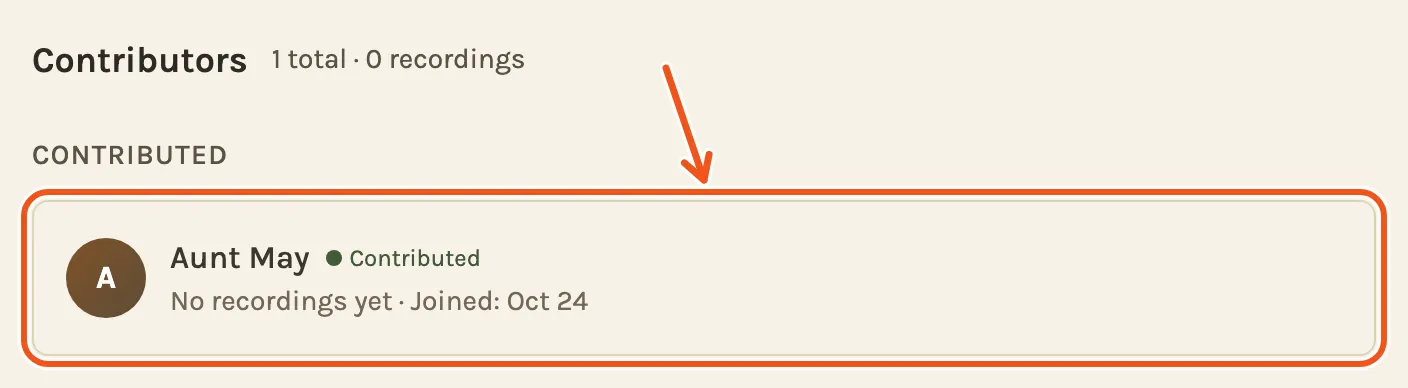
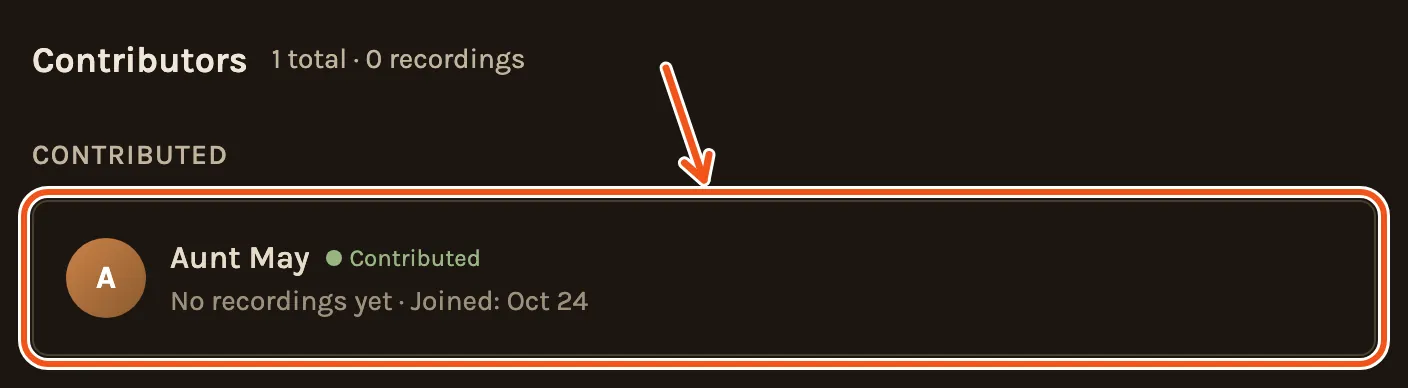
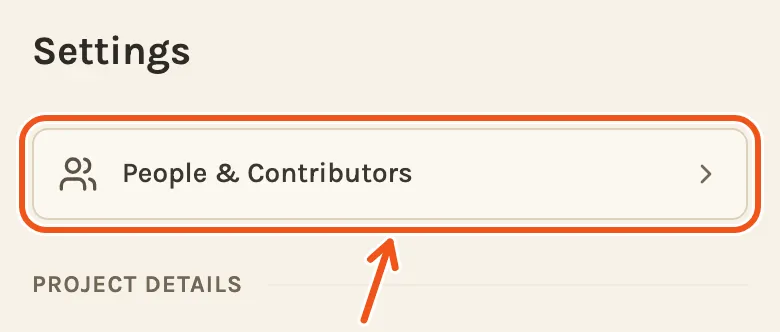
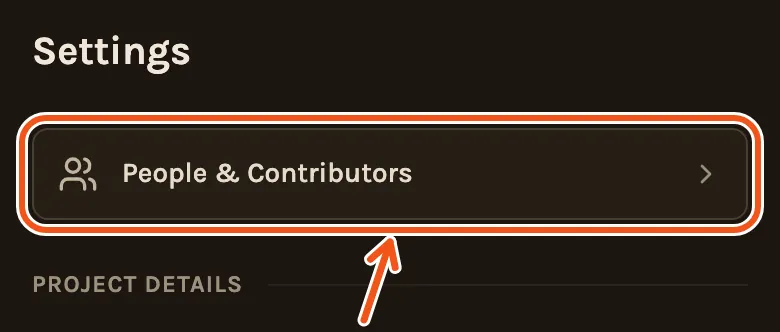
To see who has added something, open the Settings tab and tap People & Contributors at the top.
If you already made your timeline, new photos don't move into it by themselves.
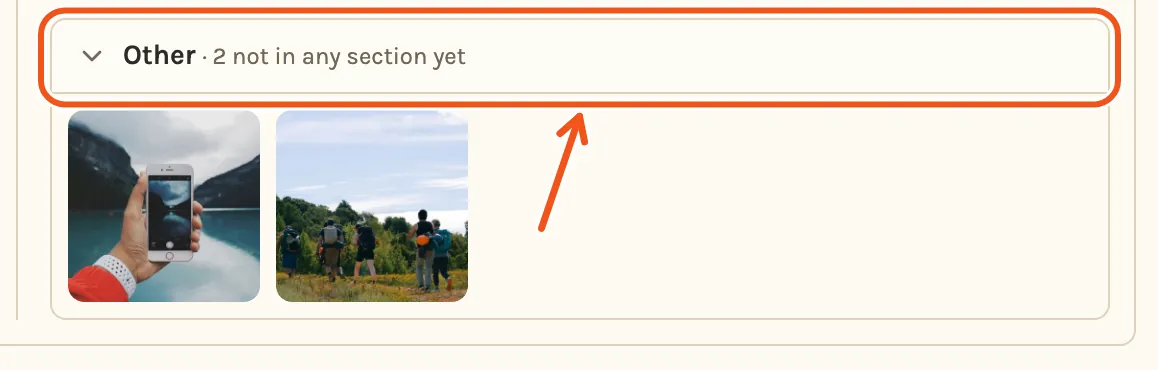
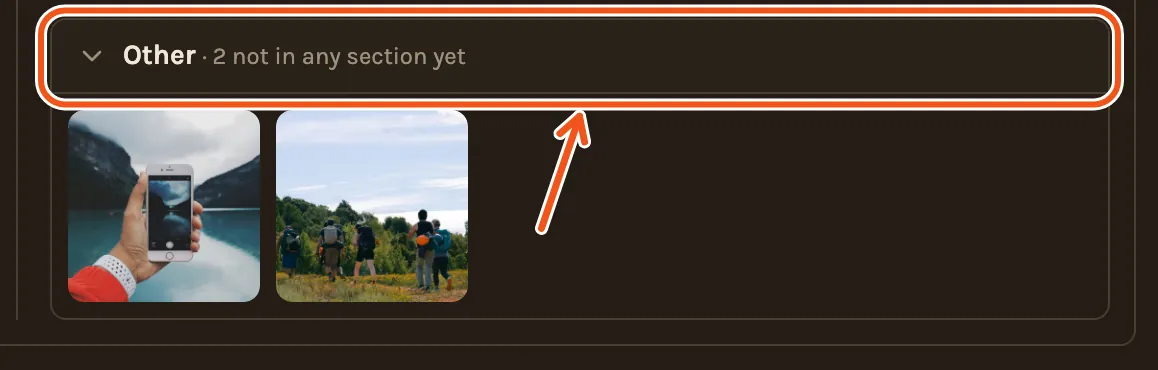
On the timeline, click Not Included. New photos wait in the last chapter's column, under Other. Click Other to open it, then drag them where you want them. Or click Recreate Timeline to build it again with everything in, which resets changes you made by hand.
Tap Recreate at the top of the Library to build the timeline again with everything in. Changes you made by hand on the timeline are reset.
Good to know
- Their photos count toward your project's limit. A project has room for about 1,000 photos, or 60 minutes of video, or a mix of the two. If it fills up, they are told to ask you.
- The link keeps working. There is no end date. If it reaches someone it shouldn't, write to us and we'll help.
- You aren't sent an email when someone adds photos. Check your Library or People.