Add photos and videos
- Open your project. It opens on the Library. In a new project, click Add Photos & Videos in the middle of the page.
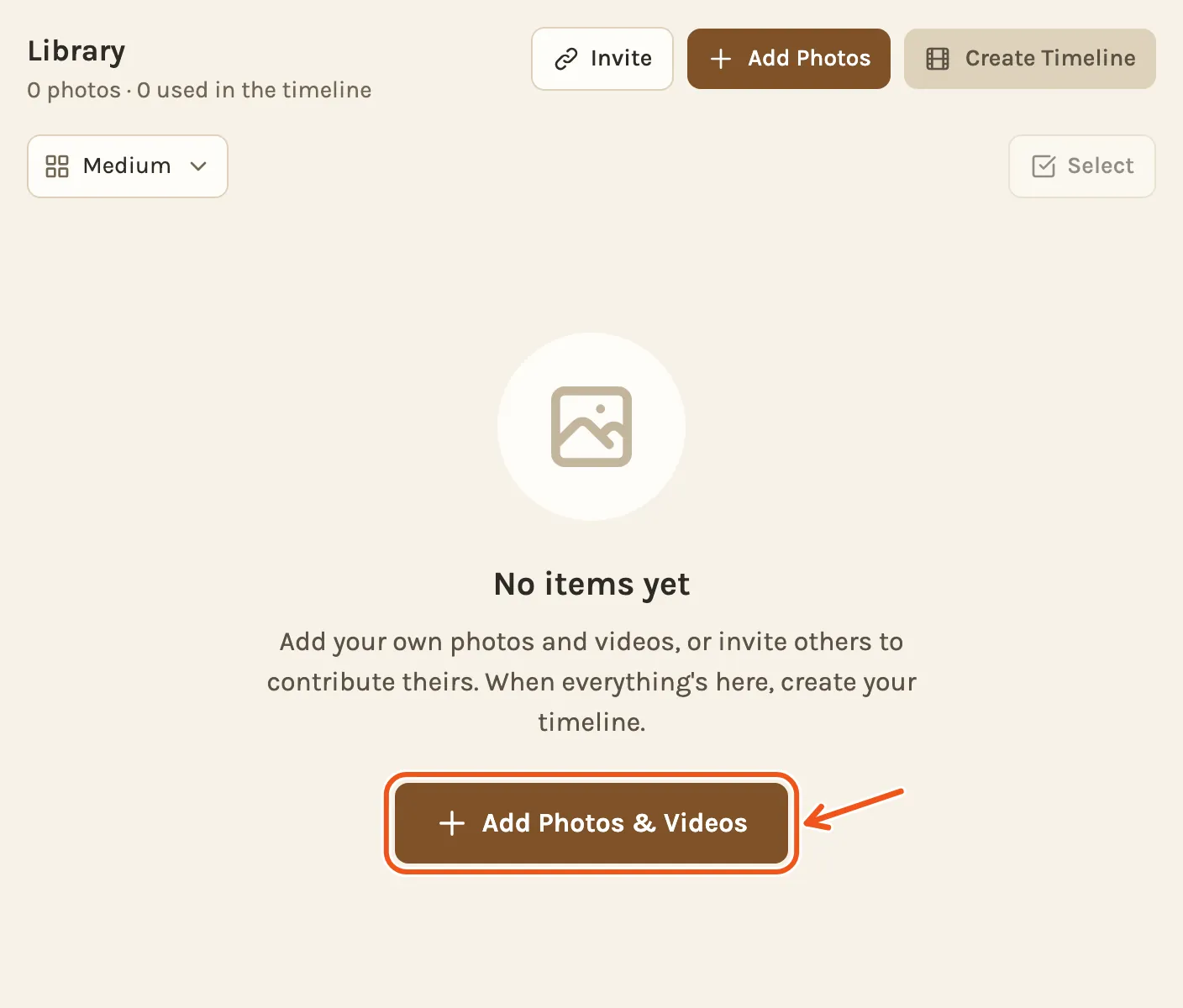
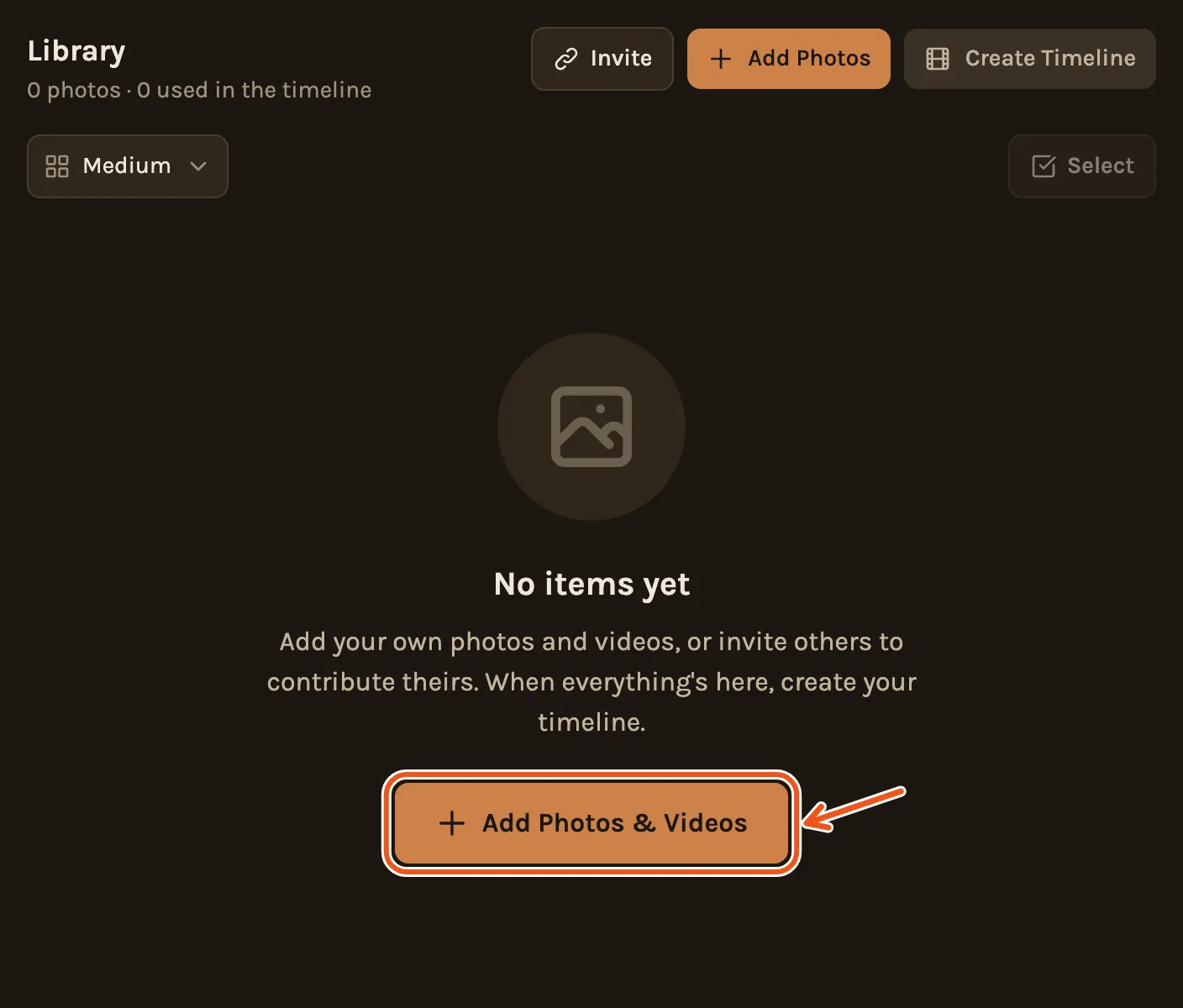
- Once the project has photos, use Add Photos at the top right. It adds videos too.
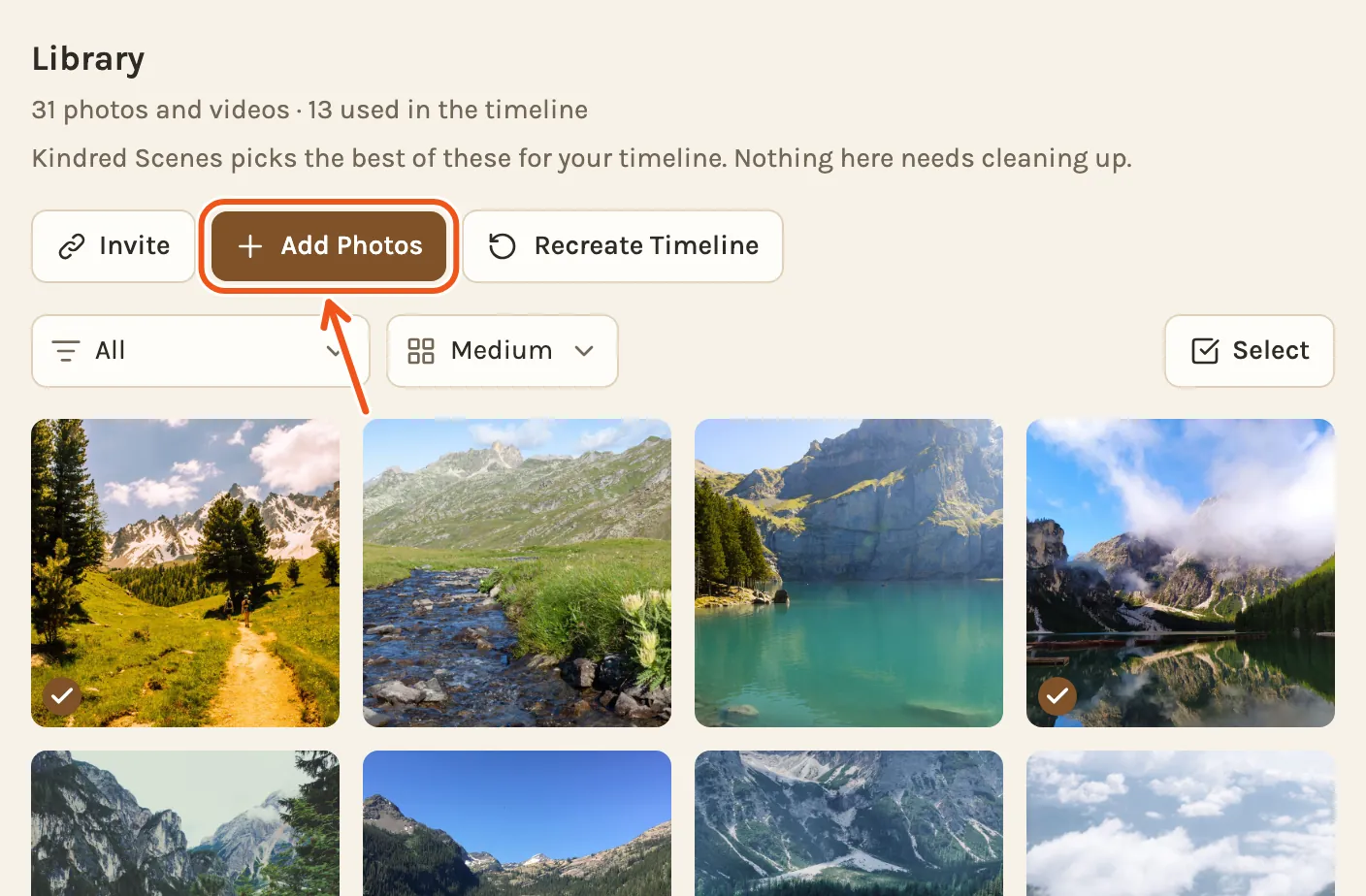
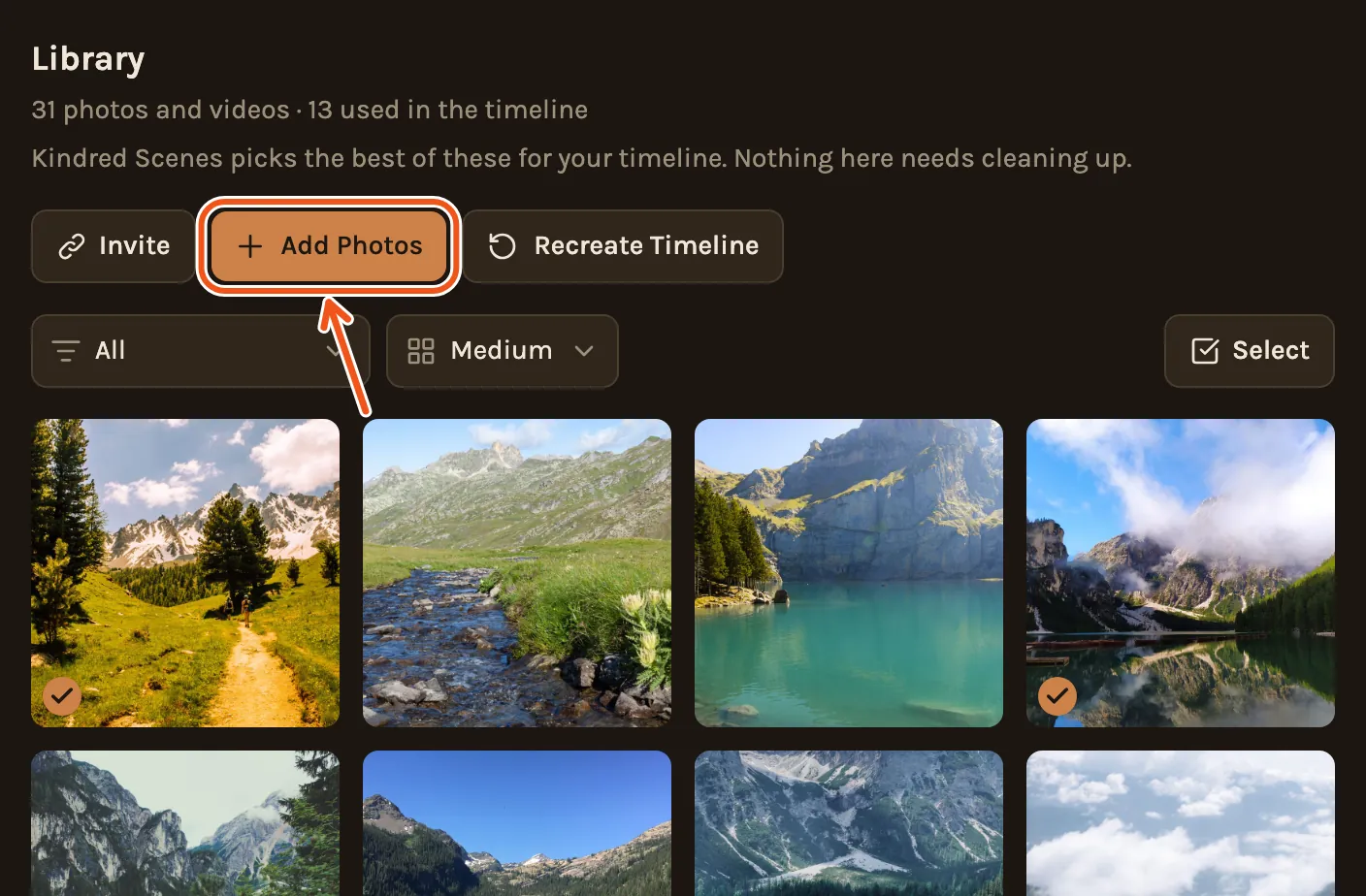
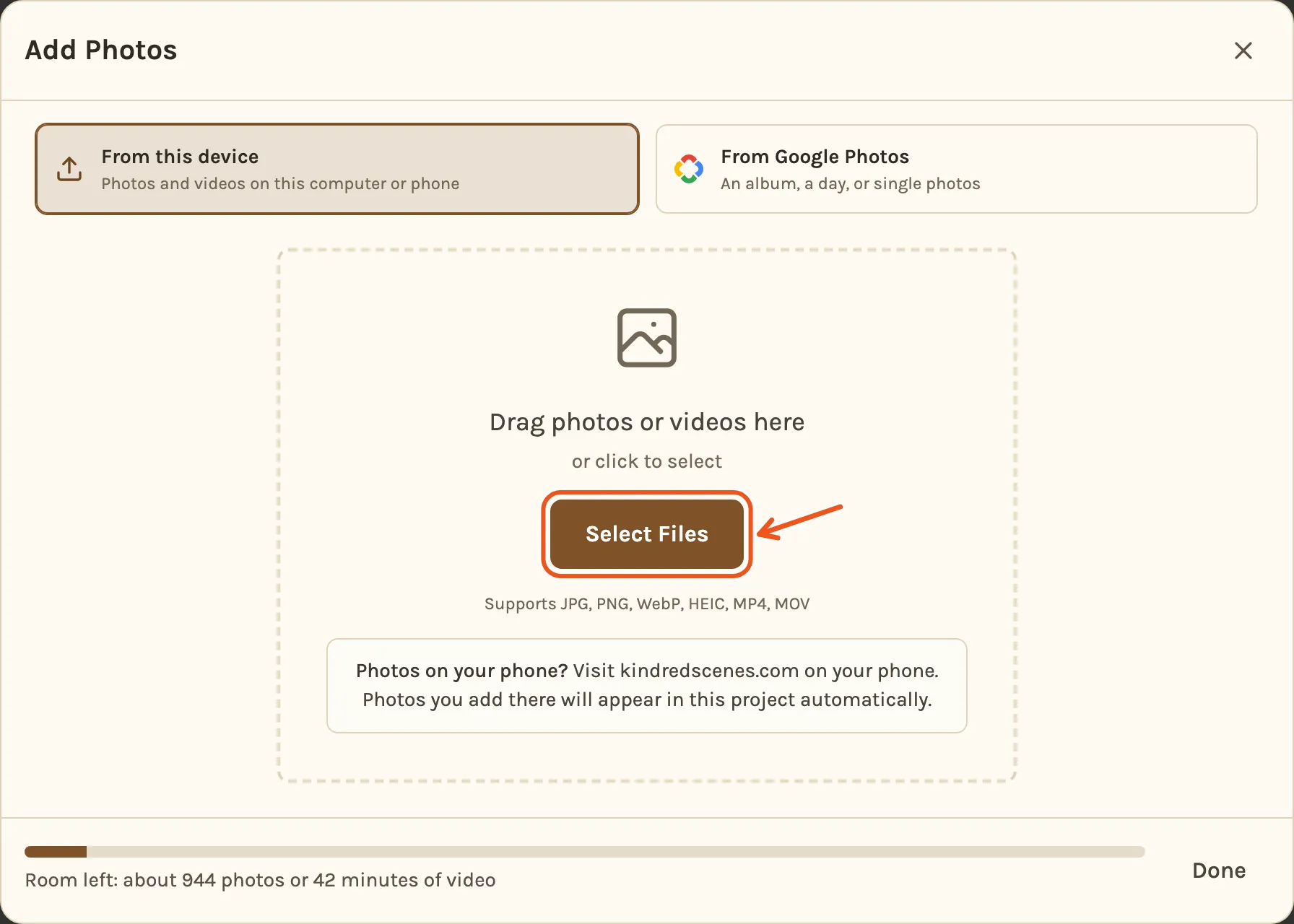
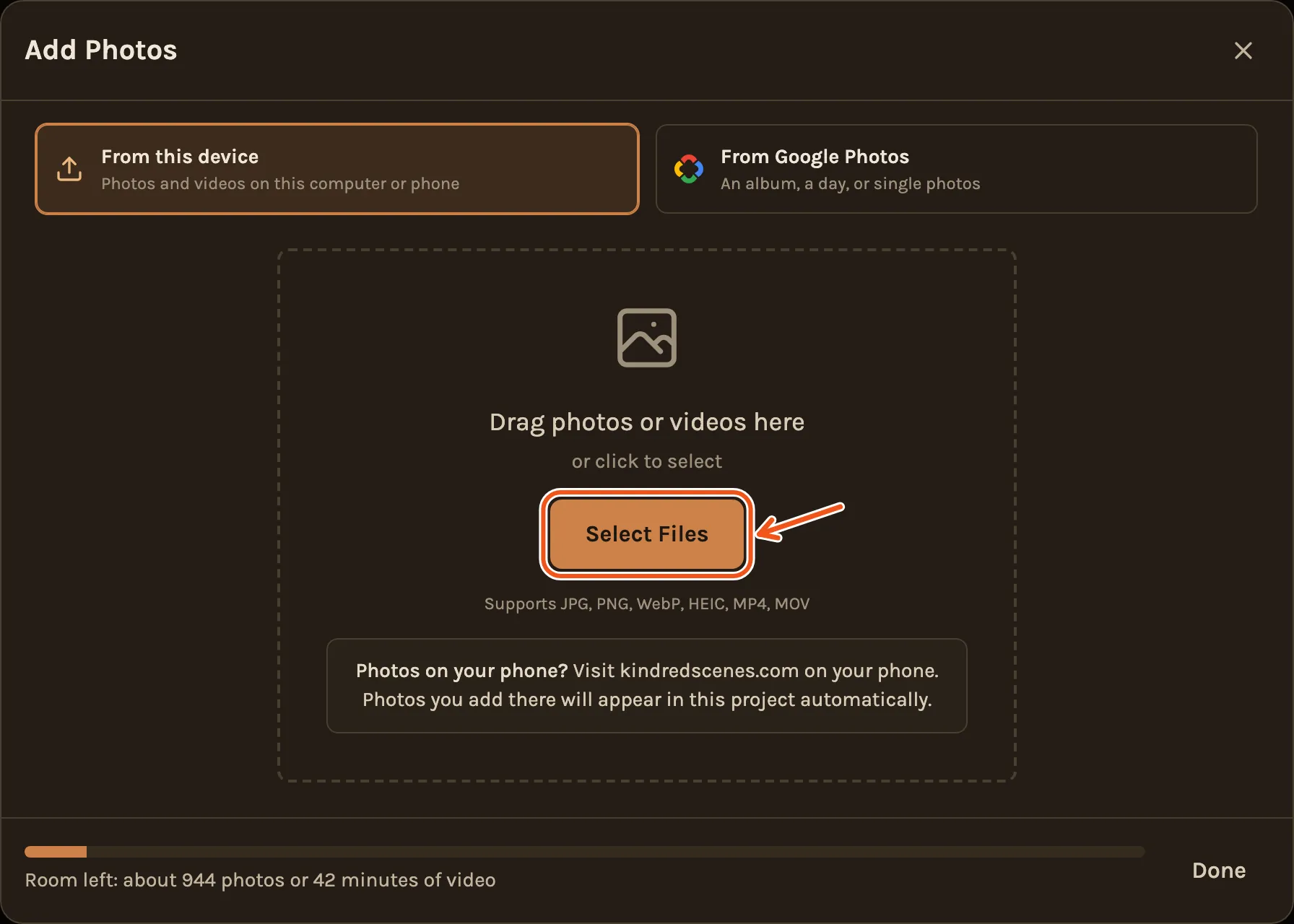
- The Add Photos window opens on From this device. Drag photos and videos onto the dashed box, or click Select Files and choose them.
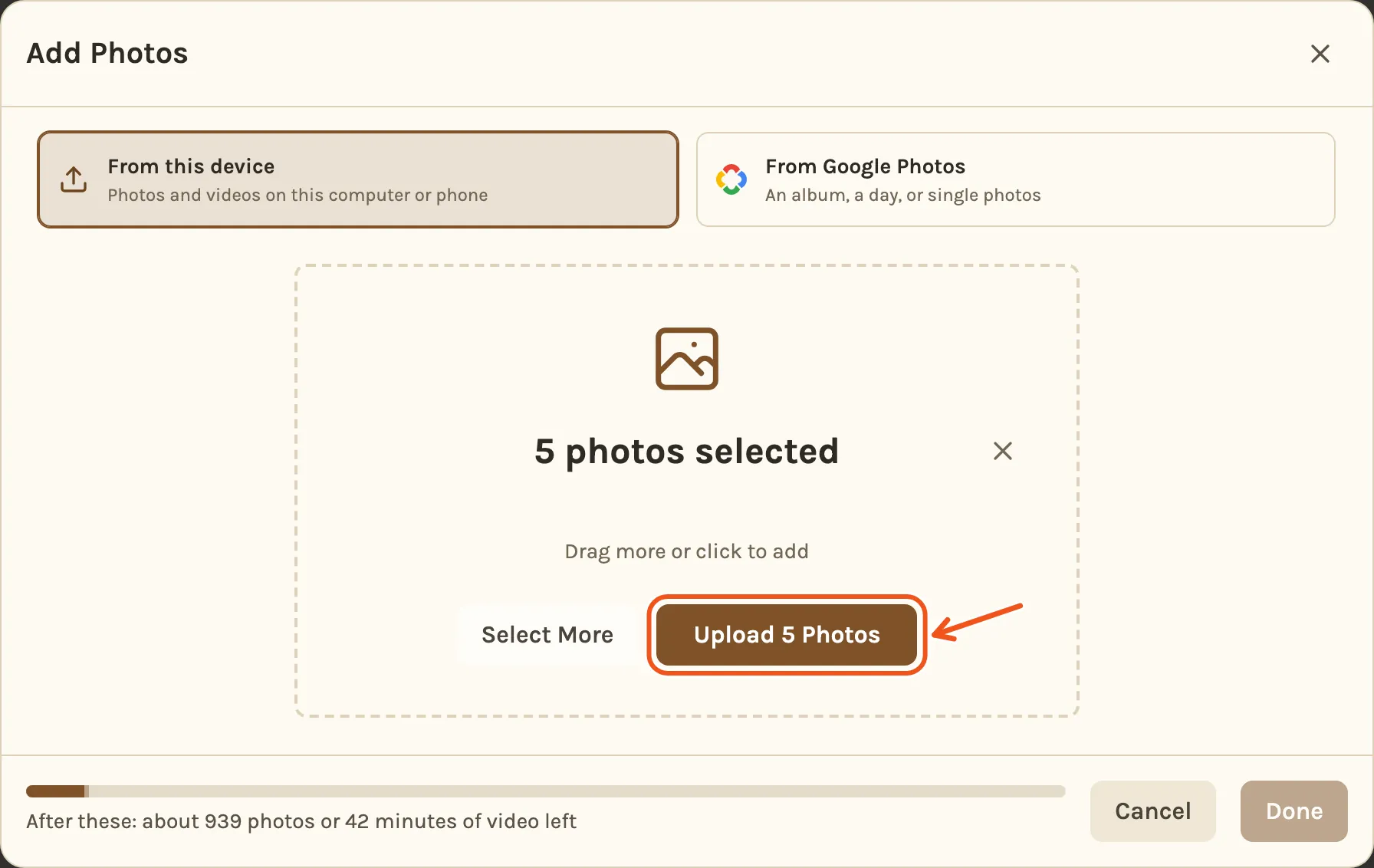
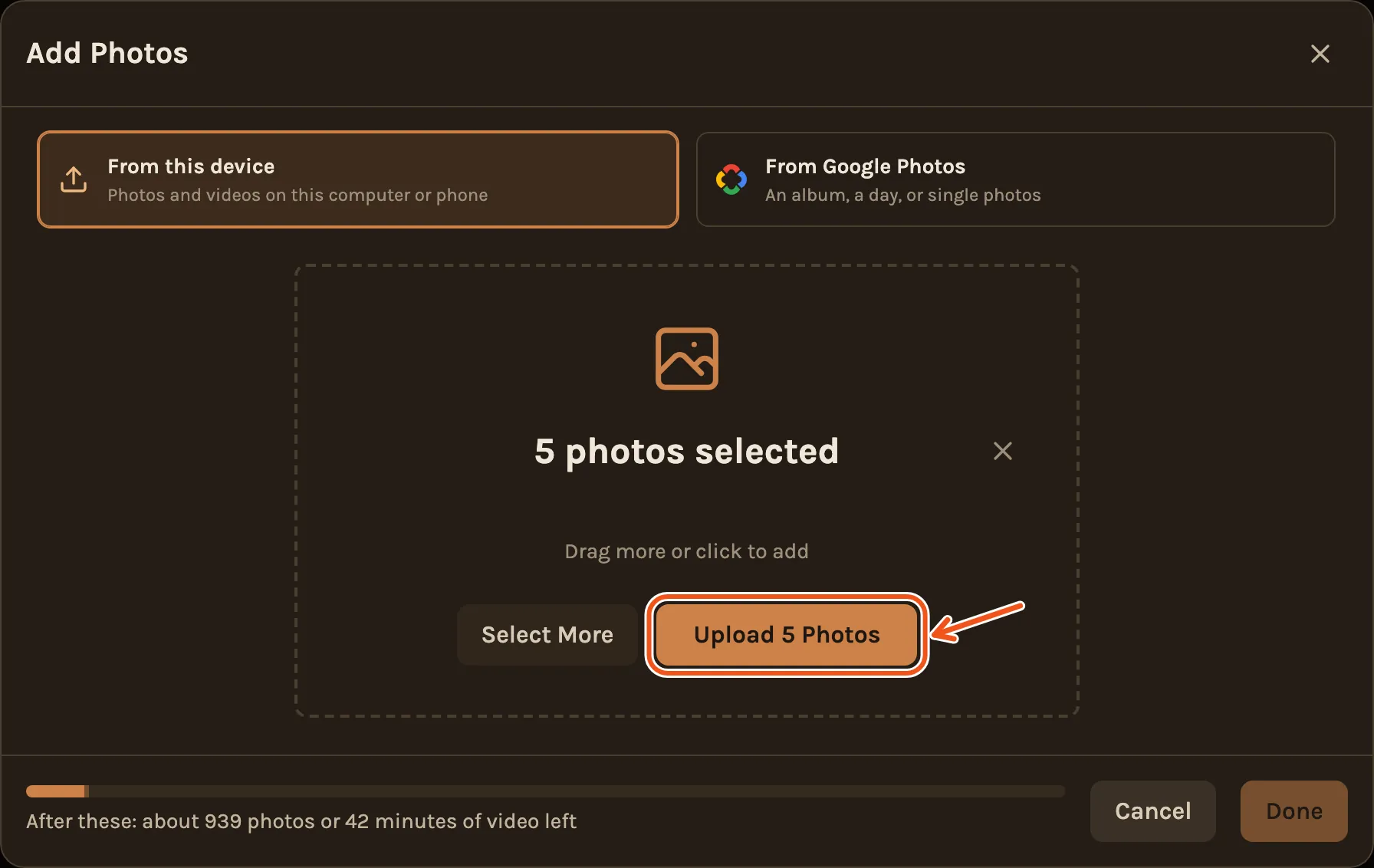
- Check the count, then click Upload. You can click Select More first to add another batch.
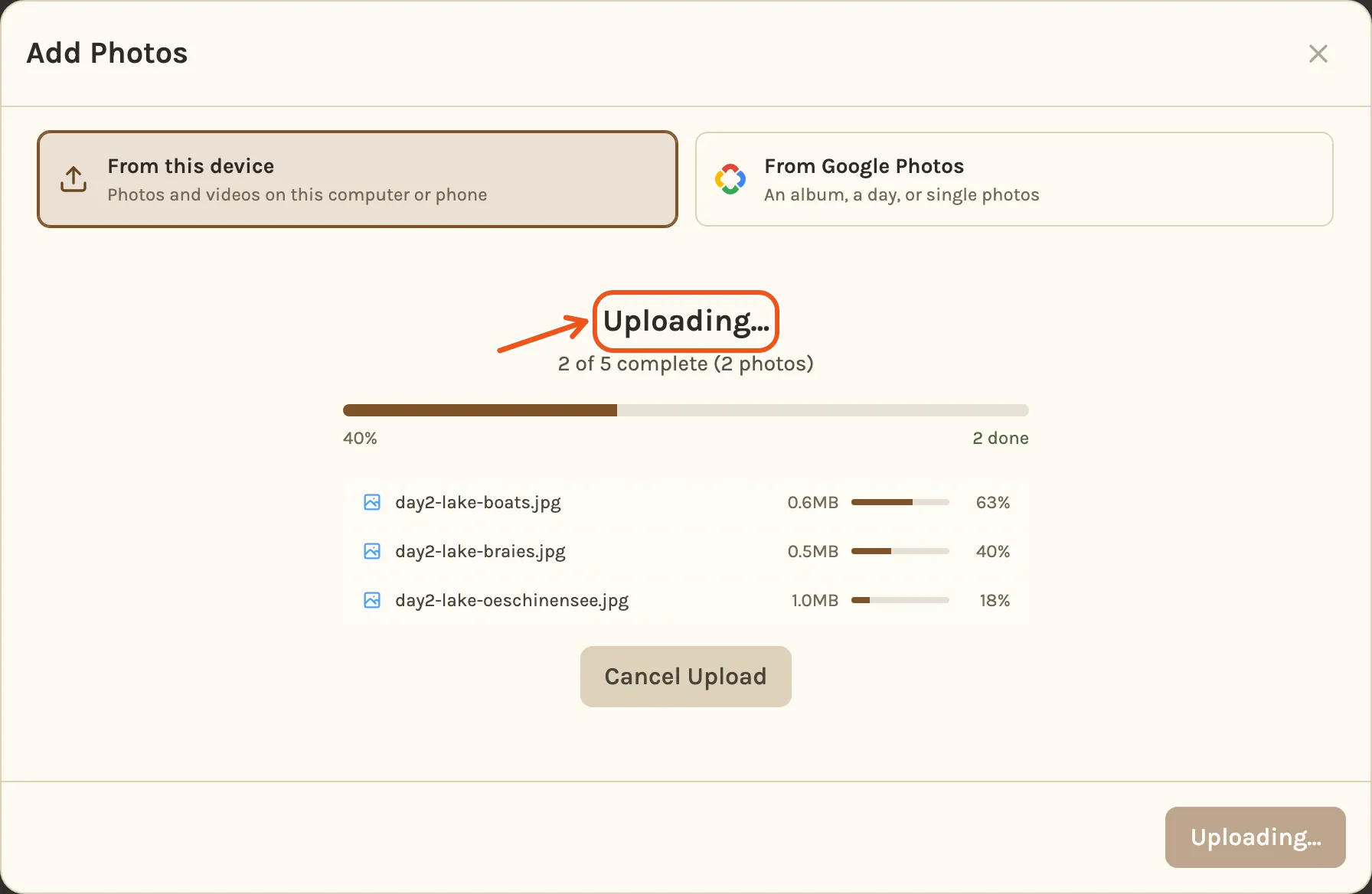
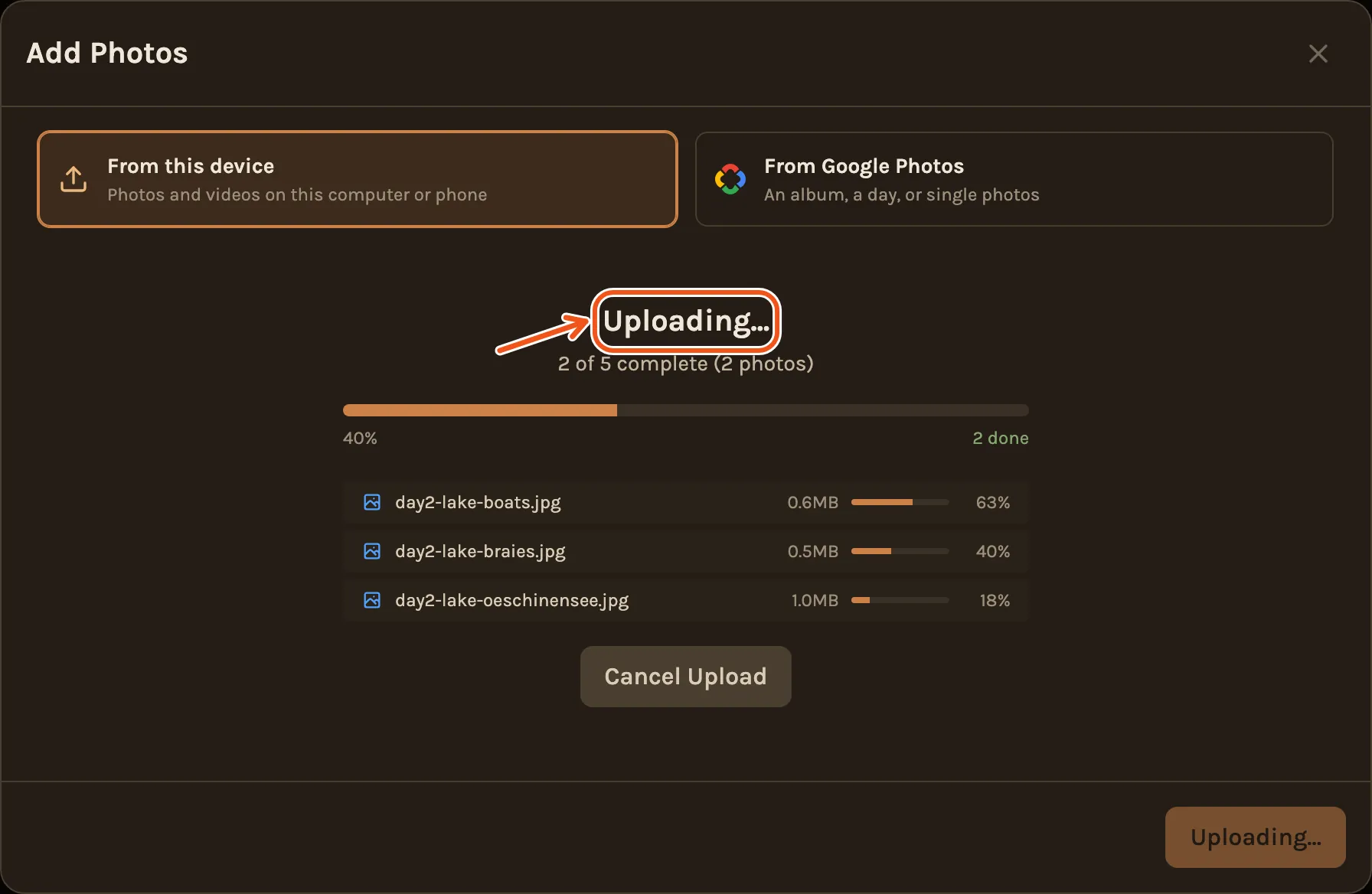
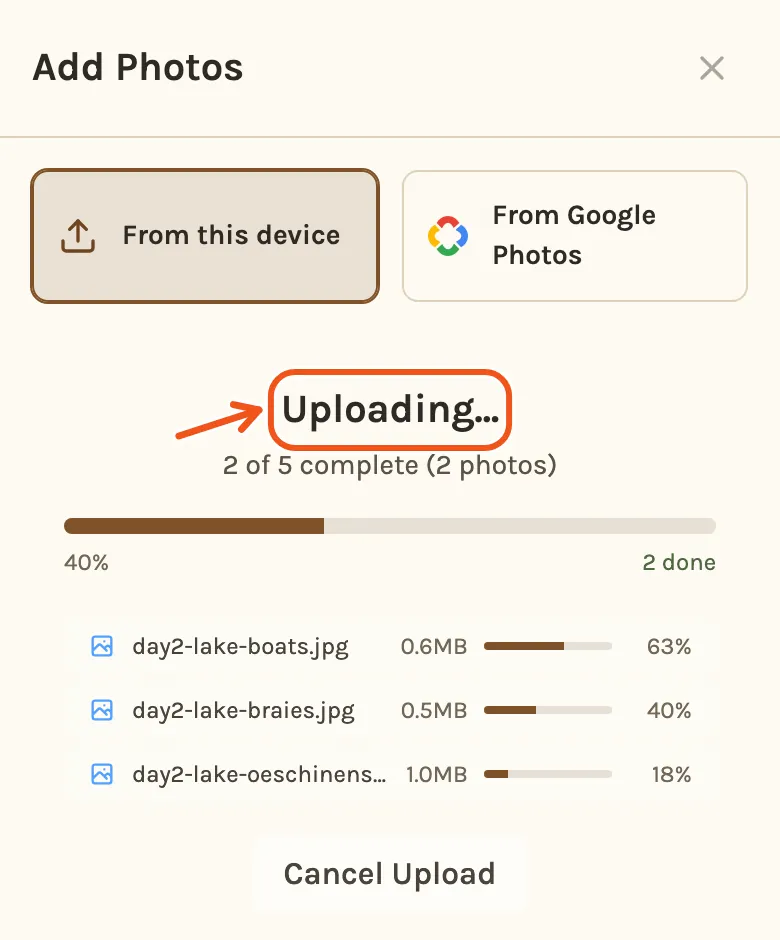
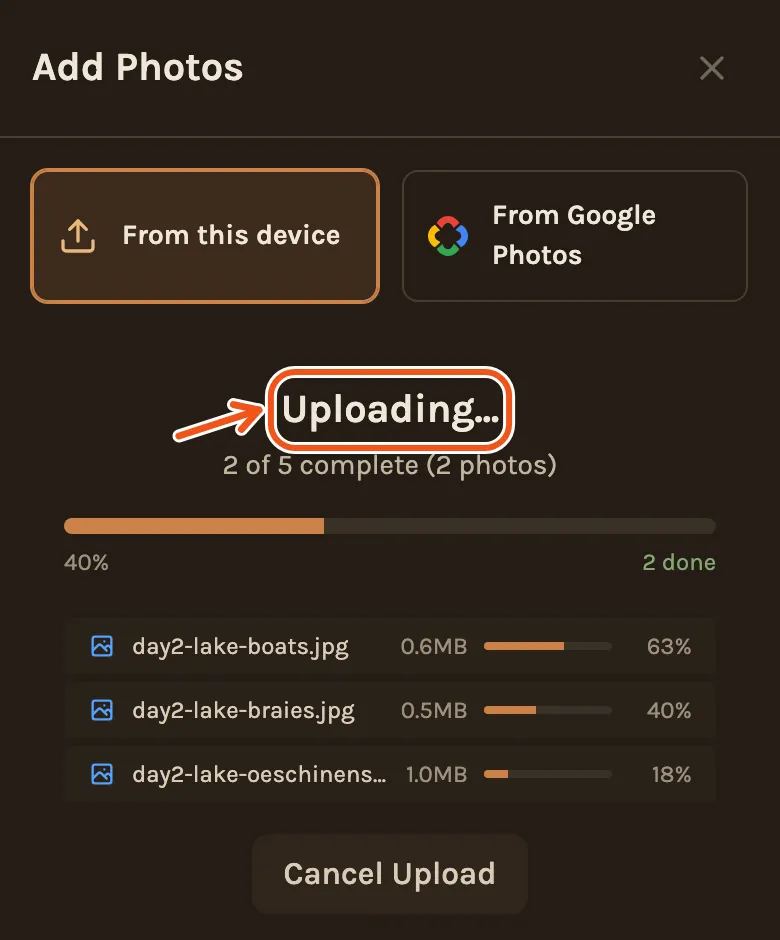
- You see Uploading... with a bar and a line for each file being sent. Keep the page open.
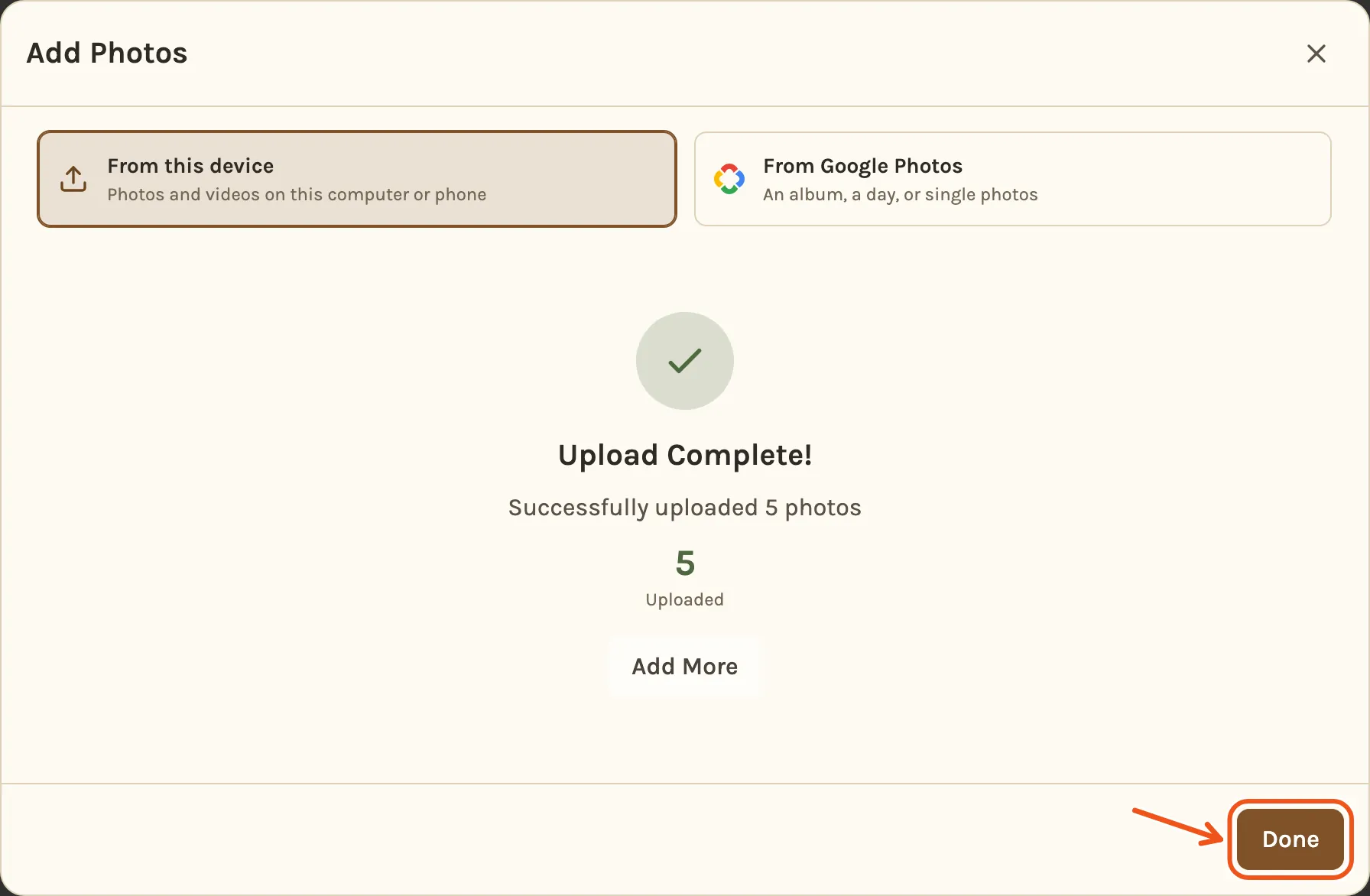
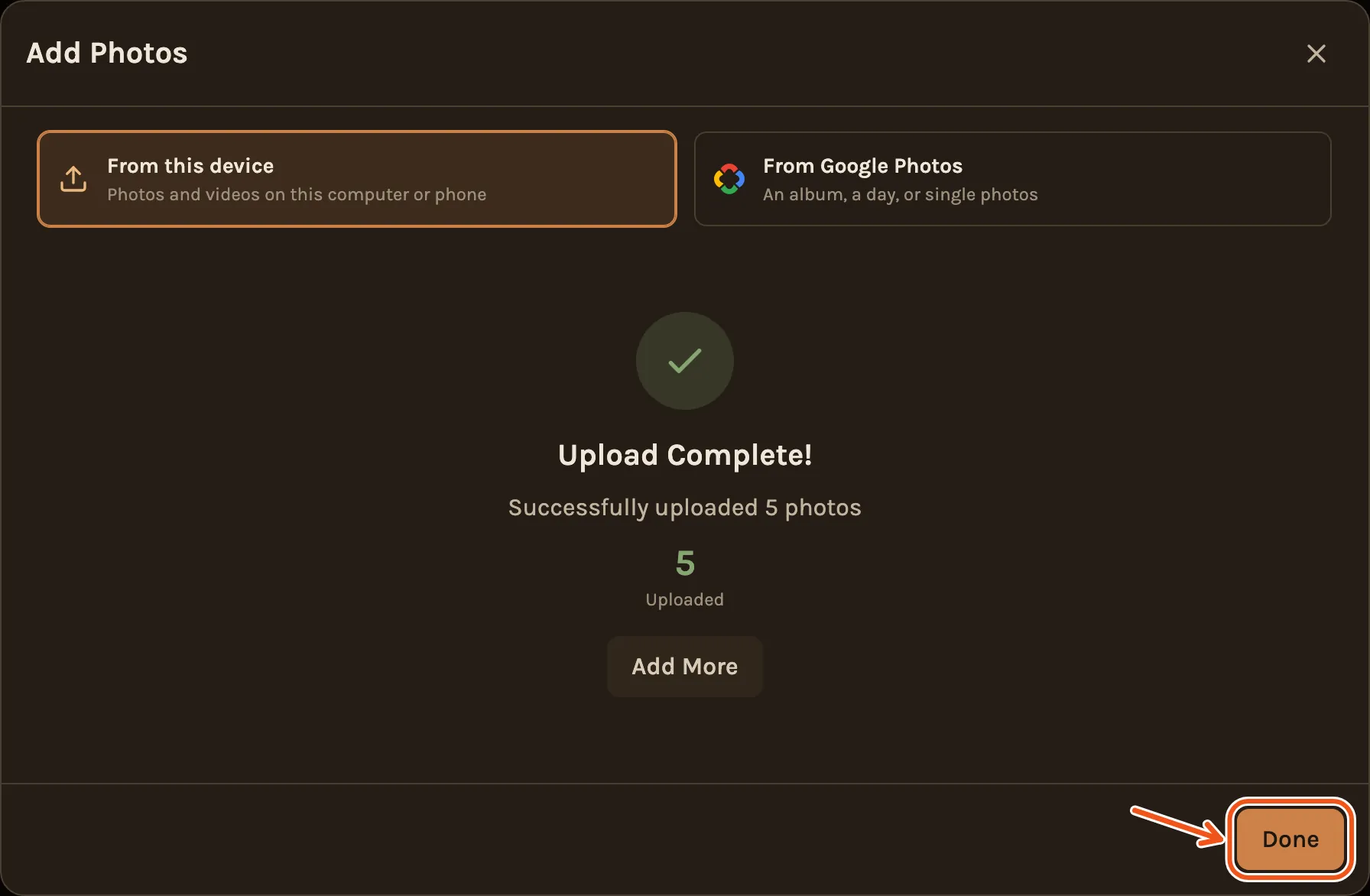
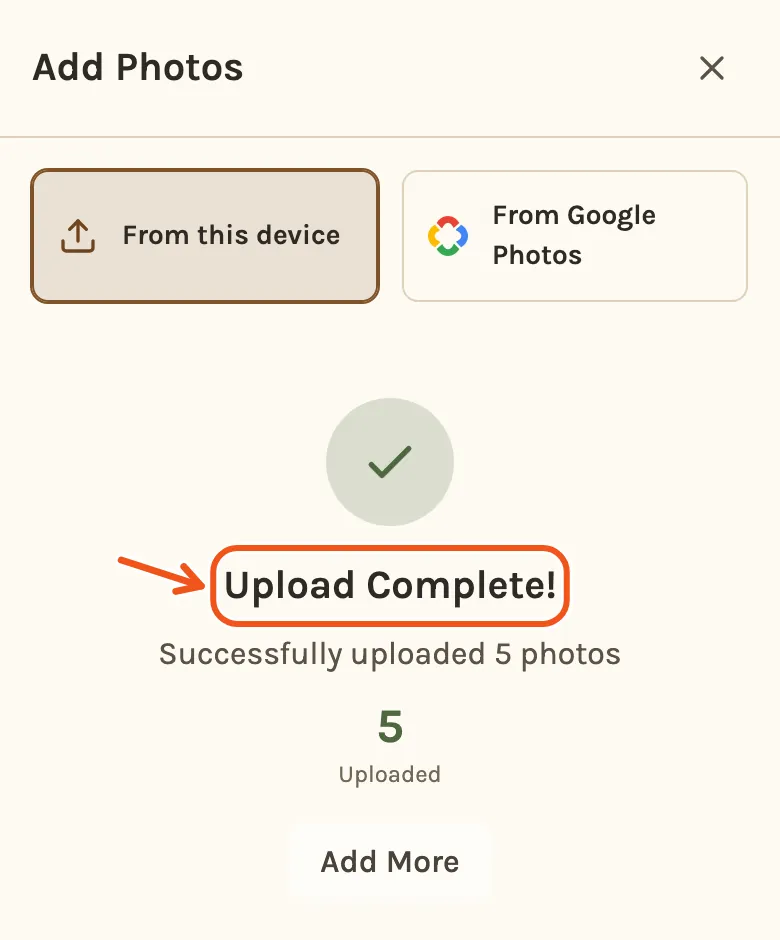
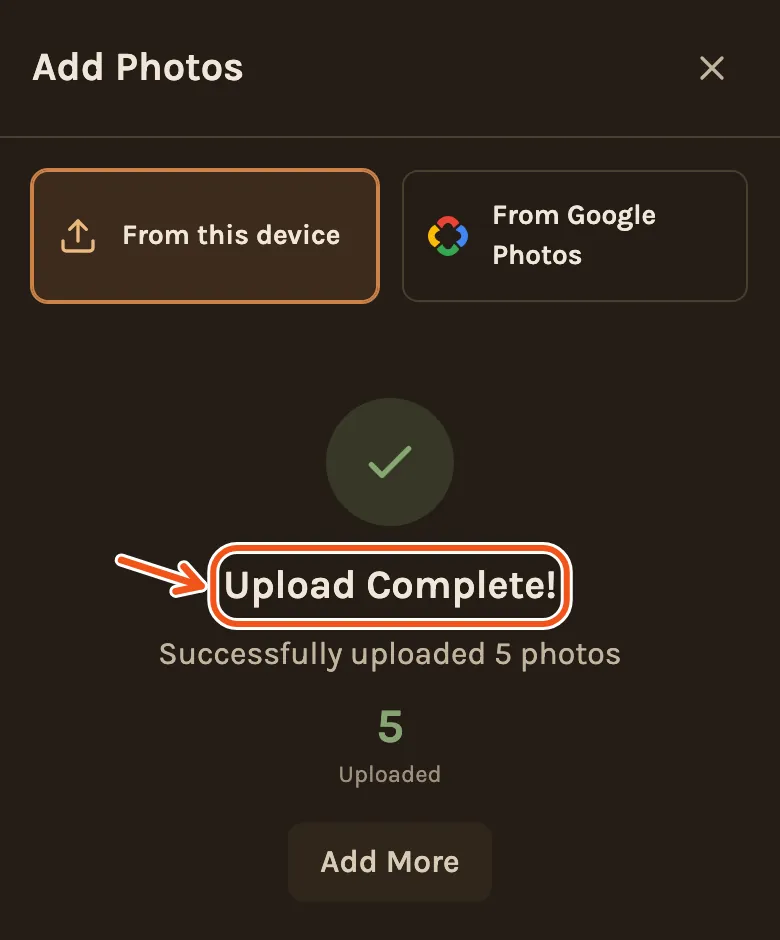
- When it says Upload Complete!, click Done. To add another batch, click Add More.
- Open your project. It opens on the Library tab at the bottom of the screen.
- Tap Photos at the top right. It adds videos too.
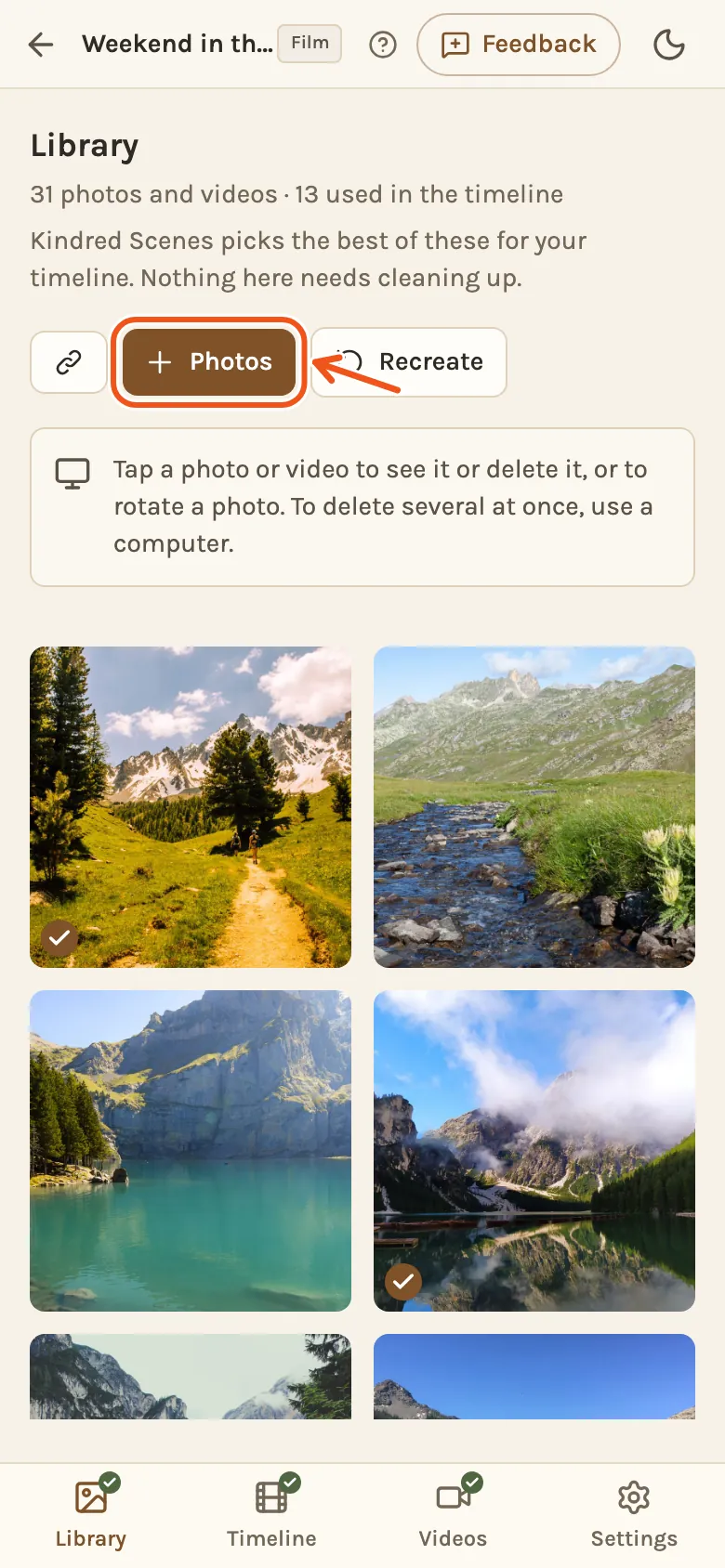
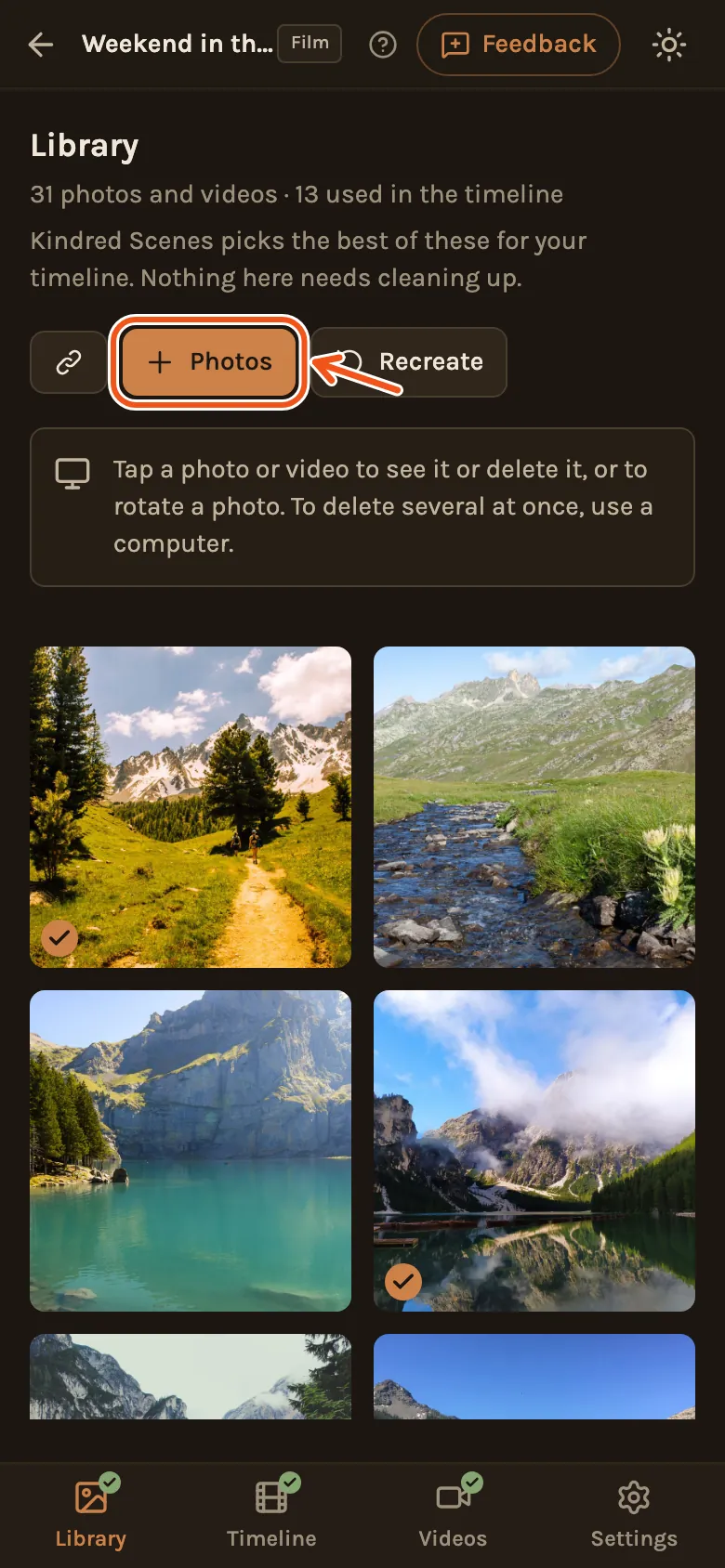
- The Add Photos screen opens on From this device. Tap Select Files.
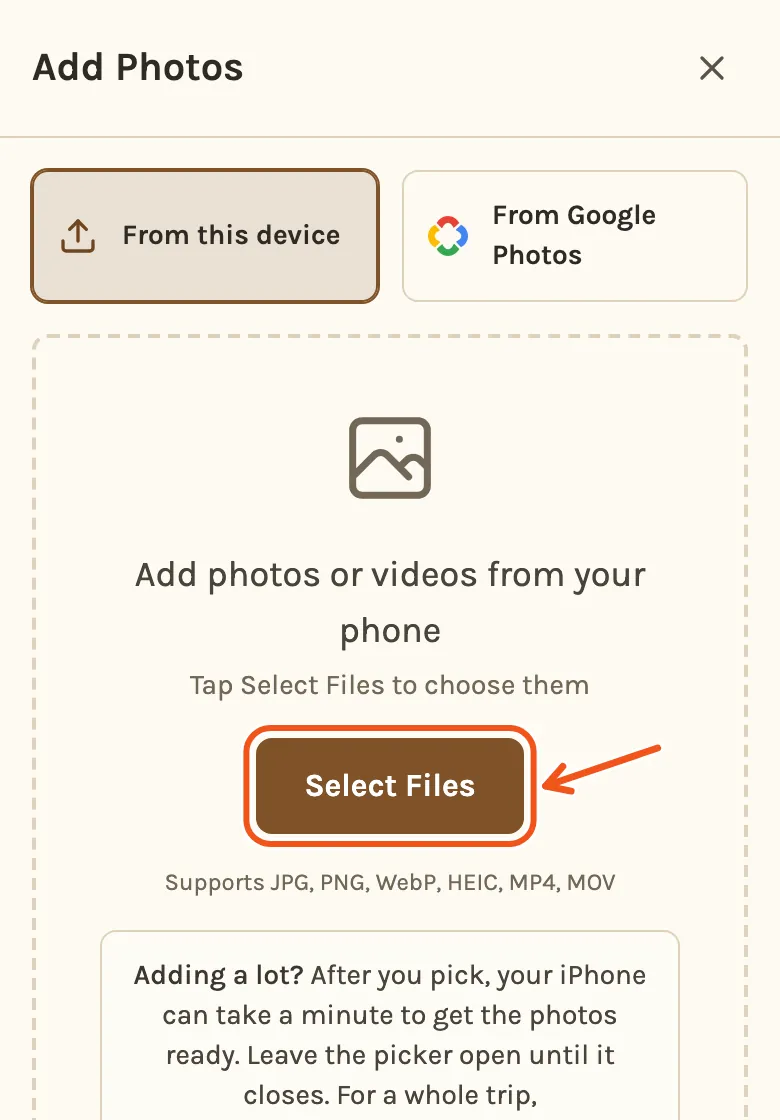
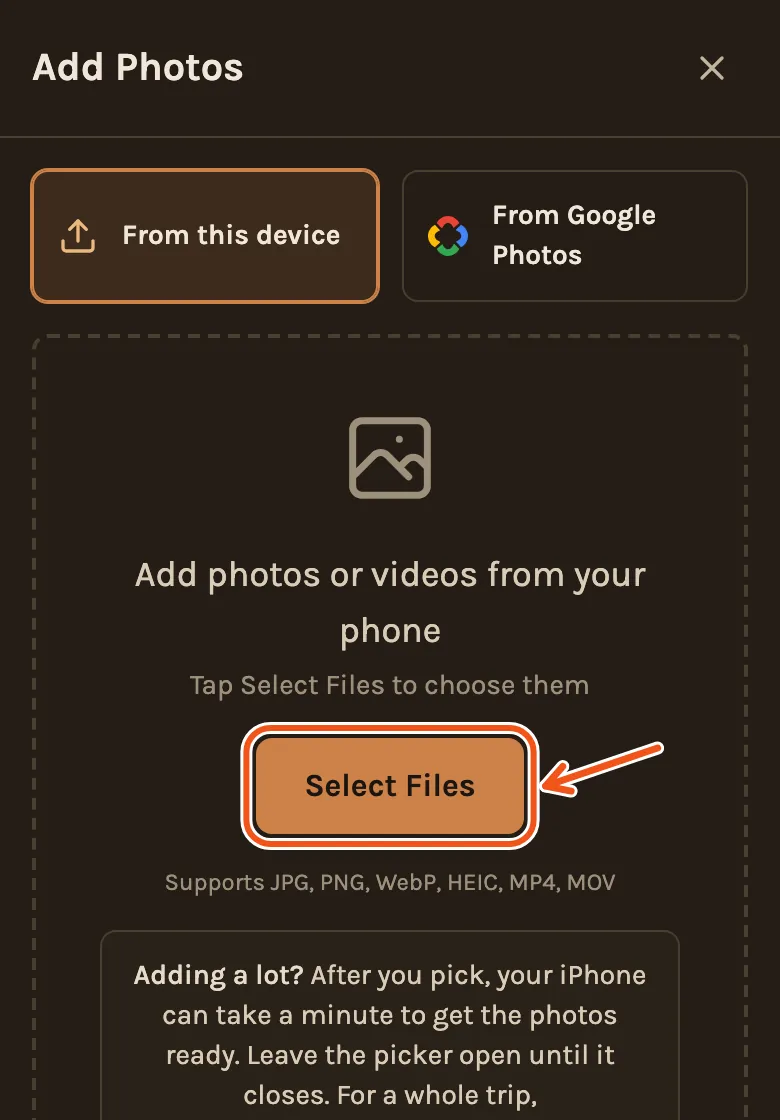
- The first time on an iPhone or iPad, a note comes first: Before you choose. It says the phone can take a minute to get your photos ready after you pick them. Tap Choose photos.
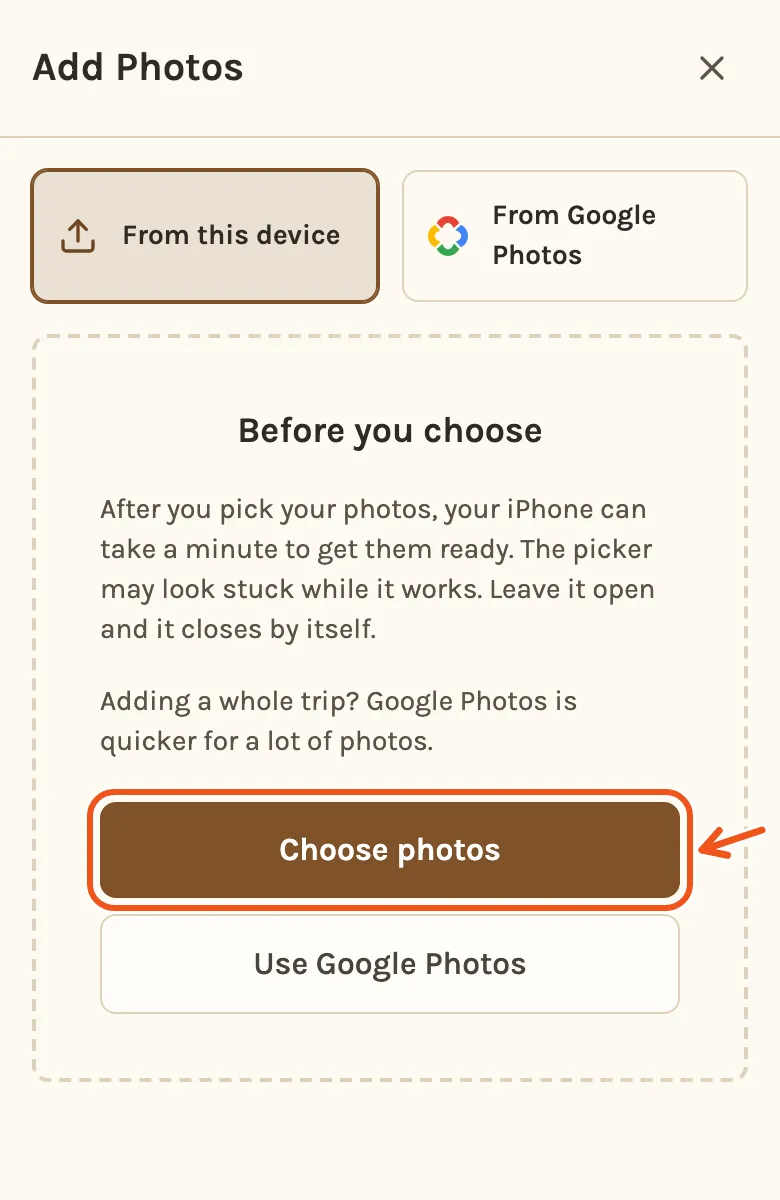
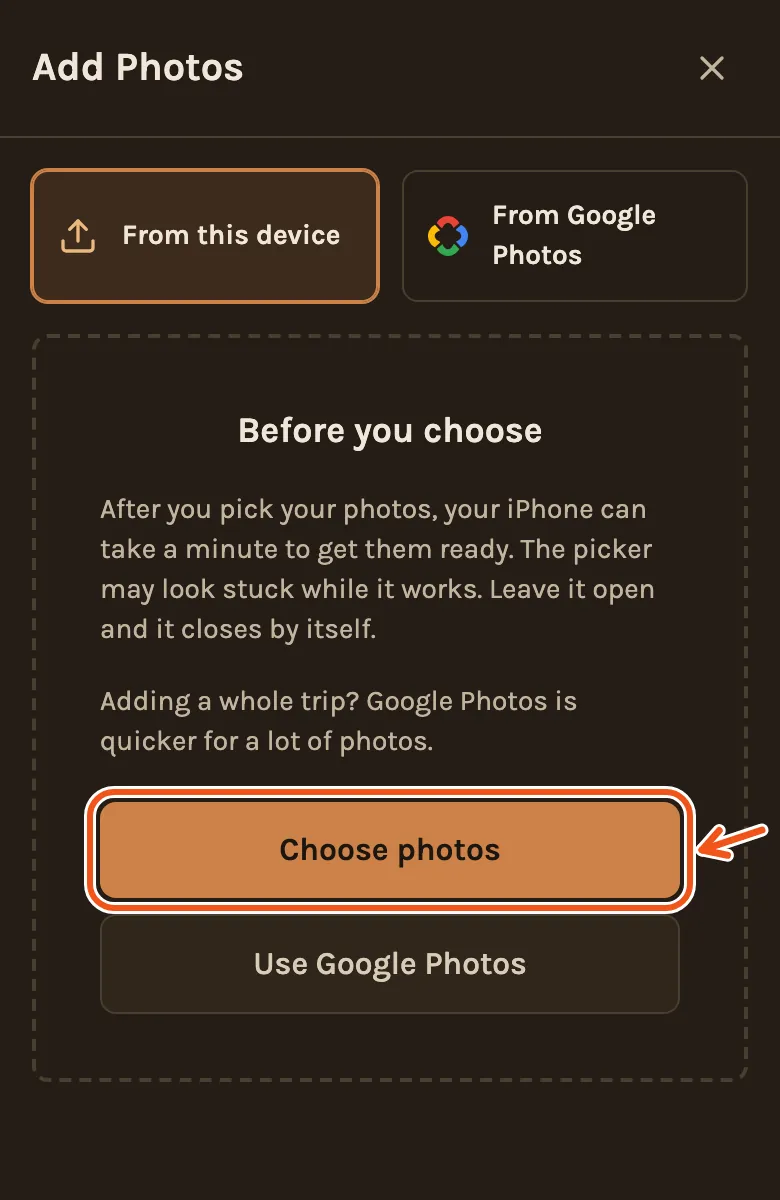
- Your phone's own photo picker opens. On an iPhone, tap Photo Library.
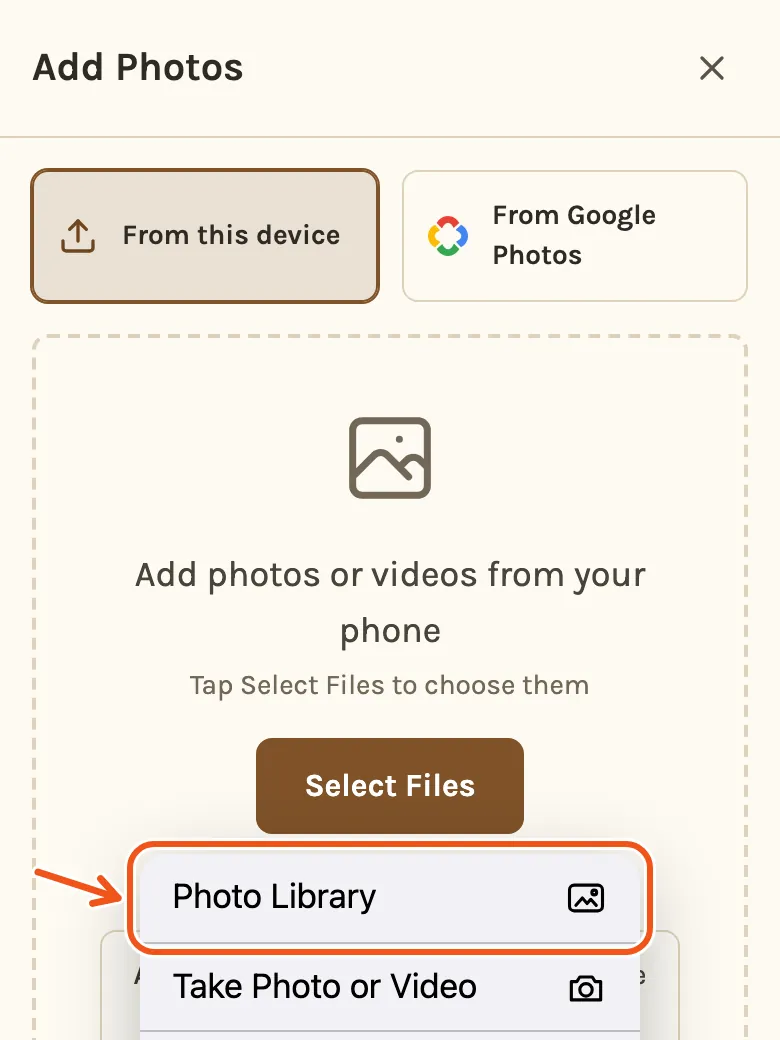
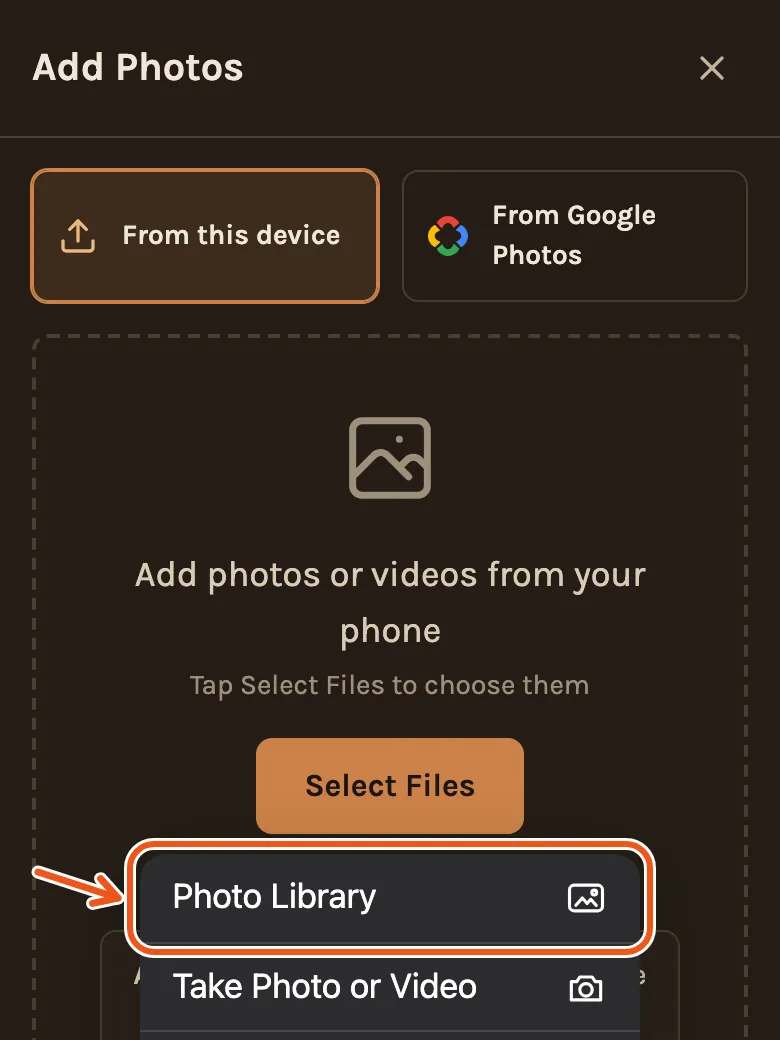
- Tap each photo and video you want, then tap Add. Wait a moment: the phone can take a little while to hand them over.
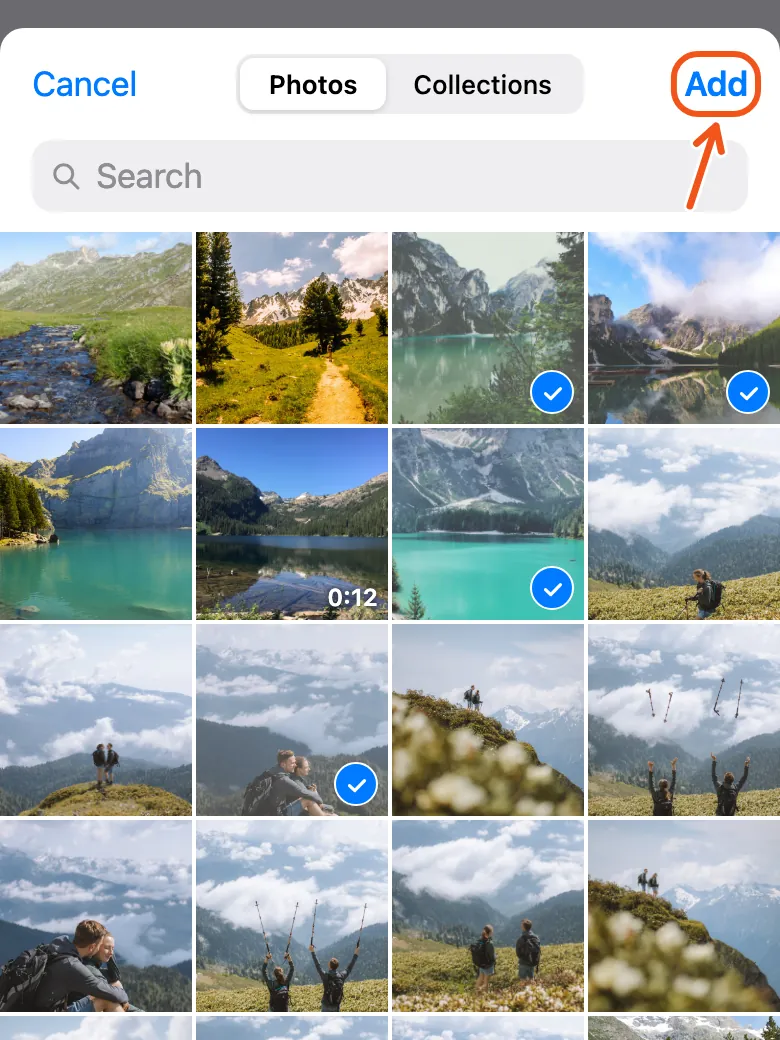
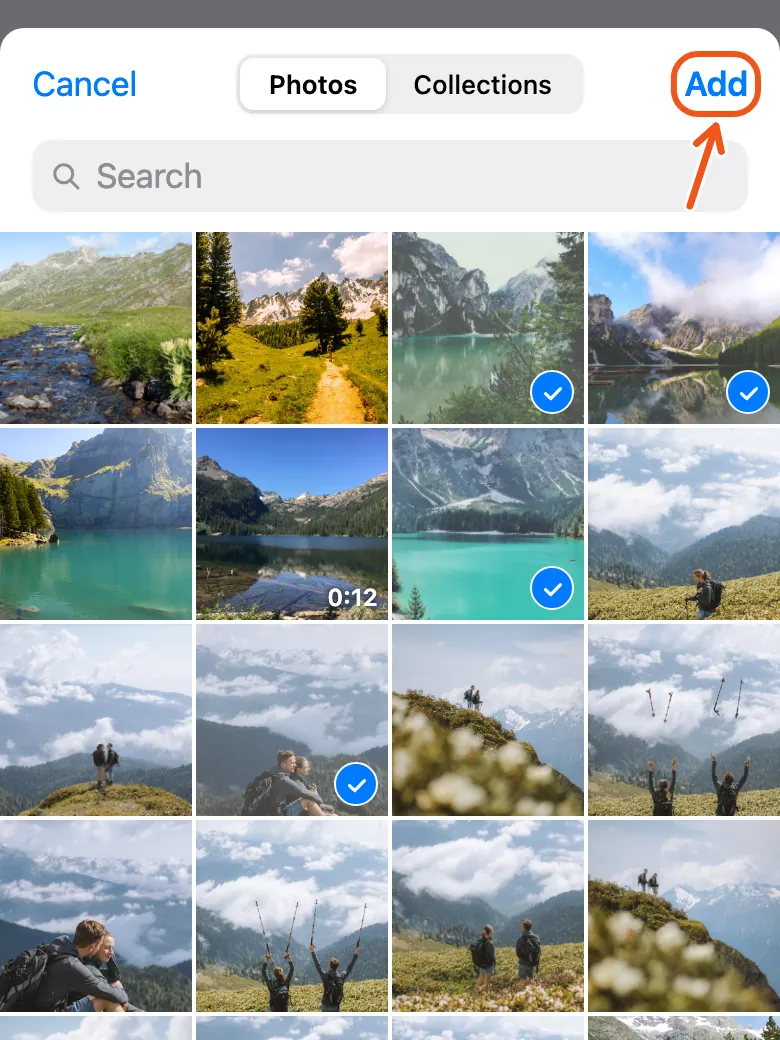
On Android, the photo picker opens at the bottom of the screen. Tap the photos and videos you want, then tap Add.
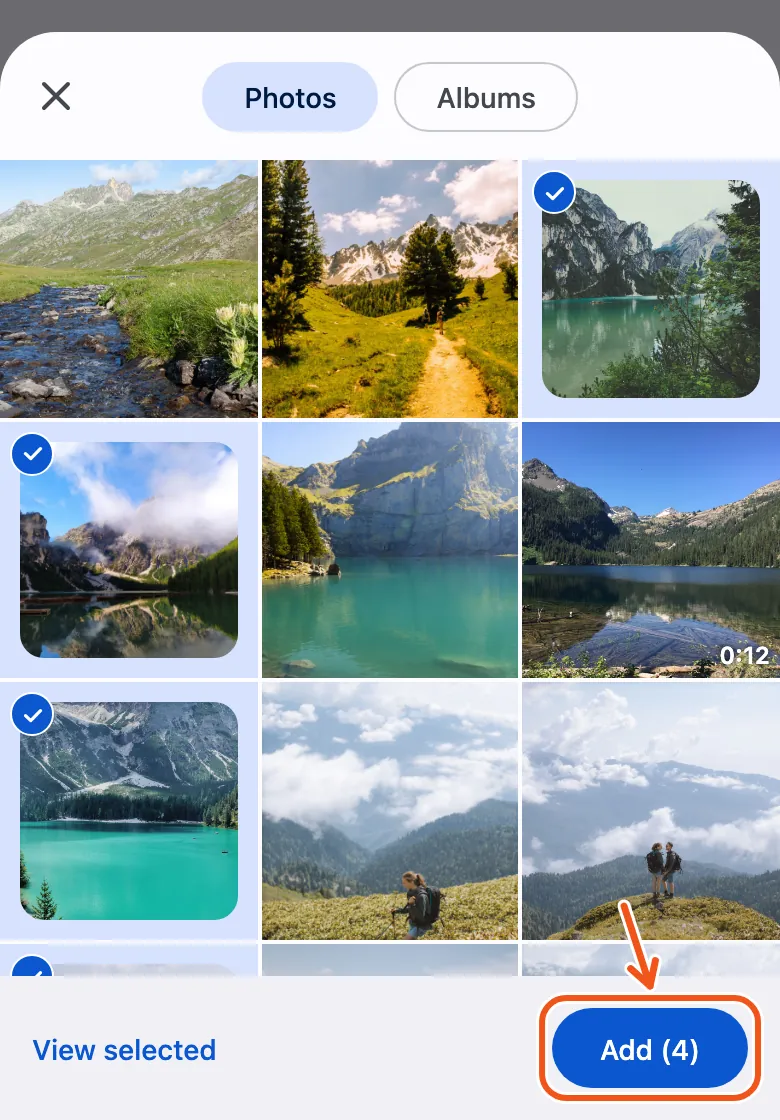
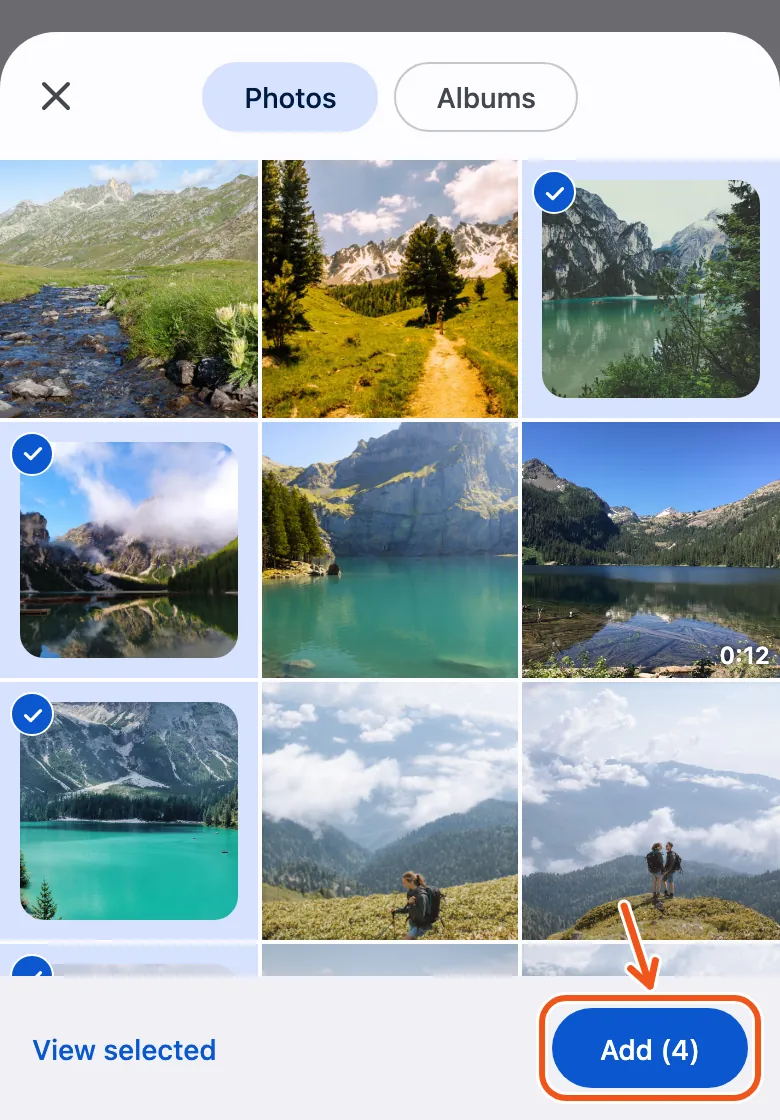
- Back in Kindred Scenes, check the count and tap Upload.
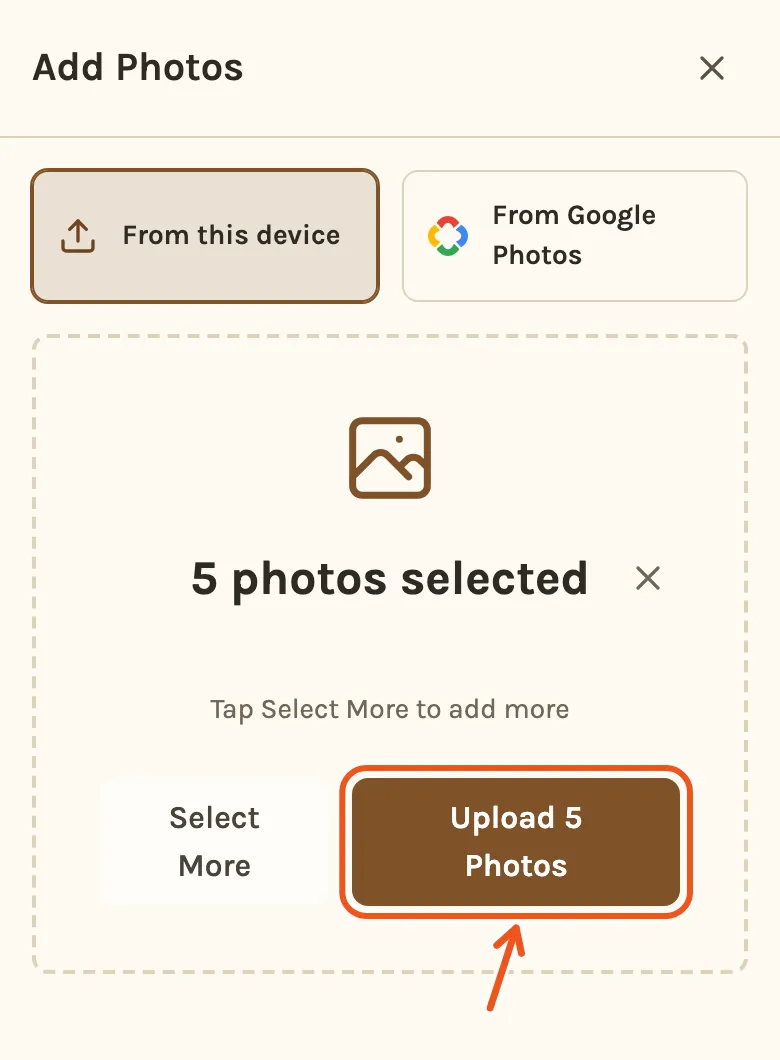
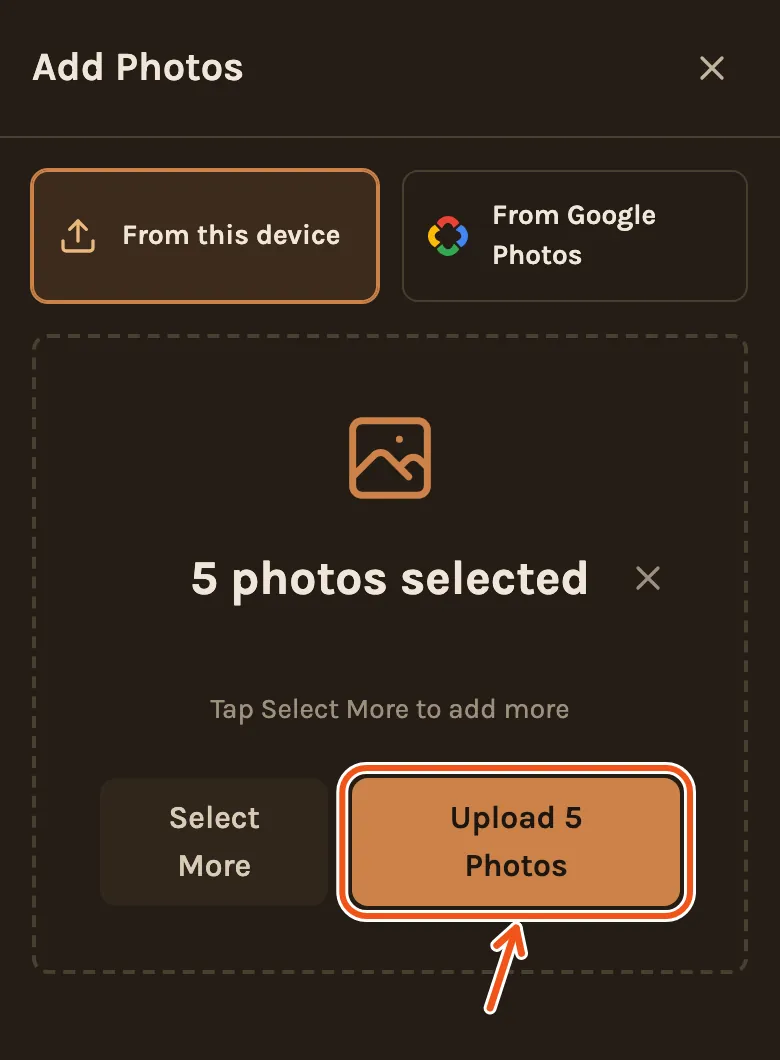
- You see Uploading... with a bar. Keep the page open and the screen on.
- When it says Upload Complete!, tap Done at the bottom.
Keep the page open while it uploads
Your photos are sent from your computer or phone while the page is open. Closing the tab, reloading or switching away can stop the upload partway.
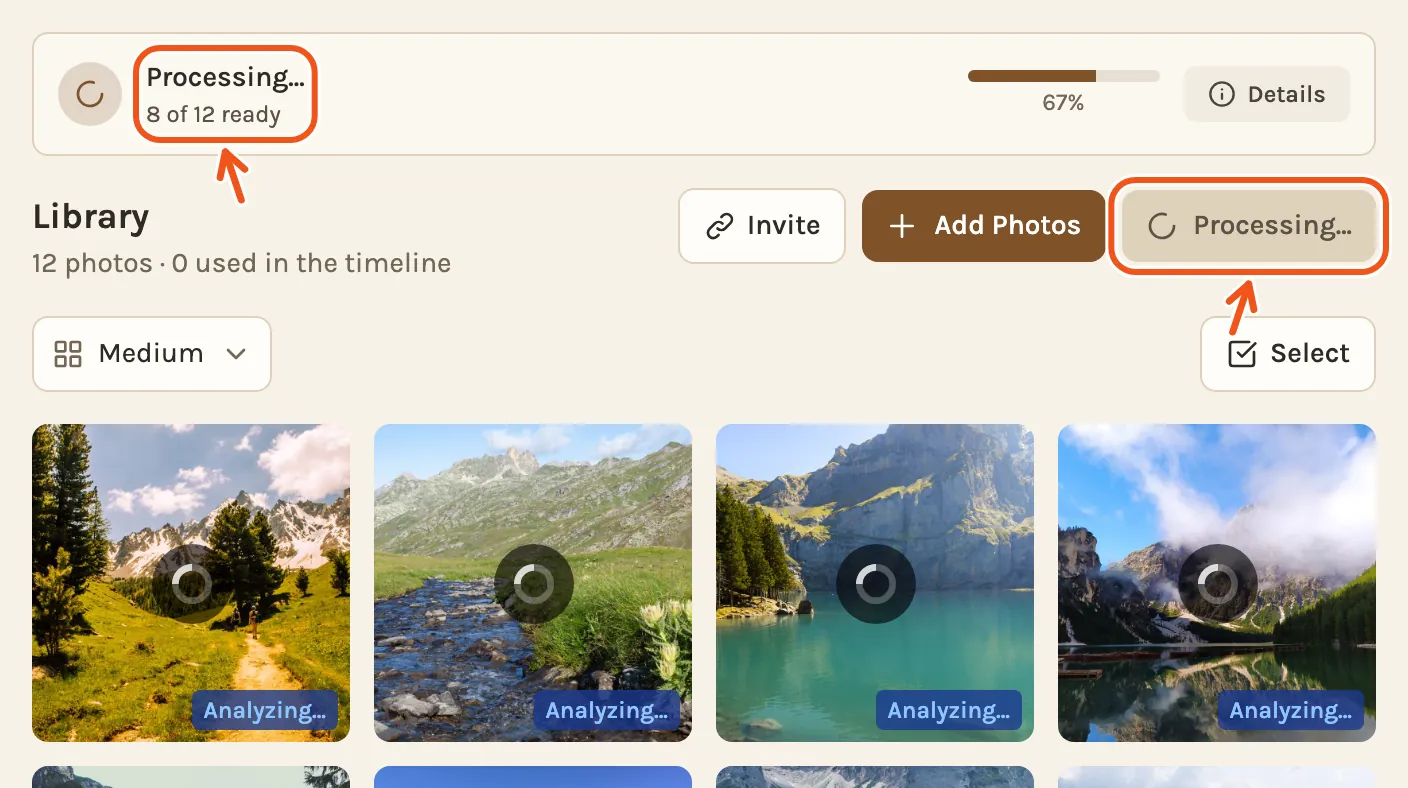
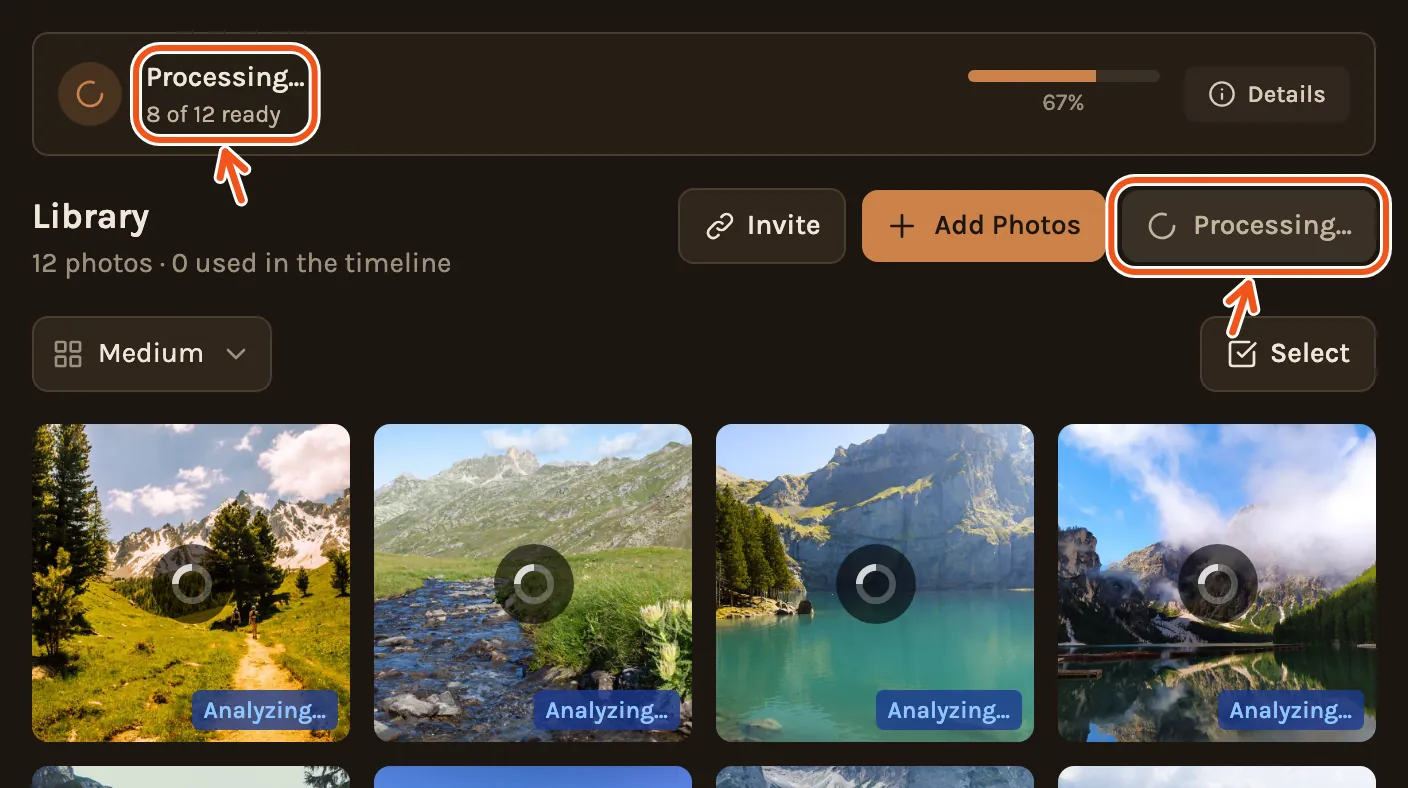
Once it says Upload Complete!, you can close the page. Kindred Scenes then prepares each photo on its own. The Library shows Processing... with how many are ready, and each new tile says Analyzing... until it is done. The Create Timeline button stays grey and says Processing... until everything is ready.
Adding a lot from a phone
- Pick in batches of 15 to 20. It goes more smoothly than hundreds at once.
- Wait after tapping Add. An iPhone can take a little while to hand the photos over, especially if they are stored in iCloud. Nothing seems to happen for a moment. Don't tap again.
- If an upload stops, pick the same photos again. Anything already in your project is skipped, so nothing is added twice.
- Trim long videos first. Each video can be up to 3 minutes long.
What you can add
- Photos: JPG, PNG, WebP and HEIC (the iPhone's own format), up to 50 MB each.
- Videos: MP4, MOV and most phone videos, up to 3 minutes and 1 GB each.
- Not GIFs: they are skipped.
A file that is too big or too long is refused before it is sent. The upload screen lists it in red with the reason, and counts it under Failed. The rest still upload.
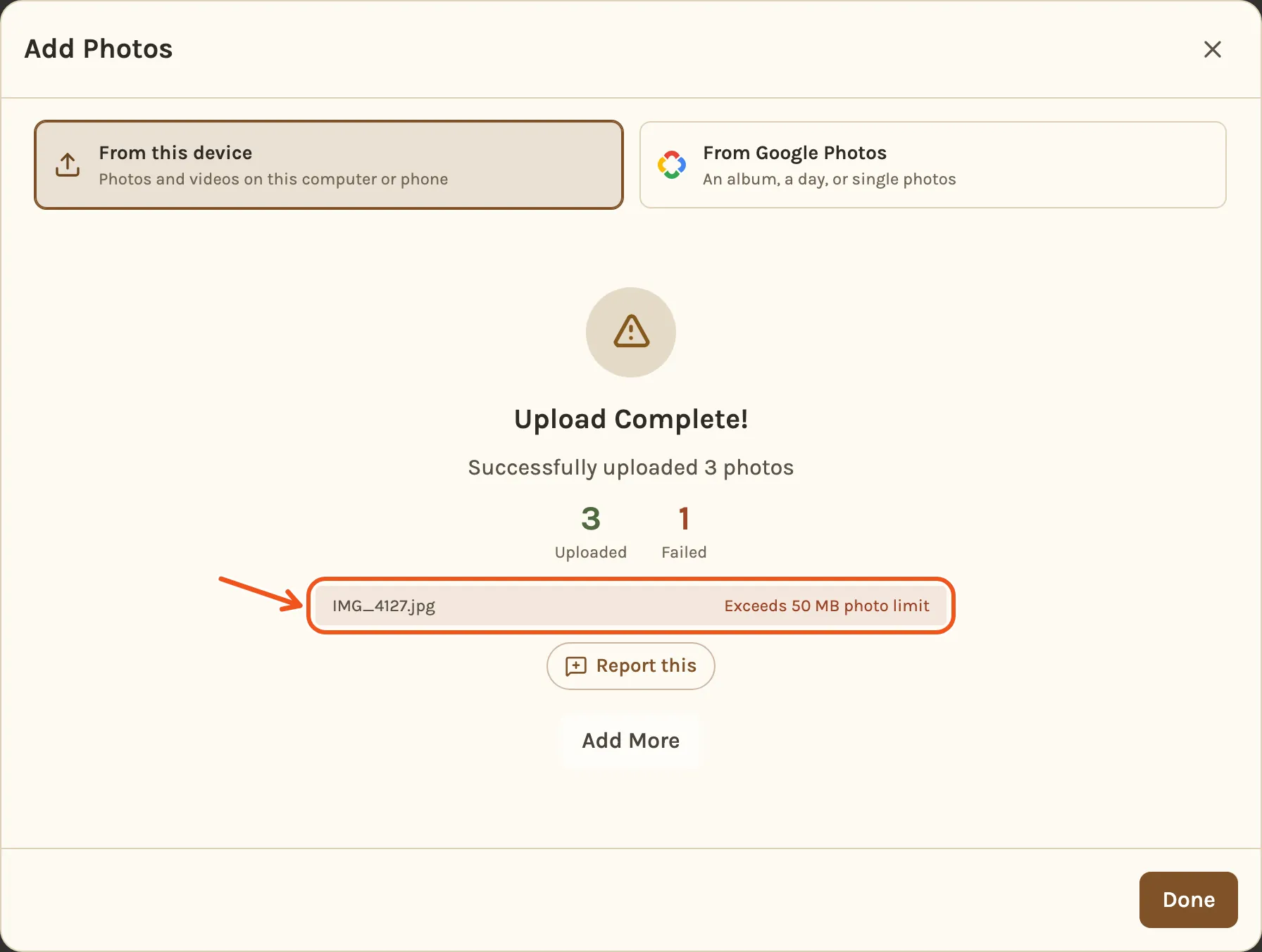
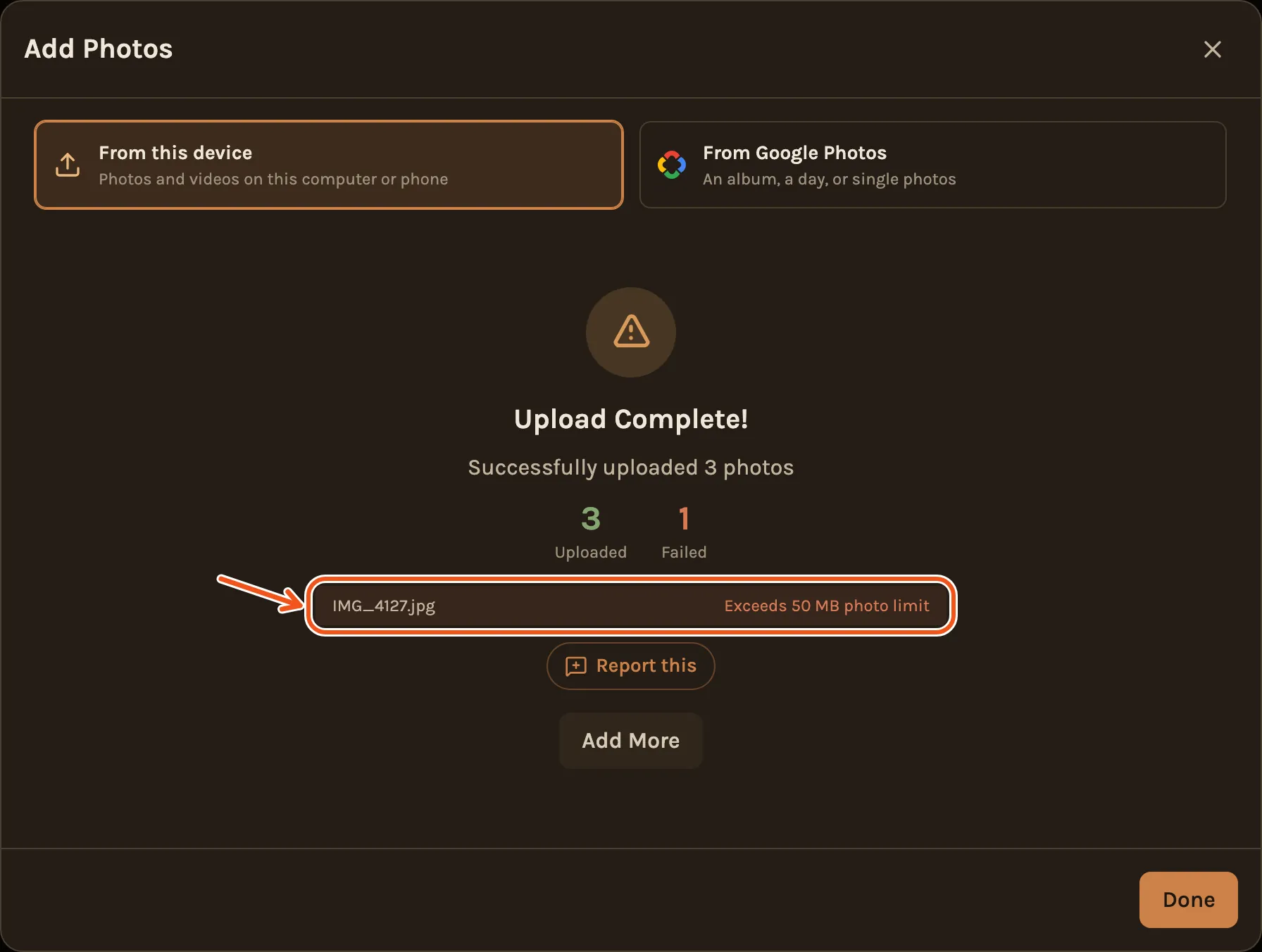
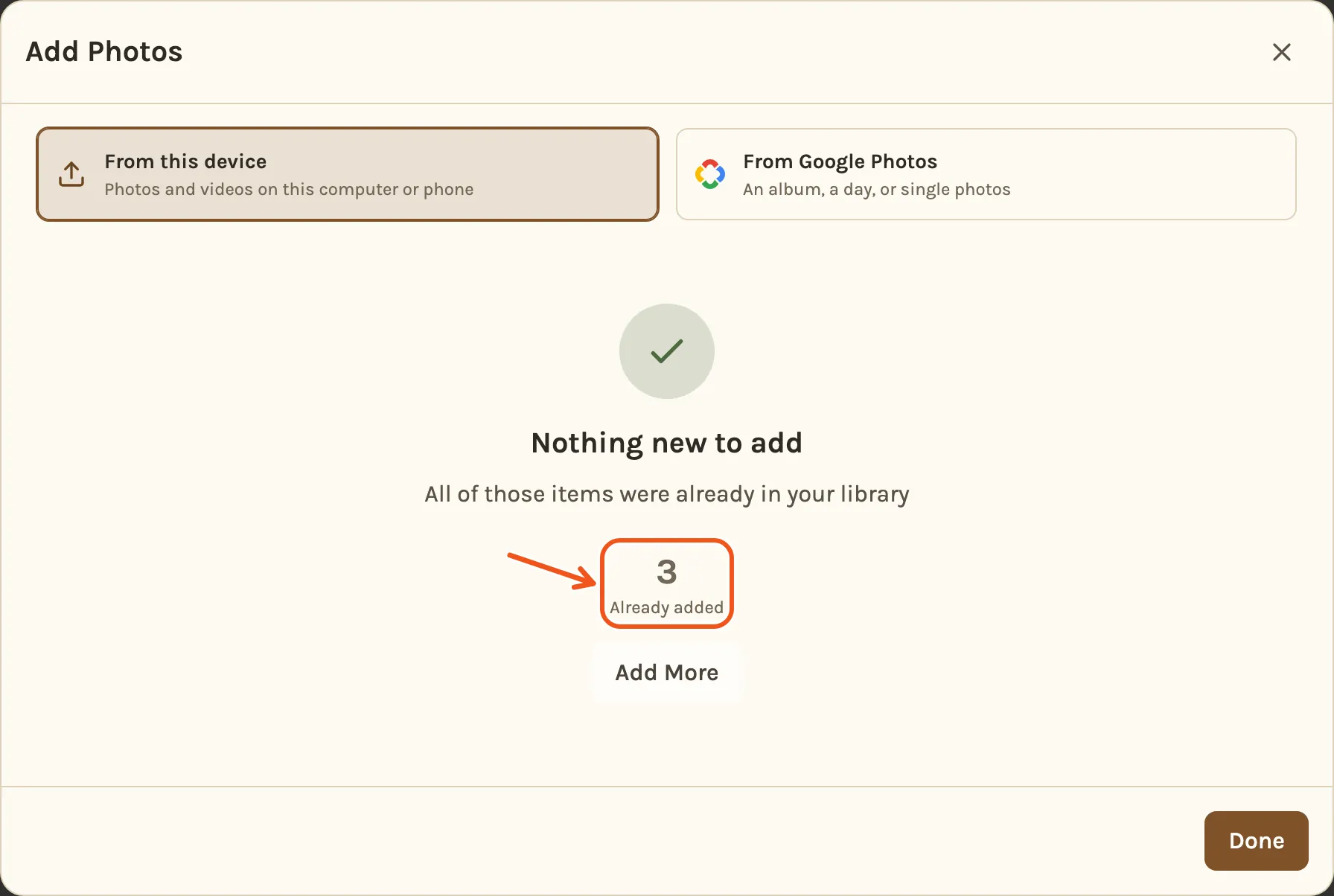
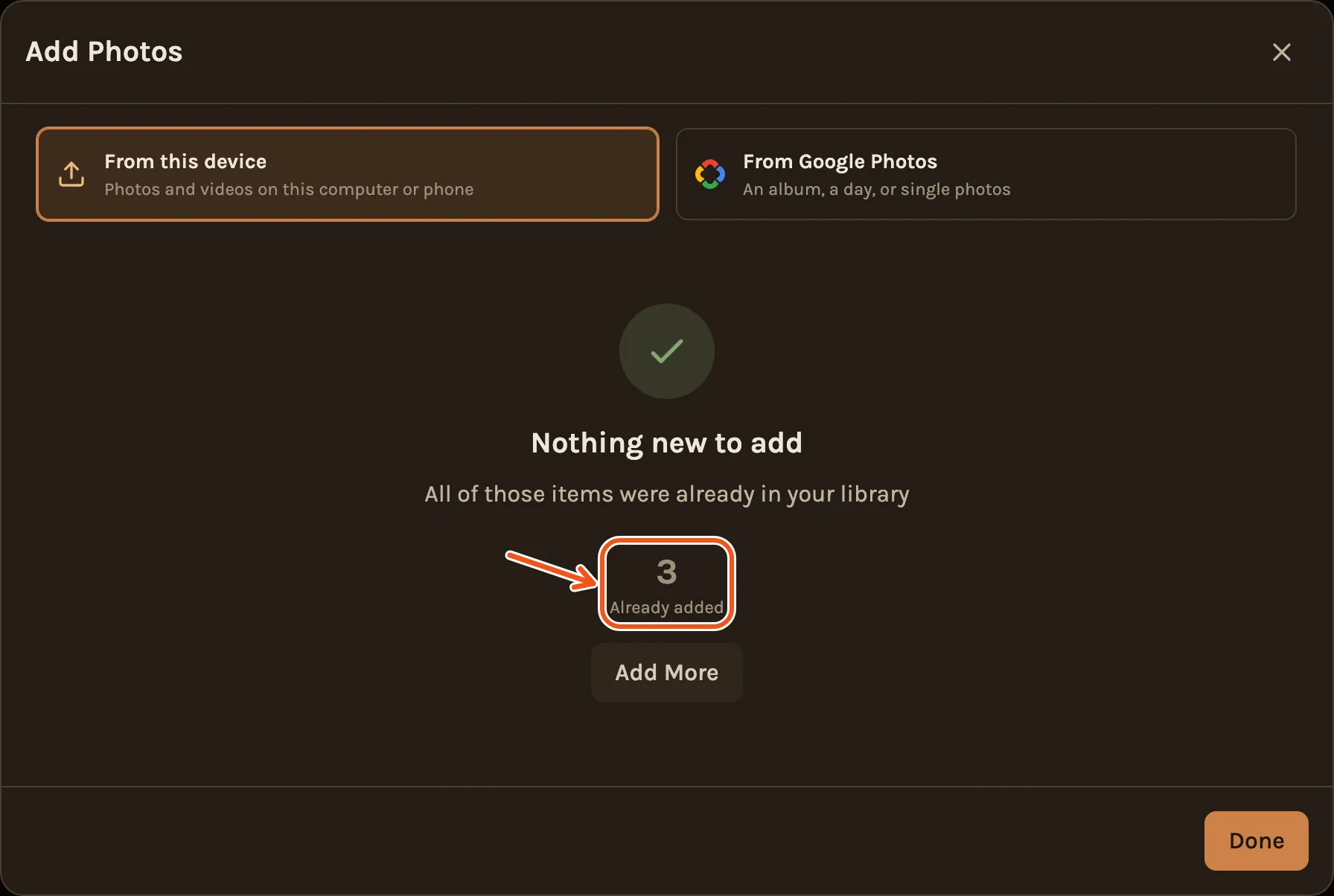
If everything you picked is already in the project, you see Nothing new to add and nothing is sent again.
Each project has room for about 1,000 photos, or 60 minutes of video, or a mix of the two. The bar at the bottom of the Add Photos window shows how much room is left. Deleting something does not give its room back, so leave out the obvious misses when you pick.