How the music is picked
Each chapter of your timeline gets a mood: happy, upbeat, gentle or easygoing. Kindred Scenes picks a song from its library with that mood, long enough to fill the chapter. When the film is made, the photo changes land on the beat of the song.
You can keep these songs, or swap any of them before you make the film.
Swap a chapter's song
- Open your project's Timeline.
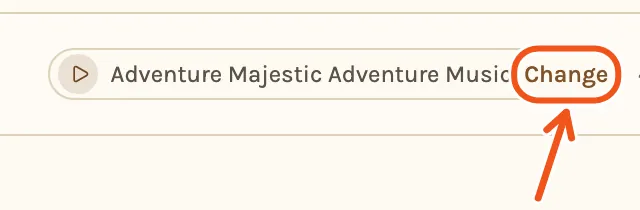
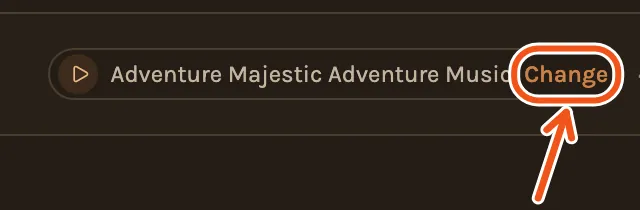
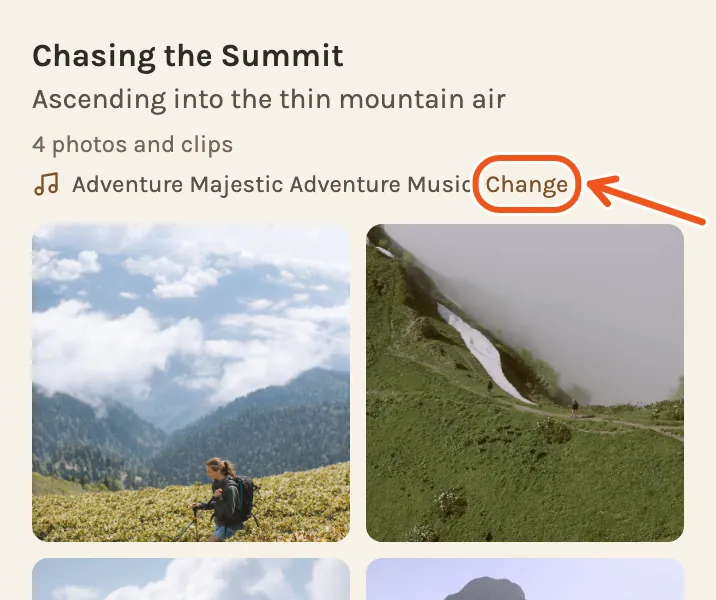
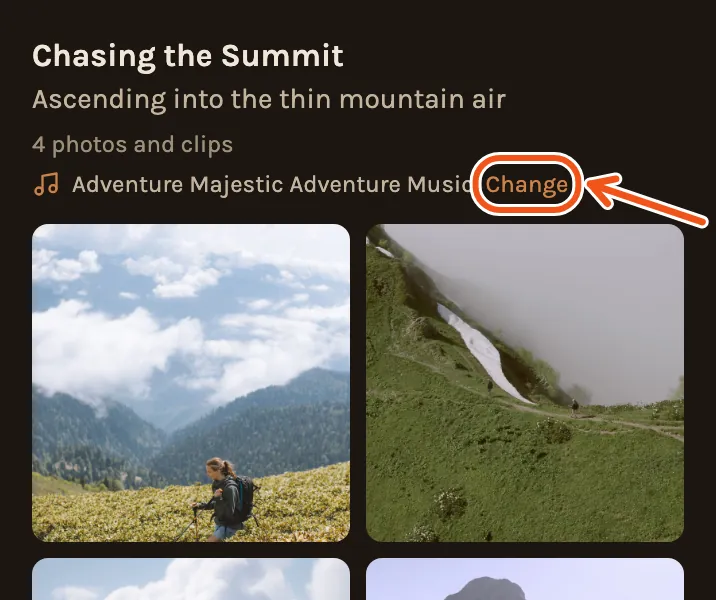
- Find the chapter and click Change next to its song.
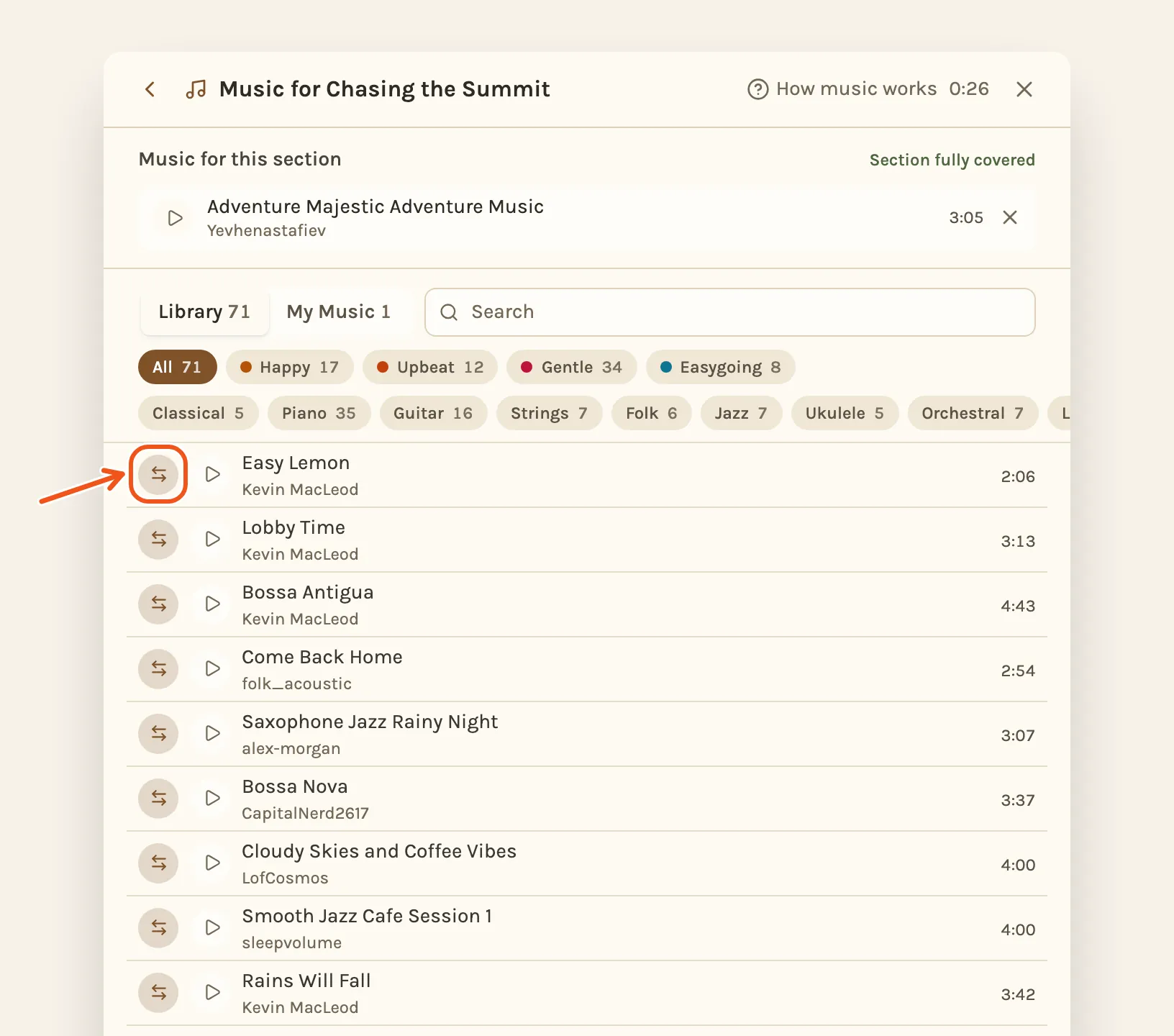
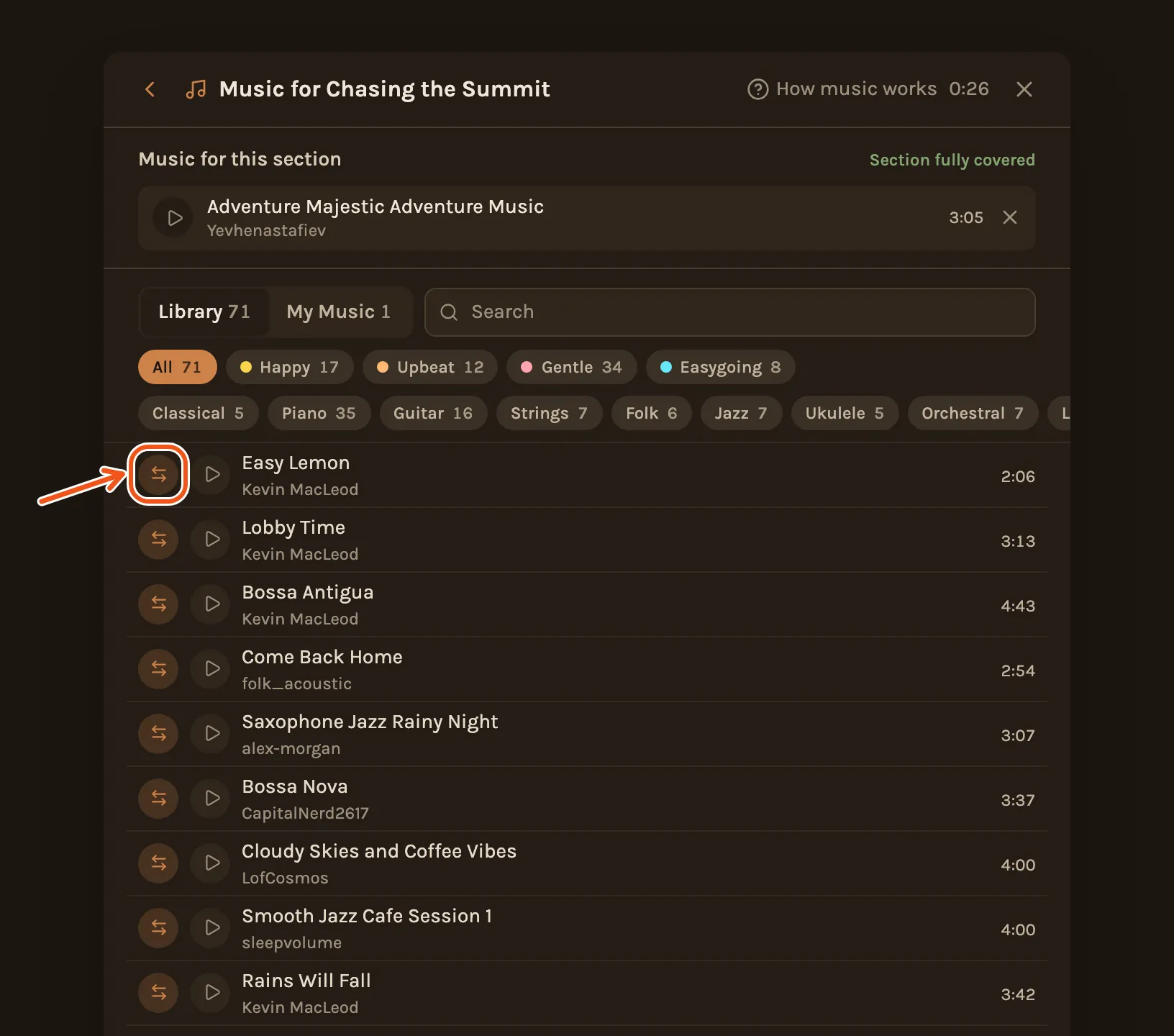
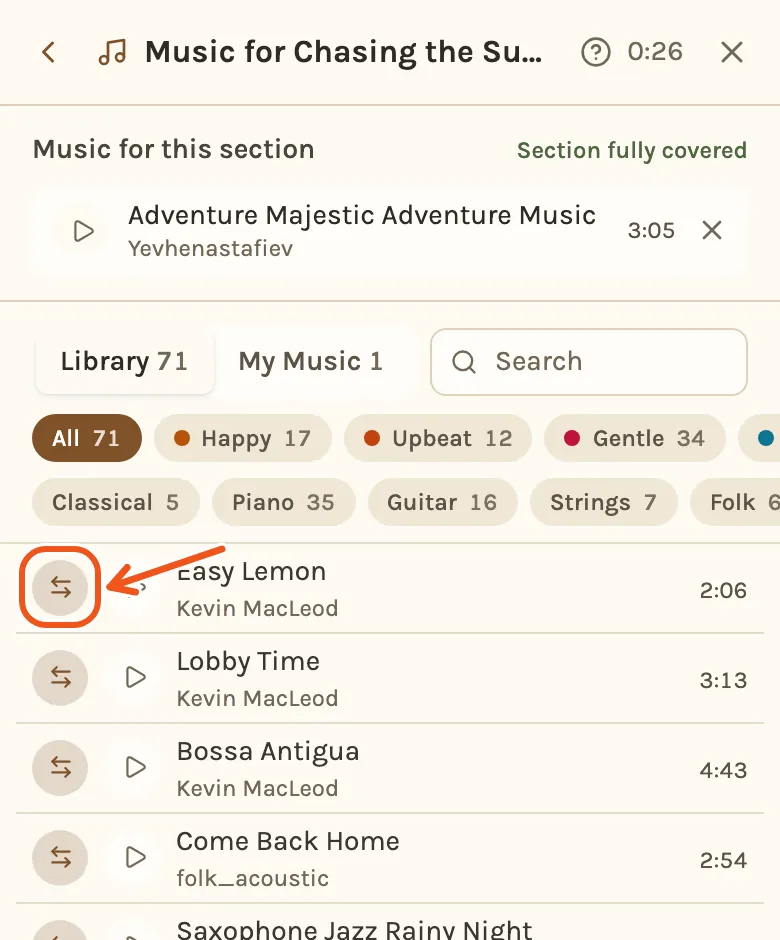
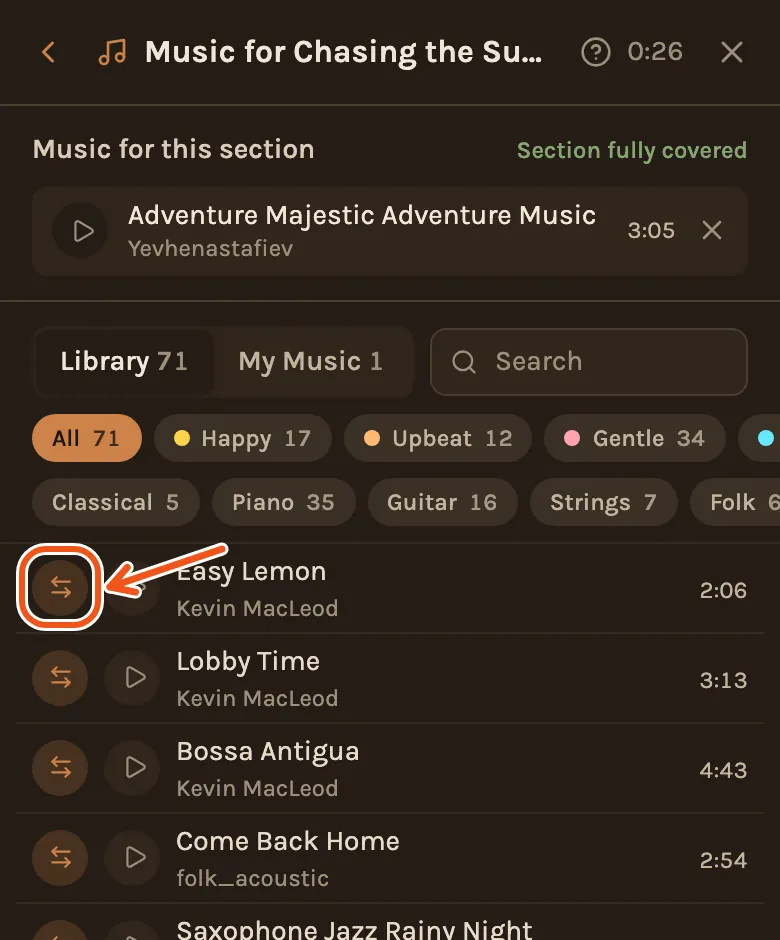
- The music picker opens. At the top is the song the chapter has now. Below it is the library.
- Look for a song you like. You can narrow the list by mood, by style such as piano or guitar, or search by name. Click to hear any song.
- Click next to the song you want. It takes the old song's place.
- Click Save.
- Open the Timeline tab at the bottom of the screen.
- Under the chapter, tap Change next to its song.
- The music picker opens. At the top is the song the chapter has now. Below it is the library.
- Look for a song you like. You can narrow the list by mood, by style such as piano or guitar, or search by name. Tap to hear any song.
- Tap next to the song you want. It takes the old song's place.
- Tap Save.
If a chapter does not have enough music yet, the button next to each song shows instead. It adds the song after the ones already there, rather than replacing them.
Add your own song
- In the music picker, open the My Music tab.
- Click Upload and choose a song file from your computer.
- When it has finished uploading, click next to it, then Save.
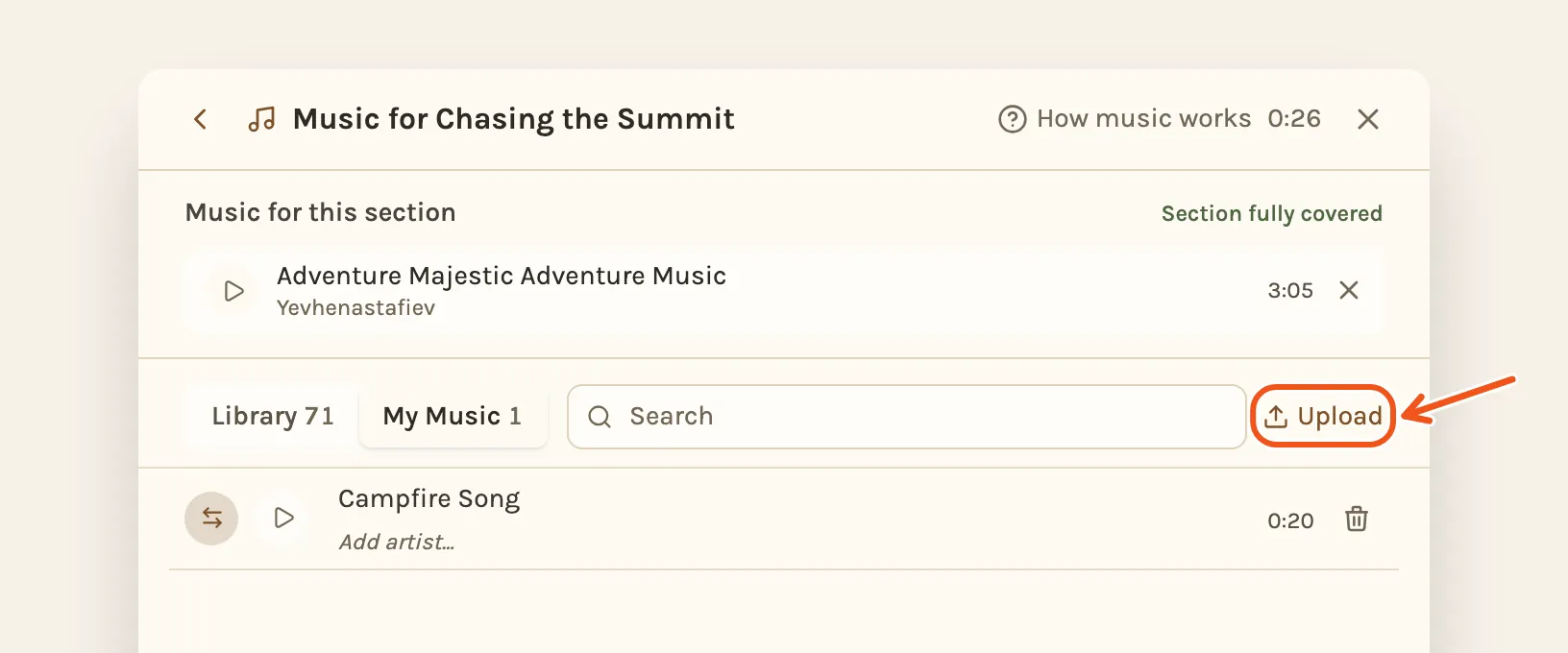
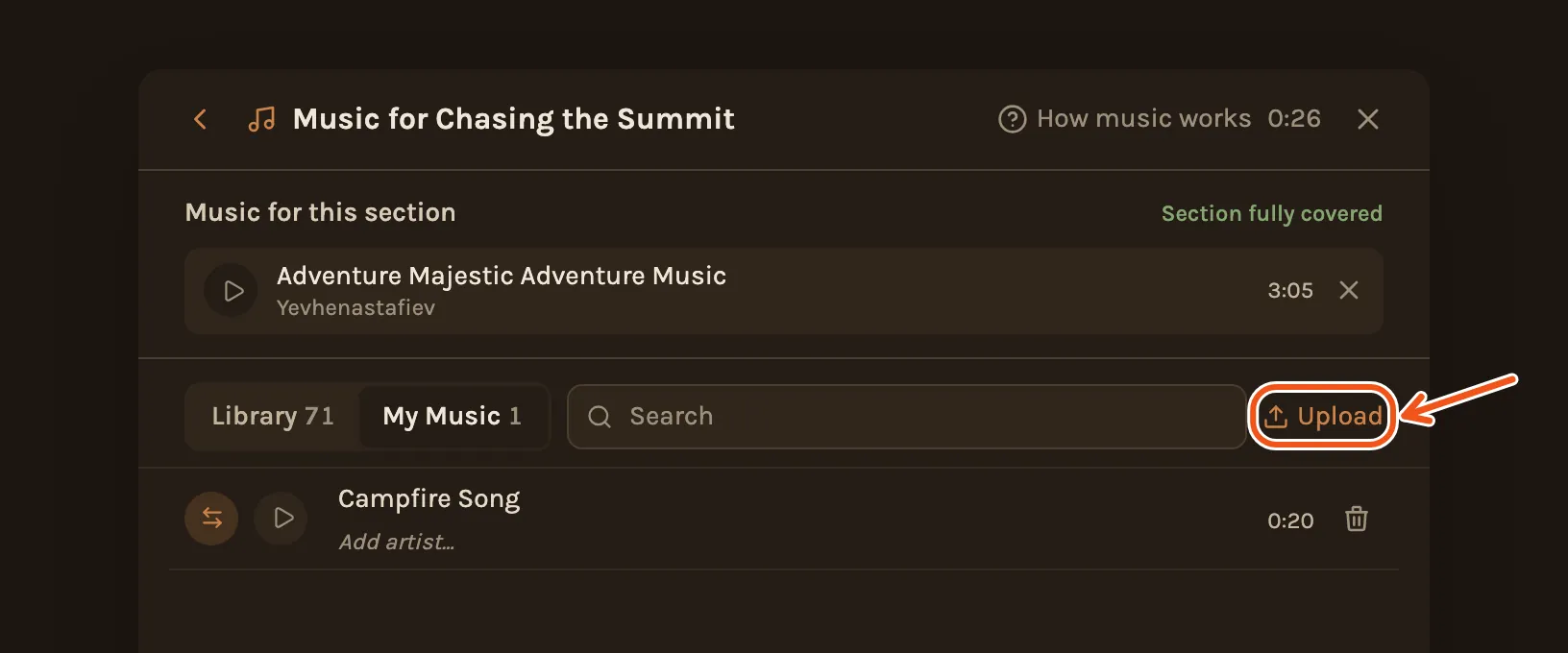
- In the music picker, open the My Music tab.
- Tap Upload and choose a song file from your phone.
- When it has finished uploading, tap next to it, then Save.
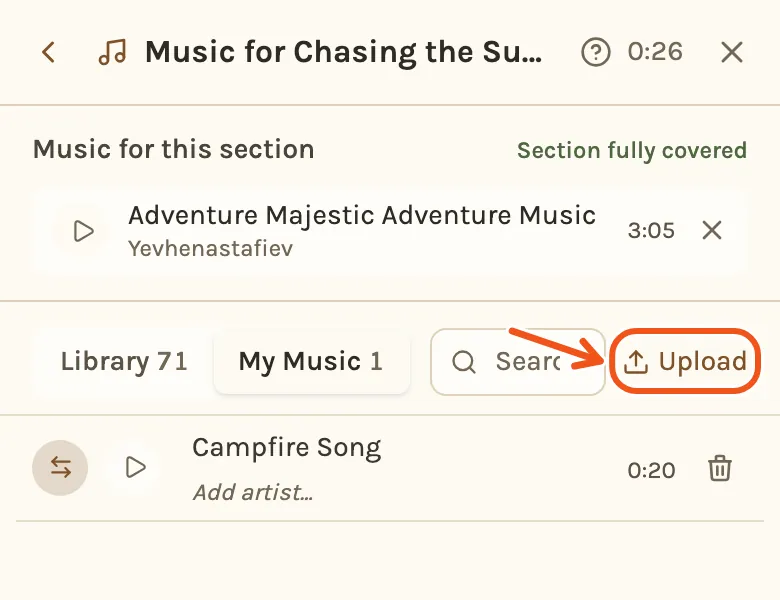
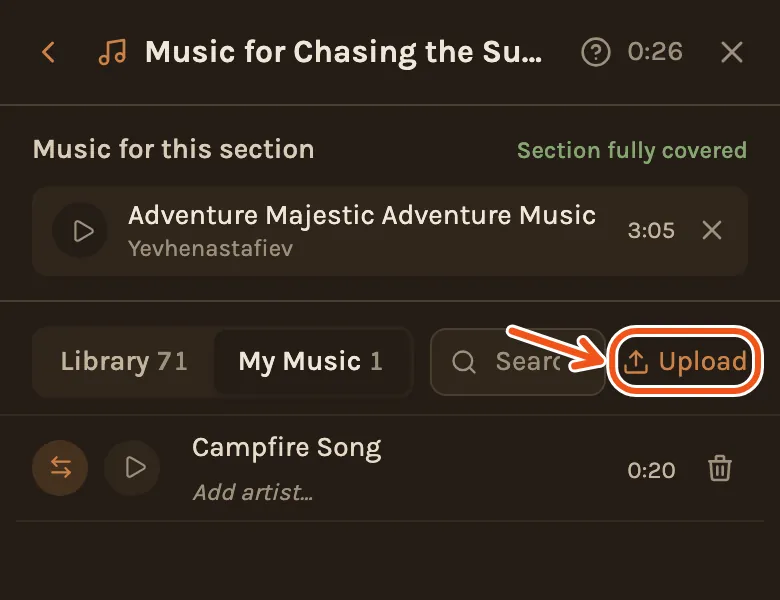
MP3, M4A, WAV, AAC, FLAC, OGG, AIFF and WMA files work, up to 100 MB and 30 minutes long. Kindred Scenes evens out how loud each song is, so your own music sits at the same level as the library. Songs you upload stay in My Music for your other projects too.
Use more than one song in a chapter
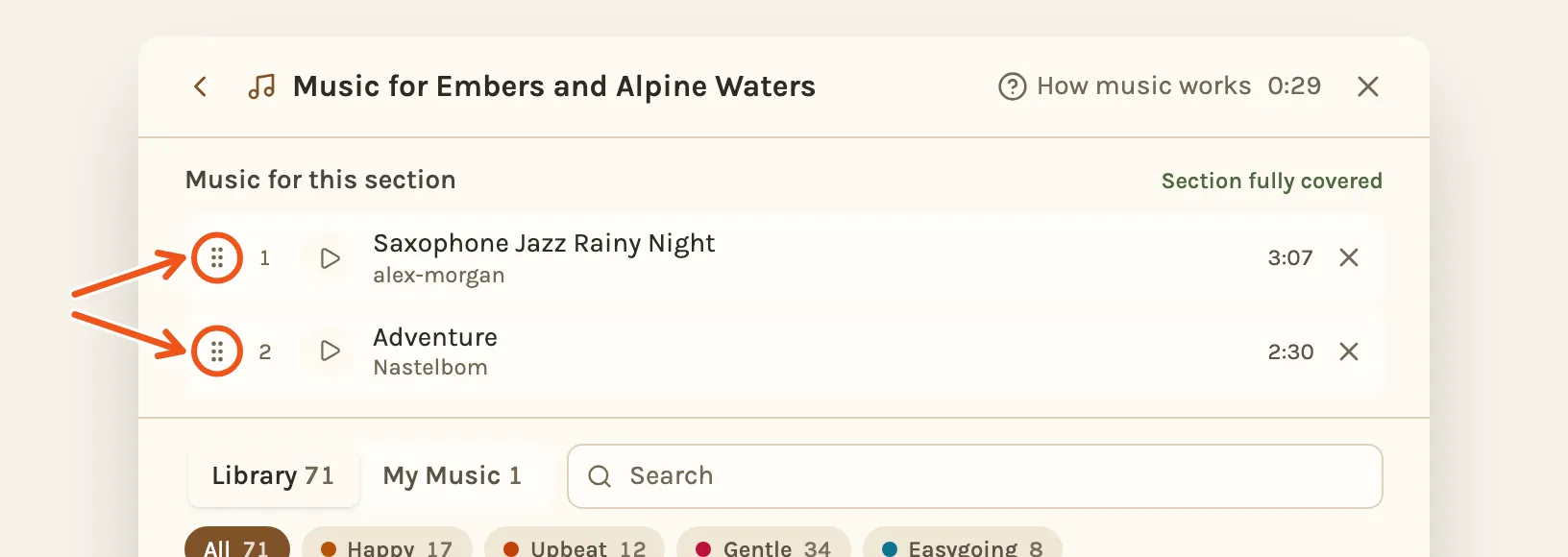
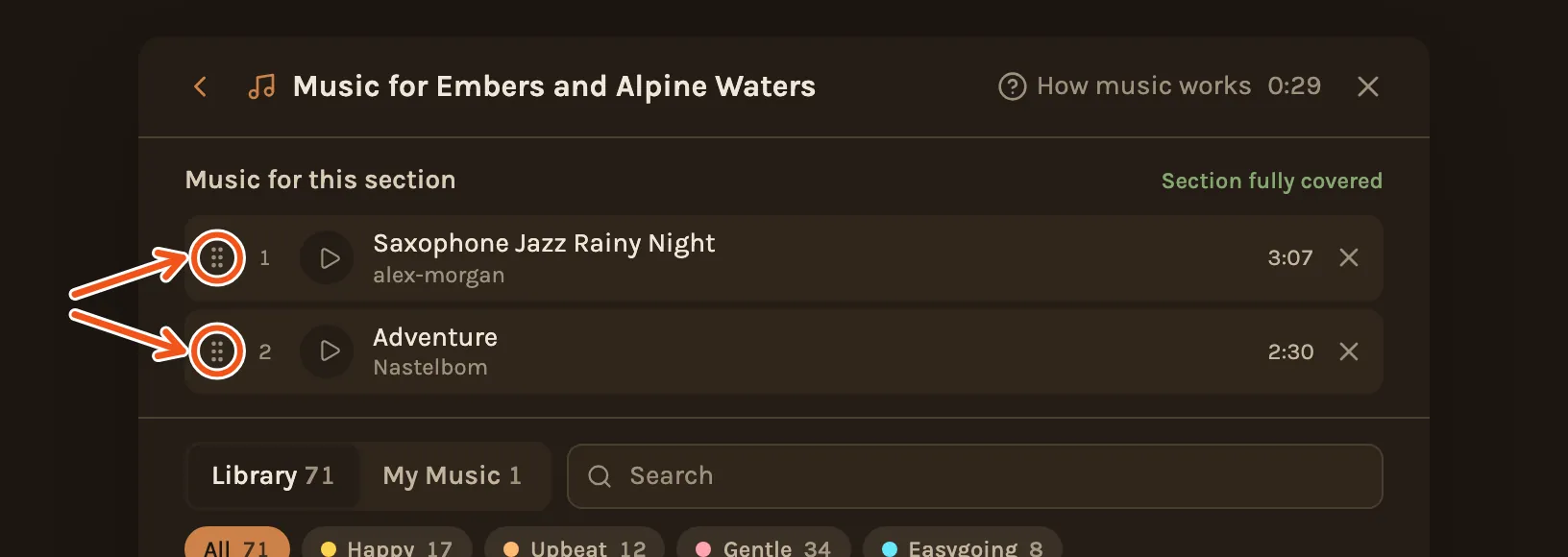
A chapter can have several songs. They play one after another, in the order shown at the top of the picker. To change the order, drag a song by . To take a song out, use next to it.
If you see "Music may run out"
This means the songs in a chapter are shorter than the chapter, so the end of it would be quiet. Add another song to that chapter, or swap one for a longer song.
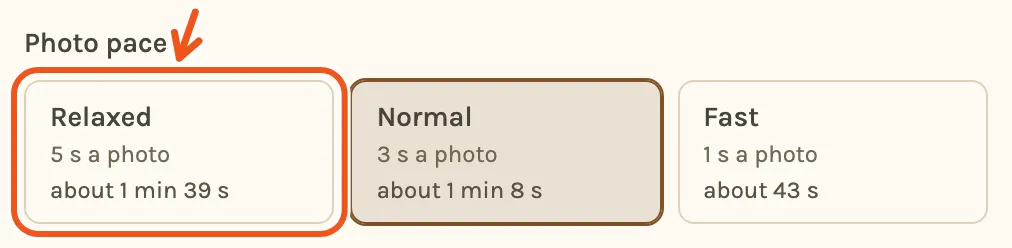
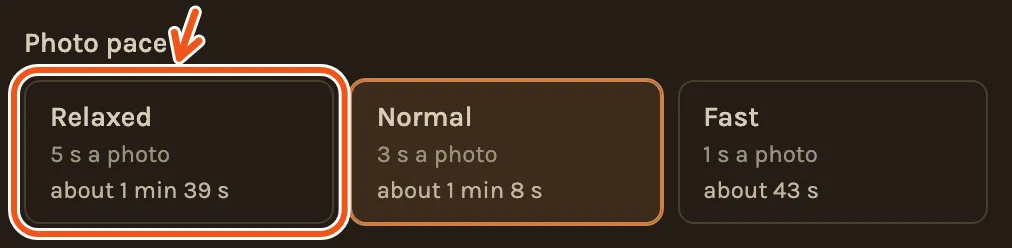
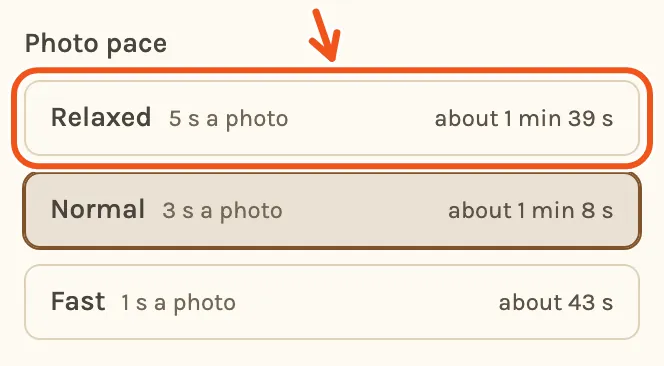
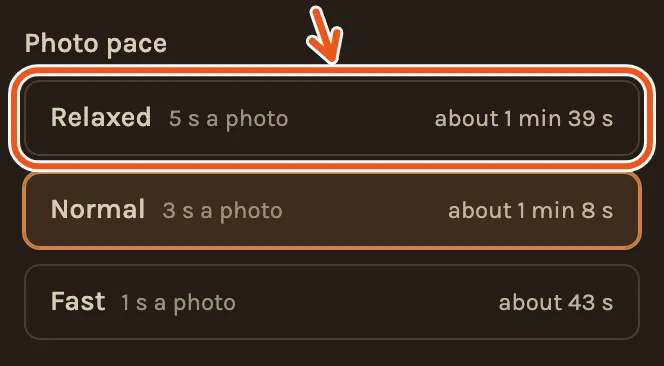
How long a chapter runs depends on the photo pace, which you choose when you make the film. At Relaxed, each photo stays up longer, clips play longer, and the film gets longer. Kindred Scenes then adds a song where one is needed, and tells you which song it added and to which chapter.
Make the music louder or quieter
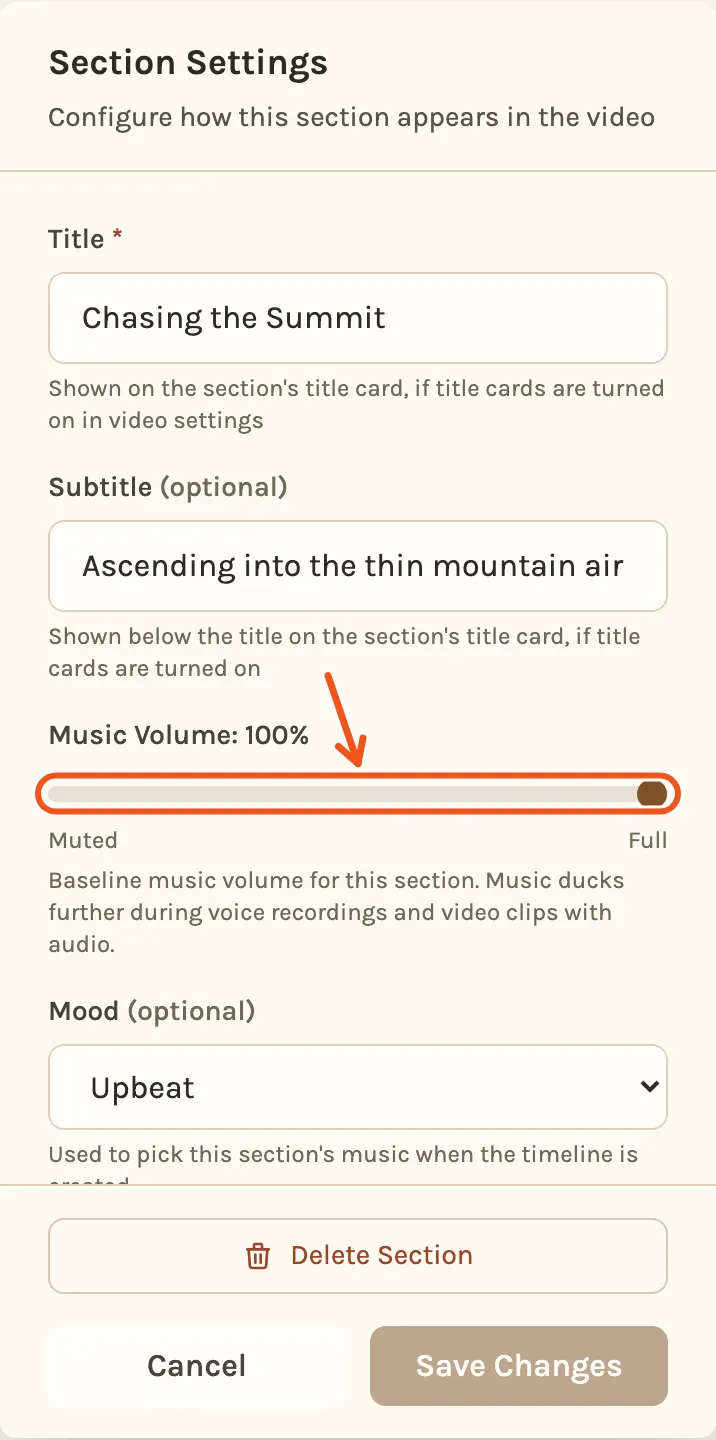
Each chapter has its own music volume.
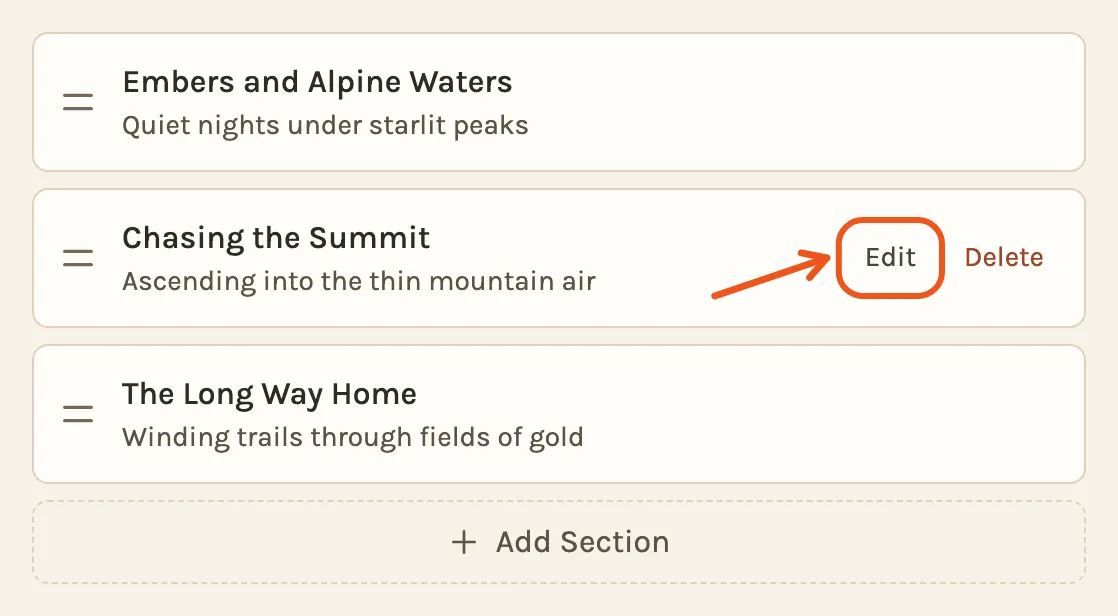
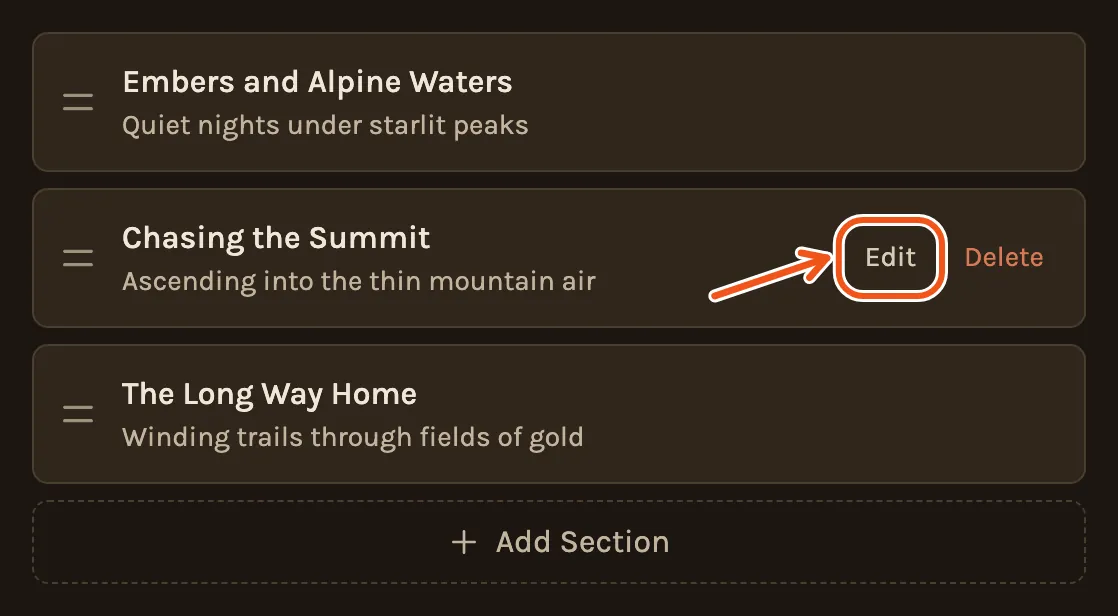
- Open Settings, then find Sections.
- Click Edit on the chapter.
- Move Music Volume, then click Save Changes.
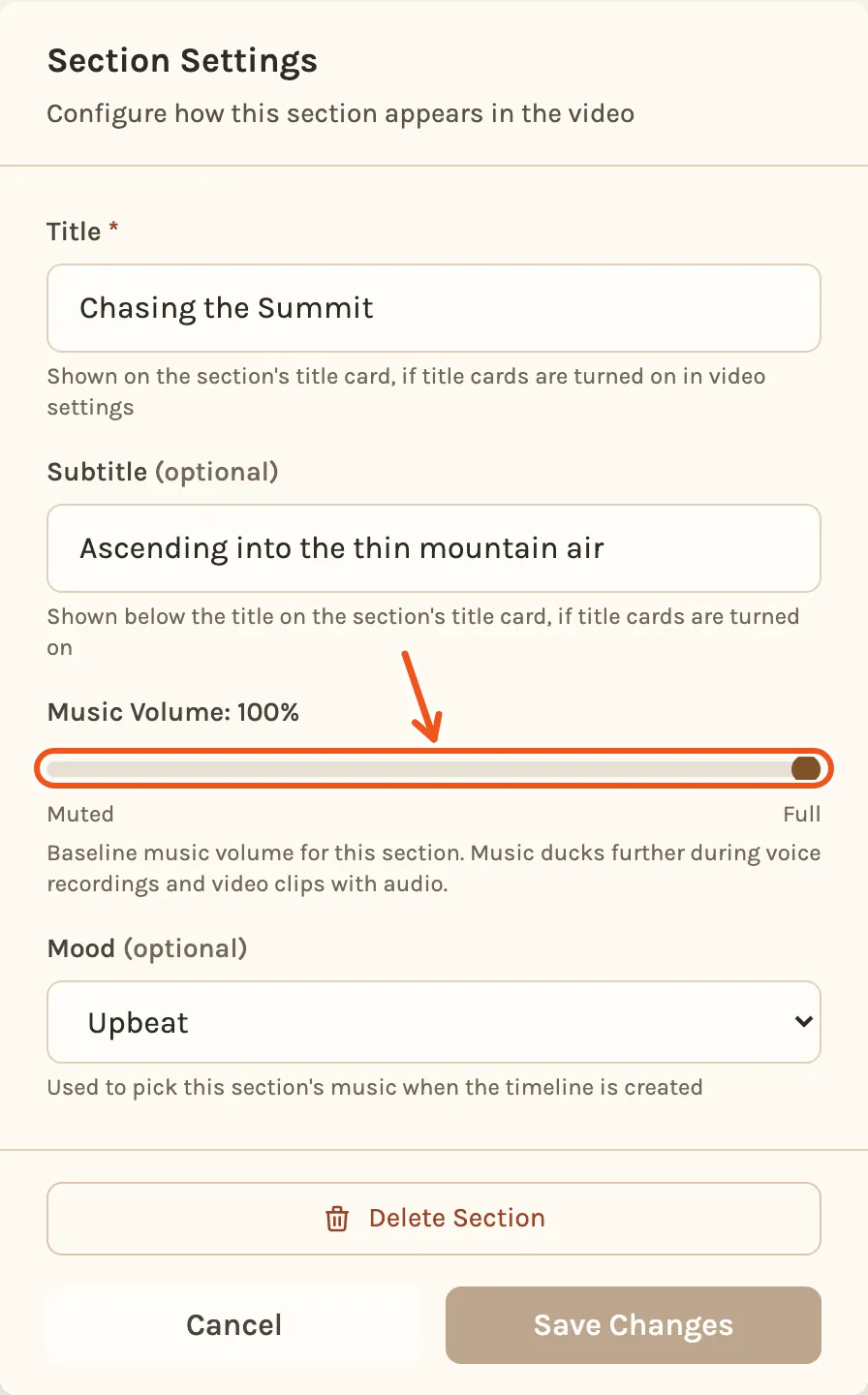
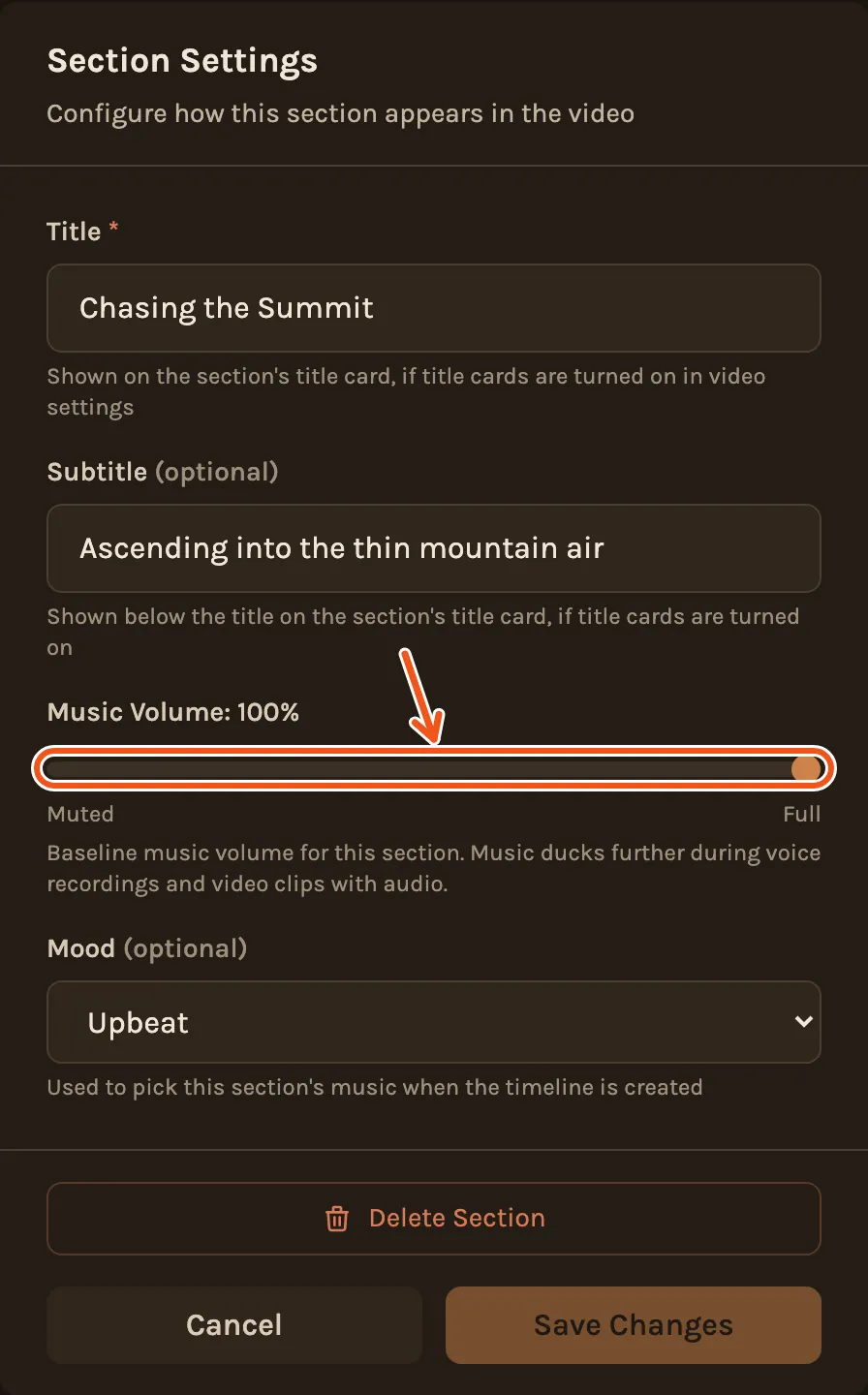
- Open the Settings tab at the bottom of the screen, then find Sections.
- Tap Edit on the chapter.
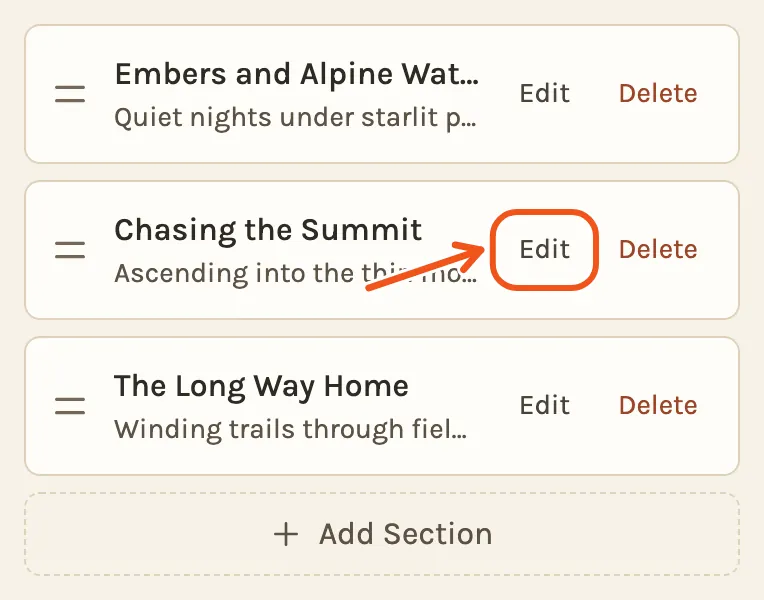
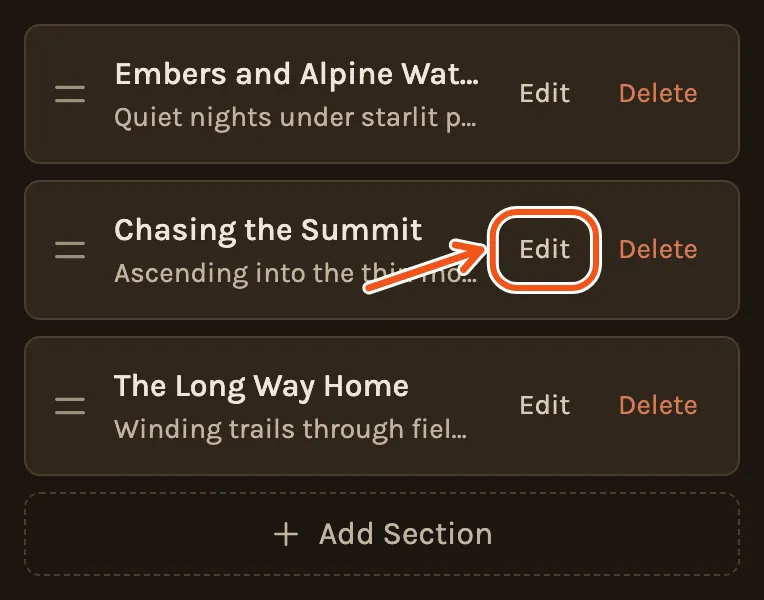
- Move Music Volume, then tap Save Changes.
Music under videos where people talk
When a video clip has someone talking, the music drops so you can hear them, then comes back. You can turn this off for one clip: open the clip, switch Duck to No duck, and save.
Music and YouTube
The songs in the Kindred Scenes library can go on YouTube. When a song asks for a credit, the film adds it at the end, and the credit line is filled in for you when you upload the film to YouTube from Kindred Scenes.
Your own songs are your responsibility. A well-known song may be blocked on YouTube even if the film plays fine at home.