Changing it, step by step
What you can do on a phone
On a phone, the Timeline tab lists each chapter with its photos. A note at the top says: "To change the order or take things out, use a computer."
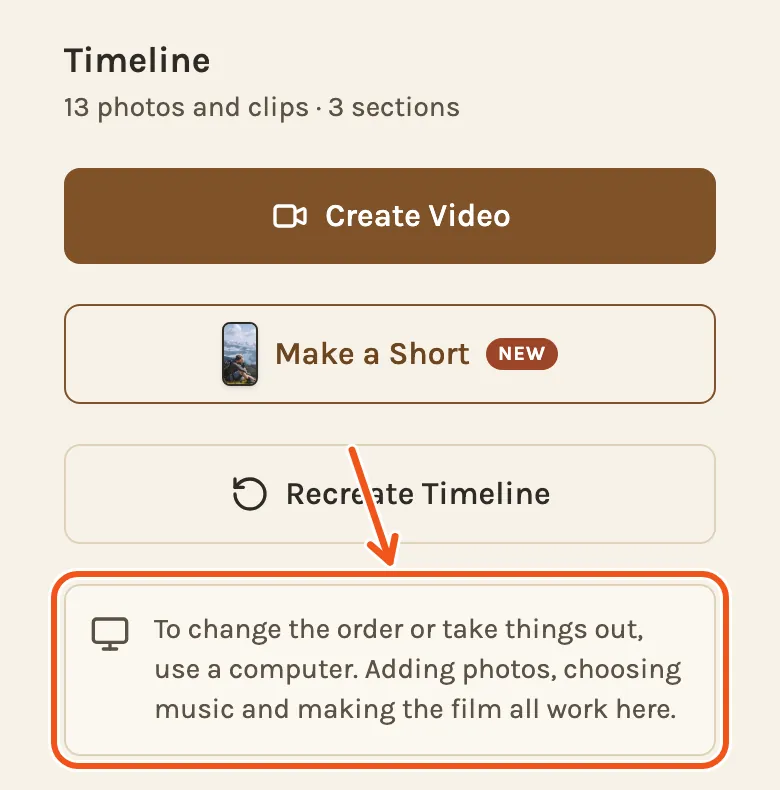
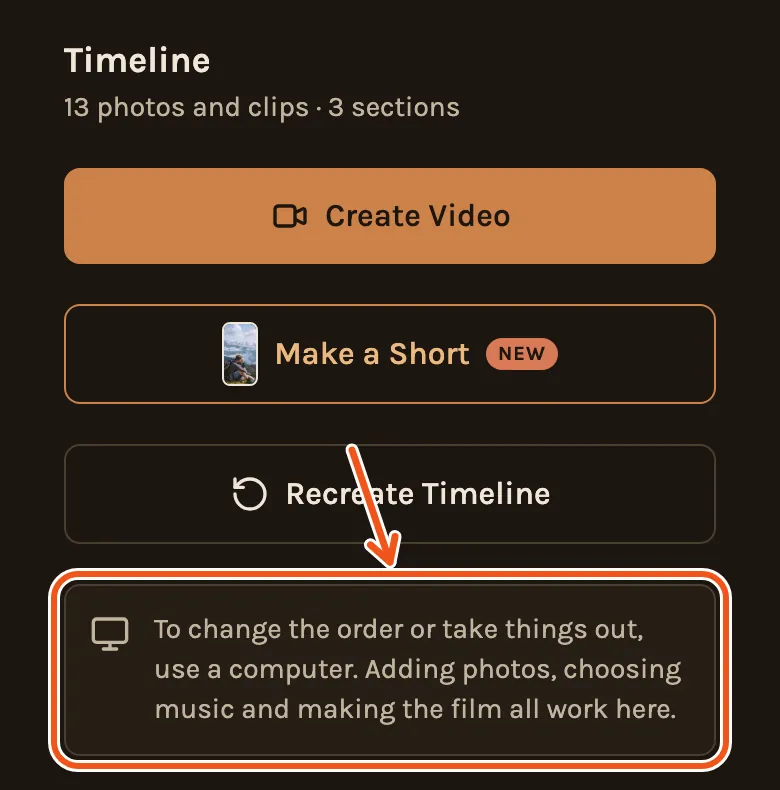
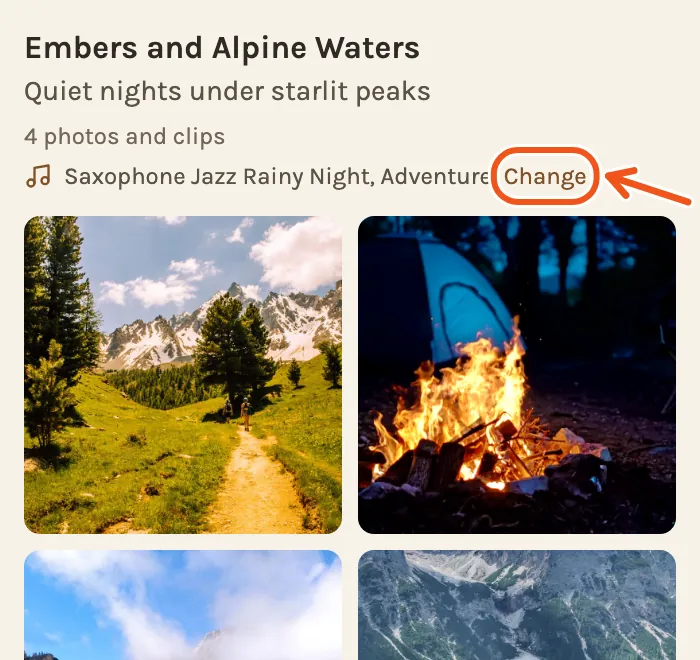
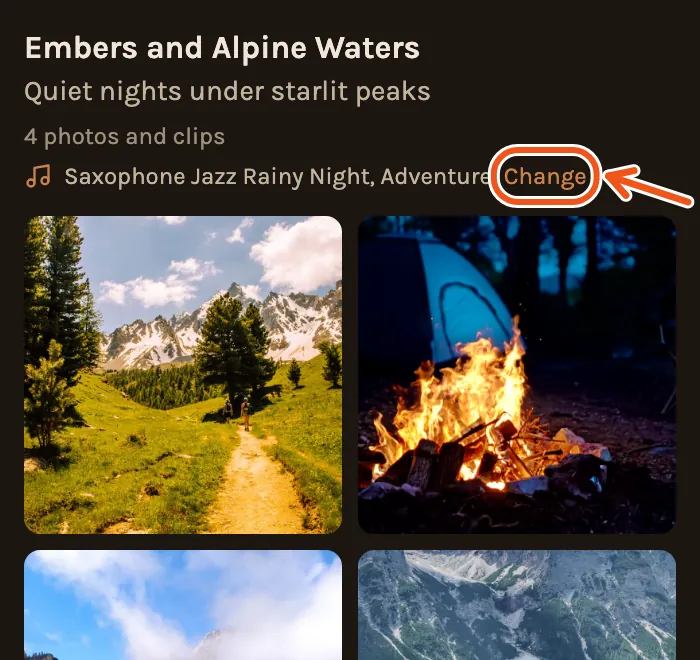
Each chapter shows its title, its photos and its song, with Change next to the song.
On a phone you can:
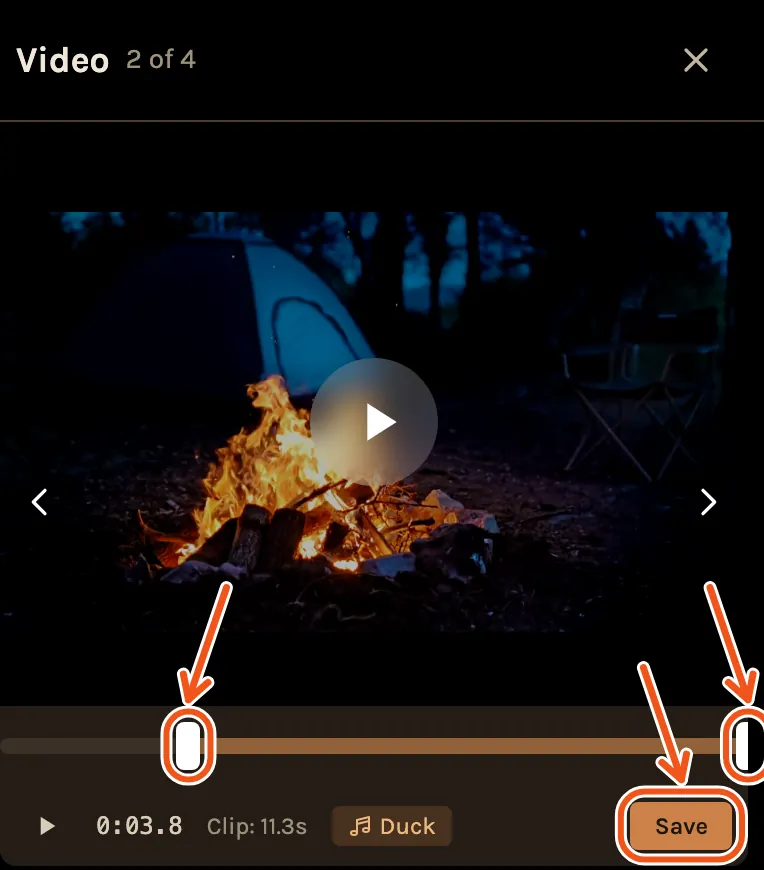
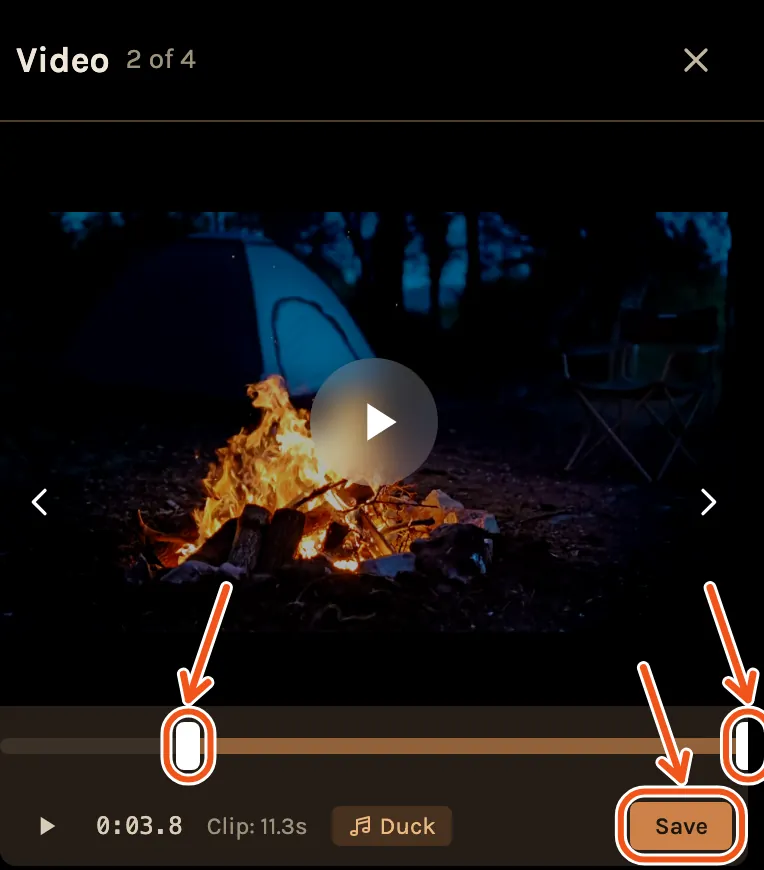
- Trim a clip: tap a video clip, drag the handles at each end of the bar under it, then tap Save.
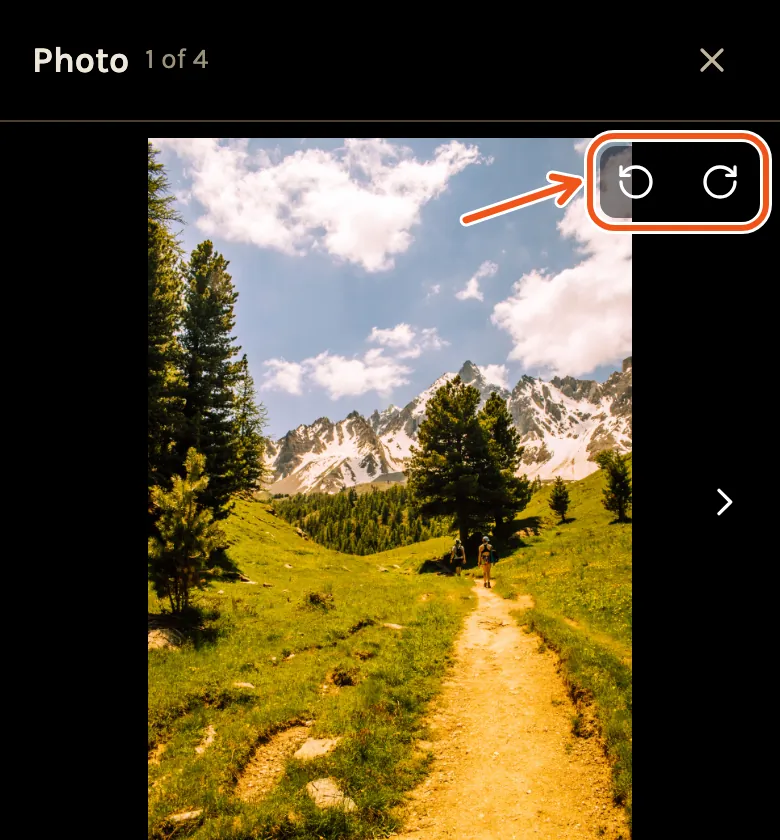
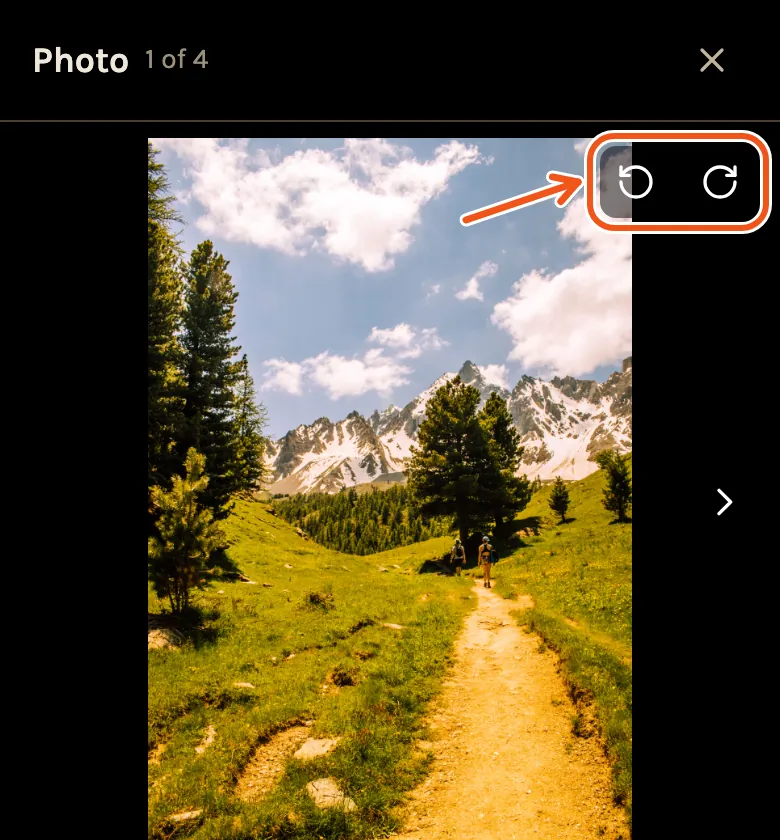
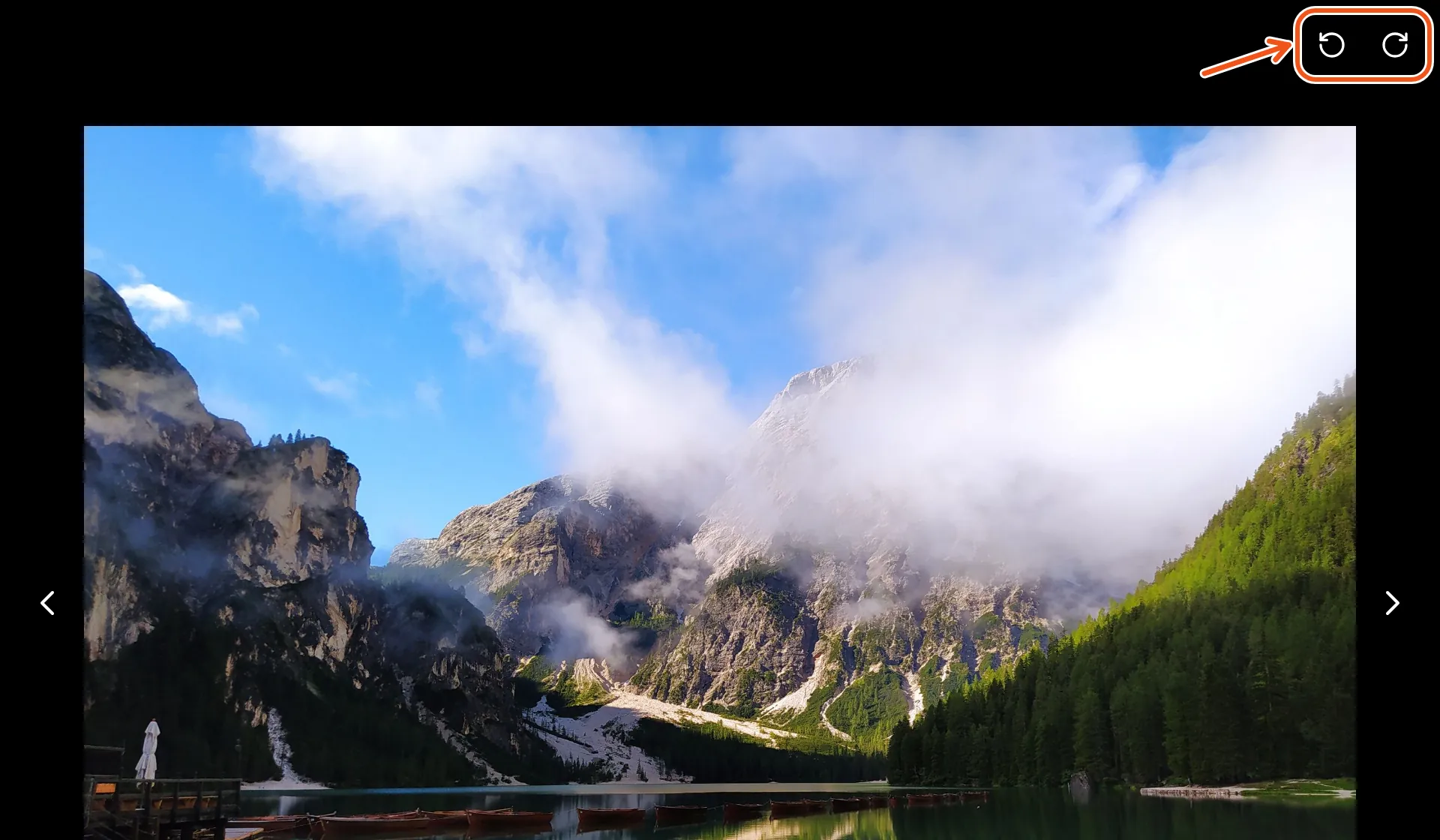
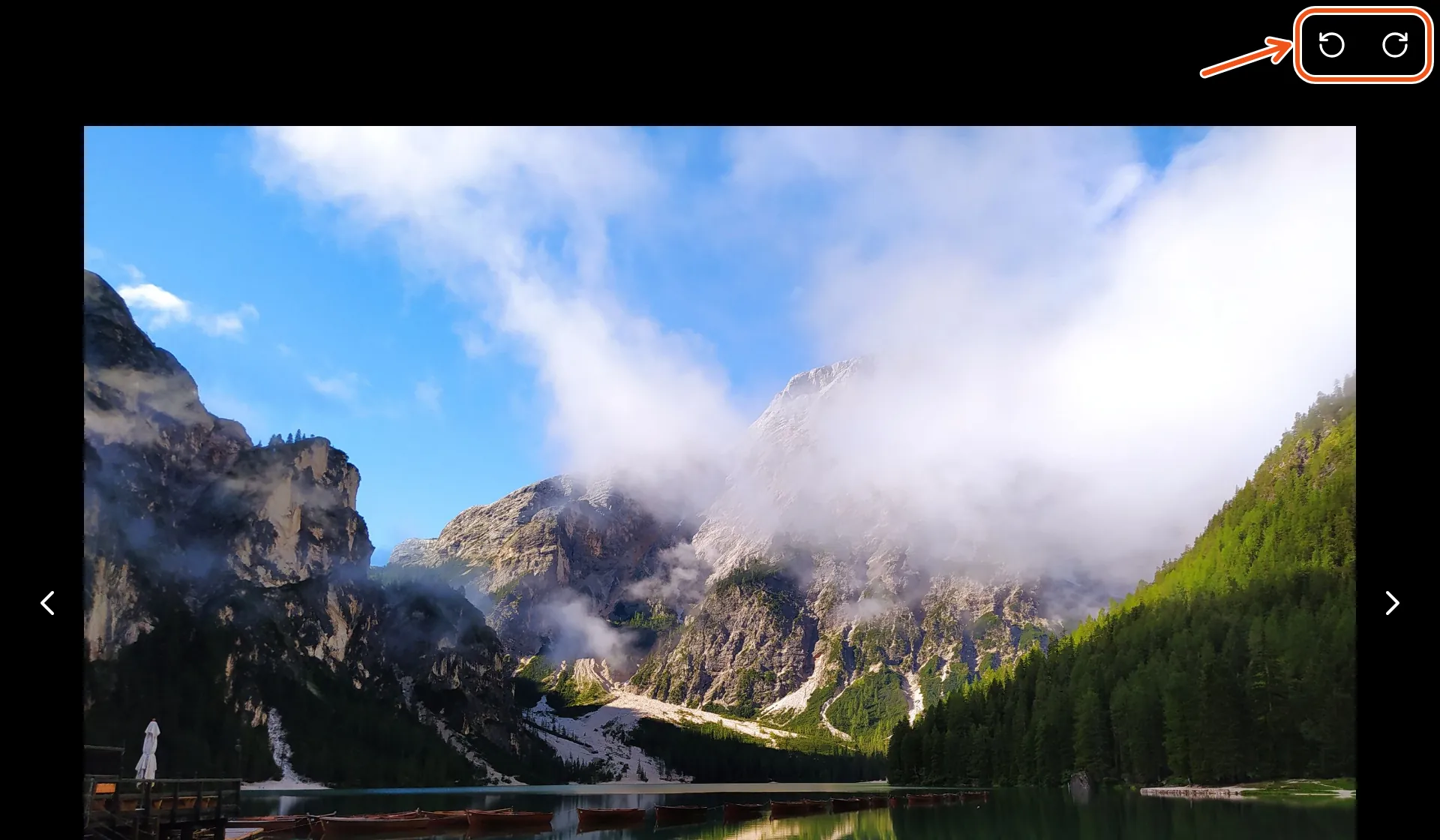
- Turn a photo: tap the photo, then tap one of the two arrows at its top right.
- Change the music: tap Change under a chapter. See How to choose and change the music.
- Change the cover photo: in Create Video, or in Settings under Cover Photo.
- Rename a chapter or change its music volume: open Settings, find Sections, and tap Edit.
To move photos, take them out or bring them back, open the same project on a computer. Your timeline is the same on both.
See what was left out
Open your project's Timeline. Each chapter shows its photos and clips in the order they will play. Kindred Scenes keeps everything it did not pick in a Not Included column, which is hidden when the page opens. Click Not Included at the top to see it. The number beside it is how many items wait there.
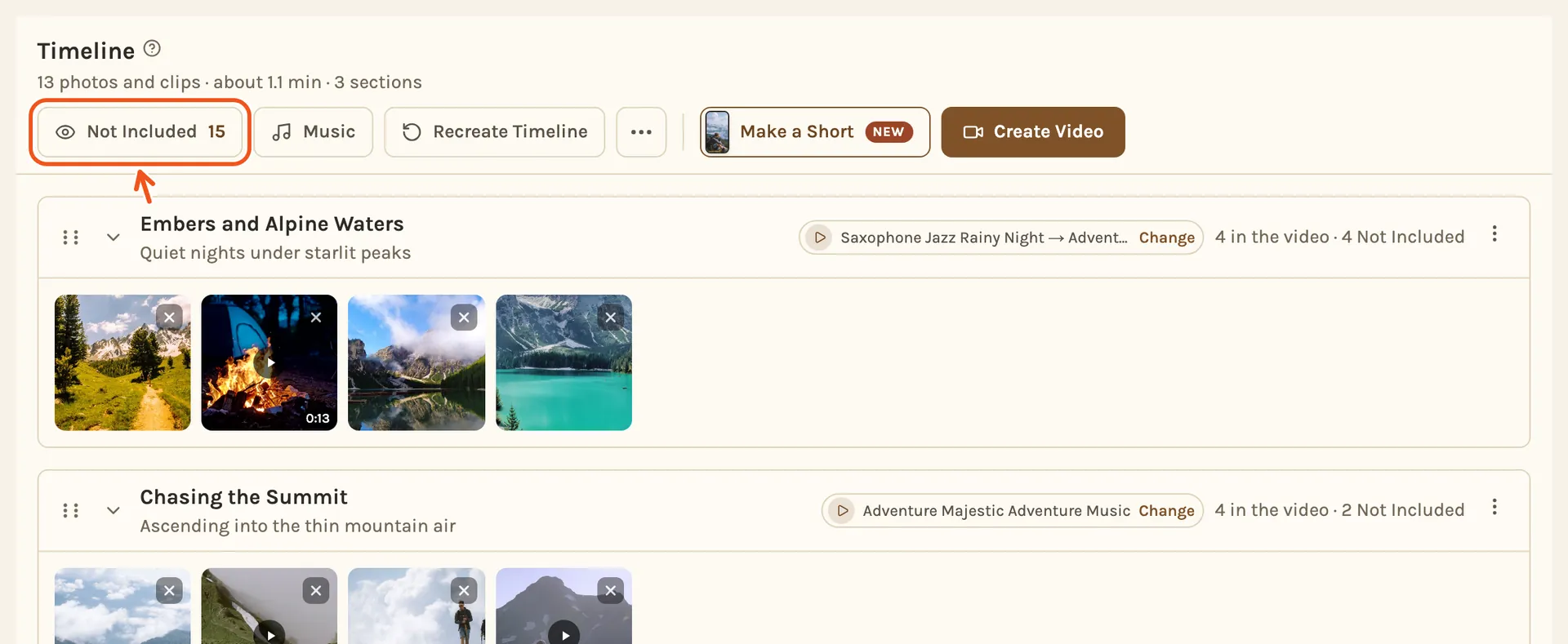
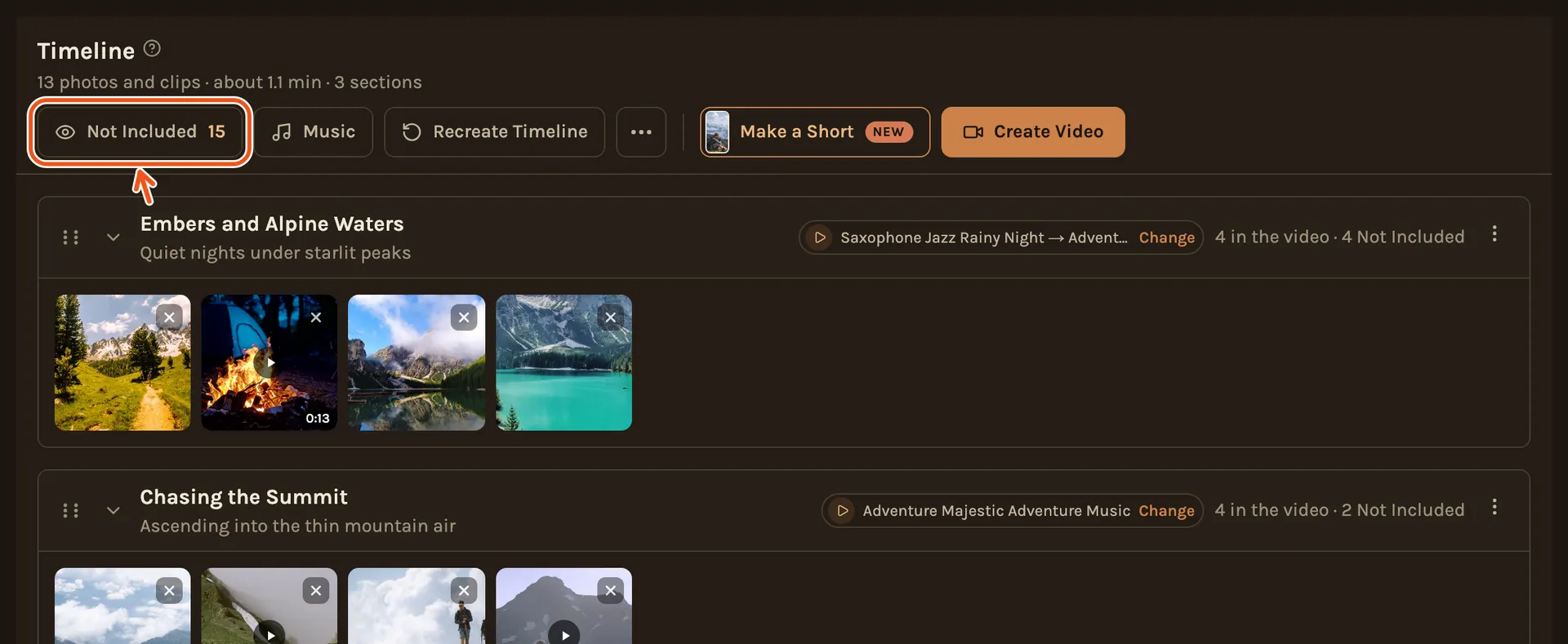
The column opens beside each chapter, with that chapter's left-out photos and clips. Nothing is deleted.
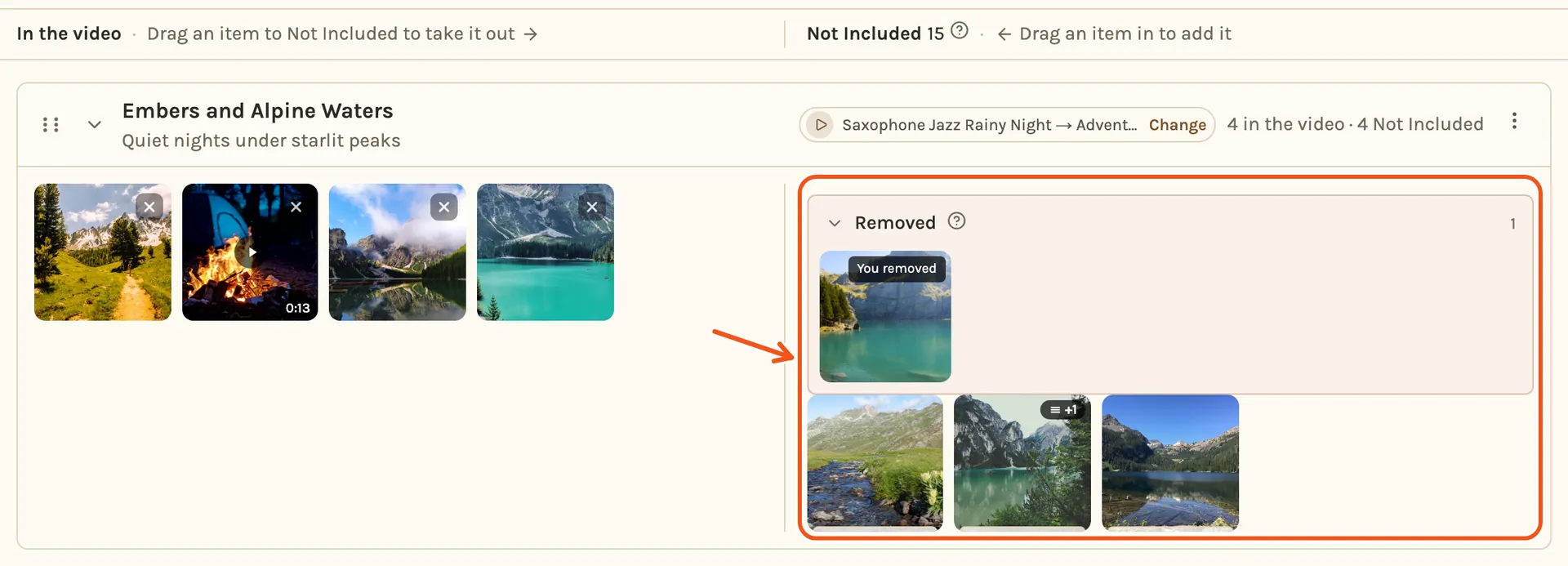
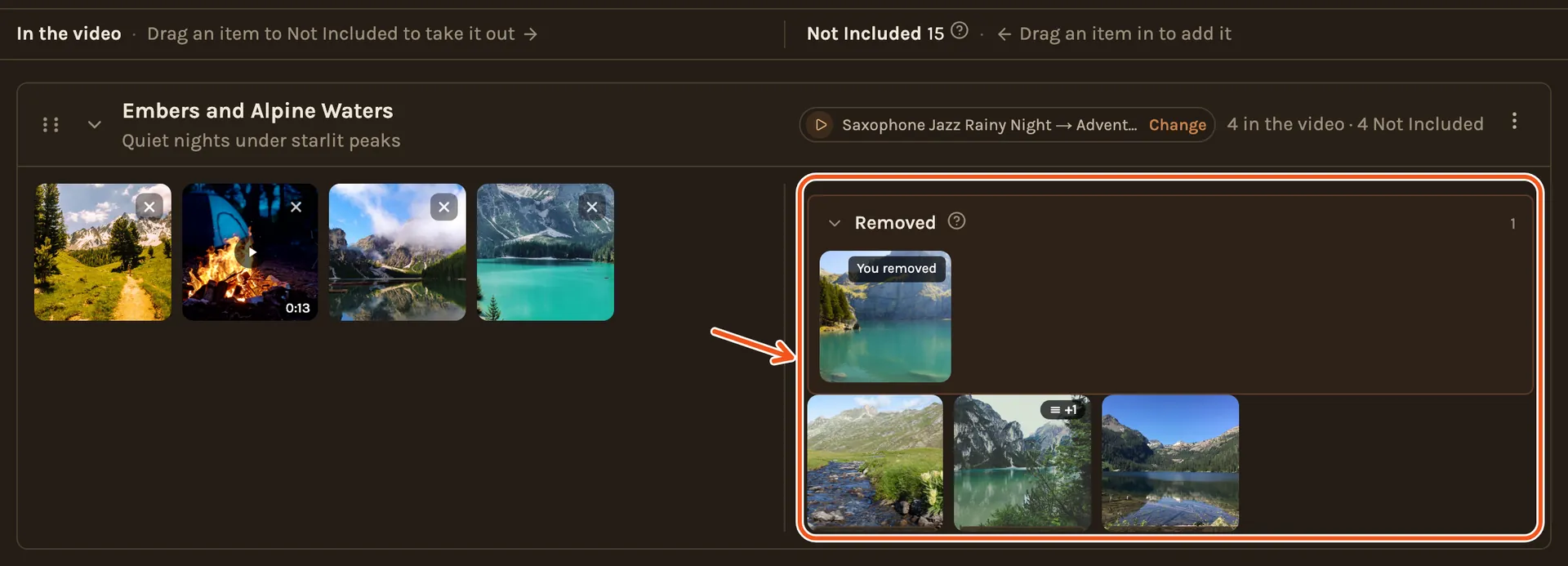
A tile with a number like +1 in its corner is a stack of near-identical shots. Click it to see them all. In a chapter with 30 or more photos, the column is also grouped by moment, with More moments for the rest.
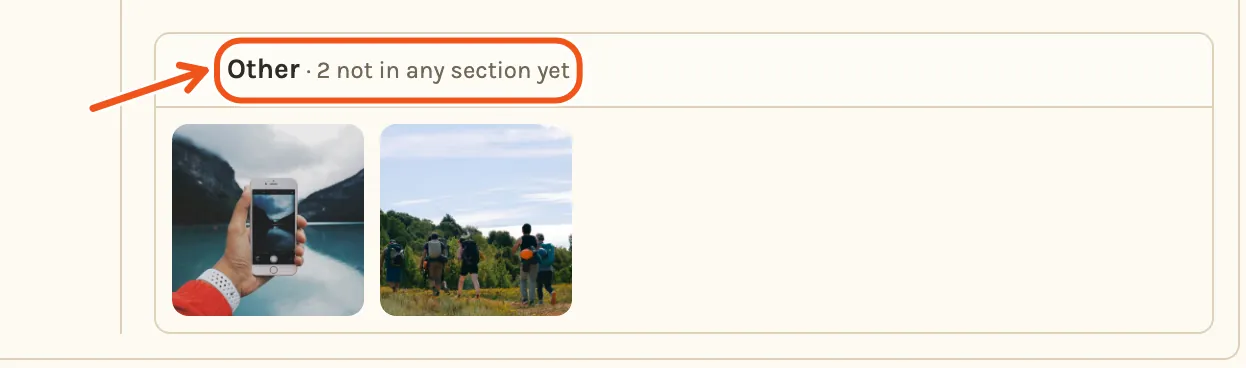
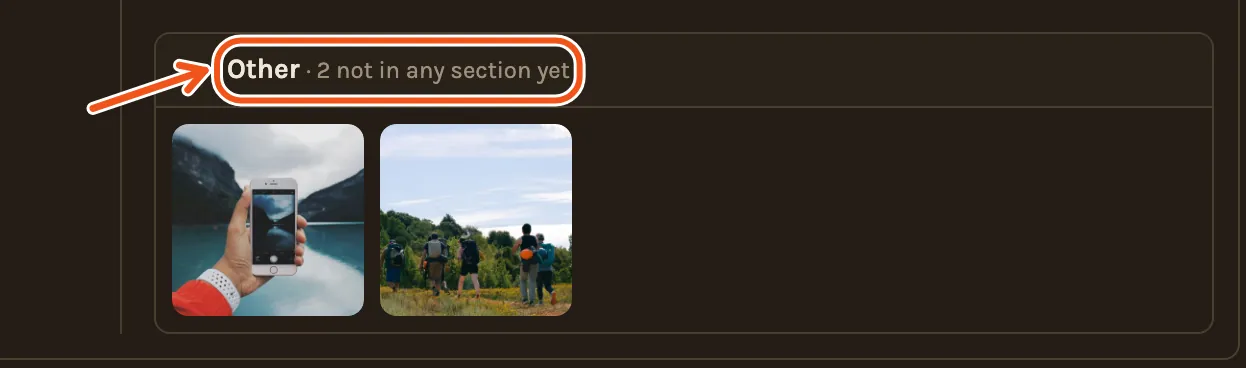
The last chapter's column ends with Other: photos and videos added after the timeline was made, and the photos of a chapter you deleted. Click Other to open it.
In a tribute, Not recognized as (their name) holds photos where their face wasn't found.
Take something out
Click at the top right of a photo or clip.
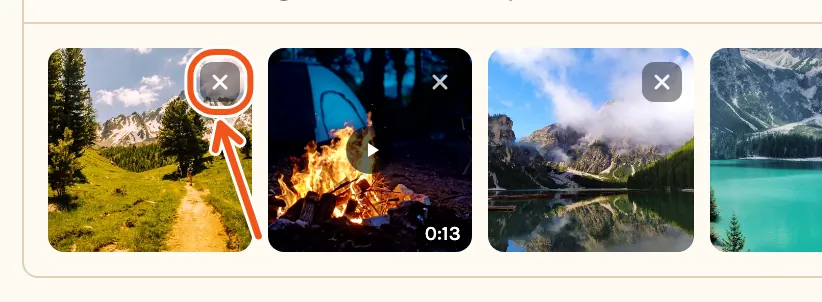
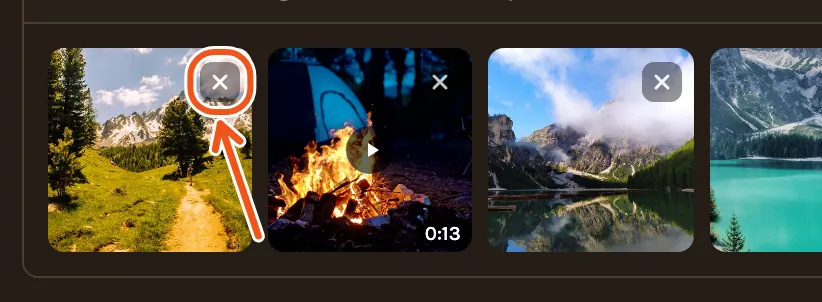
A note at the bottom of the screen says where it went. Show opens Not Included.
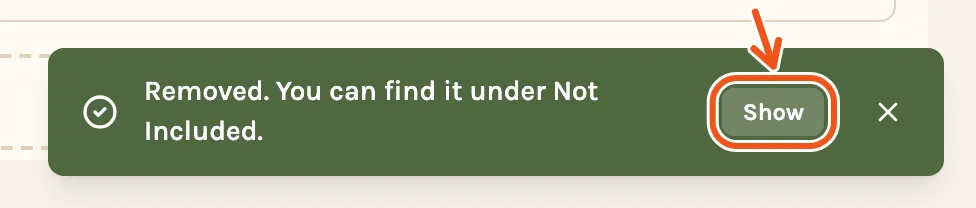
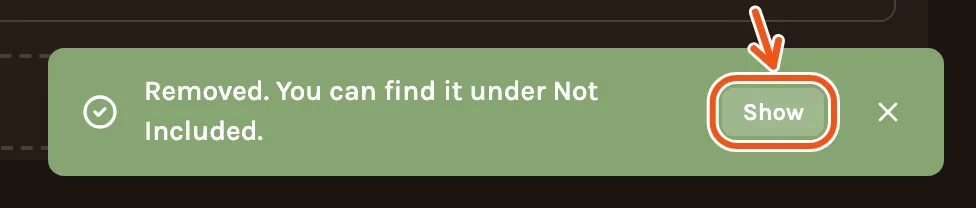
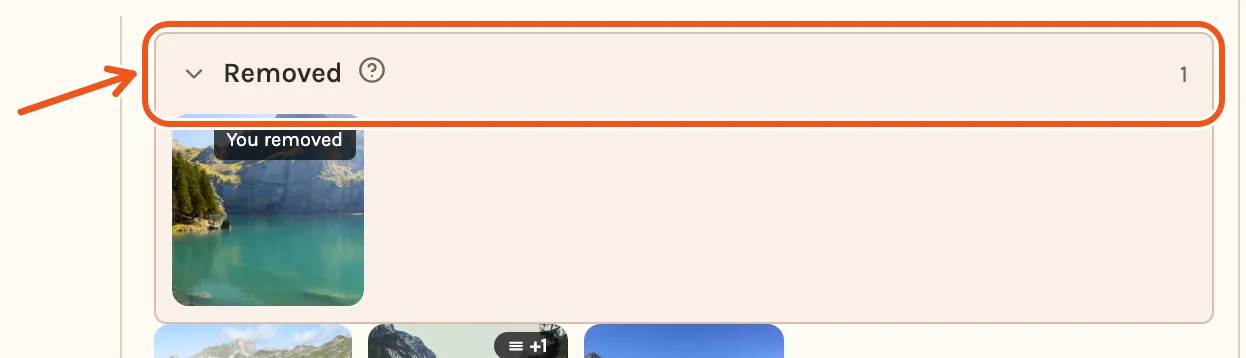
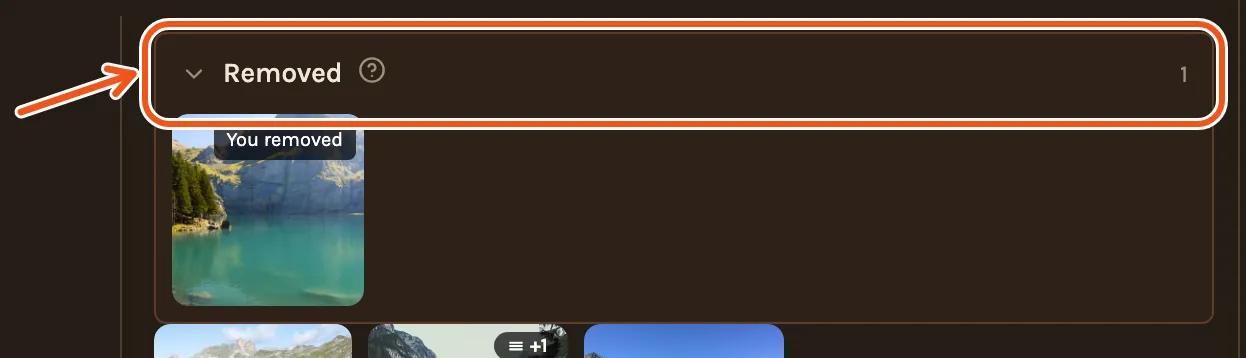
It waits in that chapter's Not Included, under Removed, and you can bring it back any time.
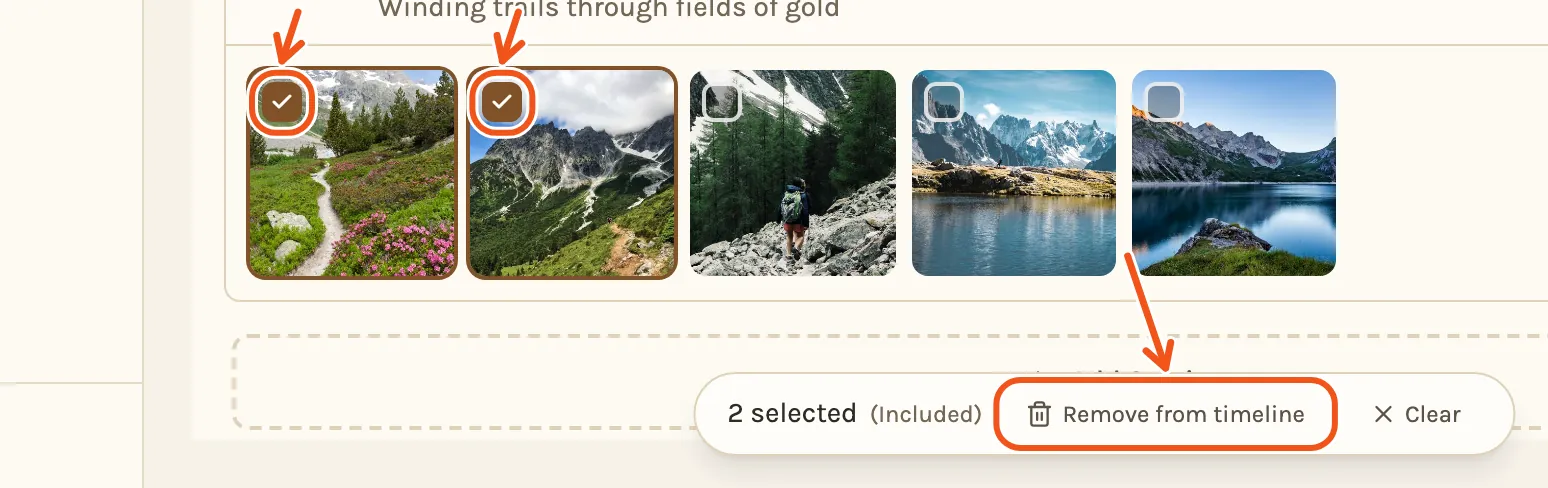
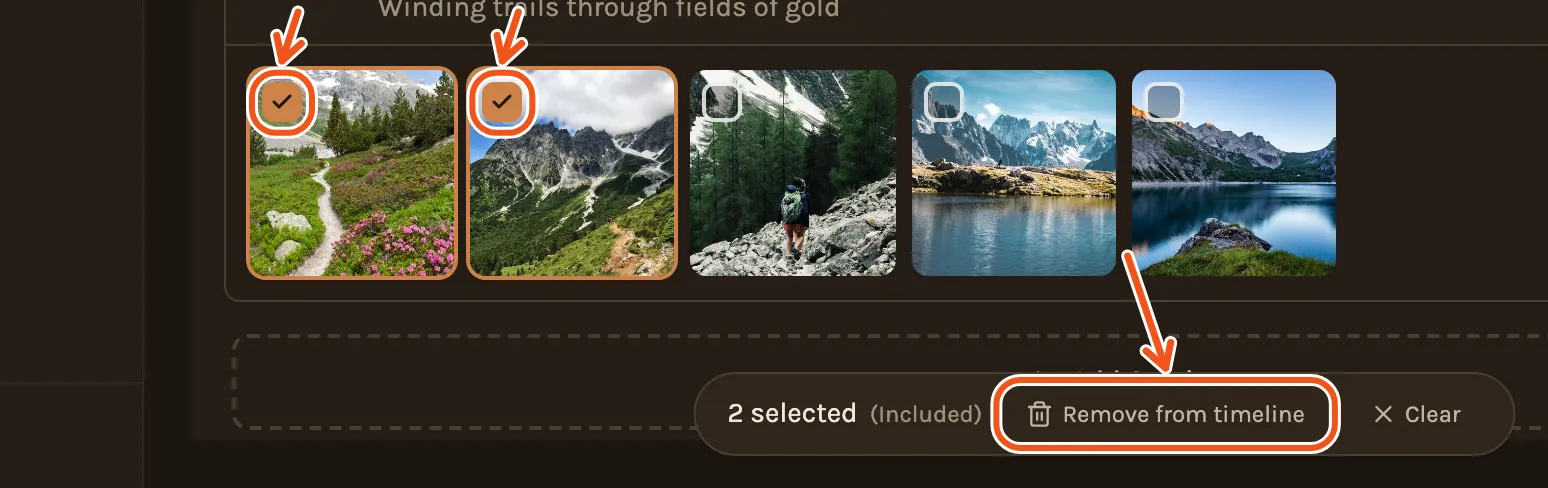
To take out several at once, point at each one and tick the box at its top left, then click Remove from timeline in the bar at the bottom of the screen.
Bring something back
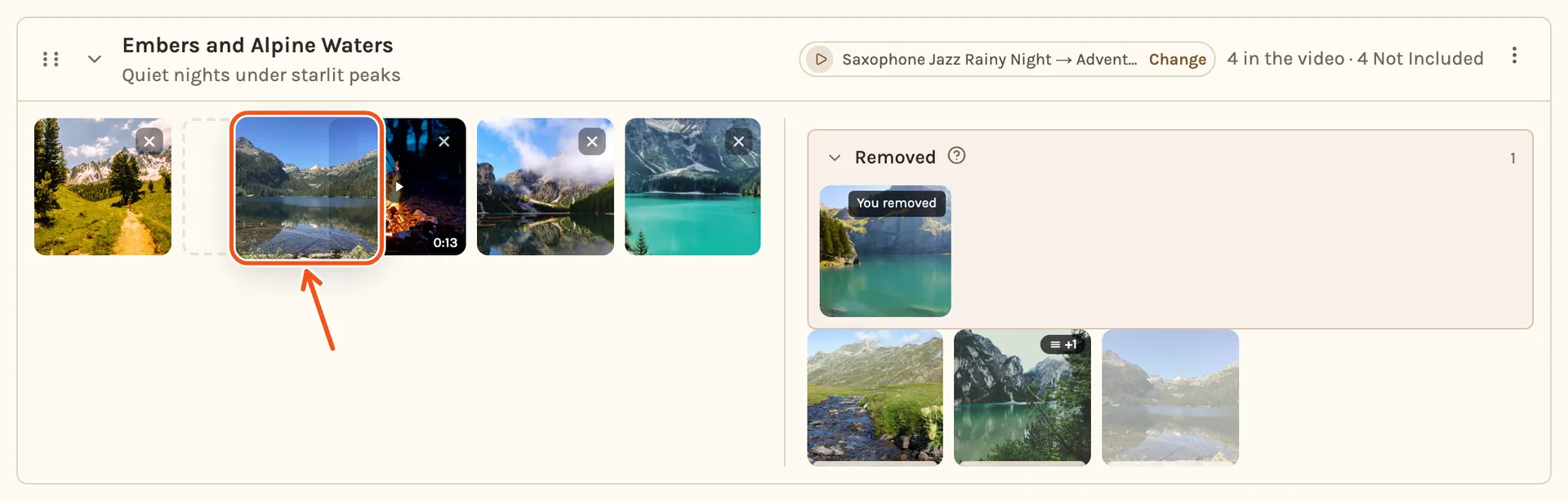
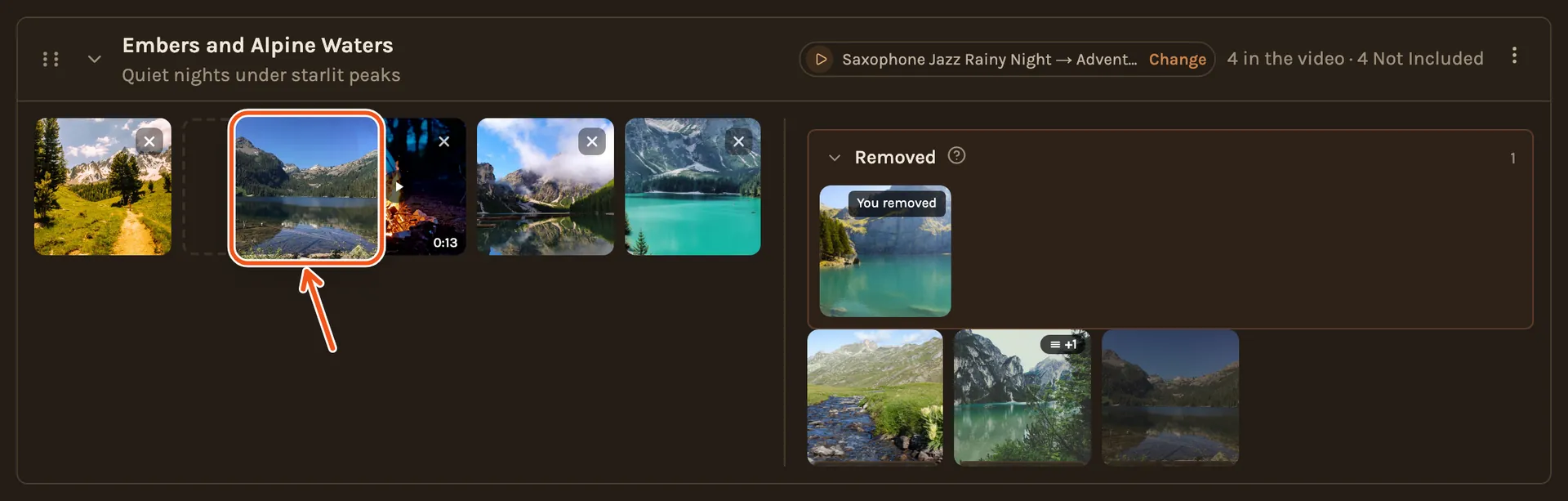
Drag a photo from Not Included into the chapter's photos, to the place where you want it to play. The others move aside to make room. Let go to drop it there.
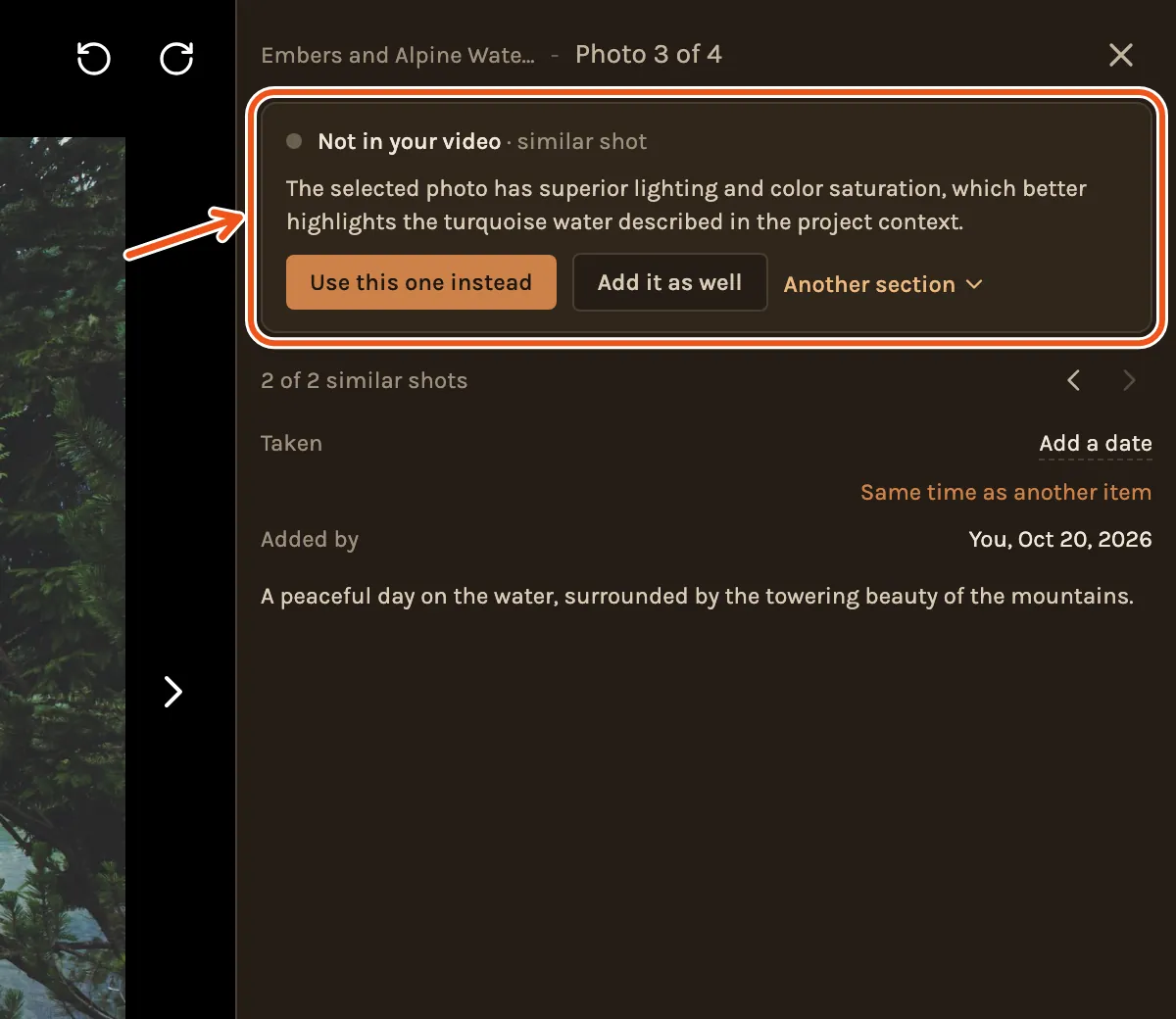
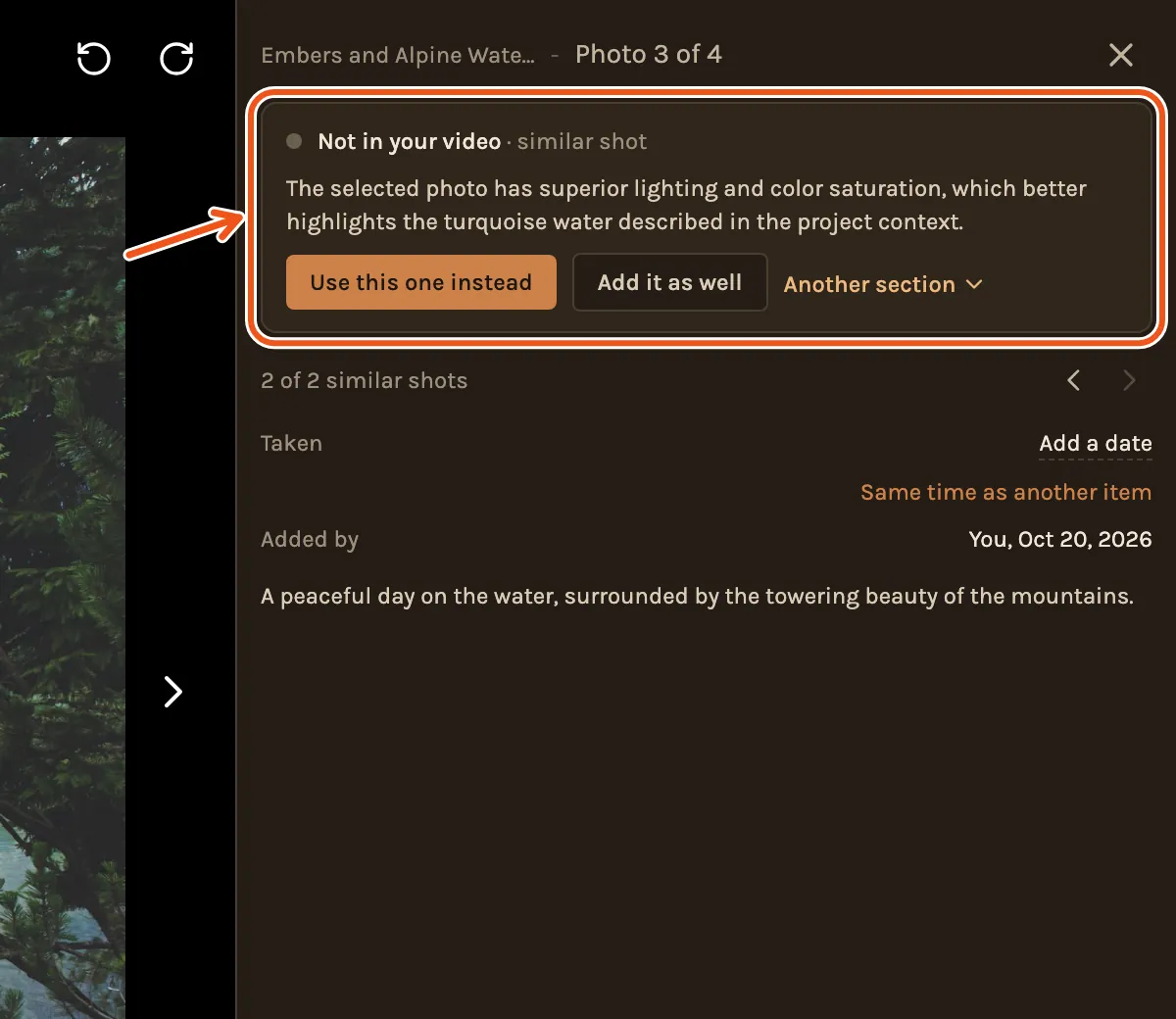
Or click the photo to open it. The box at the top of the panel on the right says why it was left out. Click Add to video to put it back in its chapter, or Another section to pick a different one. If a very similar shot is already in your film, the box says so: Use this one instead swaps the two, and Add it as well keeps both.
Move photos
Within a chapter: drag a photo to its new place and let go.


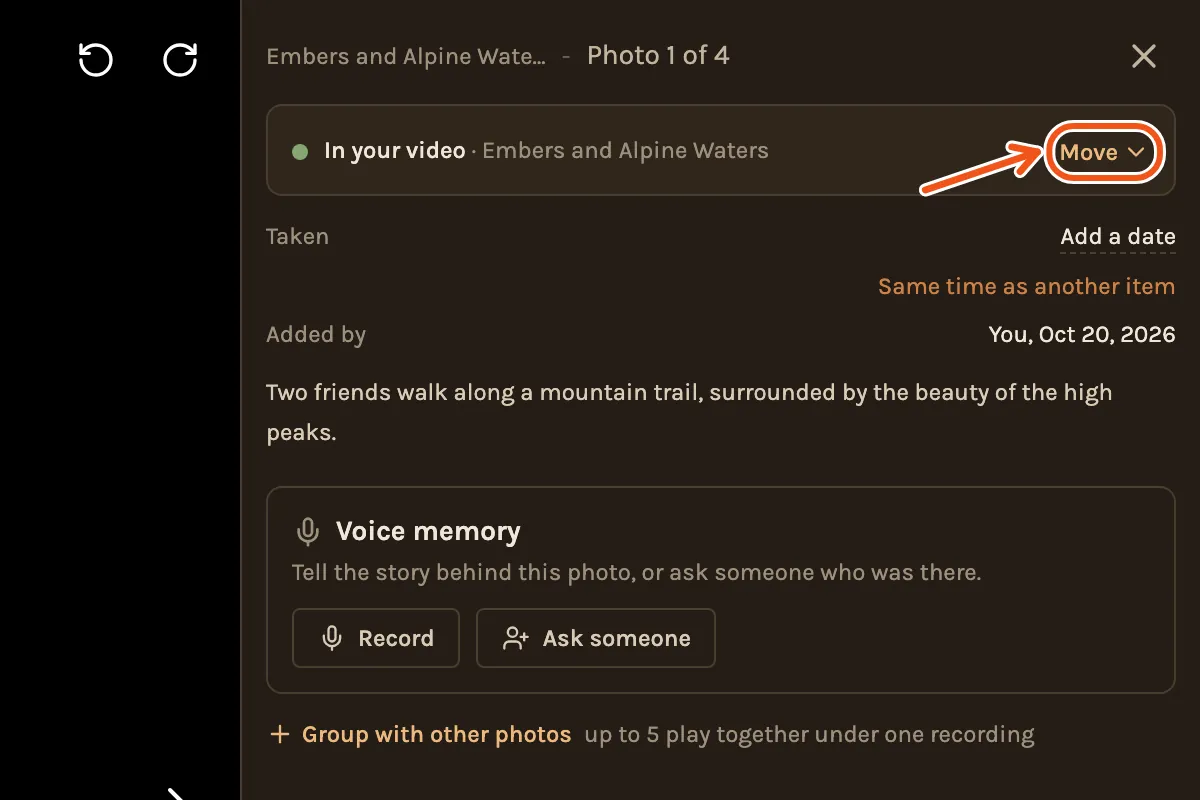
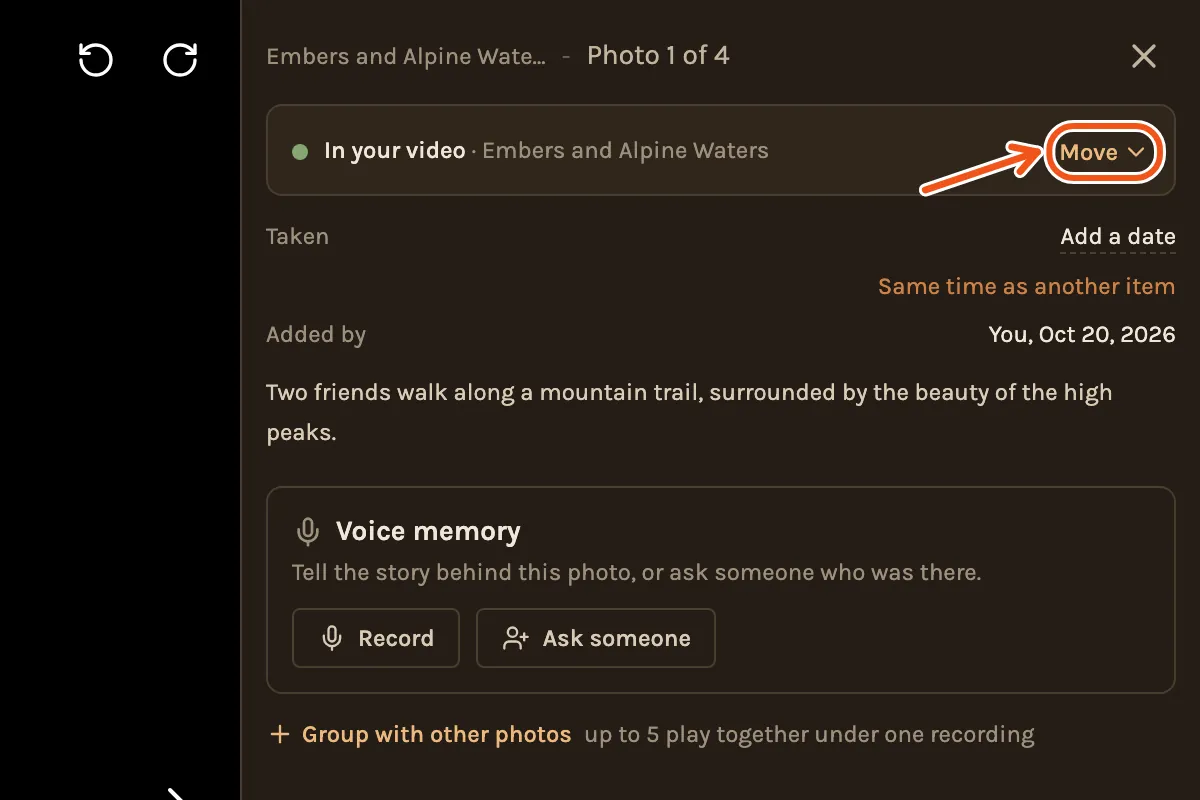
To another chapter: drag it into that chapter's photos. Or click the photo to open it. The box at the top of the panel says In your video and names its chapter. Click Move beside it, and pick the new chapter.
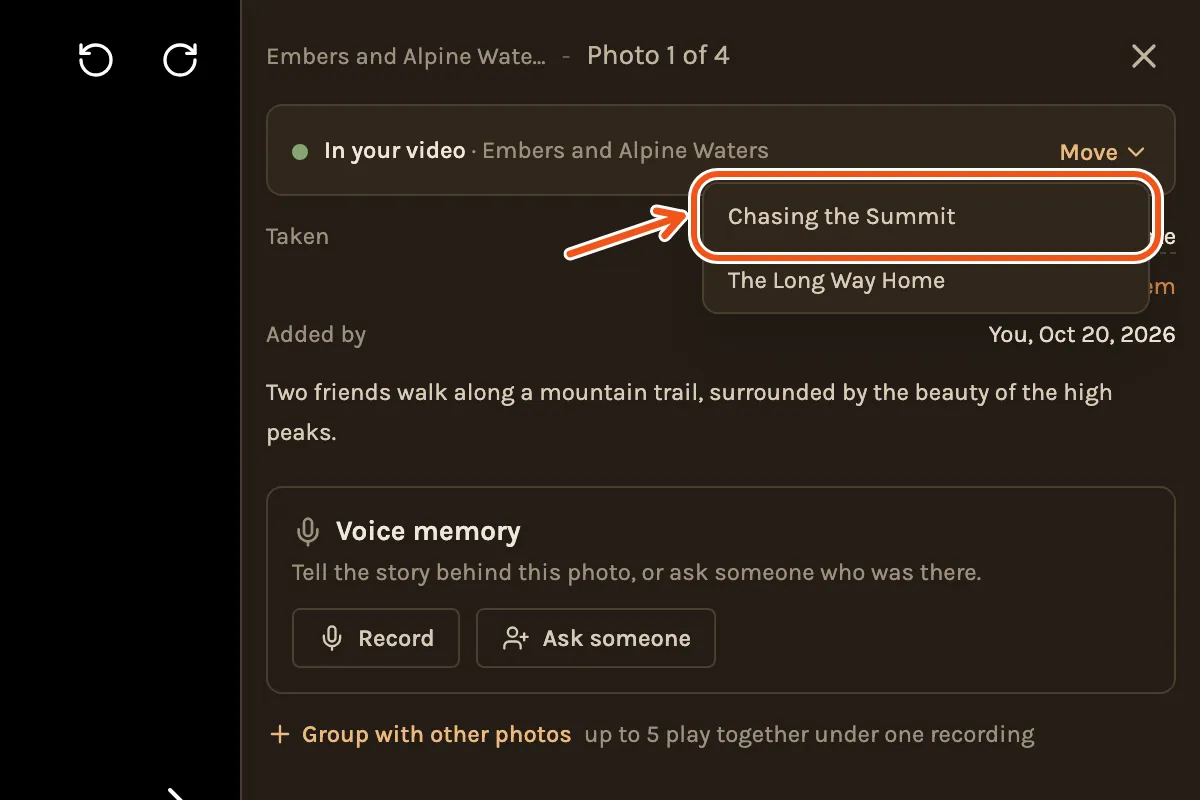
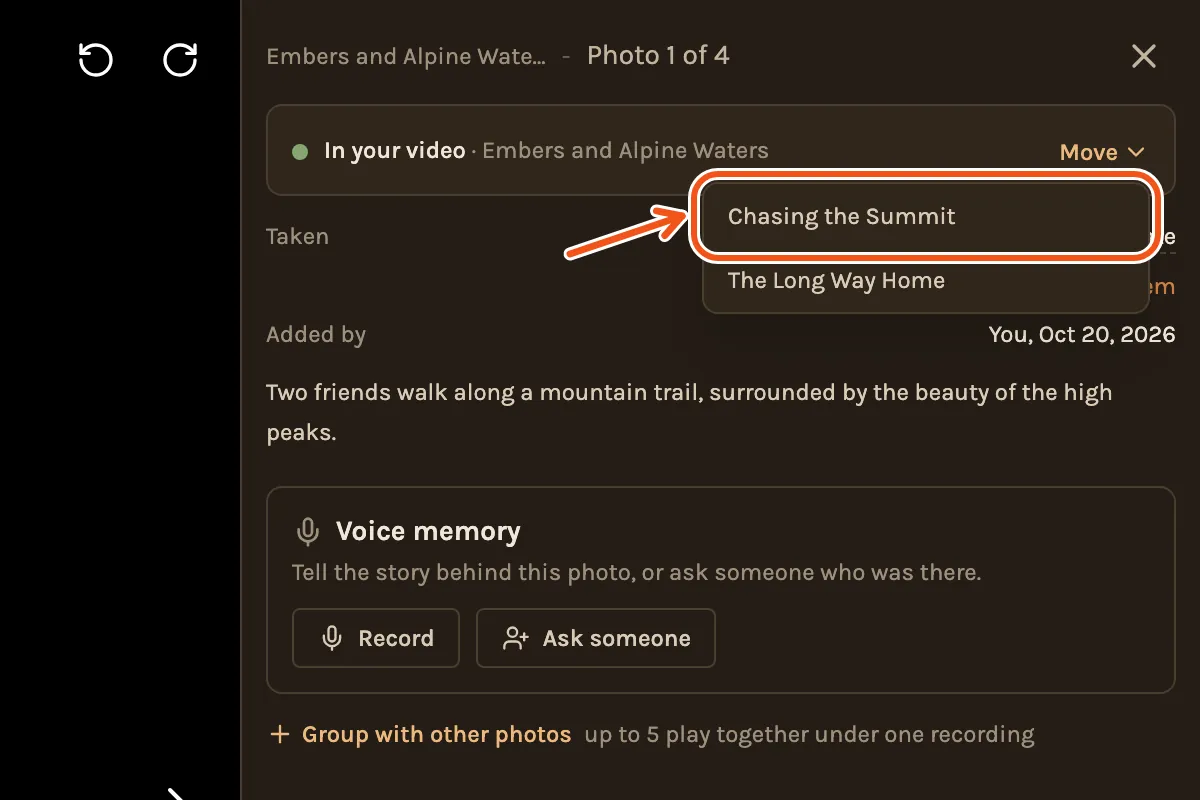
Several at once: tick them, then drag one of them. They must all come from the same chapter.
Change the chapters
- Rename: point at a chapter's title and click beside it. Type the new title and press Enter. Escape keeps the old one.
- Reorder: drag a chapter by at its left.
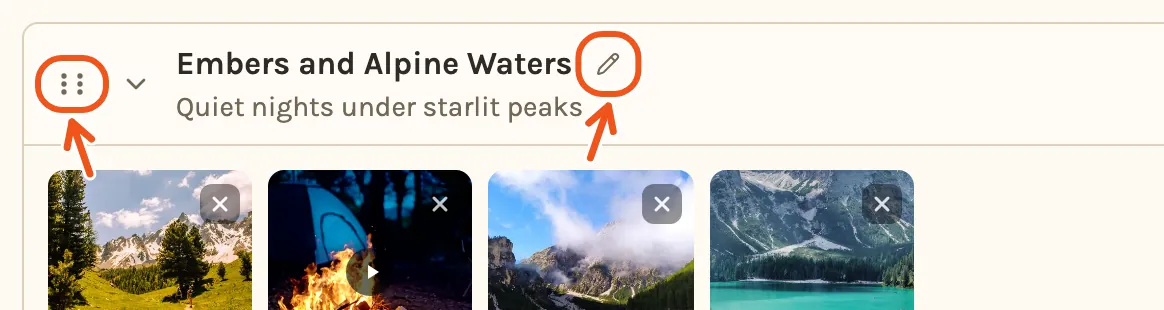
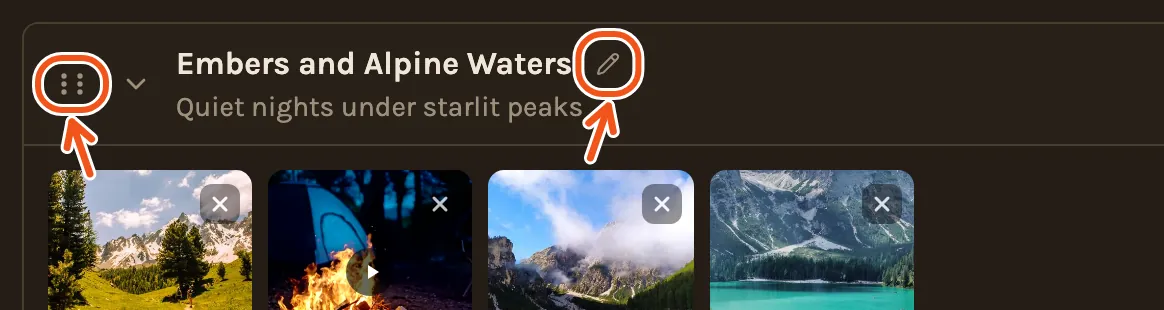
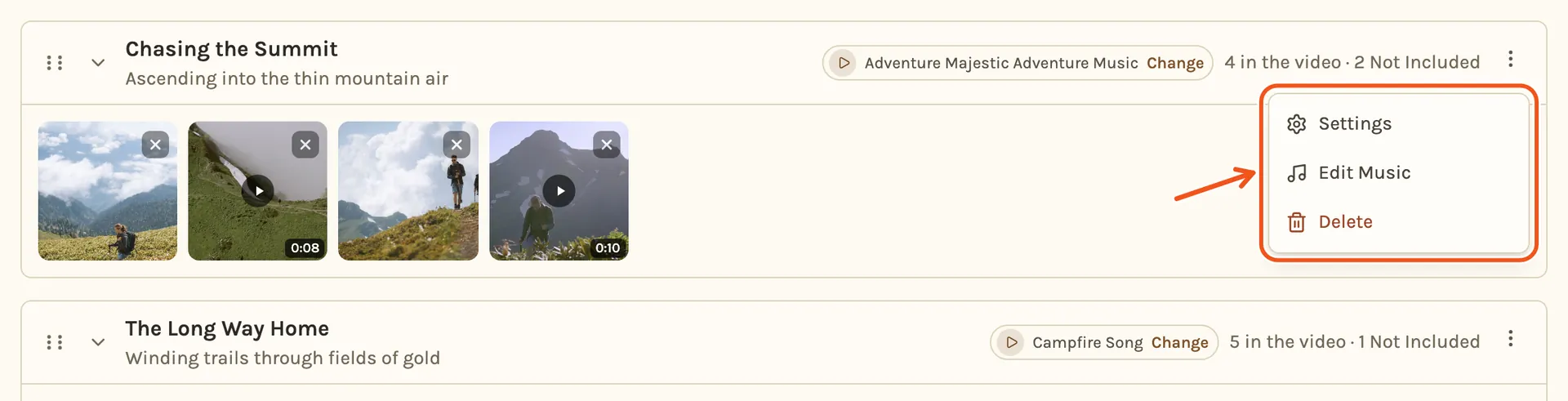
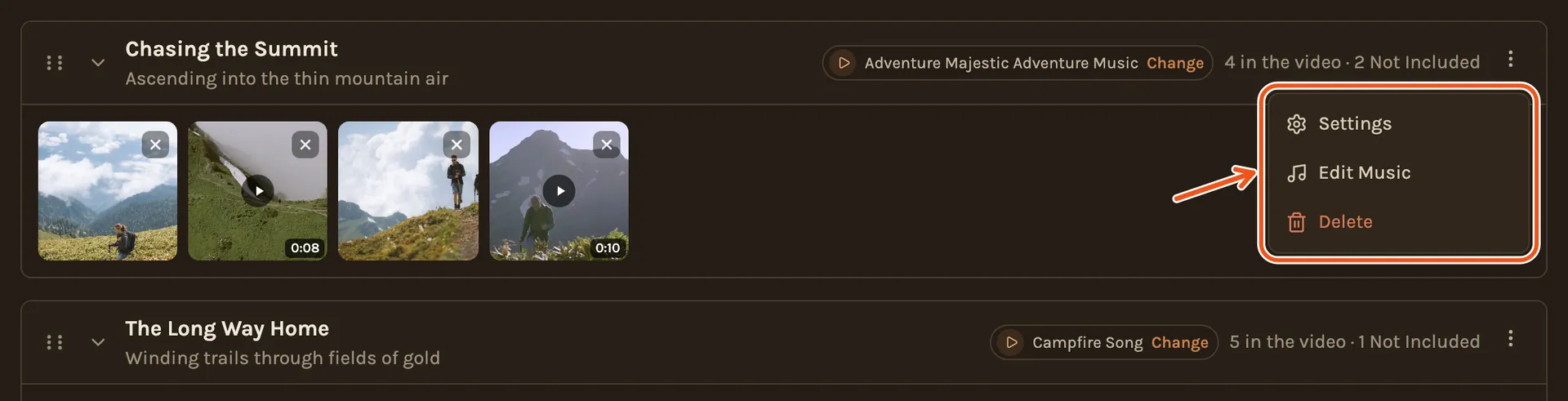
- More: click at the right of a chapter for Settings, Edit Music and Delete. A deleted chapter's photos are kept and wait in Not Included, under Other.
- Add: below the last chapter, click Add Section.


Give it a title and click Create Section. Nothing is added until you do.
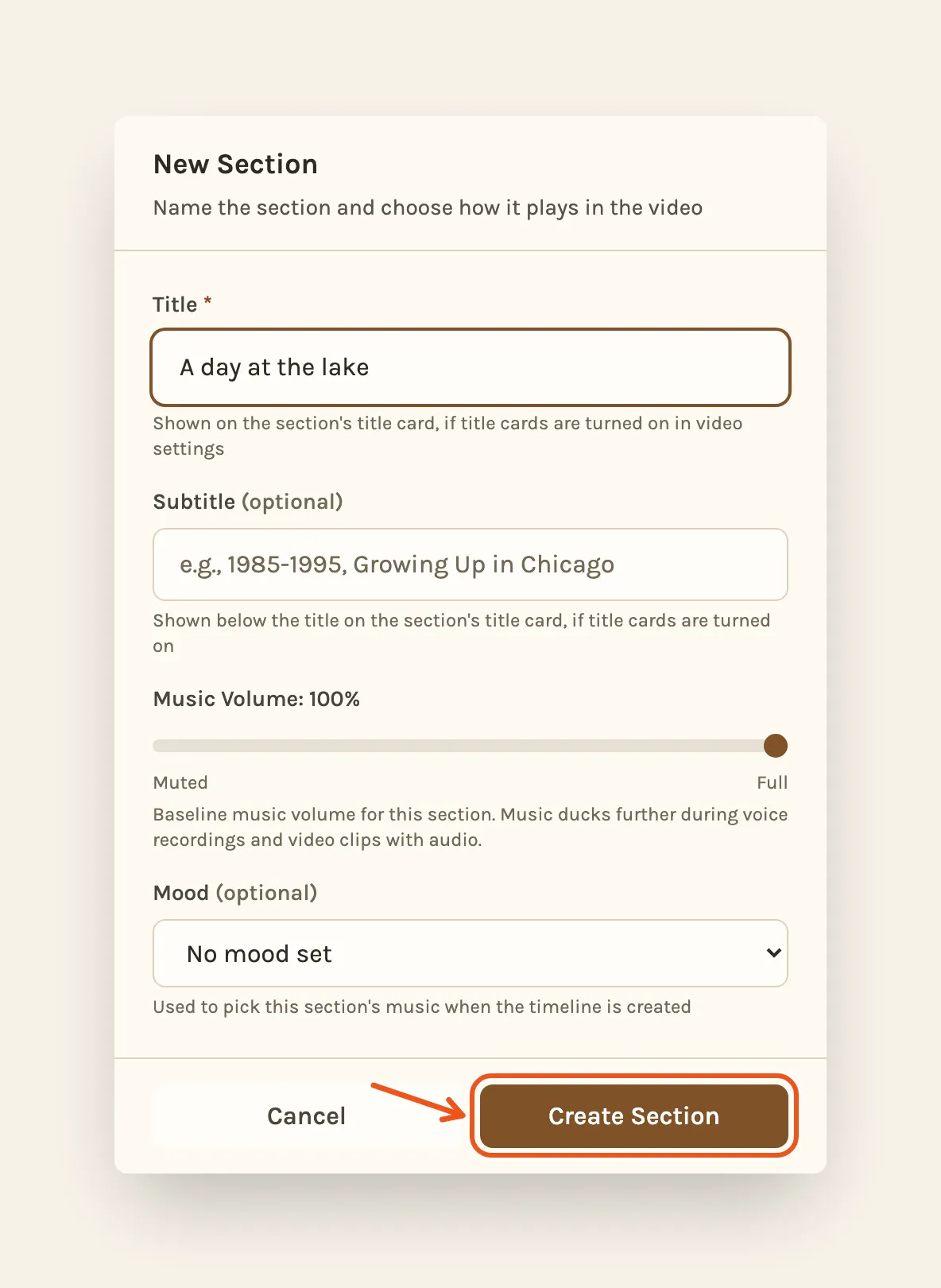
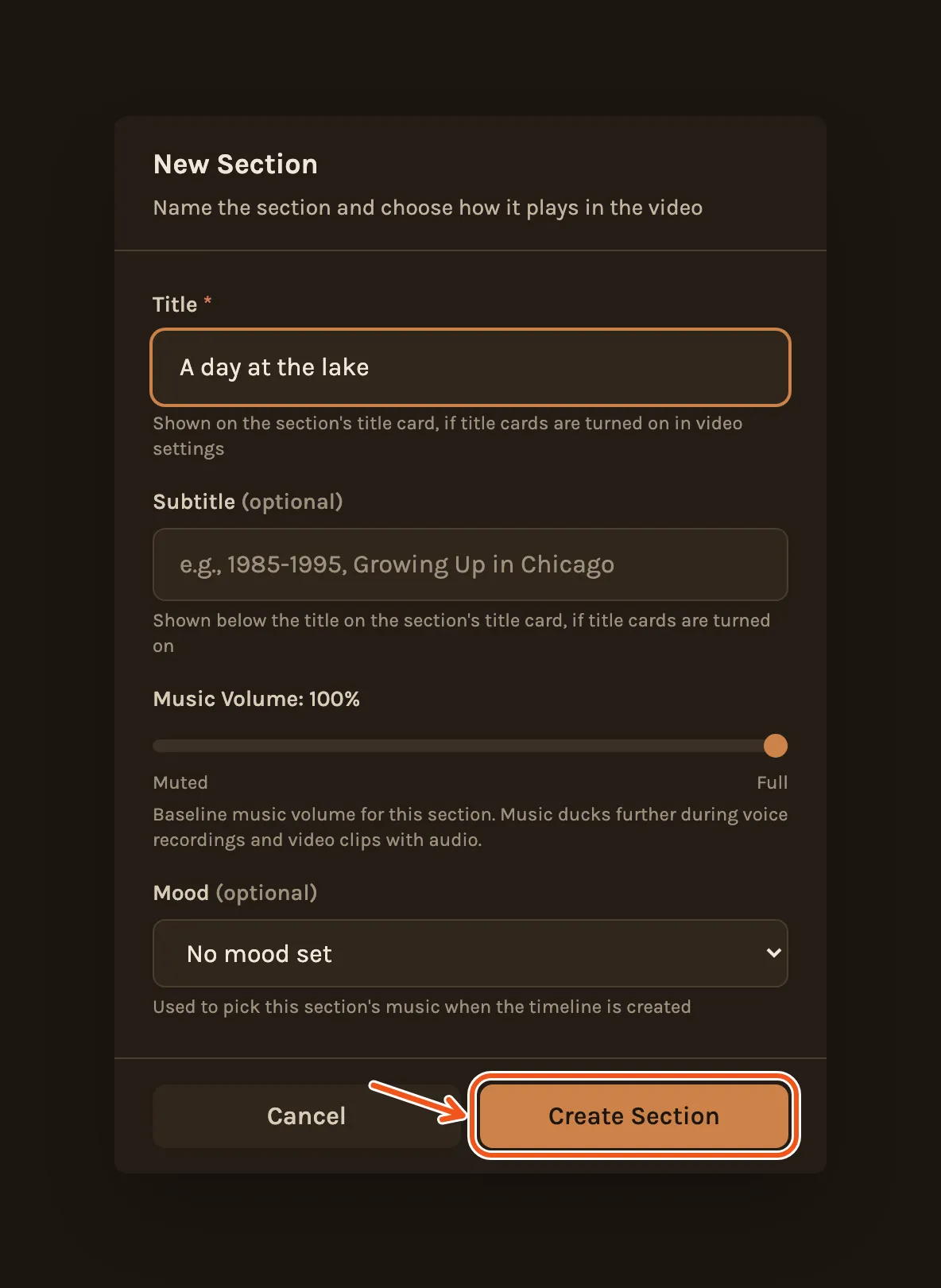
A chapter's title only appears in the film if title cards are turned on when you make the film. They are off unless you turn them on.
Add Post-Credits Section makes a chapter that plays after the credits, for outtakes or a last surprise. It carries a Post-Credits label. To move an existing chapter there, use Move after credits in its menu.


Trim a clip
Click a video clip to open it. Drag the handles at each end of the bar under the player to choose where the clip starts and ends. Save appears once you move one. Click it.
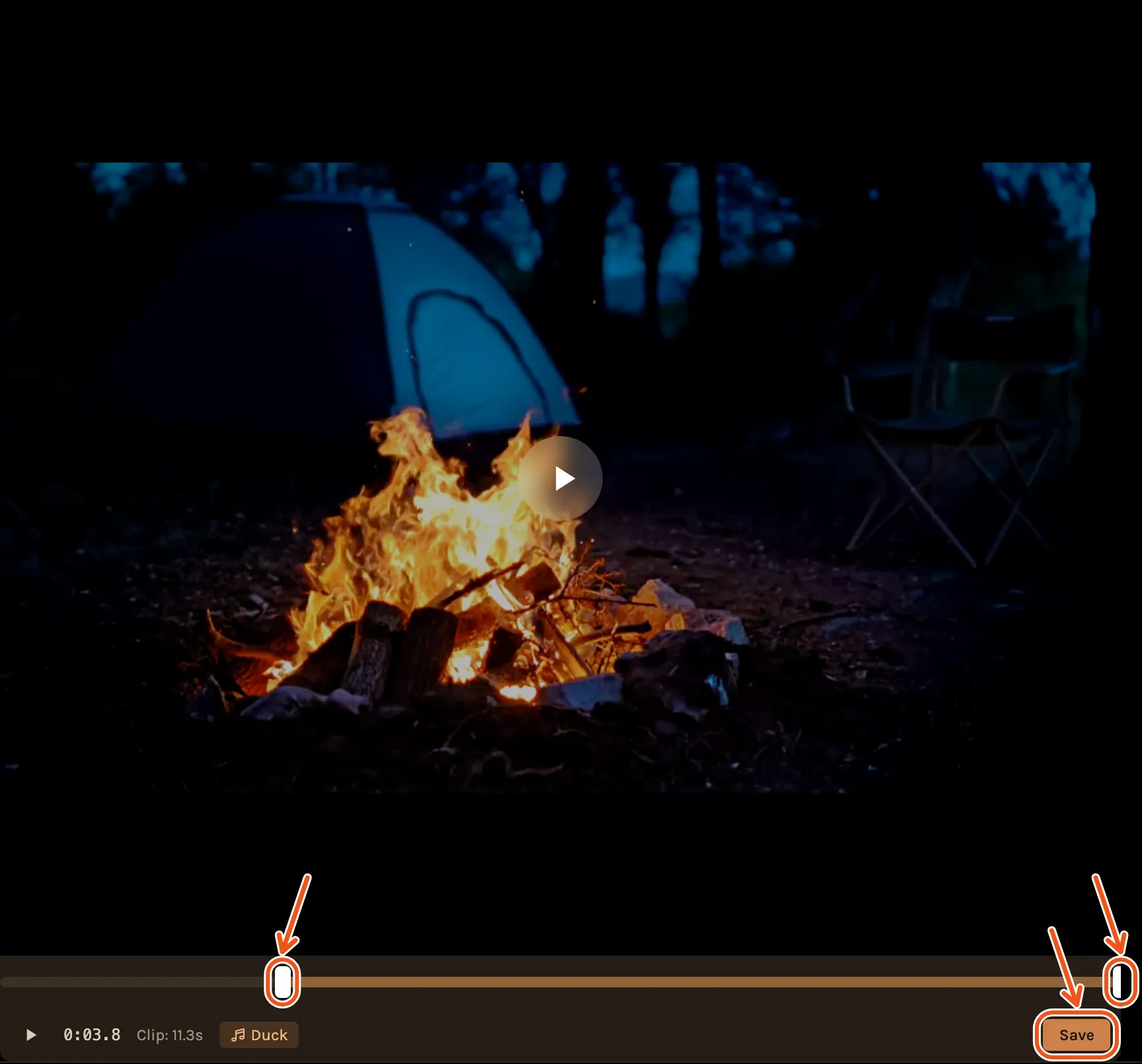
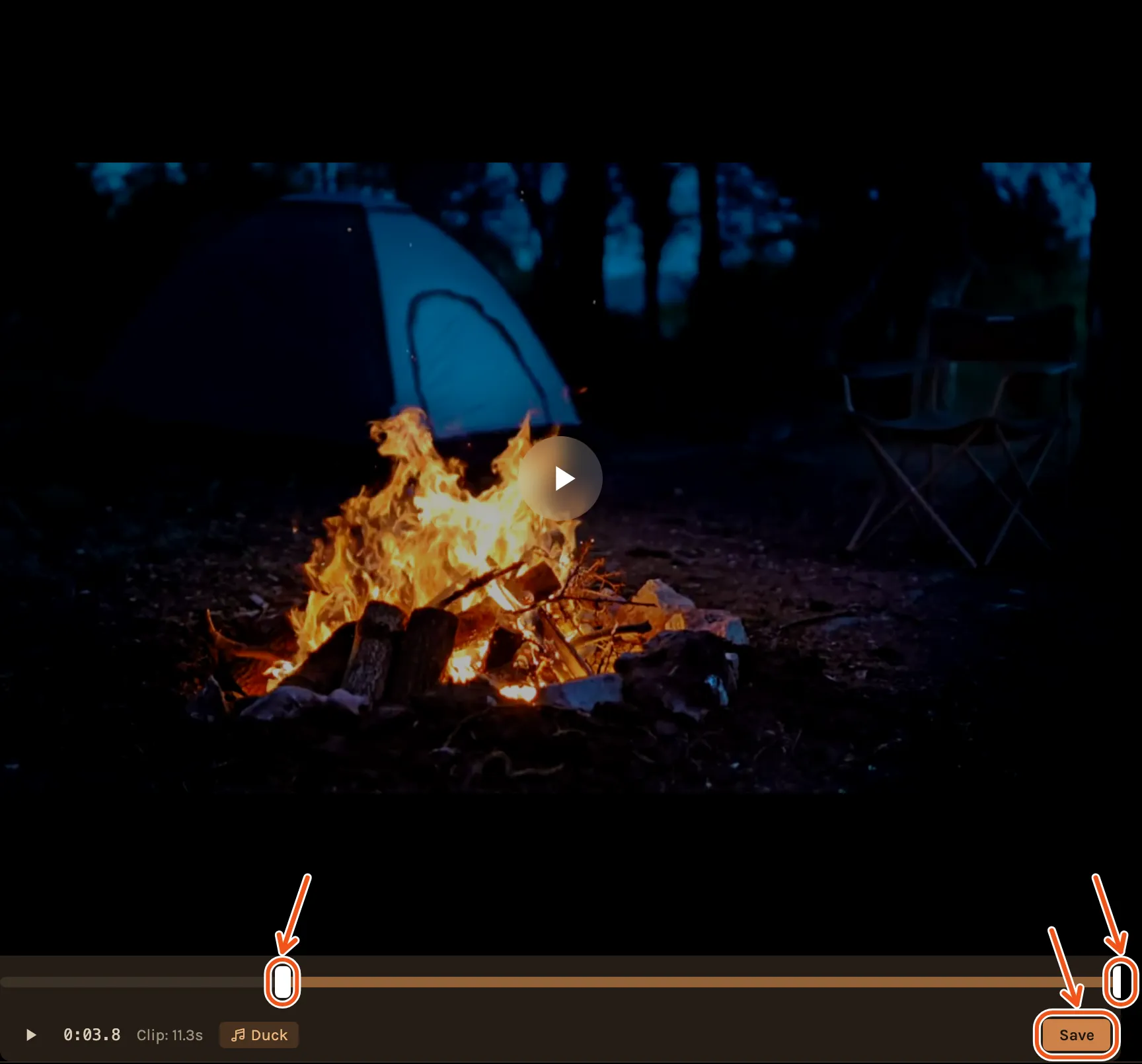
The Duck switch in the same place decides whether the music drops while the clip plays.
Turn a photo
Click the photo to open it, then click one of the two arrows at its top right.
If you make the timeline again
Recreate Timeline rebuilds your timeline from scratch. It resets the changes you made by hand, including moves, removals and clip trims. Your photos, your recordings and a cover you chose are kept.