Make the film
- Open your project's Timeline and click Create Video at the top right.


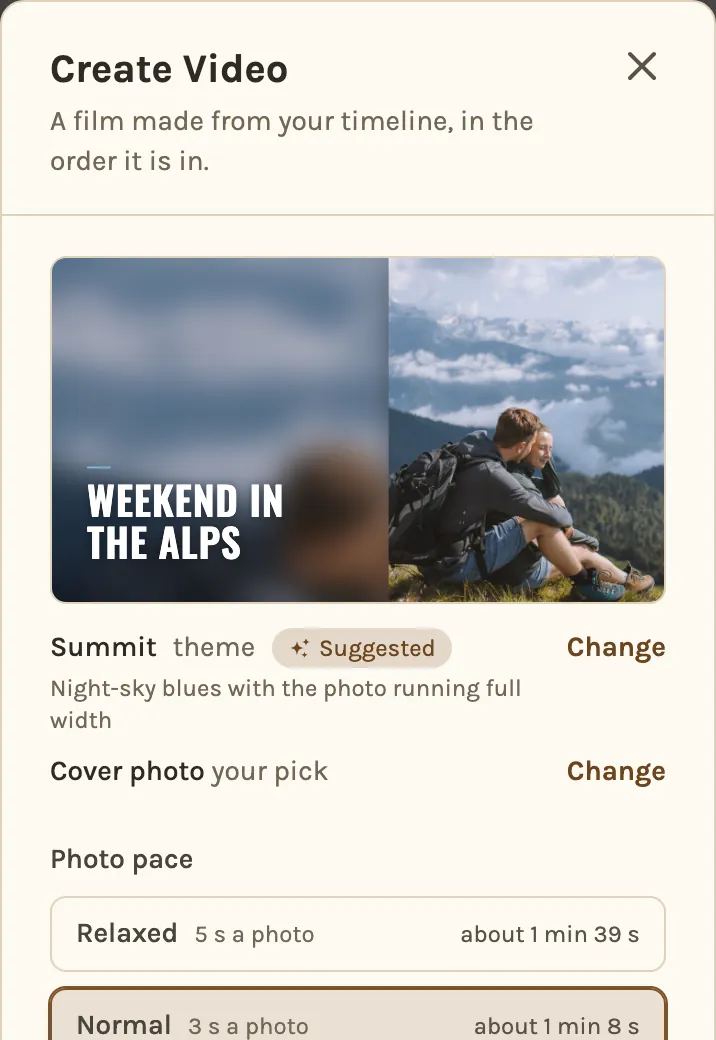
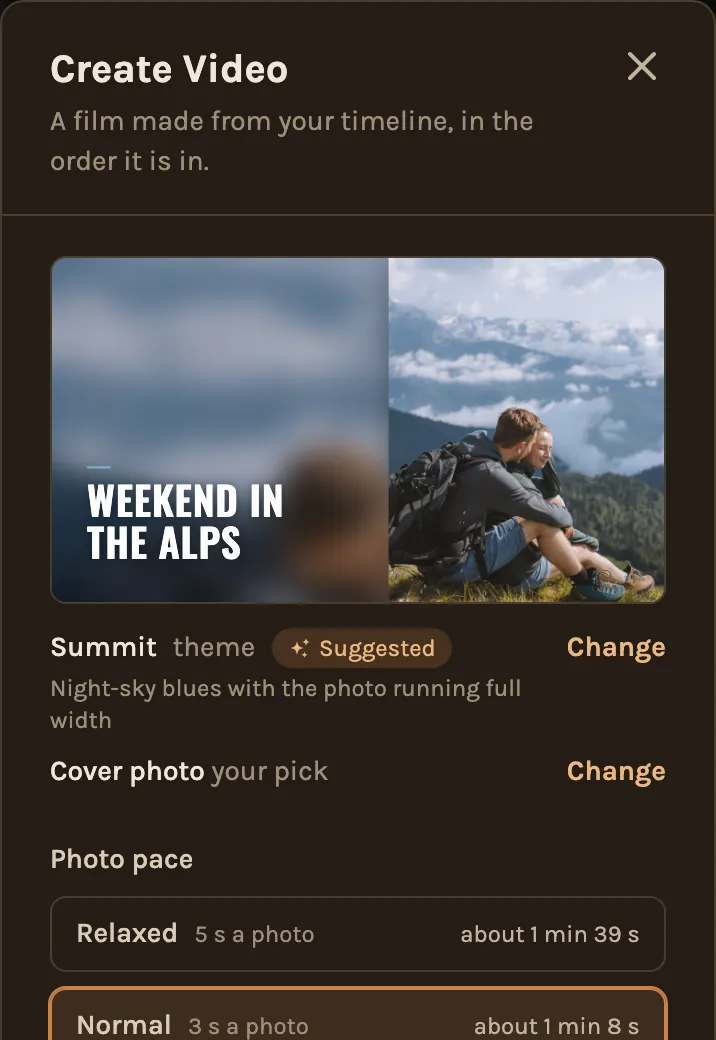
- The Create Video window opens. Look through it before you start: the theme and cover photo on the left, then the photo pace, title cards and the music for each chapter. Each one is explained below.
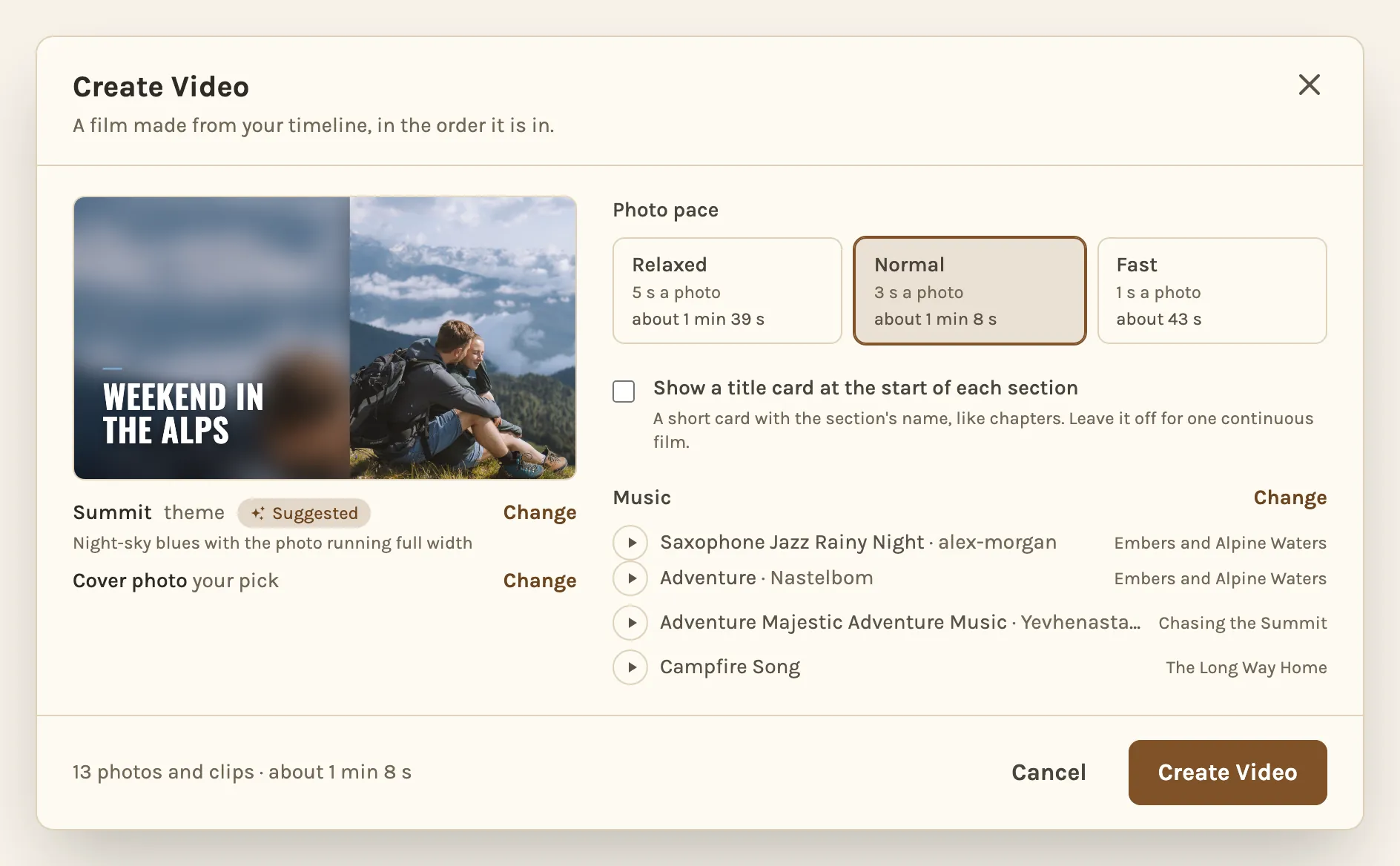
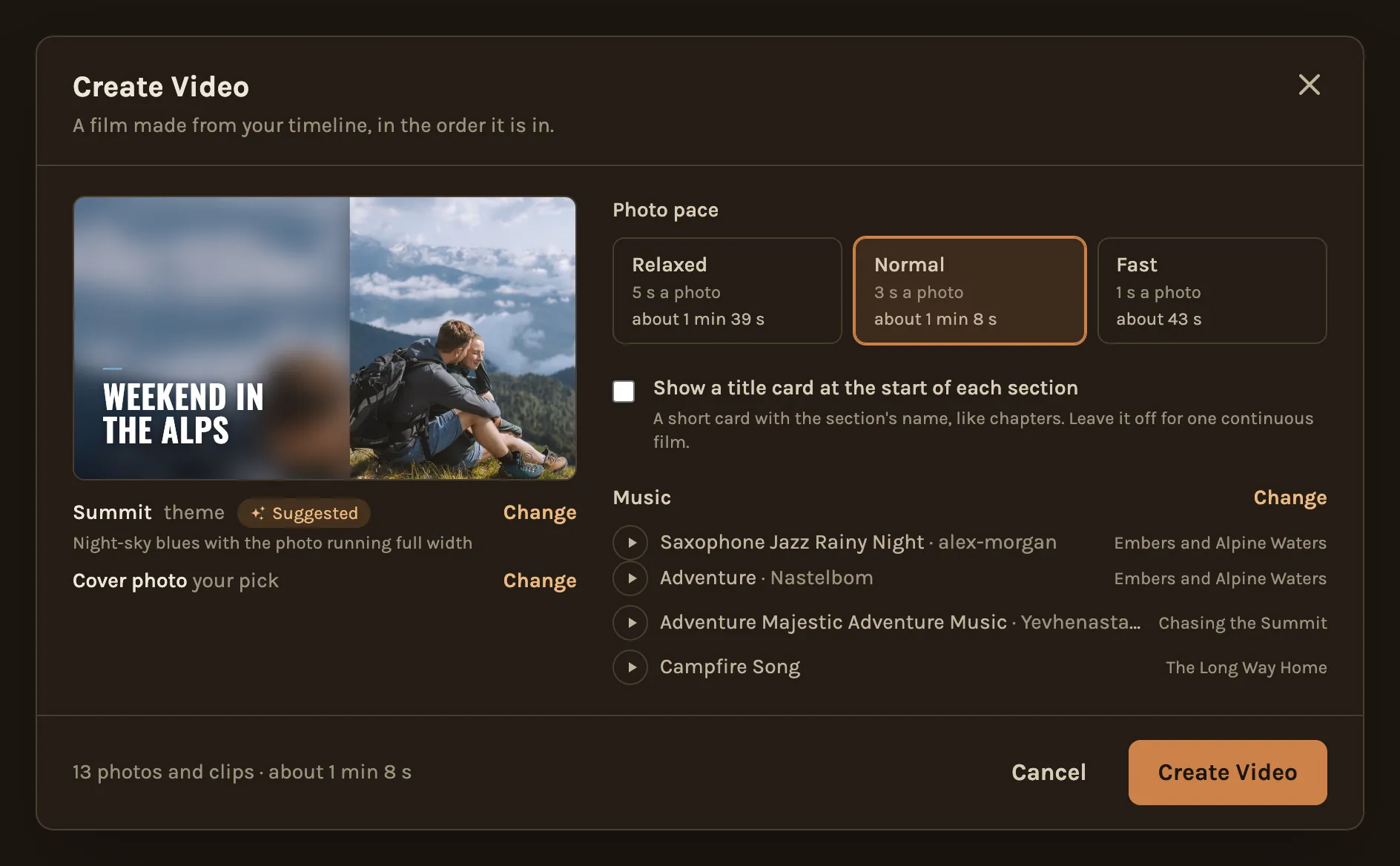
- At the bottom, check how many photos and clips it has and how long it will be, then click Create Video.


- Open the Timeline tab and tap Create Video at the top. Start here: the Create Video card on the Videos tab does not open the window on a phone yet.
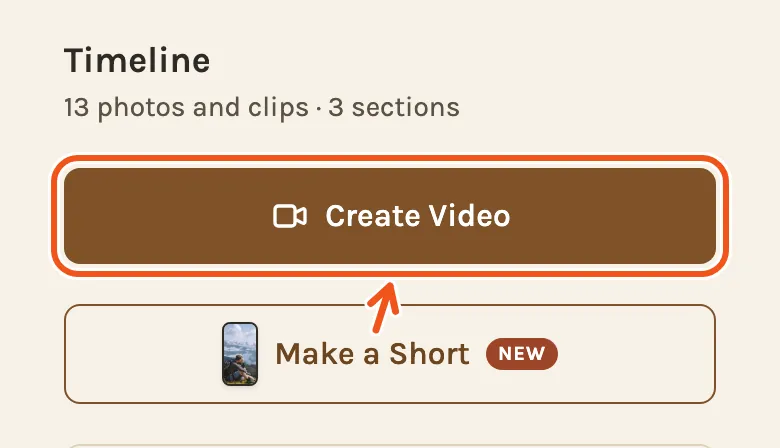
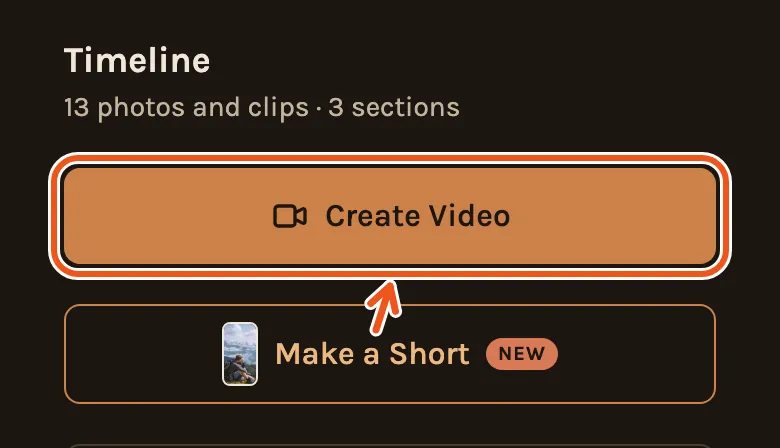
- The Create Video screen opens. Scroll through it before you start. Each part is explained below.
- At the bottom, check how many photos and clips it has and how long it will be, then tap Create Video.
Each choice is saved the moment you make it. Cancel closes the window but does not undo them.
If you see Music may run out under the photo pace, the songs in that chapter are shorter than the chapter, so its end would be quiet. You can still make the film. To fix it first, press Add a track and add a song. See How to choose and change the music.
What to choose
Cover photo
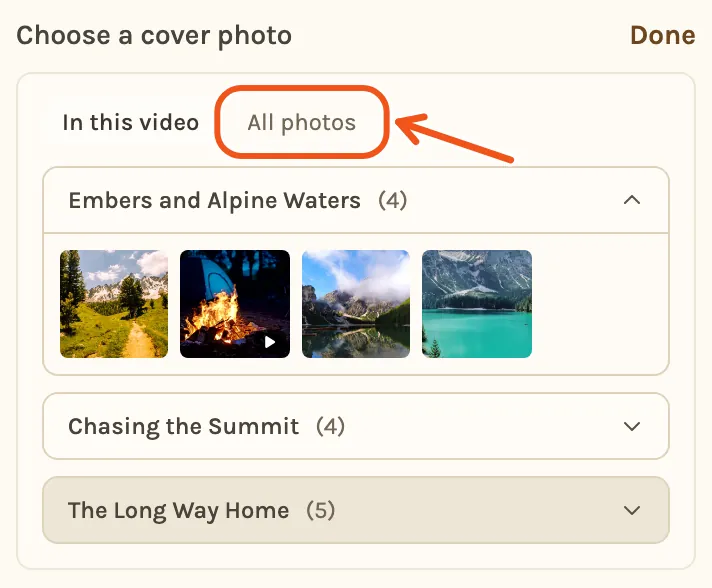
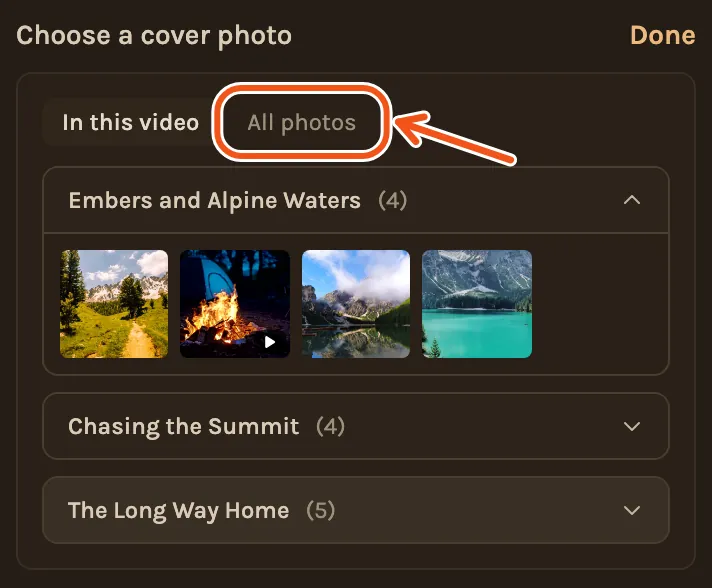
The picture on the opening title. Press Change next to Cover photo to see the photos in this video, or All photos for every photo in the project, then pick one. A cover you choose is kept if you make the timeline again.
Theme
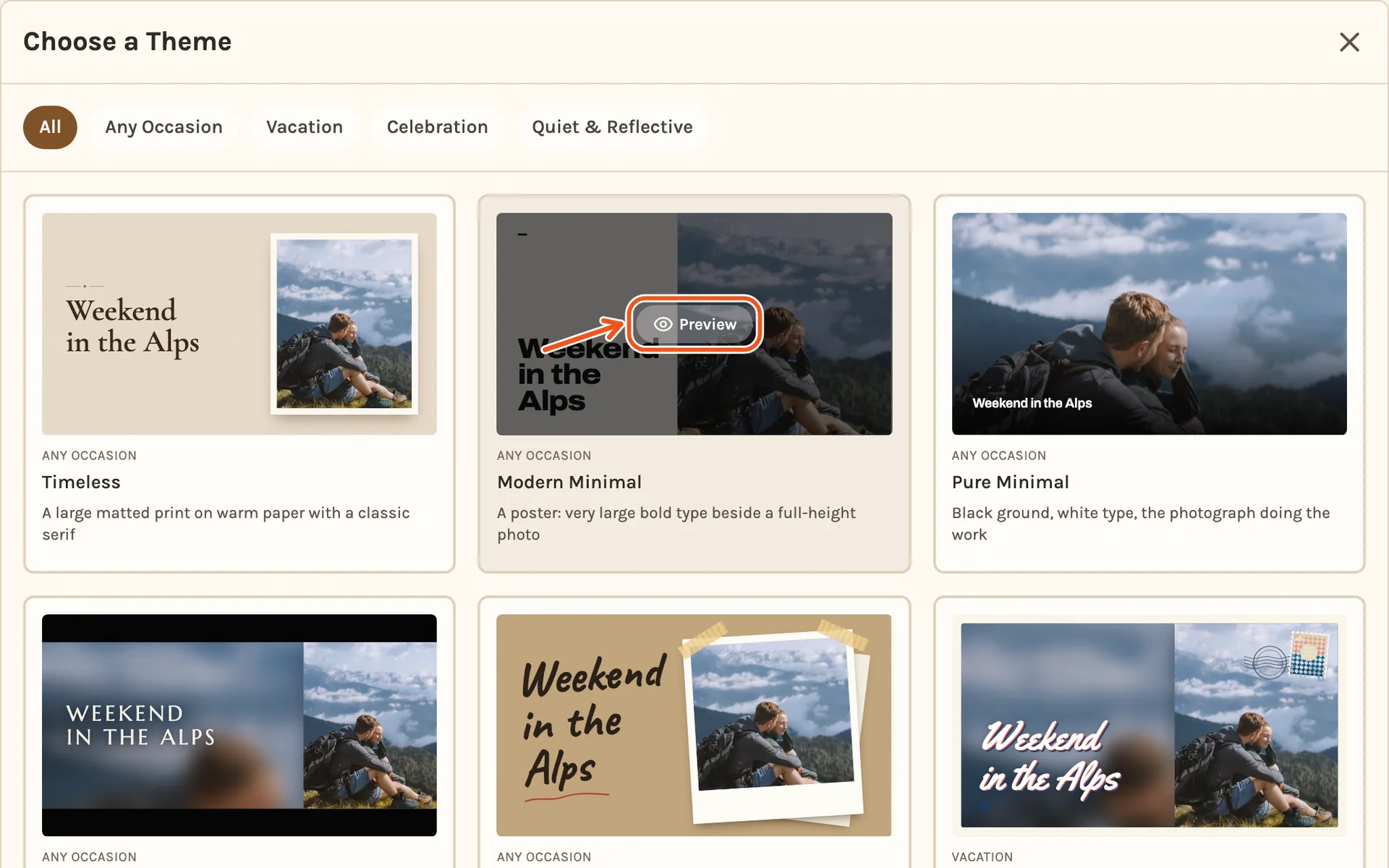
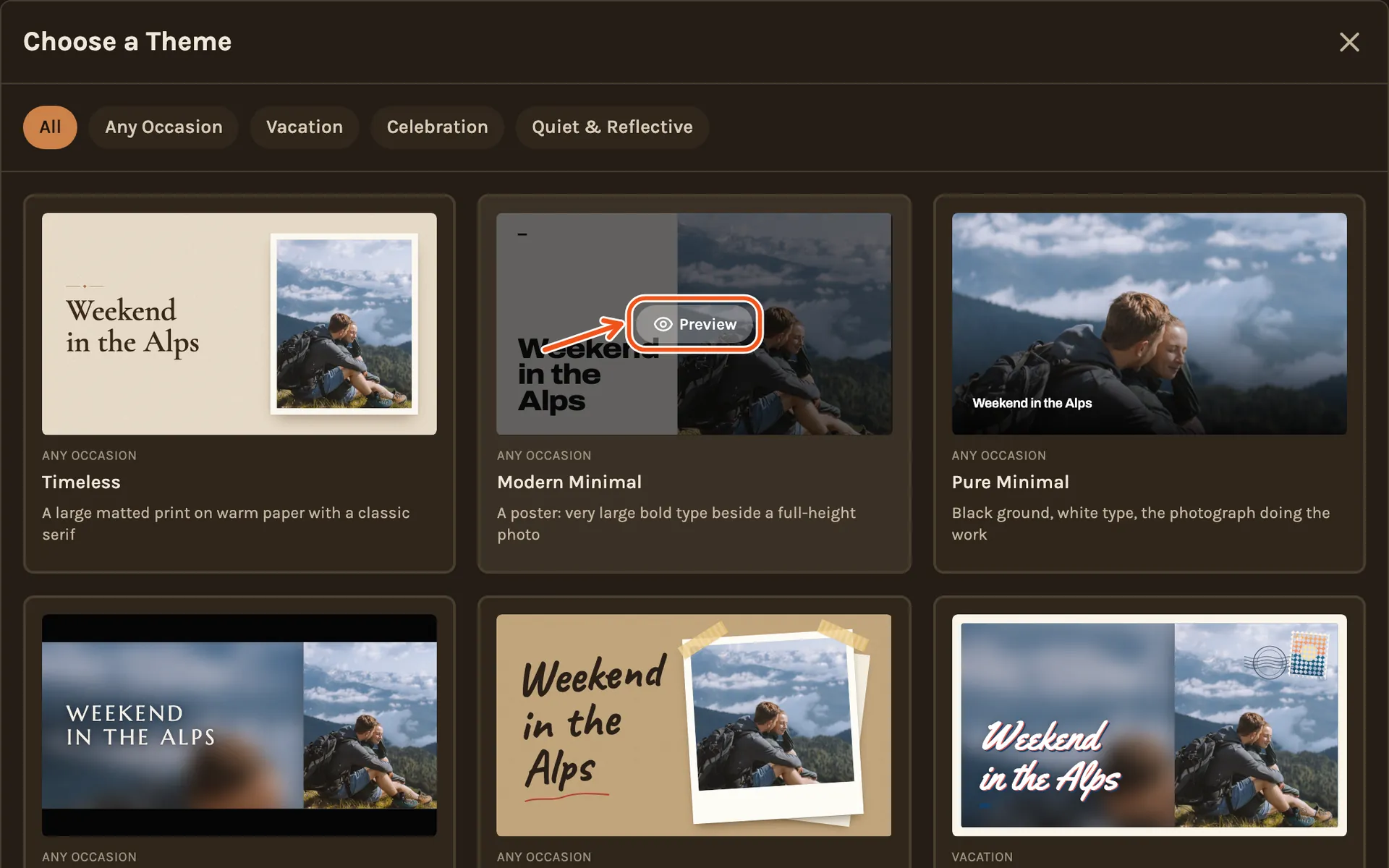
The look of the title, the credits and the chapter cards. Press Change next to the theme's name to see all 12.
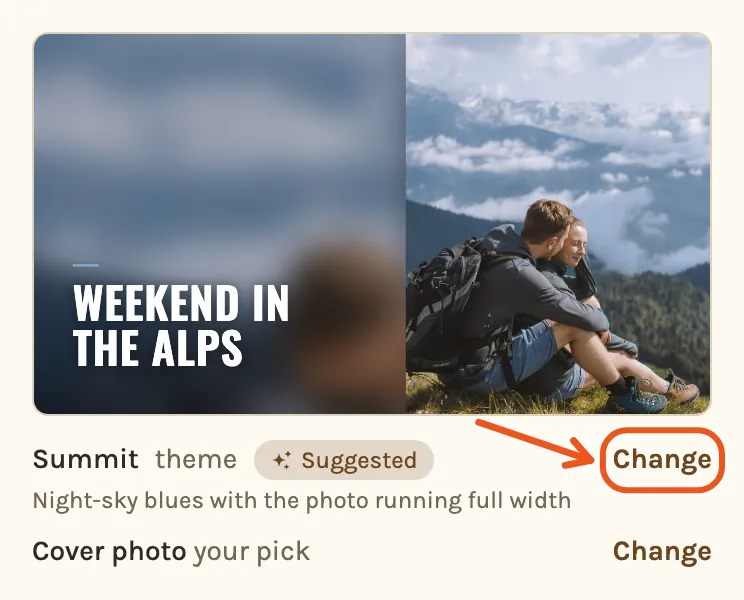
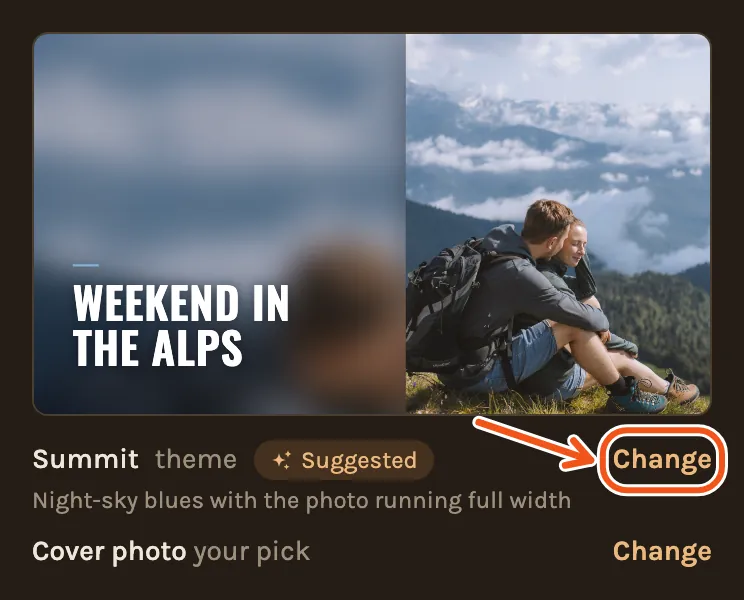
Pick a theme to try it, then press Select to keep it. On a computer, point at a theme and click Preview to see it bigger.
Title cards
Tick this for a short card with each chapter's name before it plays. Leave it off for one continuous film.


Music
Each chapter's songs, one line per song. Press to hear one, or Change to change them. See How to choose and change the music.
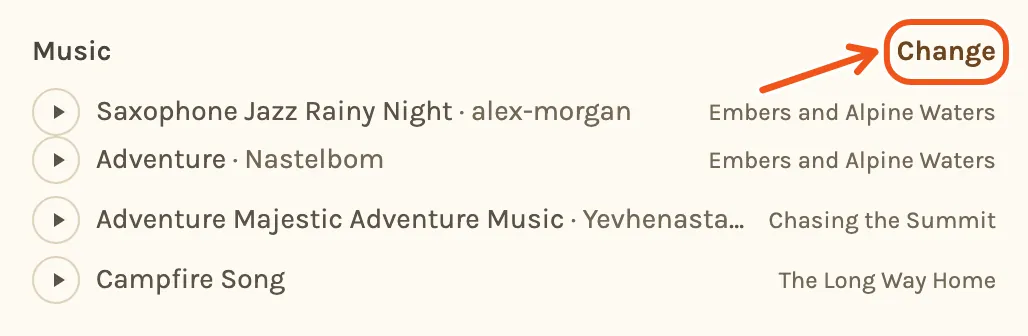
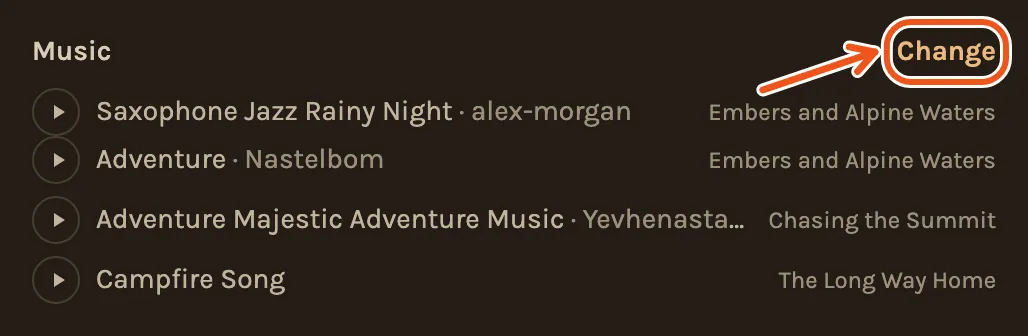
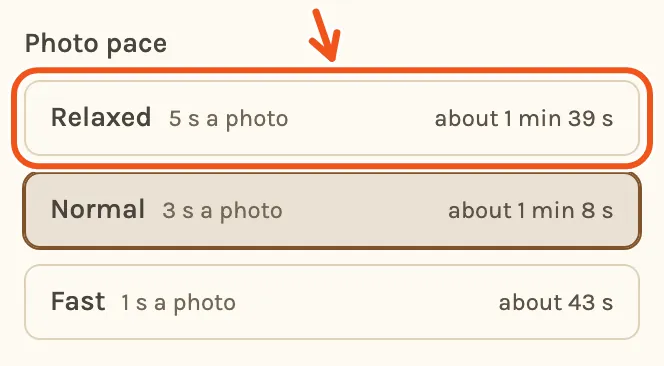
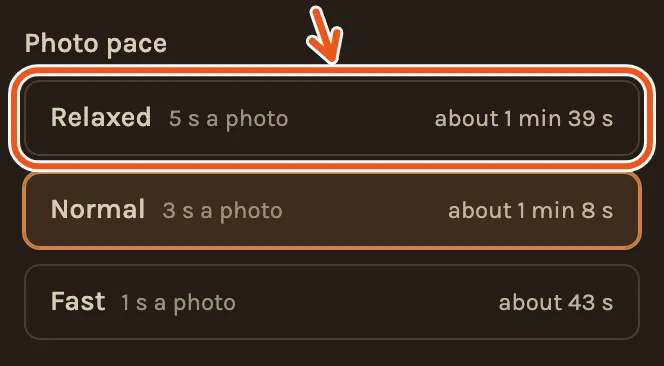
Photo pace
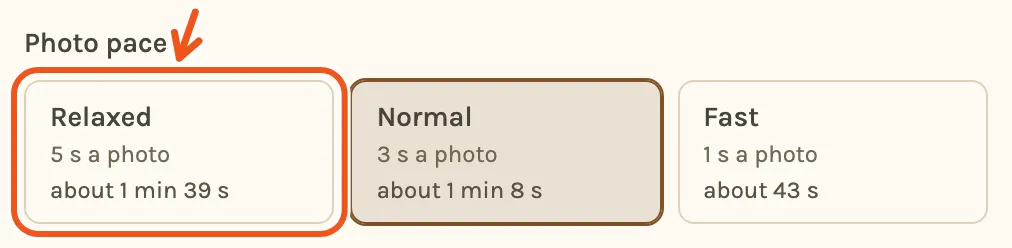
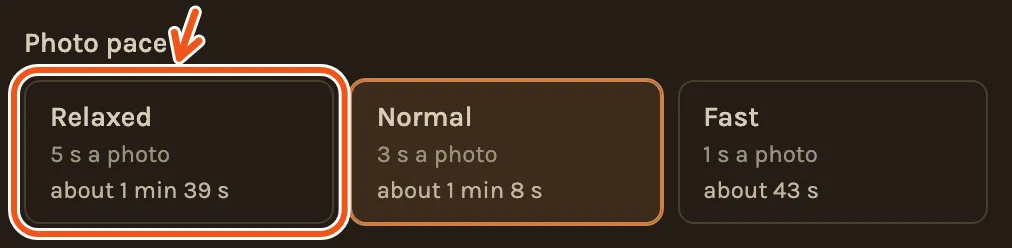
How long each photo stays up, and how much of each clip plays. Relaxed is about 5 seconds a photo, Normal about 3, Fast about 1. Clips play about 4 to 8 seconds at Normal and 3 to 5 at Fast.
What the film looks like
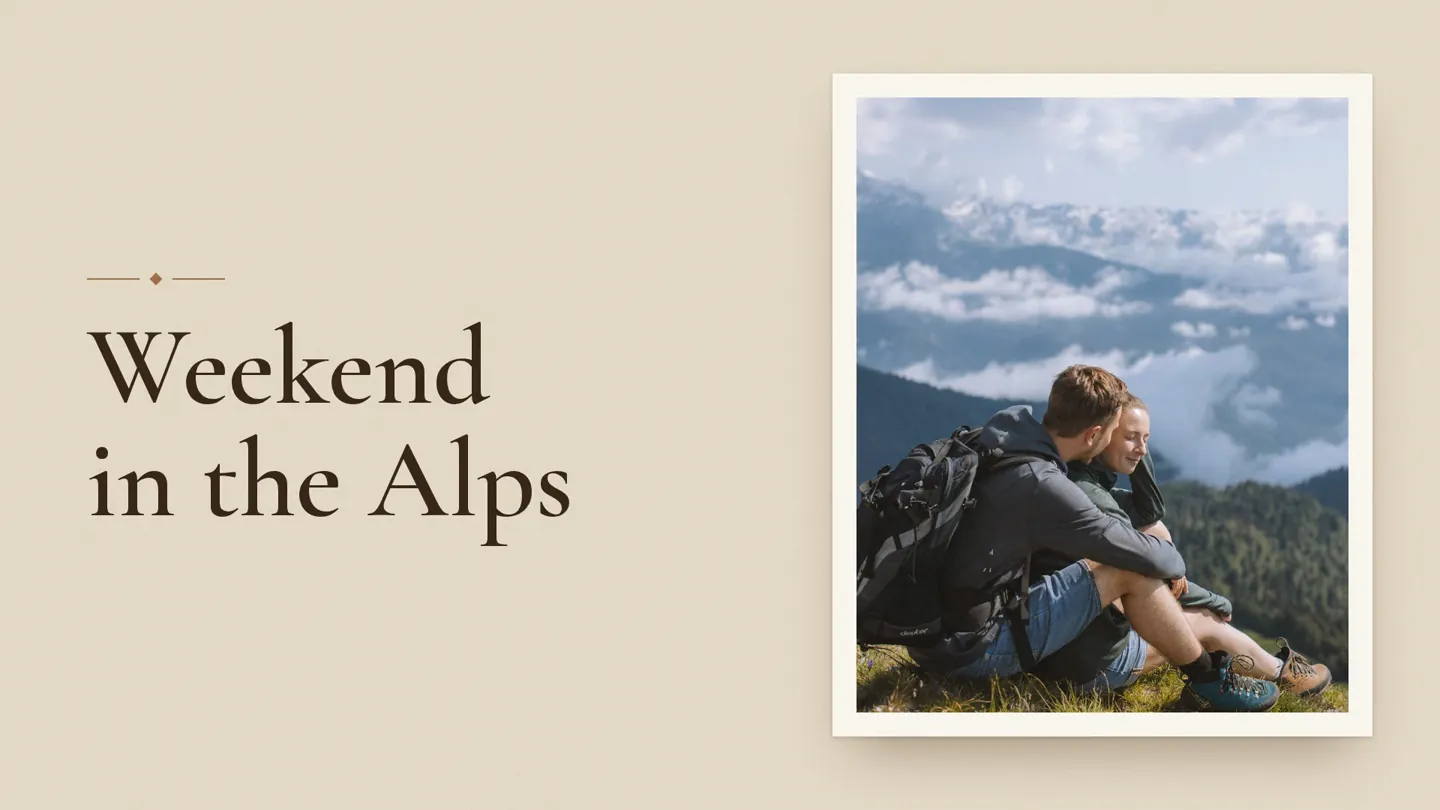
These are frames from a real film made from a weekend trip. It opens on a title with your cover photo, in the theme you chose:
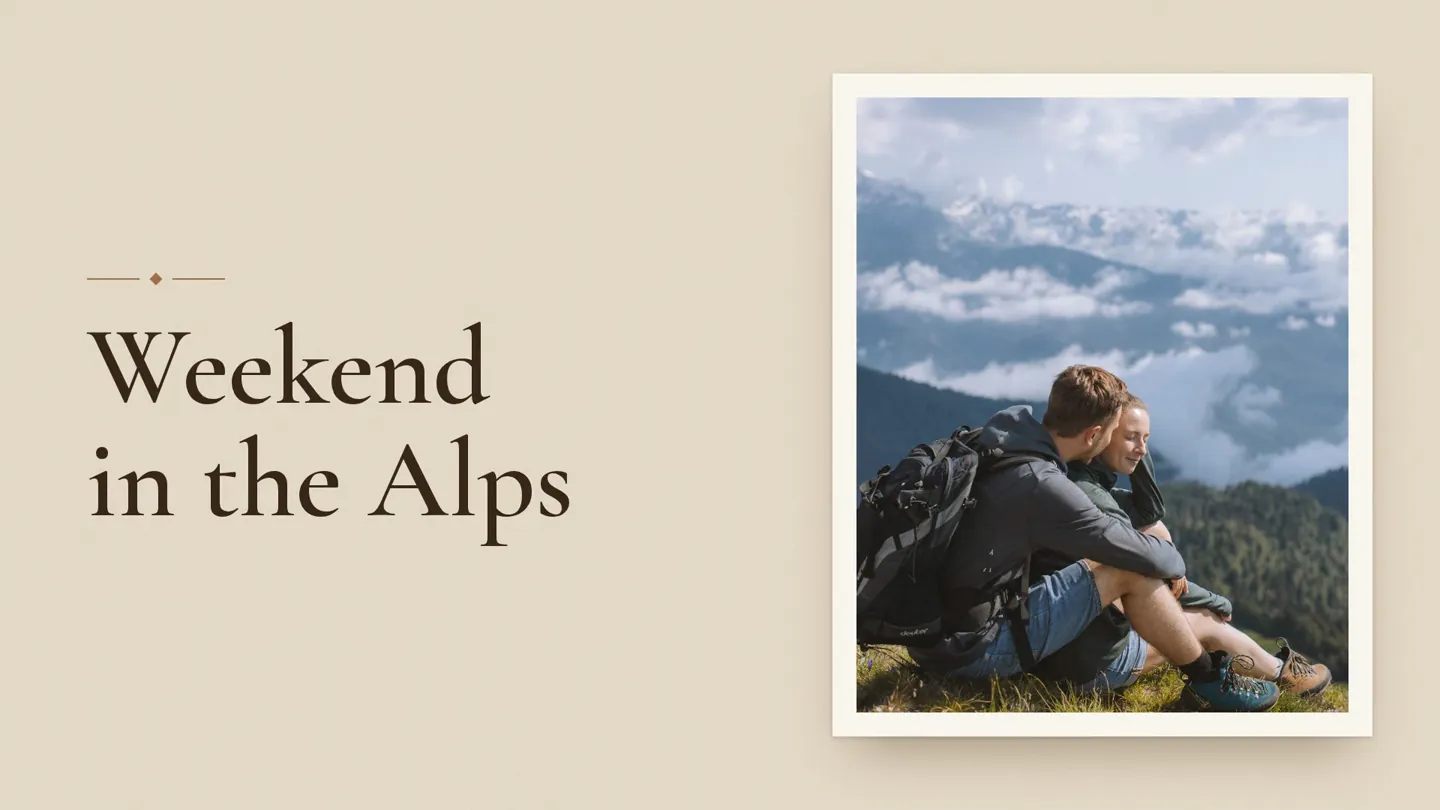
Then your photos, each one moving slowly, zooming or panning:
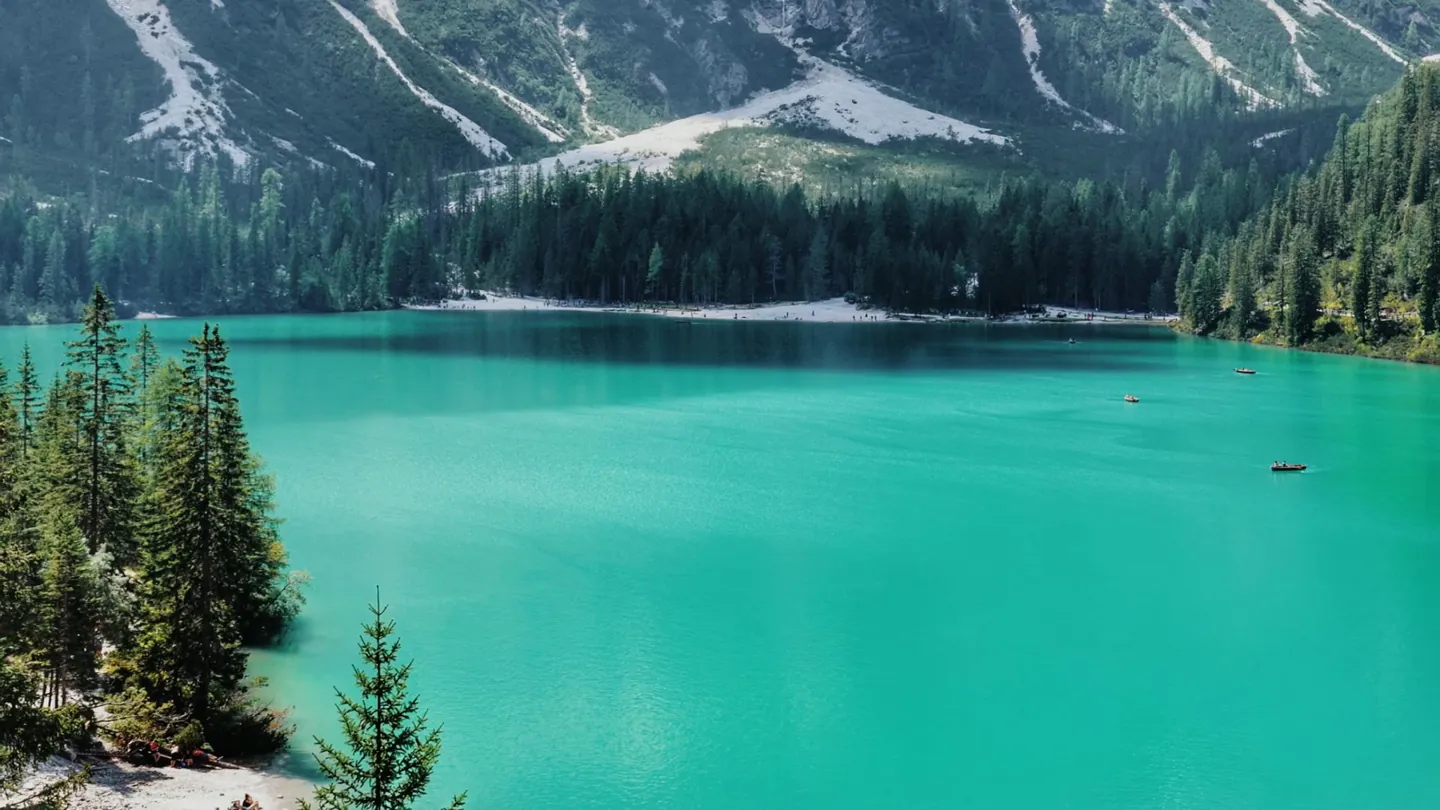
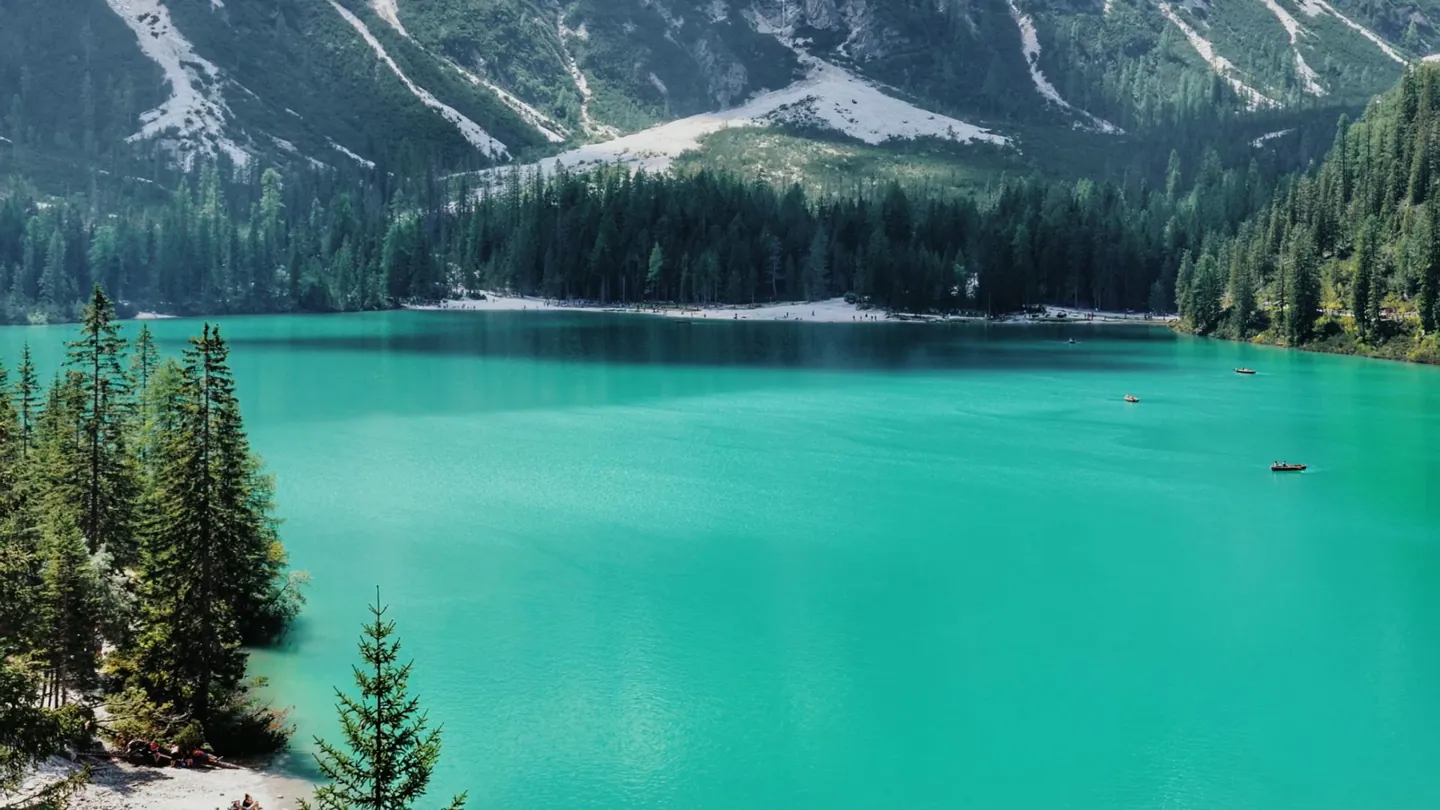
Your videos play as short clips, with their own sound:
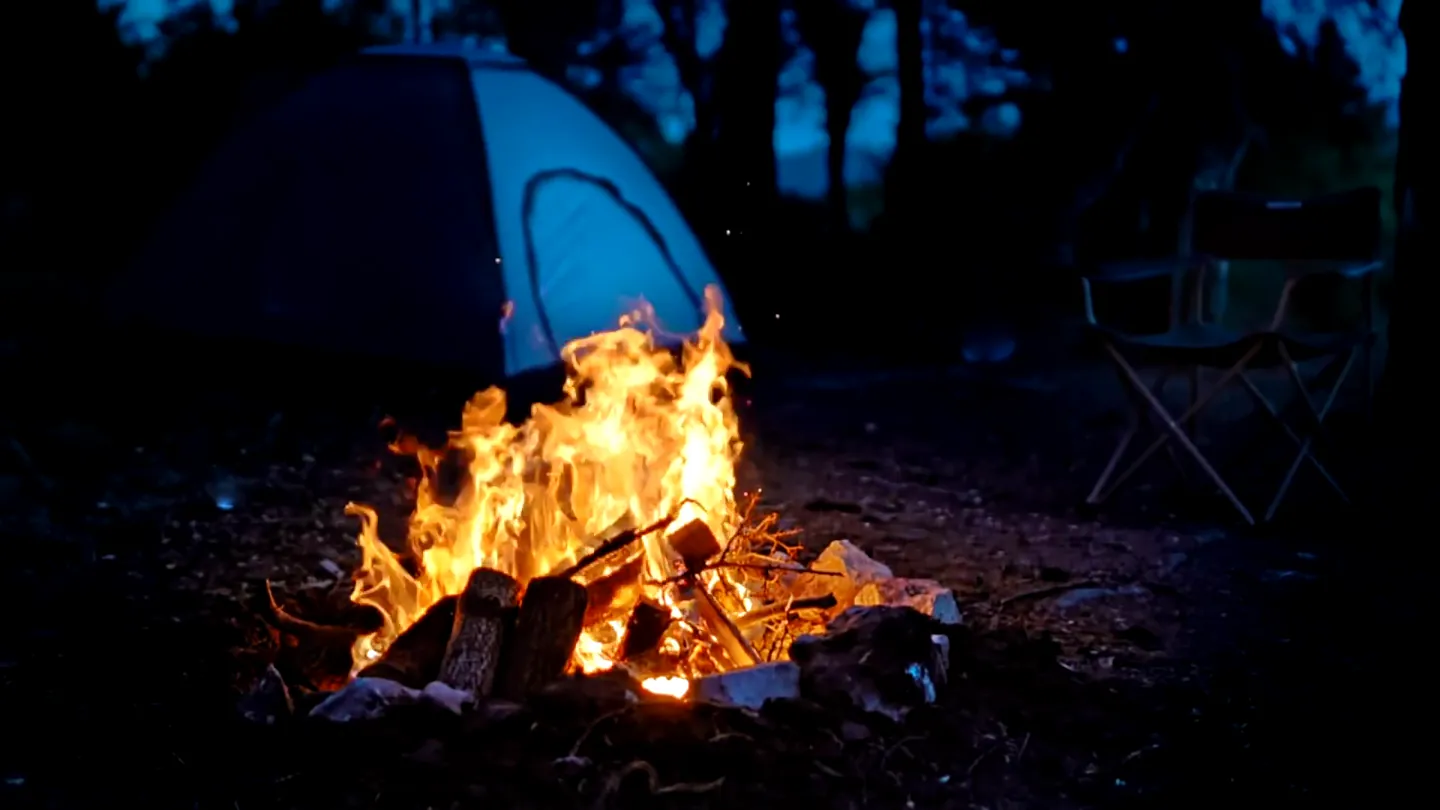
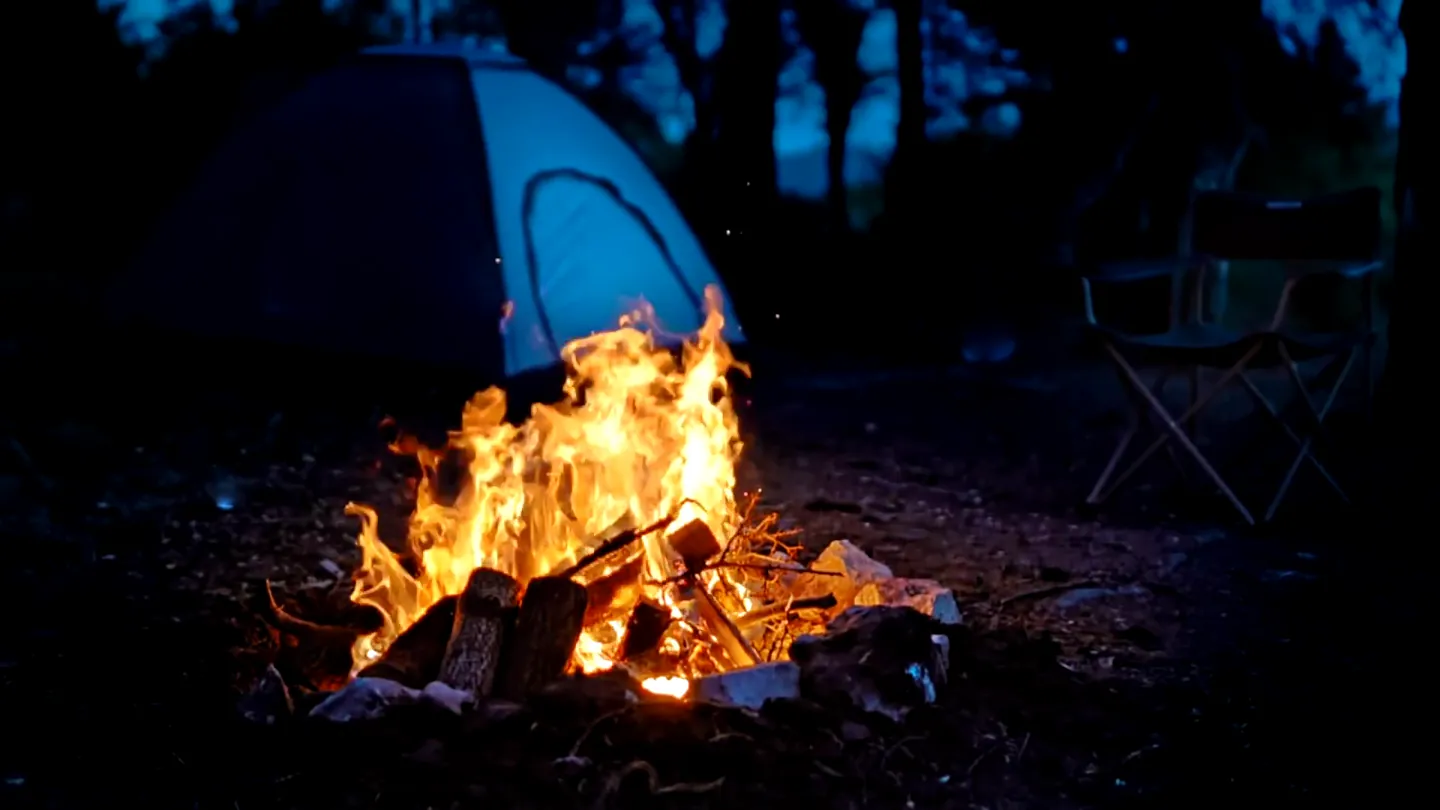
It ends with the credits:
Your film starts as a preview
Until you get the full film, Create Video makes a preview each time: a smaller copy with a watermark that only you can see. Watch it, and change anything you like on the timeline.
When you are happy, press Get the full film on the Videos tab. It is free during the beta. Once you have it, Create Video makes full films.
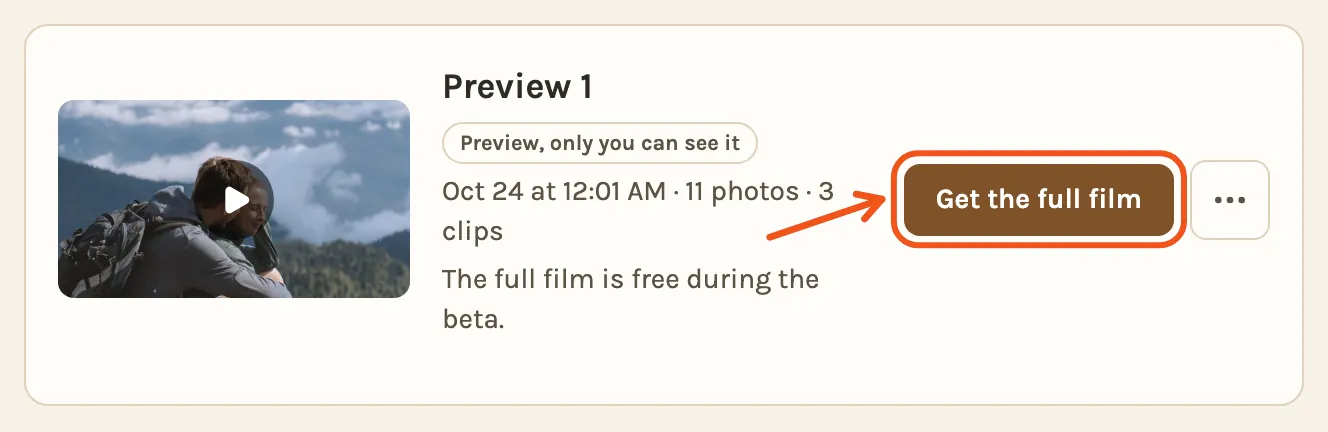
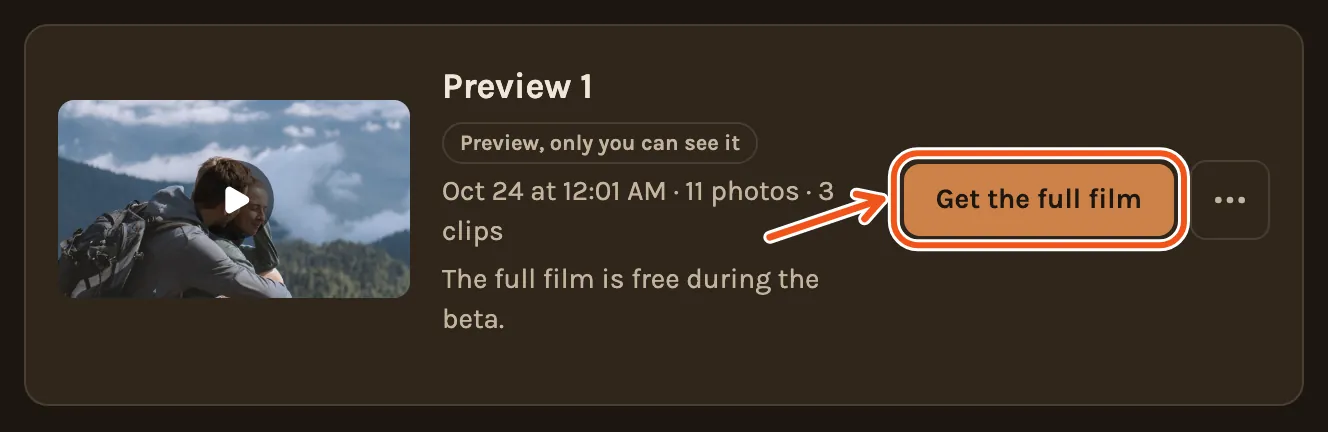
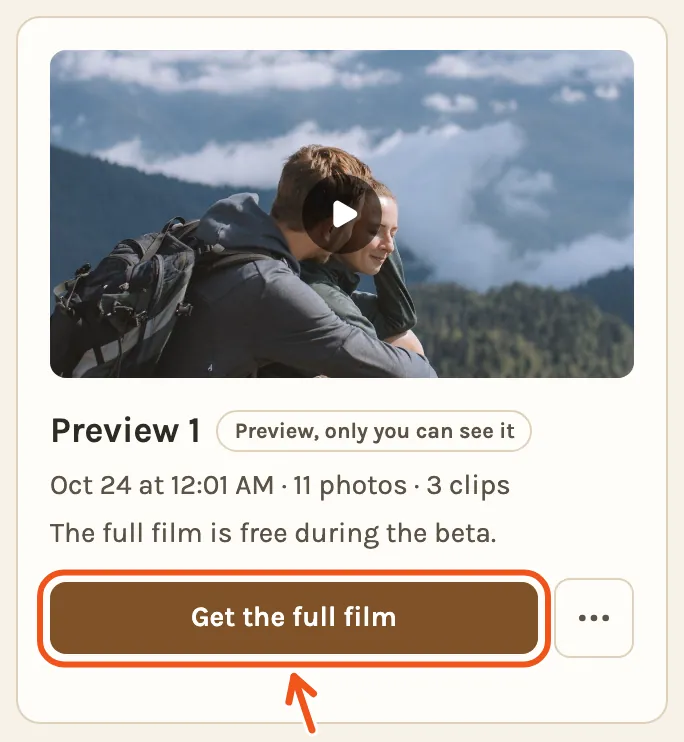
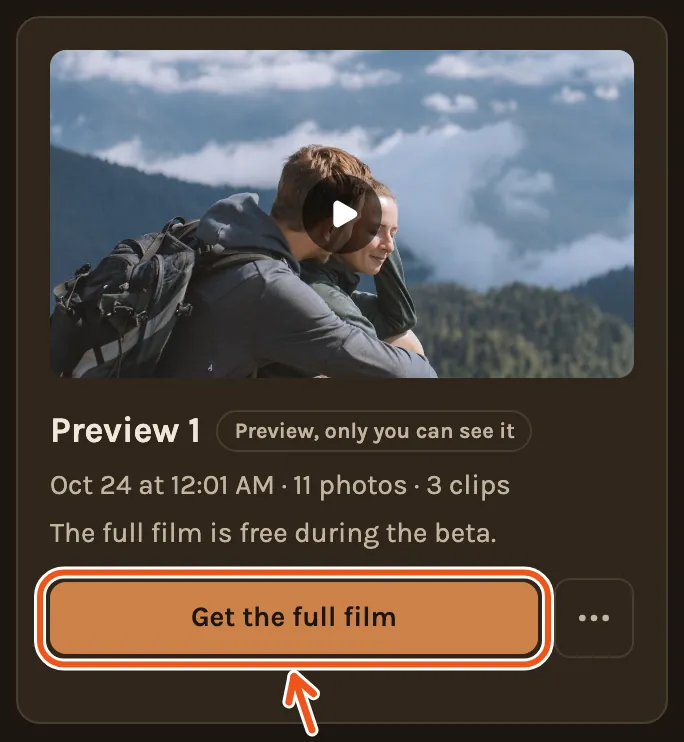
The full film then appears above the preview. It has full quality, no watermark, and is ready to download and share. The preview says when it's on its way.
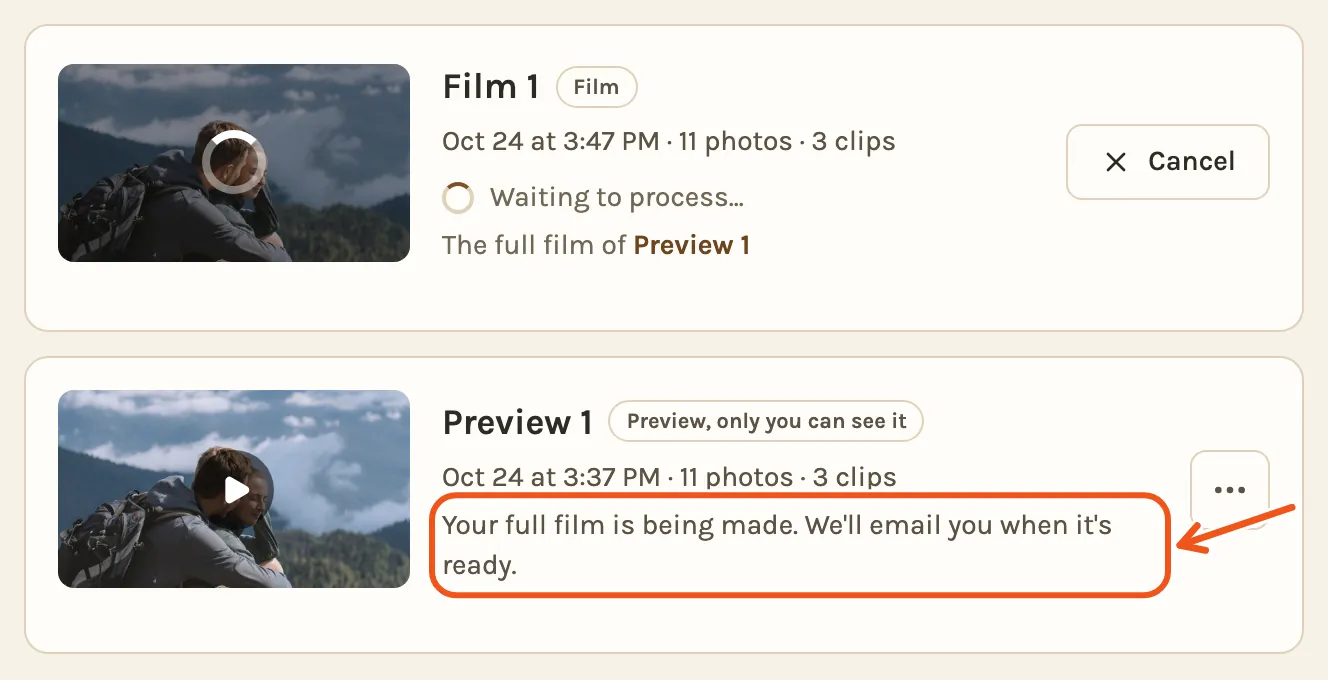
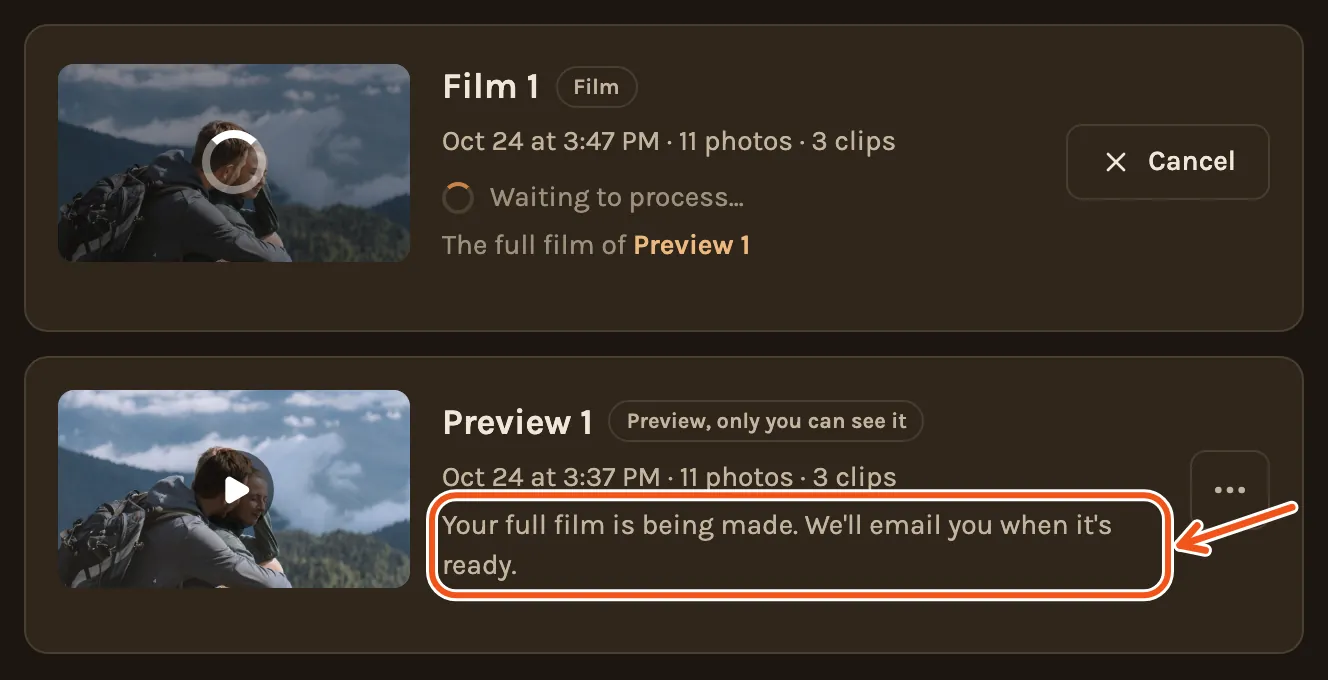
A phone lists the newest video first. Tap Show all to see the preview under it.
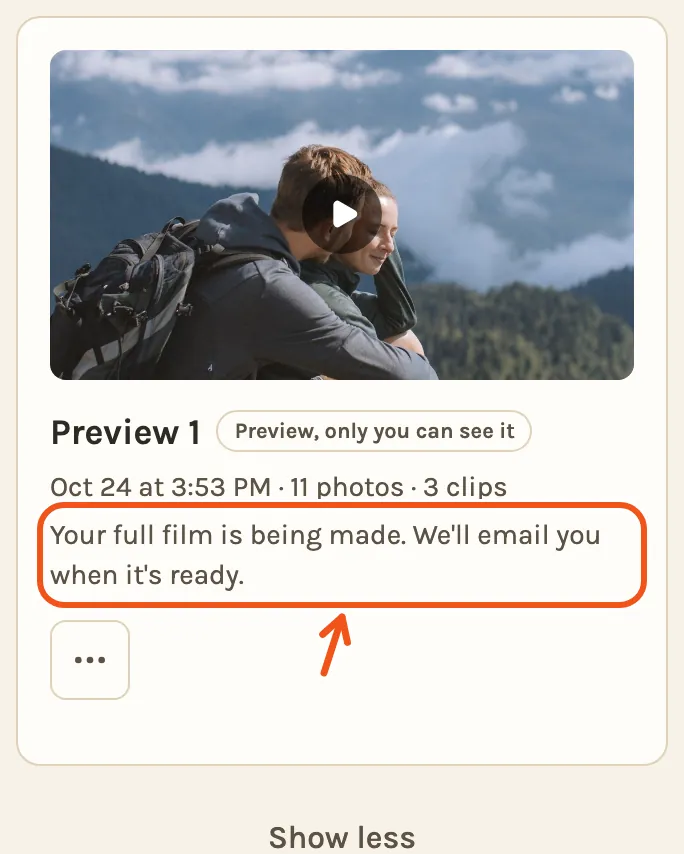
After that, each new video you make on this project is a full film straight away.
How long it takes
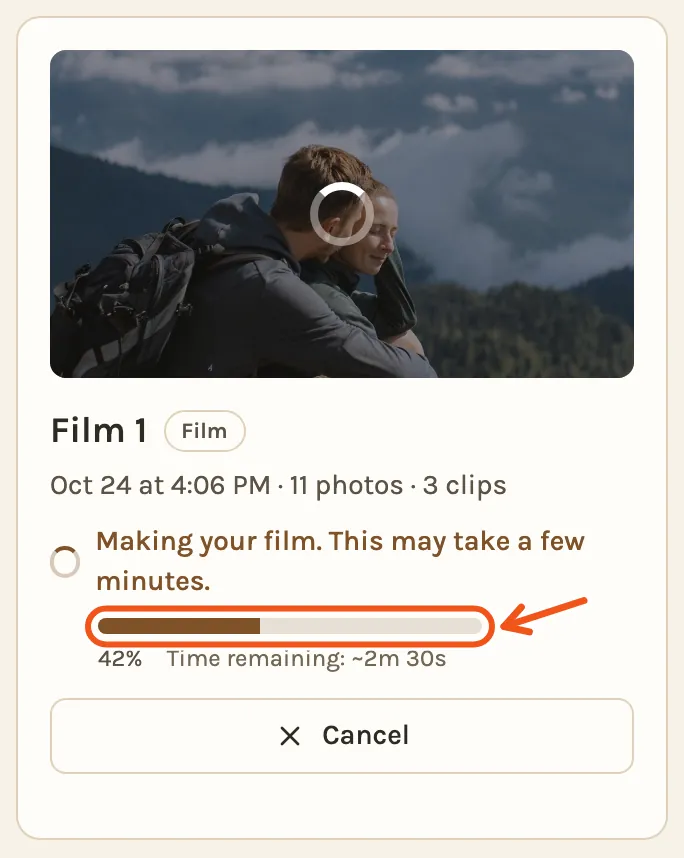
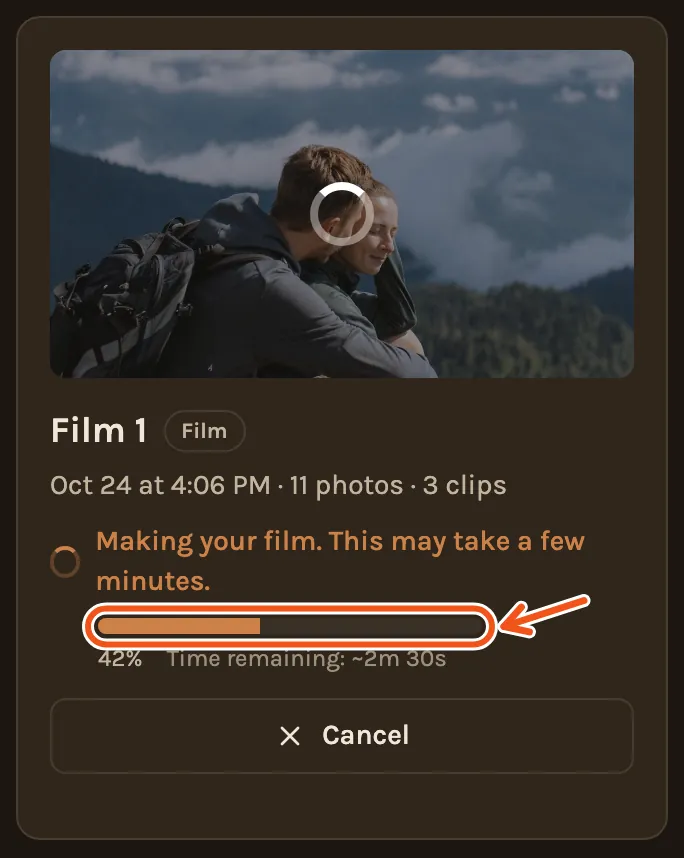
A preview is ready in a minute or two. A full film takes a few minutes. The longest can take 20 minutes or more. The Videos tab shows how far along it is. You can close the page while it works.
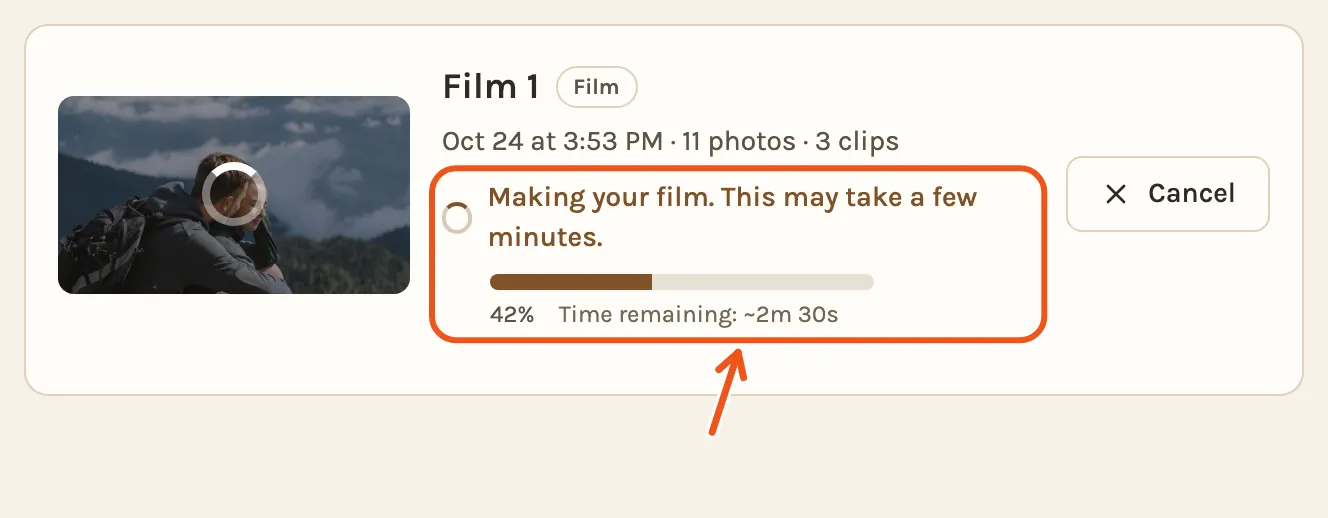
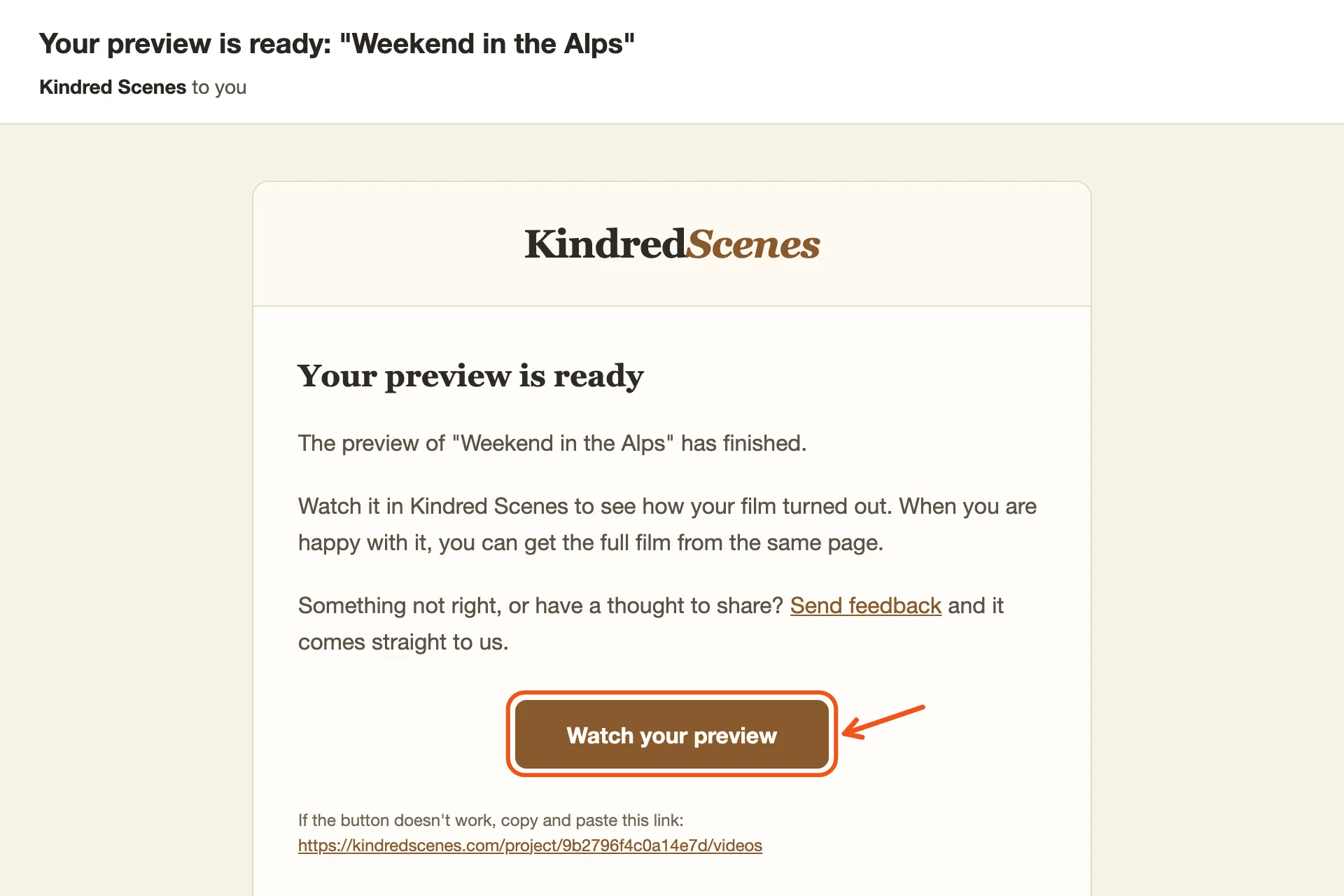
When it's ready, you get an email. The button in it opens your Videos tab.
Watch it
Open the Videos tab and click the film's picture. The film plays in a large player, with Download at the top.
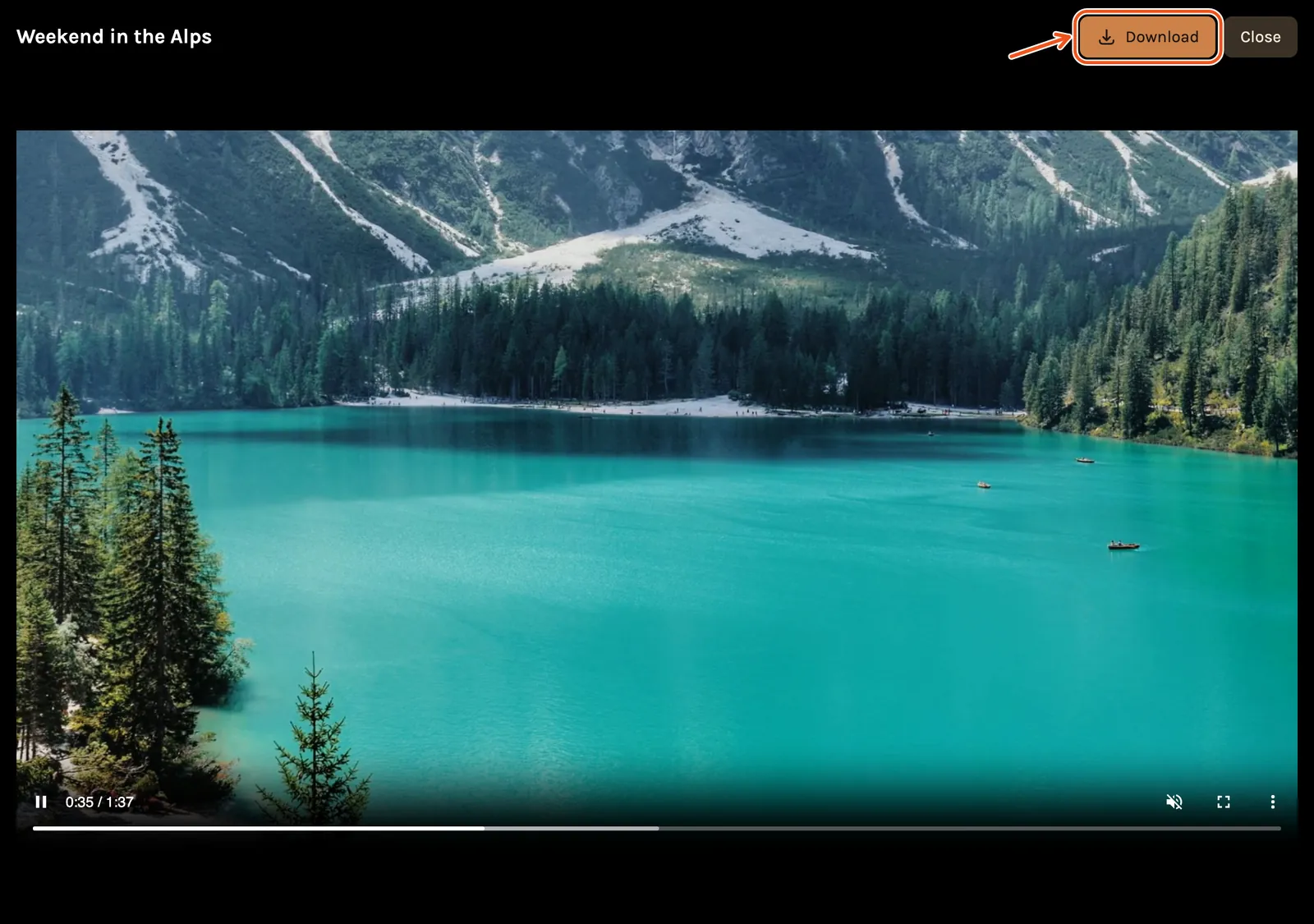
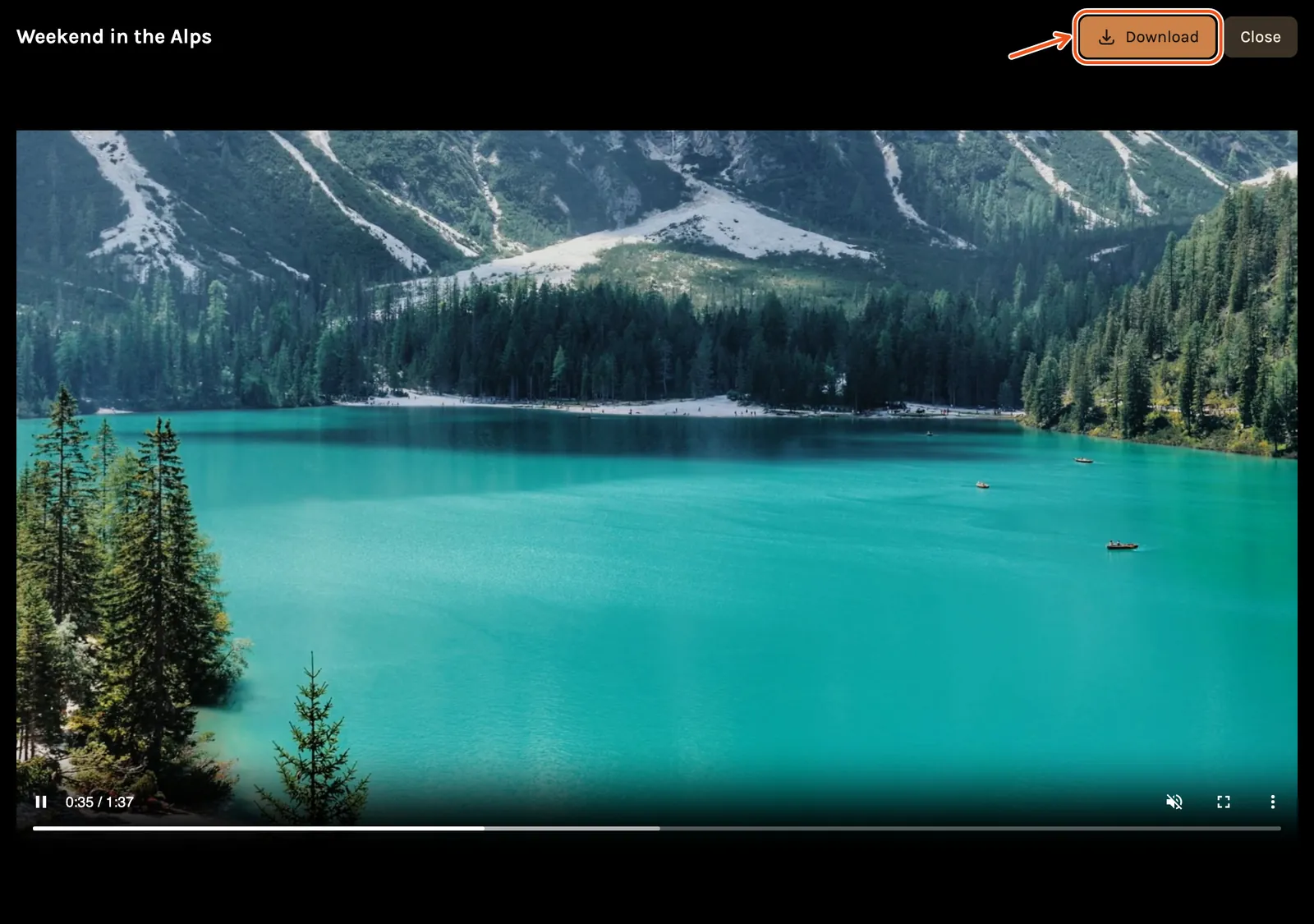
Open the Videos tab and tap the film's picture to play it.
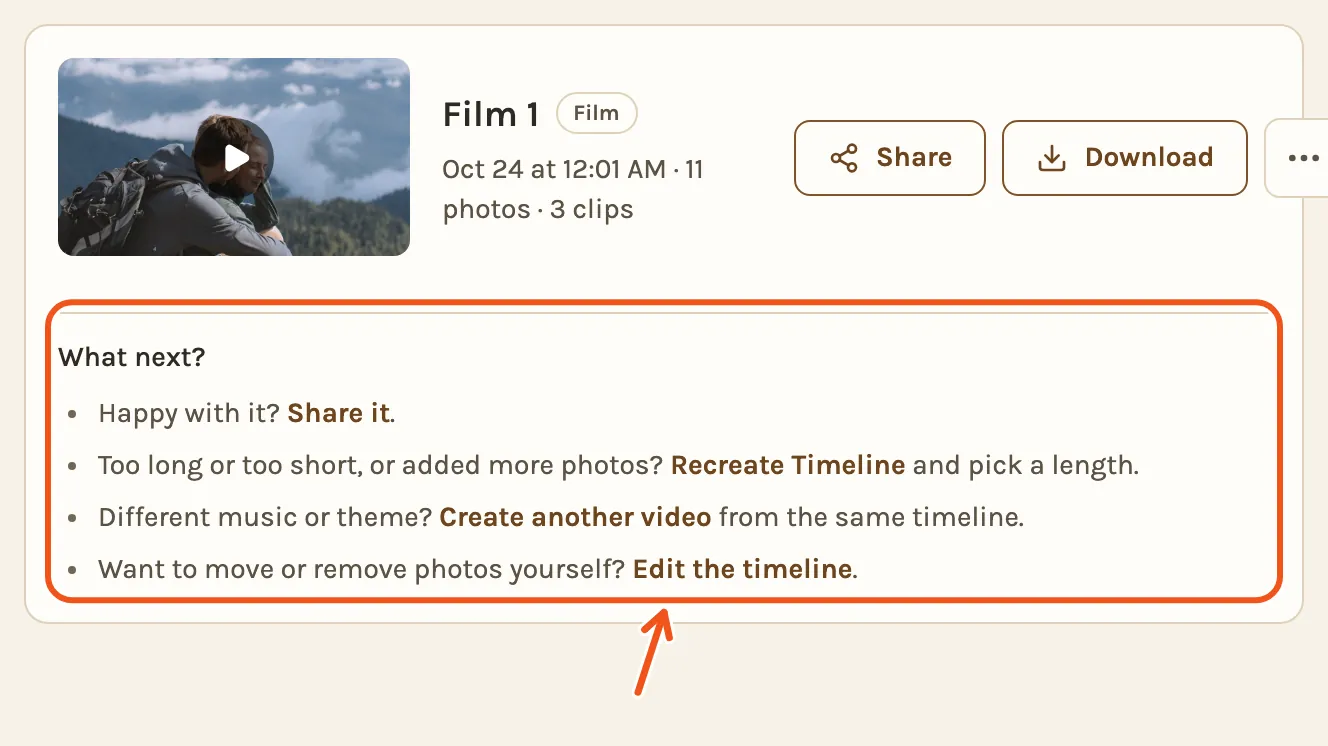
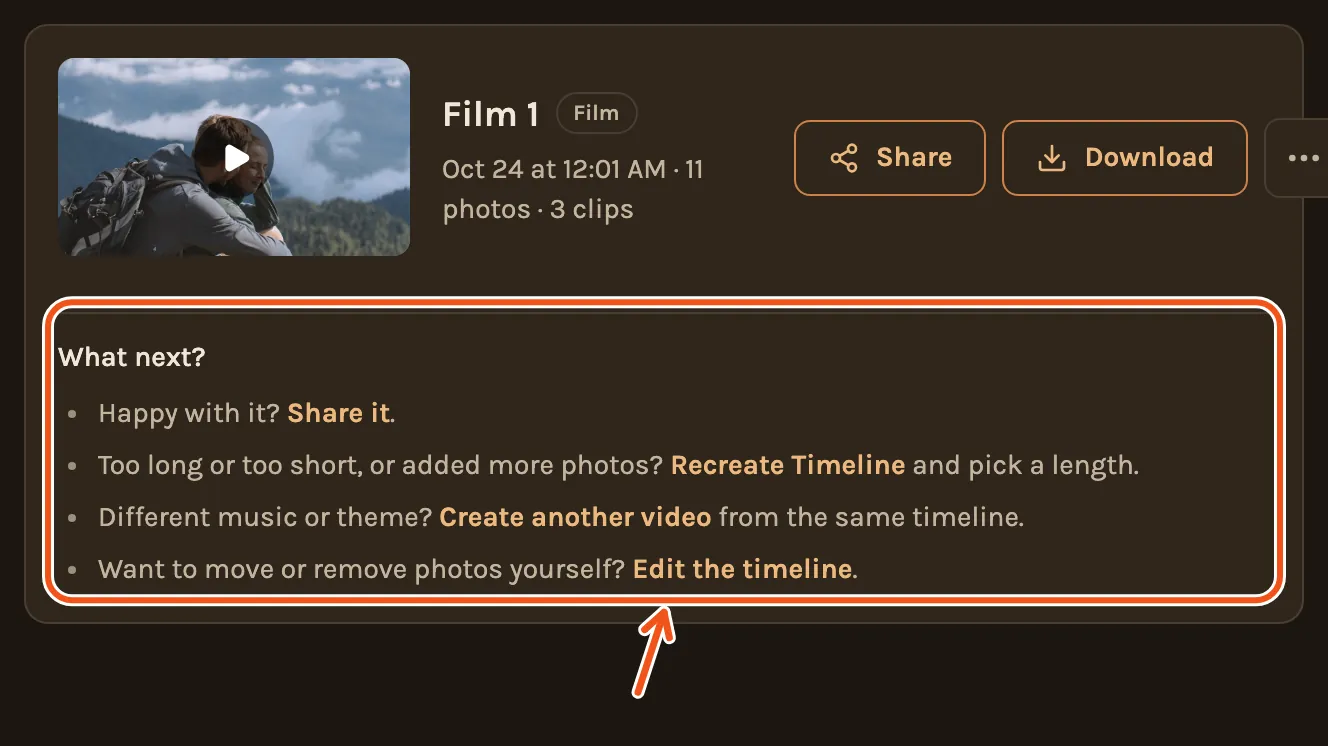
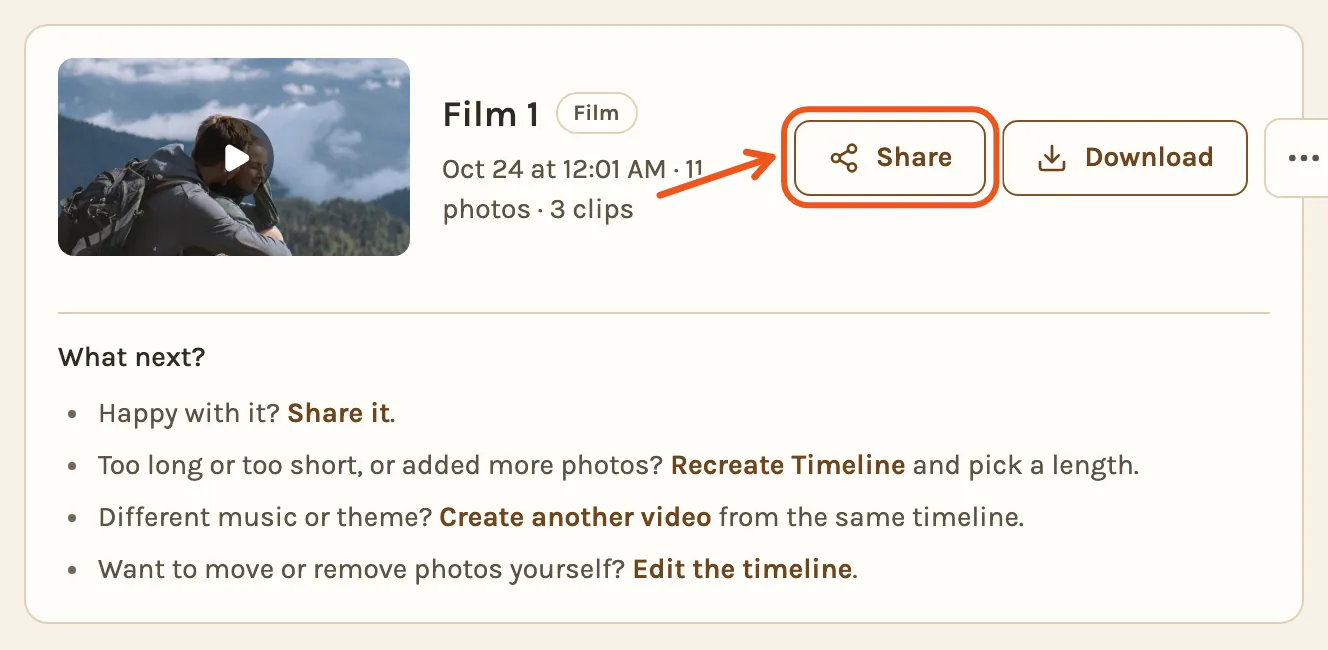
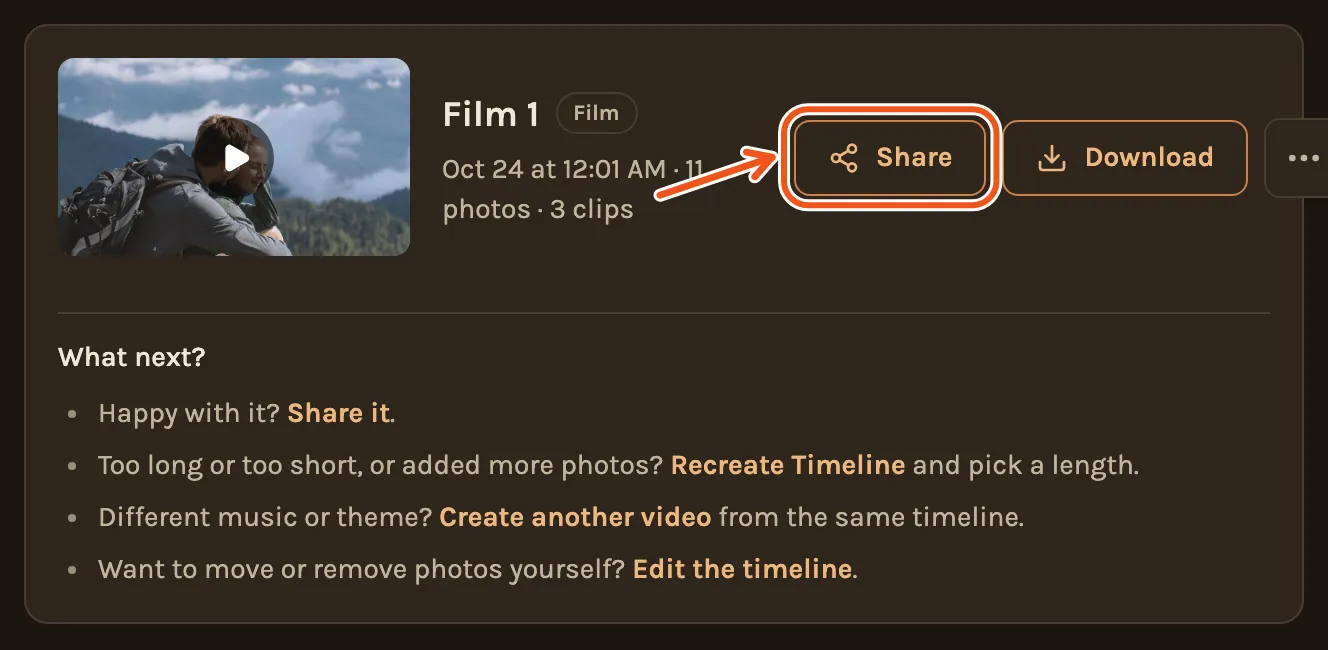
Under the newest film, What next? lists the usual next steps: share it, make the timeline longer or shorter, or try other music.
Share it
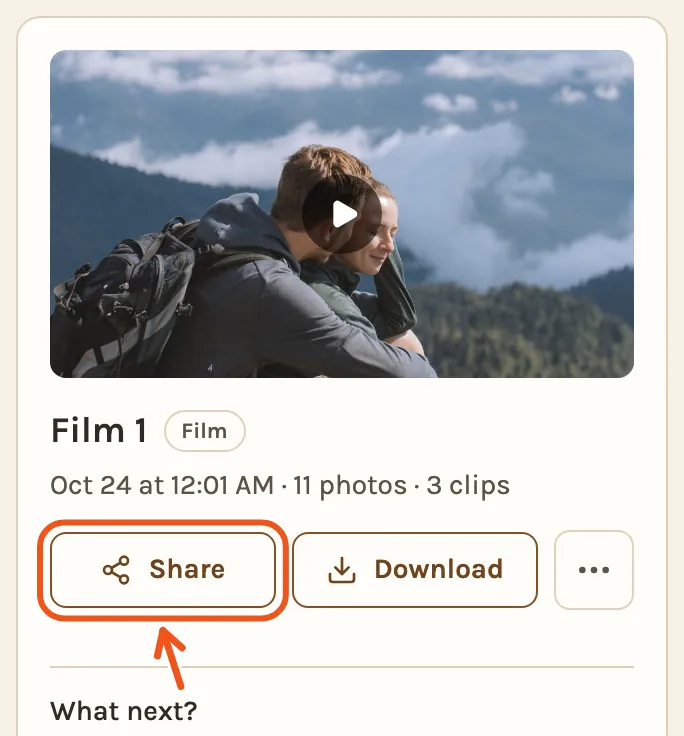
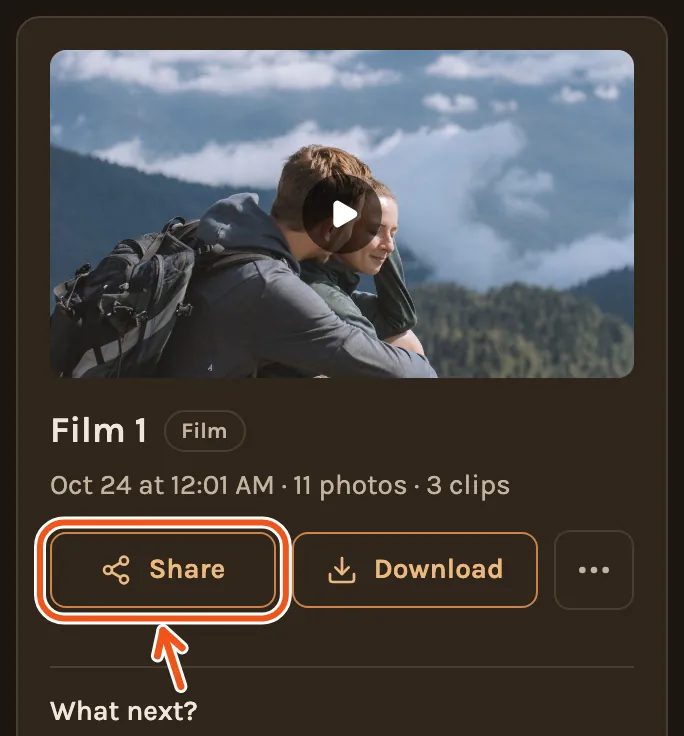
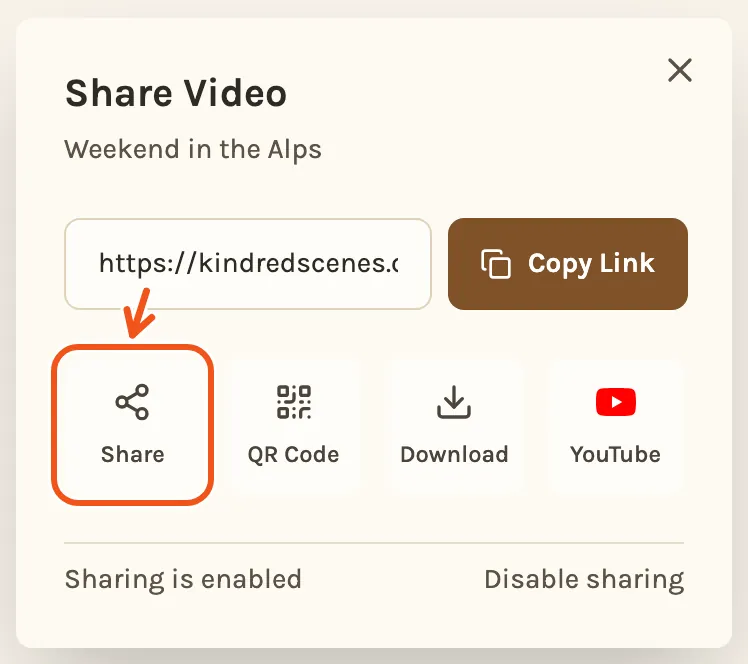
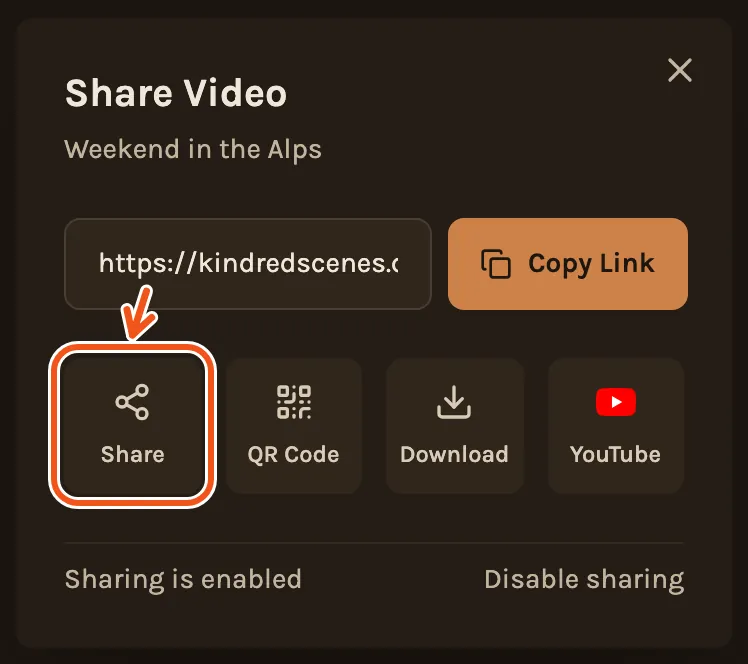
- On the Videos tab, click Share next to the film.
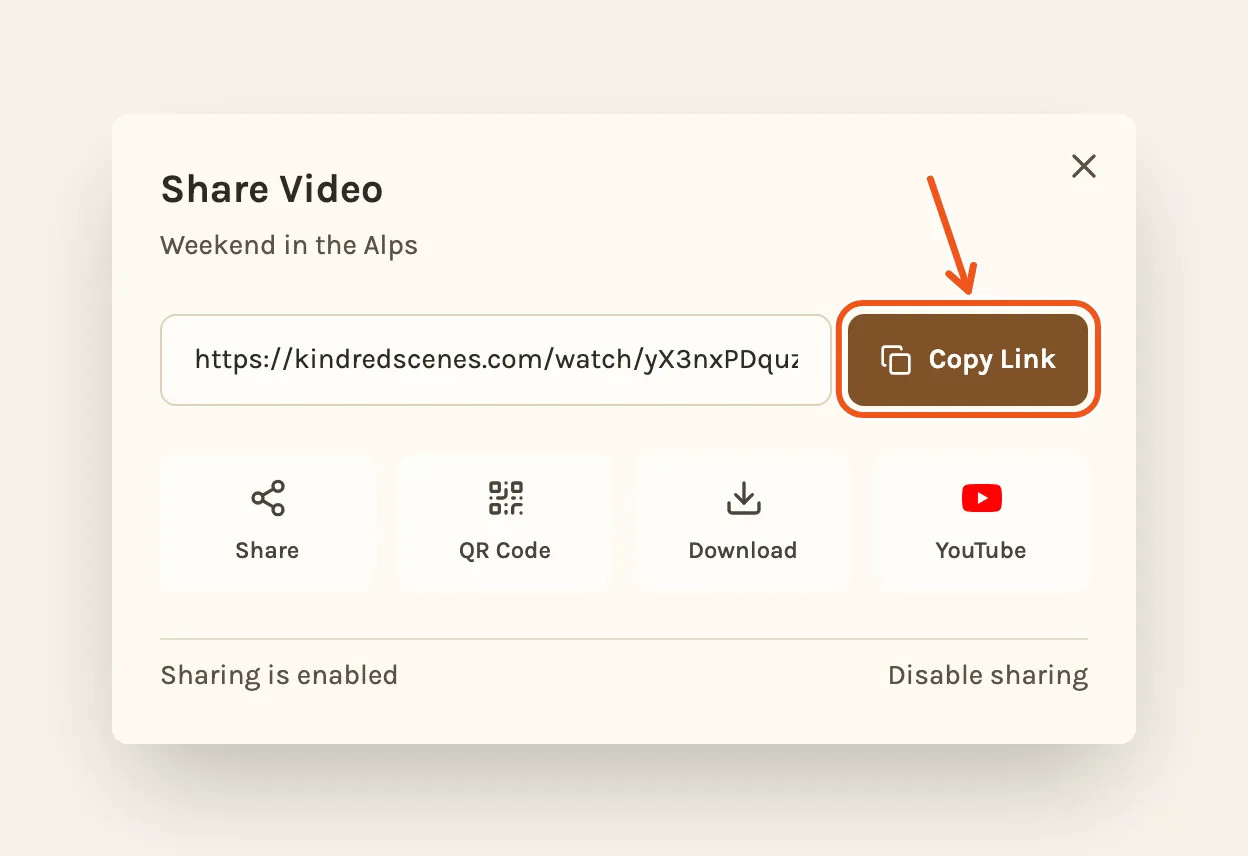
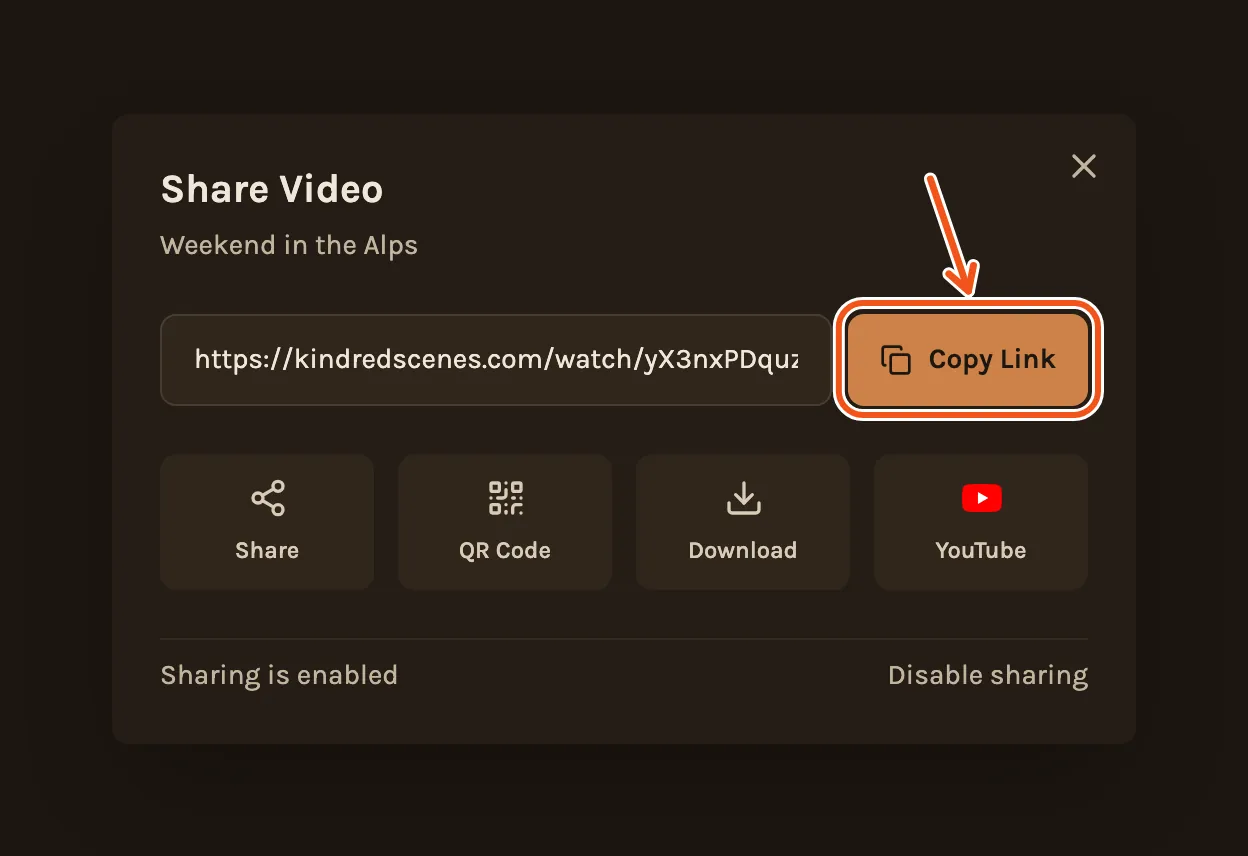
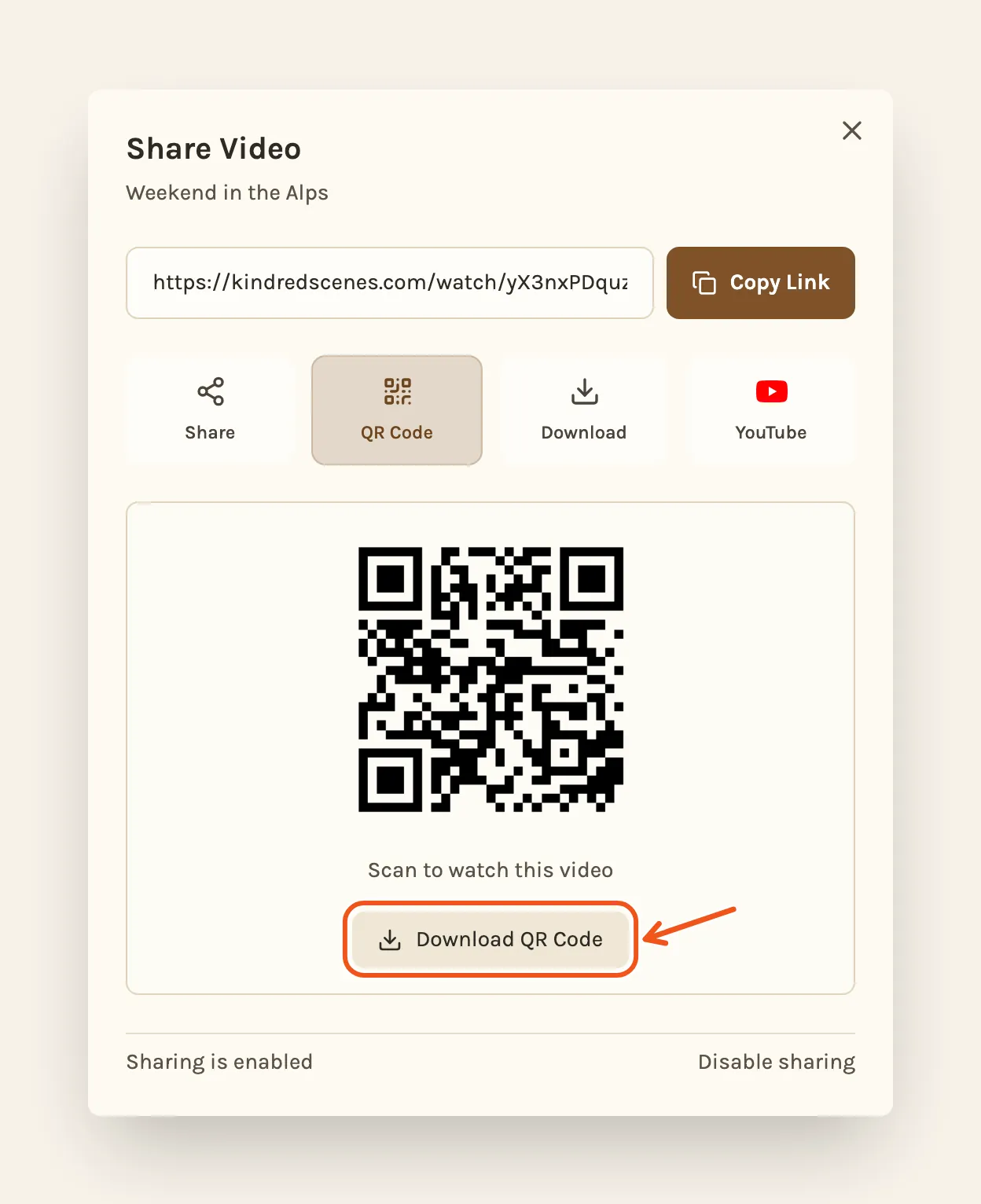
- Click Copy Link and send it to anyone. They can watch in their browser, with no app and no account.
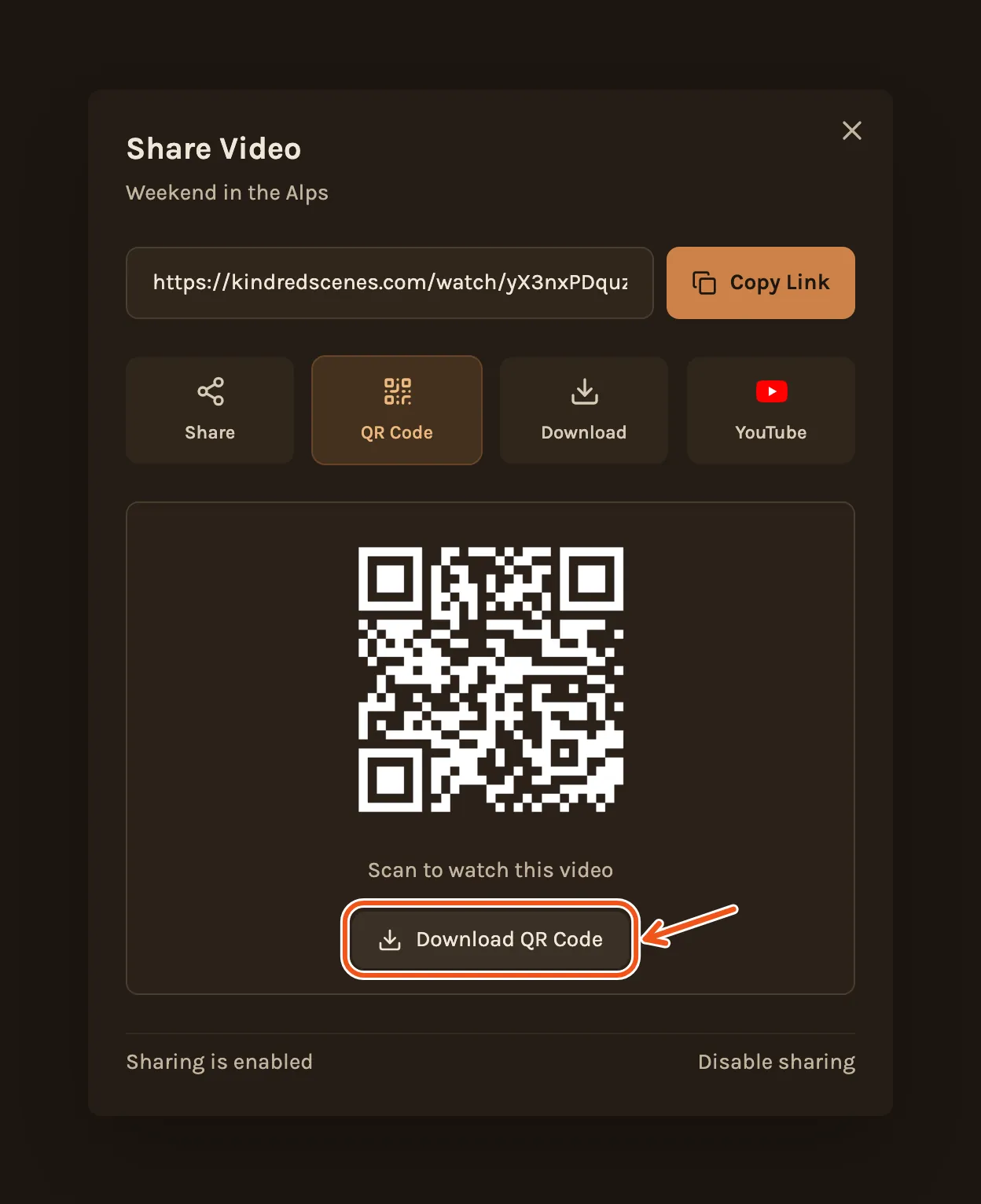
- To show the film on a screen or print it in a program, click QR Code, then Download QR Code.
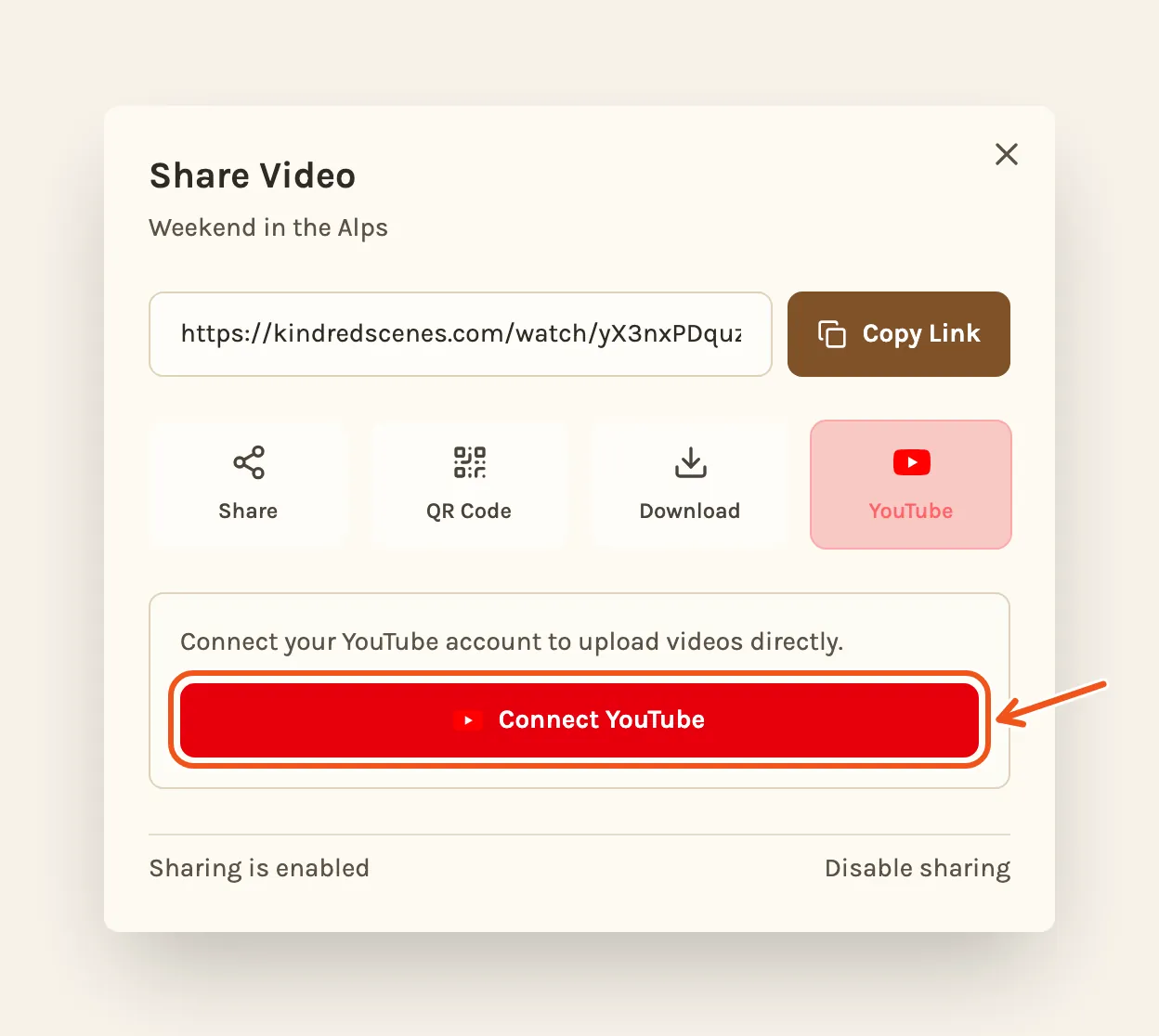
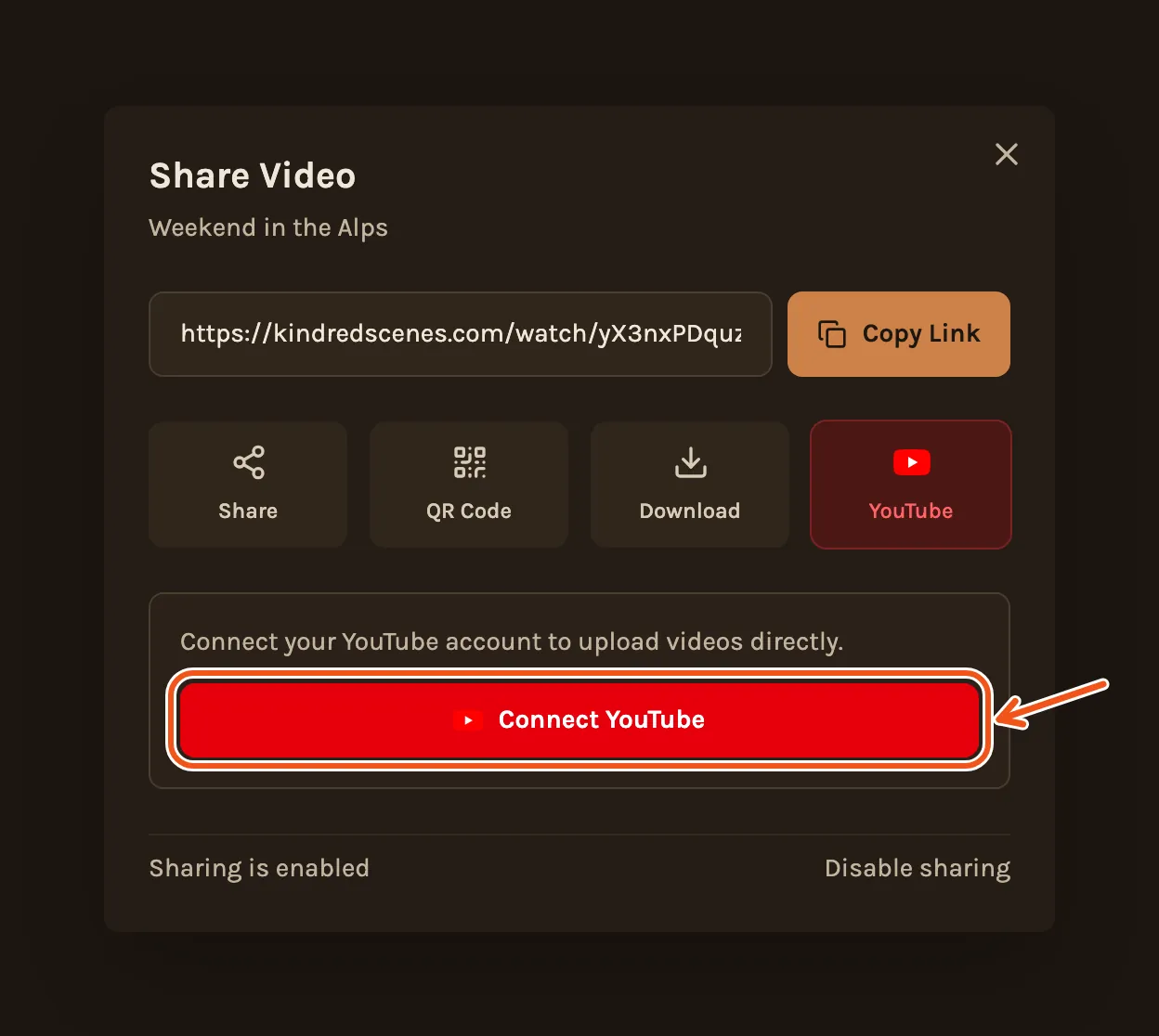
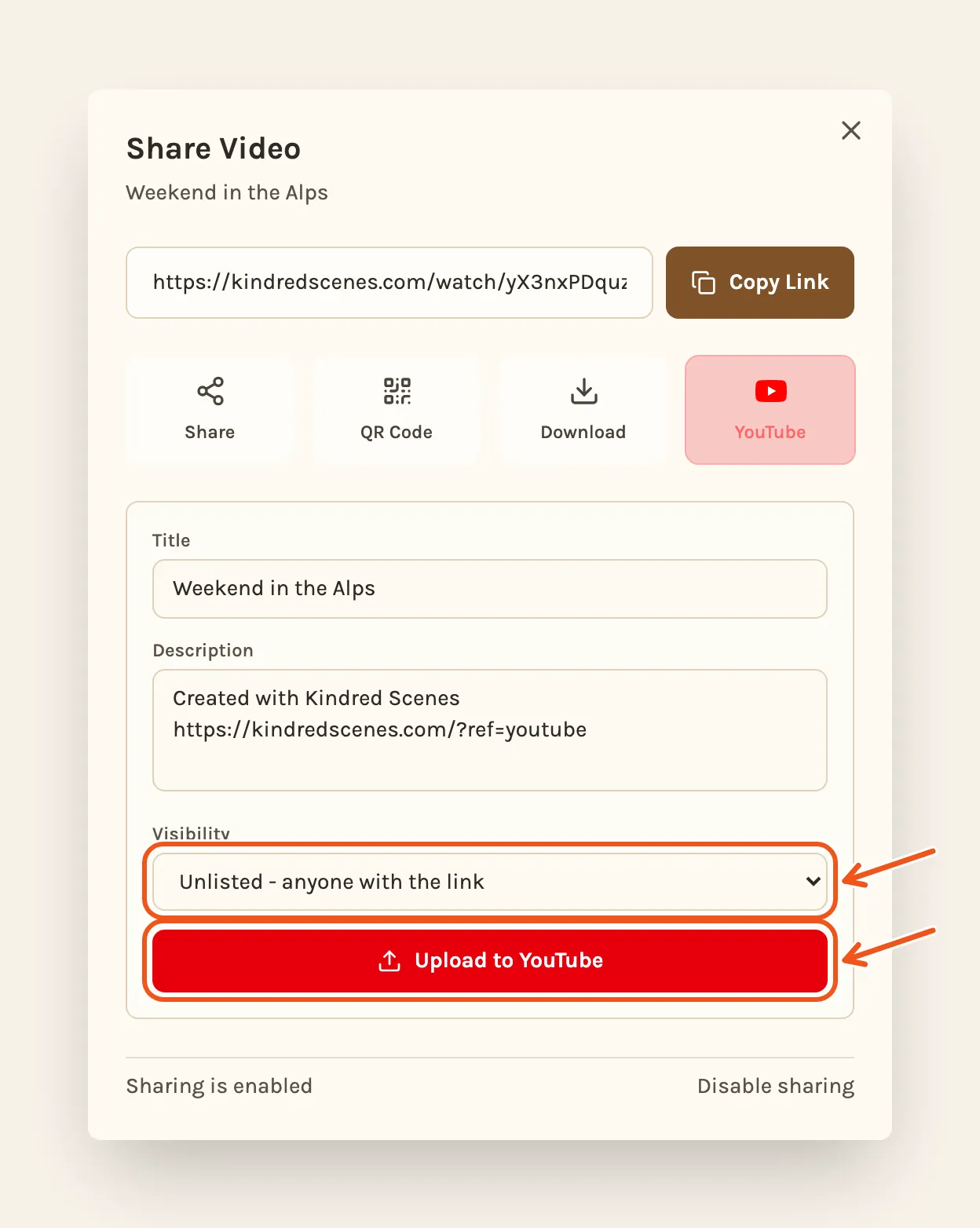
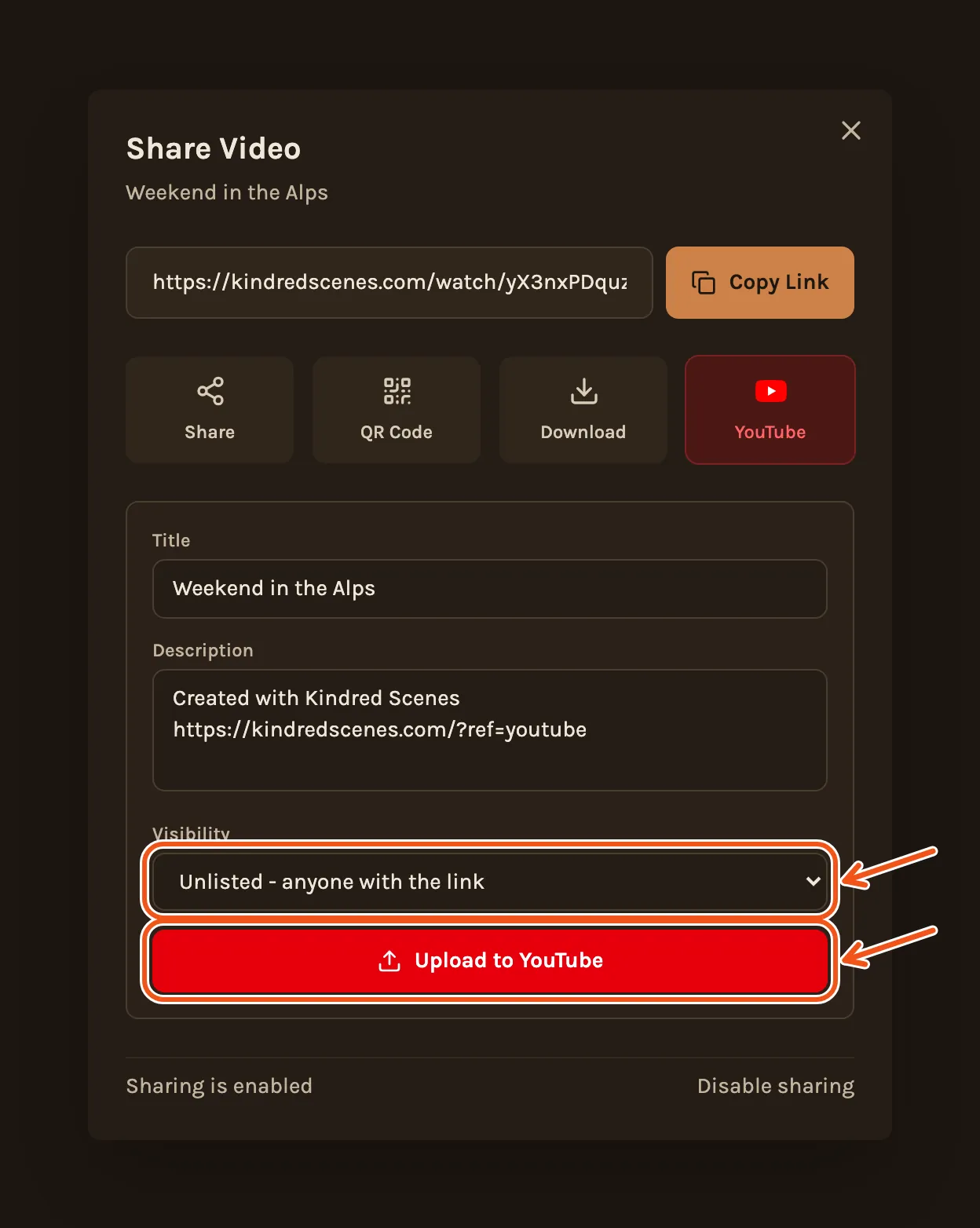
- To put the film on your YouTube channel, click YouTube, then Connect YouTube and sign in with Google.
- Check the title and description, choose who can see it (unlisted, public or private), then click Upload to YouTube.
- On the Videos tab, tap Share under the film.
- Tap Share to send the link from your phone's share sheet, or Copy Link to paste it anywhere.
What people see
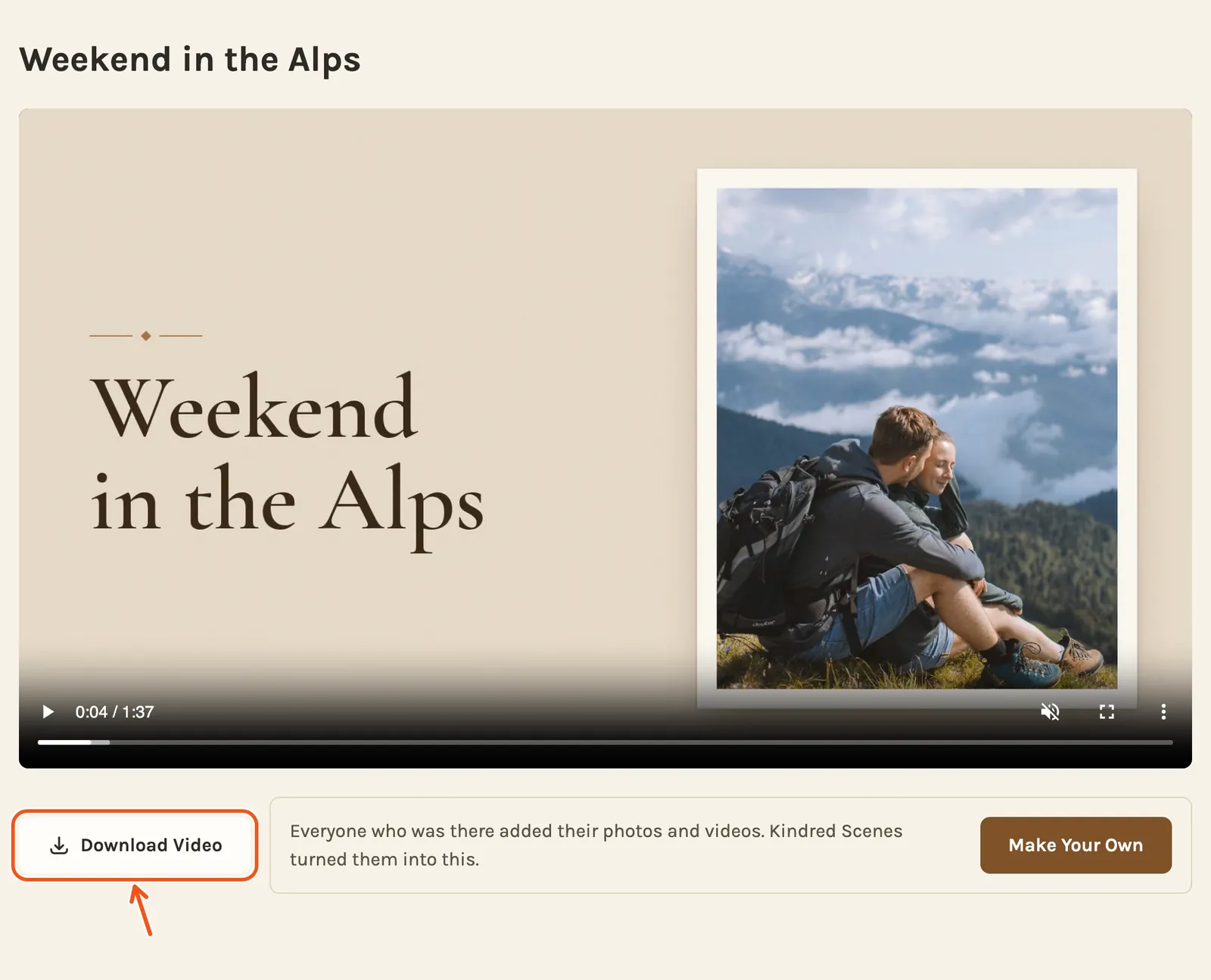
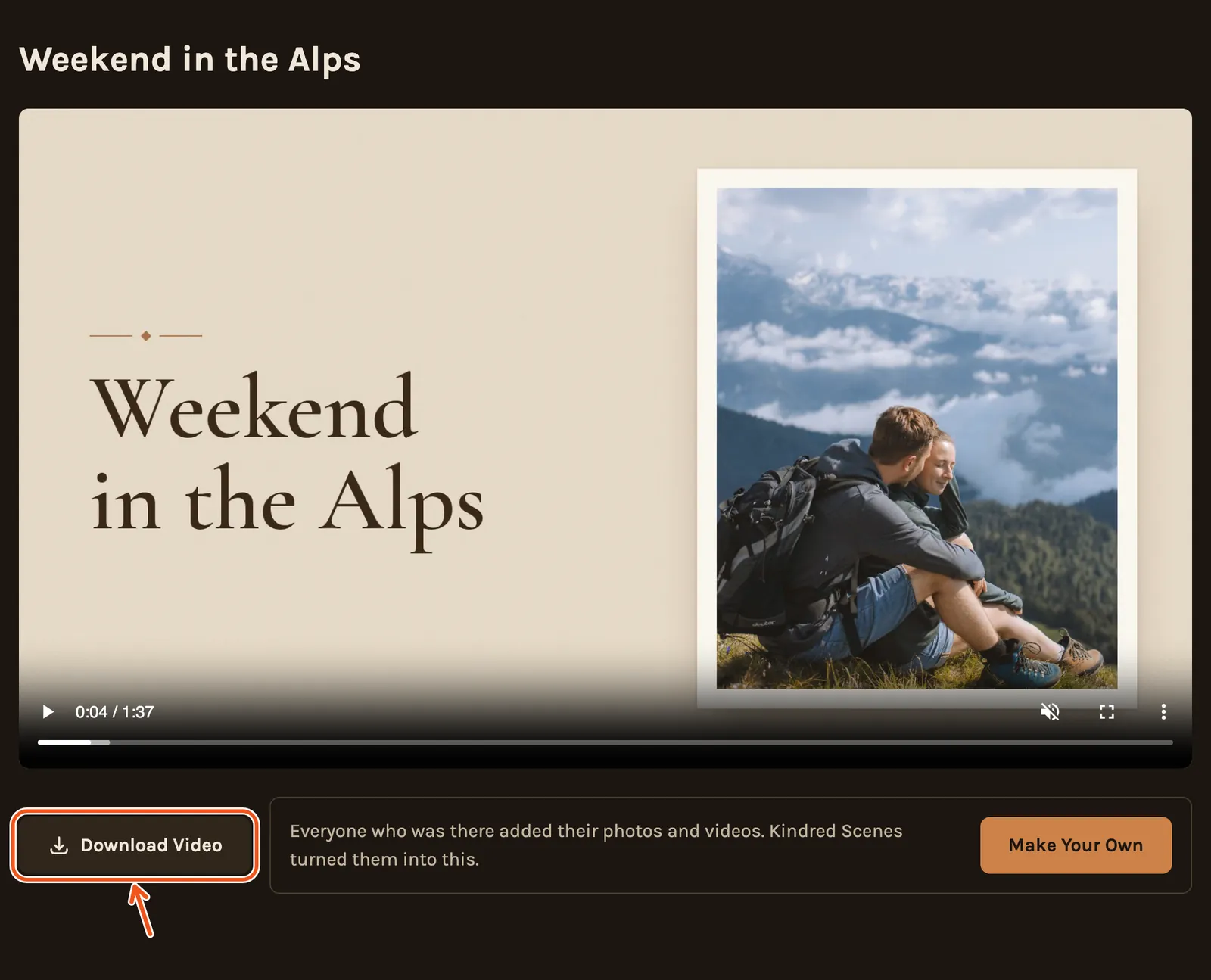
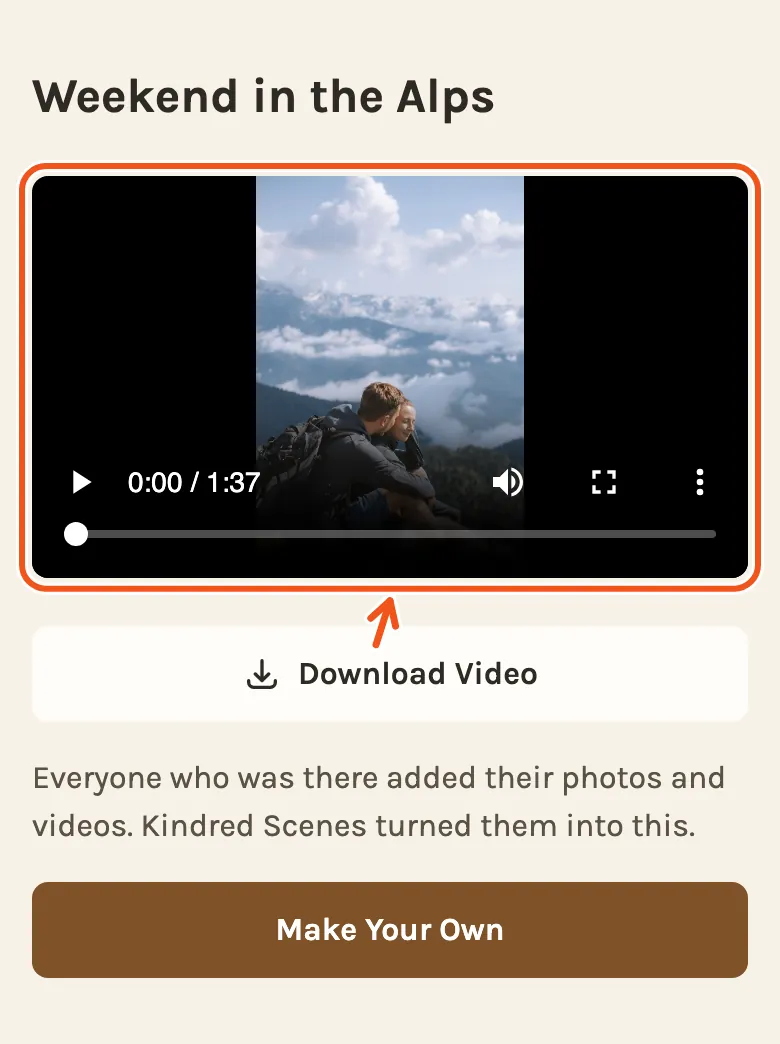
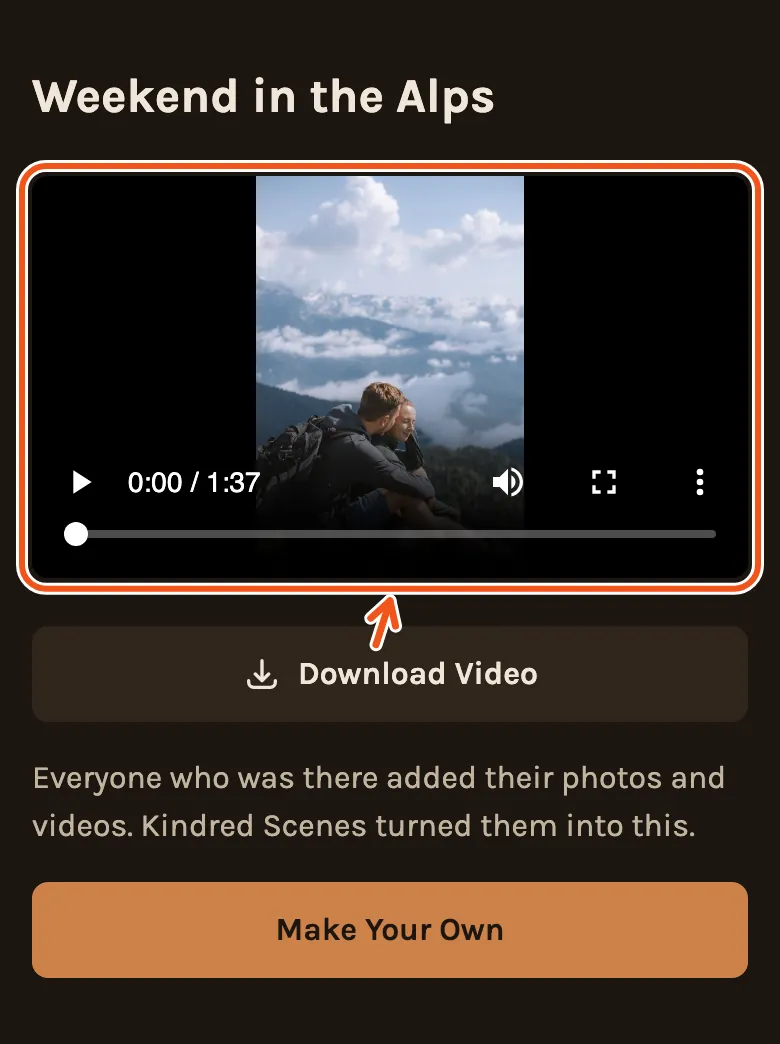
The link opens the film in their browser, with a Download Video button under it.
Turn sharing off
To stop people watching, open Share and press Disable sharing at the bottom. The link then says the video is no longer available.
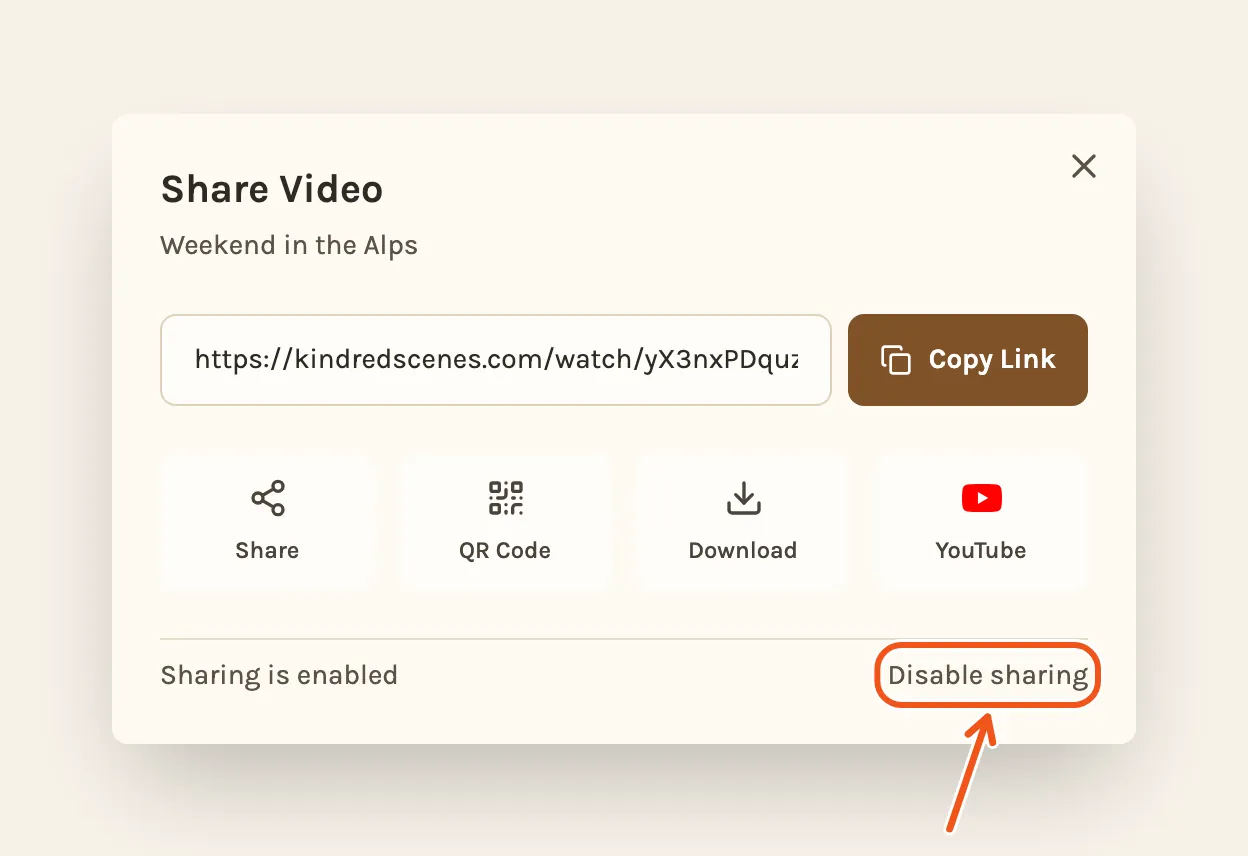
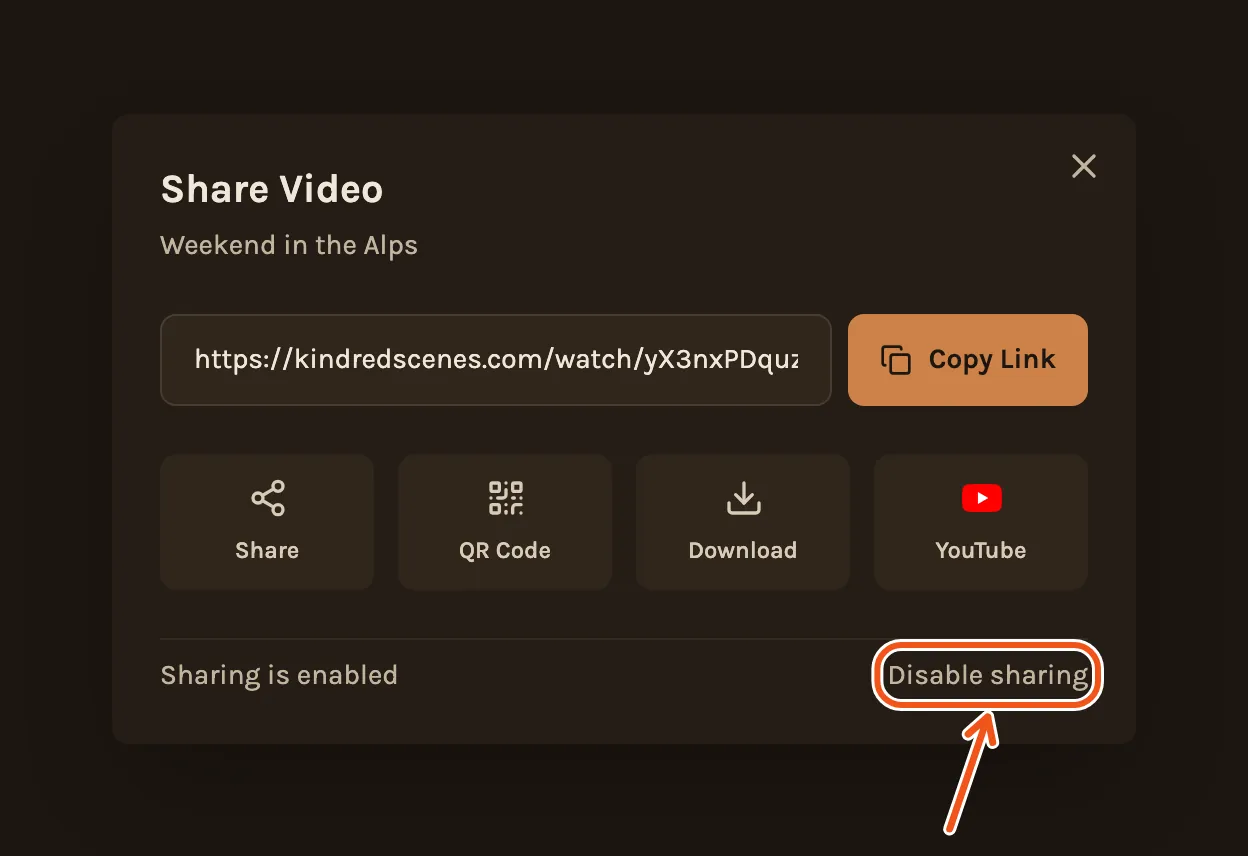
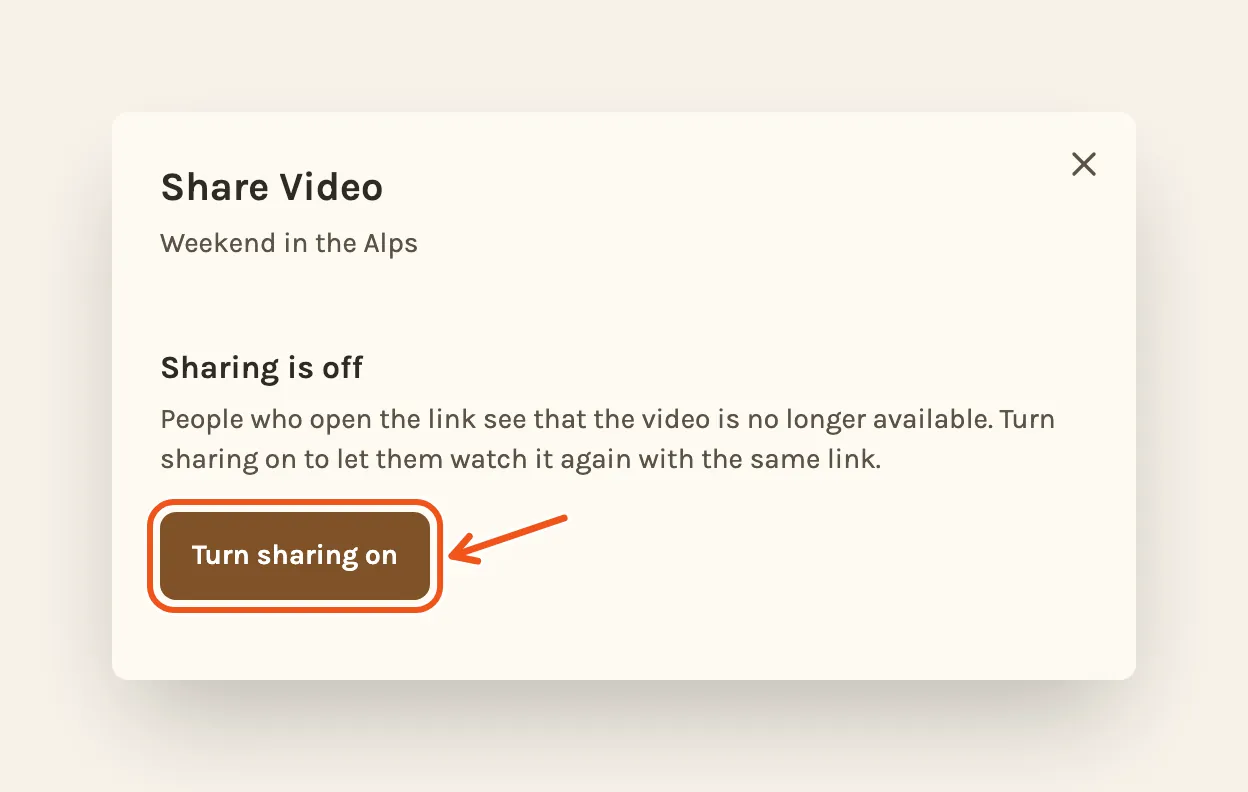
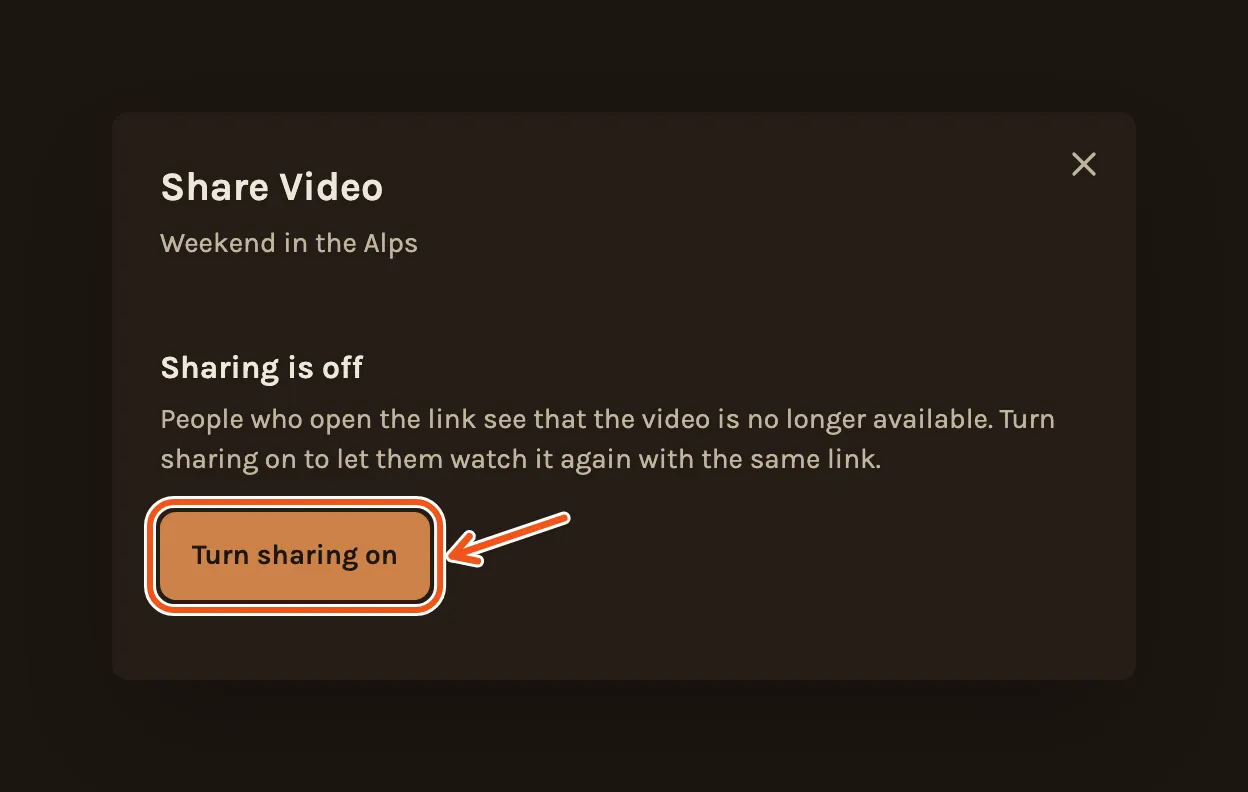
Sharing stays off until you turn it back on. Open Share again and press Turn sharing on. The same link works again, so you don't need to send a new one.
Download it
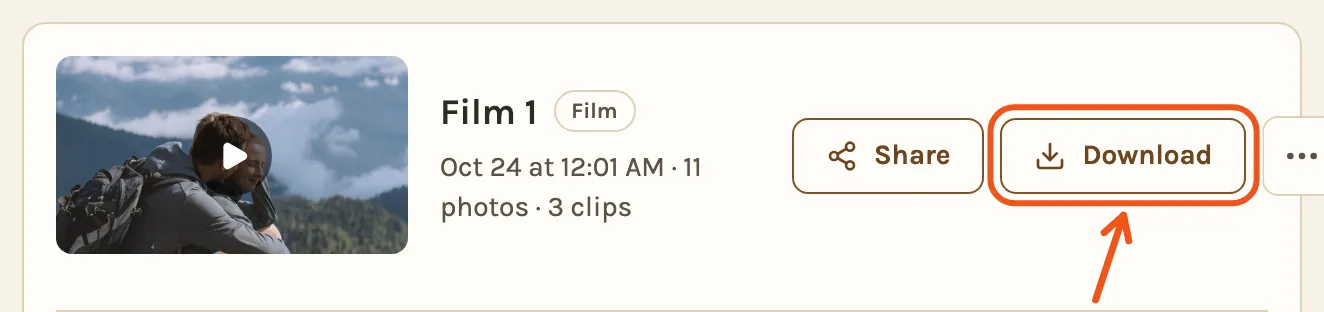
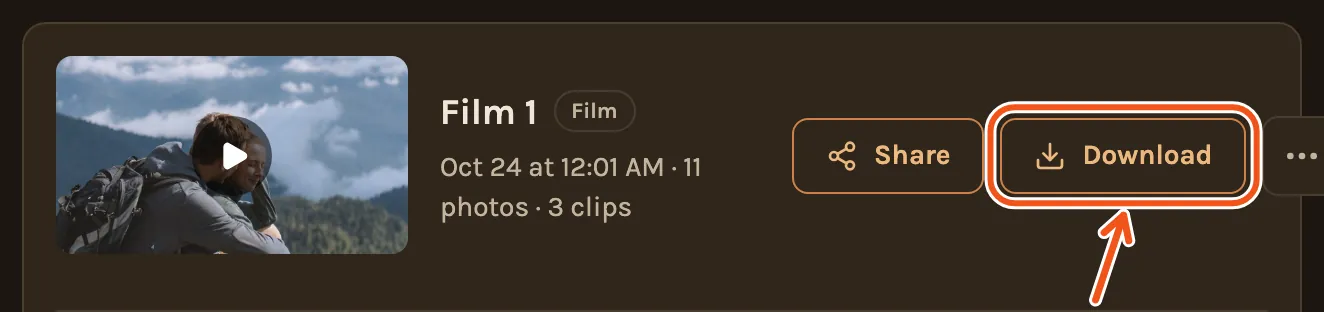
Click Download next to the film. You get an MP4 file that plays on almost any TV, laptop or projector, which is the safest way to show it at an event.
Downloading a full film on a phone may not start yet. Download it on a computer for now, or play it from the share link.
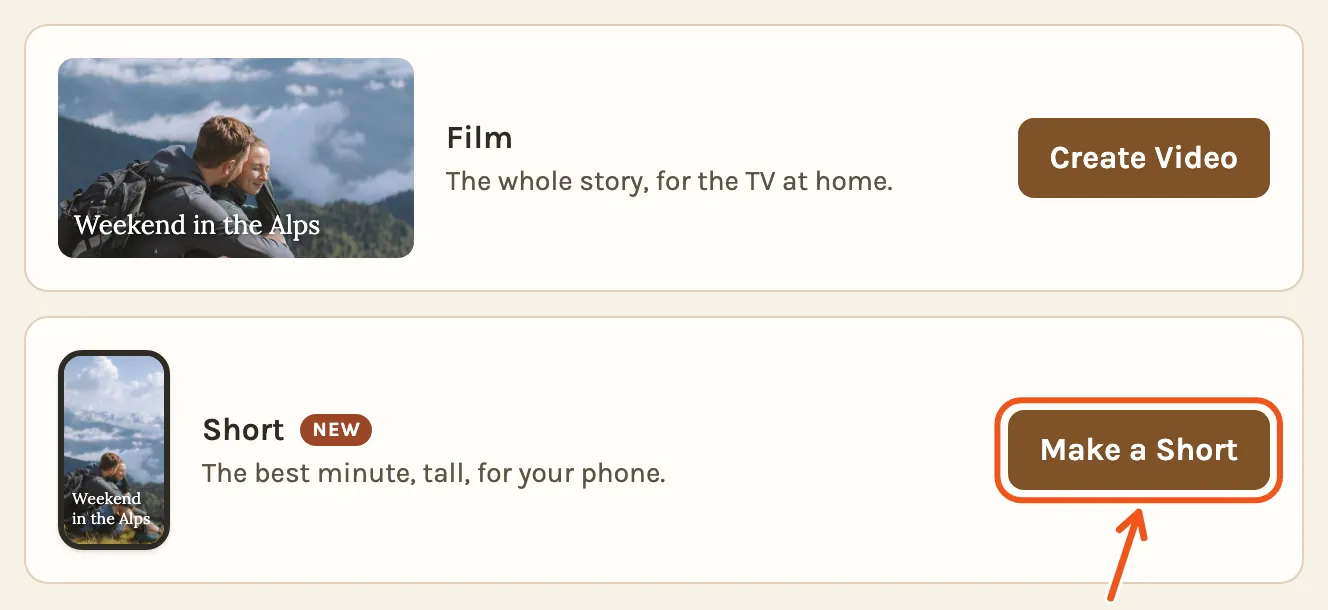
A Short for Instagram or TikTok
On the Videos tab, next to the film, there is also Make a Short: a tall video of up to 60 seconds from the same timeline, for Instagram, TikTok or YouTube Shorts. See How to turn your trip photos and videos into a Short.