When you can press Create Timeline
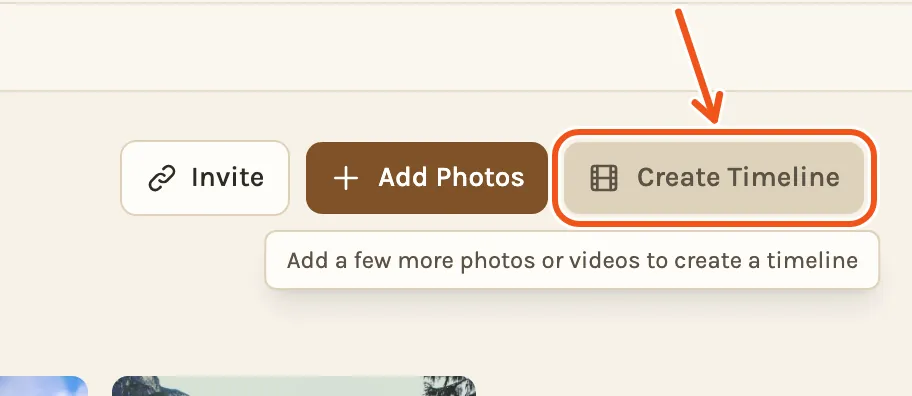
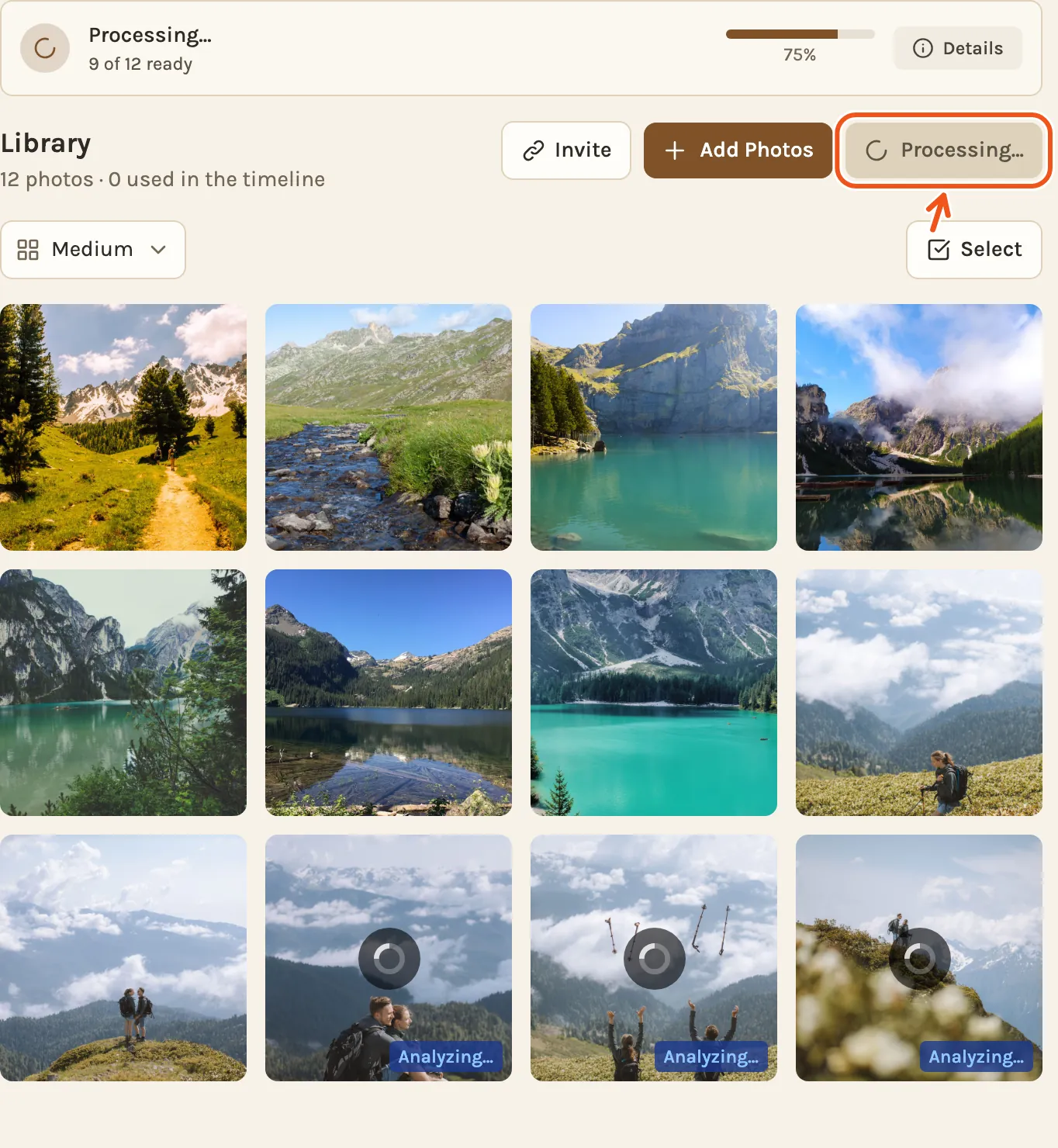
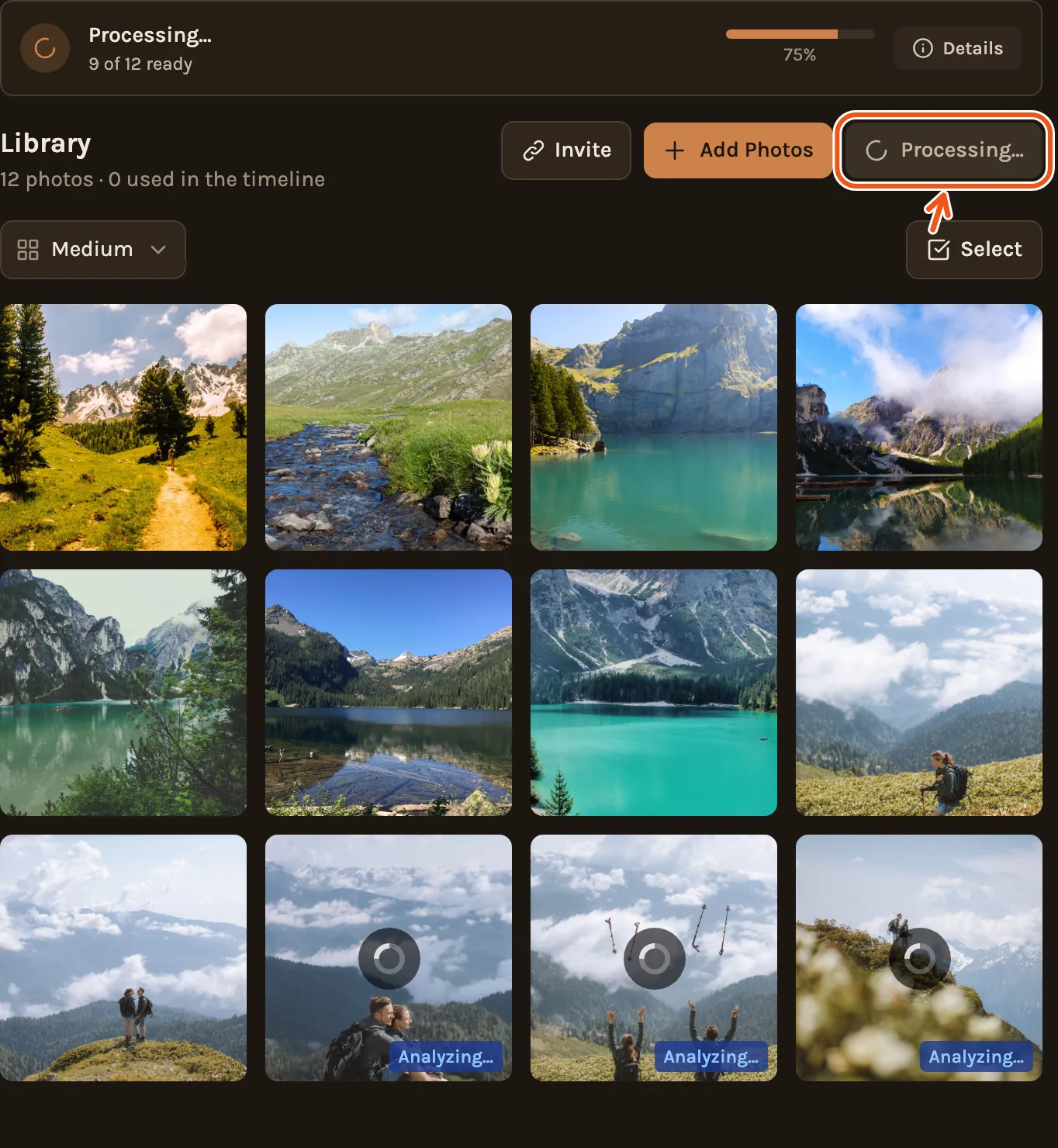
The button stays grey until your project has enough to make a film: about 8 photos, or 30 seconds of video, or a mix. It also waits while photos are still uploading or being prepared. It turns on by itself when both are done.
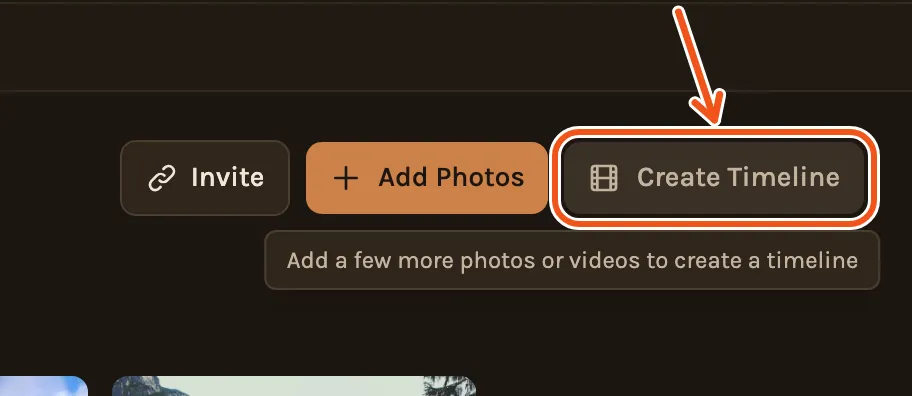
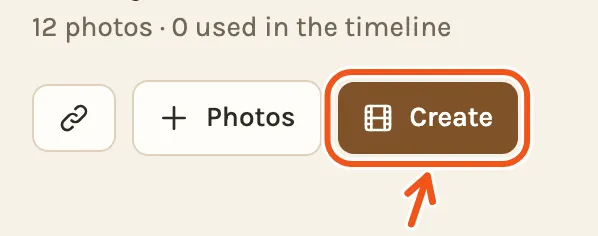
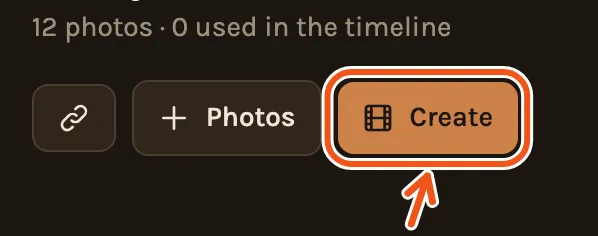
In your project's Library, the Create Timeline button sits next to Add Photos. Point at it while it's grey to see why.
While photos are still being prepared, the button says Processing... and a bar at the top counts them. Wait for it to finish.
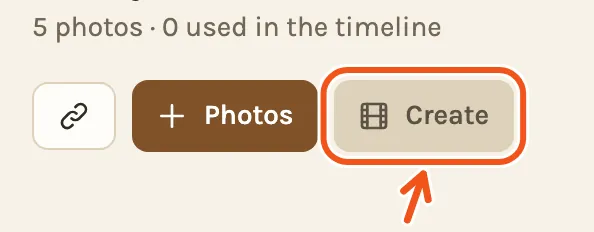
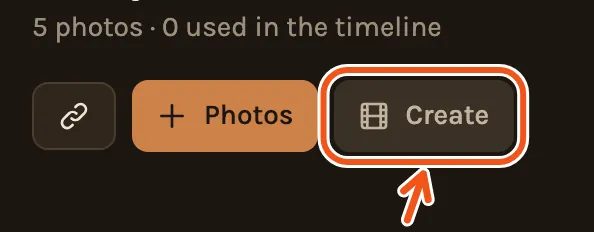
In your project's Library, the button is called Create and sits next to Photos. A grey button gives no reason on a phone. Add a few more photos, or wait until the Library no longer says Processing.... The button turns blue by itself once there is enough.
If Create Timeline says "You've made 3 projects with Kindred Scenes", you've reached the beta limit: each account can make a timeline for up to 3 projects. Recreating a timeline doesn't count again, and deleting a project doesn't give its place back.
Make the timeline
You say what you are making when you create the project. Under What are you making?, choose Trip or event for a trip, holiday, birthday, wedding or party, or Tribute for someone's life story across the years. You choose it once. It can't be changed later.
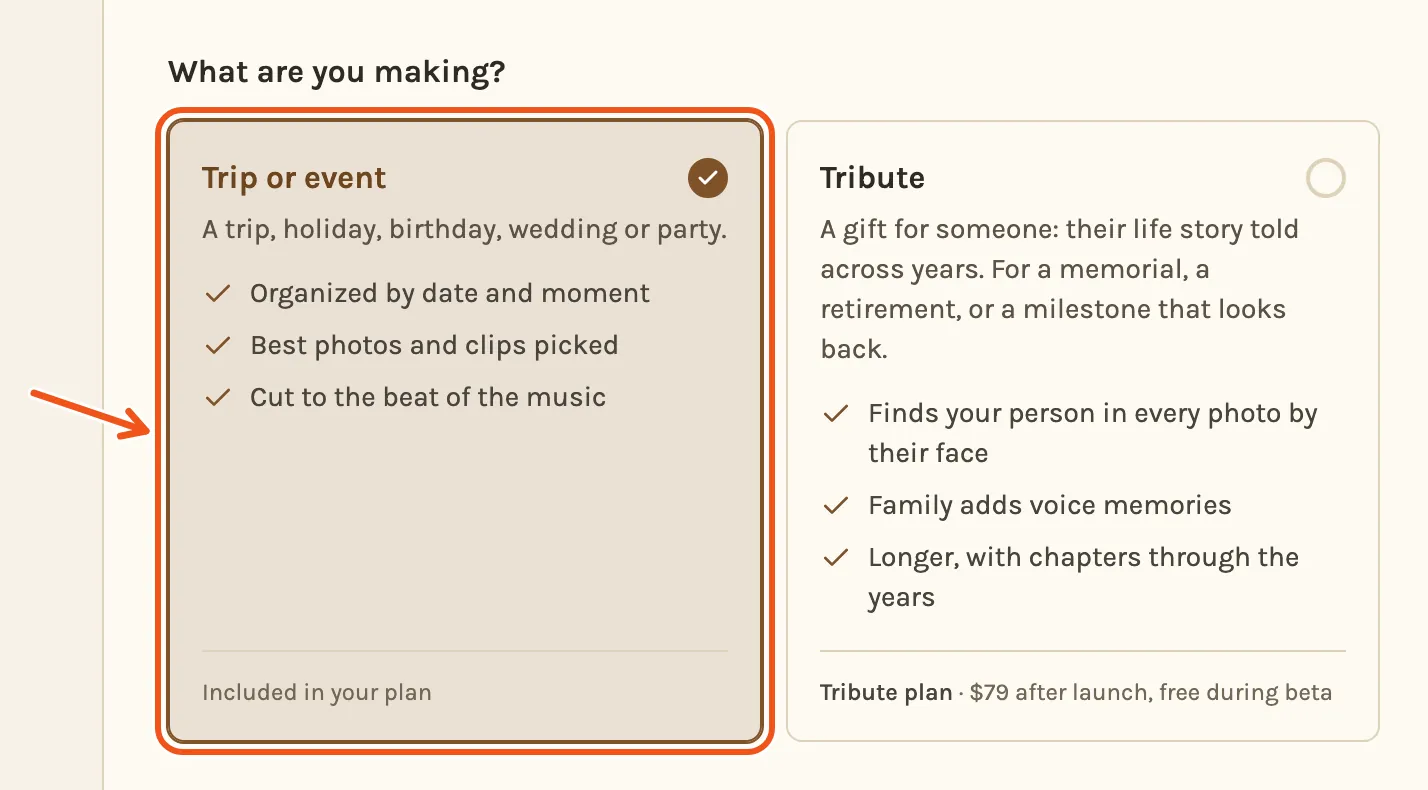
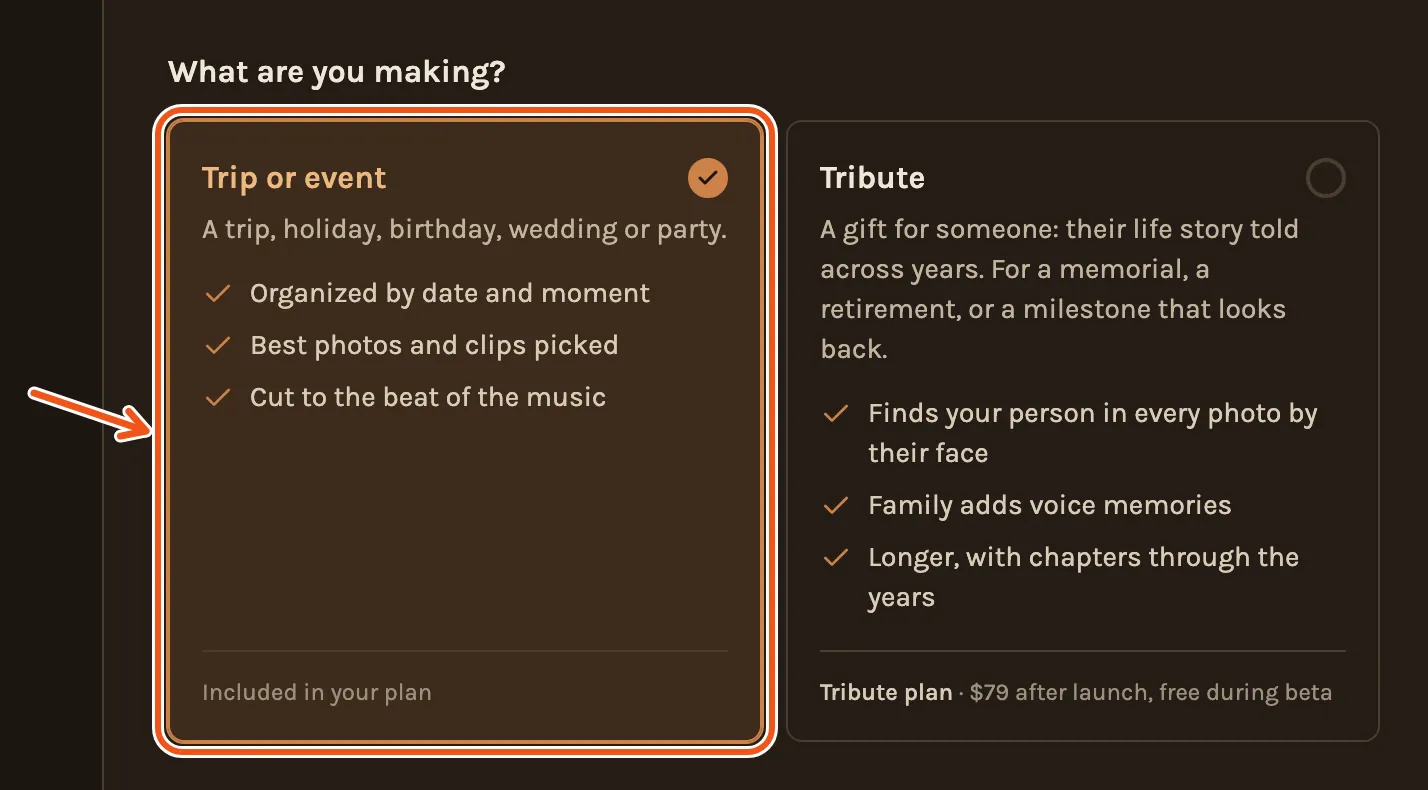
1. Press Create Timeline
In the Library, click the blue Create Timeline. It starts reading your photos straight away.
A project made before Kindred Scenes asked what you are making shows the two cards the first time. Pick one and click Continue. It doesn't ask again.
2. Wait while it reads your photos
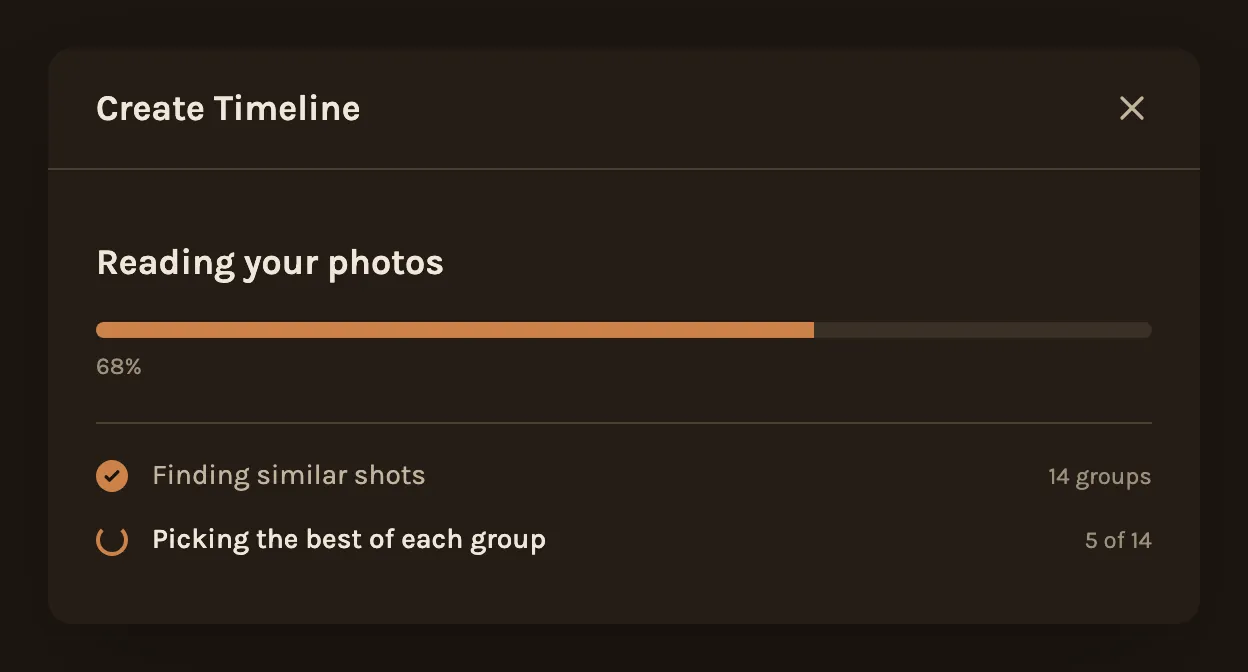
Kindred Scenes finds similar shots and keeps the best of each. This usually takes a few seconds.
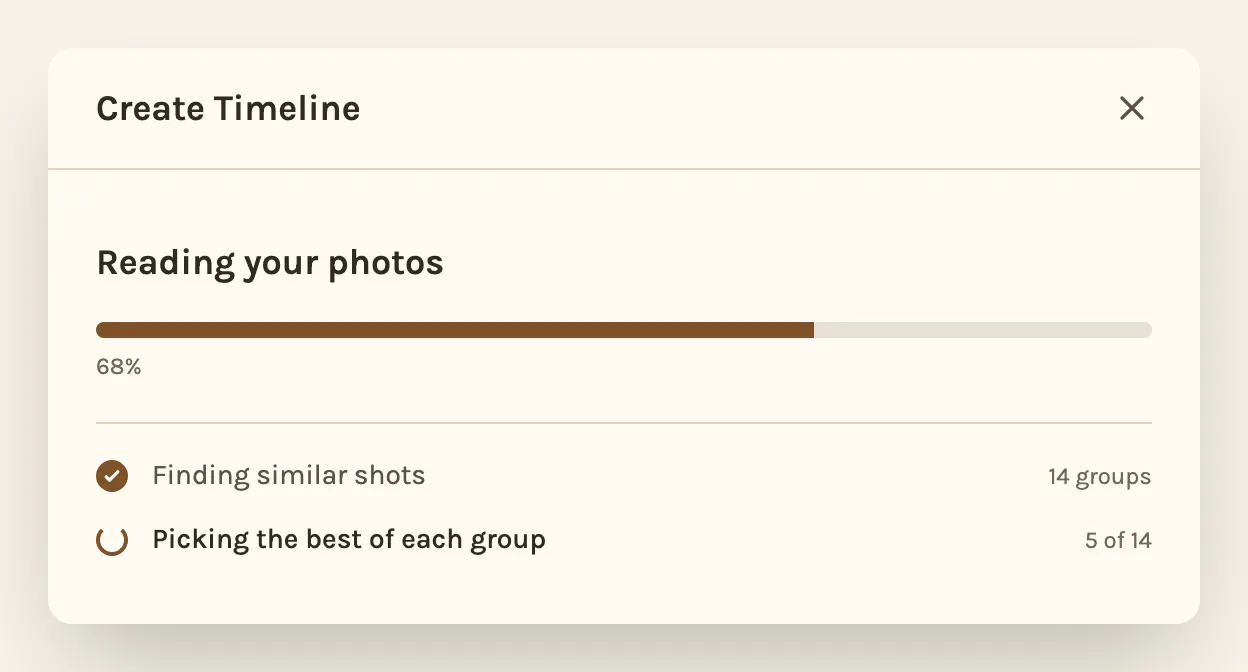
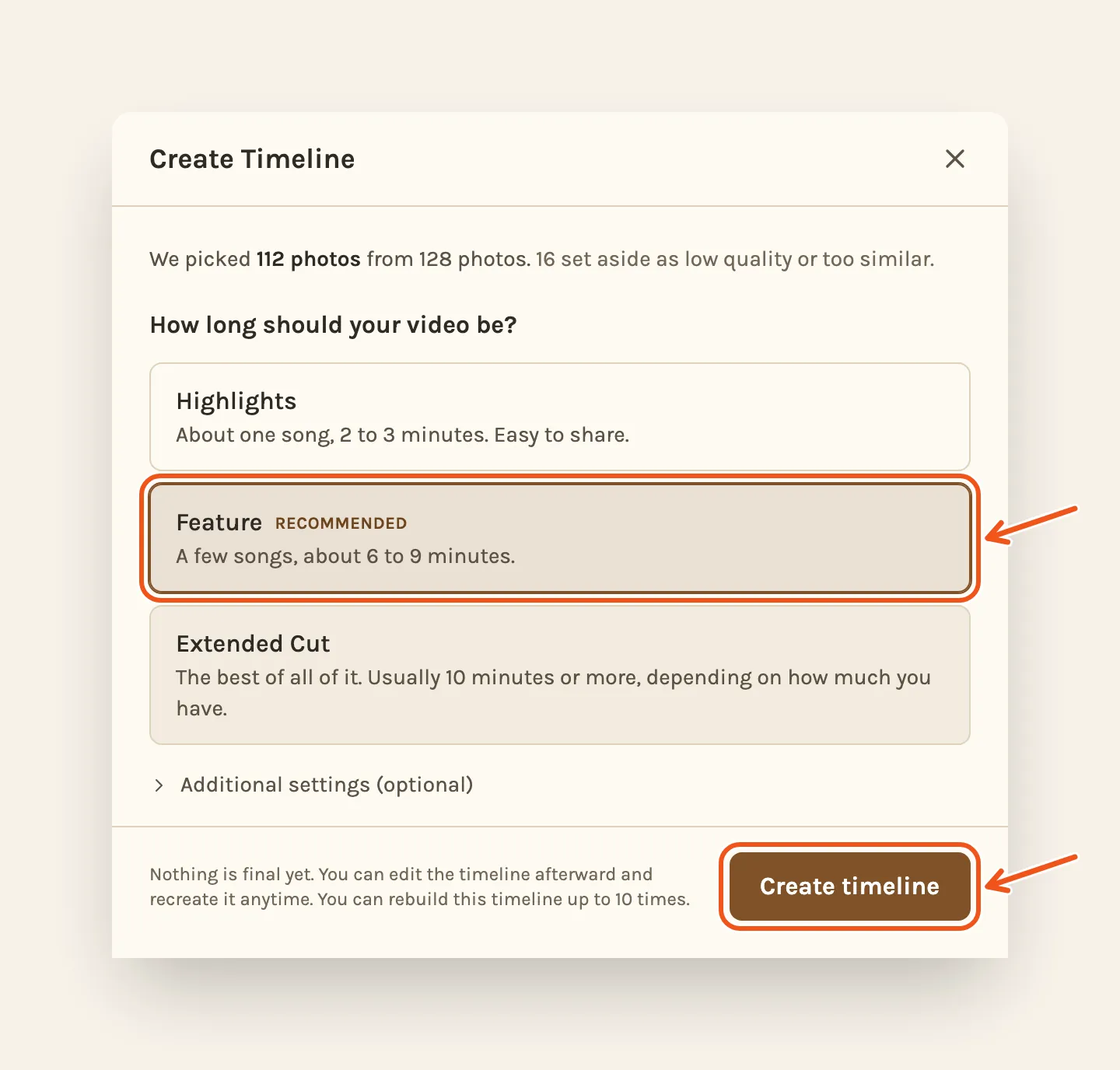
3. Choose a length, then click Create timeline
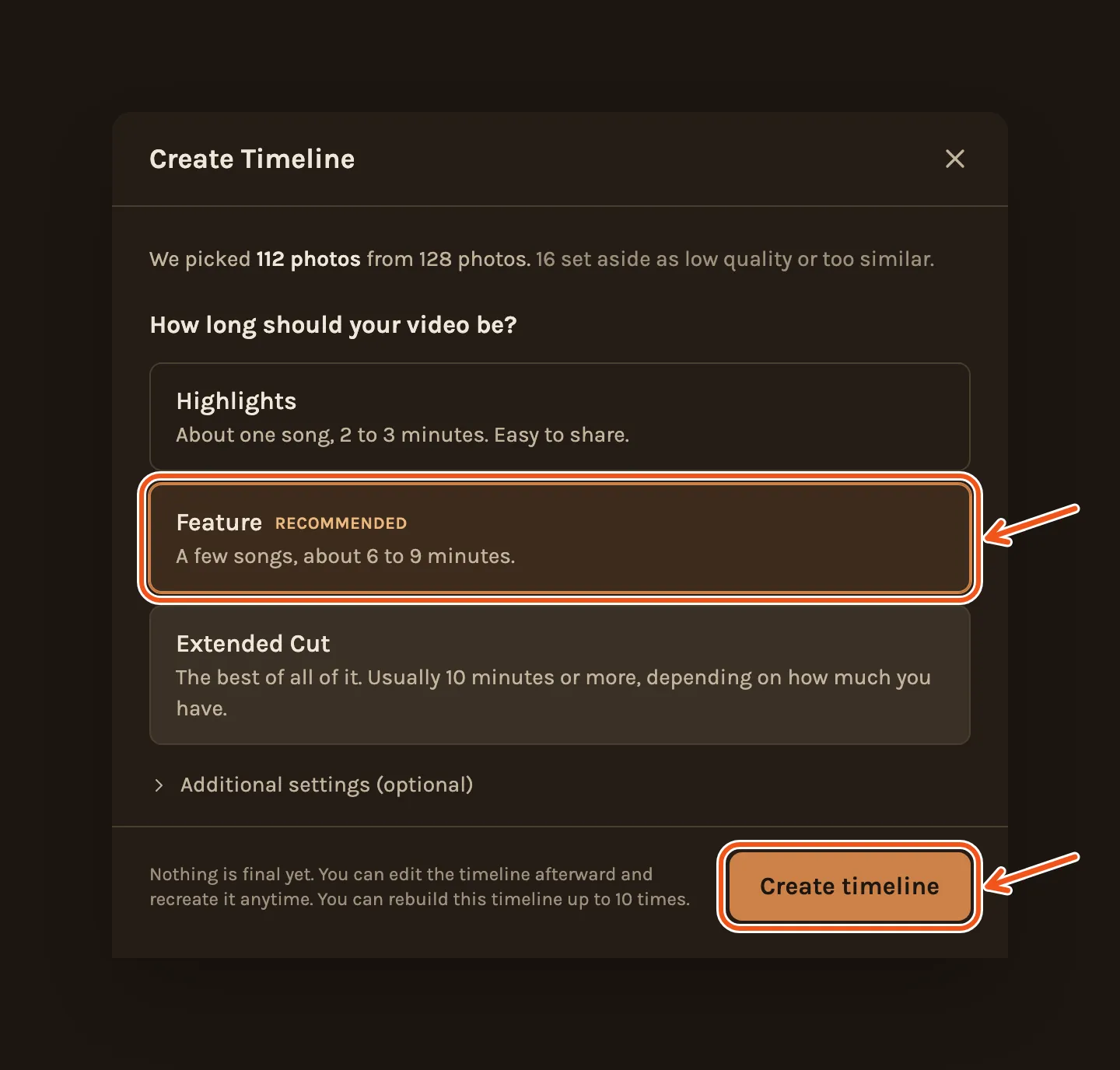
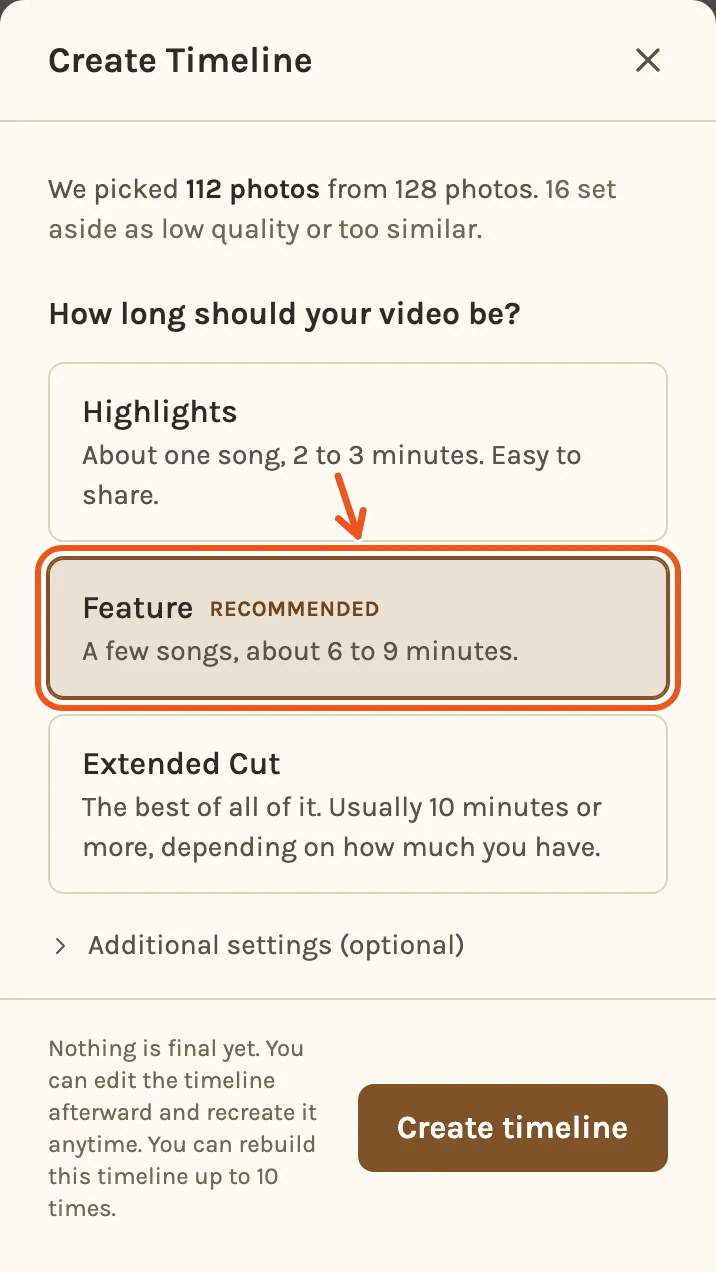
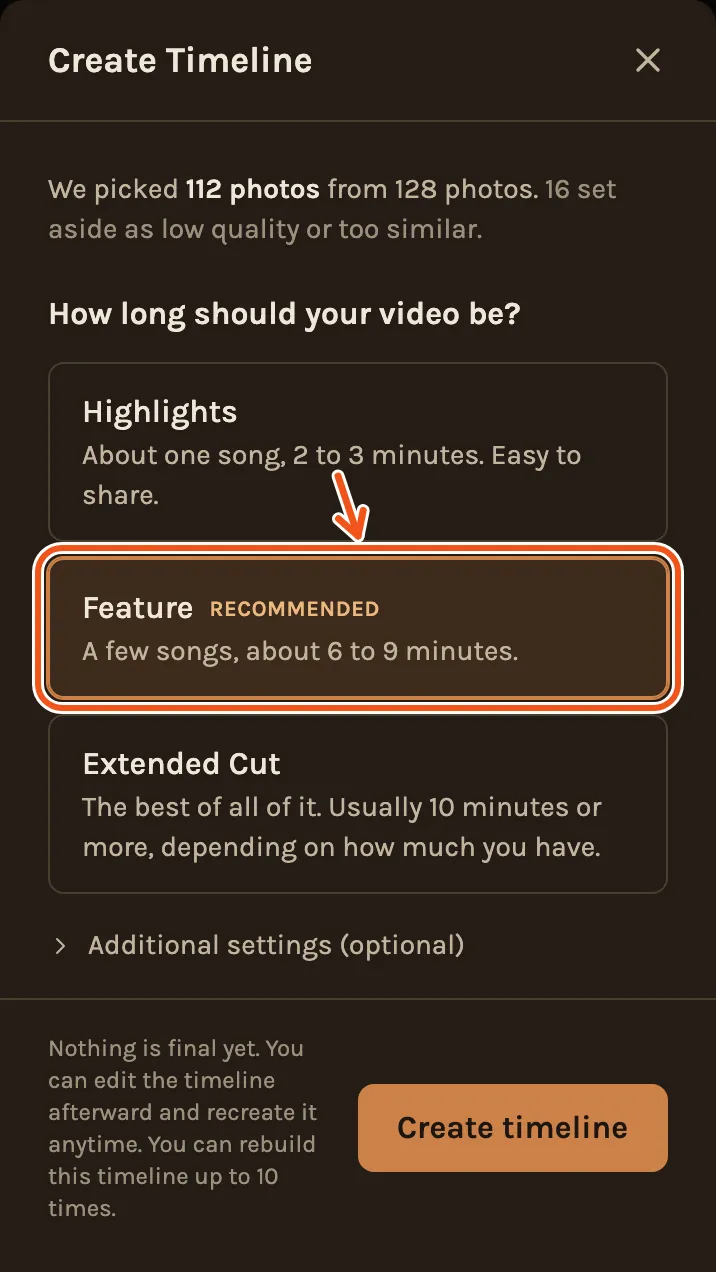
The top of the window says how many photos it picked from all of yours. Pick a length below it, then click Create timeline.
4. Wait while it builds
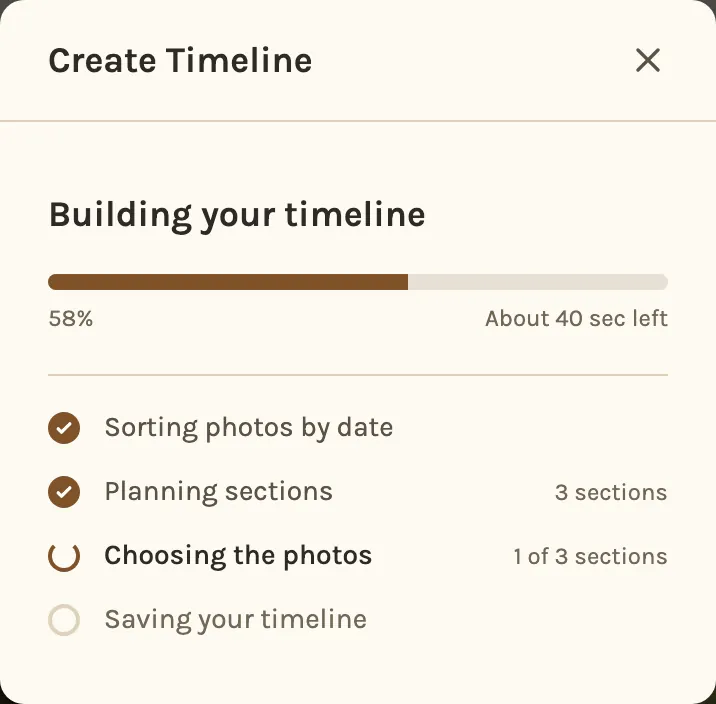
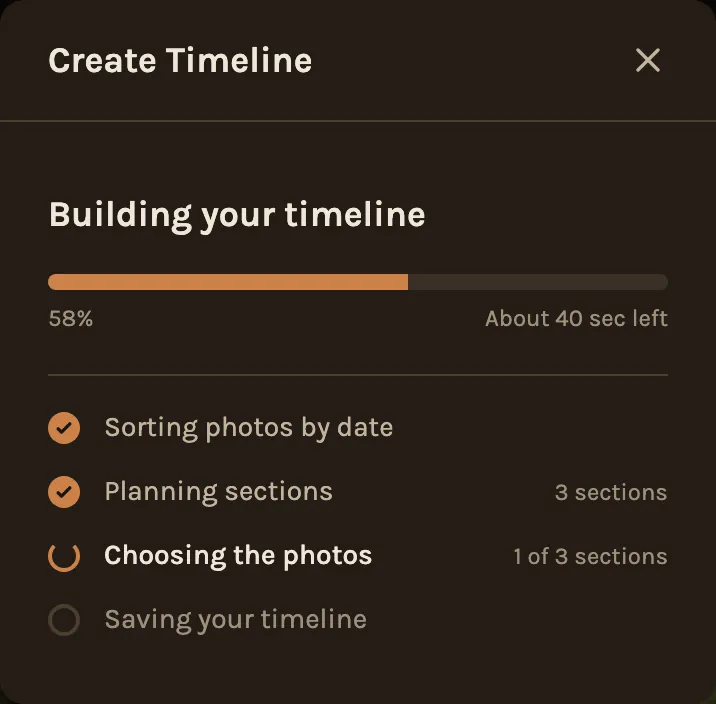
It plans the chapters, picks the photos for each one and chooses the music. This usually takes a minute or two.
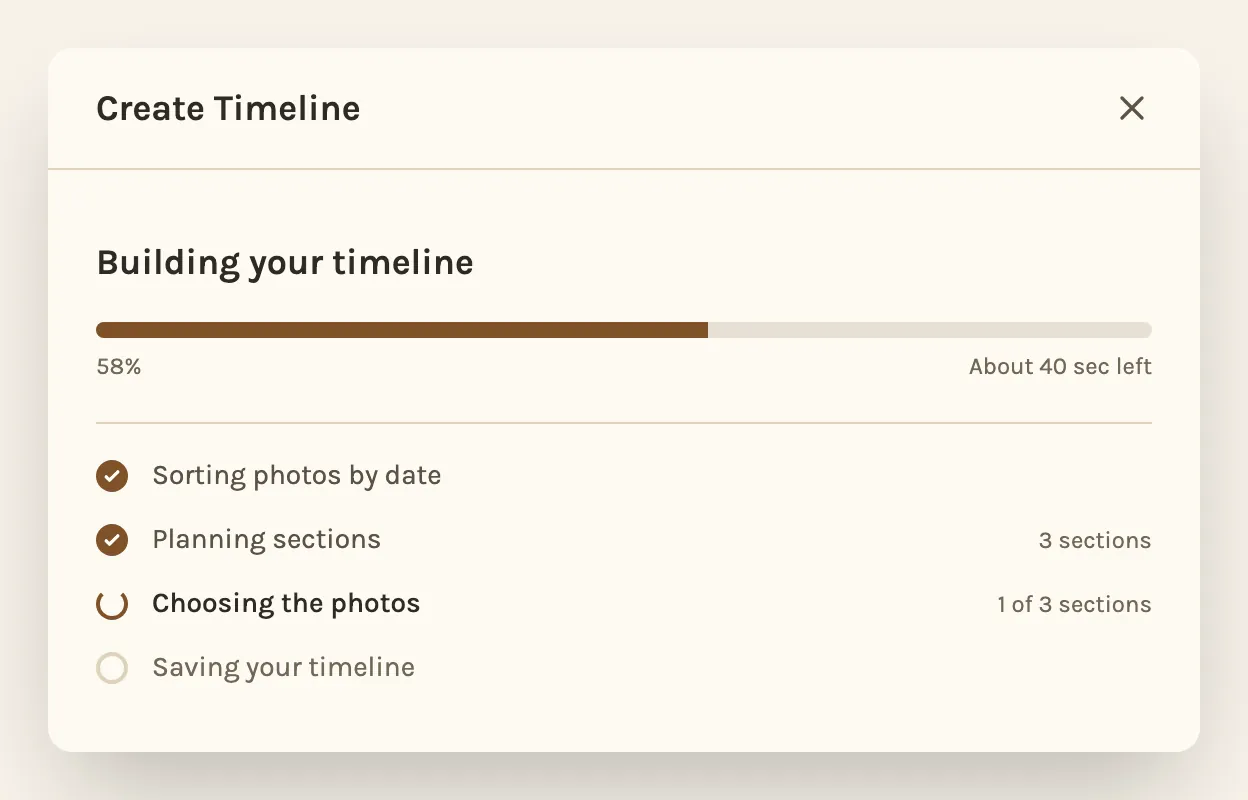
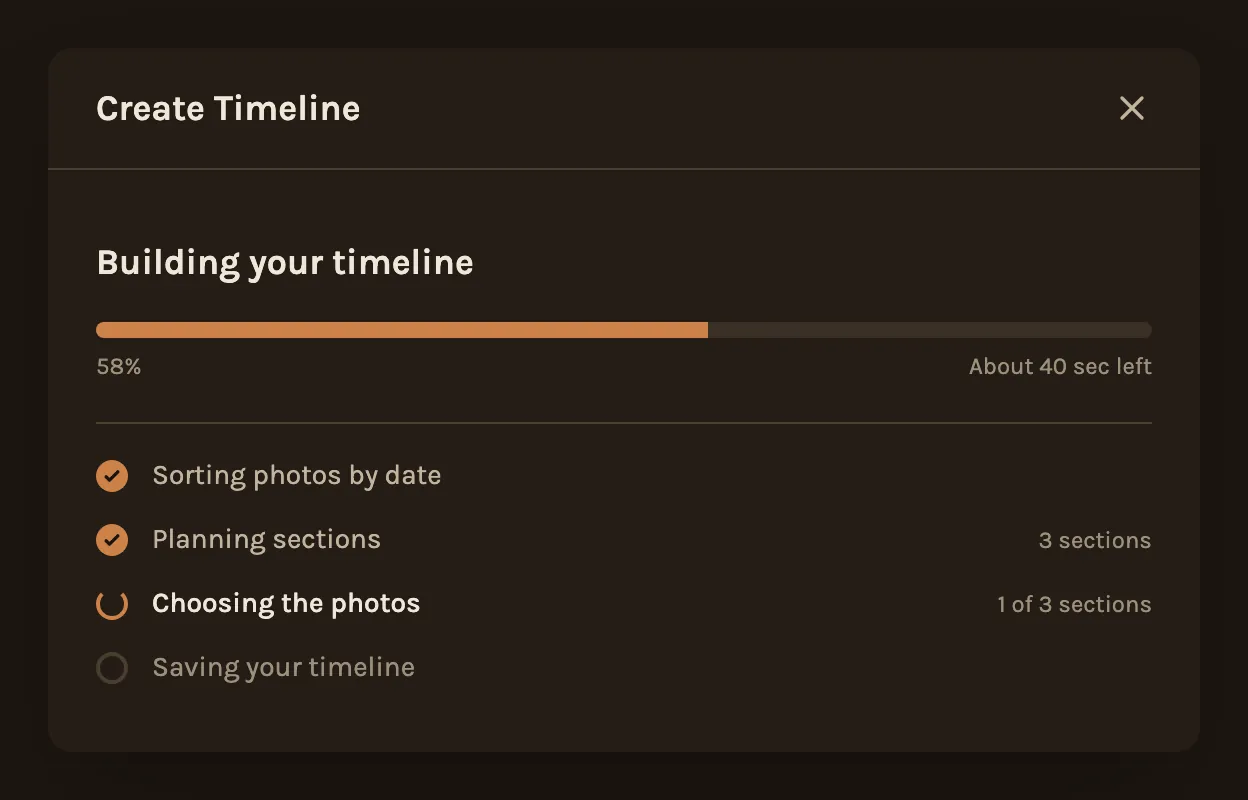
When it says it is saving, you can close the window. Saving carries on without it.
1. Tap Create
In the Library, tap the blue Create. It starts reading your photos straight away.
A project made before Kindred Scenes asked what you are making shows the two cards the first time. Pick one and tap Continue. It doesn't ask again.
2. Wait while it reads your photos
This usually takes a few seconds.
3. Choose a length, then tap Create timeline
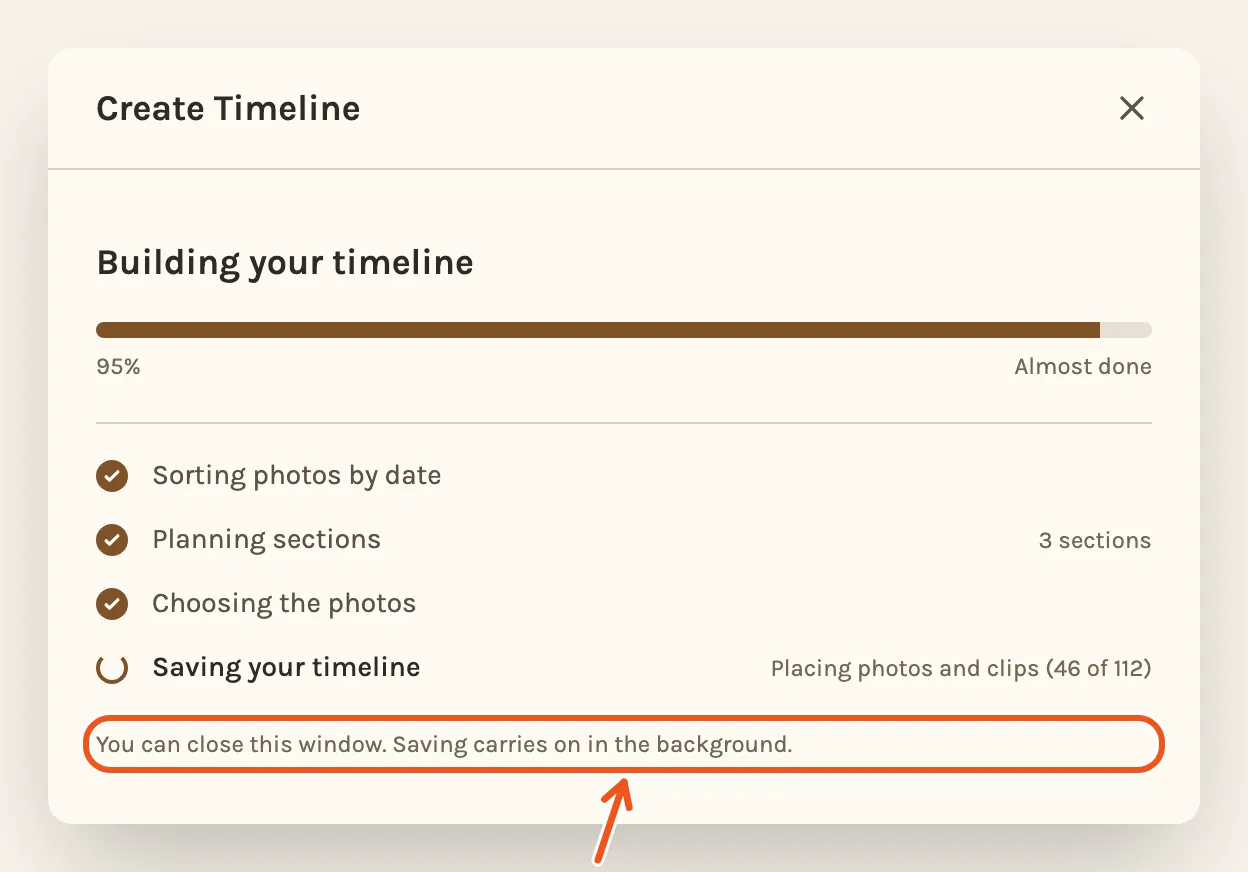
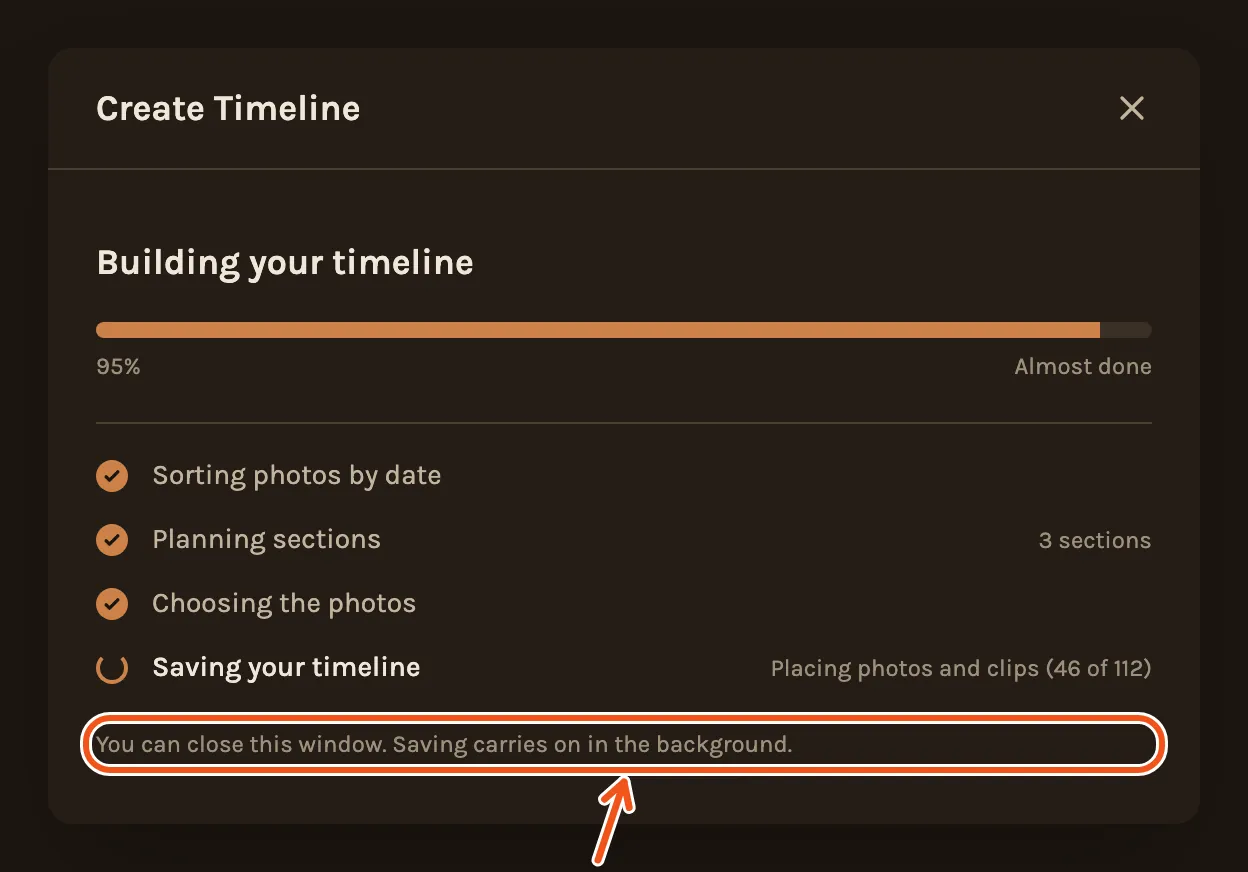
4. Wait while it builds
This usually takes a minute or two. When it says it is saving, you can close the window.
A tribute asks a few more questions first: who it is about, and a few clear photos of them. See How to make a tribute.
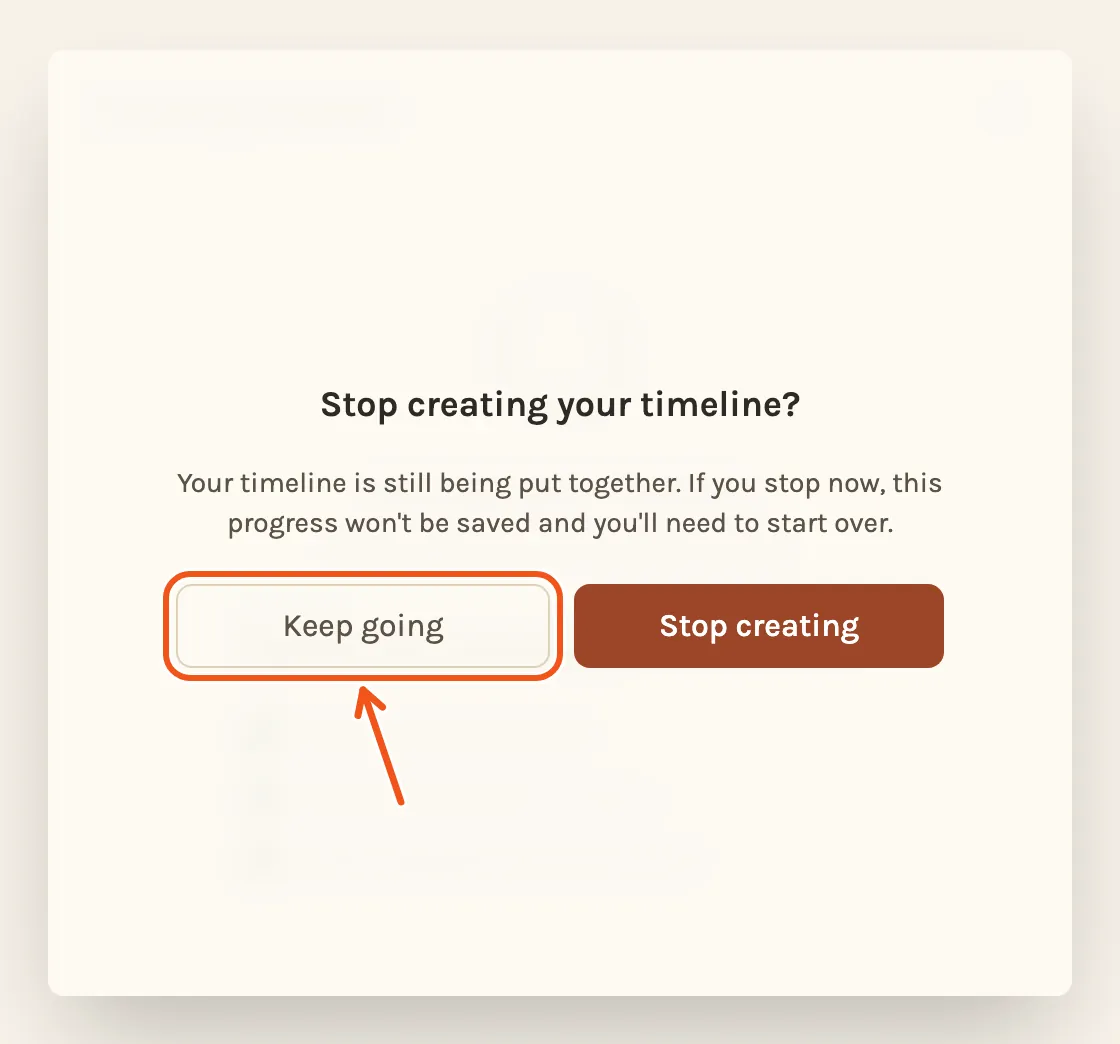
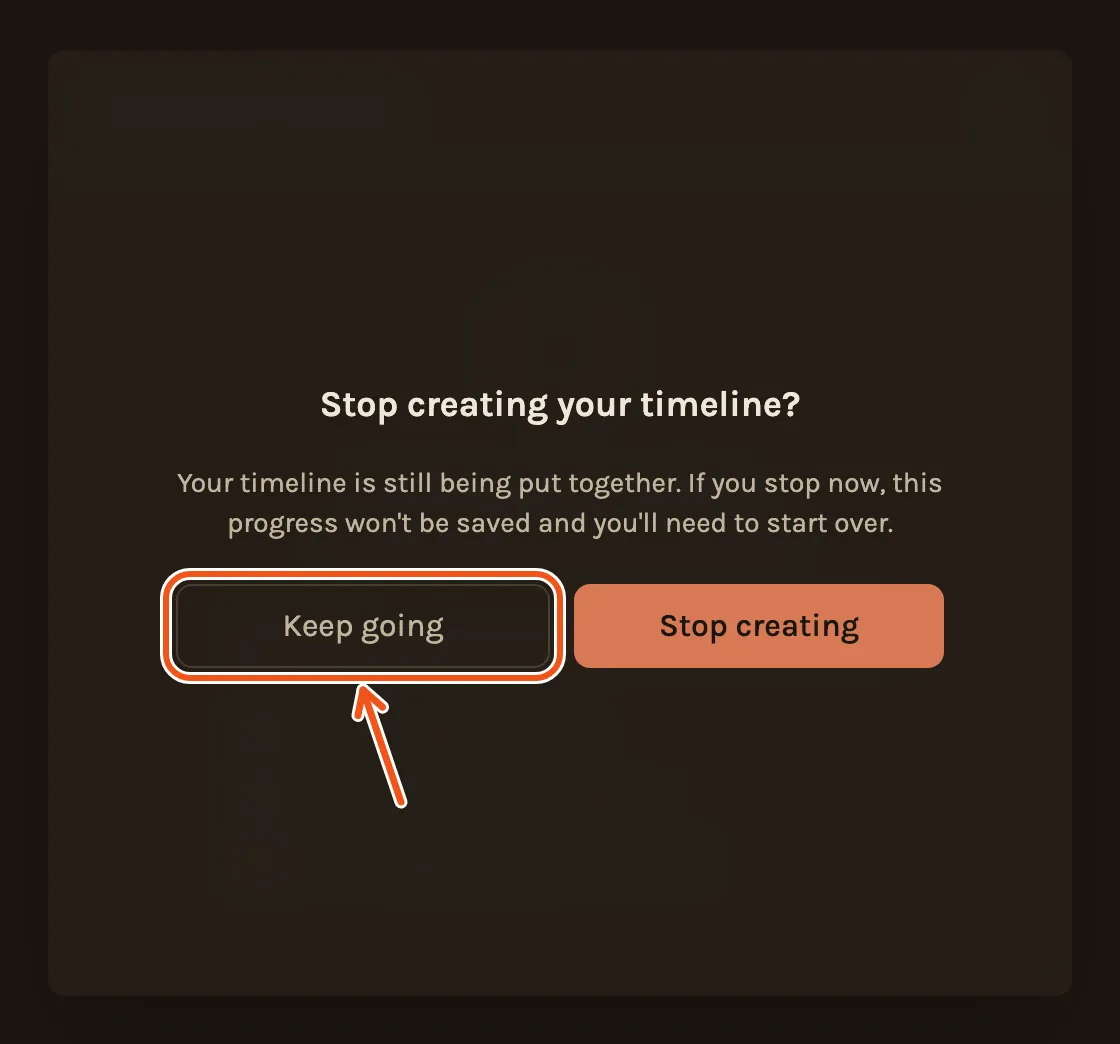
If you close the window while it is still reading or building, it asks first. Keep going carries on. Stop creating throws the run away, and you start again.
Which length to choose
- Highlights: about one song, 2 to 3 minutes. The one people watch to the end and share.
- Feature: a few songs, about 6 to 9 minutes, in 3 or 4 chapters.
- Extended Cut: the best of everything, usually 10 minutes or more, in 5 to 8 chapters.
The longer lengths need more photos to choose from. A length your project is too small for says "not enough photos" and can't be picked.
With a smaller project you get Highlights, and you may also be offered a Short: a 60-second tall video for Instagram, TikTok or YouTube Shorts. Pick one of the two, then press Create timeline.
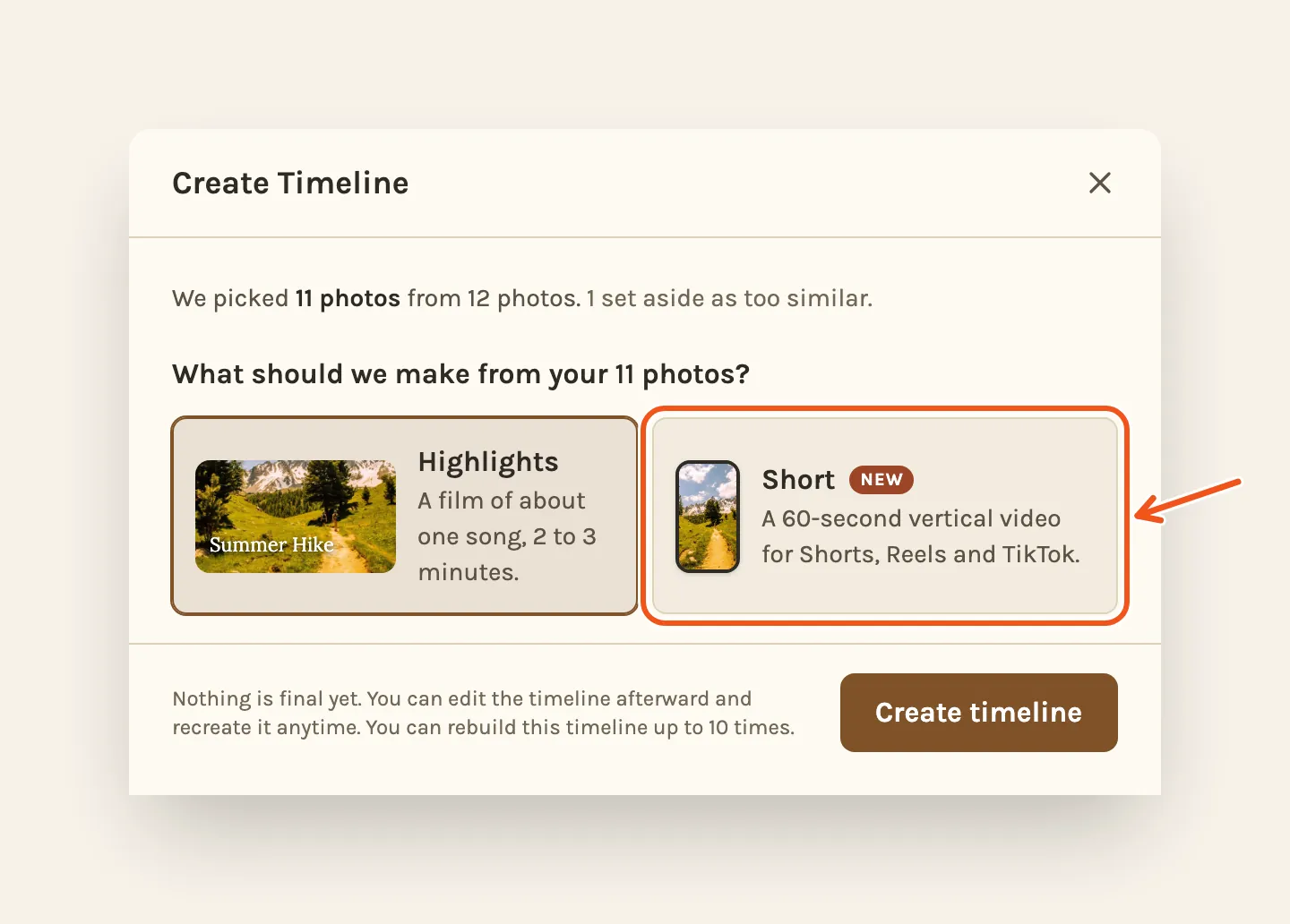
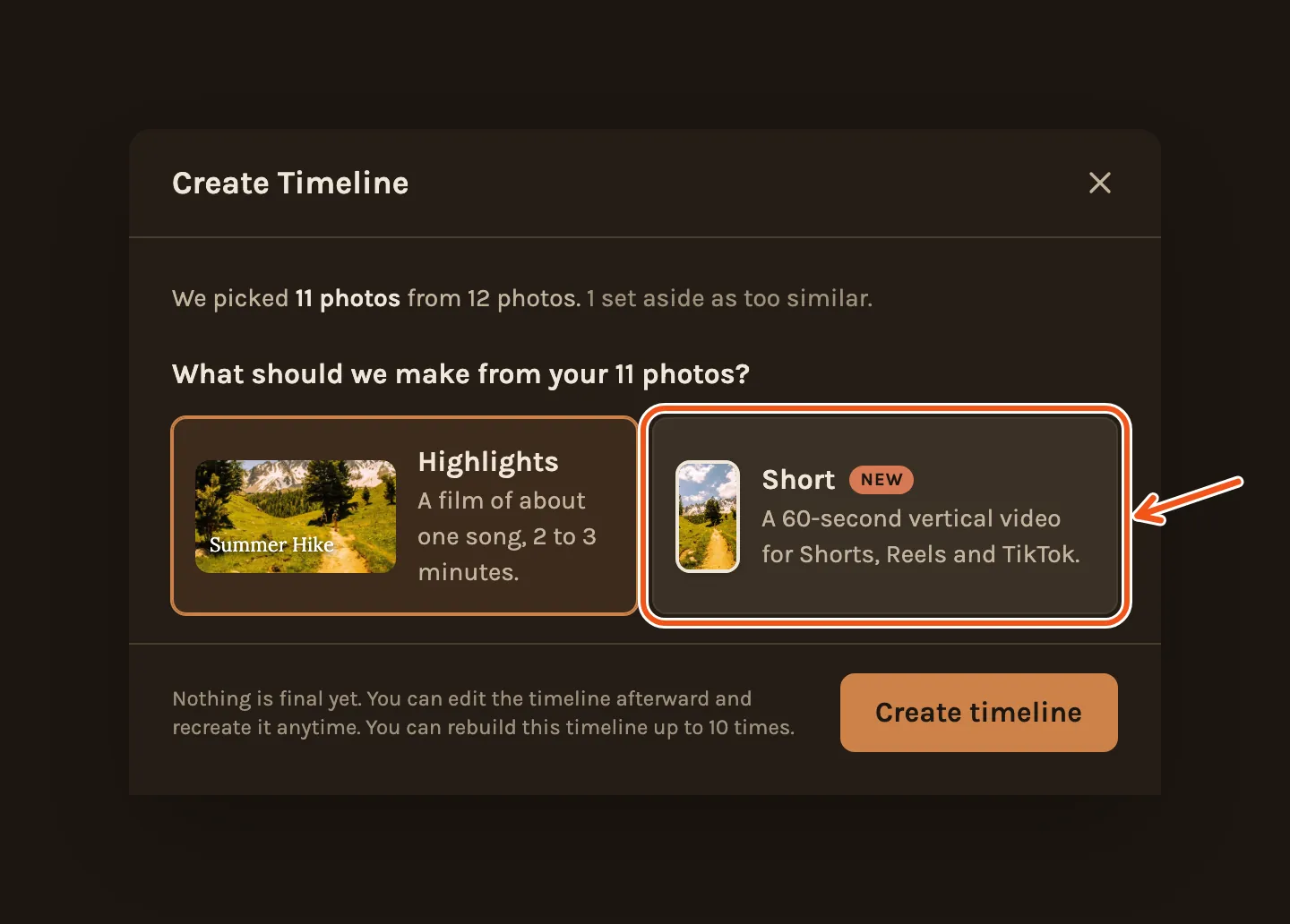
The minutes are a rough guide. The photo pace you pick when you make the film changes the final length a lot, and the Create Video window shows the real estimate.
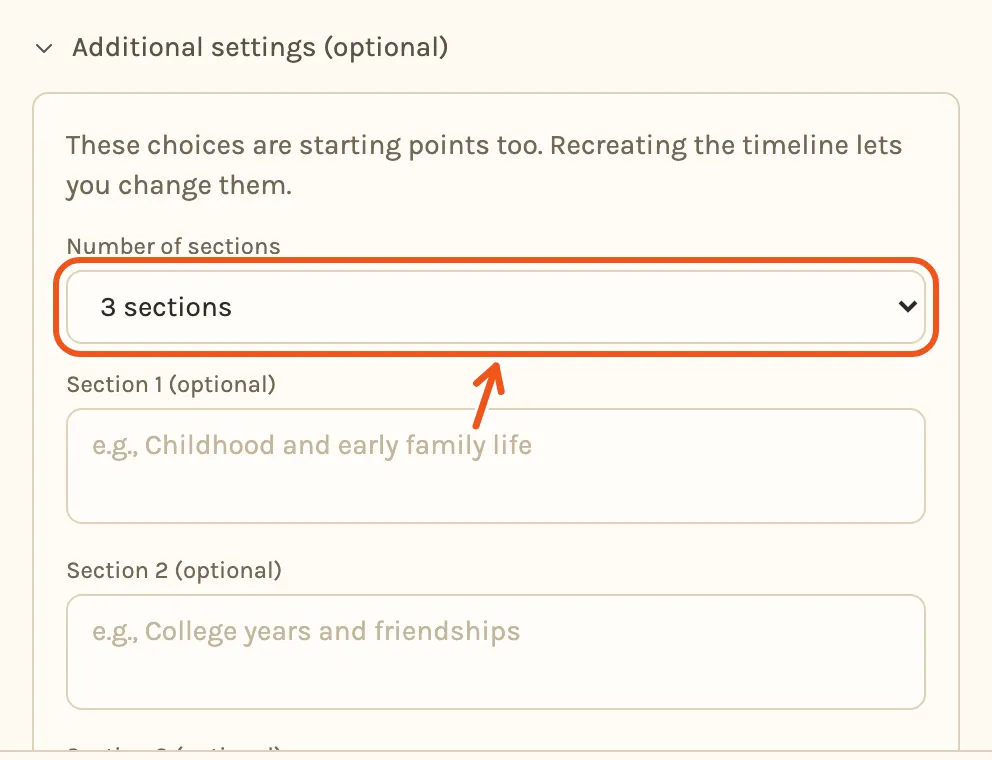
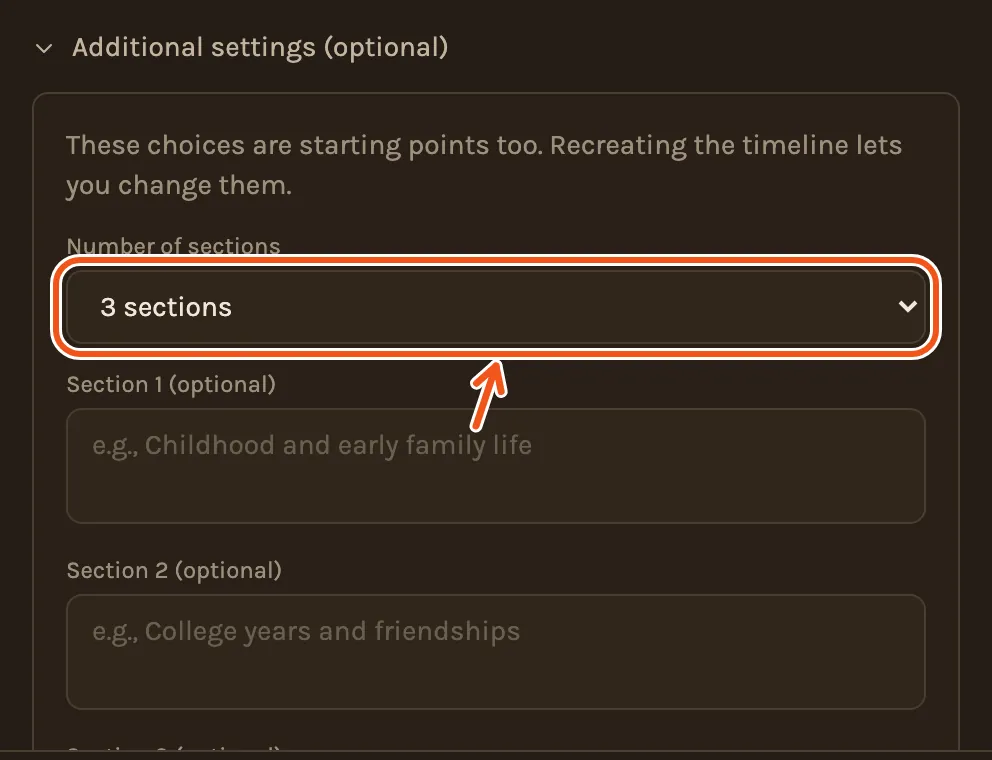
With a bigger project, Additional settings under the lengths let you choose the number of chapters and describe what each should hold. Leave them empty and Kindred Scenes decides.
What you get
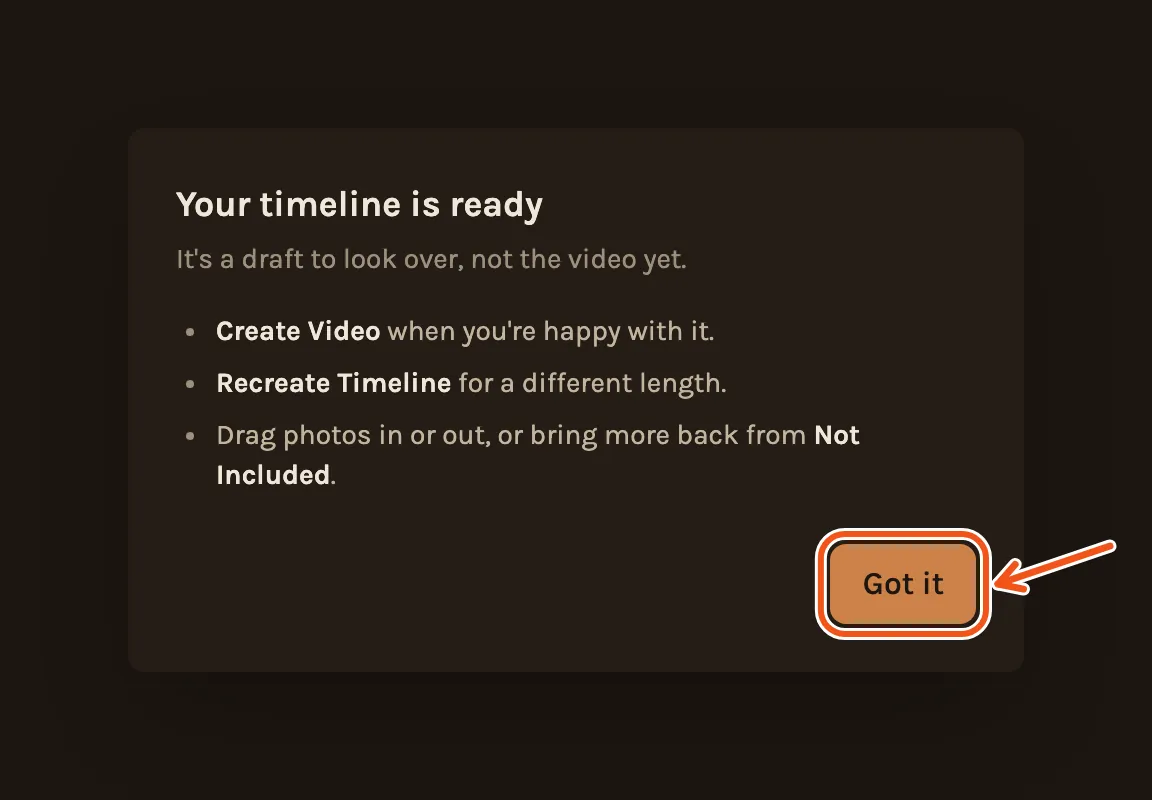
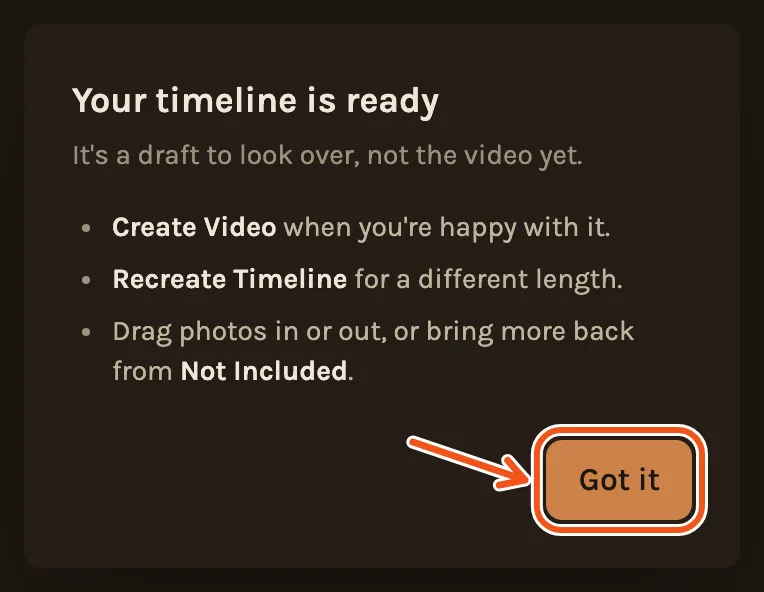
When it is done, your timeline opens with a short note on what to do next. Got it closes the note.
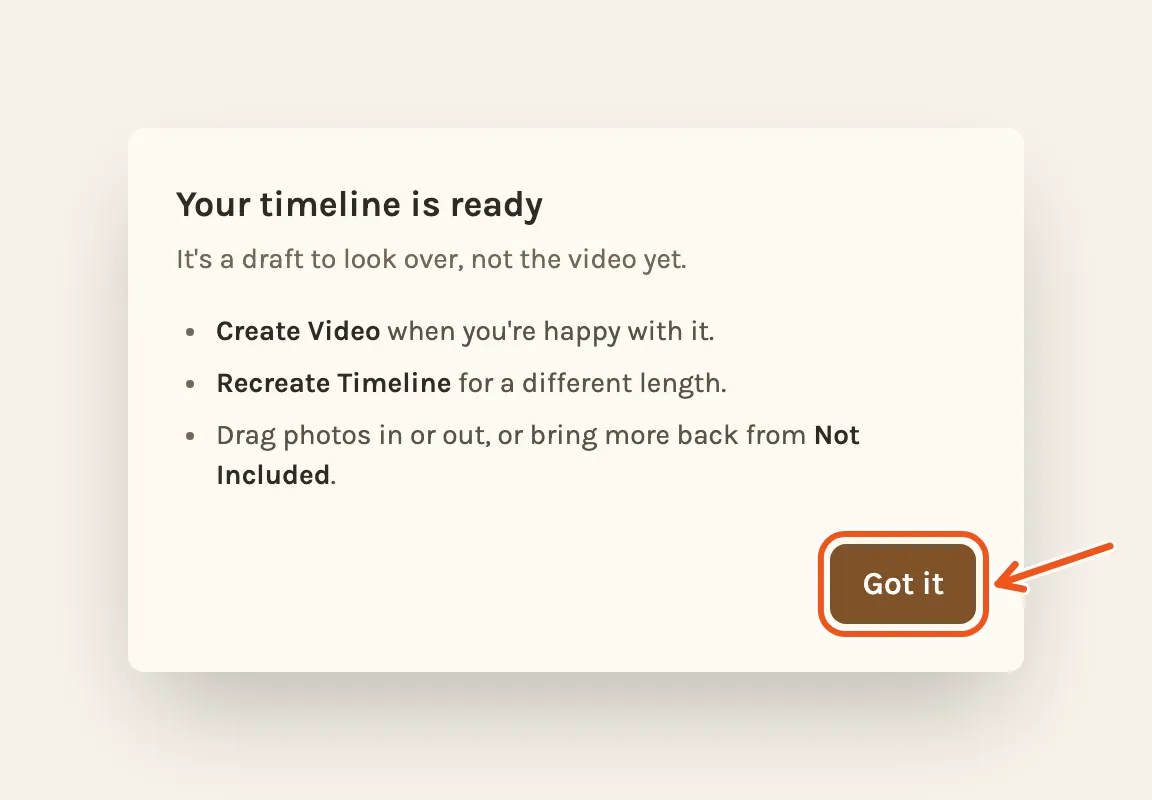
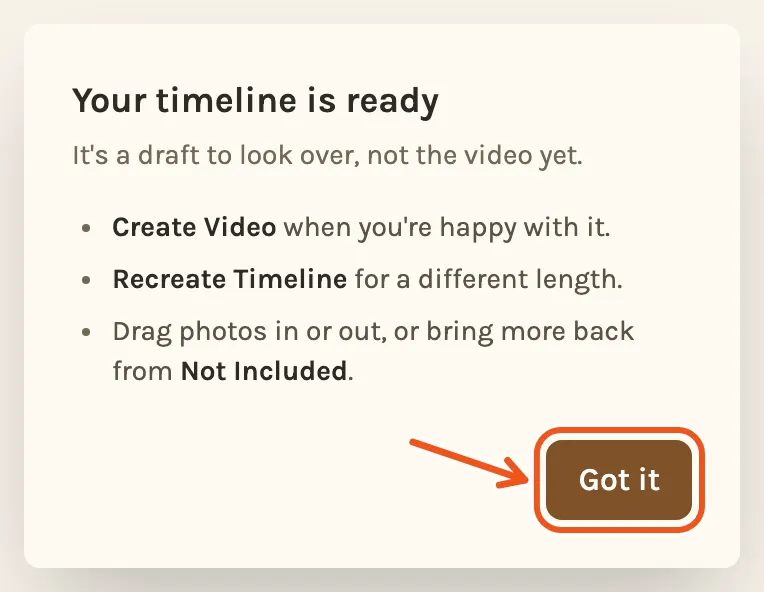
Each chapter has a title and a short subtitle, its photos and clips, and a song.
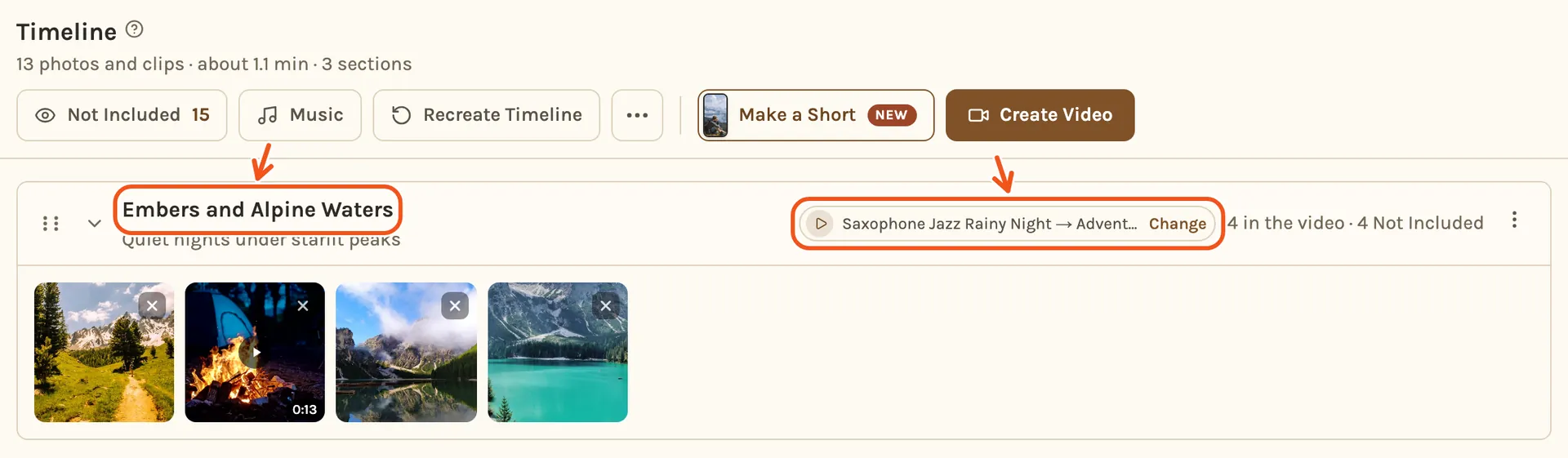
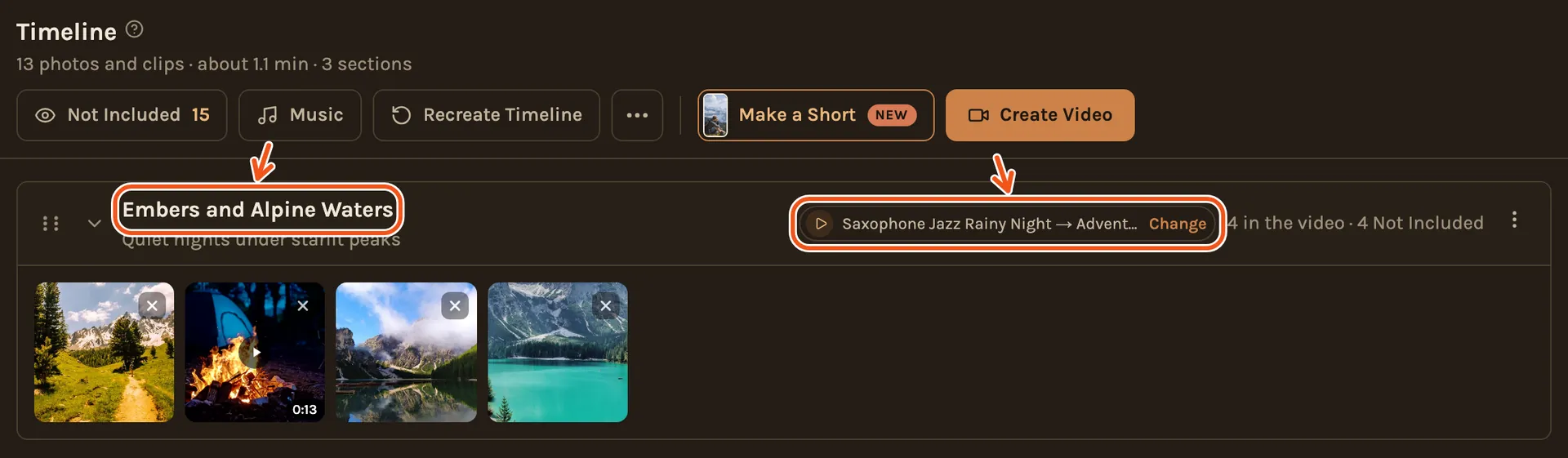
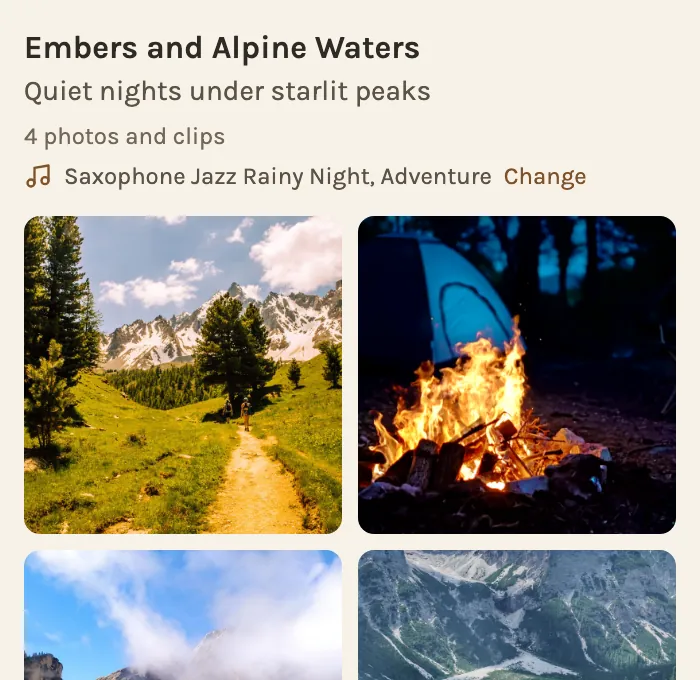
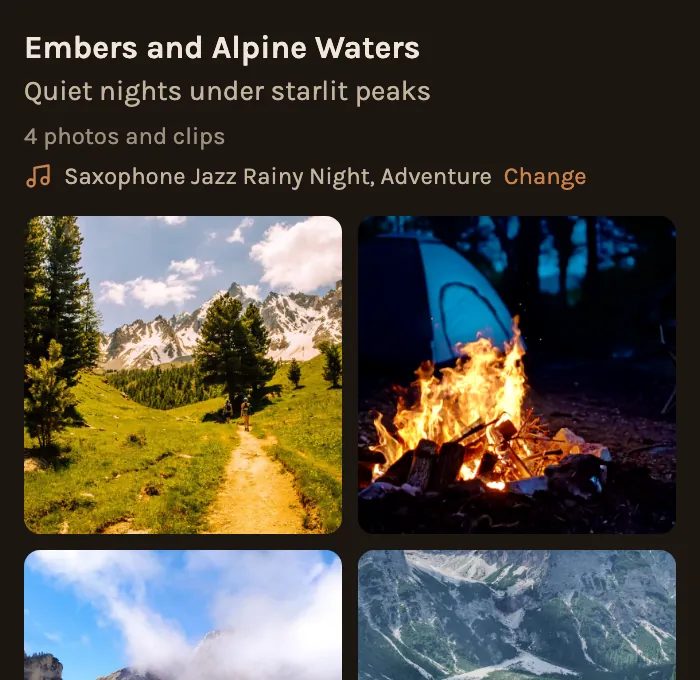
Photos it did not pick are kept, not deleted. On a computer, click Not Included to see them and drag any back in.
The description you gave the project helps Kindred Scenes choose photos and name chapters. It does not change the style of the film. You can edit it in Settings.
Make it again
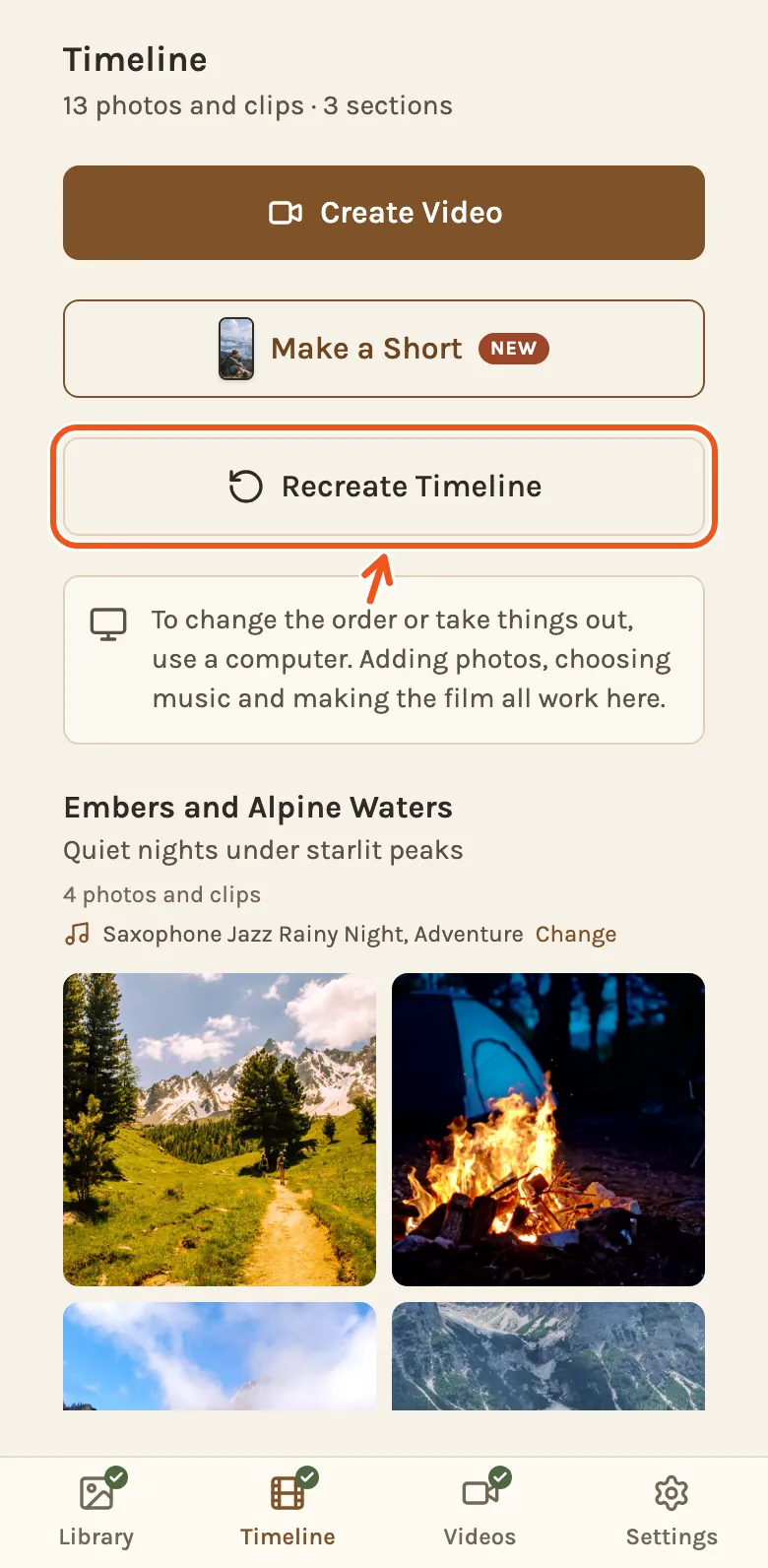
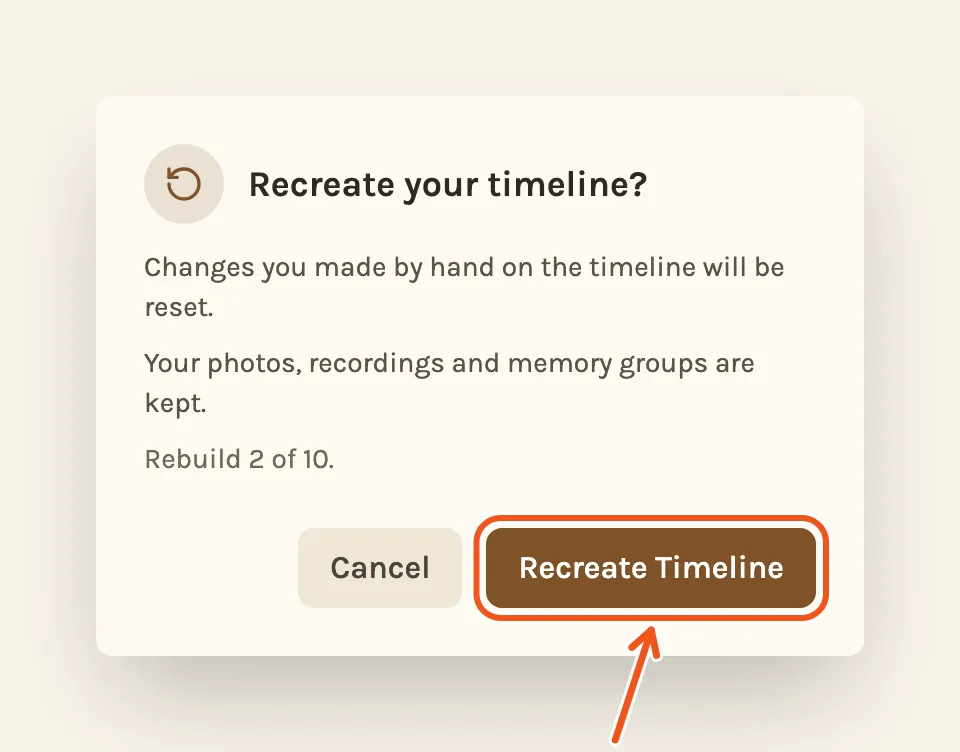
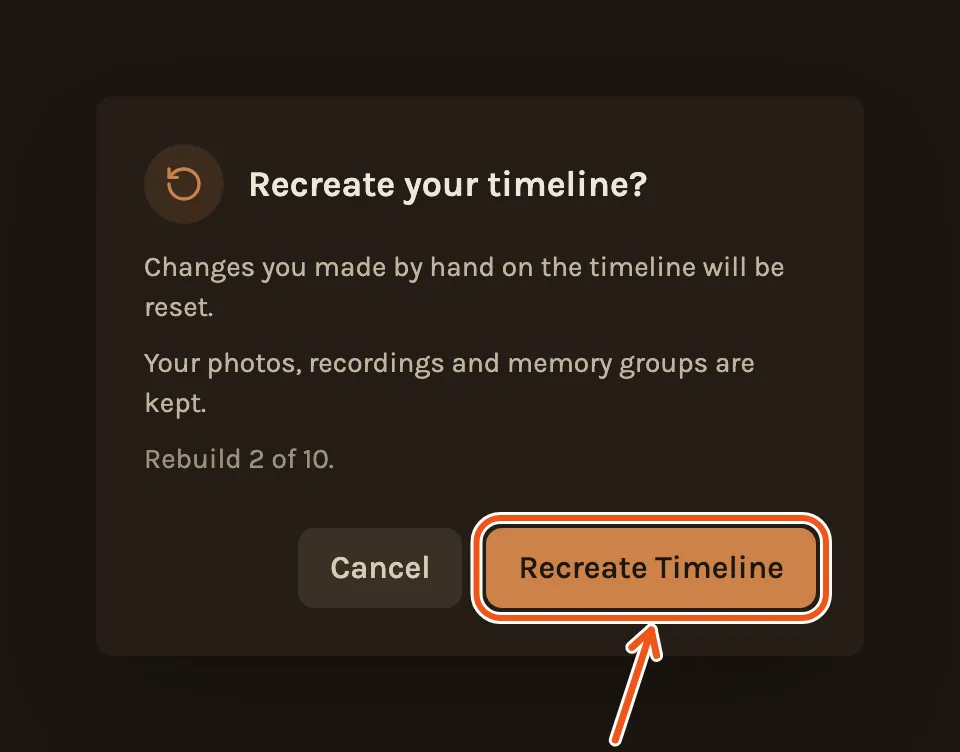
If the film would be too long or too short, or you added more photos, make the timeline again with Recreate Timeline. It rebuilds the chapters and the music from everything in your project. Changes you made by hand on the timeline are reset, but your photos, recordings and anything you chose as the cover are kept.
Before it starts, it asks you to confirm and says how many rebuilds you have used. You can recreate a timeline up to 10 times per project.
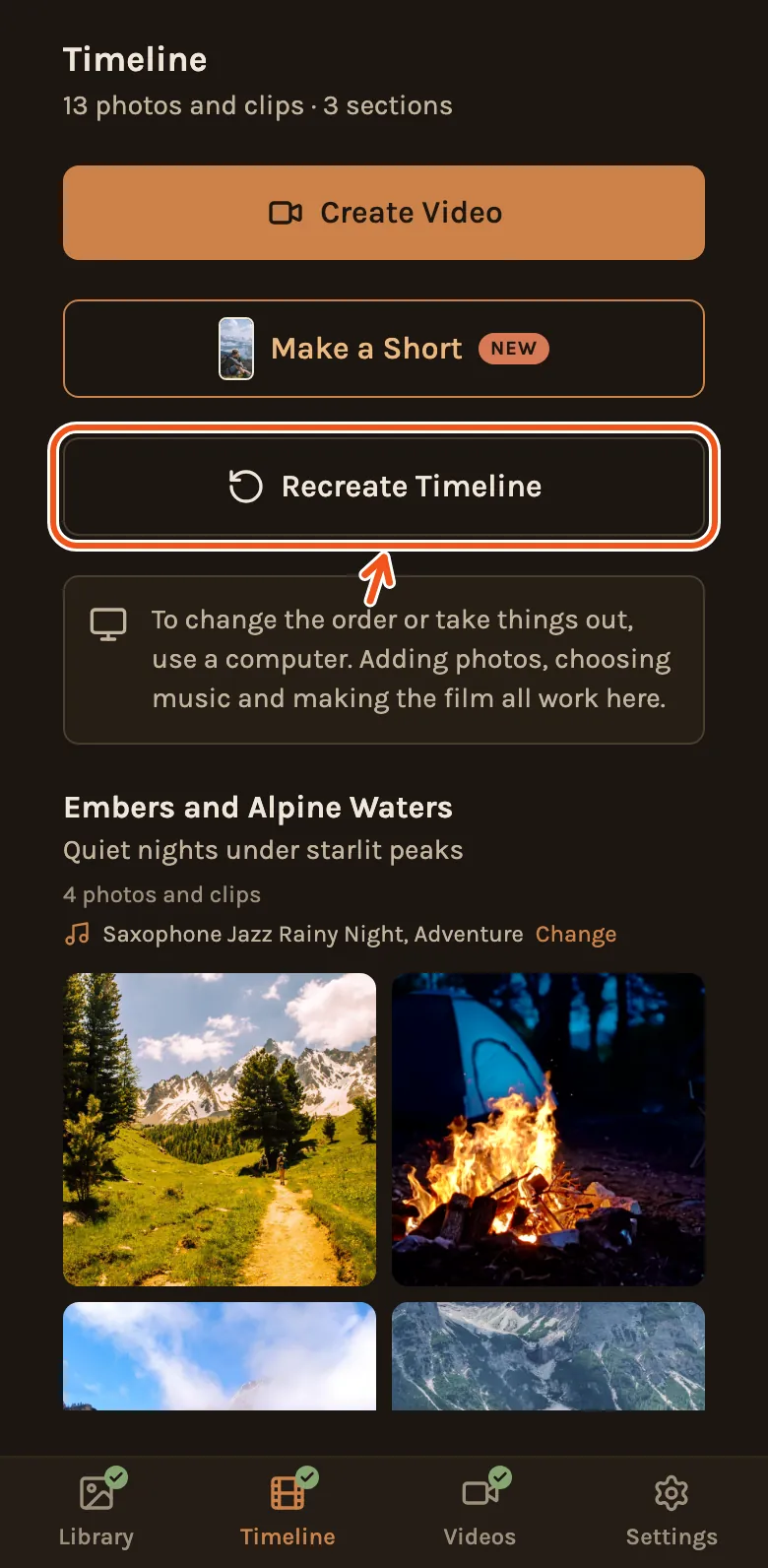
On a phone, Recreate Timeline is on the Timeline tab, under Create Video and Make a Short.