Before you start
- Add the photos first, from every part of their life. You choose their reference photos from the project's own photos. See How to add photos and videos and How to invite family and friends.
- Tributes come with the Tribute plan. When you choose Tribute, Kindred Scenes shows you the plan and how to unlock it.
Choose Tribute
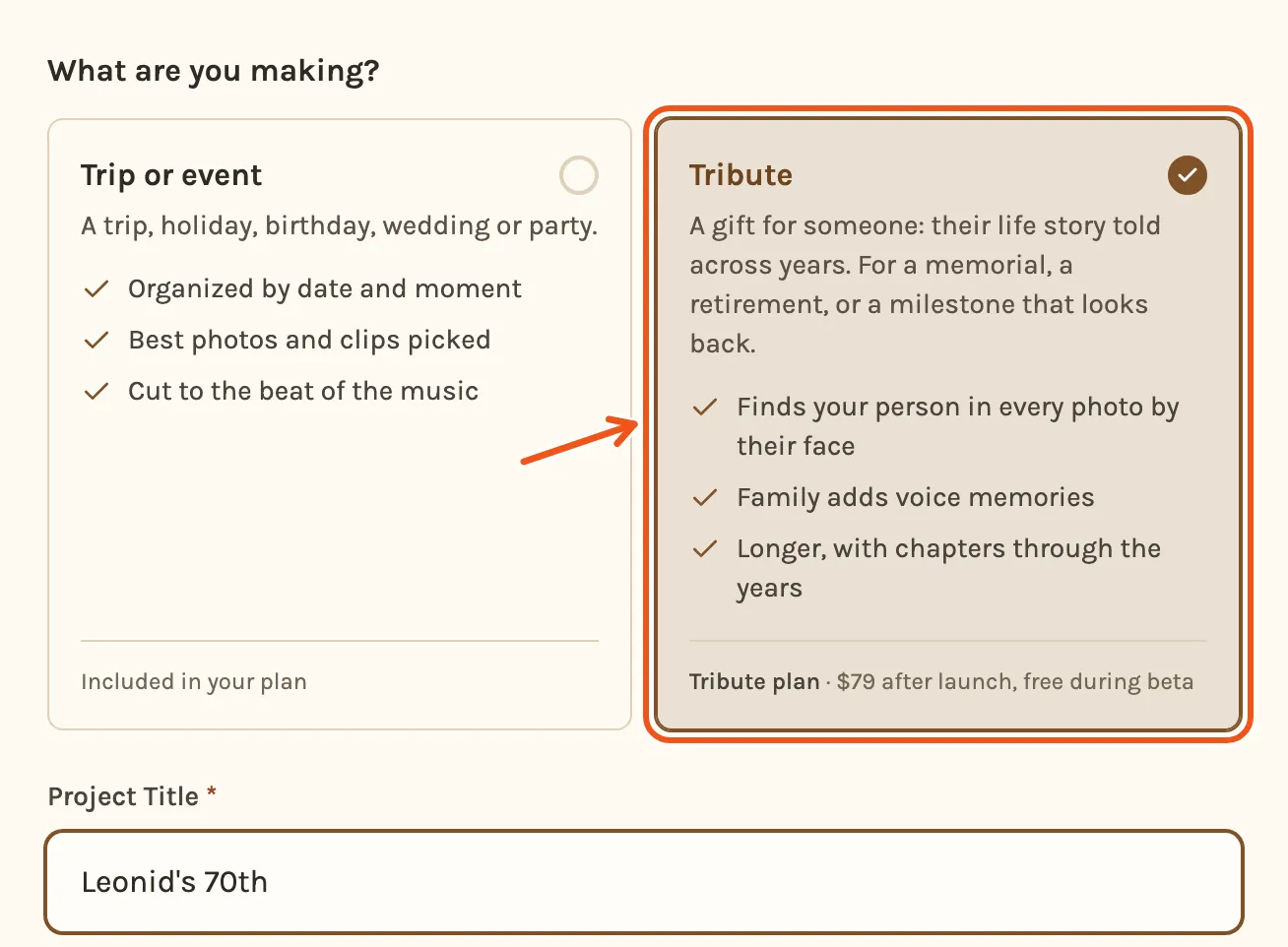
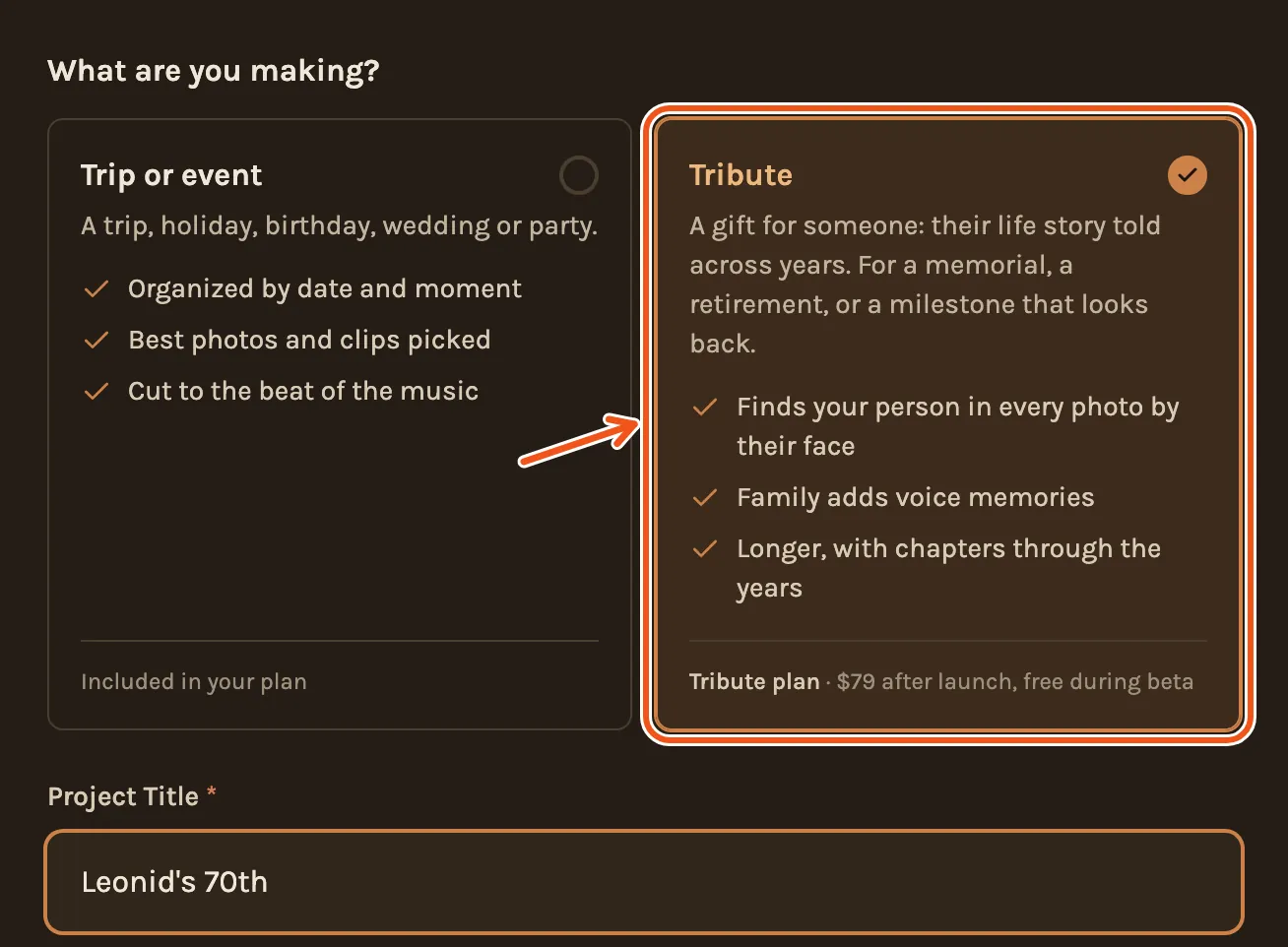
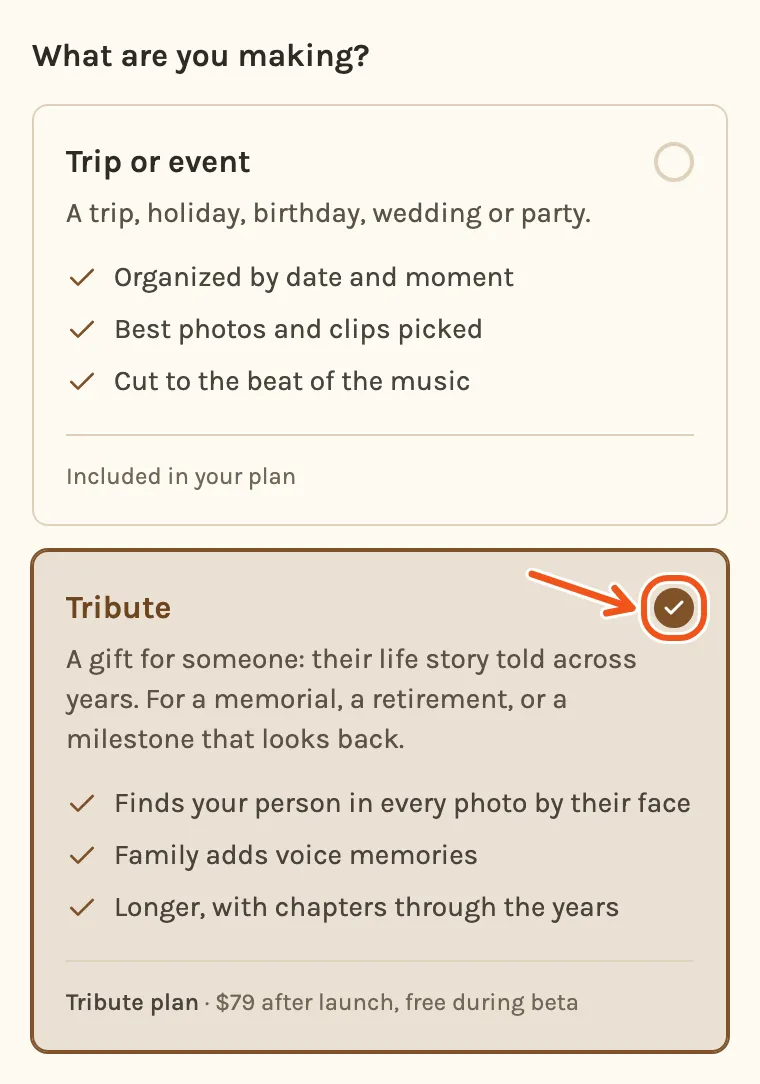
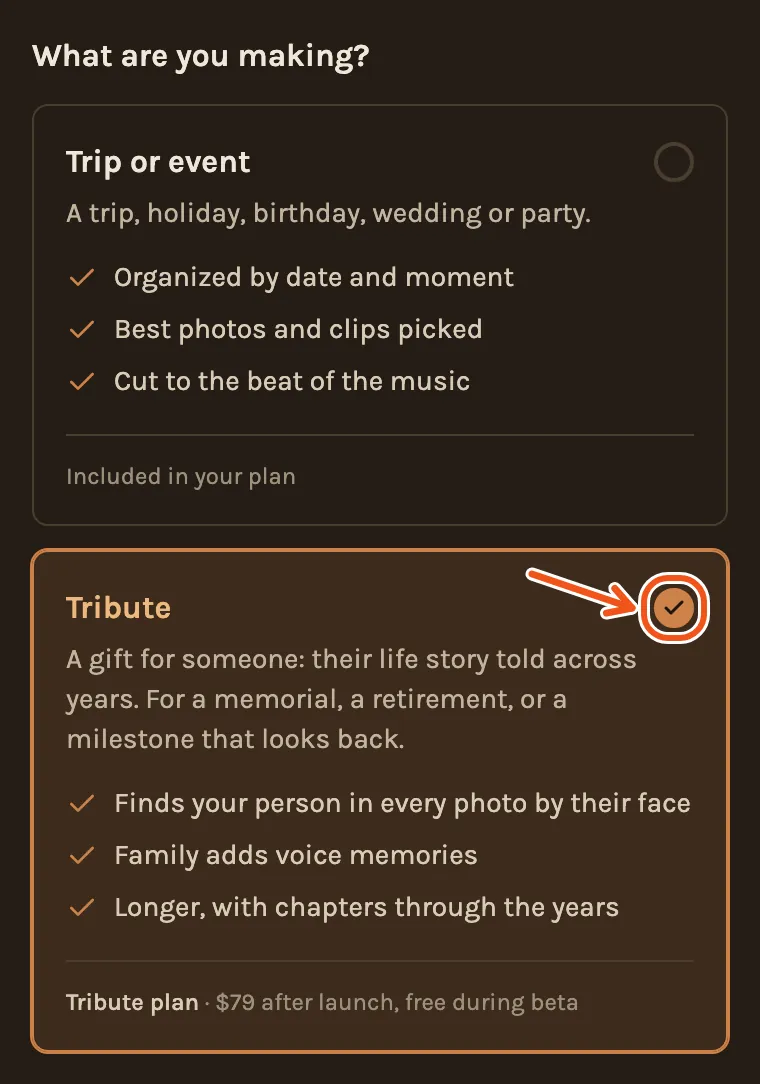
When you create the project, choose Tribute under What are you making? You choose it once. It can't be changed later.
Once the photos are in, click Create Timeline in the Library. It opens the tribute setup straight away.
Once the photos are in, tap Create in the Library. It opens the tribute setup straight away.
Made the project as a trip or event? A project can't change kind. Start a new project and choose Tribute.
Agree to face recognition
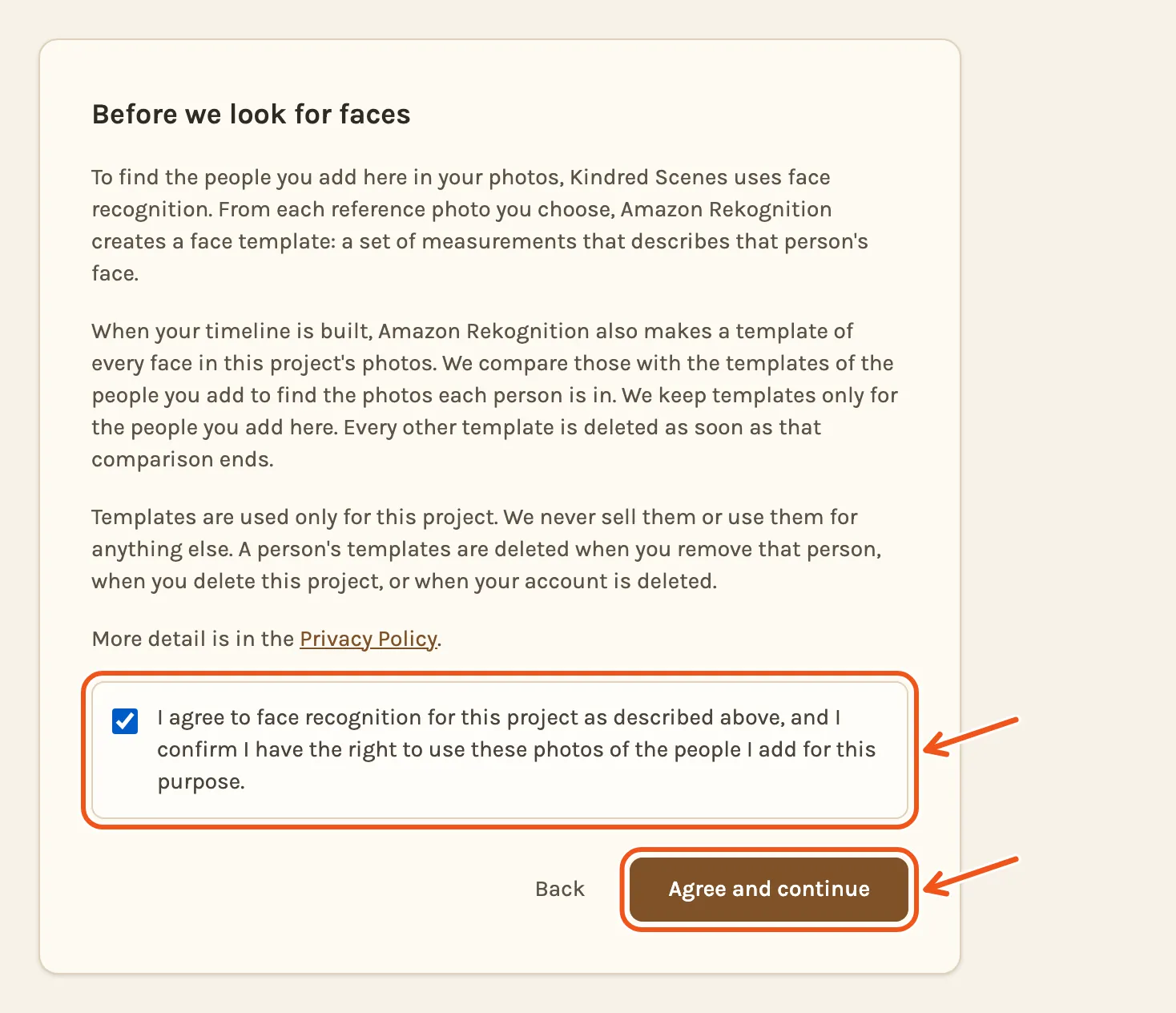
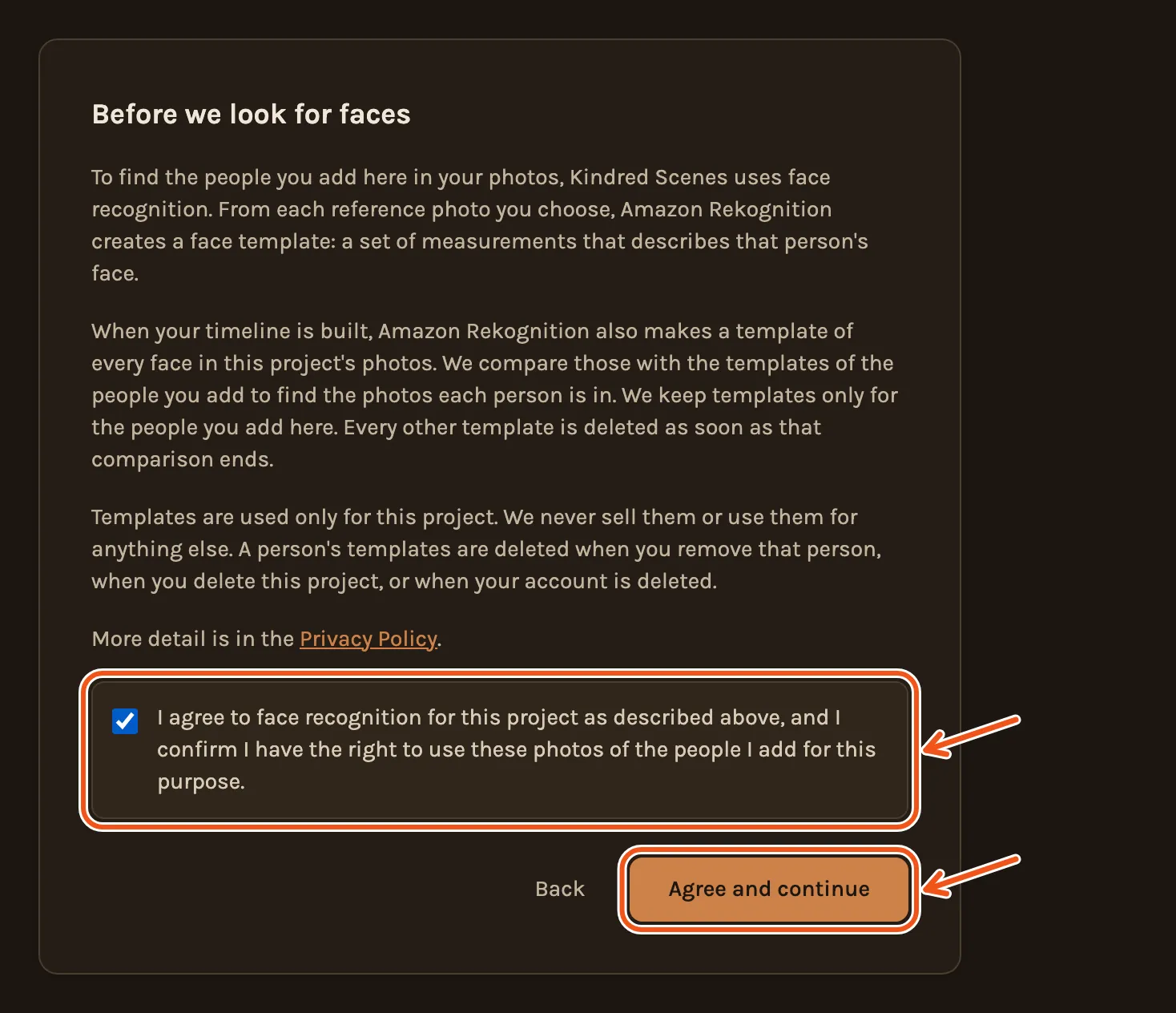
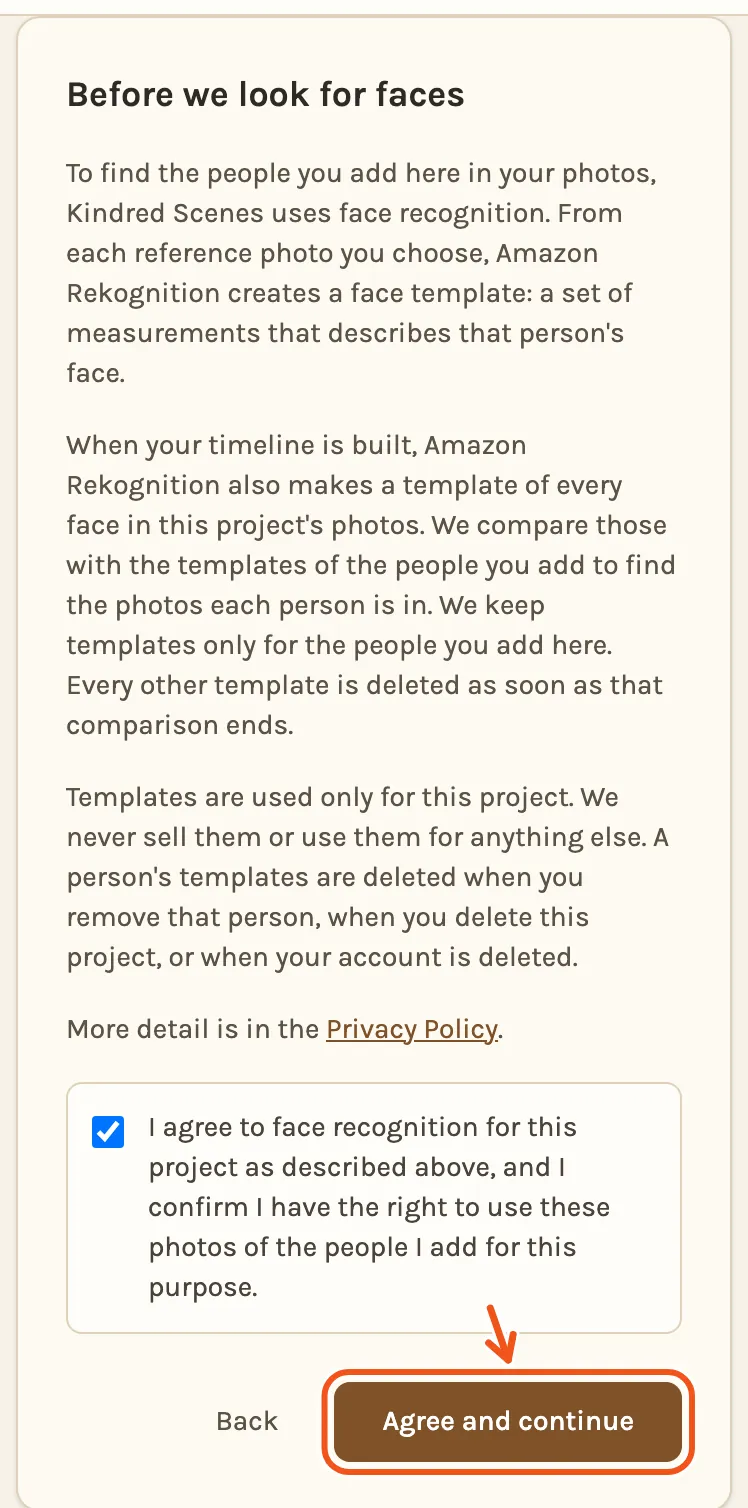
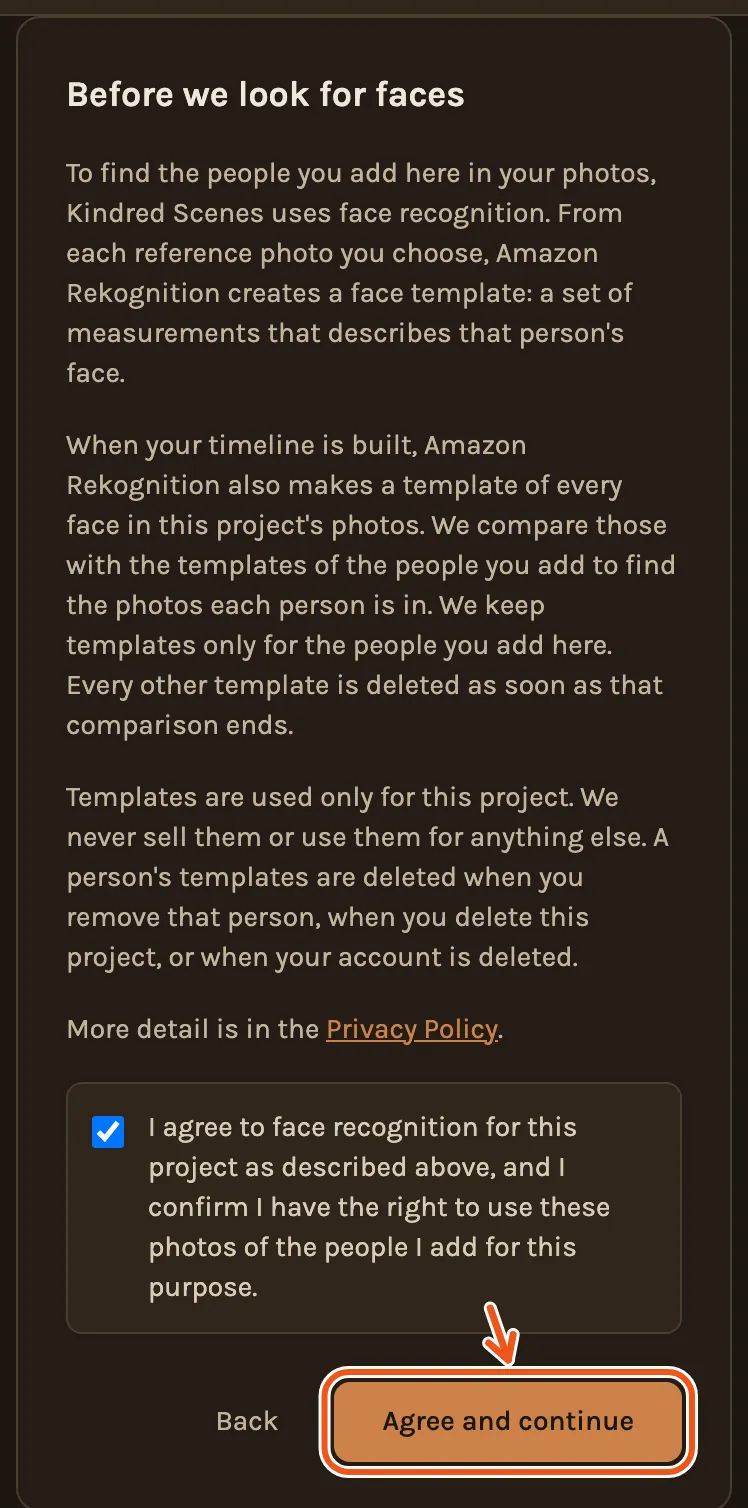
The first time, Kindred Scenes explains how it uses faces. Read it, tick the box, and press Agree and continue. It asks once per project, and again if the wording changes.
Tell us who it is
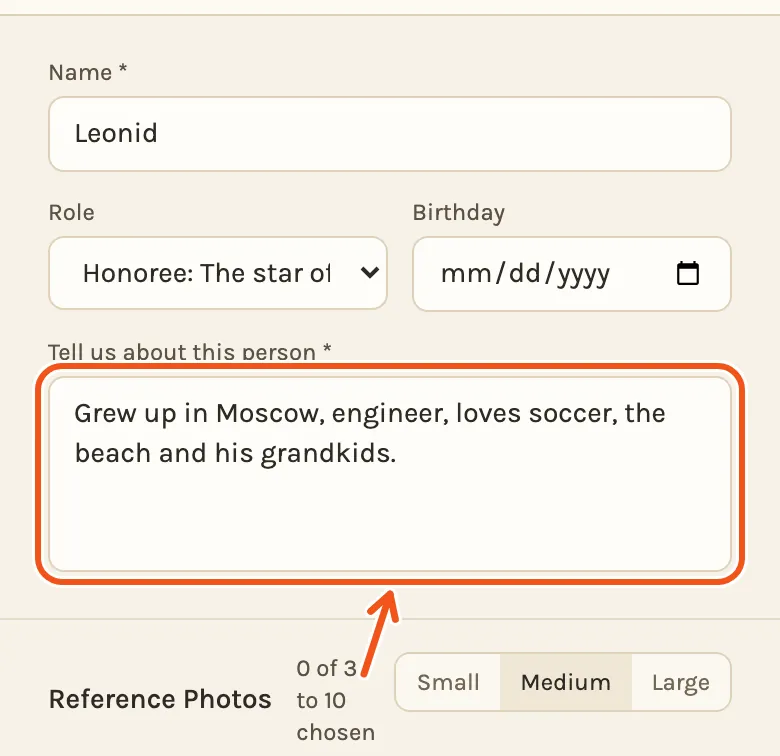
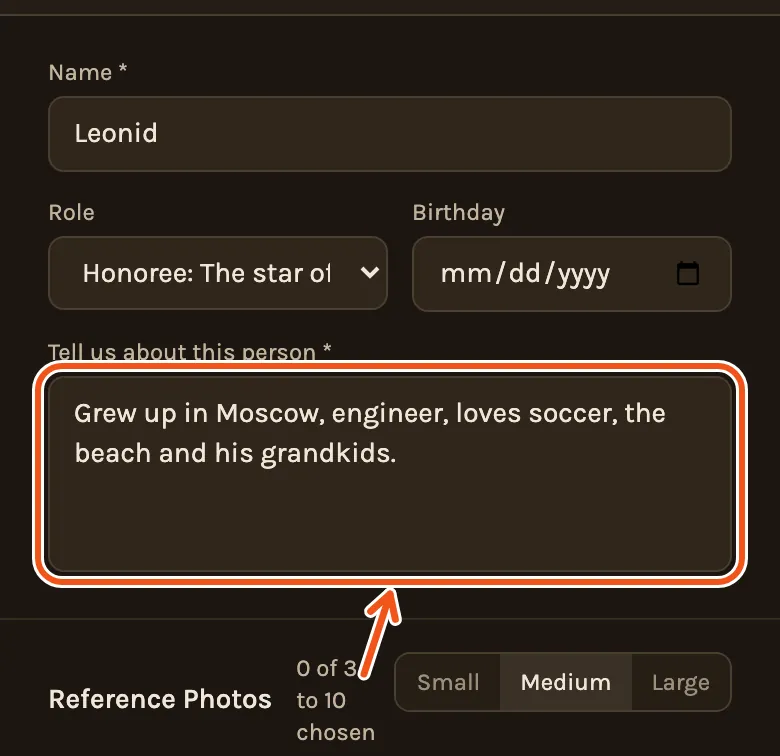
- Type their Name. Leave Role as Honoree for the person the film is about.
- Write a line about them in Tell us about this person, such as where they grew up or what they love.
- Birthday is only needed to show their age in the film. See Show their age below.
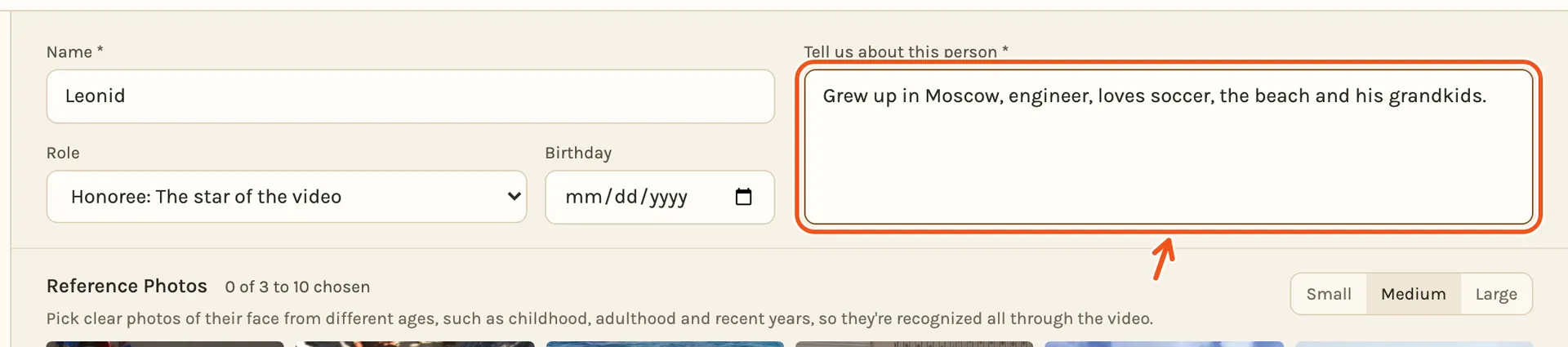
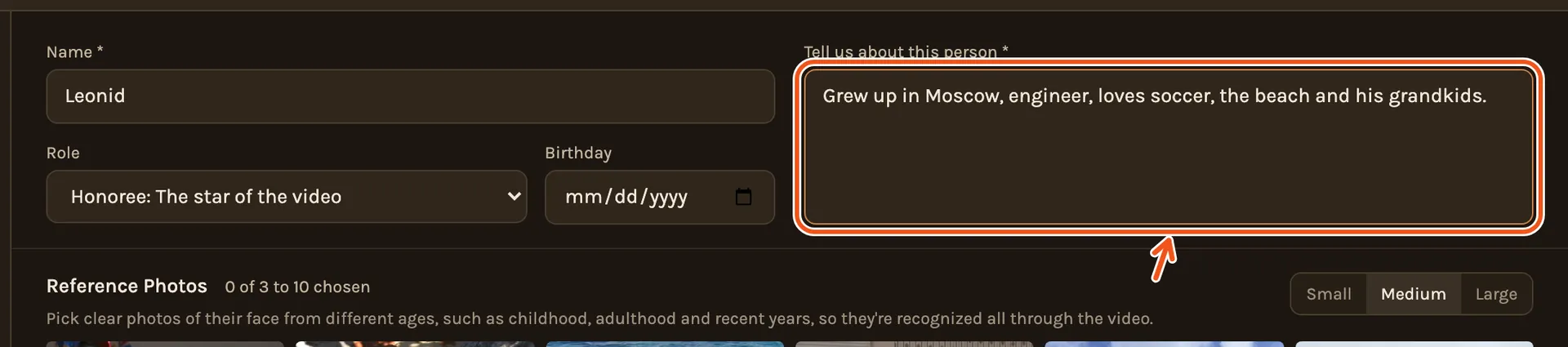
On a phone the list of people sits above the form.
Choose their reference photos
Reference photos teach Kindred Scenes what the person looks like. Faces change a lot over a life, so pick one from each part of it: a child, a teenager, a young adult, middle age and recent years. Choose 3 to 10 where the face is clear and turned to the camera.
Under the form are the project's photos.
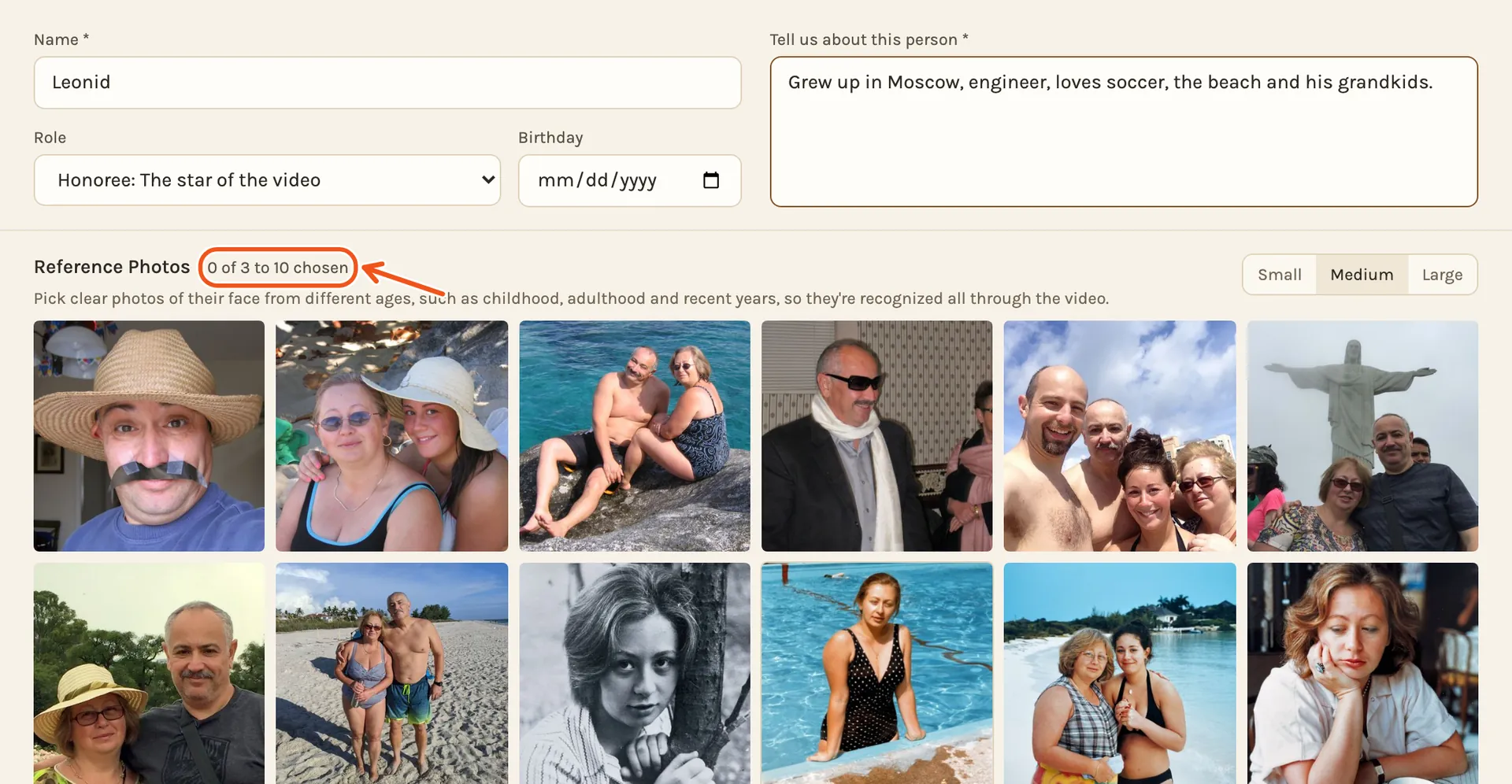
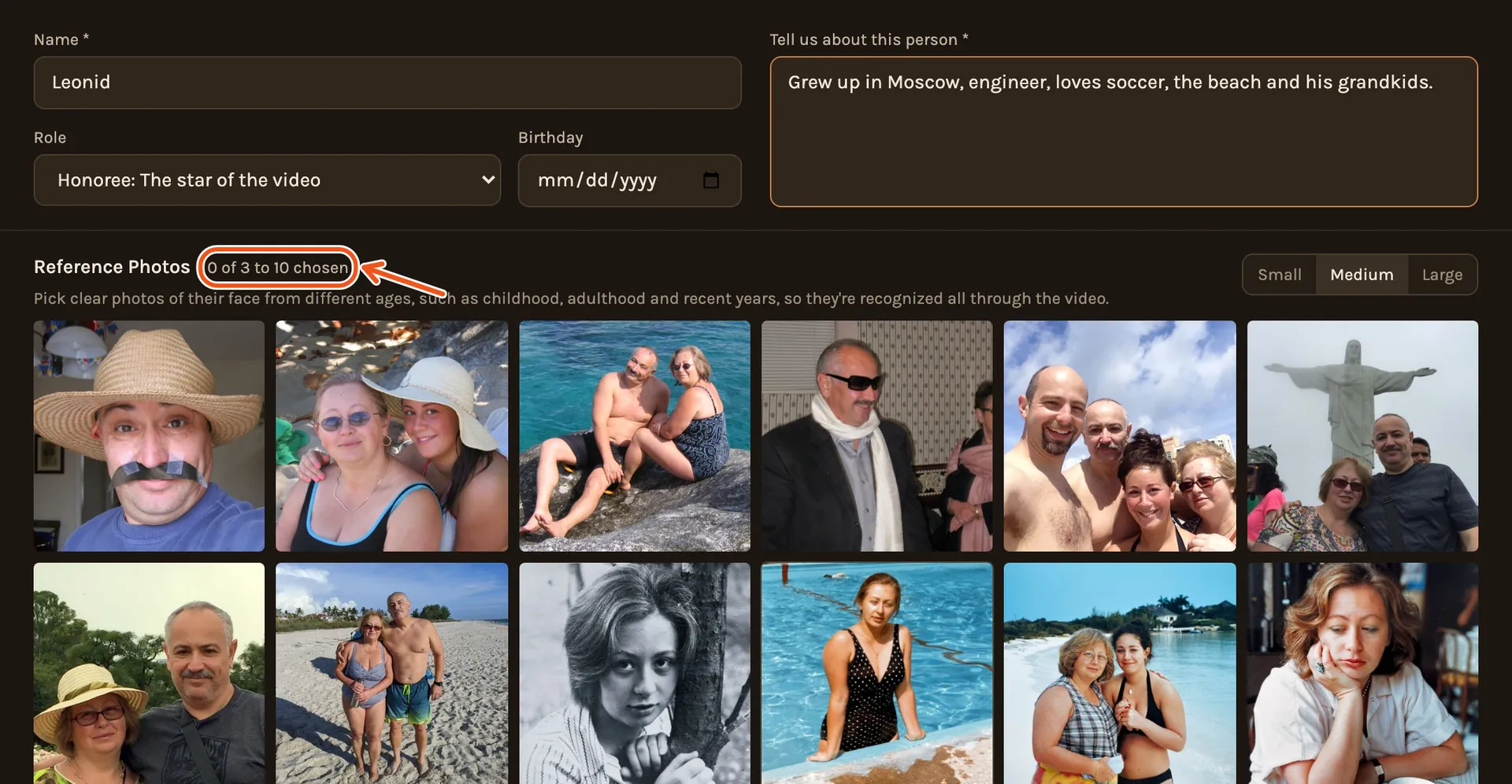
Click a photo to tick it. When Minimum reached shows, click Save & identify.
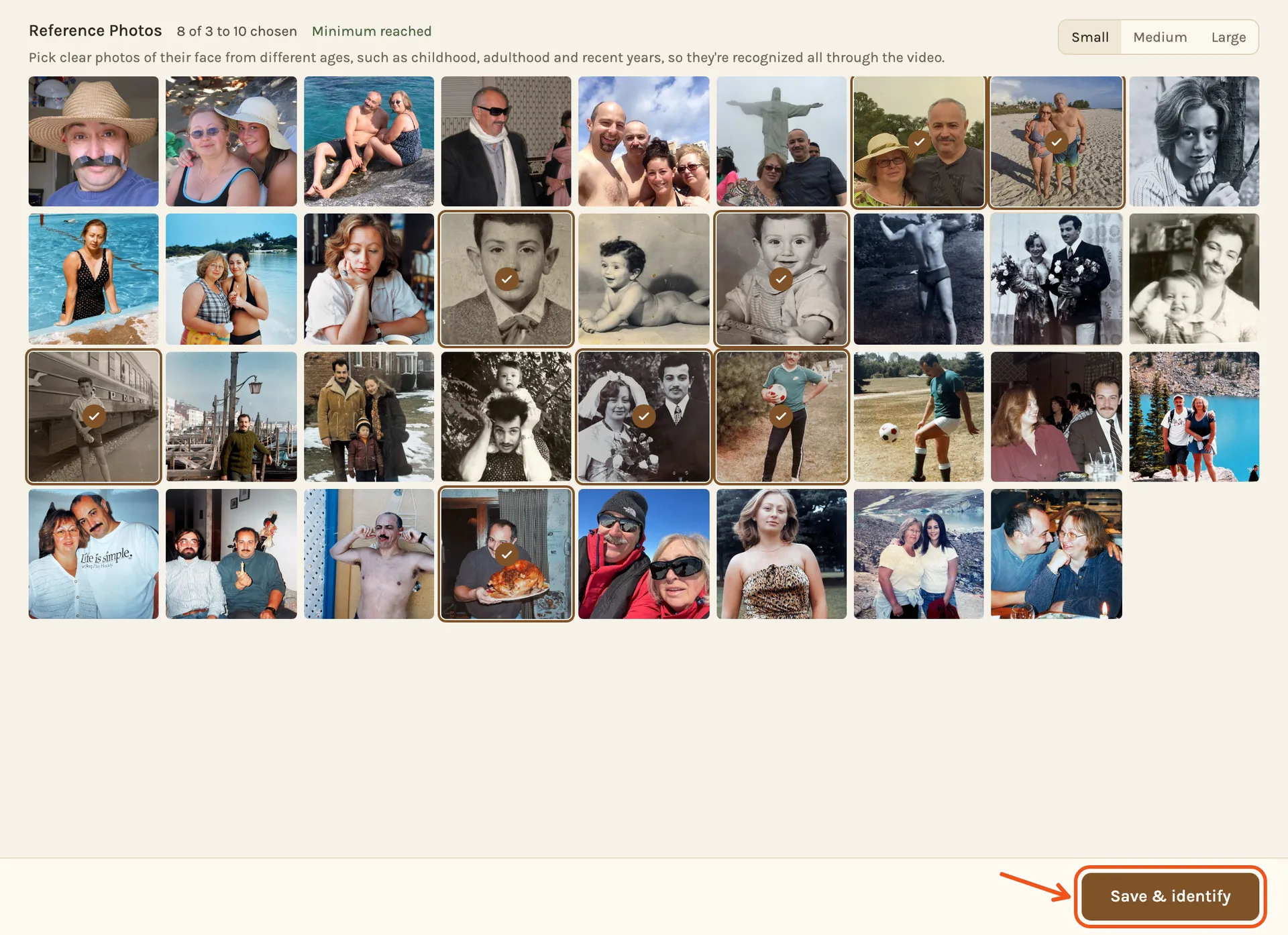
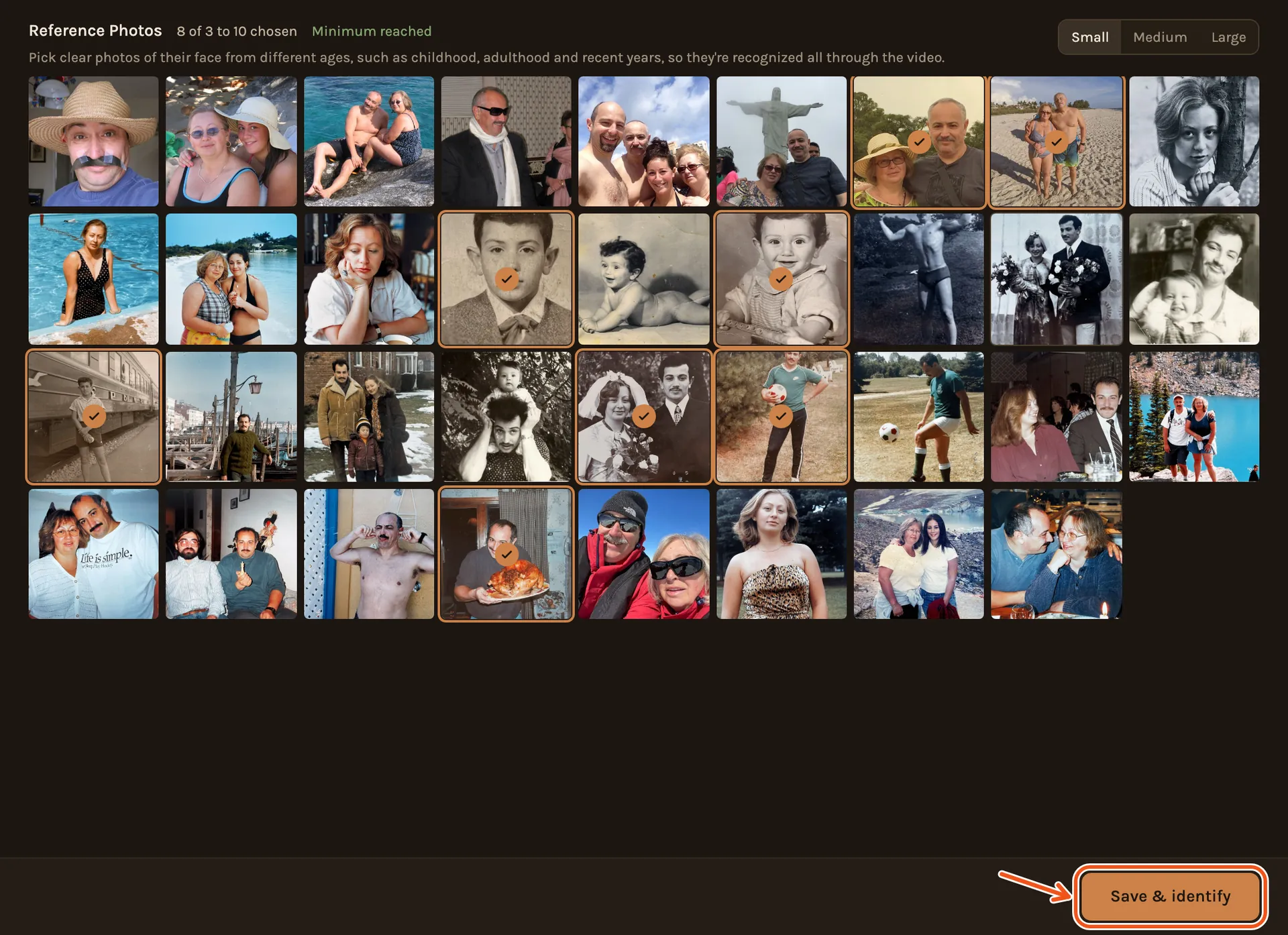
Tap a photo to tick it. When Minimum reached shows, tap Save & identify.
A face it has only seen at 70 is hard to find at 7. Missing an age is the most common reason photos get left out.
Point out their face
Kindred Scenes now goes through the reference photos one at a time.
- With one face in the photo, it is already picked. Press Use This Face.
- With several, Kindred Scenes asks Which face is (their name)? Press their face, then Use Selected Face.
- With no face found, press Choose Different Photo to skip that one.
- If it cannot use the face you pressed, it says why. Press another face, or Skip this photo.
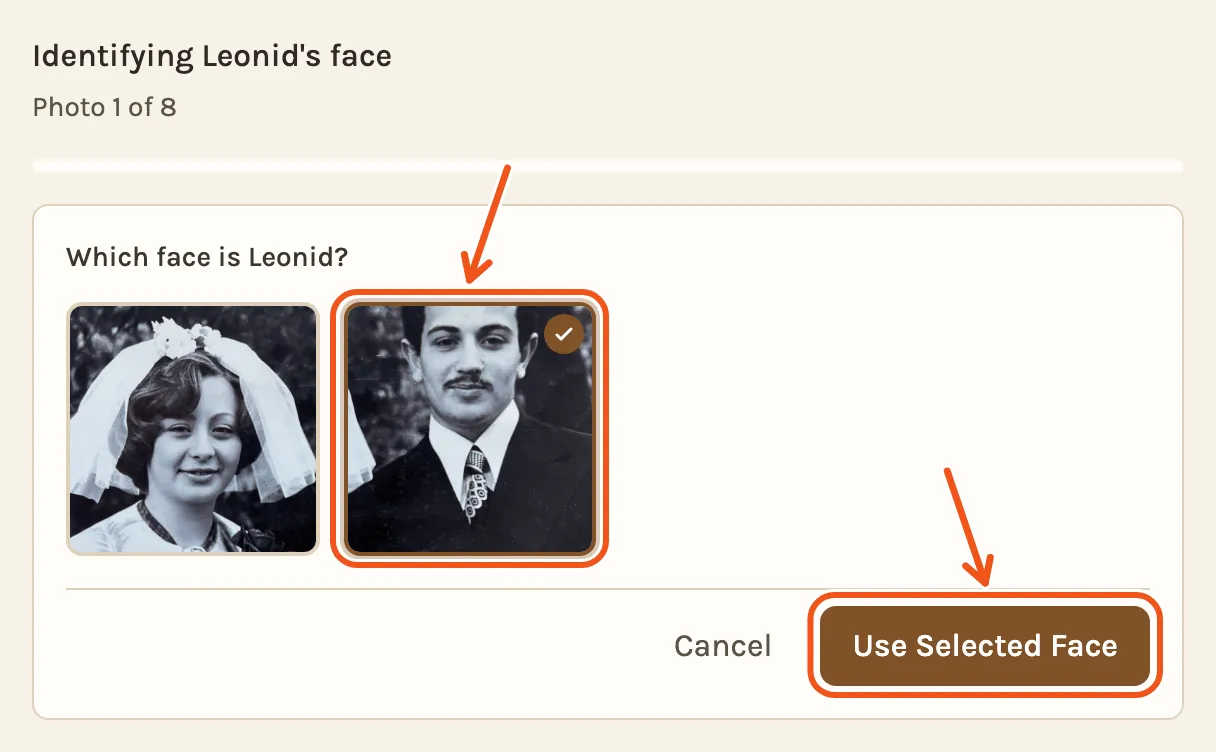
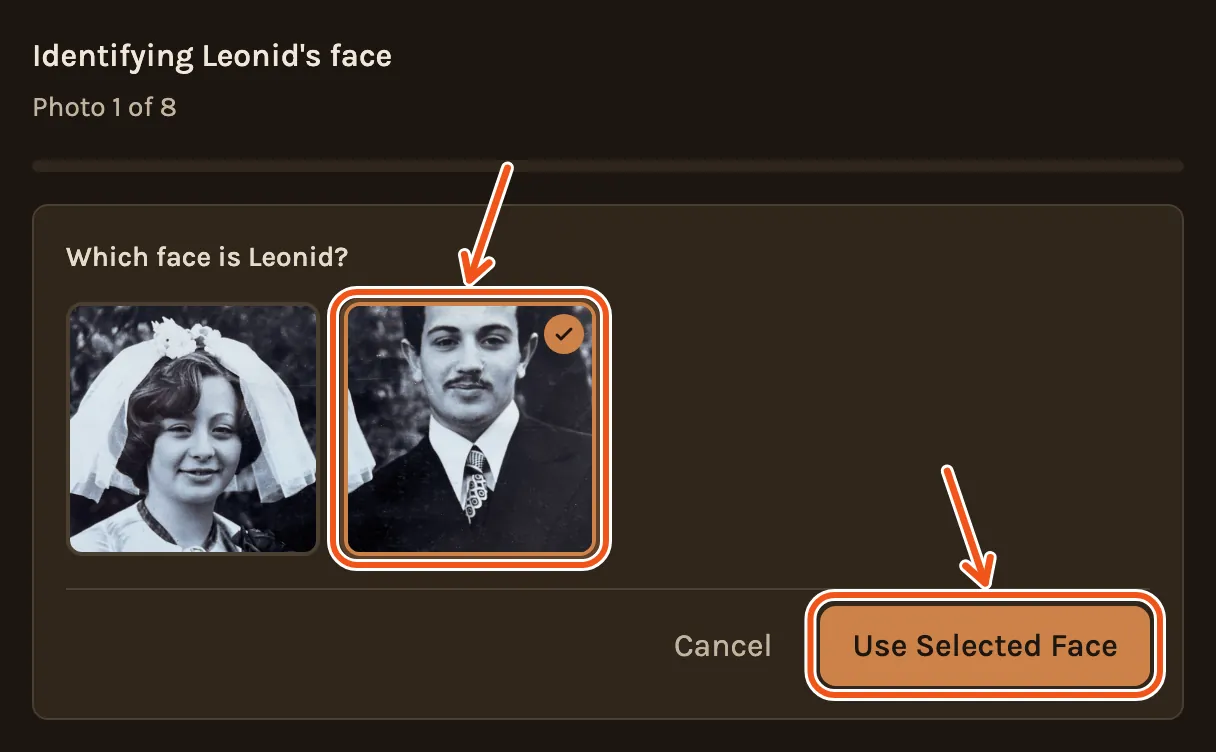
A bar shows how far it has got.
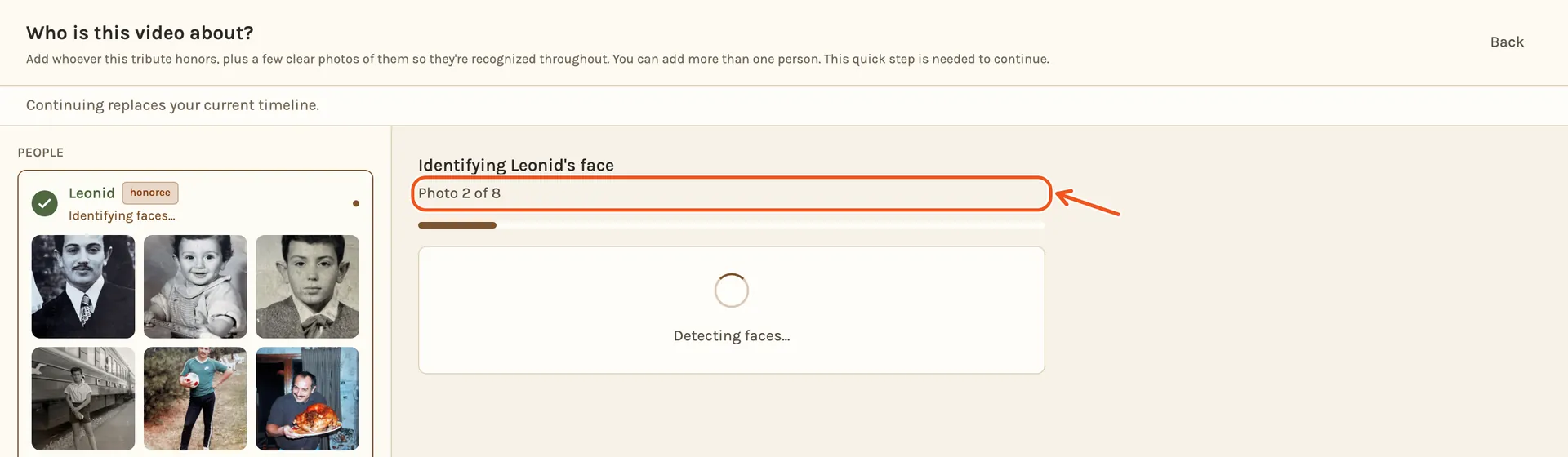
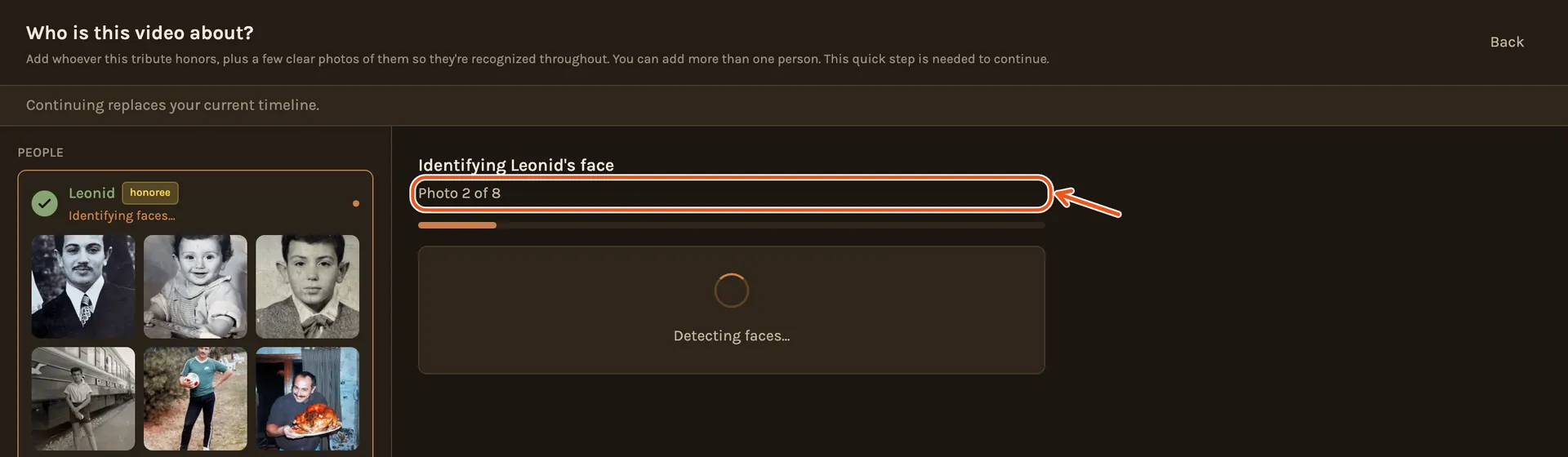
When it is done, their card shows their face from each photo, from the youngest to the most recent.
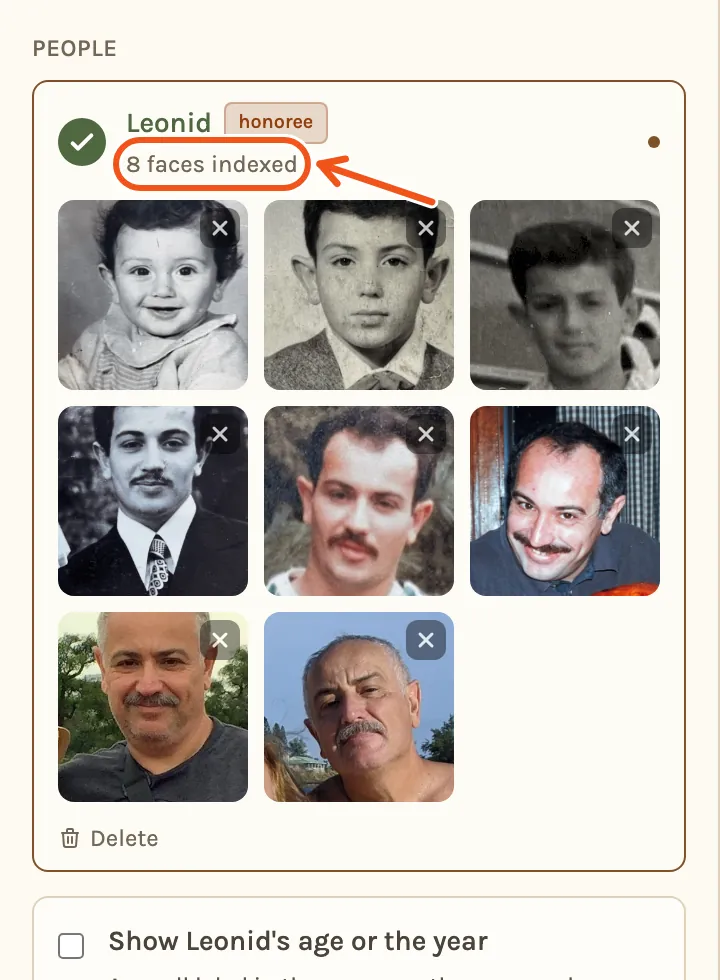
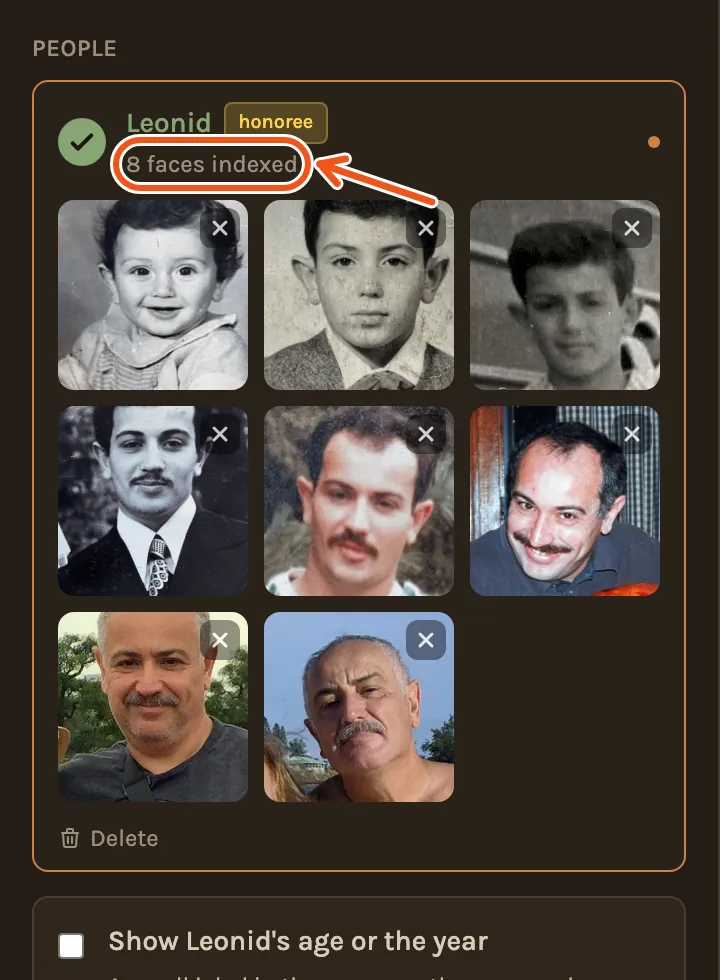
To include other important people, press Add Another Person and give them the role Featured. Only the Honoree decides which photos stay in the film: a photo with only a Featured person in it is still left out.
Build the timeline
- Click Continue at the bottom.


- Kindred Scenes looks at every photo. On the length step it tells you how many photos it found the person in.
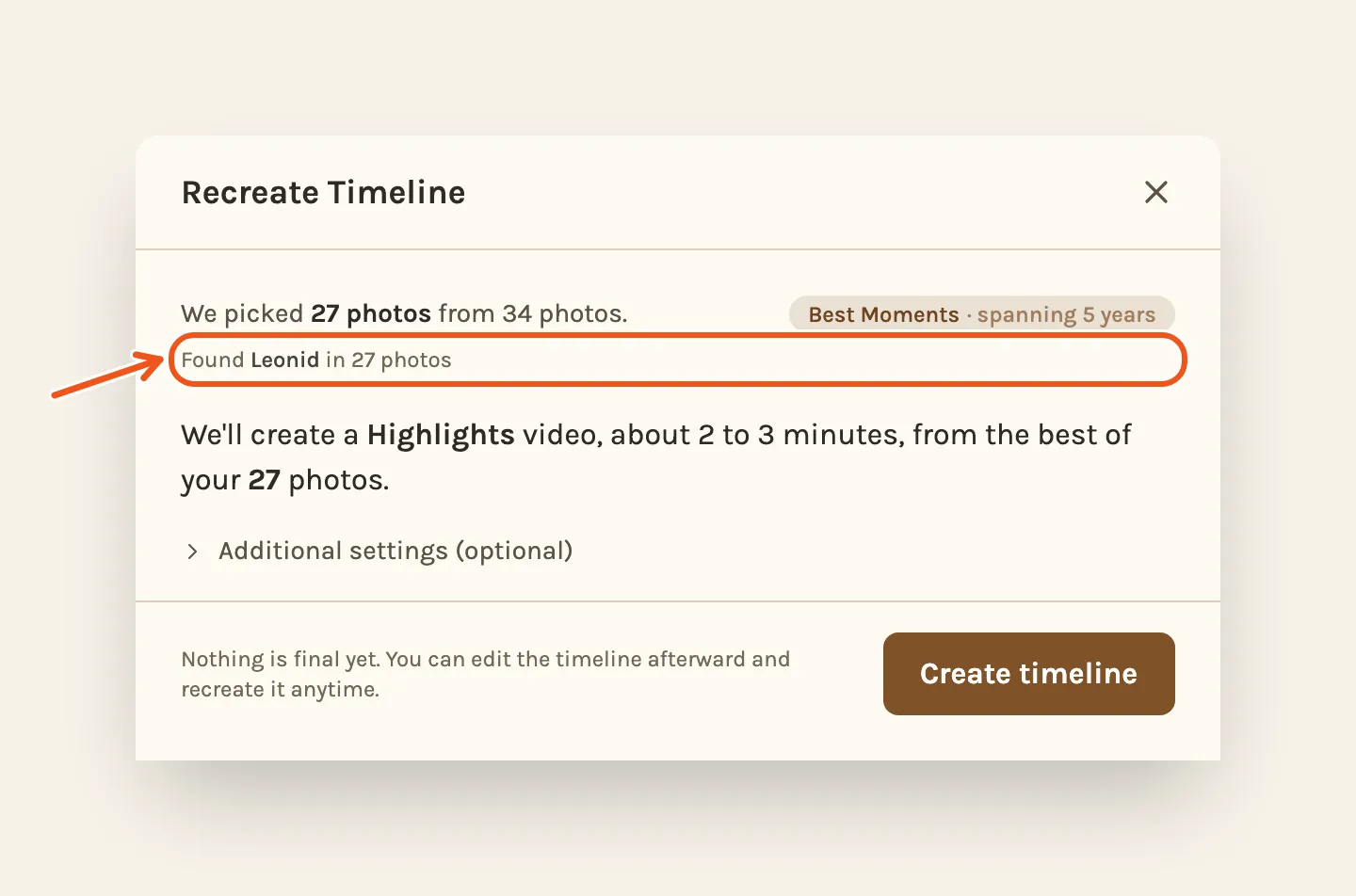
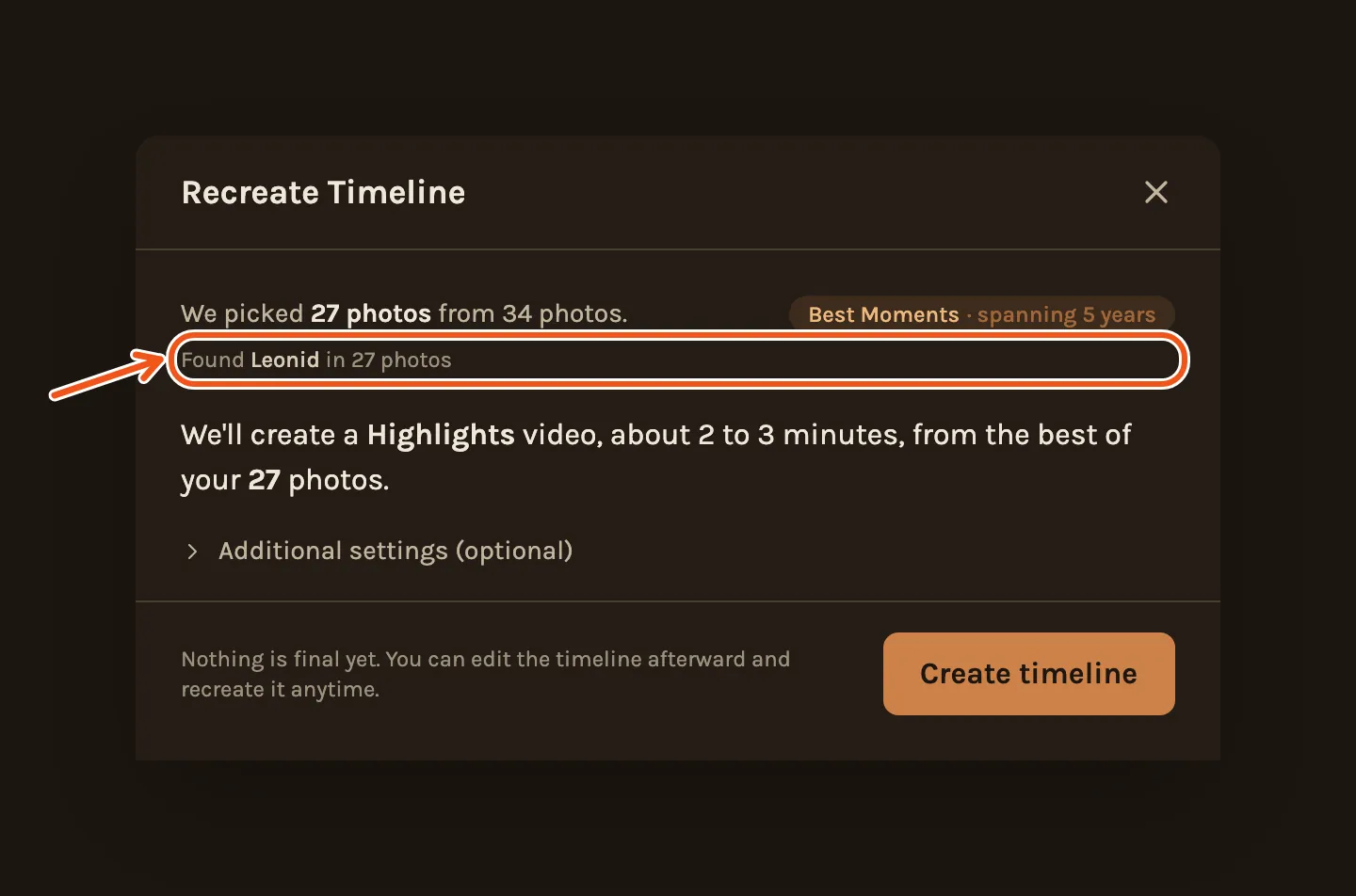
- Click Create timeline. With more photos, it first asks how long the film should be. You get chapters through the years, each with its own title and song.
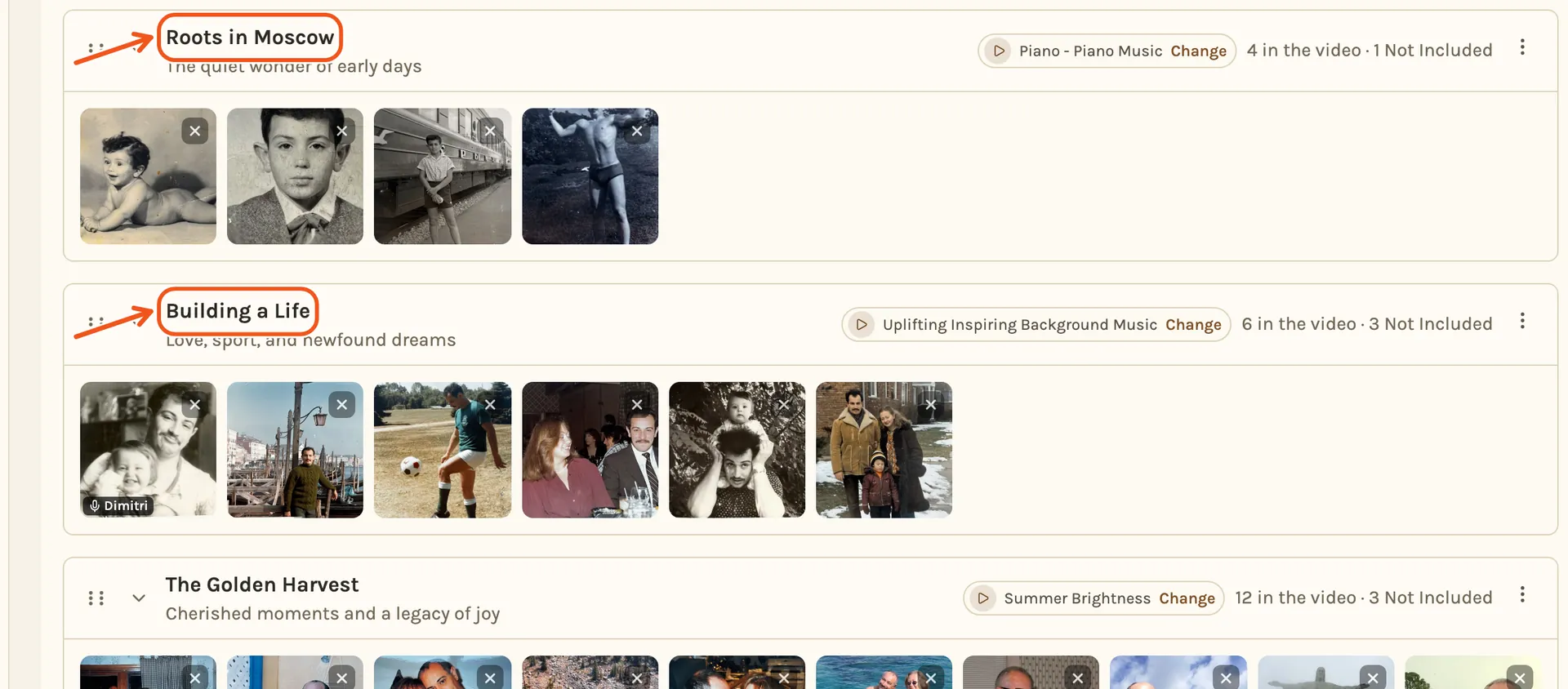
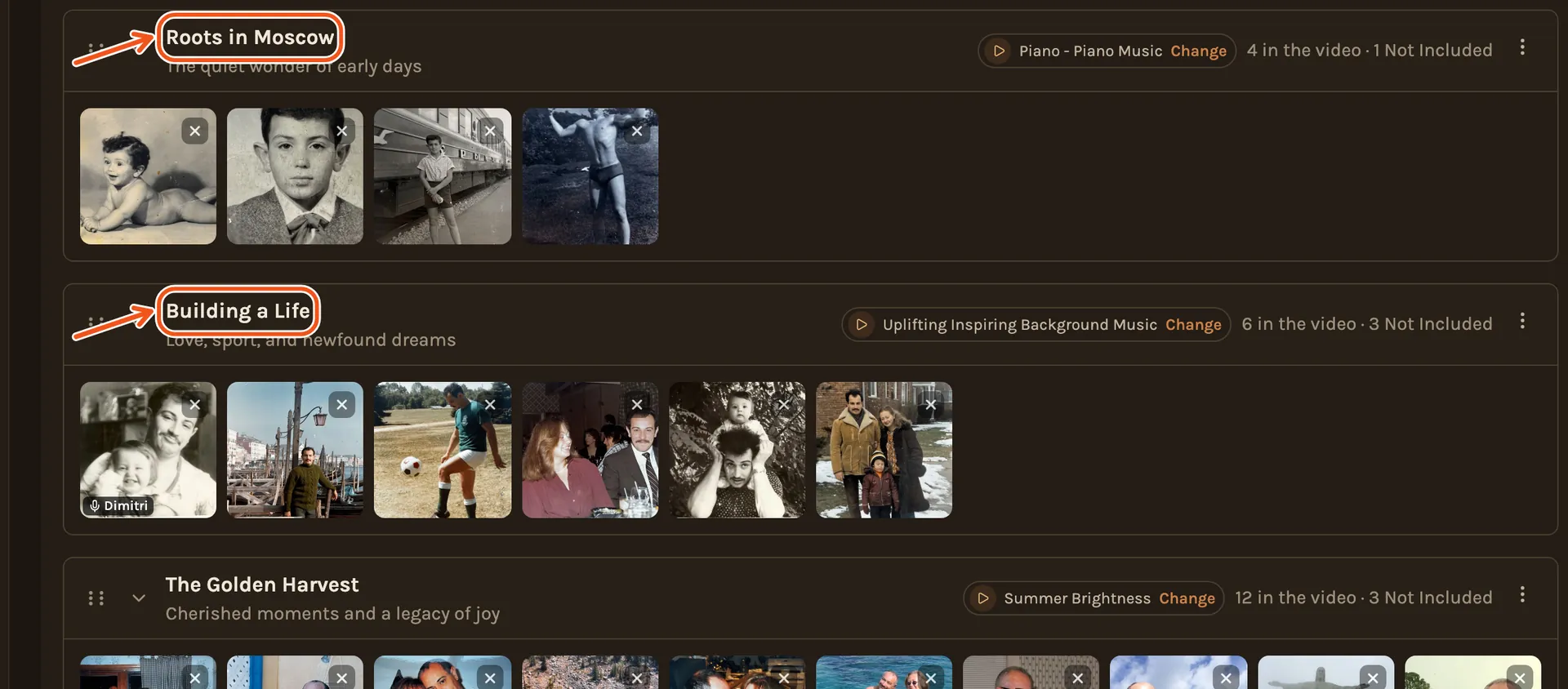
Tap Continue, then Create timeline. The length step shows how many photos it found the person in.
If it found them in only a few of the photos, it says so. Adding reference photos from more ages usually helps.
What the face check leaves out
Photos where it did not find the person are left out of the film, not deleted. That includes family photos without them, and photos with no face at all, like a garden or an old car.
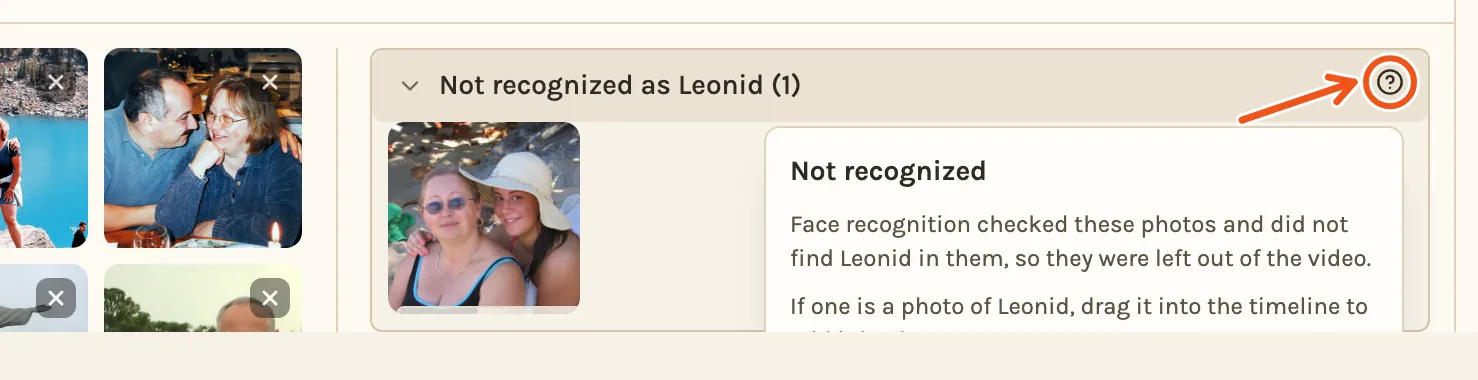
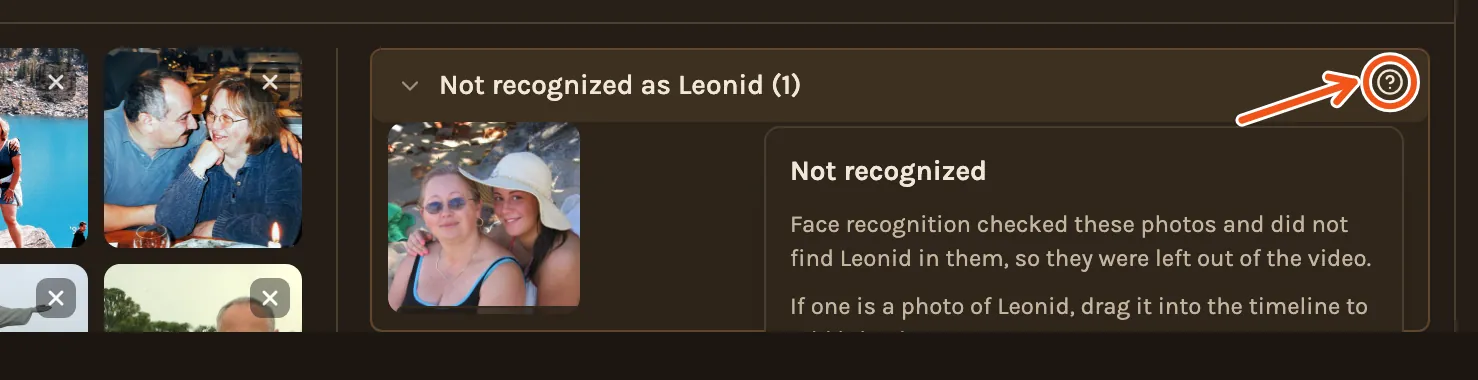
On the Timeline, click Not Included. In a chapter, these photos are at the top of its Not Included column, under Not recognized as (their name).
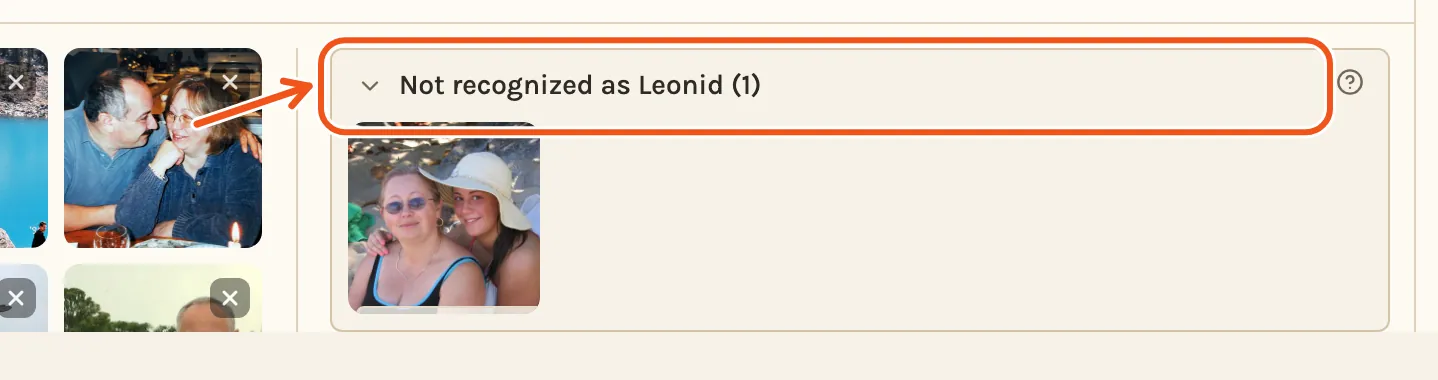
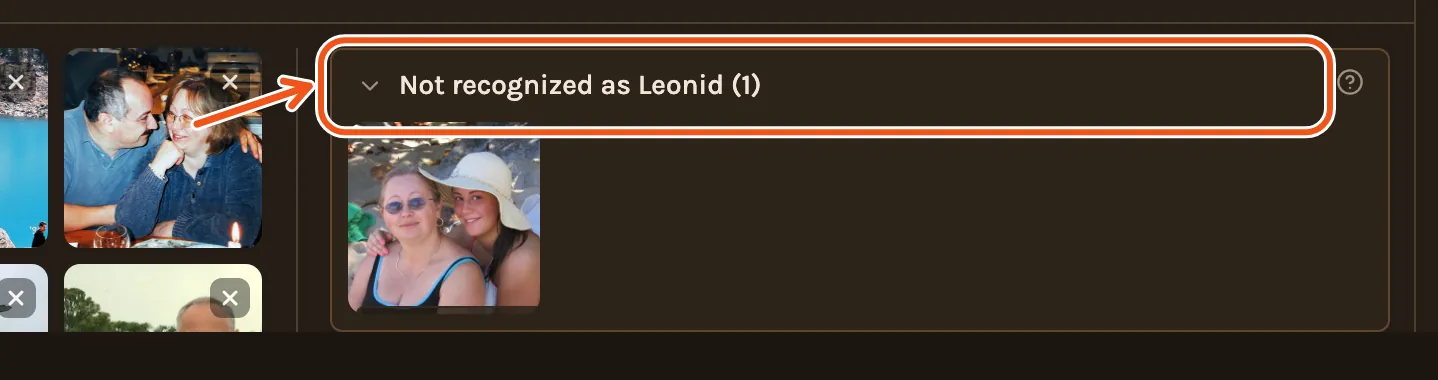
Click beside it to read why they are there.
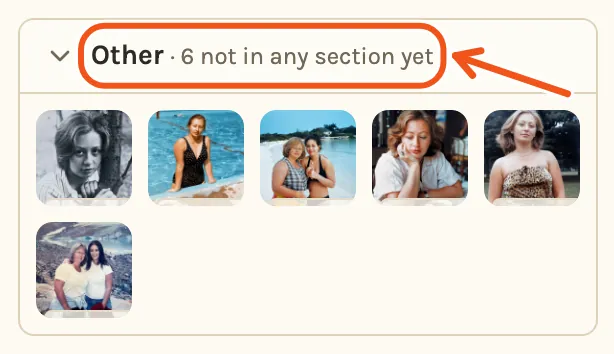
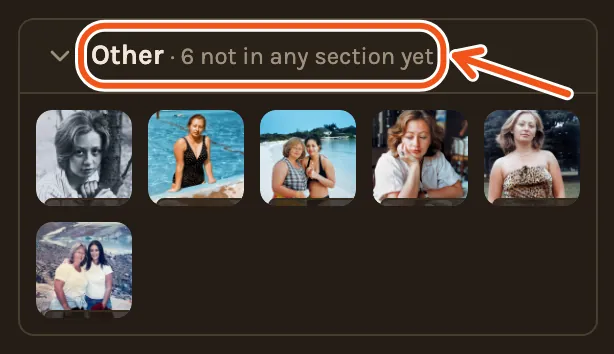
Photos it could not place in a chapter wait under Other, below the last chapter.
Click a photo to see the reason. It says how close the nearest face came:
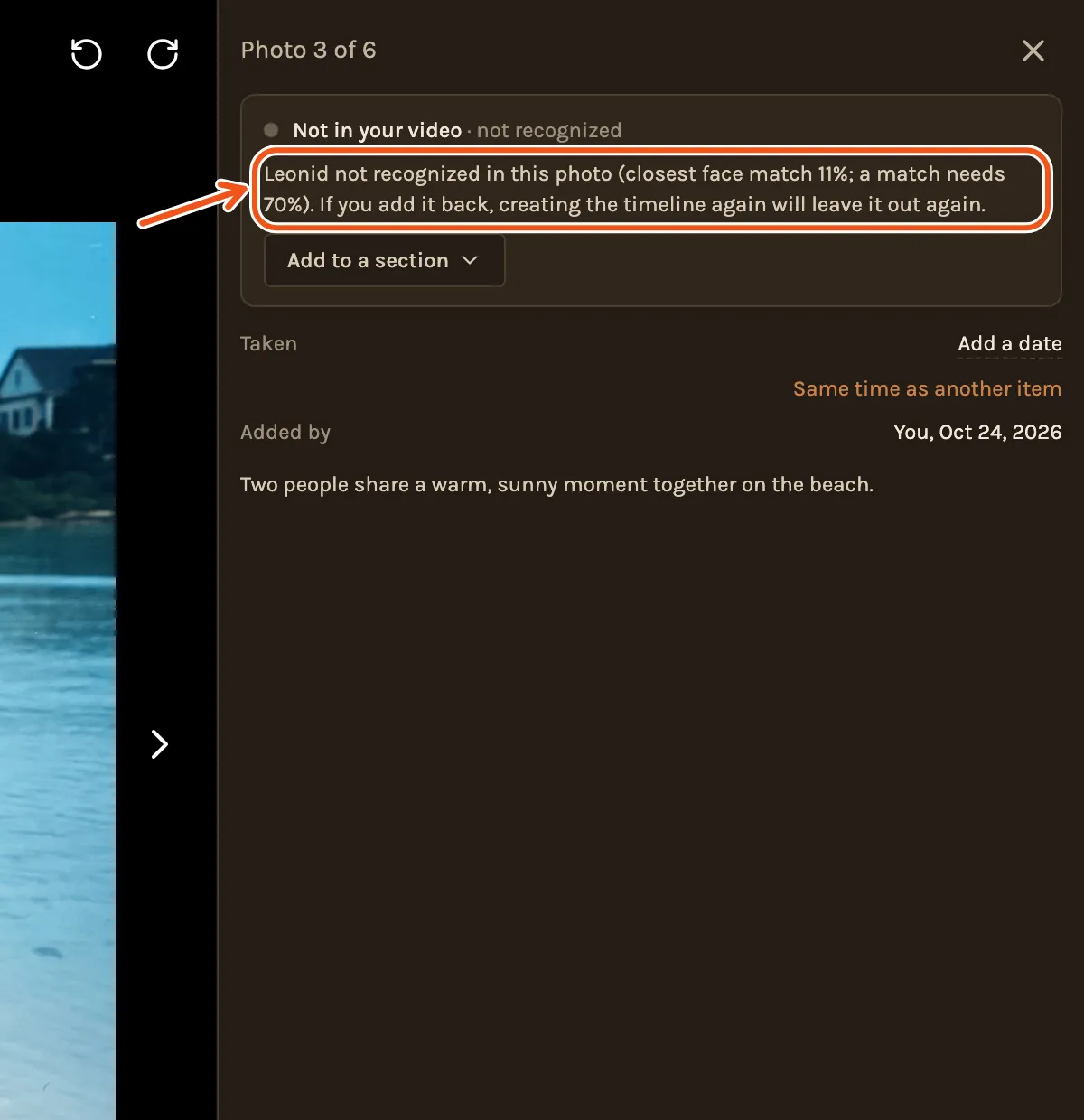
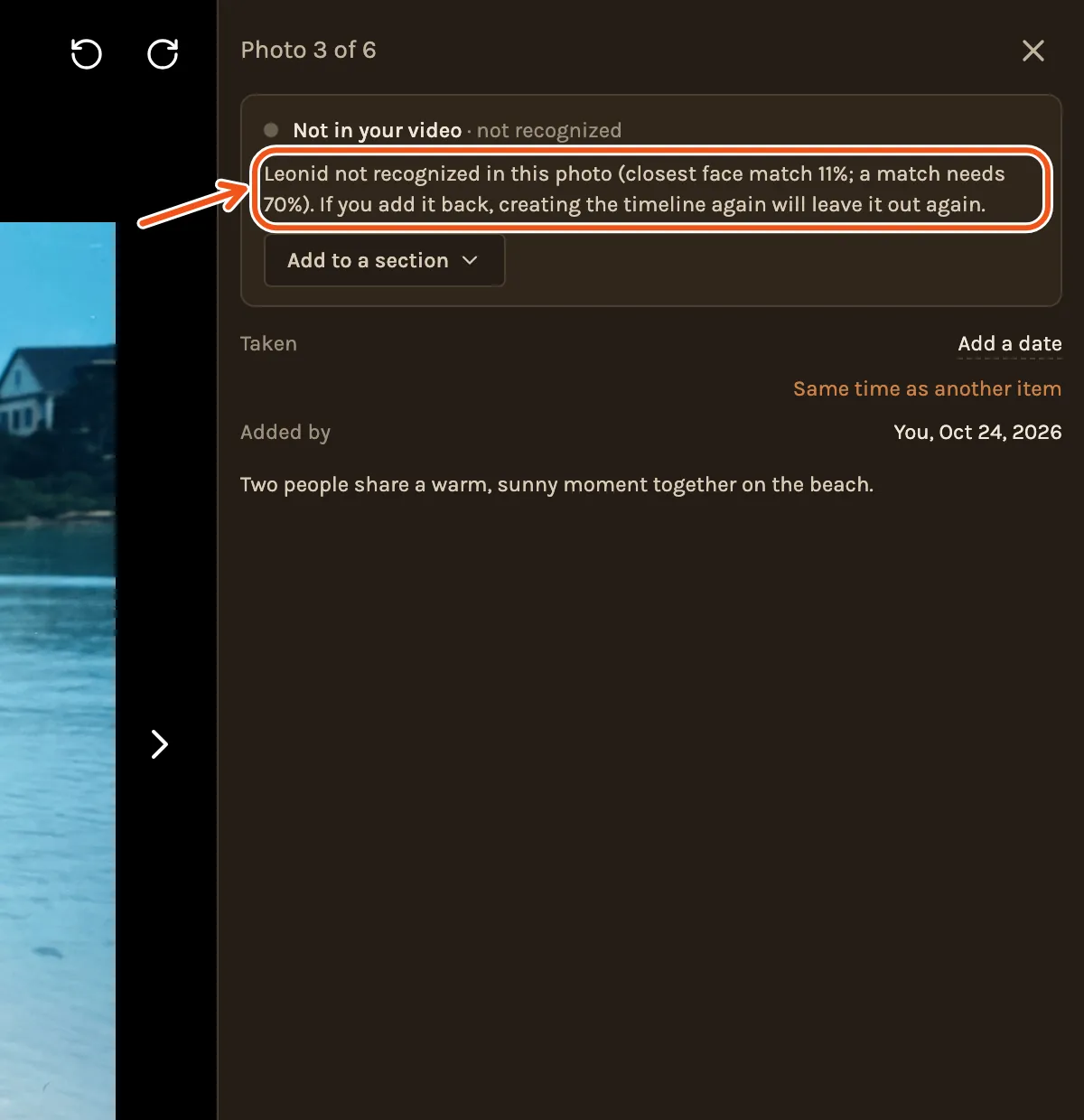
If one belongs in the film, drag it into the timeline, or use the button under the reason: Add to video in a chapter, Add to a section under Other.
Bringing these photos back needs a computer. On a phone, if many photos of the person were missed, add reference photos from the ages it missed and recreate the timeline.
The face check is only used for this project. The face measurements are deleted when you remove the person, delete the project or delete your account.
Old prints and scans
A scan of an old print usually carries the day it was scanned. In a tribute, Kindred Scenes dates these from what is in the picture, so a 1970s wedding print lands in the 1970s, not the year you scanned it.
Show their age
The film can show a small label in the corner as the years go by: their Age, the Year, or Both. This suits a film about a child growing up, like a high school graduation film or a child's first ten years. "Age 3", then "Age 7", then "Age 12" tells that story.
For a grown-up's tribute, most people leave it off.
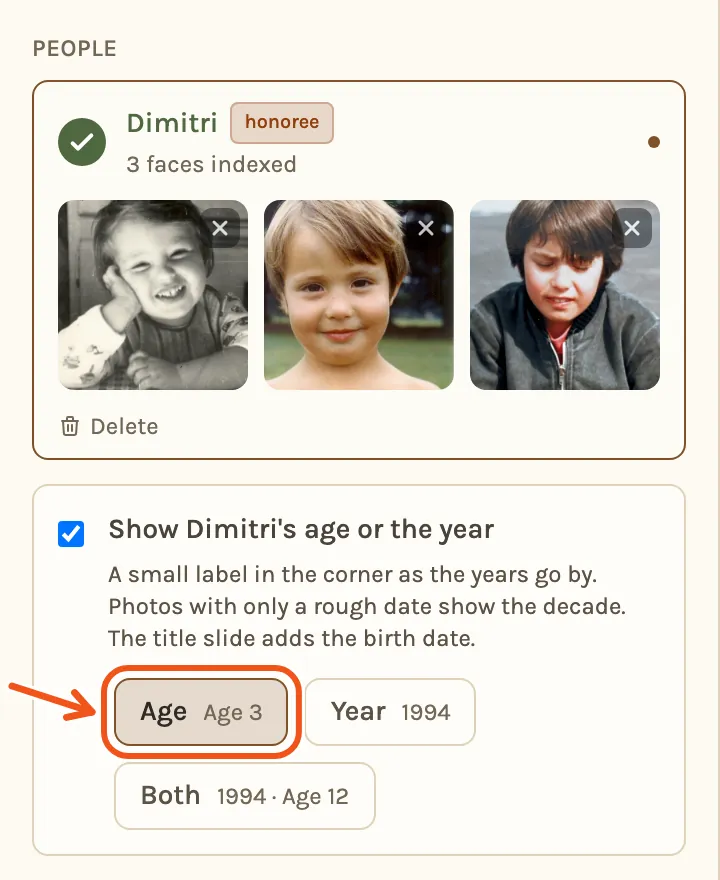
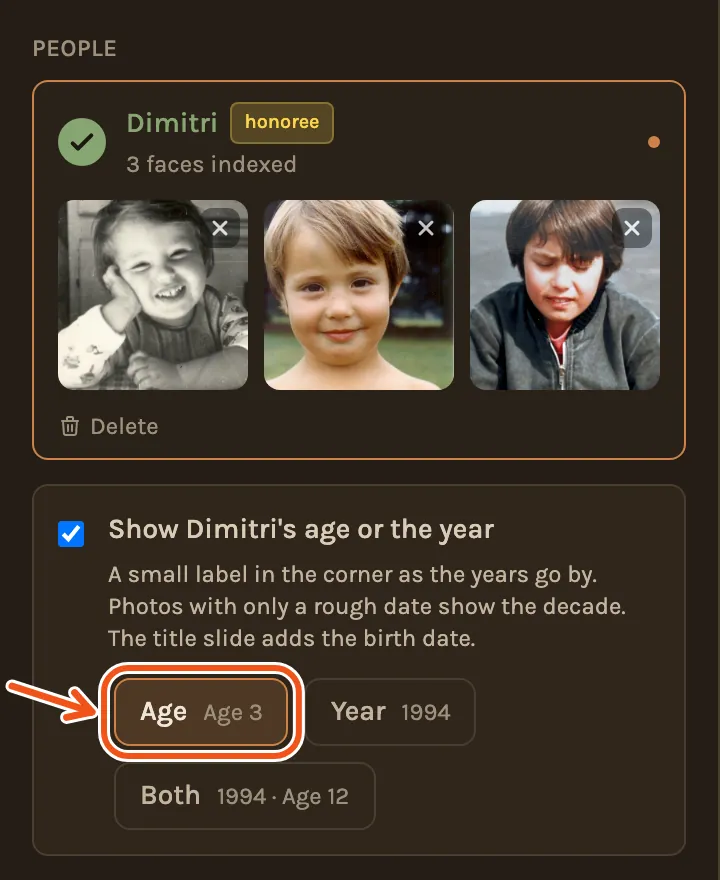
To turn it on, add their full Birthday, then tick Show (their name)'s age or the year under their card in the setup, or in the Create Video window. It needs one Honoree. Age and Both need the full birthday.
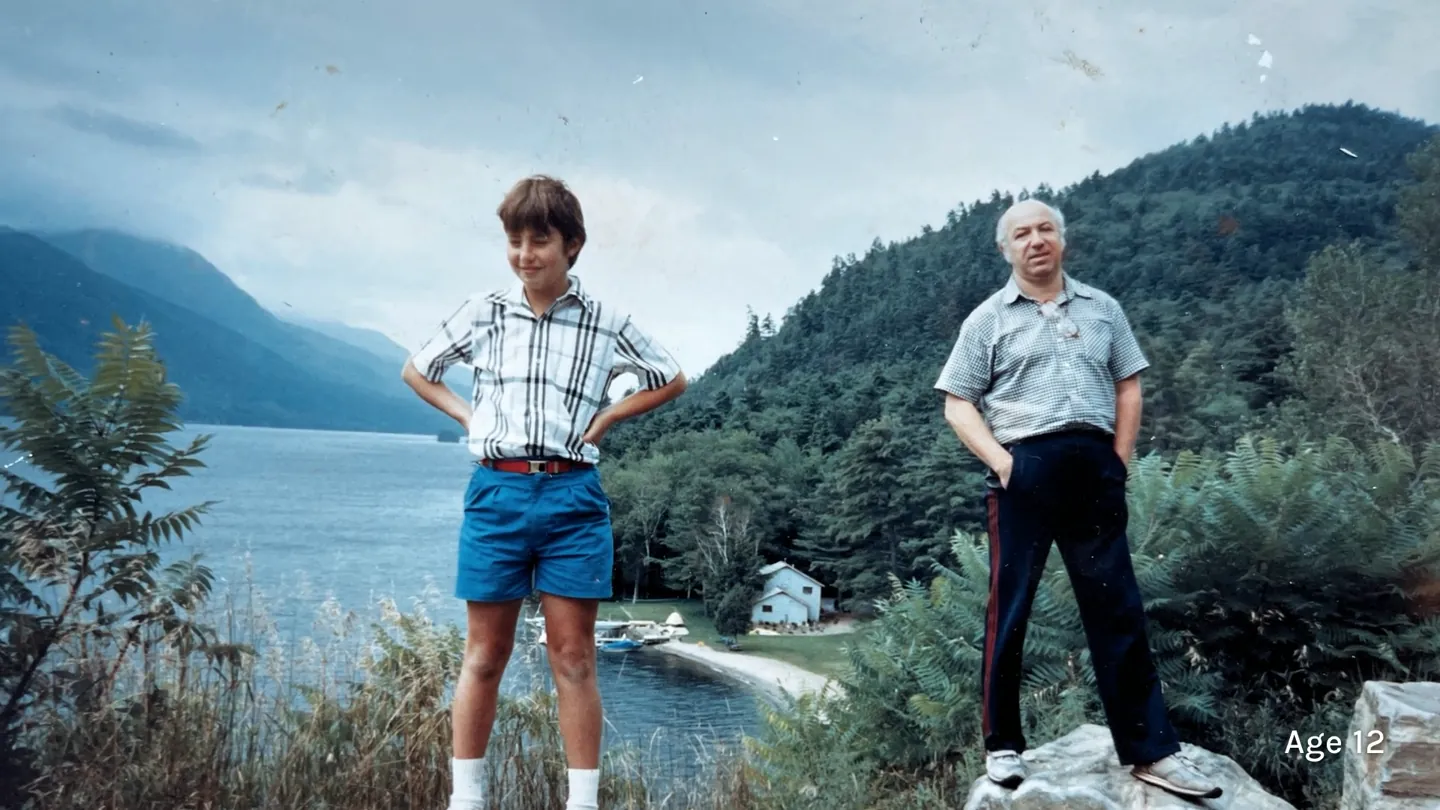
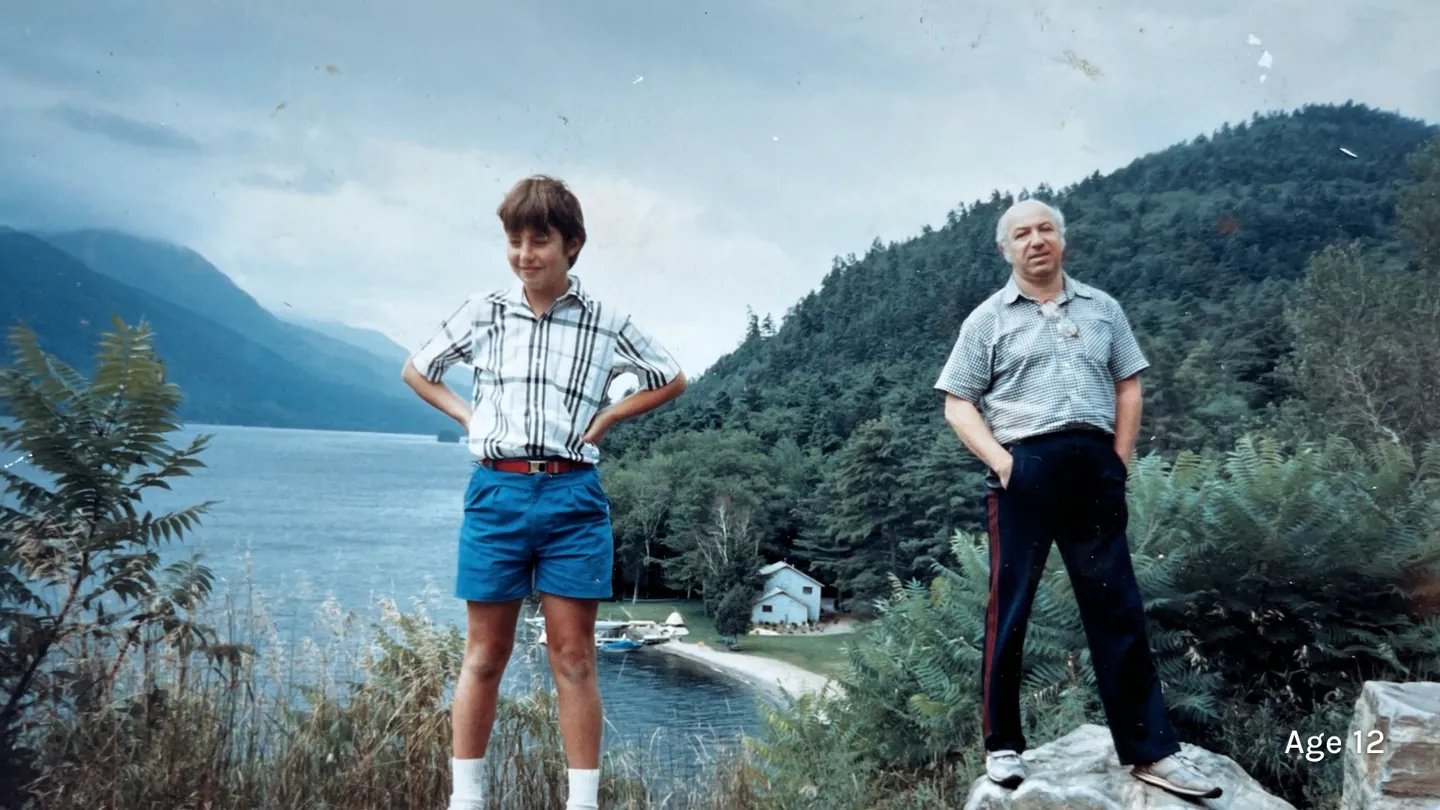
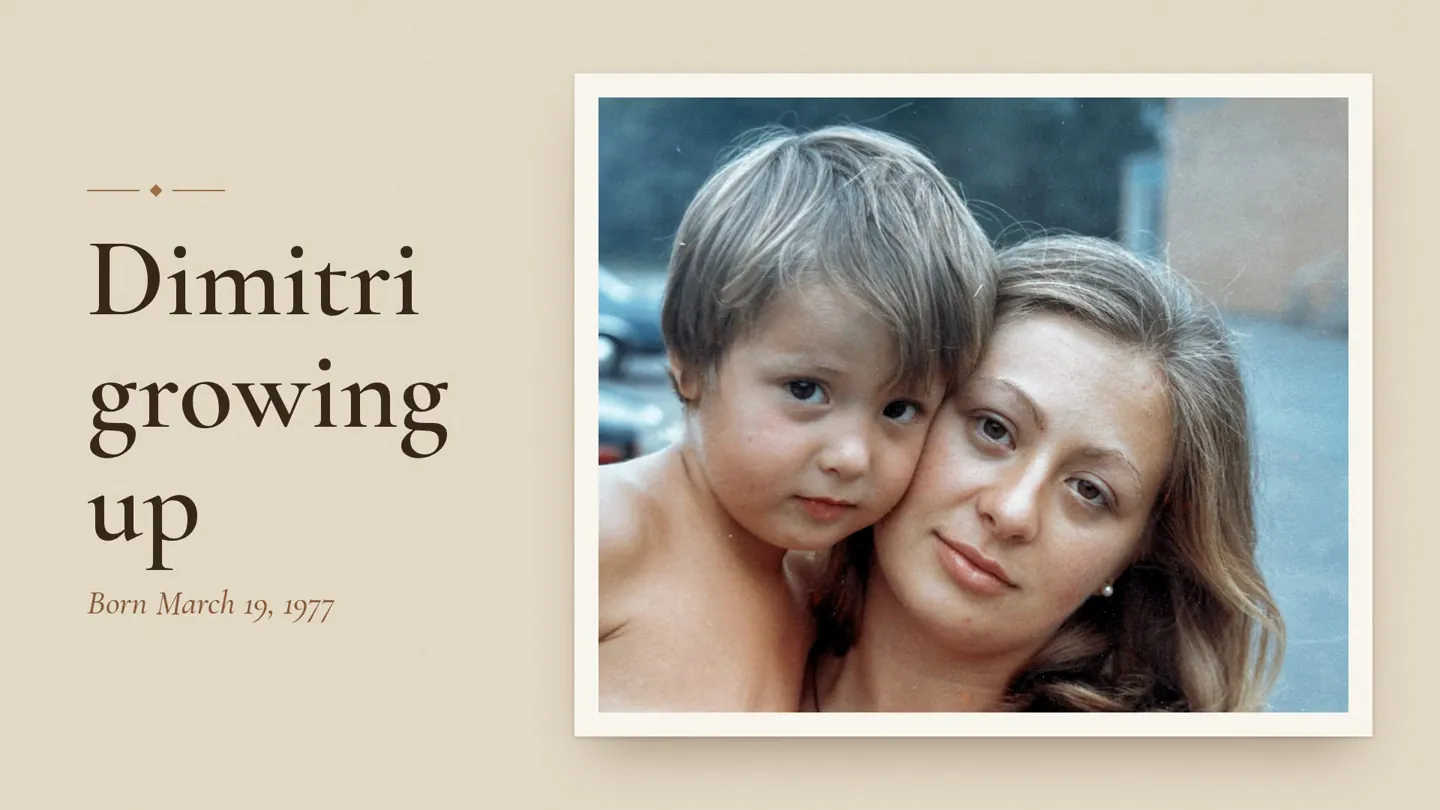
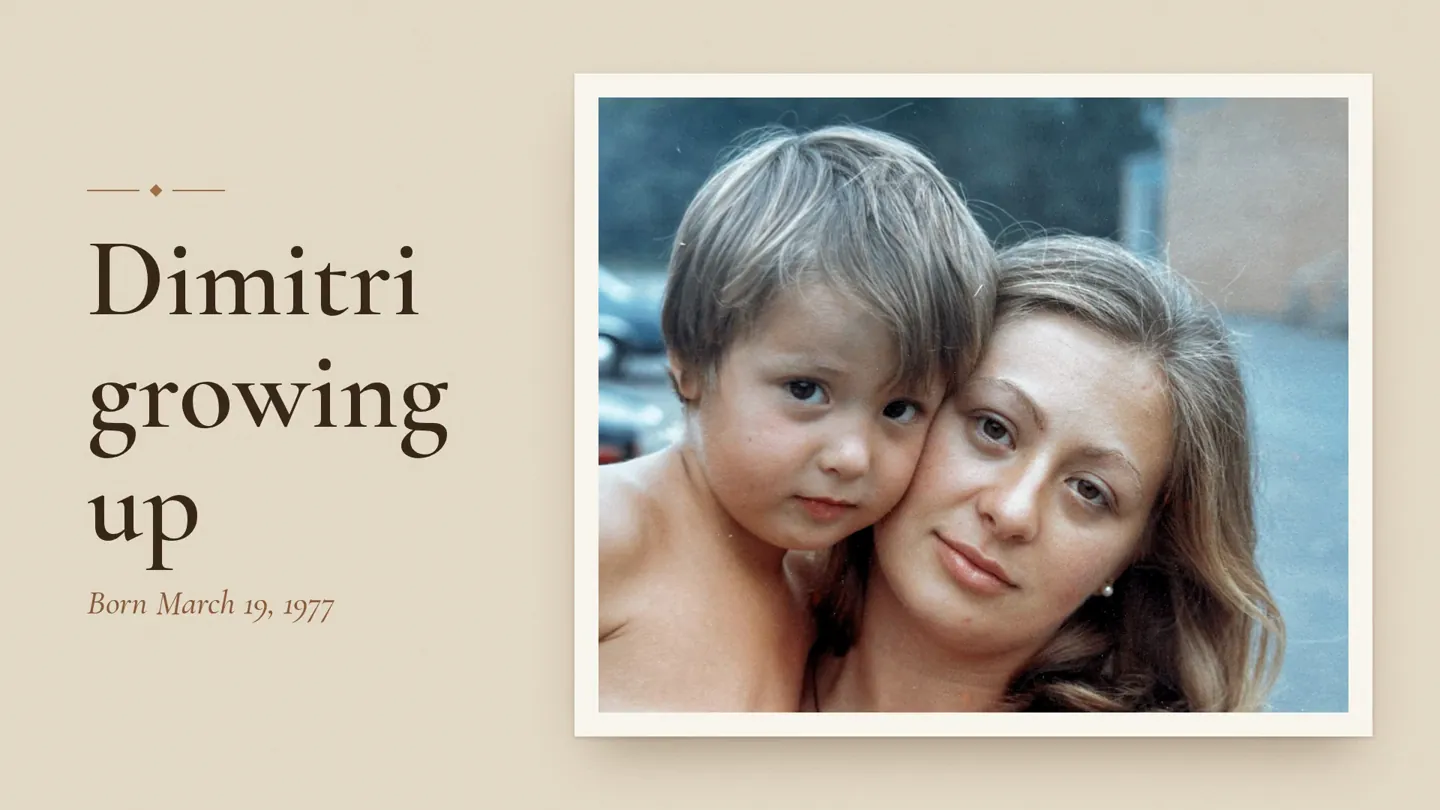
Photos with only a rough date show the decade. The title slide adds the birth date.
Voice memories
Family can record a short memory about a photo, in their own voice, and it plays in the film. See How to collect voice memories for a tribute.